


There’s a great feeling that comes with hitting ‘publish’ on a new article. The next, most important step is getting that content to climb the search rankings so the right people can find it.
After publishing thousands of articles, we’ve learned that ranking new content fast isn’t a mystery. It’s about following a reliable, step-by-step system every single time.
In this guide, we’re sharing the exact process we use on WPBeginner for every new post. These are the simple techniques that will help you build momentum and start ranking faster without the guesswork.
Why Is It Important to Rank New Content?
Getting your new content to rank quickly isn’t just about immediate traffic. It’s about building momentum for your entire WordPress site. We’ve seen firsthand how the first few weeks after publishing can make or break a post’s long-term success.
Every day your content sits unranked is a day of missed traffic, leads, and potential revenue.
We’ve found that posts that rank well within the first month tend to perform better long-term. When you rank new content faster, you can establish authority in your niche before competitors catch up. This is especially important in fast-moving industries where being first matters.
Each piece of content that ranks well helps your entire site build credibility with search engines. We’ve seen this snowball effect help new posts rank progressively faster over time.
Many WordPress sites struggle with getting their new content to rank quickly because they’re missing key WordPress SEO best practices in their publishing process.
The good news is that with the right system in place, you can significantly speed up how quickly search engines discover, index, and rank your content.
In this guide, we’ll show you our process for ranking new WordPress content faster. These are the exact techniques we use to get our content ranking on page 1 within weeks instead of months.
- 1. Install All in One SEO for WordPress
- Add Your Website to Google Search Console
- Add XML Sitemaps to Google Search Console
- Optimize Your New Content for Ranking
- Add Internal Links
- Share Your Content
- Bonus: Track Website Traffic
- Video Tutorial
- Frequently Asked Questions About Ranking New WordPress Content
- Additional Resources to Boost Your SEO
1. Install All in One SEO for WordPress
The first thing you need to do is install and activate All in One SEO for WordPress. For more details, see our step-by-step guide on how to install a WordPress plugin.
All in One SEO (AIOSEO) is the best WordPress SEO plugin on the market. It allows you to easily optimize WordPress SEO without any special skills.
Note: There is a free version of All in One SEO available as well. However, we recommend using the premium version to unlock its full potential.
Upon activation, the plugin will launch a setup wizard that will walk you through the process to get started. Simply follow the on-screen instructions and you’ll be all set in a few clicks.
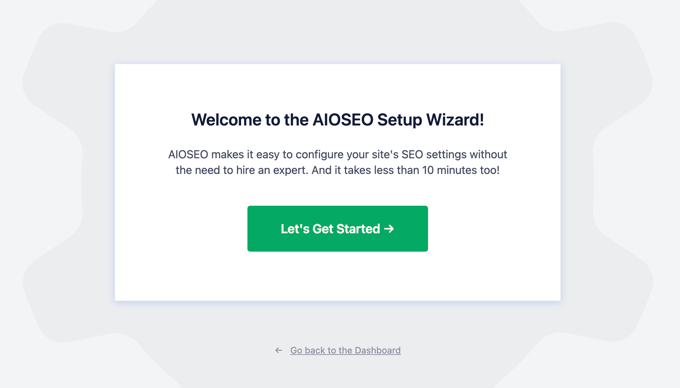
Setting up AIOSEO will automatically take care of many important search engine optimization tasks. For instance, if an older blog post is missing an SEO title or description, then the plugin can automatically generate those for you.
However, there’s a lot more that you can do with the plugin that will further boost search rankings for your new content.
For step-by-step instructions and more tips, see our complete guide on how to set up All in One SEO.
2. Add Your Website to Google Search Console
Google Search Console is a free tool provided by Google to help website owners monitor their website performance in search results.
It allows you to track search rankings and get notified when Google is unable to crawl or index any page on your website. You’ll also be able to notify Google of any new content you publish automatically by using a sitemap.
First, you need to visit the Google Search Console website and click the ‘Start Now’ button.
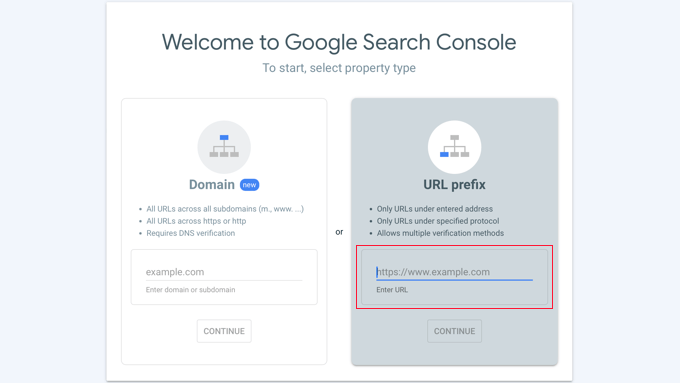
On the next screen, you will be asked to select a property type. We will be using the ‘URL prefix’ option on the right, as it’s the easiest to verify using our SEO plugin.
You need to provide your website URL and click on the ‘Continue’ button.
Now, you’ll be asked to verify ownership of your website.
There are several ways to do that, but we will show the HTML tag method because it is the easiest one.
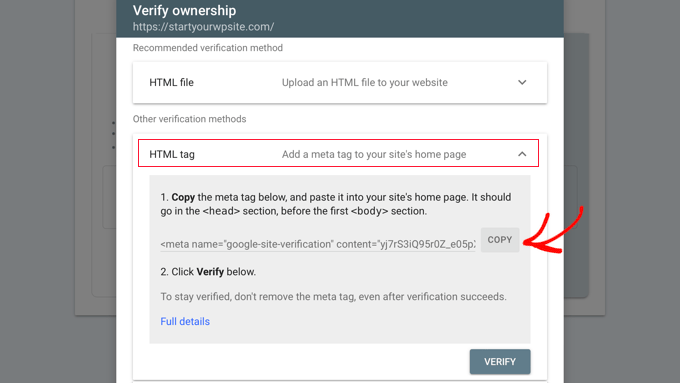
Click on the HTML tag to expand it and then copy the code inside it.
All in One SEO for WordPress comes with a built-in tool to easily add this code to your website.
Now, keep the Google Search Console tab open in your browser and open your WordPress admin dashboard in a new tab. From there, navigate to the All in One SEO » General Settings page.
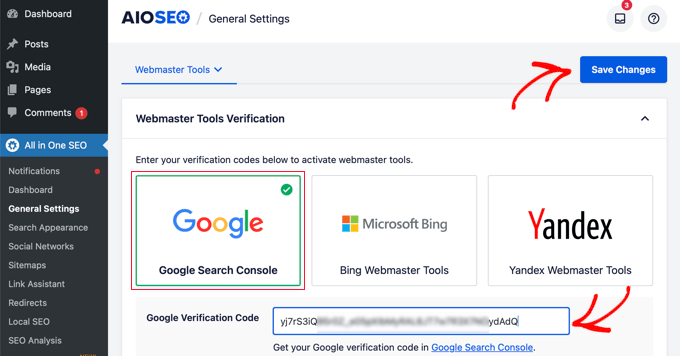
From here, you need to switch to the Webmaster Tools page and click on the Google Search Console box to add your search console verification code.
Don’t forget to click the ‘Save Changes’ button to store your settings.
You can now switch back to the Google Search Console tab and click the ‘Verify’ button.
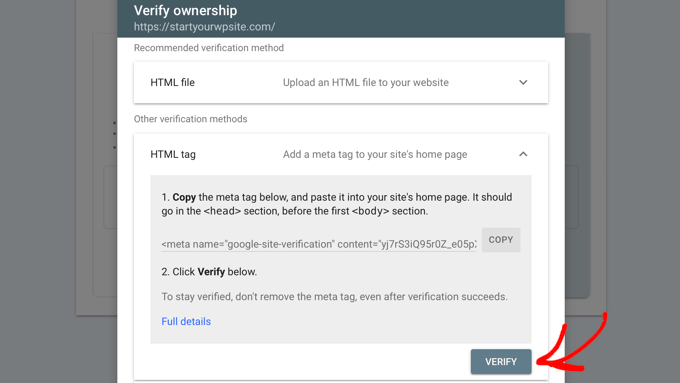
That’s all! You’ve successfully added your website to Google Search Console.
Bonus: See our guide with tips for using Google Search Console to grow your traffic.
3. Add XML Sitemaps to Google Search Console
An XML sitemap is a file that lists all your website content in an XML format, so search engines like Google can easily discover and index your content.
WordPress comes with its own basic XML sitemaps, which you can find by adding wp-sitemaps.xml at the end of your website address (for example, https://example.com/wp-sitemap.xml).
However, the AIOSEO plugin creates more advanced and flexible sitemaps for you. Unlike the basic WordPress sitemap, AIOSEO’s version gives you full control over what to include and can even create specialized sitemaps for video and news content, helping you rank better in those search results.
AIOSEO sitemaps are also completely customizable, so you can decide exactly which content to include. You can even use your sitemap to help hide specific pages from Google.
You can view and manage your sitemaps by visiting All in One » Sitemaps.
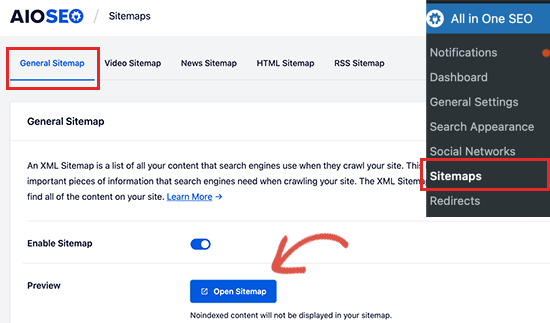
To view your sitemap, simply click on the ‘Open Sitemap’ button, or you can just add sitemap.xml at the end of your website domain (for example, https://example.com/sitemap.xml).
Next, log in to your Google Search Console account dashboard and then click on the Sitemaps menu from the left column. After that, you need to add ‘sitemap.xml’ in the ‘Add a New Sitemap’ field.
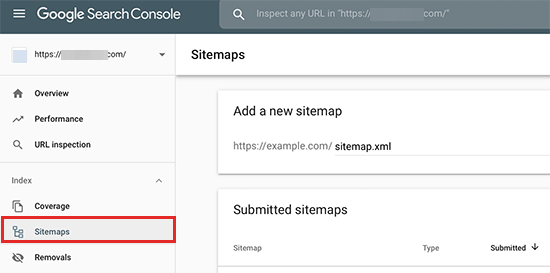
Click on the ‘Submit’ button to continue.
Add RSS Sitemap to Google Search Console
All in One SEO also comes with an RSS Sitemap feature which contains your most recent blog posts.
Search engines recommend adding an RSS sitemap to your site, too.
Think of the RSS sitemap as an express lane for your newest content. Because it only includes your most recent posts, Google can check it very quickly and frequently to discover and index your new articles almost as soon as you hit publish.
First, you need to visit All in One SEO » Sitemaps page and switch to the RSS Sitemap tab.
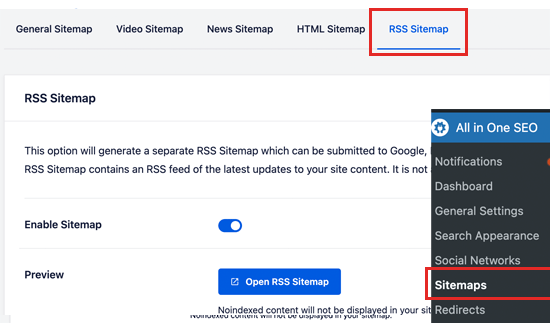
From here you need to make sure that the RSS sitemap option is enabled. You can click on the ‘Open Sitemap’ button to view it.
By default, the RSS sitemap URL has sitemap.rss added to your domain name (e.g. https://example.com/sitemap.rss).
Now you can switch back to Google Search Console dashboard and click on the Sitemaps menu. From here, add ‘sitemap.rss’ in the Add a New Sitemap option, and then click the ‘Submit’ button.
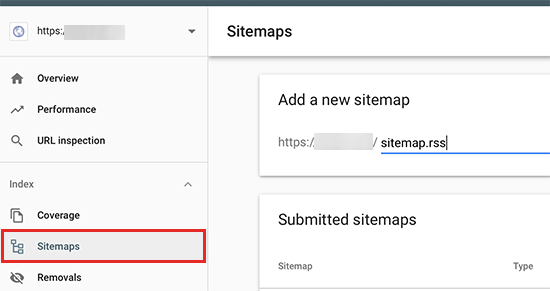
That’s all. Google will now start using your sitemaps to find new content on your website more quickly.
4. Optimize Your New Content for Ranking
The first three tips mentioned above ensure that search engines can quickly find your content. Now let’s talk about how to prepare your new content for ranking faster in higher positions.
All in One SEO allows you to easily add a meta title and description to any post or page under the AIOSEO settings box below your content.
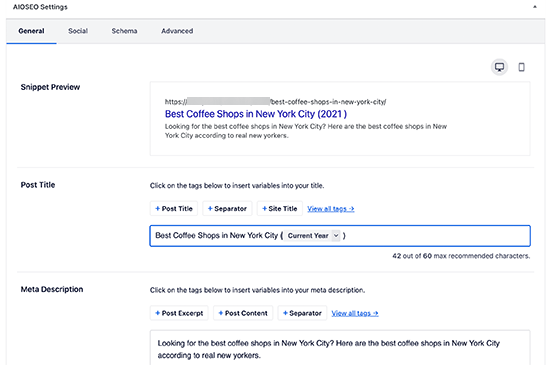
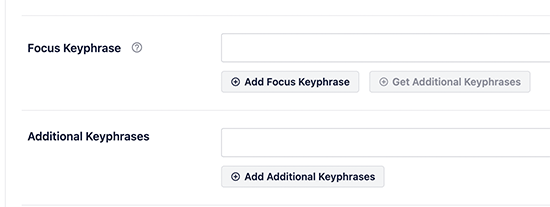
Below that, you can add the focus keyphrase that you want to rank for. This allows All in One SEO to analyze your content for those focus keywords, and give you suggestions to improve your optimization.
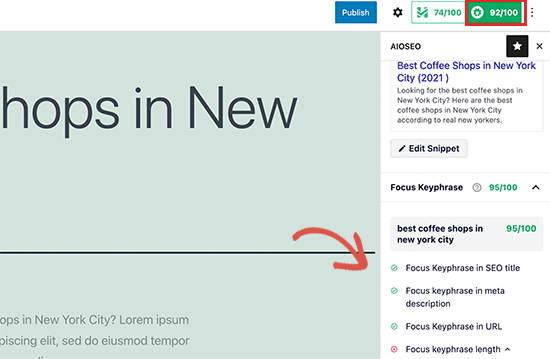
You can view your overall SEO score in the top right corner of the screen. Clicking on it reveals actionable tips to improve your content.
Remember, the score is a helpful guide, not a strict rule. Aim for a good score in the green, but always prioritize writing clear, helpful content for your human readers first.
For more details, see our checklist on improving your blog posts for SEO.
5. Add Internal Links
An internal link is a link to another page on your own website. Internal linking to your own content has a huge impact on SEO.
To improve your SEO, it’s smart to make it a habit to add links to your most important content in any new content that you write. This can help to boost rankings for your older content.
However, it’s also important to add internal links that point to your new content when you publish it.
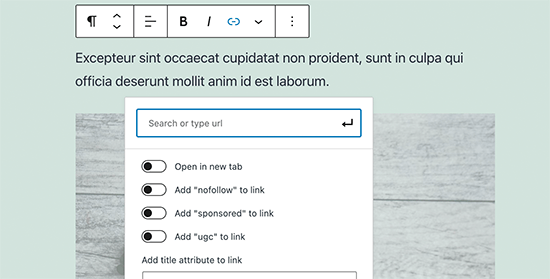
You can do this by editing your older articles to add links to your newer content whenever you publish. Many successful bloggers dedicate time to adding internal links to new articles on a weekly or monthly basis.
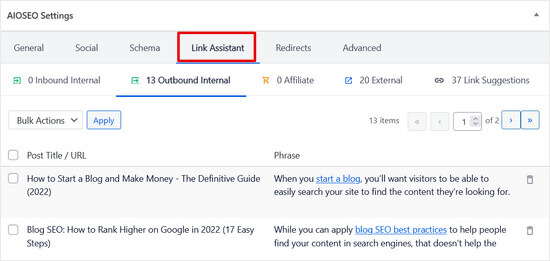
To make internal linking even easier, you can use All in One SEO. The Link Assistant feature will automatically suggest new internal linking opportunities that you can add to your content in 1-click.
Related: See our list of the best internal linking plugins for WordPress.
6. Share Your Content
Another quick way to promote your new blog posts is by sharing them with your followers on social media platforms like Facebook, Twitter, Pinterest, and more.
While social media shares aren’t a direct ranking factor, they drive immediate traffic to your new post. This initial activity signals to Google that your content is fresh and generating interest, which can encourage it to crawl and index your page faster.
To get the most engagement on social media, you want to make sure that your content looks good on every platform.
That’s where All in One SEO comes in. AIOSEO makes it possible to control how your content looks when it’s shared on social media websites like Facebook and Twitter.
You can add Open Graph meta data (which is special code that tells social networks what image and text to display) to include proper thumbnail images for each article on your website.
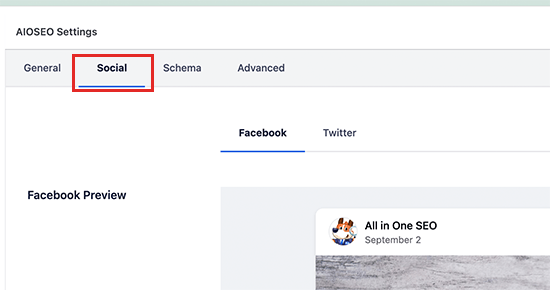
For more details, see our complete social media cheat sheet for WordPress with step-by-step instructions on promoting your content on social media.
Bonus: Track Website Traffic
Finally, you need a way to make sure your new content is getting indexed and ranked properly.
The easiest way to track this is by using MonsterInsights. It is the best Google Analytics plugin for WordPress and allows you to easily monitor your website traffic and rankings.
Note: There’s also a free version of MonsterInsights with limited features that you can use to get started.
First, you need to install and activate the MonsterInsights plugin. For more details, see our guide on how to install Google Analytics in WordPress.
Once you have set up MonsterInsights, you can view your website performance directly from your WordPress dashboard.
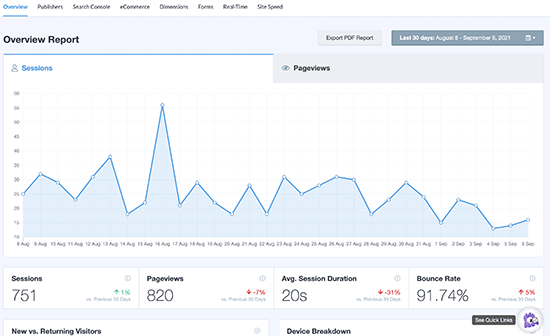
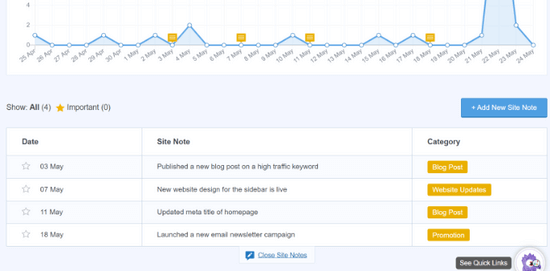
You can add site notes and annotations directly to your MonsterInsights reports when you publish a new blog post or page. This makes it easy to track how your new content impacts your website traffic.
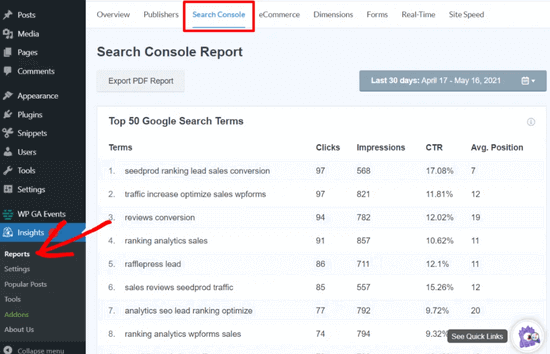
MonsterInsights also shows you your search engine rankings so you can monitor the performance of your content and make sure it’s indexed properly.
Video Tutorial
Frequently Asked Questions About Ranking New WordPress Content
We get a lot of questions about getting new content to show up in search results. Below are answers to some of the most common ones we hear from our readers.
1. How long does it take for new content to rank on Google?
The time it takes for new content to rank can be anywhere from a few days to several months. This depends on your website’s overall authority, the competitiveness of your keywords, and how well your article is optimized.
Following the steps in this guide, especially submitting sitemaps and using on-page SEO, helps Google find and understand your content much faster. This can greatly shorten the time it takes to start ranking.
2. How can I make Google index my new content faster?
The best way to speed up indexing is to directly notify Google about your new content. An SEO plugin like All in One SEO automatically generates XML and RSS sitemaps for your site.
When you submit these sitemaps to Google Search Console (as shown in Step 3), you are giving Google a direct map to your latest posts. This ensures its crawlers can find your new pages right away.
3. What is the most important factor for ranking new content?
While many things matter, the foundation is always high-quality content that completely answers a user’s question. After that, solid on-page SEO is critical for helping a new post get noticed.
This includes choosing a good focus keyphrase, writing a compelling SEO title and meta description, and adding relevant internal links. These elements help search engines understand your content’s topic and purpose.
4. Is internal linking really that important for new posts?
Yes, absolutely. When you link from your older, established articles to a new post, you pass along some of that page’s SEO strength. This tells Google that your new content is important and valuable because your other trusted pages are recommending it.
This sends a signal to Google that your new content is valuable and connected to other relevant information on your site. It also helps both search engines and human visitors discover your new articles more easily.
Additional Resources to Boost Your SEO
Now that you know the steps to rank new content faster, you can explore these other guides to take your WordPress SEO even further.
- How to Automate WordPress SEO – This guide shows you how to set up systems that save time and improve your search rankings automatically.
- Best SEO Rank Tracker Tools – Discover the top tools for monitoring your keyword positions and tracking your SEO progress over time.
If you liked this article, then please subscribe to our YouTube Channel for WordPress video tutorials. You can also find us on Twitter and Facebook.


Olaf
Google Search Console is essentially the first thing any site administrator should set up for their domain. Connecting it isn’t complicated (via DNS or FTP), but the power of this tool in the context of SEO is incredible. I’ve seen firsthand how much search performance improved on an already established site when it didn’t have Google Search Console and then after we connected it. The change within just a few weeks is significant. Plus, it’s one of the few SEO tools that’s completely free and still so effective.
Dennis Muthomi
What about adding Schema mark up data to that new content? Does it also help?
WPBeginner Support
Part of 4 would include the schema markup being added to the post and it can help
Admin
Jiří Vaněk
Yes, schema markup is incredibly helpful. I only started using it when I upgraded to the PRO version of AIO SEO, and by that time, I already had about 700 articles on my website. So, I had a good sense of how quickly my articles were getting indexed. When I switched from the free version of AIO SEO to the PRO version and began adding schema markup, the speed of indexation improved quite dramatically. Based on my experience, schema markup is fantastic for better indexing and for helping search engines better understand your content. I always use it now.
Jiří Vaněk
I’ve always done everything exactly according to the instructions, but lately I’ve started using the AIO SEO plugin instead of Yoast SEO. The results are not yet completely measurable, but what I can see very well is that thanks to markup schemes, Google has started to sort the content of articles much better and I have already reached the extended results many times and that really makes a big difference for me. I can therefore recommend markup schemes as a great element for better SEO results.
Jack Logan
Be honest and tell me do these plugins really help in ranking?
Should we focus on their scores??
Isaac
This All in One SEO plugin works like magic. I saw a sharp increase in my website traffic immediately I switched to it