


Have you ever had people submit a form that was never meant to be public? Maybe it was a private client intake form, a beta signup for a plugin you’re building, or a members-only form that somehow attracted random submissions.
When that happens, the issue isn’t just spam. It’s losing control over who can access your forms in the first place.
Password protection gives that control back. It lets you decide exactly who can view and submit a form, helping you keep sensitive information private and your entries relevant.
After testing different approaches, we found that WPForms and the WordPress block editor offer the simplest ways to password-protect forms without adding complexity.
In this guide, we’ll show you how to password-protect any WordPress form step by step, with no technical setup required. 🔐
Why Password Protect WordPress Forms?
You can password-protect WordPress forms to make sure only the right people can access and submit them. This is especially useful when your forms are meant for a specific group, not the general public.
For example:
- Client-only support: You manage WordPress websites for clients and offer support through a form on your site. Only your clients should be able to submit support requests – not random visitors.
- Private bookings: You offer 1-on-1 Zoom or Skype sessions that clients can book through your website. You don’t want non-clients filling up your schedule.
- Member submissions: For example, you run an online photography website where members submit photos each month to be featured. Only members should be able to upload entries.
In all of these cases, password protection helps you prevent non-clients or non-members from submitting your forms. Without it, you end up wasting time reviewing and filtering out entries that were never meant to be there.
We are going to cover 2 ways to password-protect your WordPress forms. You can click the links below to jump to any section:
Let’s get started.
Method 1: Password Protect a WordPress Form Using WPForms
WPForms is our #1-rated contact form plugin for WordPress.
This plugin allows you to create any kind of WordPress form by using a simple drag-and-drop form builder and even AI tools. Plus, it comes with a Form Locker addon that lets you set up password protection for your WordPress forms when needed.
At WPBeginner, we use WPForms to display our contact form and run our annual reader surveys. Find out everything about it in our detailed WPForms review.
To get started, you can create an account on the WPForms website. Just click on the ‘Get WPForms Now’ button, pick a plan, and complete the signup process.

📝 Note: For this tutorial, we will use the WPForms Pro version because it includes the Form Locker addon, more form templates, and more. There is also a WPForms Lite version available for free, but it doesn’t include the Form Locker addon.
Upon registration, you’ll land on your WPForms account dashboard, where you can find your WPForms Pro zip file and license key.
Now, you can install and activate the WPForms plugin.
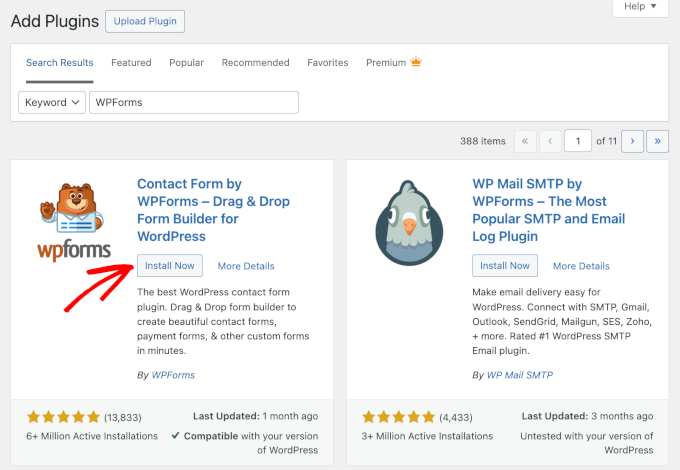
From your WordPress admin area, go to Plugins » Add New Plugin.

Then, you can search for “WPForms” using the search bar to quickly find it.
Click ‘Install Now’ and then ‘Activate’ when it appears to complete the process. For more details, see our step-by-step guide on how to install a WordPress plugin.
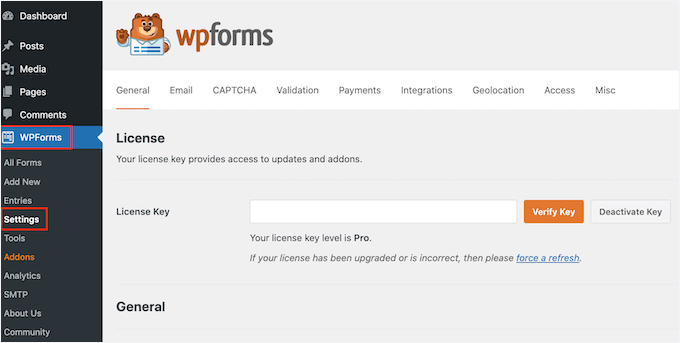
Upon activation, you can head to WPForms » Settings to activate your Pro license.
Enter your license key in the respective field and click ‘Verify Key.’
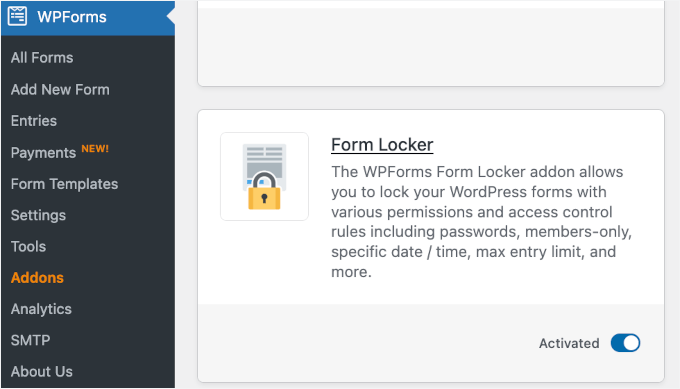
From here, let’s install the Form Locker addon for WPForms.
To do this, go to WPForms » Addons in your WordPress admin area.
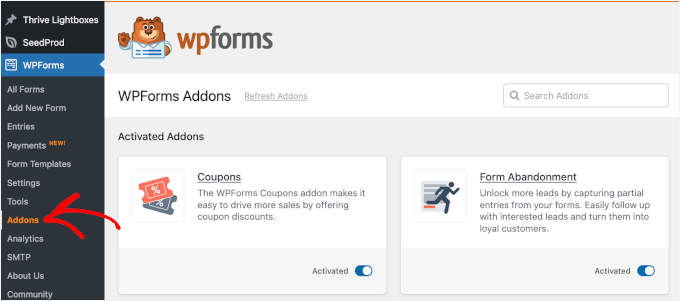
On the next screen, you can search for the ‘Form Locker’ addon.
Once found, click the ‘Install Addon’ button to install and activate it. The addon will automatically activate once the installation process is finished.
Next, you need to set up your form. WPForms lets you create your form using a blank canvas, an AI-powered form builder, and premade templates.
The blank canvas is great for a completely custom form. And if you want to use the AI form builder, all you have to do is enter a simple description and wait for the AI to generate the form for you.

For demonstration, though, we’re going to use a premade template. WPForms comes with 2,000+ templates, so you will likely find the perfect one for your needs.
To start, head over to WPForms » Add New.
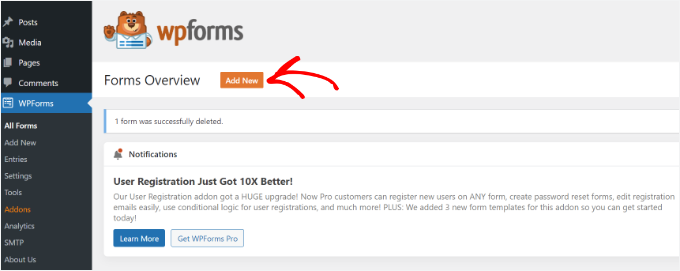
This will take you to the Setup page.
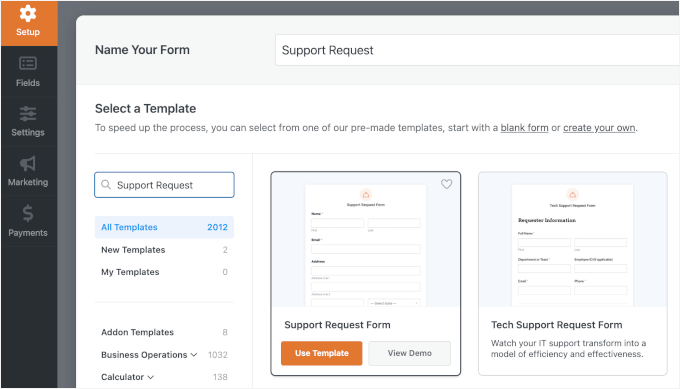
Here, you can first name your form. This is for your reference only, but we recommend using a clear name for easier organization.
Then, you can pick a template you want to use, hover over it, and click ‘Use Template.’ For this tutorial, we’re going to use the Support Request Form template.
For details, you can follow our step-by-step guide on how to create a contact form in WordPress.
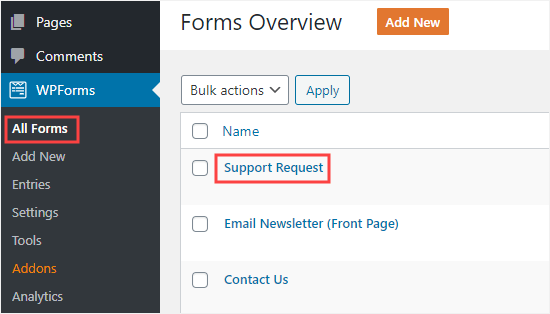
If you have a form ready, you can edit it by going to WPForms » All Forms. Then, simply hover over the form that you want to protect and click the ‘Edit’ link to open the form builder.
From here, go to Settings » Form Locker in the left panel.
Go ahead and enable the ‘Form Verification’ option to open the configuration options.
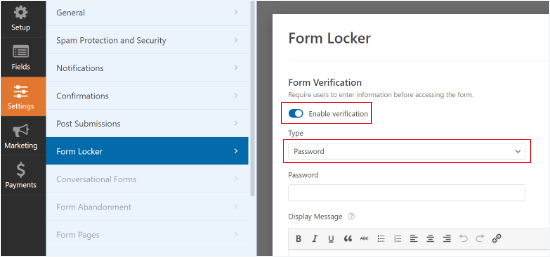
From here, you need to ensure that the Type dropdown menu is set to ‘Password.’ However, you can also use age and email as the verification type if you want.
Next, you will need to enter a password. You may also enter a display message if you want to.
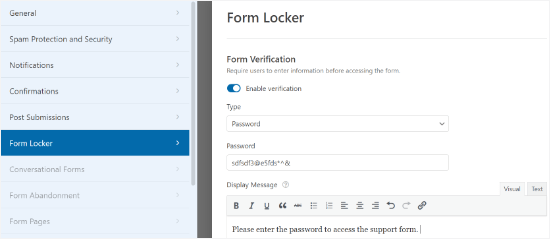
Don’t forget to click the ‘Save’ button at the top of the screen after setting your password.
You can also click the ‘Embed’ button to add your form to a new or existing page.

You can now visit your website to see the password-protected form in action.
Now, when someone visits a post or page with that form on, they will see the rest of the content but not the form itself.
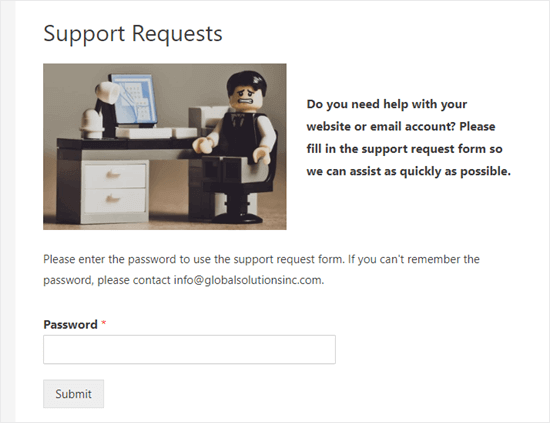
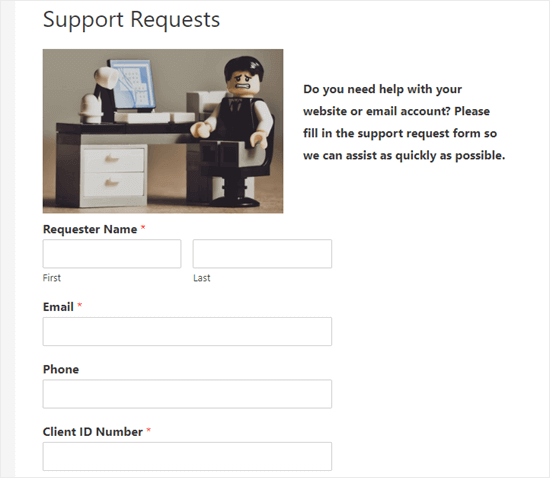
When the user enters the password, the password box and message will disappear.
They will see the page content and the form itself:
You could also use this method to password-protect forms in widget areas such as your sidebar.
Outside of password protection, Form Locker offers other advanced features, such as limiting the total number of entries, restricting form access to logged-in users only, and even enabling form submissions for only certain dates.
Method 2: Password Protect the Form’s WordPress Page
What if you want to hide the whole page, not just the form itself? This is very easy to do in WordPress.
However, keep in mind that this hides all content on the page, including any instructions you might want users to read before unlocking the form.
First, create a new page or edit an existing one. When you’re in the content editor, simply click on the ‘Public’ link from the settings panel on the right.
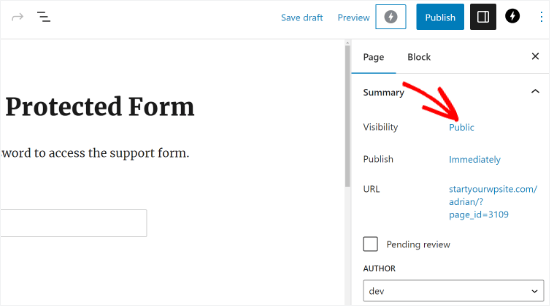
You will now see the ‘Post Visibility’ popup.
Next, click the ‘Password Protected’ option and type in the password you want to use.
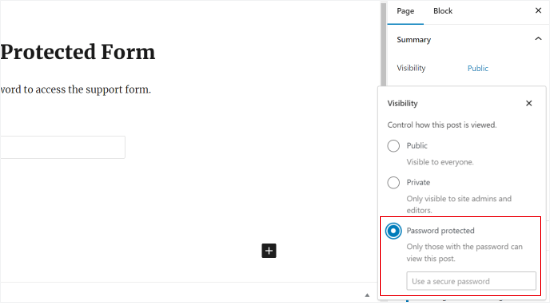
That’s it – you can publish or update your page or post.
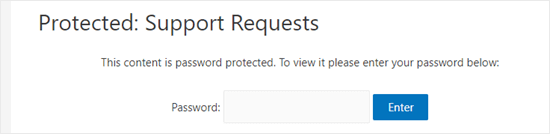
Now, when someone visits that page, they will need to enter a password to see any of the content:
For more information, you can see our guide on how to password-protect a page or post in WordPress.
FAQ: Password-Protect Your WordPress Forms
If you still have questions about protecting your forms, this quick FAQ should help.
Are WordPress forms secure?
Most WordPress contact form plugins are secure by default, especially when they’re kept up to date, and your site uses HTTPS.
How do I protect a WordPress form?
The easiest way is to either password-protect the page or post that contains the form, or use a form plugin that lets you restrict access to the form itself.
What is a password field?
A password field is a form input where users type a password, and the characters are hidden as they type. It’s commonly used for logins or user registration. Do note that adding a password field inside your form does not restrict access to the form; it simply collects data.
How do I create secure forms?
To create a secure WordPress form, it helps to use spam protection like CAPTCHA or built-in anti-spam tools, keep WordPress, your theme, and your plugins updated, use HTTPS on your site, and limit who can access sensitive forms.
Can I password-protect a web page?
Yes, WordPress lets you password-protect any page or post with a built-in setting. This is a simple way to restrict access to a form without installing extra plugins. Anyone who doesn’t have the password won’t be able to see the page or the form on it.
Video Tutorial: Password-Protect Your WordPress Forms
Want to see it in action? Then you’ll like our video tutorial on how to password-protect your WordPress forms. Just click Play! ▶️
Bonus Resources 🔗: More WordPress Security Guides
We hope this article helped you learn how to password-protect your WordPress forms.
Keeping your WordPress site secure is an ongoing process, and there’s always more you can do. Check out these additional guides to take your security to the next level:
- The Ultimate WordPress Security Guide
- How and Why You Should Limit Login Attempts in WordPress
- How to Add Two-Factor Authentication in WordPress
- How to Get a Free SSL Certificate for Your WordPress Website
- eCommerce Security Tips: How to Secure Your WordPress Store
- Signs Your WordPress Site Is Hacked (Expert Tips)
If you liked this article, then please subscribe to our YouTube Channel for WordPress video tutorials. You can also find us on Twitter and Facebook.



Jiří Vaněk
Is it possible to protect one form in WP Forms with multiple passwords? E.g. so that every user who wants to request support has his own password and it is not the same for all users?
WPBeginner Support
Not at the moment but to achieve something like that you could look to use a membership plugin to have a members only page where the form is located.
Admin
Jiří Vaněk
Thank you for your response. I’m a bit disappointed that it’s not as simple as I had hoped, but I’ll try to set it up using the MemberPress plugin. Thanks for pointing me in the right direction; hopefully, I’ll be able to handle it now.
David DLima
Hi,
I used the password protect successfully. Just have one problem. Using the second option, the size of the password field is very long. Is there a way to reduce the size of the field?
Regards
David
WPBeginner Support
The second method would be determined by your specific theme, we would first recommend reaching out to your theme’s support and they should be able to assist
Admin