


You log in to WordPress, only to find yourself staring at the login screen again and again.
If this is happening on your site, don’t panic. We’ve helped countless WordPress users troubleshoot this exact problem, and in most cases, the fix is much simpler than it seems. The culprit could be anything from a corrupted cookie to a plugin conflict or an SSL setting.
In this guide, we’ll walk you through how to fix the WordPress login redirect loop step by step.
What Causes the Login Page Refresh and Redirect Issue in WordPress?
When you log in, WordPress checks your username and password and then uses a browser cookie to keep you logged in. If WordPress can’t create or recognize that cookie properly, it may send you right back to the login screen.
Here are the most common reasons why this happens:
- Login Cookies: Your browser fails to save the login cookie properly.
- URL Settings: The WordPress Address and Site Address settings are incorrect.
- Corrupt .htaccess File: Your server configuration file might be damaged.
- Plugin Conflicts: A plugin might be interfering with the login process.
- SSL redirect loop in CDN: Your SSL setting in Cloudflare or your CDN could be the culprit.
Sometimes, this issue can also be linked to other errors. These include the error establishing database connection or the white screen of death.
With that in mind, let’s troubleshoot and fix the WordPress login page redirect and refresh issue. You can use these quick links to jump to a specific method:
- Method 1: Clear Cookies to Resolve Login Issues
- Method 2: Update WordPress URL Settings
- Method 3: Delete .htaccess File in WordPress
- Method 4: Deactivate Your Plugins
- Method 5: Switch to a Default Theme
- Method 6: Fix the Cloudflare or SSL Redirect Loop
- Video Tutorial
- Frequently Asked Questions About WordPress Login Errors
Before we proceed, we highly recommend you
Note: If you want to try the advanced steps in this WordPress tutorial, then please create a backup of your site first. See our guide on manually creating a WordPress database backup.
Method 1: Clear Cookies to Resolve Login Issues
WordPress uses cookies for login authentication, so the first step in troubleshooting WordPress login issues is to clear your browser cookies and cache. Clearing them forces your browser to drop corrupted or outdated session data that might be blocking a successful login.
In Google Chrome, simply click on the browser settings menu and then select More Tools » Clear Browsing Data.
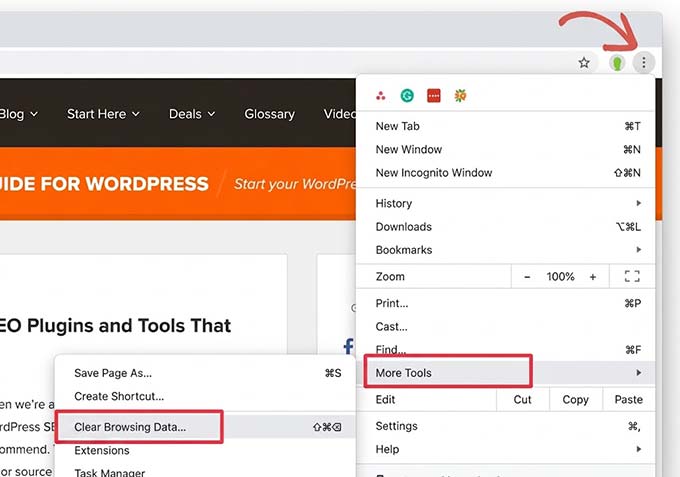
This will launch the Chrome Settings page with a ‘Clear Browsing Data’ popup displayed on the screen.
From here, you need to select the ‘Clear cookies and other site data’ and ‘Cached images and files’ options.
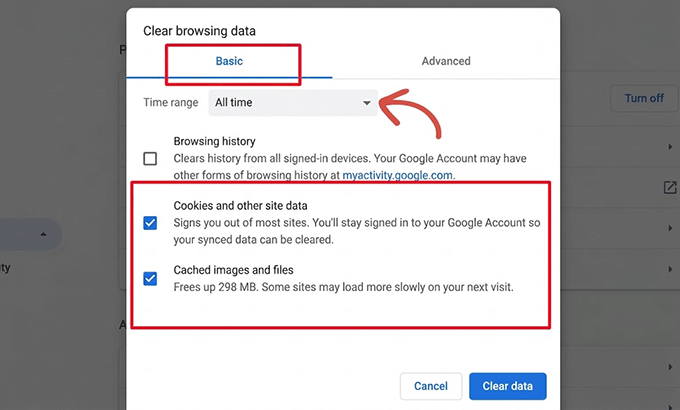
Next, click on the ‘Clear data’ button, and Google Chrome will clear the browser cache.
Also, make sure that your browser has cookies enabled. You can usually find this option in your browser’s ‘Privacy and Security’ settings.
After doing that, restart your browser and log in again to your site. This often fixes the issue for many users.
We have a complete guide with screenshots showing how to clear the cache and cookies in all major browsers.
Method 2: Update WordPress URL Settings
WordPress comes with settings for the URL of your website and the URL of your WordPress installation.
If you have access to your WordPress admin area, then you could see this option on the Settings » General page.
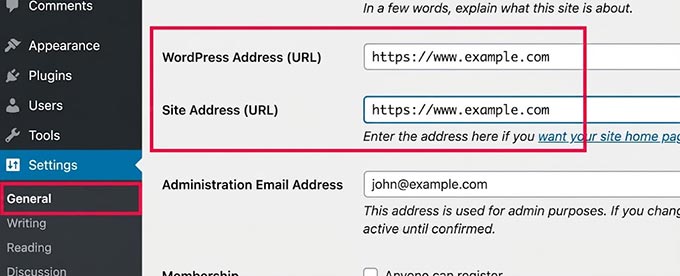
If these URLs are incorrect, then WordPress will redirect you back to the login page.
Since you are unable to access the WordPress admin area, you will need to edit the wp-config.php file to fix this issue.
The wp-config.php file is a special file in WordPress that contains your important WordPress settings. You can access it using an FTP client or via the File Manager app in your WordPress hosting account dashboard.
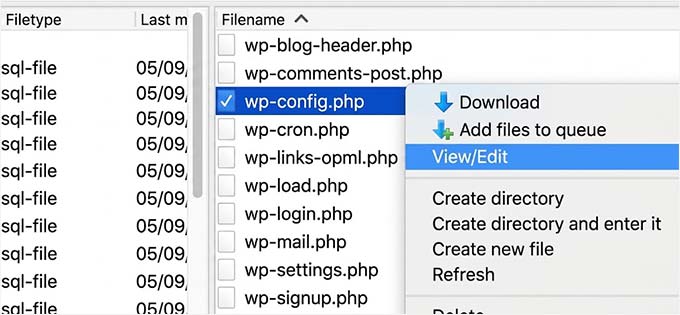
You will find the wp-config.php file in your site’s root folder. Simply edit the file and paste the following lines of code just before the line that says, ‘That’s all, stop editing! Happy publishing’.
define('WP_HOME','https://www.example.com');
define('WP_SITEURL','https://www.example.com');
Don’t forget to replace ‘example.com’ with your own domain name. After that, save your changes and upload the file back to your website.
Note that this method hardcodes the values. You won’t be able to change them in the WordPress Settings » General screen unless you remove this code later.
You can now visit your WordPress website and try to log in. Hopefully, this will have fixed the issue for you. If it didn’t, then continue reading for additional troubleshooting steps.
Method 3: Delete .htaccess File in WordPress
Sometimes, the .htaccess file can get corrupted, which can result in internal server errors or the login page refreshing error.
Simply access your website using an FTP client or via the File Manager app in your hosting provider’s dashboard.
Once connected, locate the .htaccess file in the root directory of your website and download it to your computer as a backup.
If you can’t find your .htaccess file, this guide on why your .htaccess file may be missing can help you.
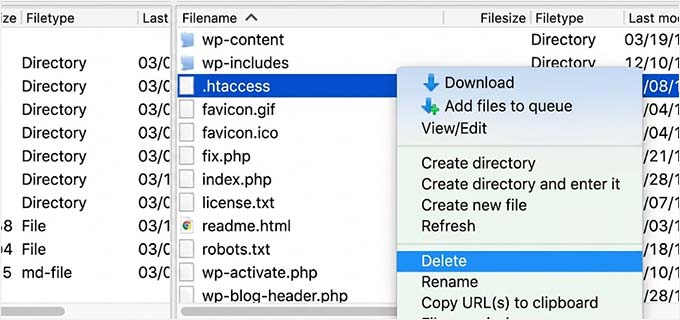
After that, go ahead and delete the .htaccess file from your website.
Next, open the wp-admin directory. If you see a .htaccess file there, go ahead and delete it as well.
This file is often created by security plugins to limit access. Deleting it can resolve conflicts, but you may need to check your security plugin settings later.
You can now try to log in to your WordPress website. If you succeed, then this means that your .htaccess file was stopping you from logging in to WordPress.
Once you are logged in, simply go to the Settings » Permalinks page in the WordPress admin panel and click on the ‘Save’ button without making any changes. This will generate a new .htaccess file for your website.
Method 4: Deactivate Your Plugins
Sometimes, WordPress plugins can cause this issue, especially if there is a conflict between two plugins.
To easily deactivate all your WordPress plugins, connect to your website using an FTP client or via the File Manager app in your web hosting account dashboard.
Once connected, go to the /wp-content/ directory. Inside it, you will see a folder named ‘plugins’. This is where WordPress installs all your plugins.
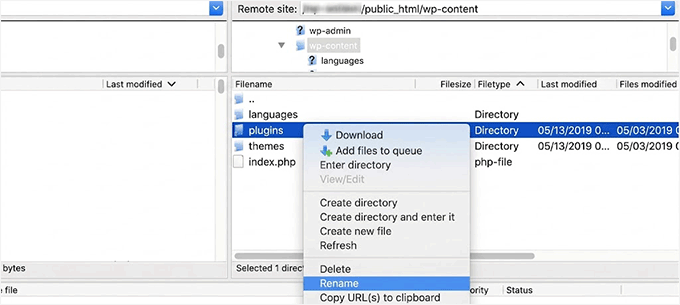
Simply rename the plugins folder to ‘plugins_backup’. This will deactivate all WordPress plugins installed on your website.
Once you have deactivated all plugins, try logging in to your WordPress site. If you succeed, then this means that one of your plugins was causing the issue.
Method 5: Switch to a Default Theme
WordPress themes can also cause conflicts after an update. To see if your theme is the problem, you will need to deactivate it.
Connect to your website using an FTP client. Go to the /wp-content/themes/ directory and rename your current theme directory to ‘themes_backup’.
Once you have done that, try logging in again. WordPress will automatically look for a default theme like Twenty Twenty-Five to use instead.
If you don’t have a default theme installed, you will need to upload one via FTP first. If you can log in now, it means your theme was causing the issue.
Method 6: Fix the Cloudflare or SSL Redirect Loop
If you use Cloudflare or any other CDN, then your SSL settings can prevent you from logging into your WordPress admin dashboard.
A common culprit is Cloudflare’s Flexible SSL mode. With Flexible SSL, visitors connect to Cloudflare over https, but Cloudflare connects to your WordPress server over plain http.
This can confuse WordPress because it sees the incoming connection as HTTP and tries to redirect it to HTTPS. Cloudflare then sends the request back to your server over HTTP, triggering the same redirect again. The result is an endless redirect loop that can lock you out of your WordPress admin area.
To fix the problem, you’ll need to change two settings.
First, log in to your Cloudflare dashboard and select your website. Then go to the SSL/TLS » Overview page and open the Custom SSL/TLS settings.
Change the encryption mode to ‘Full’ or ‘Full (strict)’.
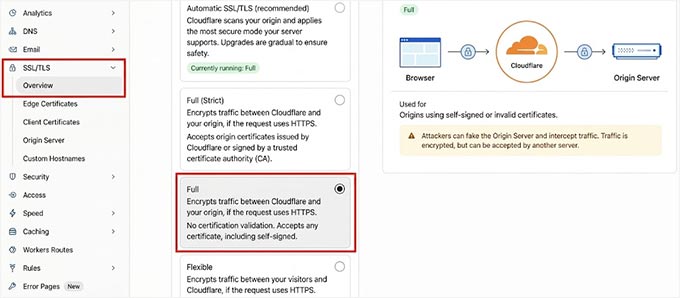
Next, you need to tell WordPress that the visitor is on a secure connection.
Connect to your site using an FTP client like FileZilla or the File Manager in your web hosting dashboard. Then open the wp-config.php file in your site’s root folder.
Add the following code at the top of the wp-config.php file.
if (isset($_SERVER['HTTP_X_FORWARDED_PROTO']) && $_SERVER['HTTP_X_FORWARDED_PROTO'] === 'https') {
$_SERVER['HTTPS'] = 'on';
}
This tells WordPress to recognize the connection as HTTPS when Cloudflare has already established a secure connection with the visitor. Save the file and upload it back to your website.
Now try logging in to your WordPress admin area again. If Cloudflare’s SSL settings were causing the redirect loop, you should be able to log in normally.
Video Tutorial
If you need visual instructions, then please watch the video below.
Frequently Asked Questions About WordPress Login Errors
Here are some questions that our readers have frequently asked when facing any login errors in WordPress:
Why does my WordPress site keep refreshing?
This happens when your browser cannot verify your login credentials correctly. It is usually caused by a cookie error or a conflict with your WordPress URL settings.
Why is the WordPress login not working?
The most common reasons are incorrect passwords, plugin conflicts, or a corrupted .htaccess file. We recommend clearing your browser cache and cookies as a first step.
Why does WordPress keep logging me out?
WordPress will log you out if it fails to authenticate your session cookie. This often occurs if your Site URL and Home URL do not match in your settings.
How to force login in WordPress?
To make your entire site private, you can use the ‘Force Login’ plugin. This redirects any non-logged-in visitor straight to the login page.
Why does my website keep logging me out?
If you are constantly logged out, your browser settings may be blocking the site’s cookies. Ensure that your browser allows data to be saved for your domain.
What causes failed login attempts?
Failed attempts are usually triggered by entering the wrong username or password. Security plugins may also block your IP address if there have been too many recent attempts.
Is it safe to clear the cache on WordPress?
Yes, it is perfectly safe to clear your browser cache. This only removes temporary files on your computer and forces the browser to load the latest version of your site.
How do I require login to view a WordPress site?
You can password-protect posts or use a membership plugin like MemberPress. This lets you control exactly who can see your content based on their login status.
To get started, see our tutorial on how to require login to view a page in WordPress.
Are you experiencing other common WordPress errors and need to find a way to fix them? Then check out our beginner’s guide to troubleshooting WordPress errors.
If you liked this article, then please subscribe to our YouTube Channel for WordPress video tutorials. You can also find us on Twitter and Facebook.




Goxi
You safe my life man! Just messed around the login wp admin site if it wasn’t for this tutorial I would never have solved the problem!
WPBeginner Support
Glad our guide was helpful
Admin
Tomer
Thank you very much for this tutorial!
I have tried these methods and managed to temporarily fix the problem.
The thing is, that after everything seems to be working again, the next day it happens again. Without me changing anything at all. Any tips on that?
WPBeginner Support
You would want to reach out to your hosting provider to ensure there is nothing on their end that could be causing this conflict
Admin
Sulivan
For those who ended up here an after all steps could’t solve this, check if you changed table prefix. I have changed mines and just figured out that there are some usermeta that stores the old prefix.
WPBeginner Support
Thanks for sharing what was the issue on your site
Admin
shahin
thank you bro , amazing content and very useful
WPBeginner Support
Glad you like our content
Admin
Julie
Tks a lot ! You save me !
WPBeginner Support
You’re welcome, glad our guide could help
Admin
Ann
Thanks a lot to all of you, and specially to Hand: Changing back php version to 7.3 solved this for me!
WPBeginner Support
Glad the recommendations could help you
Admin
Hand
I had this issue and spent an entire day trying every possible solution mentioned here and elsewhere without any progress. Then I remembered that I had changed the PHP version from 7.3 to 7.4 on my hosting’s control panel (DirectAdmin). Changing back php version to 7.3 solved this for me.
WPBeginner Support
Thanks for sharing the solution that worked for you
Admin
Jeff
This worked for me.
Joe
I’ve just worked out that PHP 7.4 missed three of the extensions we had installed on PHP 7.3:
php74-php-opcache
php74-php-process
php74-php-soap
As soon as they were enabled and provisioned the wp-admin 404 error disappeared. Hope that helps you to upgrade to 7.4 trouble-free!
Shiv
Hi
I followed this article and in my case i found one plugin was causing this issue.So it found it by renaming each plugin and keep trying the login and once i reached this plugin and renamed it …admin login worked.So…i renamed back rest of the plugins to their original names and keep this once renamed and admin worked and later i sorted my plugin
Thanks
WPBeginner Support
Glad you were able to get your site working and thanks for sharing the method you used for other users with this issue
Admin
mark
I deleted the htaccess file as instructed, and now I can’t get a login screen at all. No access to my site (404)
WPBeginner Support
To check for the possible issues, you would want to go through the steps in our article here: https://www.wpbeginner.com/beginners-guide/beginners-guide-to-troubleshooting-wordpress-errors-step-by-step/
Admin
Di
Thanks, you’re a life saver. The .htaccess hack worked!
WPBeginner Support
Glad our recommendation could be helpful
Admin
gho
I owe you one! I used the codes and it’s simply worked. Big thanks wpbeginner!
WPBeginner Support
Glad our guide could help
Admin
Giang Nguyen
thanks man. Your Update Site URL works!
I tried to manually install piece by piece in my local macbook, to learn how wordpress work, and missing your piece!
The install manual doesn’t really have this kind of info =)
giang
WPBeginner Support
Glad our recommendation could help you
Admin
Todd
I’ve had this issue before many years ago and I think my fix was the same this time as it was then. After trying many many suggestions above, what finally did it for me was clearing my chrome browsing history. Someone mentioned trying that and not working, but this was not actually offered as a solution so I thought I would post it. Thanks!
WPBeginner Support
Thanks for sharing what worked for you
Admin
Peter
I was having a login error where my login page keeps refreshing and redirecting me back to the login screen. And for me (I tried all of the above solutions) and none of them worked.
Then I checked the error_log file on my WordPress site and saw that the problem I was having said “WordPress database error Disk full”
As a result, I went into my wp-config.php file and added the following code to file right above the text line where it says in the file “* That’s all, stop editing! Happy blogging. */”.
The code I added is:
define(‘WP_MEMORY_LIMIT’, ‘256M’);
Problem solved.
WPBeginner Support
Thanks for sharing the solution that worked for you
Admin
Chris
Thanks for this – it worked perfectly and tehe memory limit solved the problem. I was really angry because all other stuff like plugins, themes, .htaccess didn’t work!!!
Greetigs Chris
purushotham
i am not able to login my wordpress admin ,getting 404 error.what should i do to reslove the issue.
WPBeginner Support
For a starting point, you would want to reset your permalinks using: https://www.wpbeginner.com/wp-tutorials/how-to-fix-wordpress-posts-returning-404-error/
If that does not solve the error then you could try the troubleshooting steps in our guide here:
https://www.wpbeginner.com/beginners-guide/beginners-guide-to-troubleshooting-wordpress-errors-step-by-step/
Admin
Travis
None of these options worked for me… Turns out to be a hosting issue. Called Network Solutions and they said that because my database was over 300mb I needed to upgrade my database because after 300mb they lock you out…. Upgrading by DB fixed the issue. Who knew….?!
WPBeginner Support
Glad you were able to find the solution to the problem
Admin
Chris
How did you upgrade the WP database? I think this may be my problem.
WPBeginner Support
You would reach out to your hosting provider and they would let you know if you need more space for your database similar to Travis
Admin
hamdi
Defining these lines ON TOP OF wp-config.php helped. They don’t help if you put them at the bottom.
define(‘WP_HOME’,’http://example.com’);
define(‘WP_SITEURL’,’http://example.com’);
WPBeginner Support
It should still work if you place it at the bottom of the wp-config file, there may have been a problem with where you placed it depending on what’s in your specific wp-config file.
Admin
Joe G
Nothing worked for me until I went into ftp server and edited index.php in the site’s root (alongside all of the other wp-related files mentioned here), and set define( ‘WP_USE_THEMES’, FALSE )
This will temporarily break your site temporarily (no error codes, just white screen), though my site loading wasn’t the problem. This allowed me to finally access my dashboard through the login site, where I then put a brand new theme on and fixed what I thought might be the culprit (I made the mistake of redirecting my “Home” link on my menu to an exterior site).
After removing the “Home” link, (or just to be safe, the menu in general), and creating a new menu with only the pages in question I wanted to use, I re-set the ‘wp_use_themes’ to TRUE and we’re back off to the races again!
WPBeginner Support
Thanks for sharing what worked for you
Admin
Mohsen
I’ ve tested all of these solutions, but my problem has not solved.
WPBeginner Support
If none of these methods worked then you may want to reach out to your hosting provider to ensure there aren’t any issues on their end.
Admin
Matt Nigro
My issue is that everyone has access to my site…no login required! Can someone help.
WPBeginner Support
Do you mean people can view your site or people can log in to your site? If you mean the login then if you’ve logged in once, WordPress should log you back in but your site’s visitors would still need to log in. If you visit your site in an incognito browser you should see what your visitors see.
Admin
Pranay Singh
I am unable to login to the wordpress admin page as it is showing too many redirects(error) as I had just installed the wordpress and since then I am unable to login the page I have made every change and have checked each possible way through which I can make changes. I have done everything but nothing works. Please help me with the issue.
WPBeginner Support
For the too many redirects error, you would want to take a look at a different article of ours located here: https://www.wpbeginner.com/wp-tutorials/how-to-fix-error-too-many-redirects-issue-in-wordpress/
Admin
Peter Guckian
For some reason, everytime I go to login into my work’s cms site it redirects me to the actual website rather than the dashboard, have deleted browsing history, cookies, cache etc but no luck. Nobody else in the office seems to have faced this difficulty before
WPBeginner Support
If you’re using the /wp-admin url to log into the site you may want to try instead using /wp-login.php to see if your browser is not fully clearing the cache.
Admin
Hugo
For me the solution was deleting user.ini file in the root of my site
This file was created by host
WPBeginner Support
Thanks for sharing this method, hopefully it helps anyone else if the above methods don’t work
Admin
Stephen Vincent Abarca
I have a problem in my login. When I visit my site with /wp-admin it then put itself to /wp-login.php with a popup login indicating “your connection to this site is not private”. I cannot login even I put my user and pass.
WPBeginner Support
WordPress should normally redirect you to that page if you have not logged in. From the error, you may need to ensure your SSL and https are set up correctly: https://www.wpbeginner.com/wp-tutorials/how-to-add-ssl-and-https-in-wordpress/
Admin
mahyar
thank you for your guide
i delete htaccess and every thing fixed
i made another one from setting and save
then i compare both backup file and new one
the backup one has some extra entries
is it ok? or i wil face problem?
WPBeginner Support
It would depend on what is in the file, you would normally lose any added settings such as: https://www.wpbeginner.com/wp-tutorials/9-most-useful-htaccess-tricks-for-wordpress/
Admin
Stefano
My issue is little different. When I click on customize theme, i get white page.
Also tried to install the default theme, but nothing changes. I noticed one thing in the url, this code %3A%2F%2F instead of // and that should be part of the problem i think…
I wanted to ask if someone had the same misadventure and how he solved it. Thanks P.S. This problem occurred to me a few months ago, but I had not given too much weight, thinking it would be resolved with a new upgrade, but unfortunately it was not …
WPBeginner Support
The %s are it encoding the symbols in the url, that would likely not be your issue. You may want to try increasing your memory limit: https://www.wpbeginner.com/wp-tutorials/fix-wordpress-memory-exhausted-error-increase-php-memory/
To see if you are running out of memory as it is loading or check with your host to see if this could be an error that they can see.
Admin
Reza Taba
Divi Builder plugin was the culprit. Disabling it resolved the issue. Then I uninstalled and reinstalled it.
FIXED.
Thanks for the help!
Marnus
None of the mentioned methods worked for me.
Resetting my password worked for me though.
And no, I did not try to log in with the wrong password.
I tested using a wrong password and the site would respond accordingly by saying it is wrong, but when using the correct password, it would just be in the login loop.
Michael Morad-McCoy
NONE of the above worked! Very, very frustrated as I need to migrate my site to a new host and doing so manually hasn’t worked so I wanted to try a plug-in. But I cannot access Network Admin to add the plugins!! Arrgh!
saurab
Hi
I tried all these steps but still i am not able to login.
Chinmay Ray
Hi, Thank You for this blog it cleared alot of my doubts. I have one query
i have access to wordpress however, when i login with email and password, i come back to the website instead of wordpress dashboard of that website. Yes am not admin. i have been given access by my client.
please help me with this.
WPBeginner Support
Hi Chinmay,
The client may have a plugin to redirect users to the homepage upon login. You may need to ask them to find and disable that plugin.
Admin
ken
once again. this site save my site.
saber.tabatabaee
my case in mysql status of admin user changed to zero 0 and just need to change it to 1
MR-wp
Hello dear admin
I’m really Thankful
my problem solved after 2 hours struggling
I am from Iran and I am very happy I visited your website.
Wim
Those 2 last lines of code helped me… A LOT!
Many thanks for this post…
Rama
i tried all this steps and field to login return me to home page is there is any another solution to fix this issue ? and thanks.
Dapo Momodu
When i disabled my plugins folder from cpanel i was able to login. So now i will look for the plugin that made it act like that
Rams
Thanks a lot. I dig my head for more than a day on this. I have to move my client’s website from our server to HostGator and I found that even if I gave valid login credentials, I can’t logs into it.
The stupid thing I did is if WordPress Address URL and Site Address URL is not same, Google Chrome can’t allow to logs in.
The problem is domain is redirected to www. Since WordPress Address URL doesn’t have www, Chrom didn’t recognize as a legit one.
Thank you so much for your effort in making this valuable article.
WPBeginner Support
Hi Rams,
Glad you found it helpful. Don’t forget to join us on Twitter for more WordPress tips and tutorials.
Admin
Emilia Wiliams
IT WORKED. Thanks!
I deleted all public, primary and sub-domain .htaccess though.
Then saved permalinks and all was good.
Paul de Jong
Hi,
None of that worked, but using this did:
define (‘RELOCATE’, true);
Thanks.
Luke
Hello Paul,
Where did you put that code?
in the wp-config file?
Manas Dattagupta
Pls tell me how? And where did you put those code.
Umair
I also had tried all methods but nothing work. At end when i define my site URL it worked for me.
Thanks a lot admin.
define(‘WP_HOME’,’http://example.com’);
define(‘WP_SITEURL’,’http://example.com’);
these lines worked for me.
Serge
Works well for me (just need to wait for a while….)
wp-config.php
define(‘WP_HOME’,’http://example.com’);
define(‘WP_SITEURL’,’http://example.com’);
Thanks
Cheers
Serge
shivpujan patel
hello sir my wordpress site login page this has been disabled .. please help me
HengamV
I had the same problem for a week … I tried everything on this list and so more and nothing helped to fix that … just try this one too and let me know if it works:
download “php.ini” file and delete it !
if it works then there is problem with a code in this file … solve the problem making code and fix it and again upload “php.ini” back into your public_html folder
Luke
HENGAMV – That works!!
“download “php.ini” file and delete it !
if it works then there is problem with a code in this file … solve the problem making code and fix it and again upload “php.ini” back into your public_html folder”
MT!
Nikhil
HI,
what a great post it helped me my site started working thank you very much.
Anna
“Update Site URL” for the win! Thanks so much. I was neck deep in suggested help articles before I found this. Worked immediately, and super simple too.
July
Thanks a lot! It worked!
Craig Wallace
Another deficiency in WP environment.
Fast becoming a poor choice for web developers.
Alex
None of the solutions worked for me. But what I discovered was my host provider suspects a custom script was malicious and placed a post block on my server. Once I removed that, I can login again.
Shabeel
Dear Sir,
Same Problem here.. None of the solutions worked for me. May I How to remove that custom script from my server. ??
Holly Louise
This is too damn upsetting. EVERY time I try to log in to my wordpress.com account I am told I have the wrong password EVEN when I get it reset by wordpress!! I am NOT going to disable all my extensions. I am NOT going to clear my cache every time I want to log in to use my account. Pain in the arse. Figure it out people. Find a way for the users to actually use this thing! This has been going on for years and it is WHY I rarely ever use wordpress.
WPBeginner Support
Hi Holly,
Your issue is probably related to WordPress.com. This article is about self hosted WordPress.org websites. Please see our article on the difference between WordPress.com vs WordPress.org.
Admin
Hamza Khan
i have this problem in all of my sites that are hosted in my dedicated server.