


You’ve just published a blog post you’re proud of, but when you check your WordPress site, you see a frustrating “Comments Are Closed” message where the comment box should be.
This is one of the most common issues we see WordPress users run into. The tricky part is that comments might be turned off for just one post, across your entire site, or because of a setting you didn’t even know existed.
The good news is that it’s easy to fix once you know where to look.
In this guide, we’ll show you step by step how to fix the “Comments Are Closed” message in WordPress so your readers can start engaging with your content again.
💡 Why Are Comments Closed in WordPress? (The Short Answer)
In most cases, the ‘Comments are closed’ message appears because of a setting that disables comments globally or automatically closes them on older posts.
You can usually fix this by checking two key areas: the main ‘Discussion Settings’ and the individual post’s ‘Discussion’ settings.
What Is the ‘Comments Are Closed’ Message in WordPress?
The ‘Comments are closed’ message in WordPress is a notice indicating that while a post may have previous comments, no new ones are being accepted. It allows visitors to read existing discussions but prevents them from adding their own replies.
By default, comments are turned off for WordPress pages. For blog posts, you might intentionally disable comments on certain articles, like an announcement, to prevent unnecessary discussion.
If you disable comments on a post that already has at least one comment, WordPress will display the ‘Comments Are Closed’ message. This explains to your visitors that even though there are comments on the post, no further comments can be left.
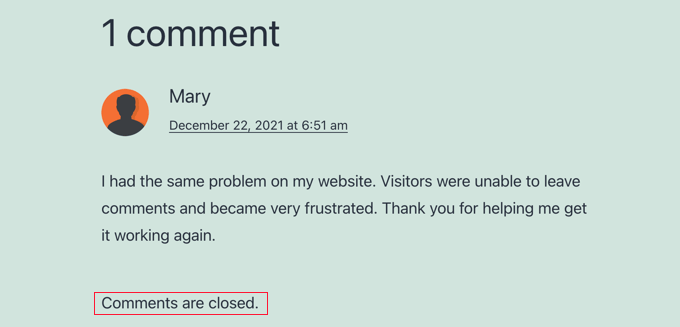
And if the post has no comments, the comment form will simply not appear.
However, seeing the ‘Comments Are Closed’ message unexpectedly is often due to a WordPress setting that isn’t configured correctly.
The tricky thing is that WordPress has comment settings in a few different places. This can make it tricky for beginners to find the right one.
In this tutorial, we will walk you through all the settings you should check to reopen the comments on your blog posts.
You can use the quick links below to jump to the right section for your needs:
- Enable Comments on Future Posts
- Enable Comments on a Specific Post
- Enable Comments on a Specific Post (Classic Editor)
- Enable Comments on Posts in Bulk
- Check for Incompatible Themes or Plugins
- FAQs: Fix 'Comments are closed' in WordPress
- Video Tutorial: Fix 'Comments Are Closed' in WordPress
- Additional Resources to Improve WordPress Comments
Let’s get started!
Enable Comments on Future Posts
Comments are often closed on a WordPress website because, at some time in the past, a setting was checked that disabled comments on new posts by default.
You can check this setting by navigating to Settings » Discussion. Here, you’ll find a set of checkboxes that control how comments are handled on new posts.
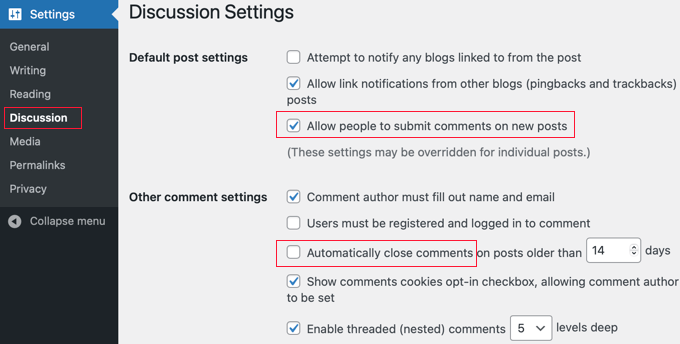
The first setting to look at is ‘Allow people to post comments on new articles’. This box should be checked so that the default setting for future posts is to allow comments.
Next, look at ‘Automatically close comments on articles older than XX days’. This setting is useful if you don’t want users to be able to comment on older posts. However, if you want to allow comments on all posts, then you should make sure this box is unchecked.
Once you are happy with the discussion settings, make sure you click the ‘Save Changes’ button at the bottom of the screen to store the settings.
This will make sure comments are open on all new posts you create. But it will not enable them on posts that have already been created, which we will tackle in the next step.
Enable Comments on a Specific Post
This method will show you how to enable comments on existing posts one at a time. However, if you wish to enable comments on many posts, then you should follow the ‘Enable Comments in Bulk’ method that we cover below.
If you use the block editor on your WordPress site, then you need to open the settings panel on the right side of the screen.
Next, you should click on ‘Discussion’ to expand the options, and then make sure the ‘Open’ option is selected:

Your screen may look slightly different depending on your version of WordPress. But the key is to find the setting that allows comments for the post.
Once you click the ‘Update’ button at the top of the screen to save the setting, comments will be enabled for this post.
You should repeat these steps to enable comments on other blog posts. You can also follow the same process to enable comments on WordPress pages.
How to Display the Discussions Panel If It Is Hidden
While the Discussions panel is displayed by default, it may be hidden on your website.
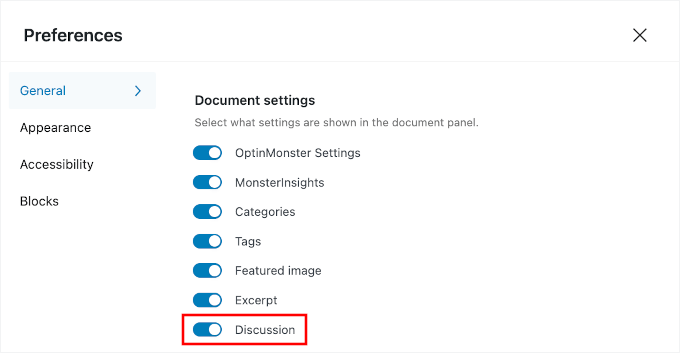
If you can’t find it, then you will need to click the ‘Options’ icon at the top right of the screen. This icon looks like 3 vertical dots.
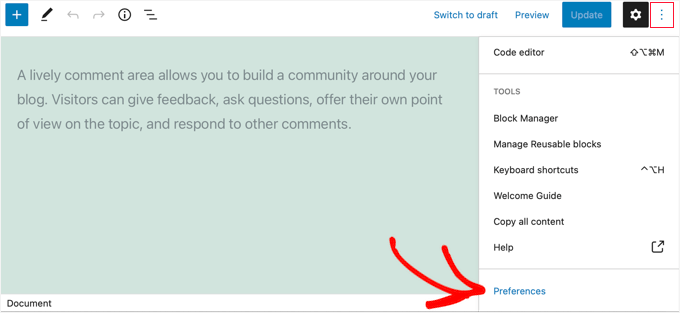
You then need to click on ‘Preferences’ and navigate to the ‘General’ tab.
Once there, you can toggle on the ‘Discussions’ switch so that the panel is displayed.
Enable Comments on a Specific Post (Classic Editor)
If you are using the classic editor, then the steps for enabling comments on a post are a little different.
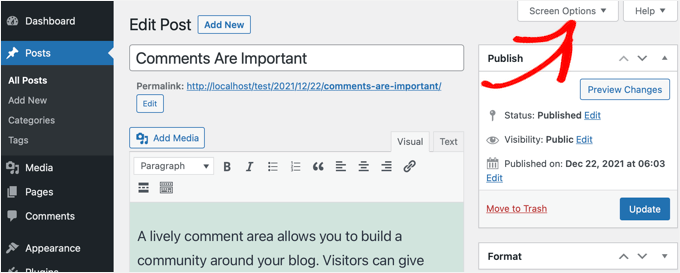
Here, the Discussion meta box is hidden by default. To display it, you will need to click on ‘Screen Options‘ at the top right of the screen.
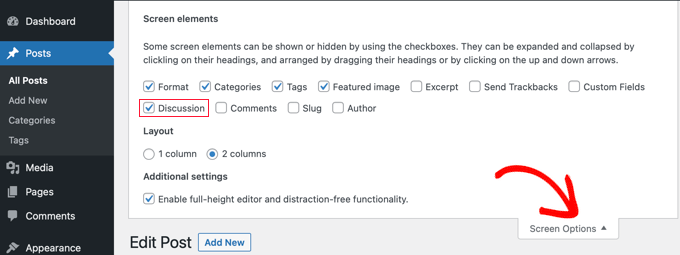
Next, you should check the Discussion box under ‘Screen elements’.
After that, simply click ‘Screen Options’ again to return to your post.
You can now scroll down to the bottom of your post, where you will find the Discussion meta box.
You should make sure the ‘Allow comments’ box is checked.
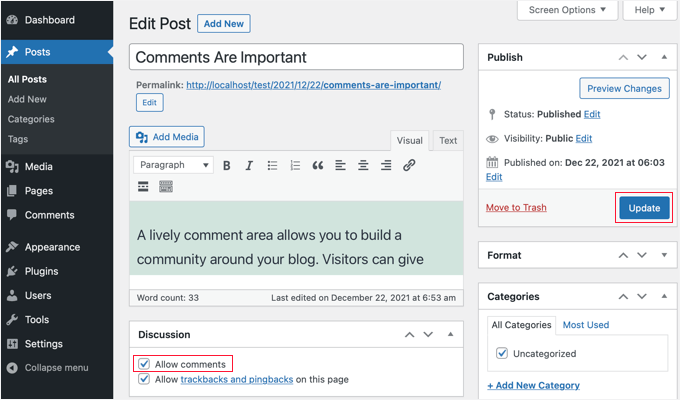
After you click the ‘Update’ button to save the settings, comments will be enabled for this post.
Enable Comments on Posts in Bulk
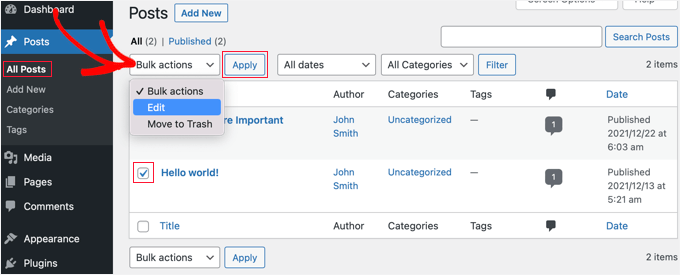
If you need to enable comments on multiple posts, then you can update them in bulk. To do that, navigate to the Posts » All Posts page, where you will find a list of all of your posts.
You need to select the posts that have comments disabled by clicking the checkbox next to each post.
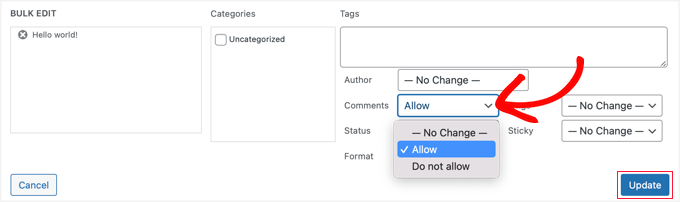
After that, you should choose ‘Edit’ from the ‘Bulk Actions’ dropdown box and then click the ‘Apply’ button. This will open the bulk edit screen.
Here you need to click the ‘Comments’ dropdown menu and then select ‘Allow’.
Don’t forget to click the ‘Update’ button to change the setting for all selected posts.
How to Select All Posts At Once
If you want to enable comments for every post on your WordPress website at once, then following the steps above would take a lot of time if you have hundreds of blog posts on your site.
To do it faster, there are a few extra steps you should take.
First, you will need to make sure that all posts are displayed on a single page. You can see a count of all the posts on your website under the ‘Posts’ title at the top of the screen.
Here’s a quick note:
- If you have 20 posts or fewer, then they are already displayed on one page.
- If you have more than 20 posts, then you will have to increase the number of items per page.
To do that, you should click ‘Screen Options’ at the top of the page.
Then, under ‘Pagination,’ find the ‘Number of items per page’ setting. Here, you will need to type a number larger than the total number of posts on your site.
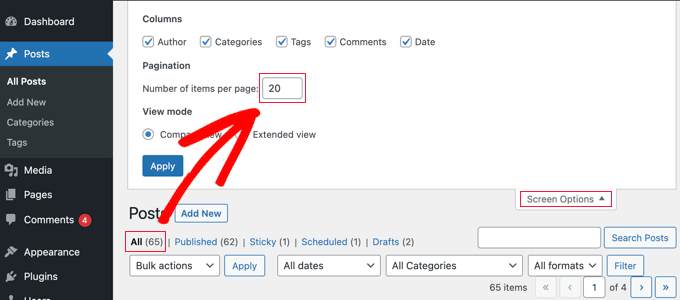
For example, if you have 65 posts on your website, then you could type the number 70.
After that, you need to click the ‘Apply’ button, and all of your posts will be displayed on one page. You can now click ‘Screen Options again to hide the settings.
You can now select every post on your site by simply clicking the checkbox next to ‘Title’.
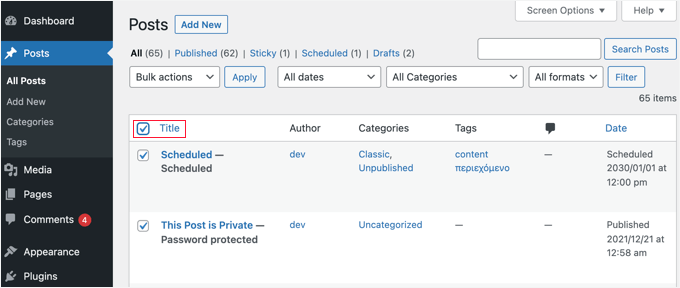
To enable comments on all of these posts, you should click ‘Bulk Actions’ then ‘Edit.’
After that, follow the steps we covered earlier in this section to change the Comments setting to ‘Allow’.
🧑💻 Pro Tip: We don’t recommend trying to update hundreds of blog posts at once, especially on shared or slower web hosting. Each update requires server resources, and trying to process too many at once can cause the server to time out before the task is complete.
To be safe, we suggest processing your posts in smaller batches of 50 to 100 at a time.
Check for Incompatible Themes or Plugins
If you have tried all of the steps above and comments are still disabled on your site, then it may be because of an incompatibility with your theme or one of your plugins.
Sometimes, poorly coded WordPress themes may wrongly display the ‘Comments are closed’ message even when comments are open.
To check if your theme is the problem, you should navigate to Appearance » Themes and temporarily activate a different theme.
But before you start deactivating plugins or switching themes, we strongly recommend creating a full backup of your WordPress site. This is a great safety measure that allows you to quickly restore your site if anything goes wrong.
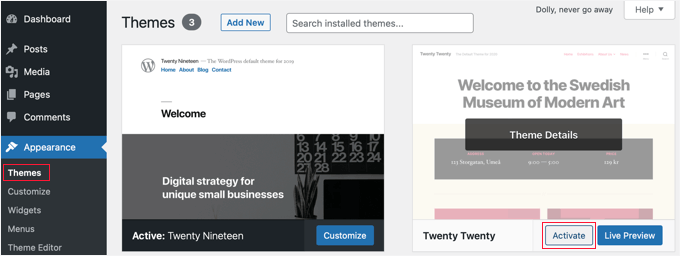
If the ‘Comments are closed’ message is now fixed, then your theme is the problem. You can ask the theme developer to fix the issue. For more details, see our guide on how to properly ask for WordPress support and get it.
Alternatively, if you are an advanced user, then you can try to fix the issue yourself. You need to refer to our guide on how to disable comments in WordPress, and then follow the instructions under ‘Remove “Comments Are Closed” in WordPress’.
If you think a plugin may be causing the issue, then you can head over to Plugins » Installed Plugins and make sure you haven’t installed a plugin designed to disable comments, such as Disable Comments.
If you have, then simply disable that plugin and test to see if the comments are now working.
If comments are still closed, then you need to test for incompatible plugins. You’ll need to temporarily deactivate one plugin at a time by clicking its ‘Deactivate’ link.

Now, test to see if comments are enabled on your site. If they are still not working, then this plugin is not the problem. Simply click its ‘Activate’ link and move on to the next plugin.
FAQs: Fix ‘Comments are closed’ in WordPress
Why does WordPress automatically close comments on old posts?
WordPress has a setting under Settings » Discussion that can automatically close comments on articles older than a certain number of days. This is designed to help prevent spam on older, unmonitored posts, but you can easily disable it by unchecking the box.
Can I enable comments on WordPress Pages, not just Posts?
Yes, you can. While comments are disabled on Pages by default, the process to enable them is the same as for Posts. You can enable them for individual pages in the editor’s ‘Discussion’ panel or enable them in bulk from the main Pages list.
Does my theme affect my comment settings?
Yes, it can. While your WordPress settings control whether comments are on or off, your theme is responsible for displaying the comment form and the ‘Comments are closed’ message.
A poorly coded theme can sometimes cause issues, which is why switching to a default theme is a good troubleshooting step.
Video Tutorial: Fix ‘Comments Are Closed’ in WordPress
Before you go, you might want to check out our video tutorial on how to fix ‘Comments are closed’ in WordPress to see it in action. Hit play and follow along!
Additional Resources to Improve WordPress Comments
We hope this tutorial helped you learn how to fix ‘Comments are closed’ in WordPress. Next, you may also want to learn:
- How to Make Blog Post Comments Searchable in WordPress
- How to Add Custom Fields to the Comments Form in WordPress
- How to Export Email Addresses from WordPress Comments
- How to Delete All Pending Comments in WordPress
- Vital Tips and Tools to Combat Comment Spam in WordPress
- Beginner’s Guide on How to Moderate Comments in WordPress
- Best WordPress Plugins to Improve Comments
If you liked this article, then please subscribe to our YouTube Channel for WordPress video tutorials. You can also find us on Twitter and Facebook.




Aidan
on my preferences area it doesn’t have a panels section so I cant enable the discussion board what do I do to get it?
WPBeginner Support
If your comments are enabled we would recommend ensuring your user is an admin or a role that has the option to manage comments to see that section.
Admin
Masum
After Watching the Video I fixed my problem of why comment are closed thanks
WPBeginner Support
Glad to hear our guide was helpful!
Admin
Sally G.
I have heard that it is a security concern to leave comments open without an end date; is that true? I have often wanted to comment on an old post, even a year or more, and been unable to do so. Given what I heard about closing comments, I have done so on my sites, but would be glad to hear that it is not a problem.
WPBeginner Support
It is not specifically a security issue, if you do not moderate your comments it will become a spam issue. If you are actively moderating your comments even on older posts you are fine to keep the comments open
Admin
Sally G.
Great, thanks so much! Given my small volume, I will go ahead and leave them open-ended; when it becomes too much, I can choose a date. Much appreciated!