


You’ve just imported your WordPress site to a new host or domain, and at first, everything looks perfect. Then you notice your category pages show zero posts, and your comment counts are completely off.
The good news? This is one of the most common issues after a WordPress import, and your content is completely safe.
Here’s how: WordPress uses cached numbers for performance, and sometimes the import process simply needs a quick refresh to set things right.
Through our professional website migration service, we’ve helped many site owners resolve this exact problem.
In this guide, we’ll show you how to fix category and comment count errors after a WordPress import – without the technical headaches. 🛠️
ℹ️ Insider Tip: Need help moving your site? Let a WPBeginner expert handle the migration for you. We’ve helped countless users transfer their WordPress sites seamlessly. Get started today – it’s free!
What Causes Category and Comment Count Errors in WordPress?
When you import a WordPress site with the built-in tool, the counts don’t always update correctly. This can make your site show zero or inaccurate numbers for comments, categories, or custom taxonomies.
While all the actual content is still there and visible in the admin area, the displayed counts just need to be refreshed.
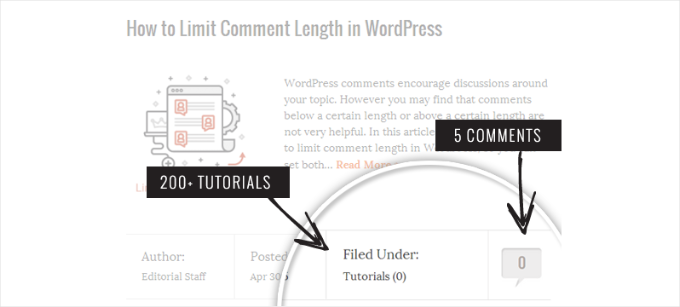
As you noticed in the screenshot above, after the import, our comment count and category count show 0 instead of the actual number.
In the following sections, let’s look at how to fix this issue and display an accurate comments count in WordPress. Here’s a quick look at all the topics we’ll share:
Let’s get started.
Fixing Category and Comment Count in WordPress
Before we start, let’s make sure to create a complete WordPress backup of your site. You should do this every time before making a major change.
We recommend using Duplicator because it’s the best WordPress backup plugin on the market. It’s a powerful and reliable tool that we use across many of our own websites.
For more details, you can read our comprehensive Duplicator review.
The general steps include creating a backup, downloading the file, and setting up a disaster recovery link. For a detailed walkthrough, please see our guide on how to back up your WordPress site with Duplicator.
After creating your backup, you’re ready to fix your category and comment count.
For this fix, we’ll be using a simple PHP script as it’s the most direct way to solve the problem.
First, you can open a plain text editor like Notepad and copy-paste the following code. There’s no need to edit anything:
<?php
require_once('wp-load.php');
global $wpdb;

echo 'Starting the recount process...<br><br>';

echo '<strong>Recalculating Category and Tag Counts:</strong><br>';
$term_taxonomy_ids = $wpdb->get_col("SELECT term_taxonomy_id FROM {$wpdb->term_taxonomy}");

if ($term_taxonomy_ids) {
    foreach ($term_taxonomy_ids as $tt_id) {
        $wpdb->update($wpdb->term_taxonomy, array('count' => 0), array('term_taxonomy_id' => $tt_id));
        $wpdb->query($wpdb->prepare("UPDATE {$wpdb->term_taxonomy} SET count = (SELECT COUNT(*) FROM {$wpdb->term_relationships} WHERE term_taxonomy_id = %d) WHERE term_taxonomy_id = %d", $tt_id, $tt_id));
        echo "Updated term ID: {$tt_id}<br>";
    }
    echo '<br>All taxonomy counts have been reset!<br><br>';
} else {
    echo 'No terms found to update.<br><br>';
}

echo '<strong>Recalculating Post Comment Counts:</strong><br>';
$post_ids = $wpdb->get_col("SELECT ID FROM {$wpdb->posts} WHERE post_status = 'publish'");

if ($post_ids) {
    foreach ($post_ids as $post_id) {
        $wpdb->update($wpdb->posts, array('comment_count' => 0), array('ID' => $post_id));
        $wpdb->query($wpdb->prepare("UPDATE {$wpdb->posts} SET comment_count = (SELECT COUNT(*) FROM {$wpdb->comments} WHERE comment_post_ID = %d AND comment_approved = '1') WHERE ID = %d", $post_id, $post_id));
        echo "Updated comment count for post ID: {$post_id}<br>";
    }
    echo '<br>All comment counts have been reset!<br><br>';
} else {
    echo 'No posts found to update.<br><br>';
}

echo '<strong>Process complete!</strong> Don\'t forget to delete this file from your server now.';
?>
Then, you can save the file as comments-fix.php on your computer.
You will now need to upload this file to your site’s root directory. You can do that using an FTP client or the file manager in your web hosting control panel.
For more information, you might want to see our step-by-step guide on using FTP to upload files to WordPress.
Once uploaded, go ahead and open your browser and go to the file’s URL:
https://example.com/comments-fix.php
Make sure to replace example.com with your own domain name.
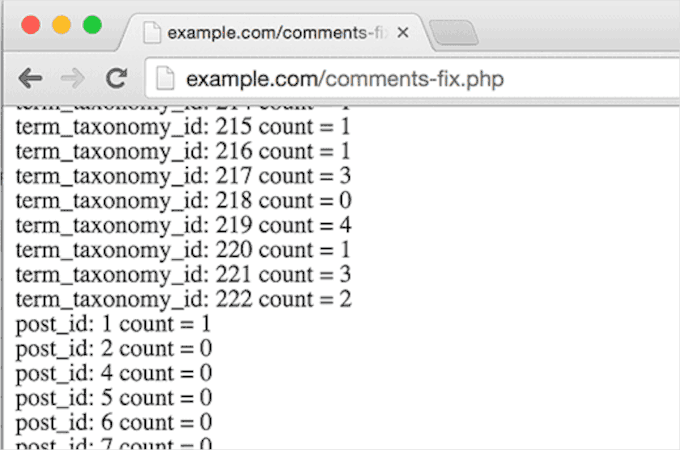
Visiting this URL will run the script. It will go through your posts, categories, tags, and comments to update all the counts. You’ll see a success message once it’s finished.
When you’re done, don’t forget to delete the comments-fix.php file from your server for security reasons.
Bonus Tip: Configuring Other Comment Settings
After importing your WordPress site, you might want to reconfigure your comment settings.
First, you’ll want to decide whether you want to allow comments on new posts by default. Or you can just enable or disable comments for individual posts.
Moderation settings help you control the quality of comments. You can choose to approve comments manually or allow comments from trusted users to appear automatically.
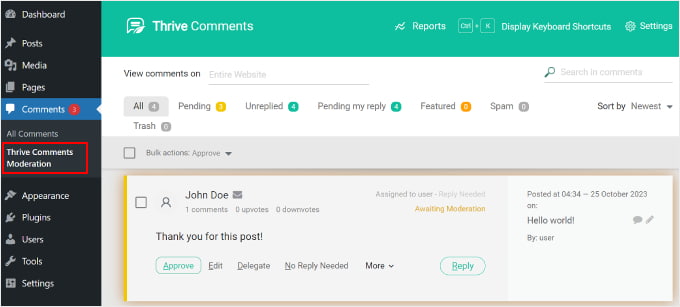
Email notifications keep you updated about new comments. You can get notified whenever someone comments or when a comment needs approval. If you enable moderation, you can also notify users when their comments are approved.
Now, you might want to go to Settings » Discussion in your WordPress dashboard to configure your comment settings. However, we recommend using Thrive Comments for more advanced features.

Thrive Comments is the best WordPress comments plugin on the market. In addition to the basic configuration, it can help you engage your readers with features like upvotes, downvotes, likes, badges, and social media sharing.
For more details, don’t miss our complete Thrive review!
FAQs: Fixing Post-Migration Errors in WordPress
Here are some common questions about fixing post-migration errors in WordPress.
Will running this script delete my comments or posts?
No, the script is completely safe. It doesn’t remove any content, as it simply recounts the posts in each category and the approved comments on each post.
It then updates the numbers stored in your database, which is what your WordPress theme shows on the front end.
What happens if I forget to delete the comments-fix.php file?
You’ll definitely want to remove the file once you’re done. Leaving it on your server could be a security risk, since it can be executed remotely and gives access to your database connection.
Is there a plugin that can fix this without code?
Not exactly. There isn’t a plugin built just for this issue, though some database maintenance plugins like WP-Optimize include a “recalculate counts” feature.
That said, the script is a quick one-time fix and usually faster than installing and configuring another plugin.
Further Reading: More Guides to WordPress Categories and Tags
We hope this article helped you learn how to fix category and comment counts after WordPress import. Next, you may also want to check out our guides on:
- How to Change the Category Order in WordPress
- How to Properly Rename Categories in WordPress
- How to Properly Change, Move, and Delete WordPress Categories
- How to Allow Users to Subscribe to Categories in WordPress
- How to Style Individual Categories Differently in WordPress
- How to Add Quicktags in WordPress Comment Forms
If you liked this article, then please subscribe to our YouTube Channel for WordPress video tutorials. You can also find us on Twitter and Facebook.





Fitri
Mine is not working, all the count from comments-fix.php is appear, but when i go to single page product it still says Reviews(0)
WPBeginner Support
Your server may be running on a newer PHP version, this code was for php 5.5 and we will certainly take a look into what we can do to update the code.
Admin
Carlos
Thanks for this tutorial! Once I switched to PHP 5.5 the script worked like a charm.
WPBeginner Support
Glad it worked for you
Admin
Peter Edwards
I lost most of the tag counts in a recent import – fixed this by bulk editing all the posts which were tagged and clicking update (without any changes). This triggers the tag count to be updated by wordpress core. Not sure if a similar trick would work for comments?
Bonnie
Ooo, such a simple solution, and it worked! Thanks!
Kingsley Felix
anyone for duplicate comments?
Pare
Just using cPanel go to PhpMyAdmin
Check What is category id (term_id) in table “xxx_terms” and then update count value in column count into the table “xxx_term_taxonomy” where the term_id is equal term_id of xxx_terms table which that category exists on.
Forexample “uncategory” of product is term_id = 10 and count value is wrong, I update count value to be correct number in table “xxx_term_taxonomy” where term_id = 10. by manual on cPanel – PhpMyAdmin tool.
Phuc
I get an error 500 if I want to access the comments-fix.php file. How can I fix this?
WPBeginner Support
Hello,
Please see our guide on how to fix 500 internal server error.
Admin
Jay
To echo Yuriy’s comments, it’s not working for me either with PHP 7. 500 error.
Yuriy Smirnov
Doesn’t work on php7, because mysql_connect function has been removed since 7.0.0 verstion.
Rianta D. Mulyana
Thanks brother, it works!
Cosmin
Quick question: when replacing the DB_HOST, DB_USER, DB_PASSWORD and DB_NAME do we need to use “” or ” to enclose those values in? Or do we simply paste the values?
I tried and I am getting 500 Internal Server Error while accessing the uploaded file
Tyler
Yes, you do need to include single quotes around those values. Author should update the snippet to reflect that. Also, author forgot to mention that DB_NAME must also be changed.
Easy to spot, but this tutorial will fail for anyone following the instructions explicitly.
Makinde
Thanks WPBeginner, This was helpful..
Thanks for always being there for us.
Appreciate!
Aeryn Lynne
After a disastrous comment import that involved Intense Debate (only thing we could do is import bits of the xml file directly into mysql after obtaining post IDs for nearly a thousand posts,) I’m definitely in need of a quick program like this to correct the count, so thank you!
If anyone is looking to fix the comment count for one or two posts only though: instead of accessing FTP and mysql, they just need click Edit on one of the comments of the post that needs correction, and then click Update, and the post then updates the comment count for all comments involved in that post.
Naki Biga
Work like a charm, thank you very much!
Very simple and usefull code!
Edwin Rio
hi …
i have migrated one sito into another (i was using disqus for comments)
now in my new site, i can see the comments on the comments area but once i activate the disqus plugin the comments are not appearing on the front end article,
is this solution for my problem as well or my problems its most on disqus side ?
Thanks !
union
hi …
i have migrated one sito into another (i was using disqus for comments)
now in my new site, i can see the comments on the comments area but once i activate the disqus plugin the comments are not appearing on the front end article,
is this solution for my problem as well or my problems its most on disqus side ?
Thanks !
Connor Rickett
That seems fairly straightforward. Thanks for putting that code together, that’s a huge help!