


Building an email list is essential for any WordPress website, but connecting forms to your email marketing service can sometimes feel challenging. If that sounds familiar, you’re not alone — many WordPress users have faced the same struggle.
The good news is that Constant Contact offers some easy integration options for WordPress. After helping many WordPress bloggers and site owners, we’ve found the most reliable methods to connect these platforms without the technical headaches.
In this guide, we’ll walk you through the exact steps to connect Constant Contact to WordPress, using methods that have been proven effective by hundreds of users.
📚 Summary: In this guide, we will show you the easiest ways to connect Constant Contact to WordPress using WPForms and the Constant Contact Forms plugins so you can start growing your email list and boosting your sales.
Why Building an Email List Is So Important
Have you ever wondered why every website on the internet wants to have your email address? Whether you are creating an account on Facebook, Twitter, or the New York Times, they all want your email address.
The answer is dead simple: email is the best way to reach customers.
Industry studies consistently show that small businesses get an average return of $36 to $40 for every dollar spent on email marketing. It is the most effective way to convert visitors into customers.
But don’t take our word for it. Here’s what the founder of Content Marketing Institute, Joe Pulizzi, had to say about it.
“An email list is critical because you can’t build your content on rented land. So many brands and companies build their audiences on Facebook and Google+, which is fine, but we don’t own those names – Facebook and Google do. If we are thinking like real media companies, the asset is in the audience. Getting an email address is the first critical step to figuring out who my reader is, and hopefully in the future, my customer of some sort. If our goal is to drive sales or keep customers happy in some way, we first need to get them as part of our audience.
If I have one regret as a business owner, it’s not focusing on building our email list earlier in the process”
Joe Pulizzi – Founder of Content Marketing Institute
 Joe Pulizzi – Founder of Content Marketing Institute
You can learn more about this topic by reading our article on why you should start building your email list right away.
Now that you know the importance of building an email list, let’s see how to get started with Constant Contact to build an email list for your WordPress site.
What Is Constant Contact?
Constant Contact is an online marketing and email campaign platform. It is one of the most popular email marketing service providers on the market. It specializes in sending mass emails, managing your email lists, and running effective email newsletter campaigns.
We did a deep dive into their features, which you can see in our full Constant Contact review.
Constant Contact knows that starting an email list can feel overwhelming for small business owners. So, they make sure that even absolute beginners can run their email campaigns like a pro.
In the following sections, we will cover the two methods for connecting Constant Contact to WordPress. Here’s a quick overview of all the things we will cover:
Ready? Let’s get started.
Method 1: Connect Constant Contact to WordPress Using WPForms
The best way to connect Constant Contact to WordPress is by using WPForms. No other contact form plugin for WordPress can offer anywhere near the features and customization you get with WPForms.
It has more form fields to choose from, over 2,000 templates, spam protection, and the ability to accept credit card payments. The free version even has Constant Contact integration built in.
At WPBeginner, we’re big fans of WPForms. They power almost every form on our site, whether it’s a contact-us, survey, or migration request.
See our detailed WPForms review for more about this plugin.
Step 1: Installing and Activating WPForms
To get started, you’ll need to install and activate WPForms.
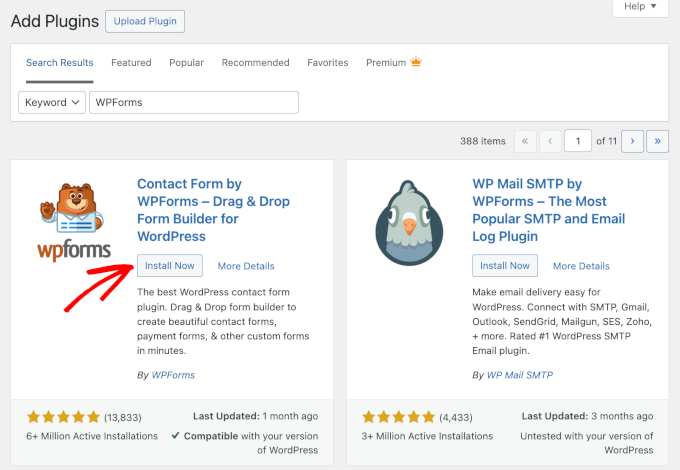
In your WordPress admin area, navigate to Plugins » Add Plugin.

💡 Note: For this tutorial, you can use the free version of WPForms since it offers Constant Contact integration. If you want AI-powered forms, more integrations, or other advanced features, you’ll want to upgrade to the pro version.
On the next screen, use the search bar to quickly find the WPForms plugin.
When you see it in the search result, click ‘Install Now’ and then ‘Activate.’
For more details, read our step-by-step tutorial on how to install a WordPress plugin.
Step 2: Connect WPForms to Constant Contact
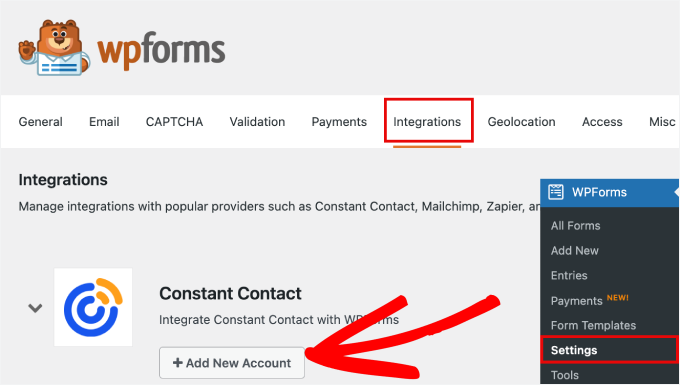
Upon activation, you’ll need to go to WPForms » Settings. Then, navigate to the ‘Integrations’ tab.
Under the Constant Contact icon, simply expand the option and select ‘+ Add New Account.’
A list of fields will then appear below.
Here, you can click on the link labeled ‘Click here to register with Constant Contact.’
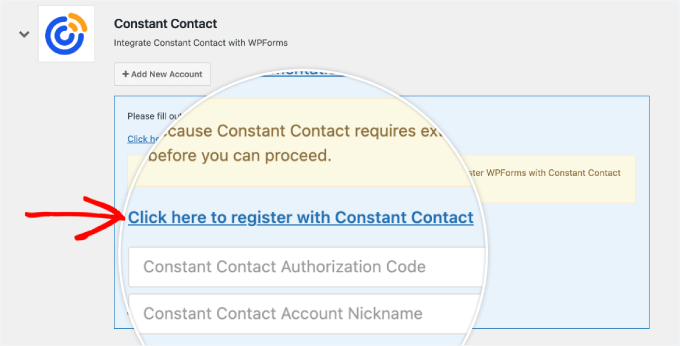
Next, you’ll need to log in to your Constant Contact account or register a new one if you don’t already have one.
After that, you’ll need to click ‘Allow’ to give WPForms access to your Constant Contact account.
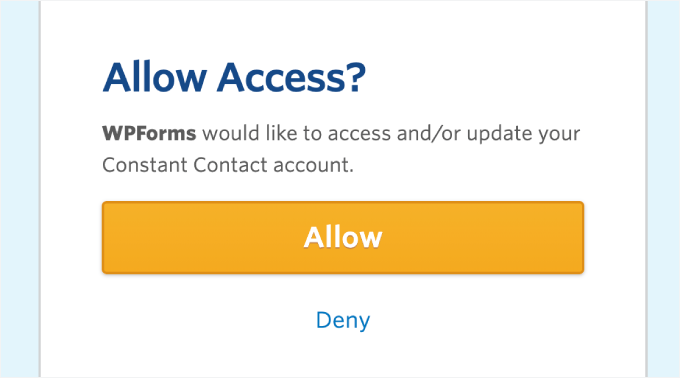
From here, you’ll get a Constant Contact authorization code.
Just copy the code as shown on the screen.
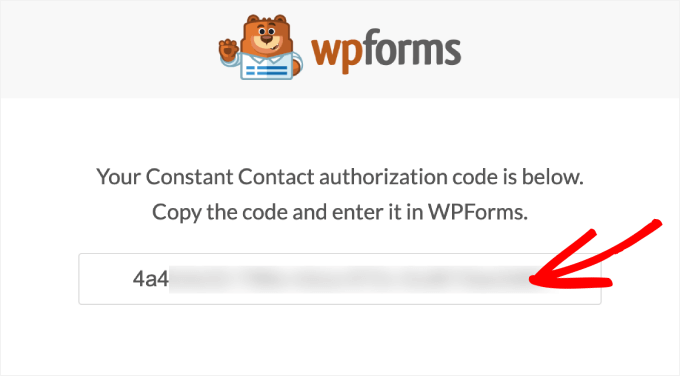
Then, you can head back over to WordPress and paste the code where it says ‘Constant Contact Authorization Code.’ After entering the details, you’ll need to give this connection a nickname.
Finally, click on ‘Connect to Constant Contact.’
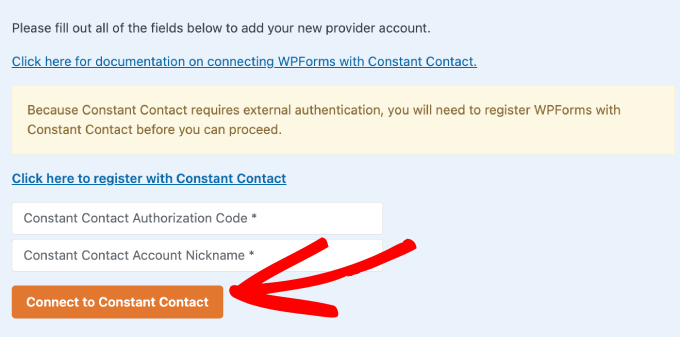
Once your connection is verified, you’re ready to create your WordPress form.
Step 3: Creating Your New Form
Next, you’ll want to head over to WPForms » Add New.
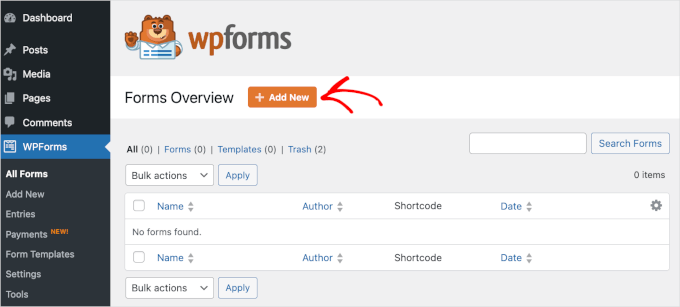
This will take you to the form builder.
Once you’re inside the builder area, you can start by giving your form a name.
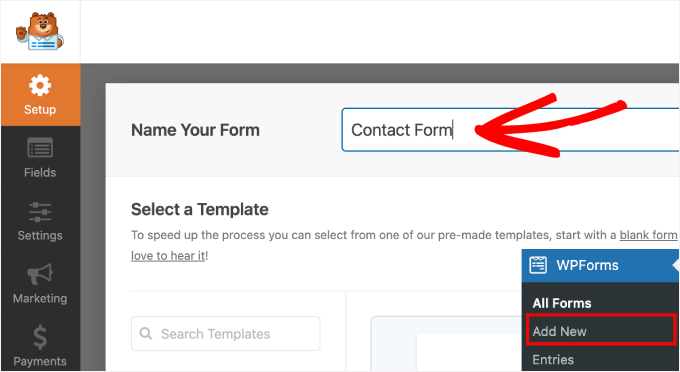
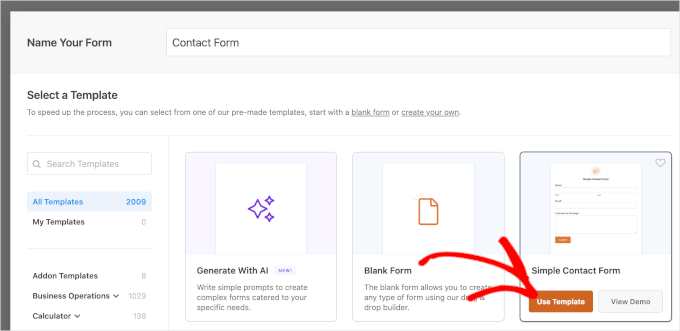
Next, you’ll choose how you will build your form: from scratch, using an AI form generator, or choosing a template.
If you have a premium license, you can use the AI feature – just write a simple prompt, and it will create the form for you. Just like that.

But for this tutorial, we’re going to use a pre-made template.
With over 2,000 templates, you’ll find just about every type of form template you need. These include user registration forms, payment forms, calculator forms, donation forms, newsletter signup forms, and more.
For this tutorial, we’ll select the simple contact form. Let’s hover over the ‘Simple Contact Form’ and click on ‘Use Template’ to start building the form.
Step 4: Customizing your form
Once you’ve selected a template, you’ll arrive at WPForms’ drag-and-drop editor.
Here, you can add or customize your form.
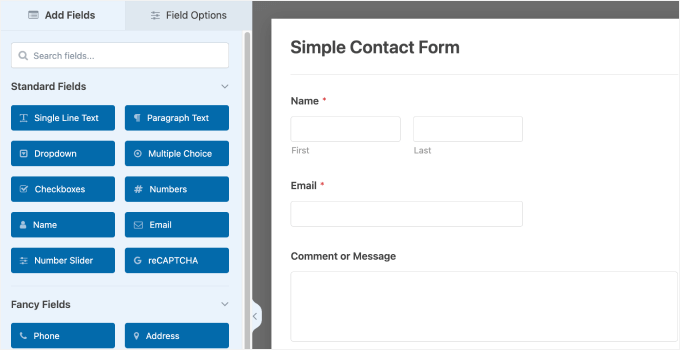
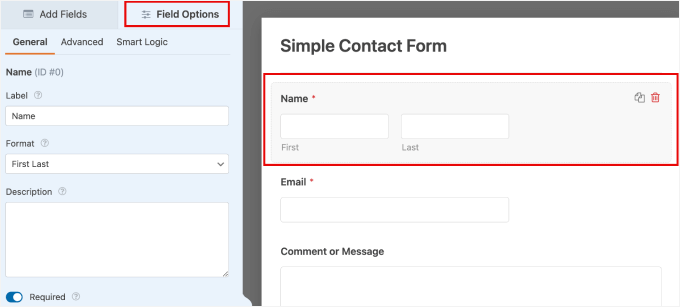
For example, if you want to customize a field, you can click on it in the preview. This will open the customization settings for the field.
In the field’s ‘Field Options’ tab, you can change its label, add a description, or make it required.
Now, you might want to add a checkbox field so that users can explicitly give their permission for you to send marketing emails.
Privacy laws like GDPR require you to get explicit consent before sending marketing emails. Adding this checkbox protects your business and keeps your email marketing safe and legal.
You can simply drag the ‘Checkboxes’ to the preview.
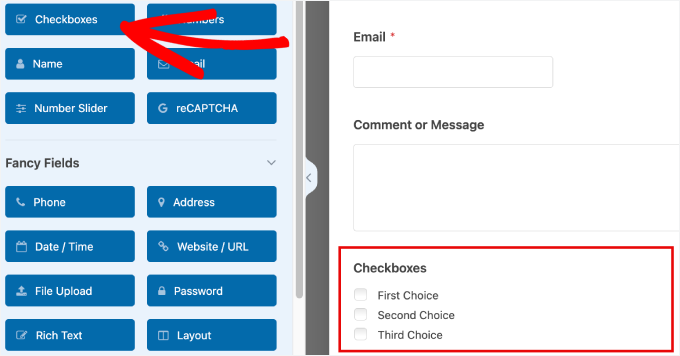
Now, you’ll want to remove the multiple choices so that there is only one check box remaining.
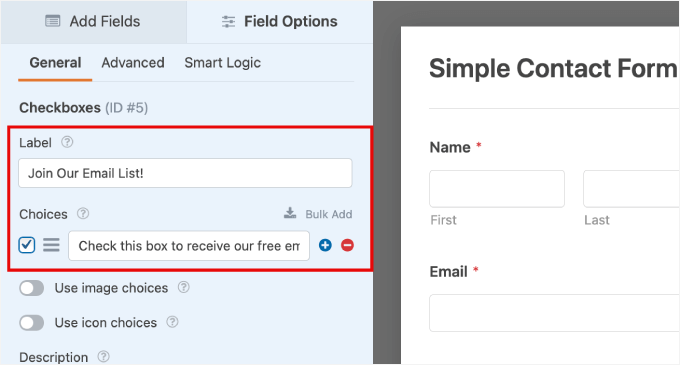
Simply change the ‘Label’ to say something like ‘Join Our Email List.’
Then, under ‘Choices,’ you can provide a description such as ‘Check this box to receive our free email newsletter.’
Step 5: Connecting Email List to Your New Form
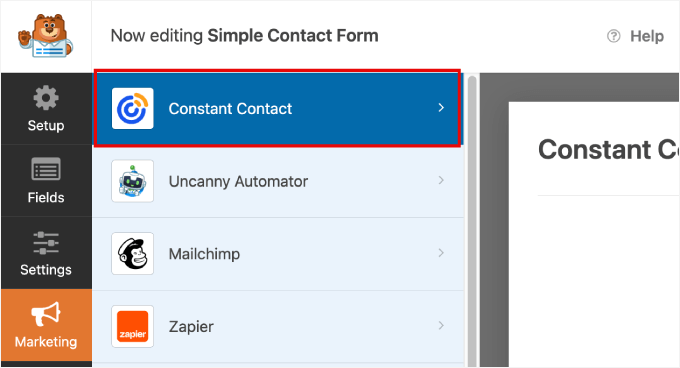
Once done, you’ll want to go to the ‘Marketing’ section from the left side panel.
Then, open the ‘Constant Contact’ settings by clicking on it.
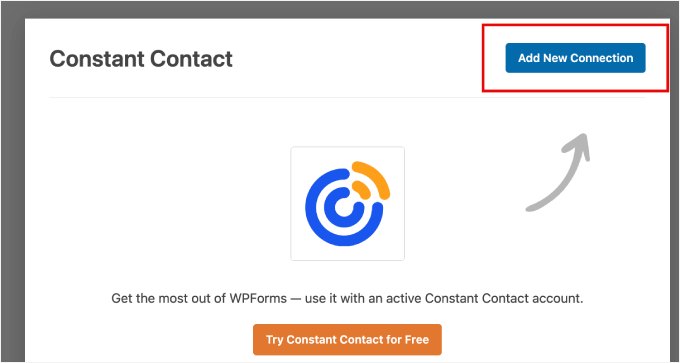
The next step is to click ‘Add New Connection.’
This is where you’ll be able to connect a specific email list to this form so that new subscribers are automatically added to your Constant Contact database.
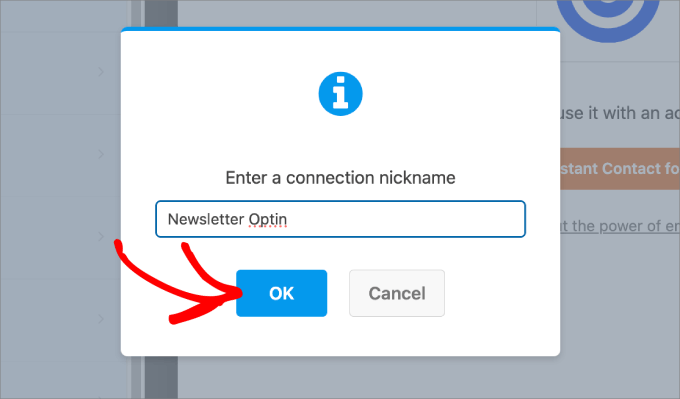
After clicking the button, you’ll be prompted to enter a connection nickname. Here, we name ours as ‘Newsletter Optin.’
Once you’ve entered the name, go ahead and click ‘OK.’
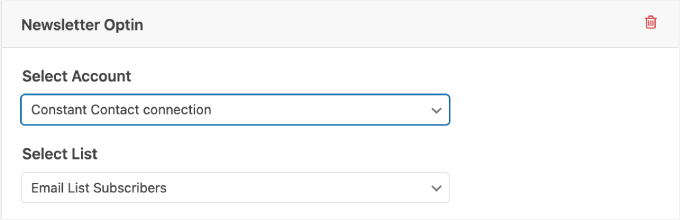
Next, the tool will ask you to select an account and a list you’d like to connect to this form.
Just make sure to choose a list appropriate for the form. For instance, if your form offers a free baking guide, make sure to connect it to your ‘Baking Tips’ list. This ensures subscribers only get the content they signed up for.
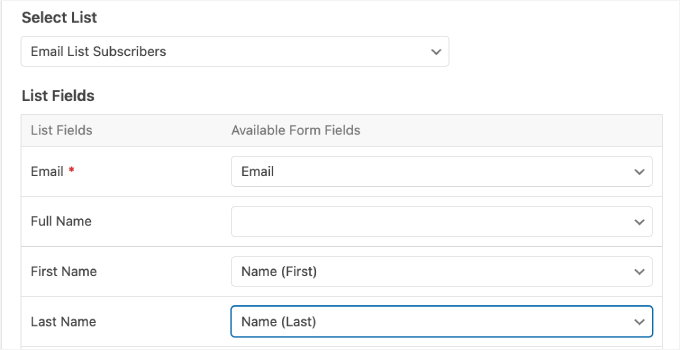
In the ‘List Fields’ section, you can add any available subscriber data to your Constant Contact email lists.
This will give Constant Contact permission to properly organize all the data.
Step 6: Publishing Your Form
It’s time to embed the form into your website.
Before moving on, make sure you save the form so you don’t lose your progress.
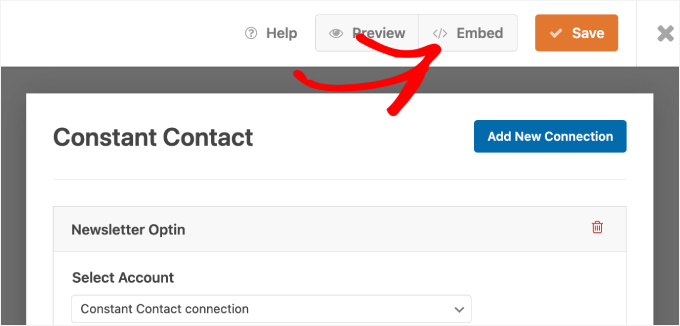
When everything is set, go ahead and click the ‘Embed’ button at the top to start the publishing process.
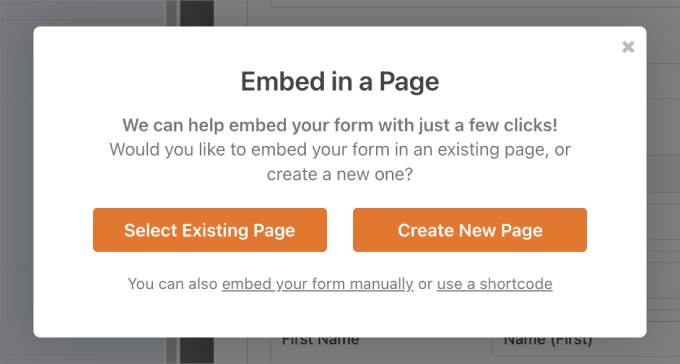
After clicking the button, a pop-up window will appear. In this window, you can select an existing page to embed the form into or create a new page.
Choose whichever option fits your needs. You could also use a shortcode.
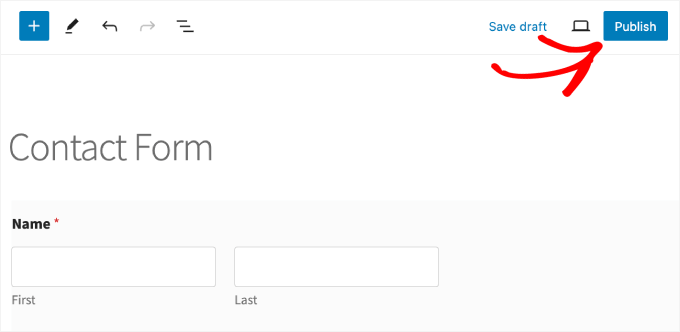
Once you’ve landed on the page, you should see the Constant Contact form appear.
All you need to do is simply click ‘Publish’ at the top.
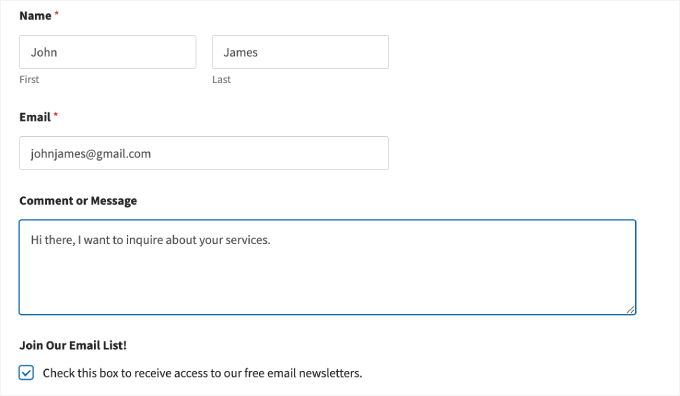
In addition, you’ll want to preview the form to ensure it looks the way it should on your website.
Here’s what our form looks like:
Step 7: Testing Your New Form
Entering test submissions helps make sure the subscriber data is going straight to your Constant Contact database.
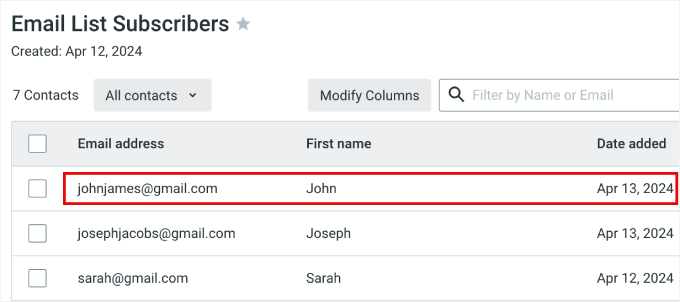
Once you’ve sent a test submission, you can check your Constant Contact account to see if it appears. If it does, you’re all set!
💡 Note: If you don’t see the email immediately, check if Constant Contact has Double Opt-in enabled (which requires users to confirm their email address first). If so, you will need to click the confirmation link in your test inbox.
That’s all; you can now rest assured that all form submissions will be sent directly to Constant Contact.
Method 2: Connect Constant Contact to WordPress
Another way to connect Constant Contact to WordPress is to use the native Constant Contact Forms plugin.
The advantage of this method is that you don’t need to take the time to connect WPForms to Constant Contact. That said, after testing the Constant Contact Forms plugin, I found that it is lacking in terms of features and ease of use.
In general, it’s missing a lot of form field options, lacks advanced spam protection (like CAPTCHA), and doesn’t offer conditional logic, which limits how you can interact with your visitors.
Step 1: Creating a Constant Contact Account
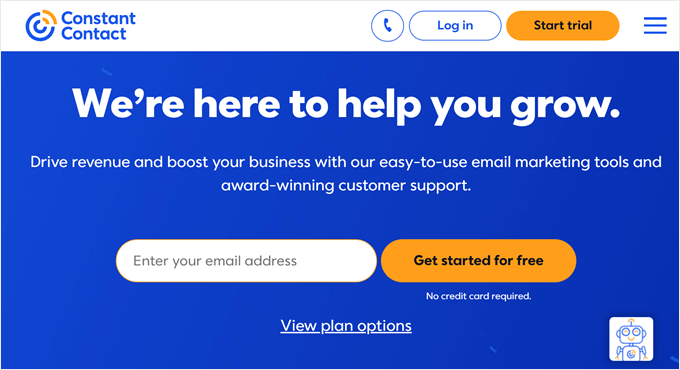
To get started, you’ll need to visit the Constant Contact website and sign up for an account.
Simply enter your email address and click ‘Get started for free.’
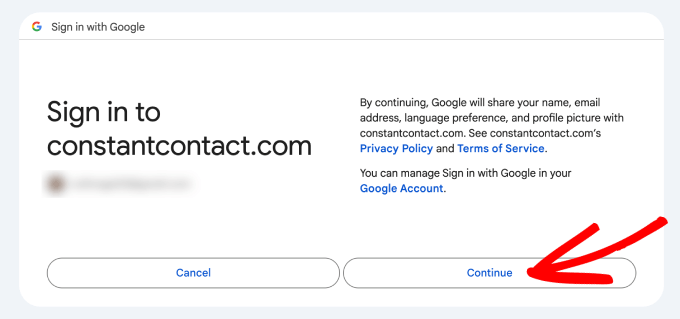
Then, you’ll want to either enter an email or you can connect your Gmail account to get started.
After entering the details, go ahead and click ‘Continue.’
Next, you’ll be taken to the Constant Contact dashboard screen. Assuming you already have an email list in place, you’re ready to move on to step 2.
Step 2: Installing and Activating the Constant Contact Plugin
In this step, you’ll install and activate the Constant Contact Forms plugin in WordPress.
Constant Contact is a free plugin that allows you to create sign-up forms to convert your site visitors into mailing list contacts. All captured email addresses will be automatically added to the Constant Contact email lists of your choosing.
To start, go to Plugins » Add Plugin from your WordPress admin area.
Next, simply use the search feature to quickly find the plugin.
When you see it in the search result, click ‘Install Now’ and then ‘Activate.’ If you ever need help, you can always check our guide on how to install a WordPress plugin.
Step 3: Connecting Your Constant Contact Account
Upon activation, you’ll need to connect your Constant Contact account to the plugin.
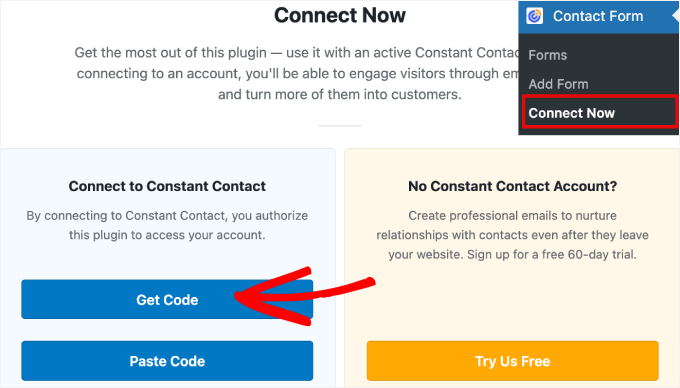
From your WordPress dashboard, you can head over to the Contact Form » Connect Now page. Then, simply click on the ‘Get Code’ button.
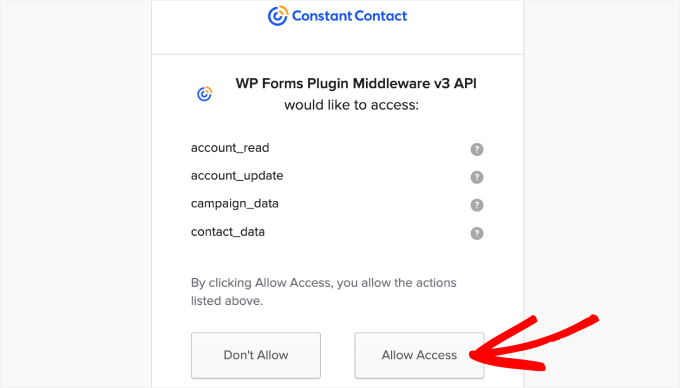
Next, you’ll be asked for consent to access your Constant Contact account.
Go ahead and click ‘Allow Access.’
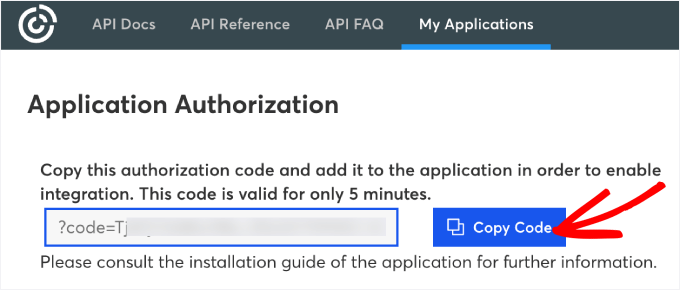
From here, you’ll be taken to the ‘Application Authorization’ page, where you’ll be given code to paste into WordPress.
So, you’ll want to click the ‘Copy Code’ button.
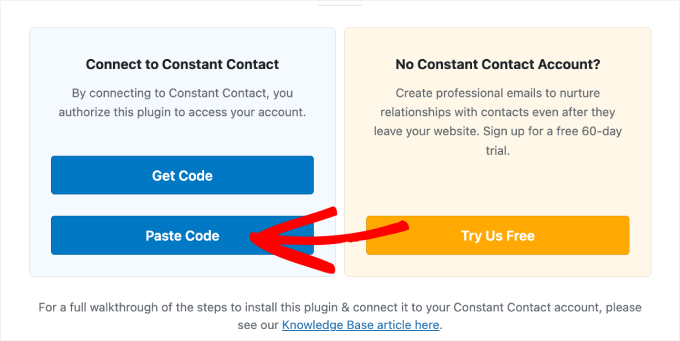
Now, let’s go back to your WordPress admin dashboard.
Then, simply click ‘Paste Code’ in the ‘Connect to Constant Contact’ section.
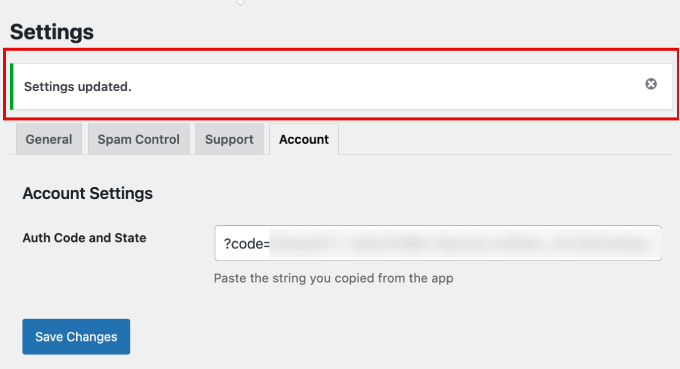
You’ll then be directed to the Settings » Account page of your Constant Contact Forms plugin.
Once again, paste the code next to ‘Auth Code and State’ and then click ‘Save Changes.’
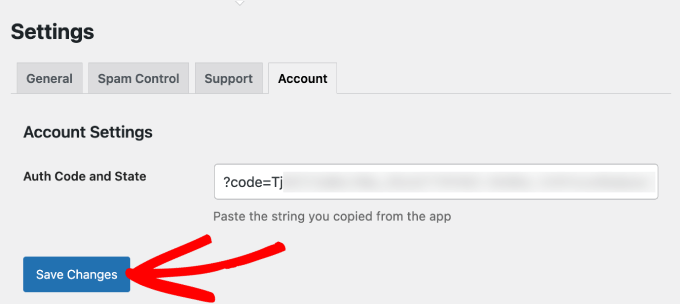
You should see a success message indicating that your settings have been updated.
Now that your Constant Contact account is connected, you’re ready to start creating and customizing your form.
Step 4: Customizing Your Constant Contact Form
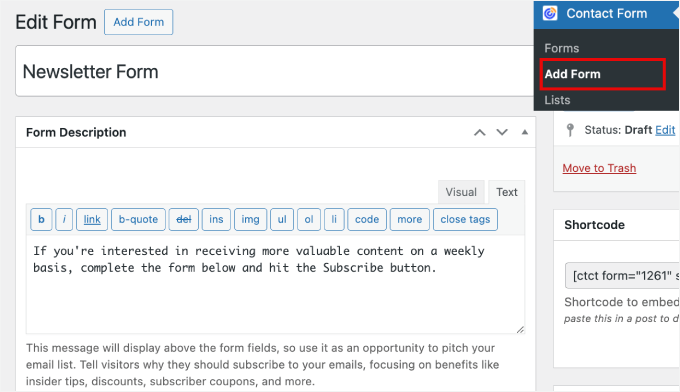
To get started, simply head over to the Contact Form » Add Form. Then, start by naming your form so you can easily refer back to it later.
From there, you might want to provide a description of the form so that visitors know what the form is about.
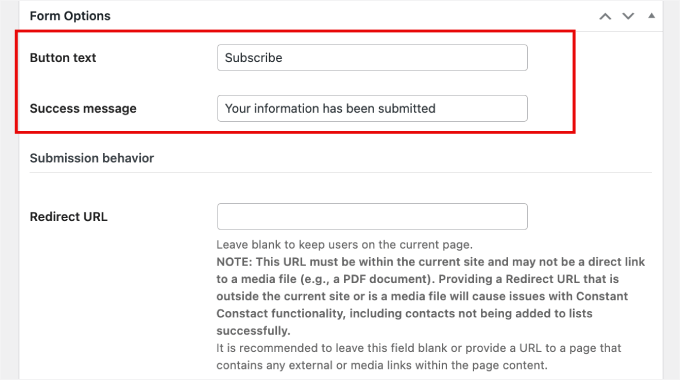
Now, you can scroll down to the ‘Form Options’ section.
You can change the ‘Button’ text, success message, or even add a redirect URL here.
For example, a redirect URL is good for product order forms since you can send them to a thank-you page.
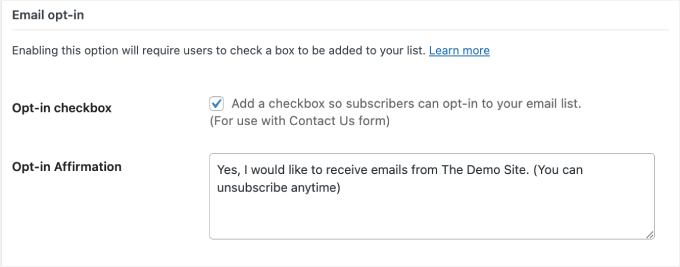
Under the ‘Email opt-in’ section, it’s a good idea to add an opt-in checkbox so that subscribers can provide permission for you to send emails.
In the ‘Opt-in Affirmation’ field, you can even add a quick message that tells visitors what clicking the checkbox entails. This way, users won’t be surprised when you’re sending regular emails to their inboxes.
If you scroll to the bottom to ‘Form Fields,’ you can add and customize the fields in your contact form.
For example, just click ‘Add Another Field’ to add another field option. You can always customize the field’s label and description so visitors understand what to input there.
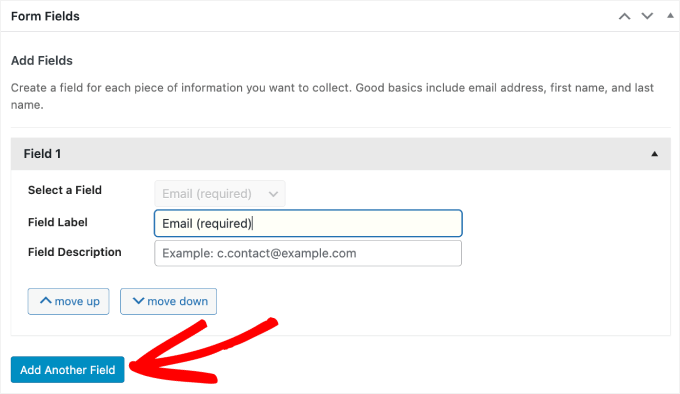
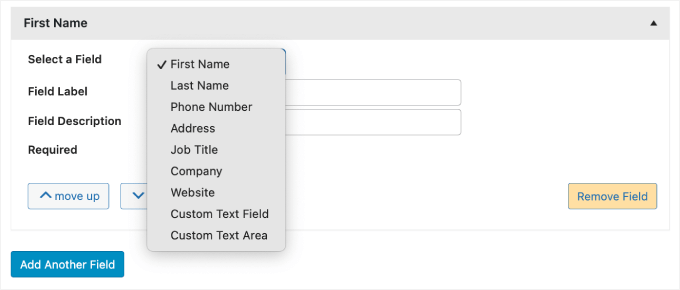
Constant Contact provides a few field options to choose from, including:
- First Name
- Last Name
- Phone Number
- Address
- Job Title
- Company
- Website
- Custom Text Field
- Custom Text Area
We recommend keeping it simple and limiting the number of form fields. This way, users won’t be overwhelmed when completing your contact form.
But it ultimately depends on the type of form you are making.
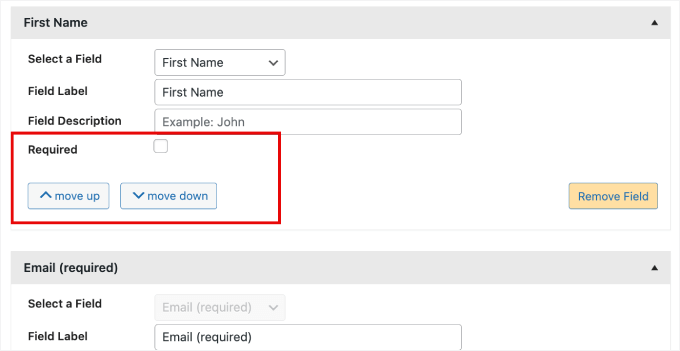
You can choose to leave the added form field as optional or check the ‘Required’ box to make it mandatory.
Also, you can move the field up or down using the ‘move up’ or ‘move down’ buttons.
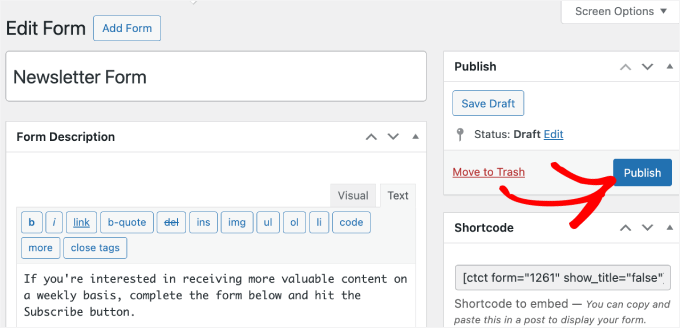
Once you’ve done customizing your form, you can scroll to the top and hit ‘Save Draft.’
Then, go ahead and click ‘Publish.’
Step 5: Adding the Form to a Post or Page
In this step, you’ll add the form you’ve created to a post or page.
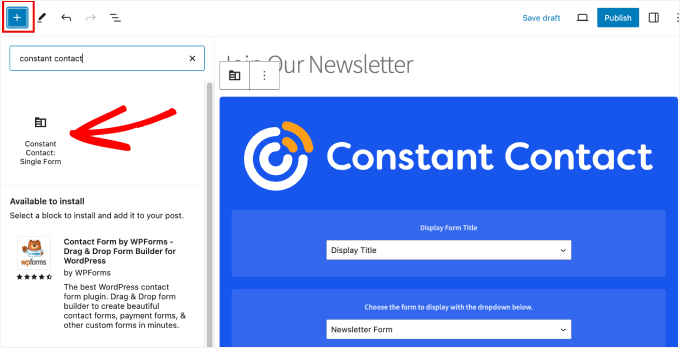
When you’re in the block editor, you can simply click the ‘+’ icon and then select the ‘Constant Contact Single Form’ block.
Once the block is added, you can choose to display the form title or hide it. Then, you’ll select the form you’ve just published from the dropdown menu.
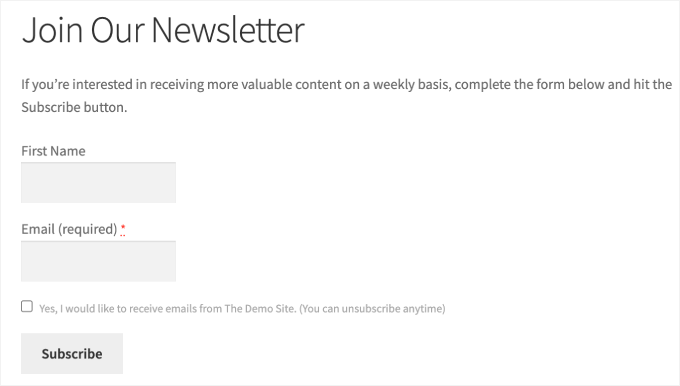
Now, you might want to double-check to make sure the form looks exactly the way it should.
To do this, you can take advantage of the preview functionality. Simply click on the ‘Preview’ button next to ‘Publish.’
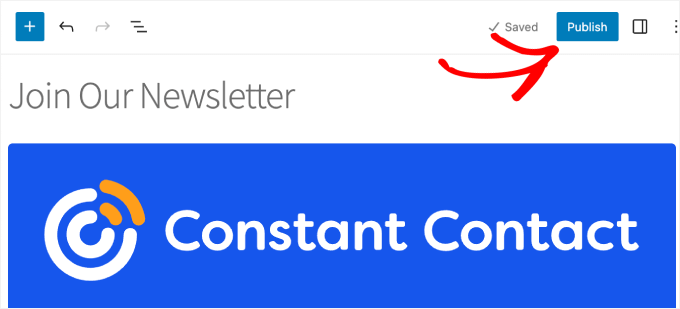
When you’re satisfied with the result, you can hit the ‘Publish’ button at the top.
And that’s it!
You’ve successfully embedded your Constant Contact form into your page or post.
Step 6: Testing Your Constant Contact Form
From here, you just need to make sure that all visitors are added to your Constant Contact list.
Go ahead and fill out your form.
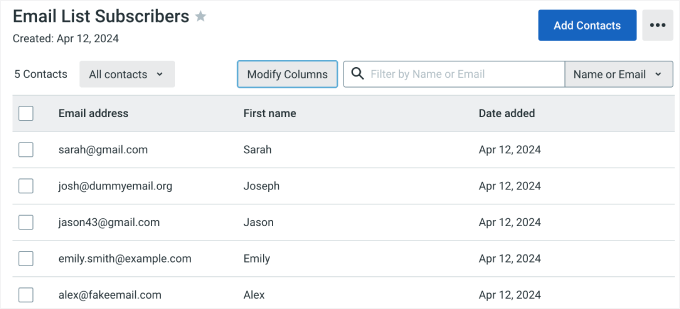
Then, navigate to your Constant Contact account. Under Contacts » Lists, we can see that new contacts have been added to our ‘Email List Subscribers’ list.
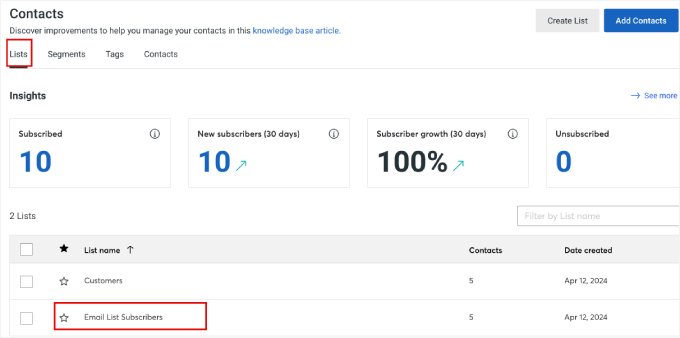
Let’s click on the list to which the form is connected.
Here, you’ll see that all the names and dates have been added as well.
Bonus Tip 💡: Grow Your WordPress Email List
Connecting Constant Contact to WordPress is just the beginning. To turn visitors into subscribers, here are 3 powerful list-building strategies you can start using right away:
- 🚪 Use an Exit-Intent Popup: Tools like OptinMonster detect when a user is about to leave and show a targeted opt-in form. It’s a proven way to recover abandoning visitors. Read our full OptinMonster review to learn more about the software.
- ⤴️ Offer Content Upgrades: Provide bonus resources like checklists, eBooks, or PDF downloads in your blog posts. This gives readers extra value at the perfect moment, boosting signups.
- 🎁 Run Giveaways and Contests: Doing this with entry via email signup is a fast and fun way to grow your list. With tools like RafflePress, you can quickly grow your list by offering a prize in exchange for email signups. See our RafflePress review for detailed insights.
For more information, please see our expert tips on tested and easy ways to grow your email list faster.
FAQs About Connecting Constant Contact to WordPress
If you still have questions about connecting Constant Contact to WordPress, here are some quick answers to the ones we hear most often.
Do I need a plugin to connect Constant Contact to WordPress?
Yes. The easiest way is to use a plugin like WPForms. It lets you connect your form to Constant Contact without touching any code. When someone fills out the form, their details are automatically added to your email list.
Can I connect Constant Contact to WordPress for free?
Yes. Constant Contact offers a free trial, and the free version of WPForms includes built-in Constant Contact integration. This means you can create a signup form and start collecting subscribers right away.
What happens when someone fills out my signup form?
When a visitor submits the form, their name and email address are sent directly to your Constant Contact account. They are then added to the email list you selected when setting up the form.
Can I connect multiple email lists to different forms?
Yes. When you set up the integration in WPForms, you can select exactly which Constant Contact list you want that specific form to feed into. This is great for segmenting your audience based on their interests.
Why isn’t my form adding subscribers to Constant Contact?
This usually happens if the connection wasn’t finished during setup or if the wrong email list was selected. Double-check that your Constant Contact account is connected and that your form is linked to the correct list.
Next Steps for Improving Your Email Marketing
We hope this article has helped you learn how to connect Constant Contact to WordPress.
You may also want to see our other helpful guides on:
- Email Marketing Mistakes WordPress Users Must Avoid
- How to Find Who Reads and Subscribes to Your WordPress Blog
- How to Set Up Email Newsletter Tracking in Google Analytics
- Beginner’s Guide to WordPress Email Marketing Automation
- Email Verification Tools to Clean My Email Lists
If you liked this article, then please subscribe to our YouTube Channel for WordPress video tutorials. You can also find us on Twitter and Facebook.





Have a question or suggestion? Please leave a comment to start the discussion.