


If you’re trying to monetize your WordPress site, then you may have noticed that traditional banner ads don’t pay much and can make your site look spammy. Many site owners struggle to find a monetization strategy that actually works without hurting their user experience.
That’s where Amazon’s affiliate program shines. People already trust Amazon and feel comfortable buying there, which means you can earn commissions by recommending products your readers actually need.
Amazon has updated its program. They retired their old Native Shopping Ads system, leaving many website owners wondering: “How do I display Amazon products now?”
After years of running affiliate sites and testing different approaches, I’ve narrowed it down to four effective methods for promoting Amazon products on WordPress. I’ll walk you through each one so you can choose the best option for your site and start earning more commissions.
TL;DR Quick Summary: There are 4 main ways to add Amazon ads:
- Manually adding text links (everyone should start here).
- Using the AAWP plugin for automated product boxes (best for established sites).
- Using OptinMonster for high-converting popups.
Why Promote Amazon Products on Your WordPress Site?
Promoting Amazon products is one of the easiest and most reliable ways to monetize a WordPress site because Amazon has one of the highest-converting checkout experiences online.
With a market share of over 37% in US eCommerce, Amazon is the go-to place for online shopping. This means even simple text links can generate consistent affiliate income for your website.
Here’s why so many WordPress site owners choose Amazon’s affiliate program:
- Massive product selection across every niche: With millions of products, you can find relevant items to recommend, whether you’re running a recipe blog, tech review site, or DIY tutorial website. This variety makes it easy to match products to your content naturally.
- Built-in trust with your audience: Readers feel comfortable buying from Amazon, so they’re likely to complete a purchase after clicking your link. Plus, you earn a commission on anything they buy during the cookie window, not just the product you linked to.
- Beginner-friendly setup with no inventory: You don’t need to manage inventory, customer support, or a full eCommerce store. You simply add links to products you genuinely recommend. As your site grows, you can scale your strategy with product boxes.
- Quick revenue generation: For many creators, Amazon Associates is the perfect first step into affiliate marketing because it’s simple to set up, fits naturally into most types of content, and can start generating revenue quickly without technical complexity.
I’ve found that even a simple product recommendation in a blog post can lead to consistent monthly income, especially when you’re recommending products your audience actually needs.
Related: Want to build a full affiliate shop instead? Check out our guide on how to build an Amazon affiliate store using WordPress.
I will cover several methods below.
However, I recommend that everyone start with Method 1. You will need to use this manual method to get your first three sales, which is the requirement to unlock the advanced automation features covered in Method 2.
Once you are set up, you can use Methods 3 and 4 alongside the first two options. These tools are designed to help you boost your conversion rates and keep your affiliate links organized.
- Getting Started: Join Amazon Associates
- Method 1: Add Amazon Affiliate Links and Buttons (Start Here)
- Method 2: Add Amazon Products Using AAWP (Best for Automation)
- Method 3: Add Amazon Popups (Best for Conversions)
- How to Manage Amazon Affiliate Links
- Bonus: How to Track Your Amazon Link Clicks
- Frequently Asked Questions About Amazon Affiliate Links
- Explore More Ways to Monetize Your WordPress Site
Getting Started: Join Amazon Associates
Before you can add Amazon affiliate links to your WordPress site, you’ll need to join the Amazon Associates program. The approval process is pretty fast and much more accessible than other networks like Google AdSense.
To get started, head over to the Amazon Associates program website and click the ‘Sign Up’ button.

You’ll be asked to log in to your existing Amazon account using the email and password associated with that account.
If you don’t have an Amazon account, then go ahead and create one now.
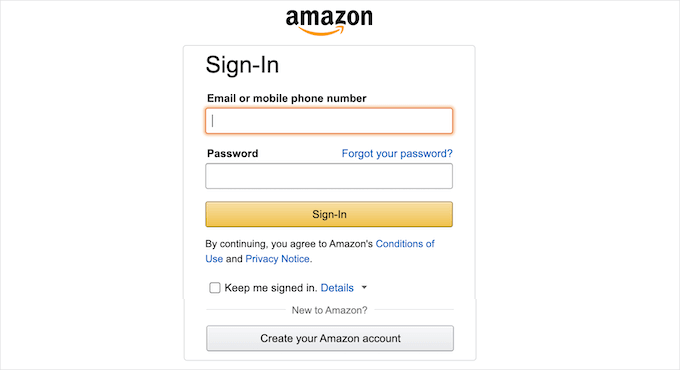
After you’ve logged in, you’ll need to add additional account information and answer questions about your website. Simply follow the on-screen instructions to complete your profile.
Amazon will ask you about your website’s content, traffic sources, and how you plan to use affiliate links.
Don’t worry if you’re just starting out. You can still get approved with a new site as long as you are honest about your plans.
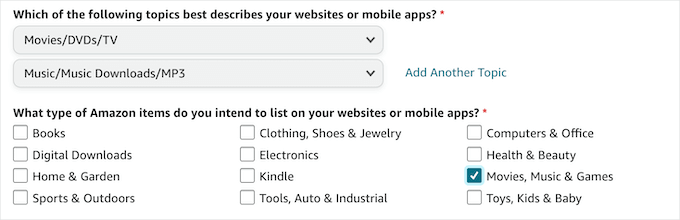
Once you’ve finished the application, Amazon will review it. The approval process typically takes just a few hours to a couple of days.
Here’s an important tip: Amazon requires you to make at least three qualifying sales within 180 days (6 months) of approval to maintain your account. This might sound intimidating, but it’s actually quite achievable once you start adding links to your content.
With your Amazon Associates account approved, you’re ready to start adding Amazon products to your WordPress site. Let’s explore the easiest method first.
Method 1: Add Amazon Affiliate Links and Buttons (Start Here)
This method is perfect if you’re just starting out with Amazon affiliate marketing. It requires no plugins and no API keys, making it ideal for total beginners who want to get their first sales quickly.
Why use this method? It is the fastest way to get started. Amazon updated its SiteStripe toolbar to remove image linking options, so manually adding text links and buttons is now the standard approach for new affiliates.
In my experience, simple text links often outperform flashy banners. They feel like natural recommendations rather than paid advertisements, which makes readers more comfortable clicking them.
The goal here is simple: get those first 3 sales quickly so you can qualify for the advanced tools we’ll cover later.
Step 1: Find Your Product on Amazon
First, log in to your Amazon Associates account. Then browse Amazon.com as you normally would to find a product you want to promote on your WordPress site.
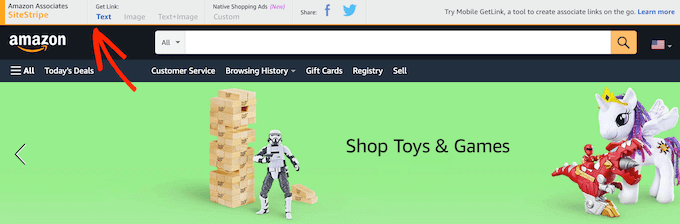
When you’re logged in as an affiliate, you’ll see a gray SiteStripe toolbar appear at the top of every Amazon product page. This toolbar is your key to creating affiliate links quickly.
Step 2: Generate Your Affiliate Link
Once you’re on a product page, look at the SiteStripe toolbar at the top. Click the ‘Text’ link located under the ‘Get Link’ section.
Amazon will automatically generate a short link (amzn.to) for you. This is your unique affiliate tracking link.
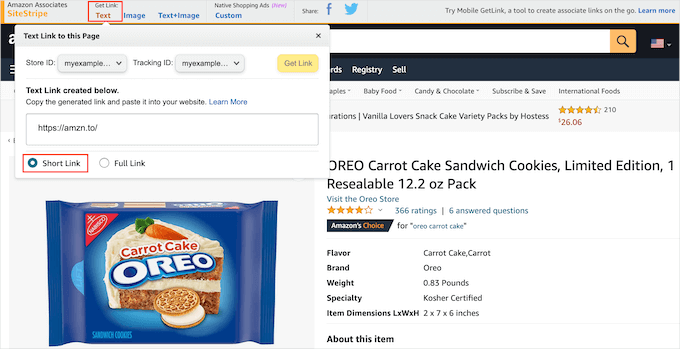
Then, copy the link URL to your clipboard. You can highlight the text or click the ‘Copy’ button if you see one.
Note: Amazon no longer supports the ‘Image’ or ‘Text+Image’ options in SiteStripe. To display product images, you must use a plugin like AAWP (Method 2) once you have API access.
Step 3: Add the Link to Your WordPress Post
Now, head over to your WordPress dashboard and open the post or page where you want to promote the product.
You have two great options to display this link:
Option 1: Text Link
Highlight the product name in your text, click the Link icon in the toolbar, and paste your Amazon URL.
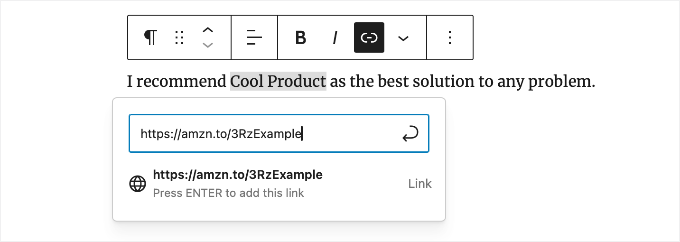
Option 2: Buy Button
Add a Buttons block and type ‘View on Amazon’. Then, click the Link icon in the block toolbar and paste your affiliate link.
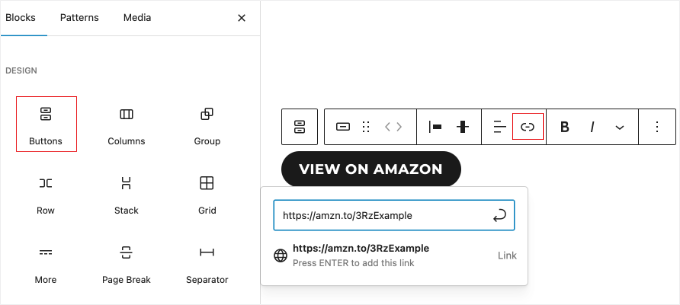
Step 4: Preview and Publish
Before publishing, click the ‘Preview’ button to test your link. Click on it to ensure it redirects correctly to the Amazon product page.
Once you’re happy with how your link or button looks, simply click ‘Publish’ to make your content live.
Pro Tip: As you use this manual method to add products, remember that Amazon requires three qualifying sales before you can access their Product Advertising API.
Once you hit that milestone, you’ll unlock access to advanced plugins like AAWP (Method 2) that offer automated product boxes with live pricing updates and more.
Method 2: Add Amazon Products Using AAWP (Best for Automation)
Once you have made your first 3 qualifying sales, Amazon unlocks access to its Product Advertising API. This allows you to use AAWP (Amazon Affiliate for WordPress), which is the most powerful tool for Amazon affiliates.
Why use this method? This is my preferred method for product displays on established sites because it puts maintenance on autopilot. While I still use Method 1 for simple text links inside paragraphs, I use AAWP for all my product boxes and comparison tables.
The plugin also creates beautiful product boxes that look more professional than the basic SiteStripe cards. However, there’s an important limitation: you must have API access first, which requires those 3 initial sales.
Understanding the API Requirement
Before you can use AAWP, you need access to Amazon’s Product Advertising API. Amazon only grants this after you have made at least 3 qualifying sales within your first 180 days.
If you haven’t hit this milestone yet, you must use Method 1. Once you make those three sales, you can request API credentials from your Amazon Associates dashboard and set up AAWP.
Step 1: Install and Activate AAWP
First, verify that you have access to the Product Advertising API (meaning you have already made 3 qualifying sales). If you don’t, you cannot use this plugin yet.
Once you have confirmed access, you can purchase and download AAWP. The plugin isn’t free, but it offers powerful automation features that can save you hours of manual work.
Next, you need to install and activate the plugin on your WordPress website. If you need help, please see our beginner’s guide on installing a WordPress plugin.
Upon activation, go to Amazon Affiliate » Settings and click on the ‘Licensing’ tab. Enter your license key from the AAWP website and click ‘Verify License’.
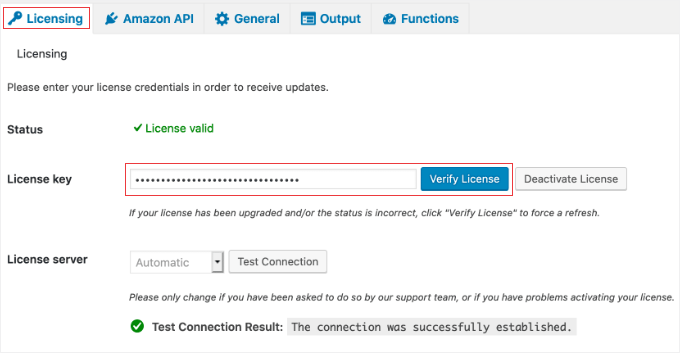
Step 2: Connect AAWP to Your Amazon Account
Once activated, go to AAWP » Settings in your WordPress dashboard. You’ll need to enter your Amazon API credentials here.
These credentials include your Access Key ID and Secret Access Key, which you can get from the Amazon Product Advertising API section of your Associates account.
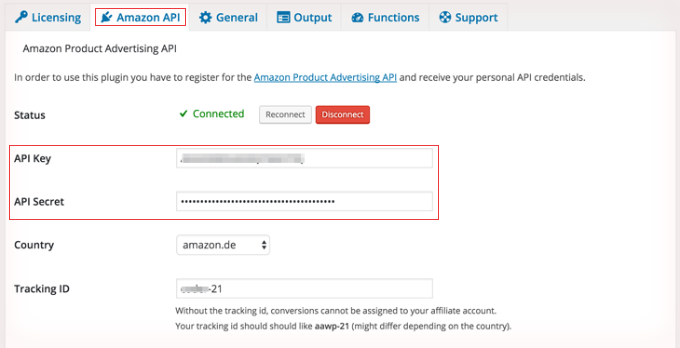
You’ll also need to enter your Amazon Associate ID (also called your tracking ID). This is the same ID you created when you first signed up for the Amazon Associates program.
To find these, log in to your Amazon Associates account and navigate to Tools » Product Advertising API. Click the ‘Add Credentials’ button to generate your keys.
Make sure you download or copy your credentials immediately, as Amazon will not show the Secret Key again.
After entering all your credentials, click ‘Save Changes’ to connect AAWP to your Amazon account.
Step 3: Create Your First Product Box
Now you’re ready to create professional product displays. Go to any post or page where you want to add an Amazon product, or create a new one.
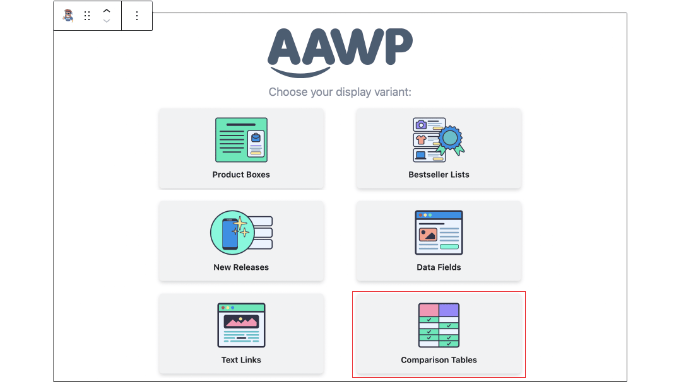
In the WordPress block editor, click the plus (+) icon and search for ‘AAWP’ to see all available AAWP blocks. The most popular option is the Product Box block.
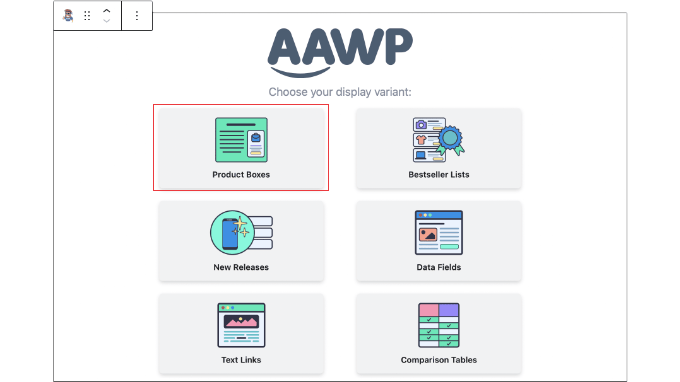
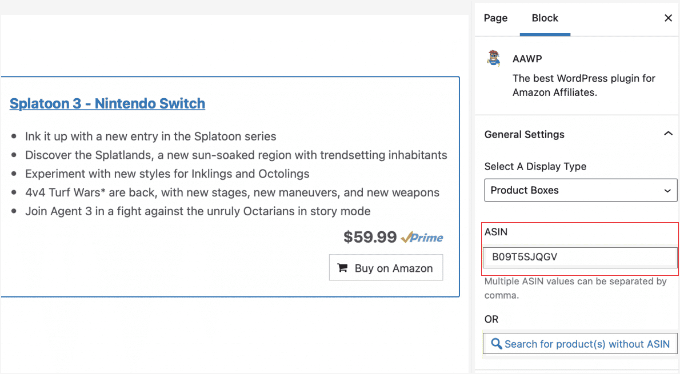
Add the Product Box block to your content. Then, simply paste an Amazon product URL or ASIN (Amazon Standard Identification Number) into the block settings.
AAWP will automatically fetch the product title, image, current price, customer rating, and other details directly from Amazon. The product box will update automatically whenever Amazon changes any of this information.
Step 4: Customize Your Product Display
AAWP gives you several customization options to match your site’s design. You can choose which elements to display, such as:
- Product image and title
- Current price and Prime badge
- Customer ratings and review count
- Product features and description
- Custom button text
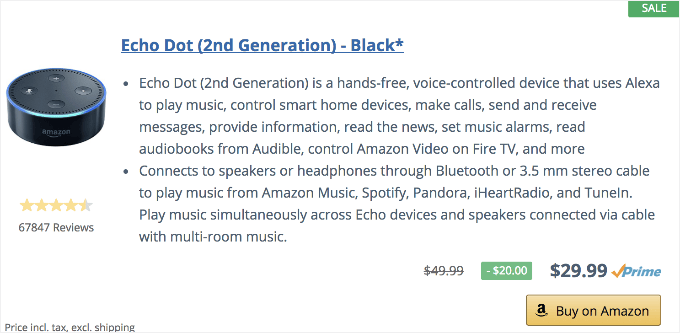
I recommend enabling the Prime badge if the product qualifies, as this often increases click-through rates.
You can also customize the button text to something more compelling, like ‘Check Current Price’ or ‘View on Amazon’.
Step 5: Use Comparison Tables (Optional)
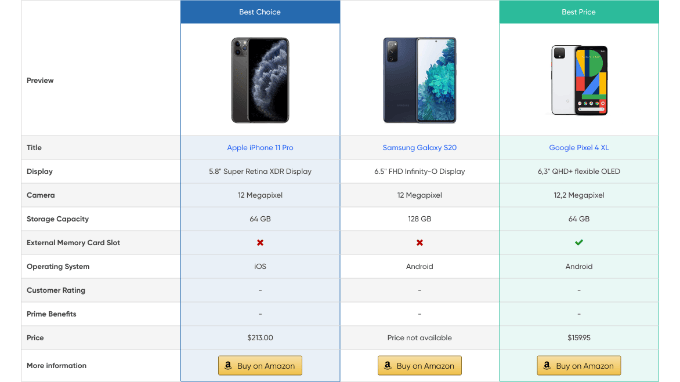
One of AAWP’s most powerful features is the comparison table. This lets you display multiple products side-by-side, making it easier for visitors to compare options.
To create a comparison table, add the AAWP Comparison Table block to your content. Then add 3-5 product ASINs or URLs to compare.
The table automatically populates with live data from Amazon, showing prices, ratings, and key features for each product.
This is particularly effective for ‘best of’ or product review posts.
Related Post: How to add affiliate product boxes in WordPress.
Method 3: Add Amazon Popups (Best for Conversions)
If you want to highlight specific Amazon products without cluttering your site’s layout, popups and slide-ins can be incredibly effective. This method works great for promoting “Deal of the Day” offers or bestselling products that you want to showcase prominently.
Why use this method? I love using this approach for special promotions, like Black Friday deals or Prime Day. Unlike static links that can get lost in your text, a well-timed popup ensures your best offer gets seen by almost everyone who visits your site.
To get the best results, you want to show your offer exactly when readers are most interested. That is where OptinMonster comes in with its smart targeting rules.
We use OptinMonster on WPBeginner to grow our email list and highlight special offers. It allows us to create high-converting campaigns without writing any code.
Step 1: Install and Activate OptinMonster
First, you need to sign up for OptinMonster. It is the best lead-generation plugin for WordPress and works perfectly for creating Amazon product popups. You can learn more in our full OptinMonster review.
Next, install and activate the free OptinMonster plugin. If you need help, please refer to our beginner’s guide on how to install a WordPress plugin.
Upon activation, the setup wizard will launch automatically. Simply follow the on-screen instructions to connect your account or create a free one.
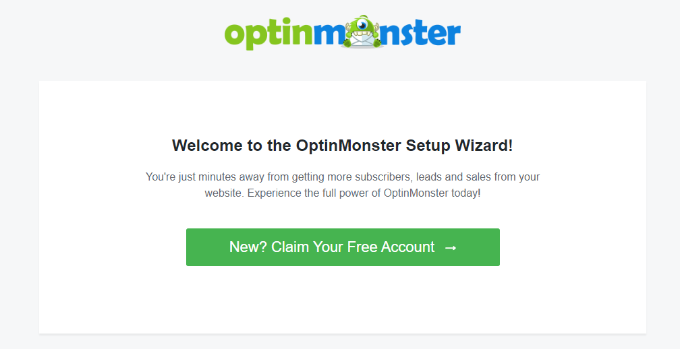
The free version is all you need for this tutorial, but the Pro version offers more features like Exit-Intent® technology and Geo-Location targeting.
The plugin acts as a connector between your WordPress website and the OptinMonster software. Once you’ve installed it, click on the ‘OptinMonster’ menu item in your WordPress admin area.
If you are new to the tool, you can see our step-by-step guide on how to create a WordPress popup for a detailed walkthrough of the interface.
Step 2: Create a New Popup Campaign
After finishing the setup wizard, navigate to OptinMonster » Campaigns from your WordPress dashboard. Then, click ‘Add New’ to create a new campaign.
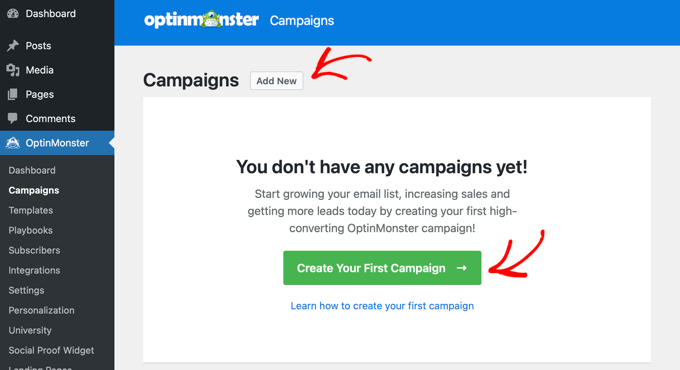
On the campaign type screen, select the ‘Popup’ option. You can also choose ‘Slide-In’ if you prefer a less intrusive approach that appears from the corner of the screen.
Next, choose the ‘Canvas’ template, as it gives you a blank slate to build your Amazon product promotion exactly how you want.
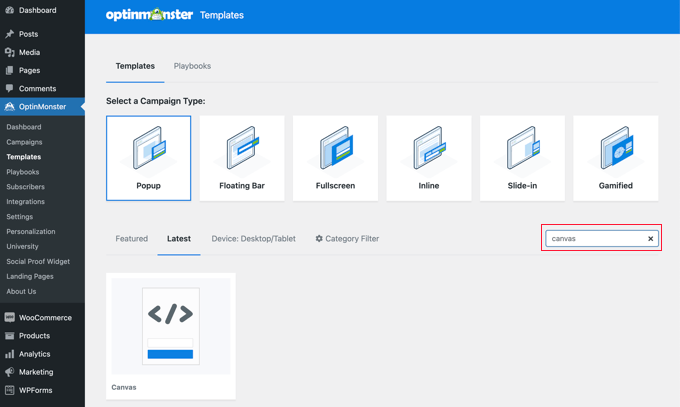
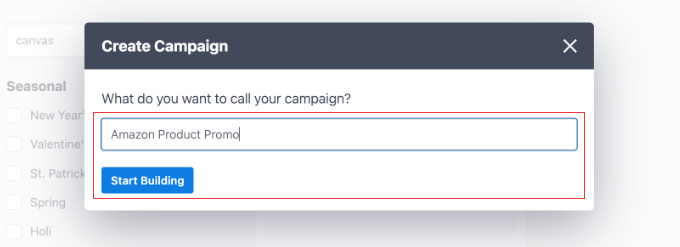
Enter a name for your campaign – something descriptive like ‘Amazon Product Promo’ or ‘Holiday Gift Guide’. The name is just for your reference and won’t appear to visitors.
Click ‘Start Building’ to open the OptinMonster visual editor.
Step 3: Design Your Amazon Popup
Here is where OptinMonster’s approach differs. Since you cannot manually download and host Amazon product images (that violates their Terms of Service), I recommend creating a high-converting ‘Deal Alert’ popup using text and buttons.
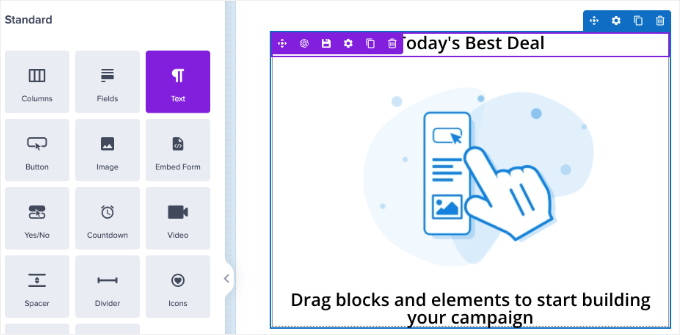
In the OptinMonster builder, drag a Text block onto your canvas. Then, type a headline that creates urgency, like ‘Today’s Best Deal’ or ‘Check Out Our Top Pick’.
If you want to use an image, you can upload a photo you took yourself. Alternatively, you can search OptinMonster’s built-in stock library (Unsplash) to find a royalty-free image or generic icon that fits your offer.
Warning: Do not download the official product image from Amazon and upload it to your WordPress Media Library because this violates Amazon’s Terms of Service.
Step 4: Add Your Affiliate Link Button
Next, drag a Button block onto your popup. This is where visitors will click to go to Amazon and complete their purchase.
Click the button to edit it, and paste your Amazon affiliate link into the button’s URL field. Change the button text to something compelling, like ‘Check Price on Amazon’ or ‘View Deal’.
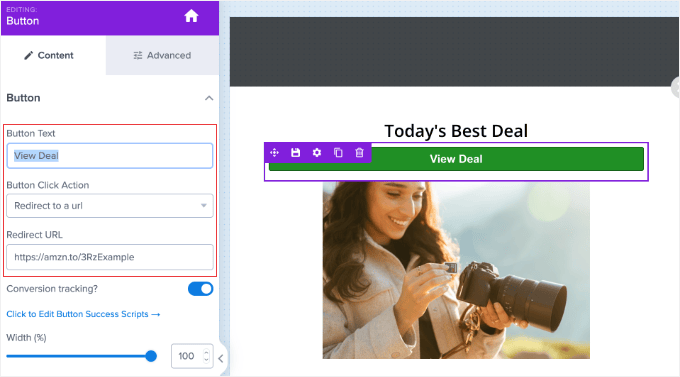
You can customize the button colors, size, and styling to match your brand and make it stand out.
Step 5: Set Up Display Rules
Now comes the powerful part: deciding when and where your popup appears. Click on the ‘Display Rules’ tab at the top of the editor.
The default setting shows the popup after a visitor has been on the page for 5 seconds. This is a good starting point, but you can adjust this timing based on your content length.
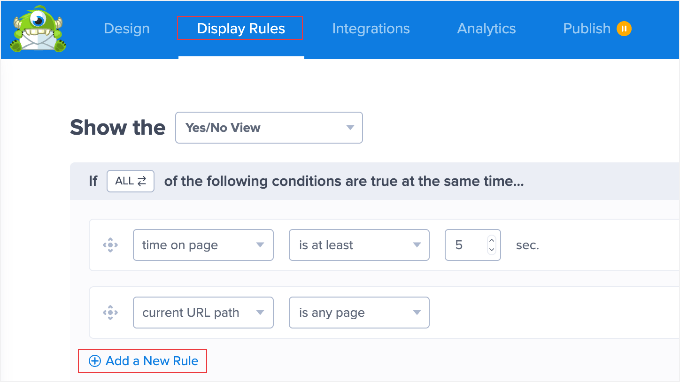
I have a personal rule for popups: never show them immediately. You want to present your offer exactly when the reader is most interested.
That’s why I prefer setting the trigger to appear after a user has scrolled at least 50% down the page. This ensures you’re showing the product to someone who is already engaged with your content and ready to take the next step.
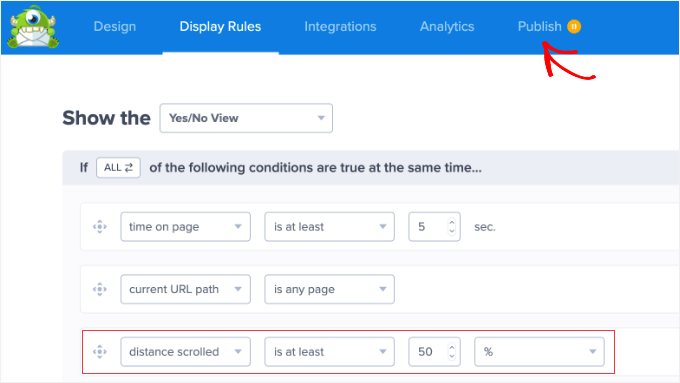
You can also set page-level targeting. For example, if you’re promoting kitchen gadgets, you might only show the popup on posts in your ‘Recipes’ or ‘Cooking Tips’ categories.
When you are finished configuring your rules, click on the Publish tab in the top menu. You can review your summary settings here, but I usually keep the default settings to avoid overwhelming visitors.
Step 6: Publish Your Popup
On the Publish screen, you can verify your settings one last time. When you are ready, simply switch the Publish Status toggle from ‘Draft’ to ‘Publish’.
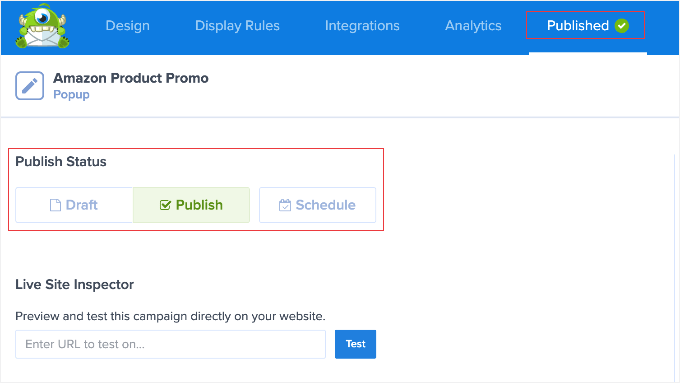
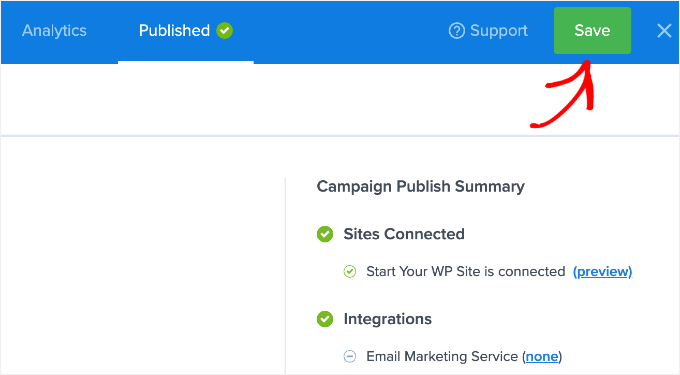
Click ‘Save’ and exit the OptinMonster builder.
Your Amazon product popup is now live on your site and will display to visitors based on the rules you configured.
Pro Tip: The best part about OptinMonster is its targeting flexibility. You can create multiple Amazon product popups and show different products to different audience segments. For example, you could show camping gear to visitors reading your outdoor posts and tech accessories to those browsing your gadget reviews.
How to Manage Amazon Affiliate Links
As your Amazon affiliate business grows, you’ll likely add dozens or even hundreds of affiliate links across your content. Managing all these links manually can become overwhelming, especially if you need to update them later.
The challenge with Amazon links specifically is compliance.
Amazon’s Terms of Service require that your affiliate links remain ‘uncloaked’. This means visitors must be able to see they’re clicking an Amazon link. Unfortunately, many link cloaking plugins hide the destination URL.
I recommend ThirstyAffiliates for managing your Amazon links. It allows you to organize all your affiliate links in one place, and the Pro version includes a smart ‘uncloak’ feature that helps ensure you stay compliant with Amazon’s policies.

In fact, we use ThirstyAffiliates on WPBeginner to manage all our affiliate links. It helps us organize thousands of URLs and ensures they always work correctly. You can learn more about the plugin in our full ThirstyAffiliates review.
With ThirstyAffiliates, you can:
- Store all your affiliate links in one place.
- Organize links by category (Electronics, Kitchen, Books, etc).
- Track which links get the most clicks.
- Update a link once and have it change everywhere on your site.
- Automatically add affiliate links to specific keywords.
Here’s what a managed link looks like in ThirstyAffiliates:
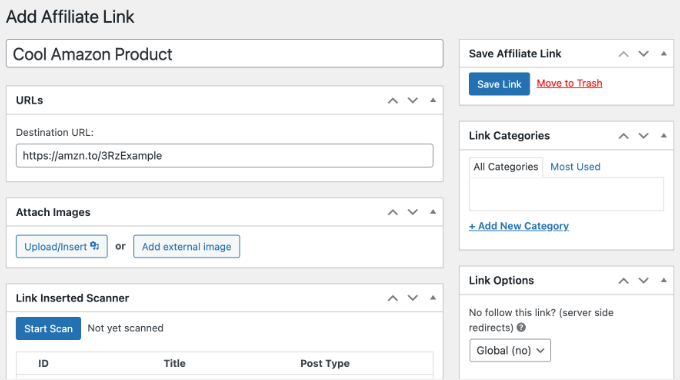
If you are using ThirstyAffiliates Pro, simply check the box for ‘Uncloak Link’ to reveal the full Amazon URL. If you are using the free version, you cannot uncloak links, so you must ensure your link text or button clearly says ‘Buy on Amazon’ so visitors know exactly where they are going.
For complete step-by-step instructions on installing the plugin and managing your affiliate links efficiently, see our detailed guide on how to add affiliate links in WordPress with ThirstyAffiliates.
Bonus: How to Track Your Amazon Link Clicks
Once you have added Amazon links to your site, you will want to know which products your visitors are clicking most often. This helps you understand what your audience likes so you can create more content about those topics.
The easiest way to do this is with MonsterInsights. It automatically tracks every click on your outbound Amazon links so you can see exactly which products are performing best.
For more details, see our step-by-step guide on how to track outbound links in WordPress.
Frequently Asked Questions About Amazon Affiliate Links
If you’re new to promoting Amazon products on WordPress, you probably have some questions about compliance and best practices. Here are answers to the most common questions we receive from our readers.
1. Do I need to disclose that I am using Amazon affiliate links?
Yes, absolutely. To comply with the Federal Trade Commission (FTC) laws and Amazon’s Associates Program Operating Agreement, you must clearly disclose that you earn commissions from your links. Amazon specifically requires this phrase (or one substantially similar) to appear on your site: “As an Amazon Associate, I earn from qualifying purchases.”
2. Why can’t I find the “Image” option in the SiteStripe toolbar anymore?
Amazon updated the SiteStripe toolbar in late 2023 to remove the ‘Image’ and ‘Text+Image’ linking options. Since then, SiteStripe only allows you to generate text links.
To display product images compliantly, you now need to use a plugin that connects to the Amazon API (like AAWP), but you must make 3 qualifying sales before you can get API access.
3. Can I simply download Amazon product images and upload them to WordPress?
No, this is a violation of Amazon’s Terms of Service. You are not allowed to download product images and host them on your own server. Product images must be served directly from Amazon’s servers using their API or standard linking tools. Doing this manually can get your affiliate account banned.
4. Do I need an API key to start adding Amazon links?
No, you do not need an API key to start. You can use Method 1 (Text Links) immediately after signing up. You only need an API key if you want to use advanced plugins like AAWP to create automated product boxes. Access to the API is granted after you generate 3 qualifying sales within 180 days.
5. If a user clicks my link but buys a different product, do I still get paid?
Yes! This is one of the best parts of the Amazon Associates program. When a reader clicks your affiliate link, a tracking cookie is stored in their browser for 24 hours. You will earn a commission on any qualifying items they add to their cart and purchase within that 24-hour window, not just the specific product you recommended.
Explore More Ways to Monetize Your WordPress Site
I hope this guide helped you add Amazon affiliate ads to your WordPress site. By starting with the simple SiteStripe method and gradually moving to more advanced tools as your site grows, you can build a steady stream of affiliate income.
Remember, the key to success with Amazon affiliate marketing is choosing products your audience actually needs and presenting them in a helpful, trustworthy way. Focus on creating quality content first, and the affiliate commissions will follow.
For more helpful tutorials and expert picks on growing your affiliate business, you may also want to check out these articles:
- Ways to Protect Content in WordPress
- How to Insert Ads Within Your Post Content in WordPress
- How to Make a Classified Ads Website with WordPress
- How to Manage, Track, and Control File Downloads in WordPress
- How to Write an Affiliate Product Review
- How to Add Affiliate Disclosure for Each Blog Post Automatically
- Best WordPress Ad Management Plugins and Solutions
- Best Referral Program Software for Small Business
If you liked this article, then please subscribe to our YouTube Channel for WordPress video tutorials. You can also find us on Twitter and Facebook.



Jiří Vaněk
From the point of view of making money and some monetization of the site, which of the ads do you think is more beneficial? Ads by Amazon or Ads by Google?
WPBeginner Support
There is no always right answer for that, it depends on the content and preference of the site owner and audience.
Admin
Jiří Vaněk
Thank you for your response. Currently, I have and use Google Ads, but they aren’t very effective for monetization. Since I have many users from the USA, I will try switching from Google Ads to Amazon and attempt to conduct my own research to see which option is better. Thank you for your time.
kae
Thanks for the information. Why doesn’t Wordpress allow you to copy and paste ad code into the theme editor or blog pages anymore?
WPBeginner Support
While you can still do that using HTML blocks, we recommend these other methods as they allow for easier management of the code on your site
Admin
Maria
Thank you so much for this post! I have been using Amazon affiliate links but now I think i will try the Amazon ads as well.
Thanks again!
WPBeginner Support
Glad our guide was helpful
Admin