


Think about the last time you stumbled upon a WordPress post with tons of comments. It probably made you want to see what it was all about. That kind of buzz is a great reason to display your total comment count to new visitors.
Showing the total number of comments is also a powerful form of social proof. It tells readers your site is an active place for discussions and encourages them to join in.
The thing is, WordPress doesn’t show this number by default. It only displays comment counts on individual posts, which makes it harder to highlight your site’s overall engagement.
In this guide, we’ll show you the easiest ways to display your total comment count in WordPress, no matter which theme you’re using. 🙌

Why Display the Total Number of Comments in WordPress?
Displaying the total number of comments in WordPress can encourage new users to leave comments on your WordPress posts. It’s like telling them, “Other people are reacting to this blog post. You should, too!”
Showing the total number of comments is also a form of social proof because it shows that you have an active comment section.
By default, WordPress will display the comment count for individual posts like so:
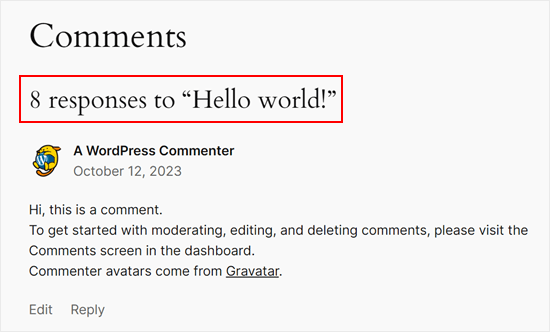
However, it doesn’t show the total number of comments that your website has received. You may want to do this on your homepage or sidebar to get more people to leave comments.
Let’s look at how you can easily display the total comment count on your WordPress website.
Simply use the quick links below to jump straight to the method you want to use:
Method 1: Display WordPress Comment Count Using a Plugin (Easy)
The easiest way to show a comment count is by using Simple Blog Stats. This plugin shows the total number of approved comments and comments in moderation. However, it doesn’t include pings and trackbacks in its count.
Many websites turn off trackbacks and pingbacks in an attempt to block spam comments in WordPress, so this may not be a big problem for your website.
📌 Note: If you want to include trackbacks and pings in your total comment count, we recommend using Method 2 instead.
To get started with this method, you will need to install and activate the Simple Blog Stats plugin.
From your WordPress dashboard, go to Plugins » Add New Plugin.

Next up, you can use the search bar to quickly find the plugin.
In the search result, go ahead and click on ‘Install Now.’
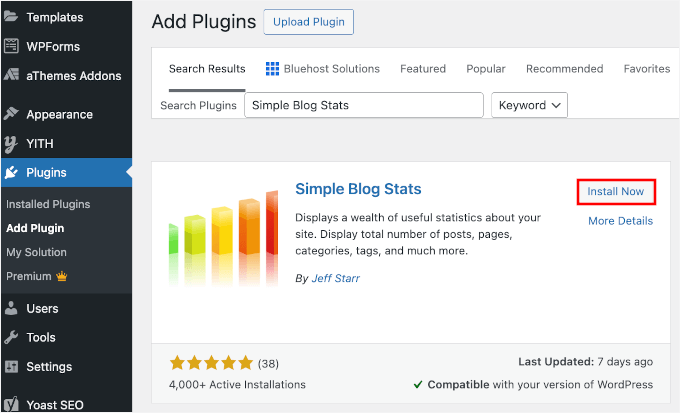
Upon installation, simply click the Activate button to start using the plugin. If you need help, please see our guide on how to install a WordPress plugin.
After activating the plugin, you can see all the plugin’s shortcodes by going to the Settings » Simple Blog Stats page.
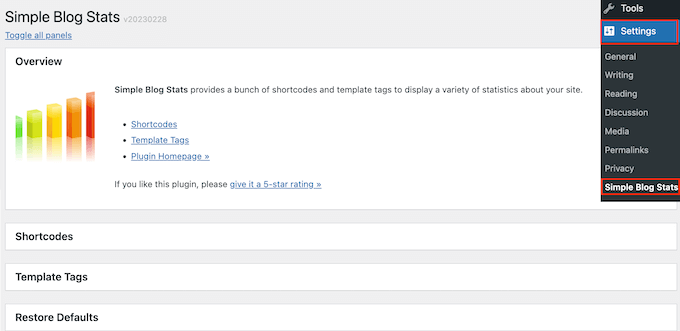
Here, simply click to expand the ‘Shortcodes’ section.
You will now see all the shortcodes you can use to show different stats like the total number of comments, registered users, number of posts, categories, and more.
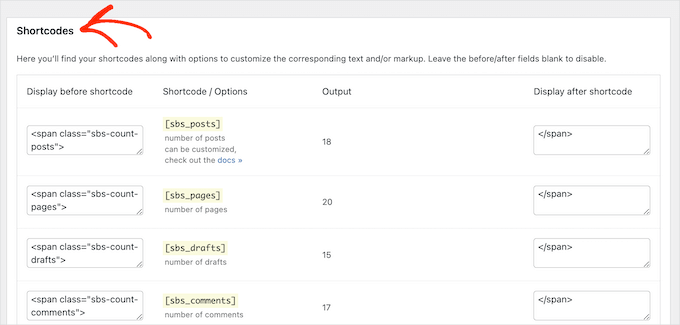
To show the total count of all approved comments on your WordPress blog, simply use the following shortcode: [sbs_approved].
If you want to show the total number of approved comments plus comments that are still in the WordPress comment moderation queue, you can use [sbs_comments] instead.
For more information about using shortcodes, check out our article on how to add shortcodes in WordPress.
Displaying Total Comment Count in a Post or Page
When you have the shortcode you want to use, simply go to the page or post where you want to show the total number of comments.
Here, click the ‘+’ button to add a new block. You can then start typing ‘Shortcode’ and select the right block when it appears.
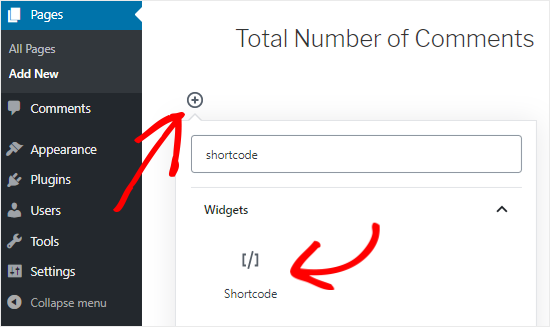
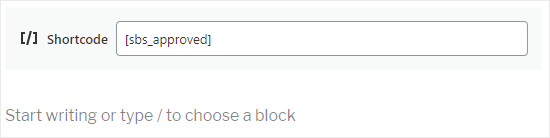
Next, simply paste the shortcode into the block.
You can add any text you want to display before or after the shortcode.
Another option is to use the shortcode inside a paragraph block.
Simply add the shortcode where you want to show the total comment count.
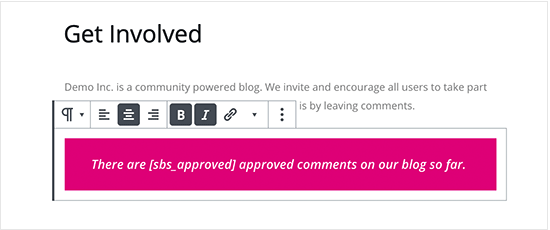
Using the paragraph block also allows you to style the total comment count using the standard text formatting settings.
For example, you might make it bold or italic or change the text color.
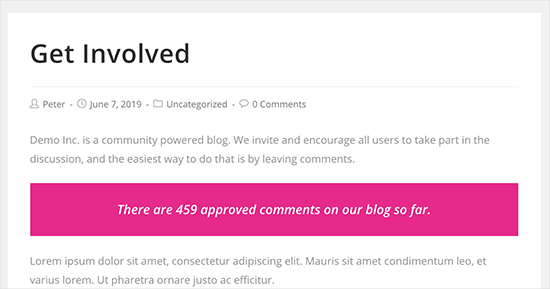
When you are finished, click the ‘Publish’ or ‘Update’ button to save your changes. You can now visit your website to see the comment count live.
Displaying Total Comment Count in a Sidebar Widget
You can also add the total comment count shortcode to a sidebar or similar section. This is an easy way to display the comment count across your entire WordPress website, as you can see in the following image.

To add the comment count to a sidebar or similar section, go to Appearance » Widgets.
Here, you will see a list of all the available widget areas. For example, in the following image, we are using the ThemeIsle Hestia Pro theme, which has multiple widget-ready areas, including the sidebar, header, and footer.
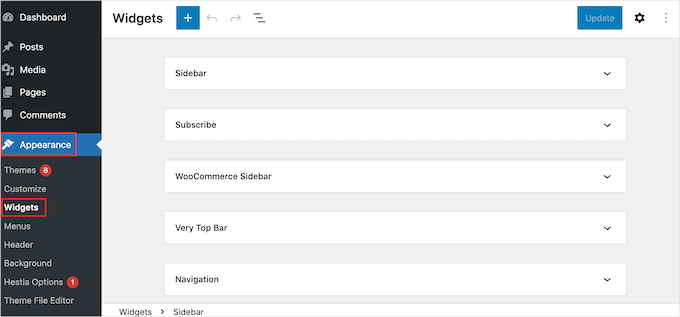
The widget-ready areas are defined by your WordPress theme, so you may see something different depending on the theme you are using.
Now, click the blue ‘+’ button and type Paragraph.
When the ‘Paragraph’ widget shows up, drag it to the area where you want to show the comment count.
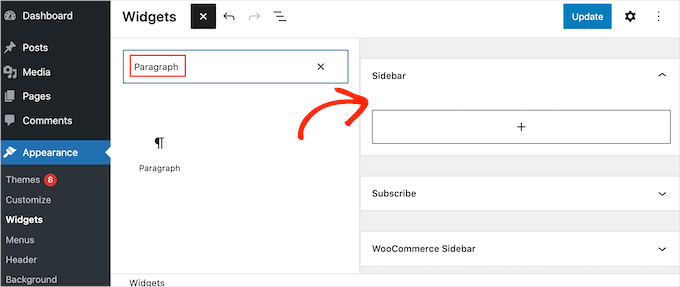
You can then paste the [sbs_approved] shortcode into the widget and type in any text you want to show before or after the total comment count.
When you’re finished, click on ‘Update’ to store your changes.

Now, if you visit your website, you’ll see the total comment count widget in action.
📝 Note: If you’re using a block-based theme, you can add the shortcode to a WordPress page, pattern, or template using the WordPress full site editor.
Read our beginner’s guide to WordPress full site editing for more information.
Method 2: Display Comment Count Using Code (Most Accurate)
If you want to include pingbacks and trackbacks in the total comment count, then you will need to add custom code to your website.
Some tutorials will ask you to edit your theme’s functions.php file directly. We don’t recommend this because even a tiny error can cause many common WordPress errors, break your website, and make it inaccessible.
That’s why we recommend using WPCode. It allows you to add custom code in WordPress without editing any core WordPress theme files.
Some of our partners use WPCode to insert and manage custom code snippets, and it has worked well for them. You can find out more about it in our full WPCode review.
📌 Note: You can use the free WPCode plugin to add a custom code snippet to your WordPress site. That said, if you need code scheduling or want a full code history revision, WPCode Pro is the way to go.
The first thing you need to do is install and activate the WPCode plugin on your website.
Go to Plugins » Add New Plugin from your WordPress admin area.
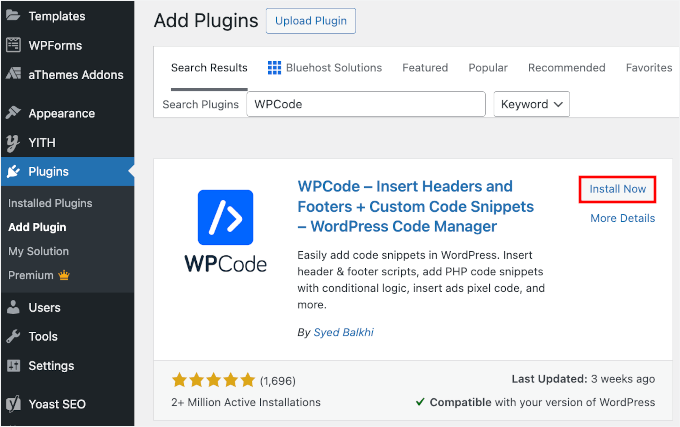
On the next screen, you can use the search feature to quickly find the WPCode plugin.
Once you’ve found it, click ‘Install Now’ and then ‘Activate’ to enable it.
For more details, see our step-by-step guide on how to install a WordPress plugin.
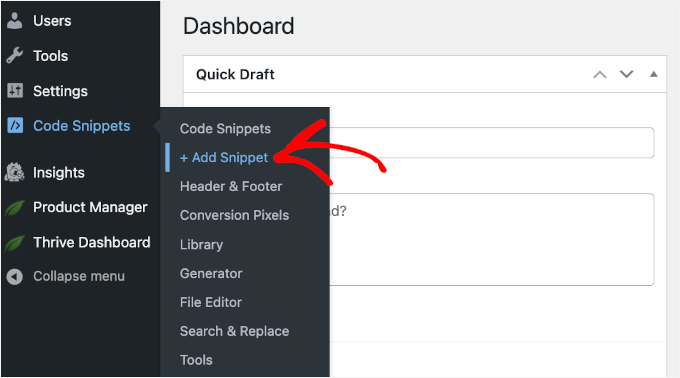
Upon activation, go to Code Snippets » Add Snippet.
Here, you will see all the ready-made snippets that you can add to your site using WPCode. This includes code that allows you to deactivate the comment section, disable attachment pages, upload SVG files, disable automatic updates, and more.
To create your own snippet, hover your mouse over ‘Add Your Custom Code (New Snippet).’
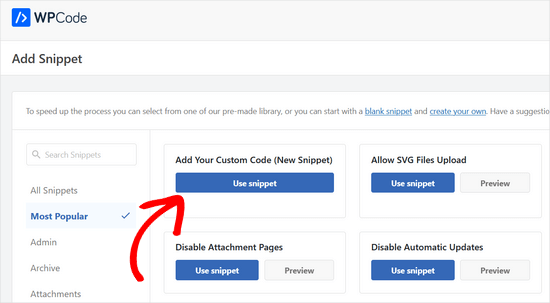
And then, you can click the ‘Use snippet’ button underneath.
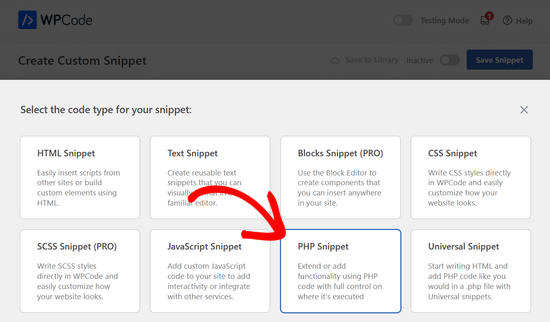
On the popup that appears, let’s choose ‘PHP Snippet’ as the code type from the list of options.
You’ll now see the WPCode editor. Go ahead and enter a title for the custom code snippet.
This is just for your reference, so it can be anything that helps you identify the snippet, like ‘Total Comment Count Display.’
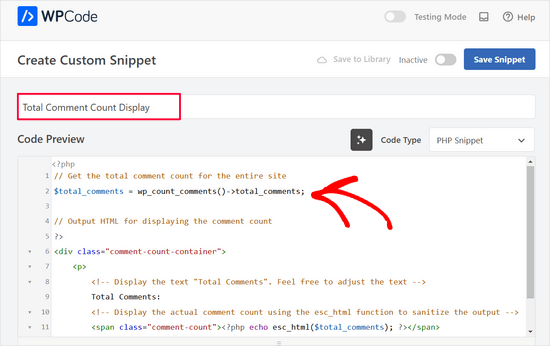
Then, paste the following snippet into the ‘Code Preview’ editor:
// Get the total comment count for the entire site
$total_comments = wp_count_comments()->total_comments;

// Output HTML for displaying the comment count
?>
<div class="comment-count-container">
    <p>
        <!-- Display the text "Total Comments". Feel free to adjust the text -->
        Total Comments:
        <!-- Display the actual comment count using the esc_html function to sanitize the output -->
        <span class="comment-count"><?php echo esc_html($total_comments); ?></span>
    </p>
</div>
Below the code box, you’ll see some insertion options: Auto Insert and Shortcode.
With ‘Auto Insert,’ you can make the code run automatically on all your pages and posts.
But in this case, we recommend using the ‘Shortcode’ option so that you can display the comment count on specific pages or sections that matter most, like your homepage or sidebar.
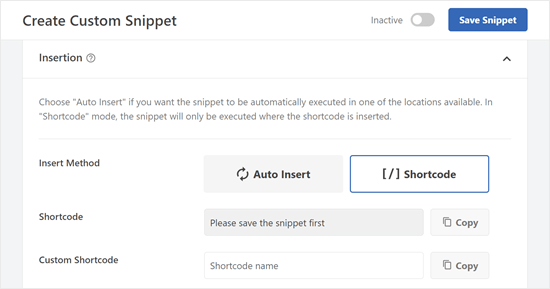
Once you’ve selected that method, you’ll be asked to save the snippet first.
Go ahead and scroll to the top of the screen and click on the ‘Inactive’ toggle so it shows ‘Active.’ Then, click ‘Save Snippet.’
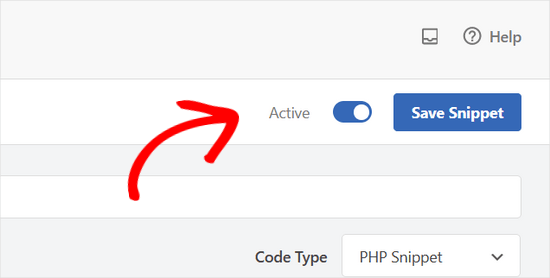
You should now see the shortcode that you can use in your pages, posts, or other widget-ready areas.
If you use the premium version of WPCode, you can also create a custom shortcode name to make it more memorable.
Just make sure to click the ‘Update’ button so the plugin knows you’ll be using that new shortcode name instead of the ID-based one.
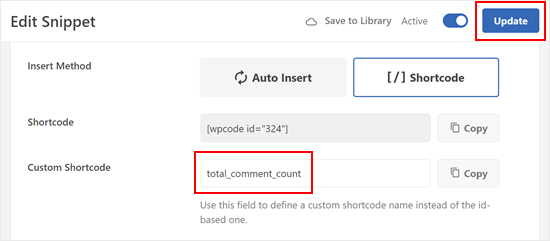
Like the previous method, you can insert the shortcode in any part of your website.
Here’s what the output of the shortcode looks like on our test site:

💡 Related: Here are other articles you can check out to improve your comments with WPCode:
Bonus Tip: Use Thrive Comments to Boost Comment Engagement
Want to take your comment section to the next level and encourage even more interaction? Consider using a powerful comment plugin like Thrive Comments.
Thrive Comments goes beyond simply displaying comments on your posts.
It allows you to gamify your comment section by enabling features like likes and dislikes. This lets your readers express their opinions and highlight valuable comments, fostering a more engaging discussion.
To learn more about the plugin, check out our detailed Thrive Themes review.
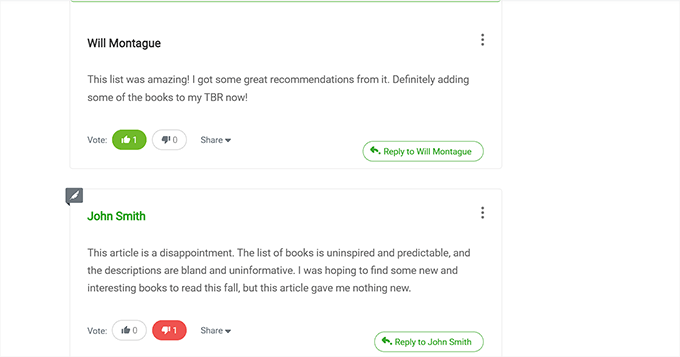
Thrive Comments also lets you curate your comment section more effectively.
You can easily feature comments that add value to the conversation while discreetly burying comments that might be irrelevant or unproductive.
Additionally, Thrive Comments lets you set up a comment redirect action, which means you can automatically send users to a specific page (like a related post) or sign up for your email subscription.
This is a great way to keep them engaged with your content and explore other relevant parts of your website.
FAQs: Display the Total Number of Comments in WordPress
Still have questions about displaying the total number of comments in WordPress? Here are some frequently asked questions we often get:
Does displaying the comment count help with SEO?
Not directly. Search engines don’t rank your site higher just because you show a total comment count. However, a high number of comments can improve perceived credibility and encourage more engagement, which can indirectly support better SEO over time.
Why isn’t my comment count updating?
If you receive a new comment but the number doesn’t change immediately, it is likely due to your WordPress caching plugin. You may need to clear your website cache to see the new number reflect on the front end.
Can I show comment counts for specific categories?
Yes. The Simple Blog Stats plugin, for example, provides specific shortcodes for category-based counts. You can find these in the plugin settings under the shortcodes list.
Does the total comment count include pending comments?
If you use the [sbs_approved] shortcode in Method 1, it only shows published comments. If you want to include pending ones, you should use [sbs_comments]. In Method 2 (WPCode), our snippet strictly counts approved comments to ensure accuracy.
How do I see all comments on WordPress?
To see all comments in WordPress, go to ‘Comments’ in your WordPress admin sidebar. From there, you can filter comments by status, such as All, Pending, Approved, Spam, or Trash.
Does having a lively comment section make my blog more popular?
It can help. A busy comment section makes your blog feel active and trustworthy, which encourages new readers to join the conversation. While it’s not the only factor in growing your site, it does contribute to stronger community engagement.
How do I see engagement activity on my WordPress site?
The easiest way is to use an analytics plugin like MonsterInsights. It shows you pageviews, user behavior, popular content, and other engagement metrics right inside your dashboard. You can also use tools like heatmaps or session recordings if you want deeper insights.
Next Steps: Improve Your WordPress Comments
We hope this tutorial has helped you learn how to display the total number of comments in WordPress.
Now that you have displayed your comment count, you might want to improve your comment section further. Here are some resources to help you:
- How to Allow Users to Edit Comments in WordPress
- How to Allow Users to Subscribe to Comments in WordPress
- How to Allow Users to Report Inappropriate Comments in WordPress
- How to Notify Users When Their Comment is Approved in WordPress
- Best Plugins to Improve WordPress Comments
If you liked this article, then please subscribe to our YouTube Channel for WordPress video tutorials. You can also find us on Twitter and Facebook.




Shahadut
Hi,
This guide is incredibly helpful for improving user engagement! Displaying total comment counts adds strong social proof and invites more interaction. I especially appreciated the detailed plugin and WPCode methods—great for both beginners and advanced users. Thrive Comments is a solid bonus tip too! Thanks for breaking it all down so clearly with step-by-step instructions.
WPBeginner Support
You’re welcome, glad our guide was helpful
Admin
kzain
This is a great post! The PHP snippet for displaying comment counts is exactly what I was looking for. It’s great that you offer both plugin options and code solutions, The code approach gives me more flexibility for customization. Thanks for the informative guide!
Dennis Muthomi
Thanks for this. I have a quick SILLY question:
WPBeginner is one of the most popular WordPress resources on internet, I’m curious what WPBeginner’s total comment count stands at currently?
It would be interesting to know the total number of comments you’ve received since originally being founded by Syed Balkhi back in 2009.
I am sure it is astronomical right?
WPBeginner Support
The number of approved comments is over 80,000 but we continue to get more
Admin
Jiří Vaněk
Thanks for the PHP snippet. I will definitely like to use it on my site. I appreciate that, in addition to the possibilities using plugins, you also take the time to write PHP code, which is much more valuable to me in order to save server memory.
Henry Obilor
Thanks for this simple hack, can I show this just at the beginning of every post automatically?
WPBeginner Support
If you set up a widget area you certainly could automatically add it to the start of all of your posts
Admin
Rodney Lacambra
Great article. Really helpful, especially for newbies.
thanks