


WordPress search often feels like something you can set up once and forget about. Visitors type in a keyword, and the right content should show up automatically.
In reality, search results can quickly get cluttered. Login pages, thank-you pages, author archives, or other internal content start appearing, pushing your most helpful posts further down.
On sites with large archives or online stores, this can create a messy user experience where people waste time scrolling through results that don’t matter to them.
Thankfully, WordPress gives you ways to control exactly what appears in search results, no matter what type of site you’re running.
In this guide, you’ll learn how to exclude specific pages, authors, and other content from WordPress search, so your search results stay clean, relevant, and easy to use. 🙌

Why Exclude Items From WordPress Search?
By default, WordPress Search shows all your posts and pages in the results, which works fine for many simple websites. However, as your site grows, not every piece of content should appear in search results. Some pages are meant for specific actions or audiences, not for discovery.
For example, if you run an online store, showing checkout, cart, or order confirmation pages in search results can confuse customers and interrupt the buying process.
Similarly, if you manage a WordPress membership website or sell online courses, then you’ll typically want to exclude your premium, members-only content from public search results. You may even want to leave out other types of content, such as posts by specific authors.
You may also want to exclude other specific pages or content types, such as:
- Pages used for logins, redirects, or internal workflows
- Author archives or posts from specific authors
- Landing pages, thank-you pages, or expired promotions
- Test pages or content created for admin use only
Excluding these items helps keep your search results focused on content that’s actually useful to visitors. This can make it easier for them to find what they’re looking for while keeping your site organized.
With that in mind, let’s take a look at how to easily exclude items from WordPress search. Here’s an overview of what we’ll show you how to do in this article:
- Install and Set Up the SearchWP WordPress Plugin
- Create a Custom Search Algorithm
- Exclude Specific Posts, Pages, and Custom Post Types from WordPress Search
- Exclude Specific Categories, Tags, and Custom Taxonomies From WordPress Search
- Exclude Specific Author Posts From WordPress Search
- Bonus Tip: Adjust WordPress Search Results to Promote Key Content
- FAQ: Exclude Pages, Authors, and More from WordPress Search
- More Guides to Improve Your WordPress Search Function
💡 Note: In this guide, we will show you how to exclude content from your website’s search results. However, this content will still show up in the search engine results.
If you want to stop search engines from indexing a page, then check out our guide on how to hide a WordPress page from Google.
Install and Set Up the SearchWP WordPress Plugin
The easiest way to exclude pages, authors, categories, taxonomies, tags, and more is by using the SearchWP plugin. It’s the best WordPress search plugin used by over 30,000 sites.
It’s very beginner-friendly and makes it easy to improve the WordPress search feature to provide more helpful and relevant results.
You can use this plugin to exclude entire content types from the search results. You can even exclude specific pages, posts, and custom post types. We explored its features in-depth when writing our detailed SearchWP review.
To get started, you’ll want to create a SearchWP account.
On the SearchWP website, click the ‘Get SearchWP Now’ button, choose a plan that fits your project, and complete the signup process.
💡 Note: SearchWP is a premium plugin, and it gives you precise control over what gets indexed (or not) in the WordPress search, including pages, authors, and other content. That said, there’s a free SearchWP Live Ajax Search to improve search with live results.
With that done, you’ll land on your SearchWP account dashboard. Here, you can download the plugin’s zip file and copy the license key.
From here, you can then install and activate the SearchWP plugin. In your WordPress dashboard, navigate to Plugins » Add New Plugin.

On the next screen, you can click the ‘Upload Plugin’ button.
Then, go ahead and click ‘Choose File’ to open the file uploader and upload your SearchWP zip file.
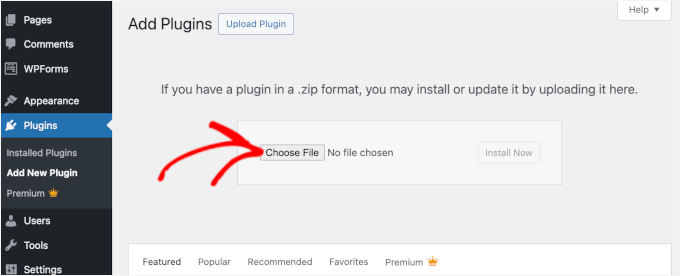
Once uploaded, simply click on ‘Install Now’ and then ‘Activate’ to enable it. For more details, see our step-by-step guide on how to install a WordPress plugin.
Upon activation, go to SearchWP » Settings and then click on the ‘General’ tab.
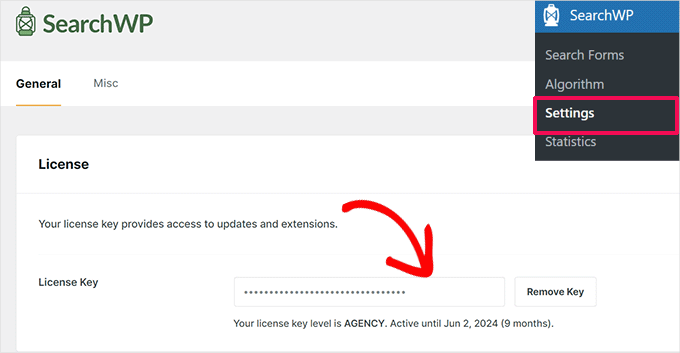
Here, you need to enter your license in the ‘License Key’ box.
You can find this information in your account on the SearchWP site. Once you are done, make sure to click the ‘Verify Key’ button.
Create a Custom Search Algorithm
After activating the plugin, you can fine-tune how SearchWP indexes, searches, and displays your content. You can think of this as creating a custom Google search algorithm that’s just for your WordPress blog or website.
You need to create a sitewide search engine before you can start excluding pages, posts, authors, and more from your custom search results page.
To get started, head over to SearchWP » Algorithm.
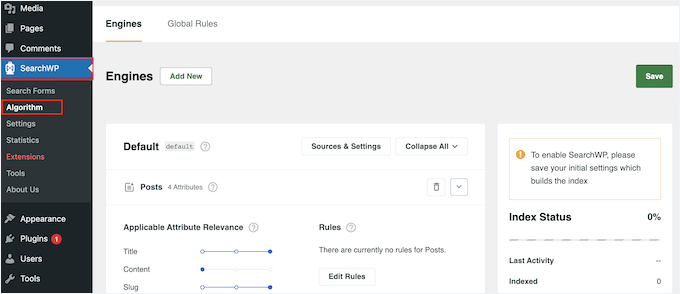
Here, you’ll see a section for the different content types that SearchWP searches by default, such as pages, posts, and media files.
Every section has its own ‘Applicable Attribute Relevance’ sliders that control how SearchWP will rank your site’s content.
For example, if you move the ‘Title’ slider to a bit to the left and the ‘Content’ slider to the right, then the content will carry more weight than the title.
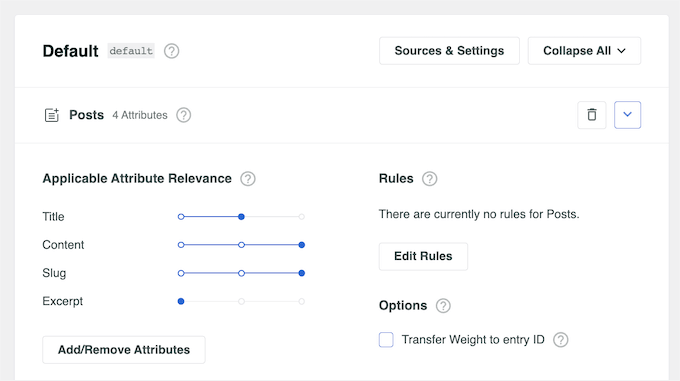
At this point, you can exclude entire content types from the search results, such as all pages, posts, and custom post types.
For example, most WordPress blogs have a few pages, such as a contact form or homepage. You may want to exclude all pages from the search so that only blog posts show up in the search results.
To do this, simply click the ‘Sources & Settings’ button.
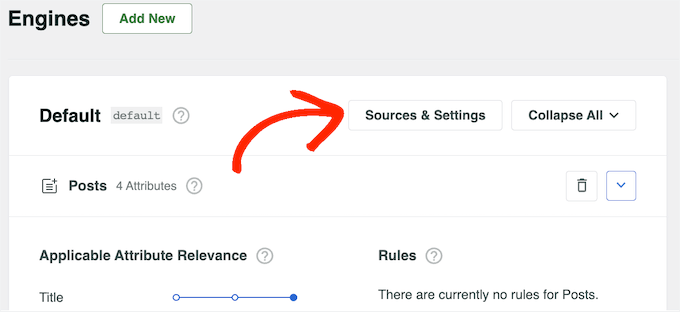
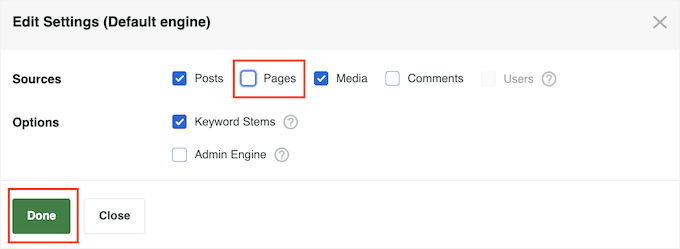
This opens a popup where you can uncheck the content that you want to exclude from WordPress search, including all pages.
Once you’ve done that, click on the ‘Done’ button.
When you’ve finished customizing the default search engine settings, it’s time to save your changes. Even if you plan to exclude specific pages, authors, or other content, you’ll still need to save your new sitewide search algorithm first.
To do that, scroll to the top of the screen and click the ‘Save’ button.
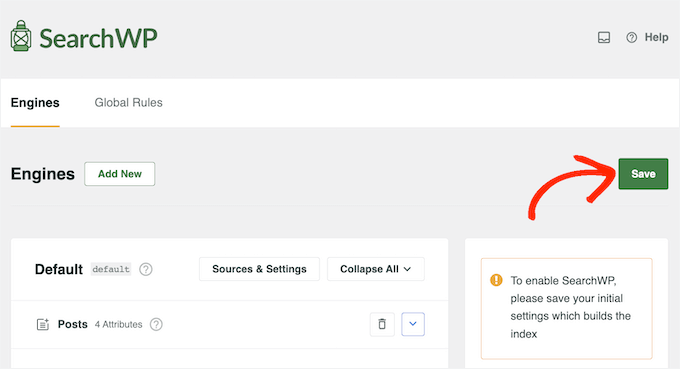
SearchWP will now rebuild the index automatically. Depending on the speed of your Internet connection and your WordPress hosting provider, this may take a few minutes.
As soon as you see ‘Index Status 100%,’ you’ll know that SearchWP has indexed all your content and settings.
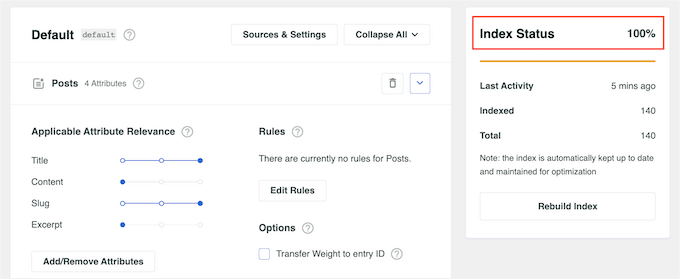
Now, the excluded content will never show up in the search results.
Exclude Specific Posts, Pages, and Custom Post Types from WordPress Search
Once you’ve created a custom search algorithm, you can exclude specific posts, pages, or custom post types from your WordPress search results.
For example, if you are using WooCommerce, then you might exclude your store’s contact form, account login, and checkout pages so that searches only ever return products. In this way, you can create a smarter WooCommerce product search and get more sales.
To do this, you’ll use the ‘Exclude UI’ extension, which adds an ‘Exclude from search’ box to the page editor.
In the WordPress dashboard, head over to SearchWP » Extensions. Here, find the ‘Exclude UI’ extension and click on its ‘Install’ button.
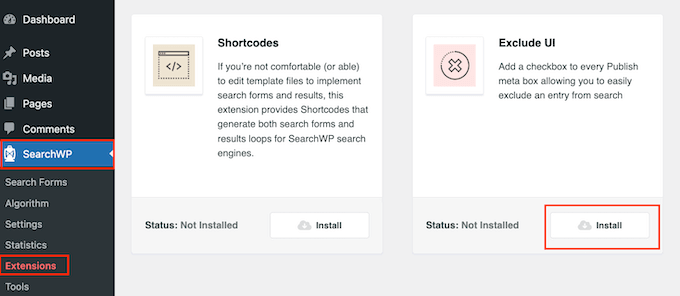
After that, open the post, page, or custom post type that you want to exclude from the WordPress search results.
If you are excluding a single post, then make sure the ‘Post’ option is selected in the right-hand menu, and then check the ‘Exclude from search’ box.
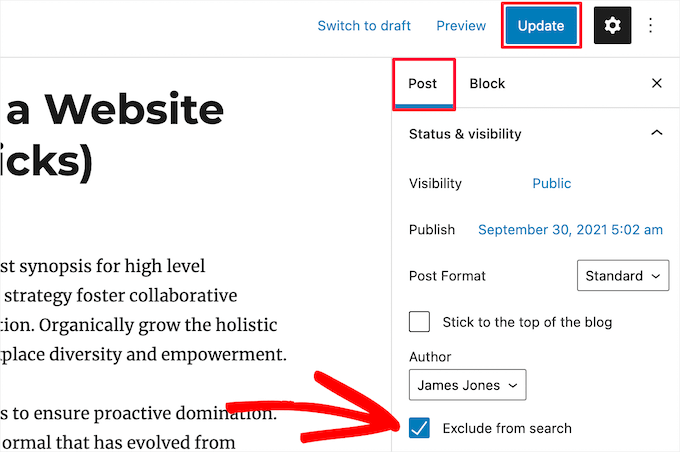
With that done, click on ‘Update’ to save your changes.
You can also exclude specific pages and custom post types following the same process described above.
The only difference is that the right-hand menu will say ‘Page’ or the name of the custom post type, instead of ‘Post.’
Exclude Specific Categories, Tags, and Custom Taxonomies From WordPress Search
You can also exclude specific categories, tags, and other custom taxonomies from the WordPress search results.
For example, there might be some tags that authors use to organize and manage content in your multi-author WordPress blog. Since these tags are just for your team’s reference, you’ll want to exclude them from the search results.
To do this, simply go to SearchWP » Algorithm and then scroll to the ‘Posts’ section. Here, click on ‘Edit Rules.’
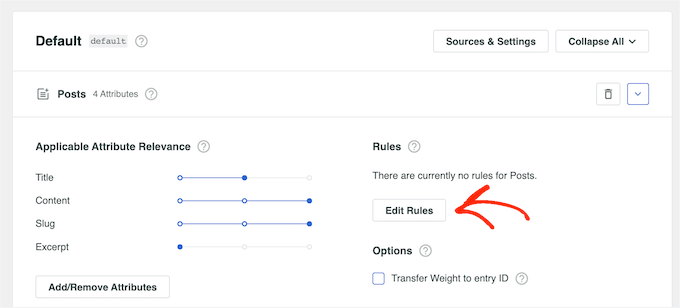
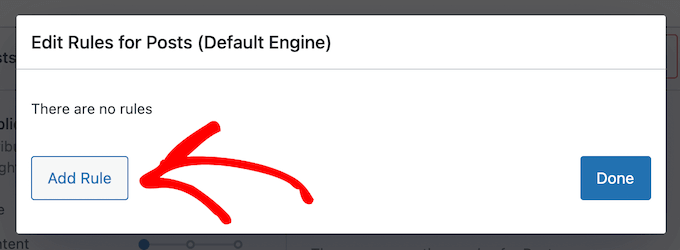
This opens a popup where you can edit the search engine rules.
Simply click the ‘Add Rule’ button to create your first rule.
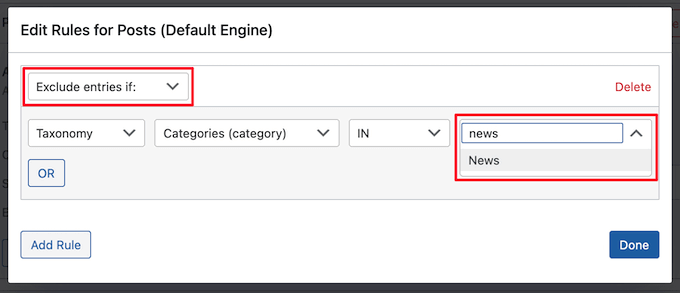
Here, open the first dropdown menu and select ‘Exclude entries if.’
You can now use the rest of the settings to specify the content you want to exclude. For example, if you wanted to exclude a specific category, then you’d type in the category name.
You can also type in any custom taxonomies you want to exclude.
To exclude specific post tags from the search results, simply open the dropdown menu and select ‘Tags.’
Then, type in the name of the tag you want to exclude.

To add another rule, simply click the ‘Add Rule’ button and repeat the same process described above.
When you are happy with how the rules are set up, click ‘Done.’
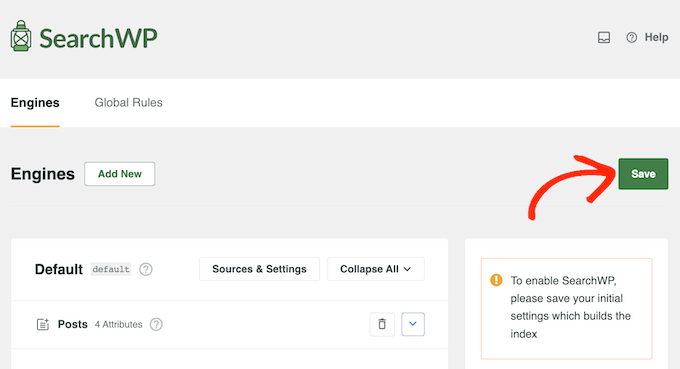
Once you have finished customizing your rules, make sure you scroll to the top of the page and click on ‘Save’ to store your changes and rebuild the index.
Now, when visitors search your WordPress website, SearchWP will exclude all the selected categories, tags, or custom taxonomies from its results.
Exclude Specific Author Posts From WordPress Search
If you’ve added multiple authors to your WordPress blog, then you may want to exclude specific authors from the search results. For example, you might exclude an author’s blogs if they’re no longer writing for your website.
You can exclude all the posts created by a specific author by adding code to your website. If you haven’t done this before, then see our beginner’s guide to pasting snippets from the web into WordPress.
Often, guides will ask you to add the custom code to your theme’s functions.php file. However, this isn’t very easy, and even a tiny spelling mistake or error in the code can cause common WordPress errors or even break your website completely.
Luckily, there is an easier way for users to add and manage custom code snippets.
WPCode is the best, most popular code snippet plugin used by over 1 million websites. It makes it easy to add code snippets without having to edit your functions.php file. You’ll also be able to update your WordPress theme without losing customizations.
Some of our partner brands use WPCode to add and manage their custom code snippets. We’ve also put it to the test, and you can find all about it in our full WPCode review.
The first thing you need to do is install and activate WPCode. For more details, see our step-by-step guide on how to install a WordPress plugin.
💡 Note: For this tutorial, we’ll use the free WPCode version. That said, if you want to unlock the full code snippet library, enable code scheduling, and access code revision history, then you’ll need WPCode Pro.
Upon activation, head over to Code Snippets » Add Snippet. Here, hover over ‘Add Your Custom Code’ and select ‘Use snippet’ when it appears.
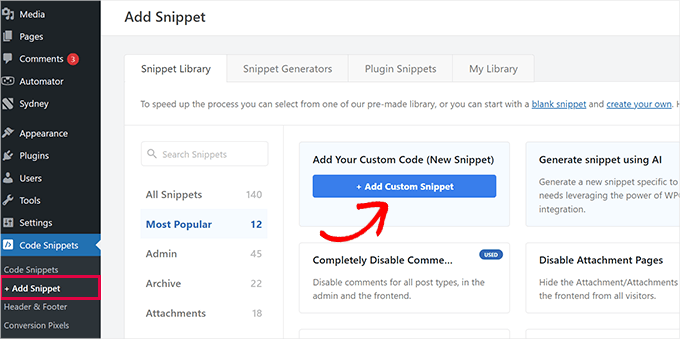
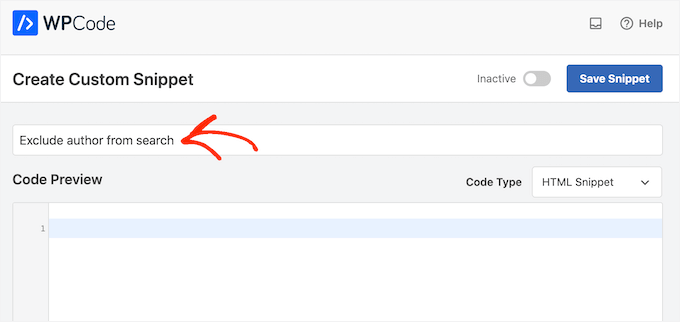
This will take you to the ‘Create Custom Snippet’ page, where you can type in a name for the code snippet.
This is just for your reference, so you can use anything you want.
Next, open the ‘Code Type’ dropdown and select ‘PHP.’
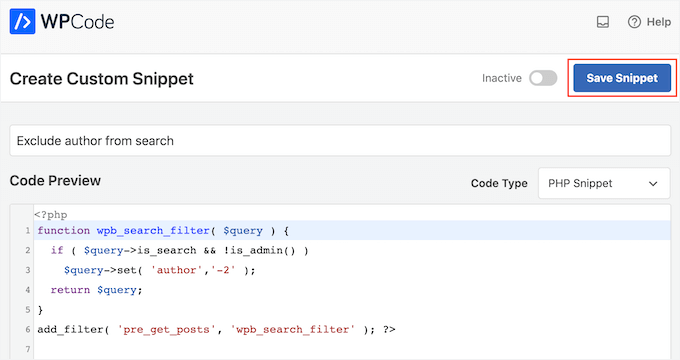
After that, you can go ahead and paste the following snippet into the code box:
<?php
function wpb_search_filter( $query ) {
  if ( $query->is_search && !is_admin() )
    $query->set( 'author','-24' );
  return $query;
}
add_filter( 'pre_get_posts', 'wpb_search_filter' ); ?>
You’ll need to replace 24 with the user ID of the author you want to exclude.
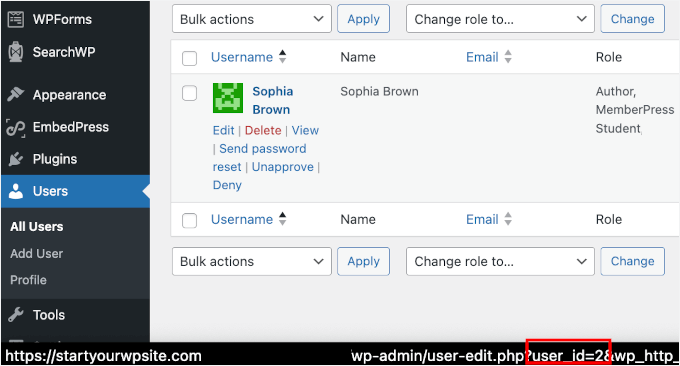
You can find this ID by going to the Users page in your WordPress admin and hovering your mouse over the author’s name. The ID will appear in the URL at the bottom of your browser screen.
If you need help finding the user ID, then see our guide on how to find IDs in WordPress.
You can also exclude multiple authors from the search results by adding their user IDs separated by a comma:
<?php
function wpb_search_filter( $query ) {
  if ( $query->is_search && !is_admin() )
    $query->set( 'author','-24, -12, -19' );
  return $query;
}
add_filter( 'pre_get_posts', 'wpb_search_filter' ); ?>
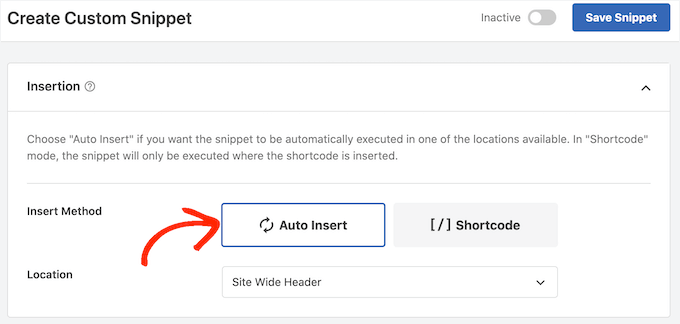
Below the code box, you will see insertion options. There are two main insertion options: ‘Auto Insert’ and ‘Shortcode.’
You’ll want to choose the ‘Auto Insert’ method so that WPCode automatically inserts and executes the code across your entire site.
You can also assign tags to the code snippet. This can help sort your code snippets by topic and functionality.
When you are happy with how the snippet is set up, scroll to the top of the screen and click on ‘Save Snippet.’
Finally, you can make the code snippet live on your site by clicking the ‘Active’ toggle.
Don’t forget to save this change by clicking on ‘Update.’
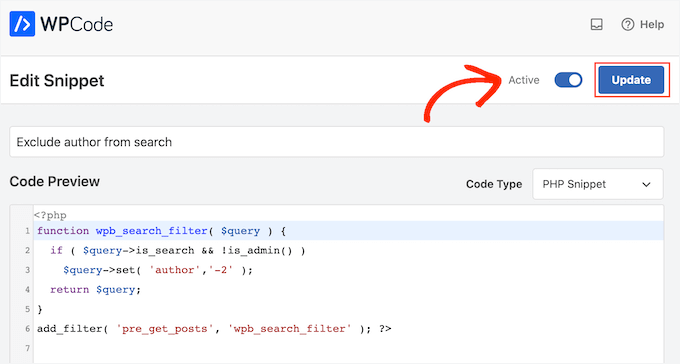
Now, the author will be excluded from the WordPress search results.
Bonus Tip: Adjust WordPress Search Results to Promote Key Content
Want to guide users toward your most valuable content, like product pages, lead magnets, or cornerstone articles?
With the SearchWP plugin, you can customize the order of search results to highlight specific posts or pages.
To do this, you’ll need the Custom Results Order extension. You can install it from SearchWP » Extensions.
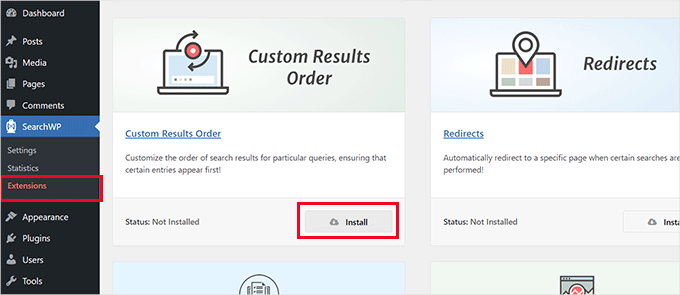
Then, you can identify the keywords your visitors are searching for most often.
You can see the data in the ‘Statistics’ section.
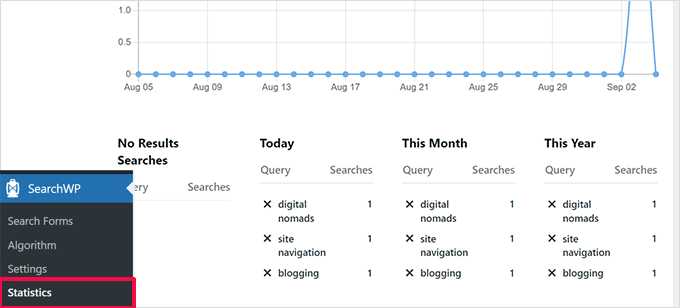
Next, go to the ‘Algorithm’ page and open the ‘Custom Results Order’ tab.
Enter a keyword, then select the post or page you want to promote and click ‘Promote to Top.’ This ensures your important content shows up first when users search for related terms.
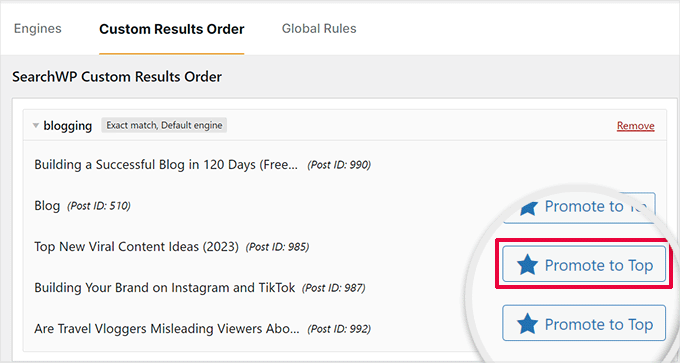
You can update or fine-tune this list anytime, making it easy to align your search results with your marketing goals or seasonal campaigns.
For details, you can check out our guide on how to customize the search results page in WordPress.
There, you can also find more tips to improve your site’s search, including adding live search, enabling search in shortcode outputs, making PDFs and documents searchable, and more!
FAQ: Exclude Pages, Authors, and More from WordPress Search
Now that you’ve excluded certain pages or content types from WordPress search, you might still have a few questions about how it all works. Let’s go over some of the most common ones to help you fine-tune your setup:
Why should I exclude certain pages or posts from my WordPress search?
Keeping search results clean and relevant improves the user experience. For example, you probably don’t want visitors landing on admin, thank-you, or checkout pages when they use your site’s search.
Can I exclude content without using a plugin?
Yes, you can add some code to your theme’s functions.php file to do this manually. But if you’d rather skip the technical steps, a WordPress search plugin makes the process much easier and safer, especially if you’re not comfortable editing code.
How do I find the user ID for excluding a specific author?
Just head to your WordPress dashboard and go to ‘Users.’ Hover over the author’s name, and you’ll see their user ID appear in the status bar of your browser (usually in the bottom left corner).
What happens if I need to exclude multiple categories or authors?
No problem. You can list multiple IDs, separated by commas, whether you’re using plugin settings or adding custom code. It’s a quick way to exclude several items at once.
Will excluding content from WordPress search also remove it from Google search results?
Nope! Hiding something from your site’s internal search doesn’t affect how it appears on Google. If you want to keep content or pages out of search engines, you’ll need to use an SEO plugin like All in One SEO to set the page to “noindex.” This tells Google specifically not to show that page in its results.
More Guides to Improve Your WordPress Search Function
We hope this article helped you learn how to exclude specific pages, custom post types, authors, and more from WordPress search. Next, you may also want to see our guides:
- How to Search by Category in WordPress
- How to Customize the WordPress Search Results Page
- How to Add the Search Toggle Effect in WordPress
- How to Fix WordPress Search Not Working
- How to See Search Analytics in WordPress
If you liked this article, then please subscribe to our YouTube Channel for WordPress video tutorials. You can also find us on Twitter and Facebook.




Jiří Vaněk
Thanks for the WP Code snippet. I also have articles on my blog that are hosted and I don’t want them to be searchable. Since I also have the author of the text registered with them, I can conveniently exclude them from the search thanks to your snippet. Thank you very much.
Javier
Hi!
I have a doubt, it’s possible to exclude a word from search?
For example:
– Keyword to search: laptop
– Not search with the word: macbook
The results should be all the laptops but no the ones who contains the word “macbook”
Thanks and regards!
WPBeginner Support
That kind of customization would require editing how your search engine works, it would be better to use tags or categories for separating your content like that normally.
Admin
Dave C
Hi,
Will this affect SEO in any way?
I want a specific post to be excluded from my own sites Searchbar, but still want it to be found by Google SERP’s.
Thanks,
WPBeginner Support
It will make your page more difficult to find and we have not tested but it shouldn’t have a major effect as long as the page can be easily found.
Admin
Melika
Hi,
The code in “Exclude Specific Tags from WordPress Search” section is faulty and causes WP to throw an error.
WPBeginner Support
The code is currently working, just to be safe you may want to take a look at the recommendations in our guide below:
https://www.wpbeginner.com/beginners-guide/beginners-guide-to-pasting-snippets-from-the-web-into-wordpress/
Admin
Melika
Please look at the snippet once again. (I am only talking about the part after the heading which says “Exclude Specific Tags from WordPress Search”) First of all the syntax is wrong. on line 4 you have } but you have never started a block with {.
Second, You have :
add_filter( ‘pre_get_posts’, ‘wpb_search_filter’ );
but never defined a function named : wpb_search_filter
basically the code is missing one line at the type which should be :
function wpb_search_filter( $query ) {
So either it’s expected from the users to complete the code from what you added in the upper parts of this article or this snippet of code is not complete.
WPBeginner Support
Thank you for clarifying that, it looks like our code block had a hiccup and we resolved the issue so the code should show correctly now.
Brittany
Hi there!
By checking this “search exclude” will the post still be indexed and accessible via google?
I’m trying to find the best way to have a post type available to those who have a link to it. However I do not want people to be able to access it via google or have to password protect the posts. Any suggestions for the best way to do that? (I can explain further if needed)
Any help appreciated! Thanks
WPBeginner Support
For preventing search engines from indexing the page you would want to take a look at our guide below:
https://www.wpbeginner.com/wp-tutorials/how-to-hide-a-wordpress-page-from-google/
Admin
Lisa
Thank you so much for this post! I was having trouble not just with getting Google to stop indexing my Thank You page, but also preventing my own site from indexing it in the search as well! This solved both of my problems.
WPBeginner Support
You’re welcome, glad our guide was able to help you
Admin
Claudia
I have installed the plugin, checked the exclude check on one page but I continue to see on search result, why?
WPBeginner Support
There are a few possible reasons. If you reach out to the plugin’s support they should be able to help you solve the issue
Admin
John
Thanks for the VERY helpful post. As I am not a “coder,” I do have one question…
How do I exclude **more than one** specific terms in a custom taxonomy? How will the code change?
Deborah Smart
Once I’ve excluded a certain page from a WP Search, do I have to change the setting from ‘Public’ to ‘Private’?
I want to be able to give only certain people access to a certain page (for free information or paid information)- but they’re not editors on my blog.