


It’s frustrating to watch visitors search your WordPress site, come up empty, and leave – especially when the right content is just a click away.
The default WordPress search results page isn’t designed for a great user experience. It often shows irrelevant results, skips obvious matches, or displays them on a clunky page that looks like it was built in 2005. 🤦
Luckily, you don’t have to settle for “just okay” search results.
We’ve helped many WordPress users fix this exact issue, and it really does make a difference in improving engagement and pageviews. When your search results are clear and useful, visitors are more likely to stay, click, and keep exploring.
From our experience, SearchWP is the best option. It’s powerful, flexible, and easy to use, and it integrates seamlessly with the default WordPress search forms.
In this guide, we’ll show you how to customize the search results page in WordPress so visitors can quickly find what they’re looking for.

Why Customize the WordPress Search Results Page?
We are going to give it to you straight. The default WordPress search feature is not good.
Each WordPress website comes with a very basic search feature. It allows users to look for content matching their search terms, but the results are often irrelevant or incomplete.

Often, search terms return no results, even when there are possibly several matches that would answer the user’s query.
The search itself is also slow and requires a page load. If multiple users use the search feature at once, this could slow down your website.
A poor search experience will cause your users to go elsewhere, and you will lose potential customers or subscribers. On our websites, we have witnessed a significant bump in page views after improving content discovery features like site search.
Luckily, WordPress is customizable, so you are free to add a better search experience to your site.

We’ll show you how to create a faster search system with a better user experience and more helpful search results, all without writing any code.
How to Edit the Search Results Page in WordPress
We will show you how to easily edit the search results page in WordPress without writing any code. You’ll also learn to replace the default search with a more powerful solution to improve the quality of search results:
- Step 1: Setting Up SearchWP as Your WordPress Search Engine
- Step 2: Configuring a Custom Search Algorithm
- Step 3: Adding an Advanced Search Form to Your Website
- Step 4: Adjusting the Search Results to Promote Important Content
- Step 5: Excluding Content From WordPress Search Results
- Step 6: Making Search Results Appear Instantly in WordPress
- Step 7: Searching in More Places on Your WordPress Site
- Step 8: Enabling Fuzzy Search in Your WordPress Search
- Step 9: Including eCommerce in WordPress Search Results
- Bonus Step: Seeing Search Analytics in WordPress
- FAQs: Customizing The Search Results Page in WordPress
- Bonus Resources: More WordPress Search Improvement Tips
Let’s get started.
Step 1: Setting Up SearchWP as Your WordPress Search Engine
SearchWP is the best WordPress search plugin on the market. It enables you to improve WordPress search by replacing it with a faster and more accurate search engine.
Why Use SearchWP to Customize WordPress Search?
- Unlike the default WordPress search, SearchWP automatically indexes content in the background, which makes search queries run faster.
- It works with default WordPress search forms and templates. This means you don’t need to write any code or make any big changes to your site.
- Its powerful search feature looks for matches in post titles, excerpts, content, categories, tags, pages, and more. This instantly improves the quality of search results.
For more details, see our complete SearchWP review with pros and cons.
To get started, you need to install and activate the SearchWP plugin.
Head to the SearchWP website and click the ‘Get SearchWP Now’ button. Then, simply follow the on-screen steps to create your account and purchase a license.

📝 Note: SearchWP is a premium plugin. However, it offers a free plugin called SearchWP Live Ajax Search, which lets visitors see results instantly as they type.
After completing your purchase, download the SearchWP plugin ZIP file from your account dashboard. It’s also a good idea to copy your license key or keep this page open so you can access it later.
Now, let’s install the plugin on your WordPress site. From your admin area, go to Plugins » Add Plugin.

At the top of the page, click ‘Upload Plugin’, then select ‘Choose File’ to upload the SearchWP ZIP file.
Once uploaded, click ‘Install Now.’
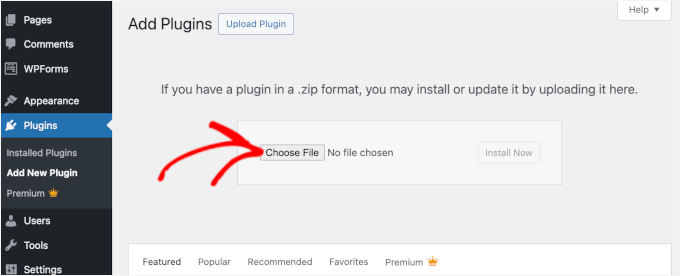
When the installation is complete, don’t forget to click ‘Activate’ to enable the plugin. For more details, see our step-by-step guide on how to install a WordPress plugin.
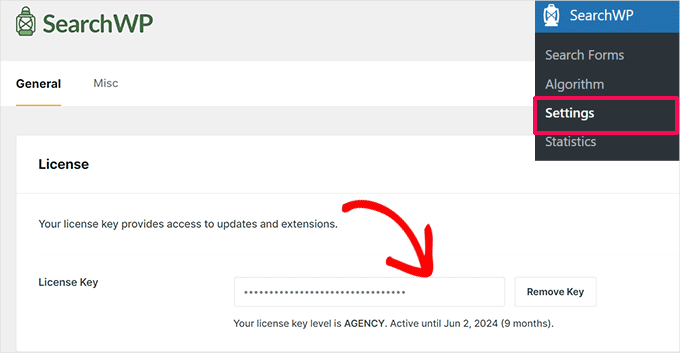
Upon activation, you need to visit the SearchWP » Settings page and switch to the ‘General’ tab. Enter your plugin license key, which you can find in your account on the SearchWP website.
Step 2: Configuring a Custom Search Algorithm
Next, you need to visit the SearchWP » Algorithm page to configure the search engine settings.
You will notice that SearchWP has set up a default search engine for you. It uses your WordPress posts, pages, and media as sources.
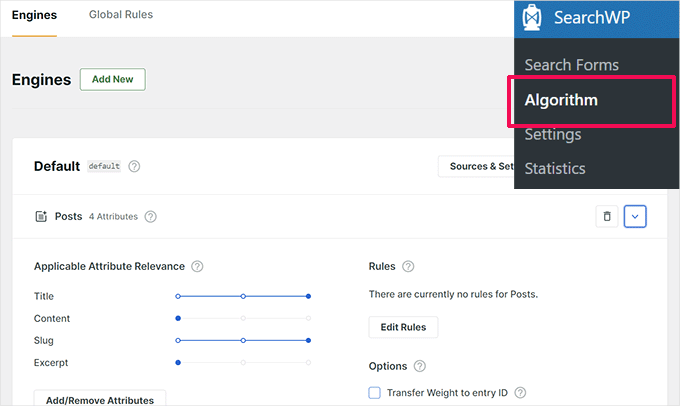
Under each source, you can adjust the sliders to give more relevance to one attribute than another.
If you want to include more resources on your website in search results, just click ‘Sources & Settings’ to add additional sources like comments, custom post types, or media.
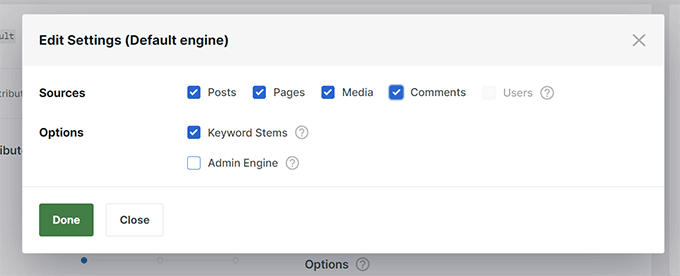
For this tutorial, let’s add ‘Comments’ as a search source.
After you click ‘Done,’ a new tab will appear under the sources list for the source you just enabled, for example, Comments.
However, it will be empty, and to make it useful, you need to click on the ‘Add/Remove Attributes’ button.
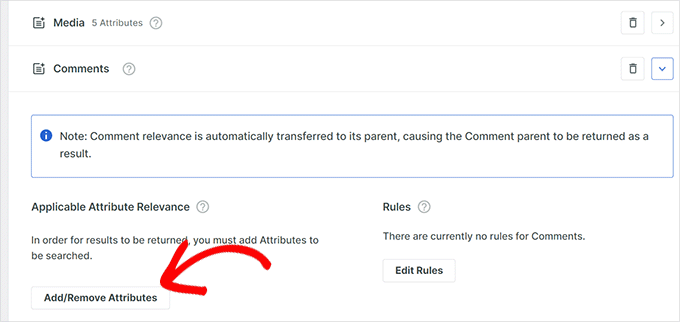
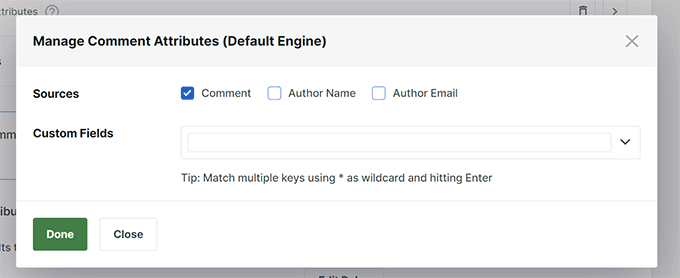
This will bring up a popup where you can select which attributes you want to include in your search.
For instance, we picked the ‘Comment‘ text as an attribute.
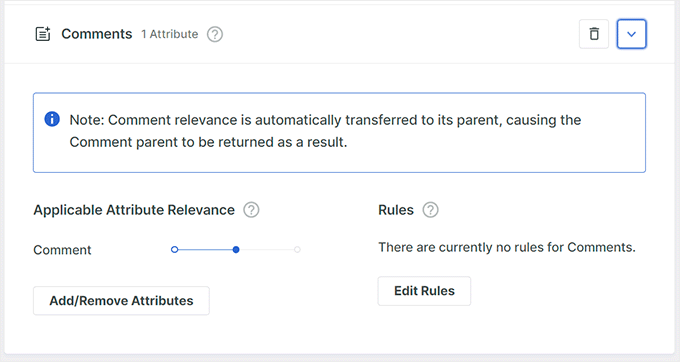
After adding an attribute, you can assign a weight to it in your search results.
More weight means that SearchWP will consider that attribute more relevant than other attributes when showing search results. For example, you can give ‘Title’ a higher weight than ‘Comments’, so title matches rank above comment matches.
Just repeat the process if you need to add more attributes to a source.
Once you have finished reviewing search sources, you can go ahead and click on the ‘Save’ button.
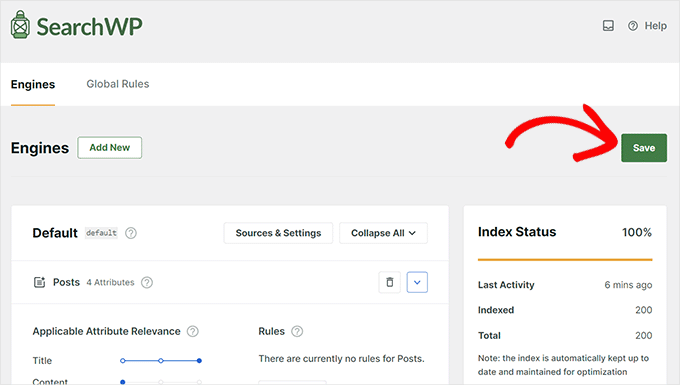
SearchWP will now start building a search index based on your settings in the background, so it won’t slow down your site while indexing.
Once finished, you will see 100% as the ‘Index Status.’
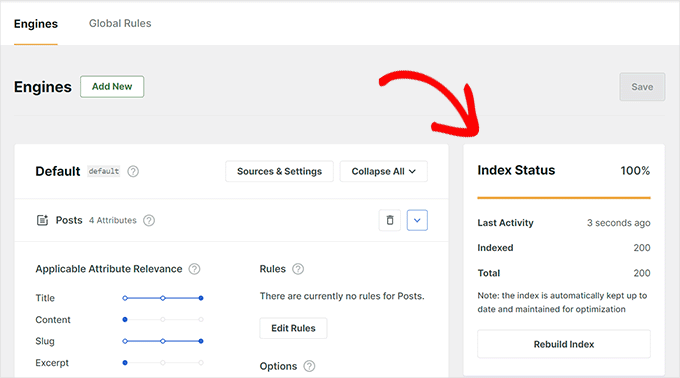
The SearchWP engine will now automatically replace the default WordPress search. If you already have a search form on your website, then you can try it.
If you don’t have a search form on your website, then you can add one by visiting the Appearance » Widgets page (or the site editor if you’re using a block theme).
Simply add the ‘Search’ widget or block to your sidebar and click on the ‘Update’ button to save your changes.
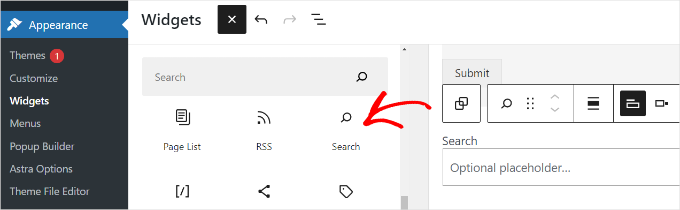
💡 Note: If your WordPress theme does not have any widget-ready areas, then you will not see the ‘Widgets’ page under the ‘Appearance’ menu.
Instead, you can add a Search block to your site by visiting the Appearance » Editor page.
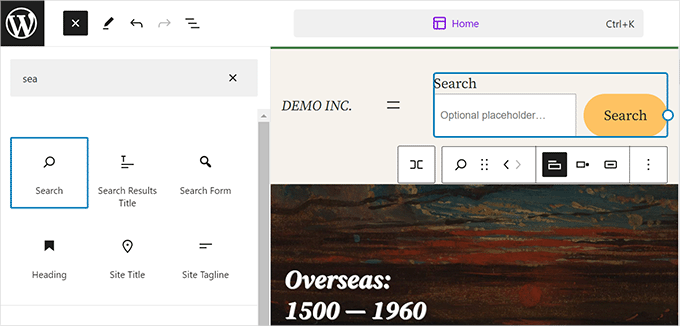
This will launch the full site editor. You can add the ‘Search’ block to any place where you want the search form to be displayed.
You can now visit your WordPress blog and try out your new and improved search feature.
Step 3: Adding an Advanced Search Form to Your Website
SearchWP is designed to integrate automatically with all default WordPress search forms. This means if you already have a search bar on your site, it will now use the smarter SearchWP engine.
However, sometimes you may want more control over how search works on your site. For example, you might want:
- A product-only search for WooCommerce
- A category-specific search
- A search form for a specific custom post type
In these cases, creating a custom search form lets you fine-tune what content is included and how results are displayed.
Advanced custom search forms are also more visible and flexible than the default WordPress search bar. You can choose different layouts, add filters, and design a form that fits better with your site layout.
To do this, go to the SearchWP » Search Forms page and click the ‘Add New’ button.
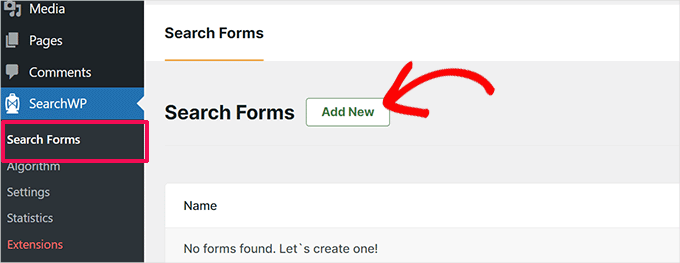
On the next screen, click on the pencil icon next to the form name to give it a proper name.
This will help you recognize the form when you need to add it to your site later.

After that, you must choose a theme for your search form.
SearchWP comes with several options, including ‘Basic,’ ‘Category Search,’ ‘Quick Search,’ ‘Advanced,’ and ‘Combined’ search forms.
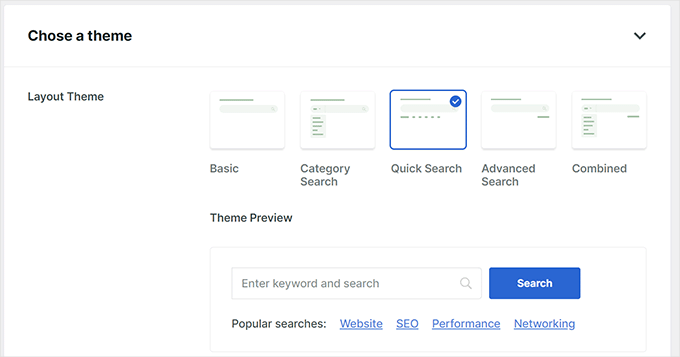
Clicking on a theme will select it and show you a preview of what that search form would look like.
Simply pick a theme you would like to use for your search form and then scroll down to customize it.

From here, you can tweak the form settings, style your search form, and choose colors.
Once you are finished, don’t forget to click the ‘Save’ button to store your settings.
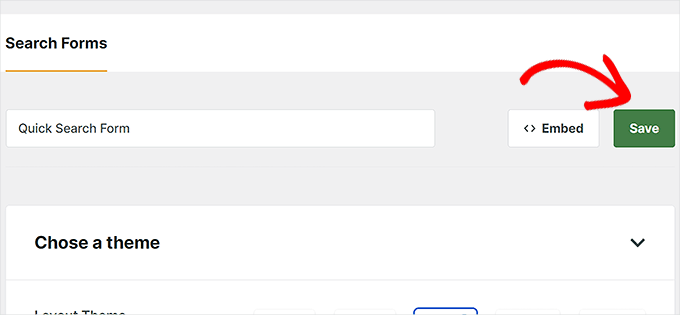
Note that this custom form will not automatically replace your default WordPress search form. Instead, you will need to manually embed it on your site.
Simply go to the Appearance » Widgets page (or Appearance » Editor if your WordPress theme doesn’t have sidebars).
From here, you need to add the ‘Search Form’ block to your widget area or template in the content editor.
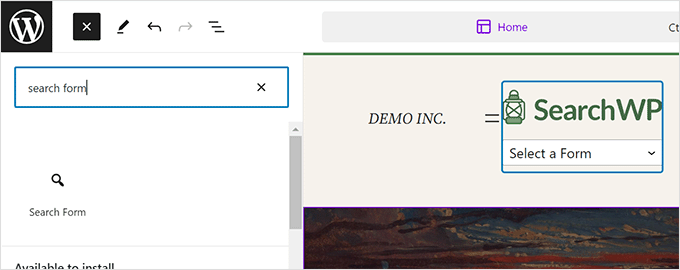
After that, choose the form you just created from the dropdown menu inside the block.
You will then see a preview of your custom search form on the screen.
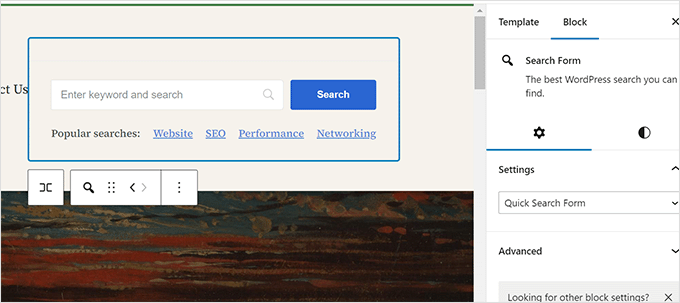
Don’t forget to click on the ‘Save’ or ‘Update’ button to store your changes.
For details, see our guide on how to create a custom WordPress search form.
Step 4: Adjusting the Search Results to Promote Important Content
Now that you have replaced the default WordPress search with SearchWP, it is time to look at how you can generate even better search results.
We will start by promoting important content in search results. These could be blog posts that bring you more revenue, sales pages, lead-generation landing pages, or cornerstone content you want visitors to see first.
First, you need to visit the SearchWP » Extensions page and install the Custom Results Order extension.
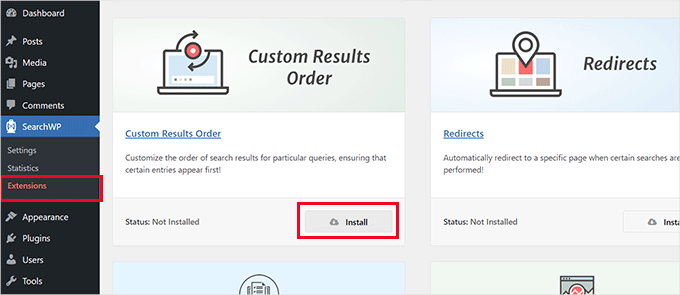
Next, you need to visit the SearchWP » Statistics page.
Here, you can see which search terms or keywords are popular among your users.
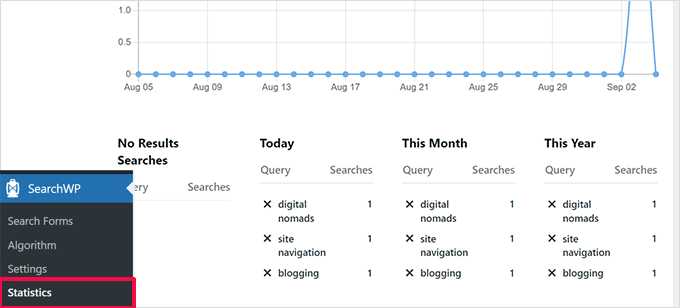
💡 Note: If you have just installed the plugin, then you may not have enough data here. You can wait for users to enter a few search terms to collect more data.
Now, look for the keywords where you want to promote a particular post and page in the search results.
After that, go to the SearchWP » Algorithm page and select the ‘Custom Results Order’ tab.
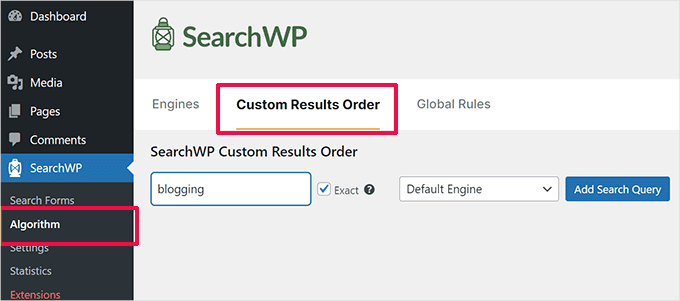
Inside the search query box, enter the keyword for the post or page that you want to promote, then click the ‘Add Search Query’ button.
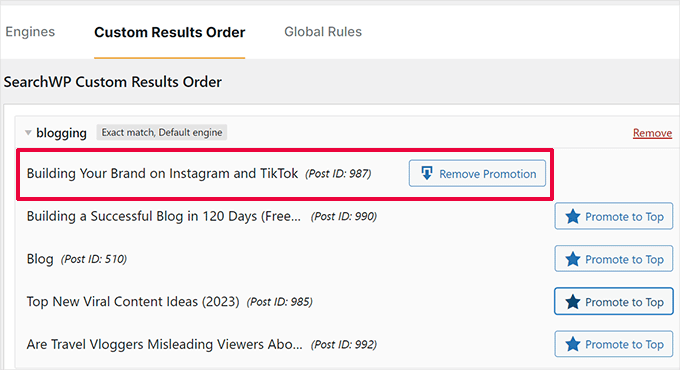
SearchWP will show you the results for that particular query. You need to select the content you want to promote and then click the ‘Promote to Top’ button.

Your selected post or page will now start appearing at the top for that particular search keyword.
You can always return to the same page and unpin that post or page from the top by clicking the ‘Remove Promotion’ button or adding a different one.
Step 5: Excluding Content From WordPress Search Results
Sometimes, you may have content you don’t want to appear in search results. For instance, you might have a page promoting an expired sales event or an outdated blog post.
SearchWP allows you to easily exclude any post or page you don’t want to include in search results, without needing to write custom code.
First, you must visit the SearchWP » Extensions page and install the ‘Exclude UI’ extension.
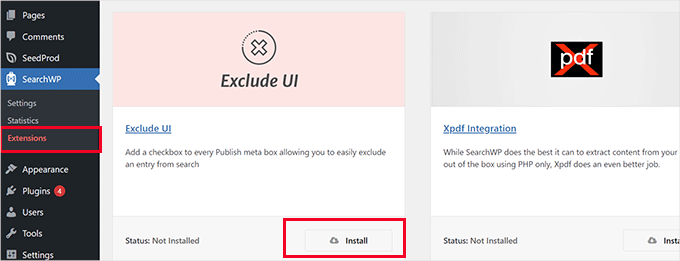
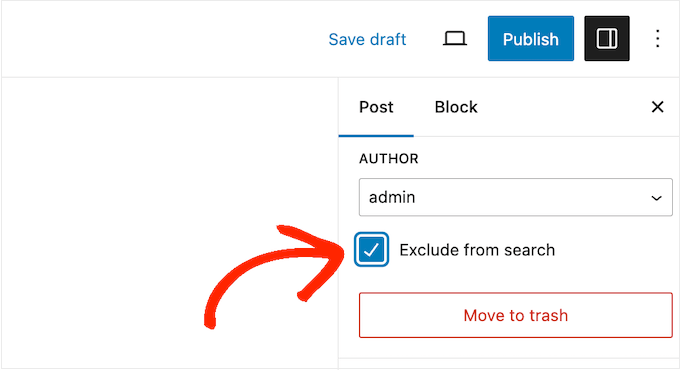
After activation, you can simply edit the post or page you want to exclude from search results.
In the ‘Post’ panel on the edit screen, you will now see an option to exclude that post from search results.
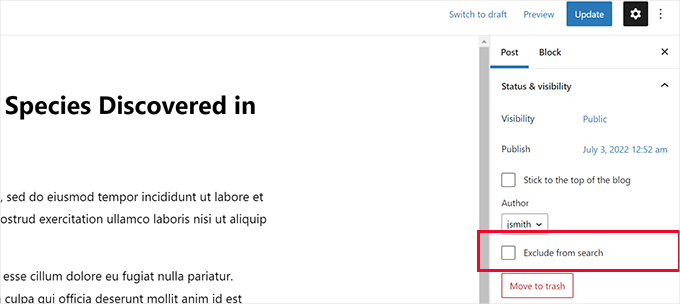
Simply check the box next to ‘Exclude from search’ and click on the ‘Update’ button to save your changes.
SearchWP will now stop showing that post or page in search results. For details, see our guide on how to exclude pages from WordPress search results.
Step 6: Making Search Results Appear Instantly in WordPress
Normally, your SearchWP search results will appear using the theme template file provided by your WordPress theme.
But what if you could show the users the results as soon as they start typing? This feature is called live search, and you may have already seen it on search engines like Google and Bing. It helps visitors find content faster without reloading the page.
Let’s add live search to your WordPress site to make the search experience better for your users.
First, you need to visit the SearchWP » Extensions page and install the ‘Live Search’ extension.
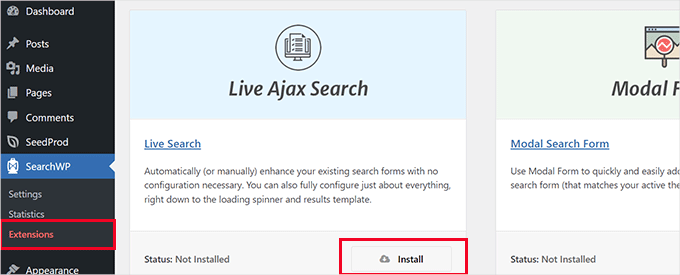
Upon activation, the extension will start working automatically.
You can now go to your website and start typing keywords into a search form to see it in action.

For more detailed instructions, you can see our tutorial on how to add live search in WordPress.
Step 7: Searching in More Places on Your WordPress Site
SearchWP can be configured to search in more places on your WordPress website. For instance, it can search in custom fields, PDF documents, shortcode outputs, and more, so users can discover content that the default search would normally miss.
Depending on where you want to enable search, you can turn these features on and off as needed.
Enable Search for WordPress Custom Fields
WordPress custom fields allow you to store additional metadata for your WordPress posts and pages. WordPress plugins also use them to store data related to a post or page.
To include custom fields in your search sources, just go to the SearchWP » Algorithm page and click the ‘Add/Remove Attributes’ button below a source.
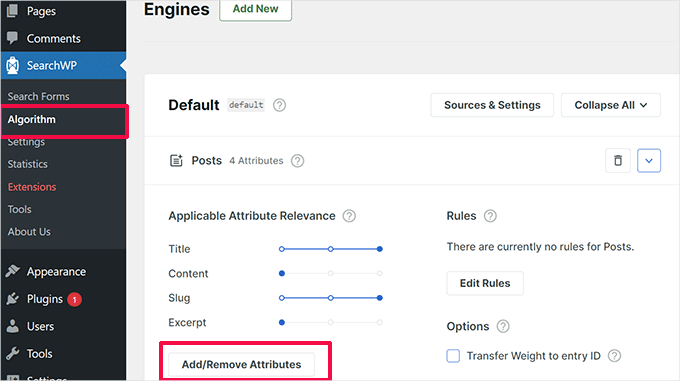
This will bring up a popup where you can select a specific custom field or select any meta key.
Simply click on ‘Done’ when you are finished, and don’t forget to click the ‘Save Engines’ button.
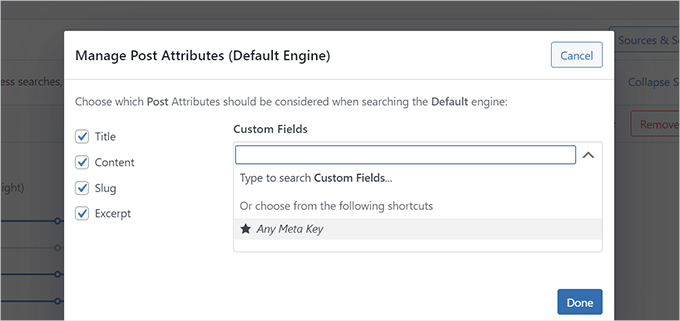
SearchWP will now start using custom fields as a source and will include matching posts in the search results.
For more details, see our guide on how to make custom fields searchable in WordPress.
Enable Search in PDF and Documents
SearchWP can also search inside PDF files and office documents uploaded to your WordPress media library, such as ebooks, menus, reports, and other resources.
Simply go to the SearchWP » Algorithm page and click on your search engine’s ‘Sources & Settings’ button.
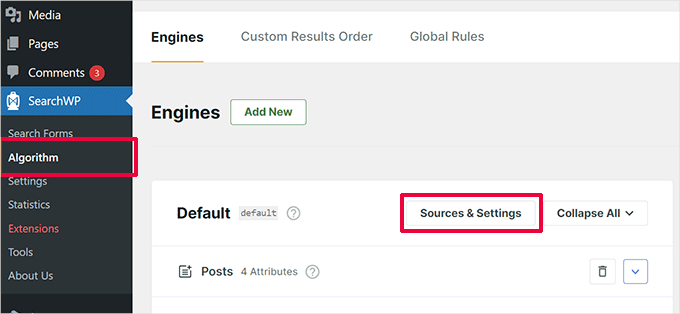
This will bring up a popup where you need to make sure that ‘Media’ is selected as one of the sources.
Then, click the ‘Done’ button.
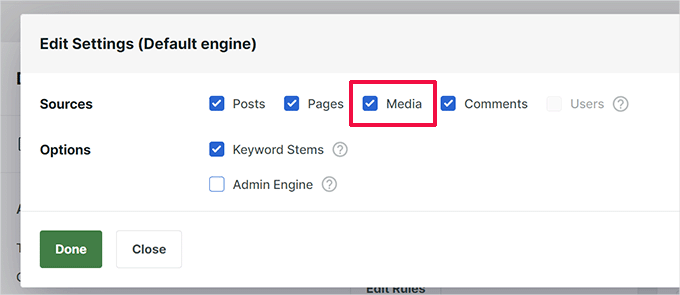
After that, scroll down to the sources list on the Engine settings page to find the ‘Media’ tab.
From here, you need to click on the ‘Add/Remove Attributes’ button.
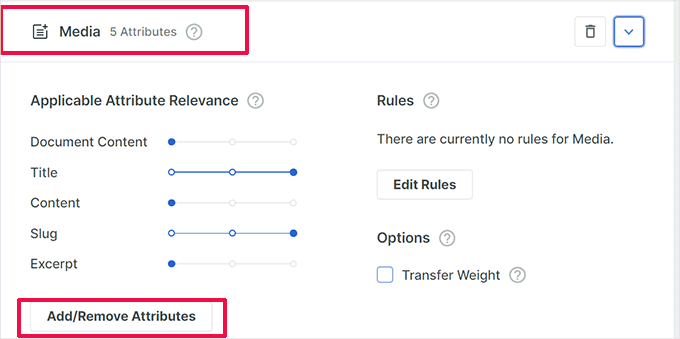
This will bring up a popup where you can select which attributes you want to include in your search results.
Make sure that the ‘Document Content,’ ‘PDF metadata,’ and ‘Title’ attributes are selected.
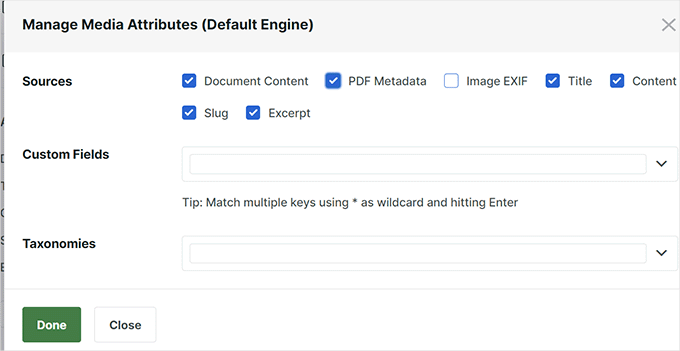
Simply click on the ‘Done’ button after making your selection.
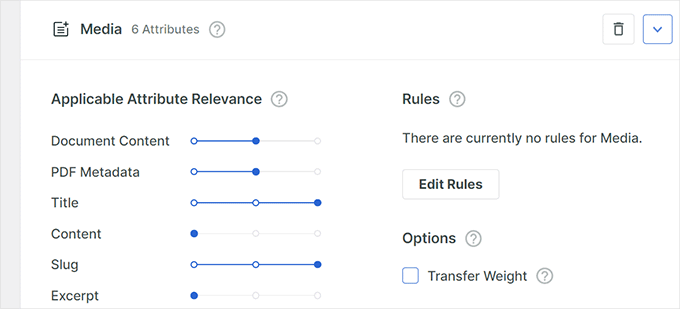
Next, you can move the slider up and down to adjust the weight you want to give to a particular attribute in search results.
Once you are finished, don’t forget to click the ‘Save Engines’ button to save your settings.
For more information, you can refer to our guide on how to add PDF indexing and searching in WordPress.
Enable Search in Shortcode Outputs
Many WordPress plugins use shortcodes to output data in your WordPress posts and pages.
If this shortcode data is important for your WordPress website and will help improve search results, then you can enable shortcode output parsing in SearchWP.
Simply go to the SearchWP » Settings page and scroll towards the bottom. From here, you need to turn on the ‘Parse Shortcodes’ option.
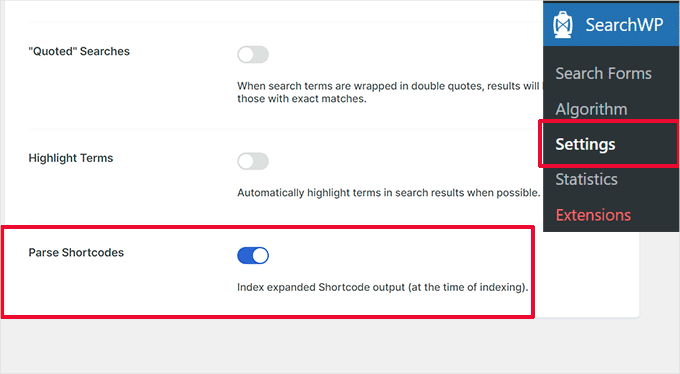
After that, you just need to click the ‘Wake Up Indexer’ button to run a new indexing process in the background that will include shortcode output in search results.
Step 8: Enabling Fuzzy Search in Your WordPress Search
WordPress’s default search only shows exact matches, so typos or slight variations return no results. This can frustrate users and increase bounce rates.
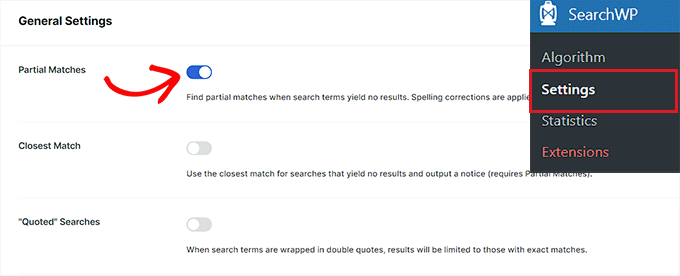
Fuzzy search solves this by showing close matches, helping visitors find what they need even with spelling mistakes. With SearchWP, you can easily turn on fuzzy matching by enabling partial matches, so users still see relevant results when they mistype a query.
To enable fuzzy search in SearchWP, go to SearchWP » Settings.
Then, you can toggle the ‘Partial Matches’ option under General Settings.
For step-by-step instructions, you can see our guide on how to add fuzzy search in WordPress.
Step 9: Including eCommerce in WordPress Search Results
SearchWP makes it super easy to improve eCommerce search results in your online store. It allows customers to search by product title, description, categories, tags, and even by product SKU.
It has powerful integrations for popular eCommerce plugins, including WooCommerce and Easy Digital Downloads.
We will show you how to turn it on for your WooCommerce store. Other integrations work similarly as well.
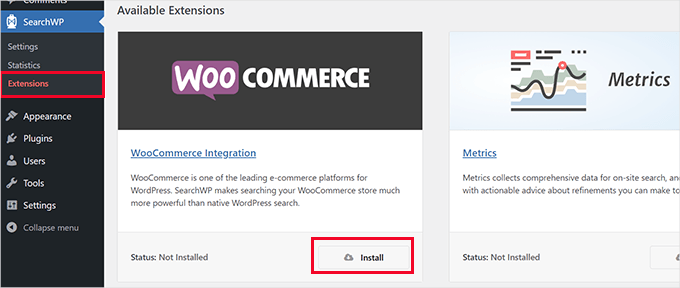
First, you need to go to the SearchWP » Extensions page and install the WooCommerce Integration extension.
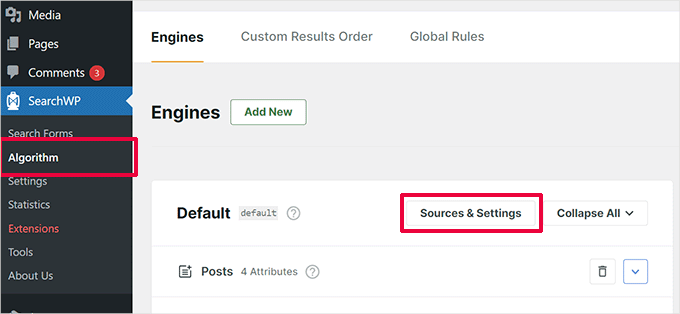
Upon activation, go to the SearchWP » Algorithm page.
Then, you’ll want to click on the ‘Sources & Settings’ button for your search engine.
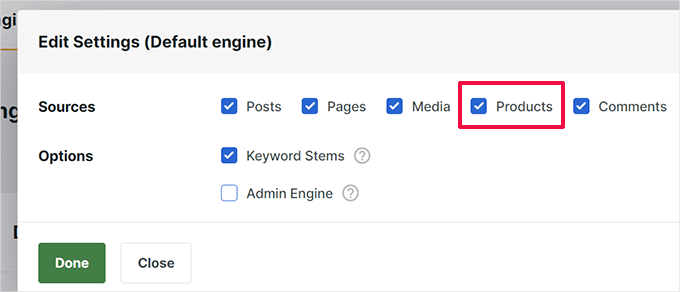
This will bring up a popup where you need to ensure that the ‘Products’ option is selected as one of the sources.
After that, click on ‘Done’ to exit the popup.
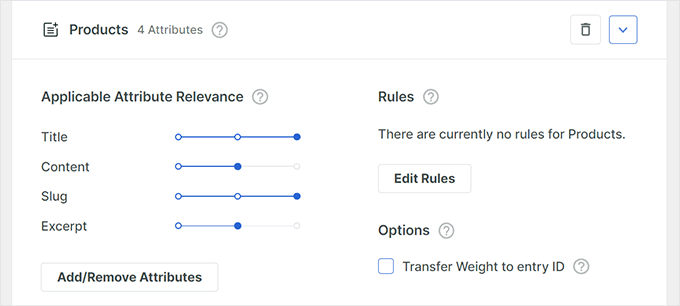
Now, scroll down on the Sources screen, and you will see the Products tab.
You can adjust the attribute weight by moving the sliders or clicking on the ‘Add/Remove Attributes’ button to select custom fields or product categories.
Once finished, don’t forget to click the ‘Save Engines’ button to save your settings.
For more detailed instructions, you can read our guide on how to improve WooCommerce product search in WordPress.
Bonus Step: Seeing Search Analytics in WordPress
Once you’ve customized your search results page, it’s time to see how well it’s working.
That’s where search analytics comes in. 🙌
By tracking what users search for and whether they’re finding it, you can uncover content gaps, improve results, and guide visitors more effectively.
For example, if users frequently search for terms that return no results, you might need to create new content or adjust your search settings. On an eCommerce site, it could mean updating product listings or featuring high-demand items.
This data can help you fine-tune your search results page even further.
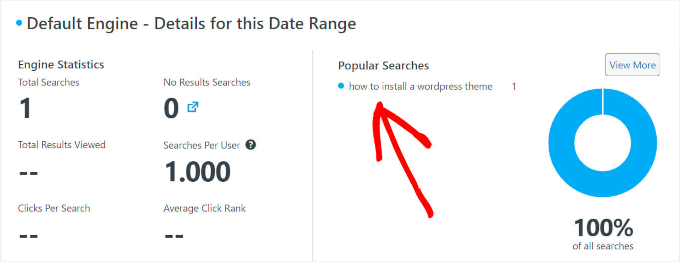
With SearchWP, it’s easy to monitor this data using the Metrics extension.
It automatically tracks popular search terms, clicks, no-result searches, and more – all from your WordPress dashboard. This makes it easier to continuously refine and improve your search experience.
For details, see our guide on how to see search analytics in WordPress.
FAQs: Customizing The Search Results Page in WordPress
Before we wrap up, here are some common questions site owners have when customizing their WordPress search results page and improving their site search.
How can I improve the accuracy of search results on my WordPress site?
To get more accurate search results, you can use a WordPress search plugin like SearchWP. It lets you fine-tune what gets indexed, adjust keyword relevance, and include content types that the default WordPress search often misses.
What should I do if some content isn’t appearing in search results?
First, you’ll want to check your search plugin settings. In SearchWP, make sure the missing content type, like custom posts or product pages, is selected as a source. You can also adjust the weight of certain fields, like titles, tags, or custom fields, to improve visibility.
Can I exclude certain pages from my internal search results?
Yes. With SearchWP, you can use the Exclude UI extension to easily hide specific pages or posts from search. Just check a box on the edit screen to remove them from results.
What is live search, and how can I add it to my site?
Live search shows results instantly as a user types – no need to press ‘Enter’ or load a new page. You can add this feature to your site with the SearchWP Live Ajax Search plugin for a smoother, faster experience.
Bonus Resources: More WordPress Search Improvement Tips
We hope this article helped you learn how to easily customize the search results page in WordPress. Next up, you may also want to see our guides on:
- How to Add Multilingual Search in WordPress
- How to Add Voice Search Capability to Your WordPress Site
- How to Improve WordPress Search with SearchWP
- How to Fix WordPress Search Not Working
- Best WordPress Search Plugins to Improve Your Site Search
If you liked this article, then please subscribe to our YouTube Channel for WordPress video tutorials. You can also find us on Twitter and Facebook.



Dennis Muthomi
I run an online store (selling tshirts on woocommerce) and I’ve struggled with providing a seamless search experience for my customers.
this guide on customizing the WordPress search results page using SearchWP is a game-changer! the ability to promote important products, exclude outdated ones, and enable live search will significantly improve user experience and conversions.
I especially appreciate the detailed instructions on integrating WooCommerce for better product search results.
Thank you!!
THANKGOD JONATHAN
My search page was an eyesore. This guide transformed it into a user-friendly haven! Now visitors can actually find what they need. Thanks for the design tips!
WPBeginner Support
Glad our guide was helpful
Admin
Ahmed Omar
Customizing the search results page in WordPress has always been a bit of a puzzle for me, but your step-by-step guide really breaks it down. The use of hooks and filters, as you explained, adds a whole new layer of flexibility to the process.
Thank you
WPBeginner Support
You’re welcome
Admin
Jiří Vaněk
Would you eventually consider making such personifications (even just small steps) through tools like Elementor (graphics) or coding (functions)? I understand that the plugin route is very straightforward, but unfortunately, WordPress sometimes becomes like a bottomless pit for plugins, eventually causing significant slowdowns. For instance, I try to customize everything graphically in Elementor since I have it, and when it comes to search, I’ve been considering going the route of Google Search.
WPBeginner Support
Maybe in the future we will look into how to customize the page with a page builder. For your statement on plugins, it is not the number of plugins on a site that determines if a site slows down, our guide below goes into more detail on the subject:
https://wpbeginner.com/opinion/how-many-wordpress-plugins-should-you-install-on-your-site/
Admin
Jiří Vaněk
Articles for pagebuilders would be very nice. I think a lot of people use them. Thank you for the article about plugins. I read it and thanks to you I got a new perspective on this matter.
Ram E.
If your only concern is customizing the appearance of the search results page, this is something one can easily do in full site editing mode—in other words if you are using a block theme (even without a special plugin). But if you want to configure not only the page appearance but also the overall settings/features, SearchWP is indeed a great option.
WPBeginner Support
Not all themes have the option to customize built-in and we hope SearchWP helps those who can and can’t
Admin
Piotr Z
Imagine your blog is like a big library with lots of cool books. When you started, it was like a tiny library, and finding stuff was easy. But now, it’s grown into a mega-library, and sometimes even you can’t find your favorite book!
This is what happened to me! Sometimes I cannot even find the article on my own blog.
It seems like this is the next topic for me to explore and improve.
thanks a lot for this guide, it is full of practical tips on how I can make my blog more accessible and searchable.
WPBeginner Support
You’re welcome, we hope our recommendations help
Admin
Ralph
First of all, you should decide is it even worth the time. If you are not really tech savvy it will take a lot of time. I know, because I’m not the best at such things. I’m blogging for a long time and used to think i have to make everything perfect on my site.
From modifications of my theme, adjusting sizes of images or buttons to even customizing 404 or search. For me personally it was not worth it. I spent a lot of time, and learned that what i had in my theme was in 80% the same. Was that 20% worth hours put in it? You have to decide yourself, but after years i would say no it was not worth it.
Of course if you can do this in 15 minutes, then go ahead. I personally rather focus on creating another awesome post or guide for my readers.
I would also do it if I had really big website. More like portal not blog. For professionals, go ahead!
WPBeginner Support
Thanks for sharing your opinion on this and we hope our guides can make the process of making changes take much less time.
Admin