


Everyone loves getting something extra for free. It’s a simple incentive that can quickly turn hesitation into a purchase.
When shoppers see they’ll receive a bonus gift with their order, it often shifts their mindset from “I’ll think about it” to “I don’t want to miss this.”
Creating free gift coupons in WooCommerce might sound advanced, but it’s actually easy to set up with the right approach.
We’ve seen store owners use free gift coupons to increase order values, move slow-selling products, and give customers a reason to come back for their next purchase. The result is higher conversions and more repeat buyers, without heavy discounts.
In this tutorial, we’ll show you the easiest way to create free gift coupons in WooCommerce, so you can start using this strategy in your own store today.
💡Quick Answer: How to Create a Free Gift Coupon in WooCommerce
While WooCommerce comes with built-in coupon functionality, it cannot automatically add a specific free item to a customer’s cart when a code is entered.
To fix this, you need to use the Advanced Coupons plugin, which adds this “auto-add” feature to your store.
What Makes an Effective WooCommerce Free Product Offer?
Free gifts can significantly boost your WooCommerce store‘s sales and average order value, but choosing the right gift is crucial.
While free gifts don’t need to be expensive, they must provide real value to your customers.
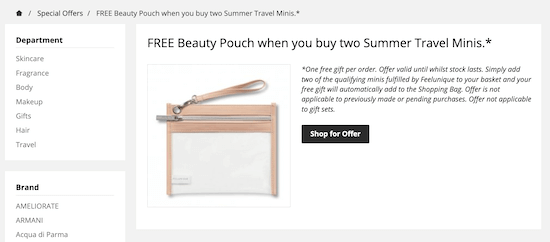
Here are proven free gift strategies we’ve seen work well:
| Strategy | Best For | Example |
|---|---|---|
| Branded Merchandise | Increasing brand awareness | T-shirts, tote bags |
| Complementary Products | Skincare or cosmetics stores | Sample-sized versions of premium products |
| Digital Downloads | Adding value without shipping costs | Exclusive eBooks, guides, and video content |
You can trigger these free gifts in several ways:
- When customers reach a minimum order value (which encourages larger purchases)
- As newsletter subscription incentives
- Through special occasion automated emails (birthdays, anniversaries)
- Via interactive elements like spin to win wheels for added engagement
We’ve found that the most successful free gift campaigns combine the right product with strategic timing. For example, offering sample-sized products when customers reach a certain cart value often leads to full-size purchases later.
Now, let’s see how you can create a free gift coupon for a WooCommerce store. Here are the topics we’ll cover:
Ready? Let’s get started.
How to Create a Free Gift Coupon in WooCommerce
The easiest way to create free gift coupons is by using Advanced Coupons.
It is the best WordPress coupon code plugin on the market and allows you to create all kinds of deals, discounts, loyalty programs, and free gift WooCommerce coupons.
We have thoroughly tested the tool and have found it to be super beginner-friendly and easy to navigate. If you are interested in learning more about our experience, then check out our Advanced Coupons review.
Native WooCommerce allows you to offer percentage or fixed discounts. However, it does not have the ability to automatically add a specific product to the cart when a code is used. This is why the Advanced Coupons plugin is necessary for this tutorial.
First, you’ll need to install and activate both the free Advanced Coupons plugin and the premium Advanced Coupons addon.
For more information, please see our guide on how to install a WordPress plugin.
Upon activation, head over to Coupons » License.
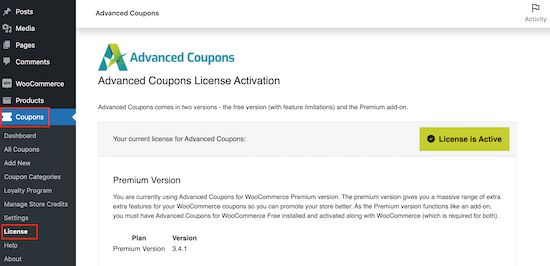
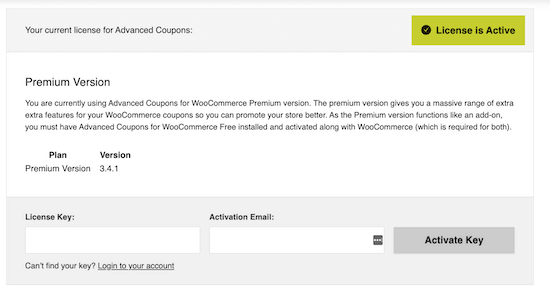
You can then enter the key into the ‘License Key’ field.
To find this information, log into your account on the Advanced Coupons website. You’ll also need to enter your ‘Activation Email’, which is the email address you used when you purchased Advanced Coupons.
Once you’ve done that, click on ‘Activate Key.’
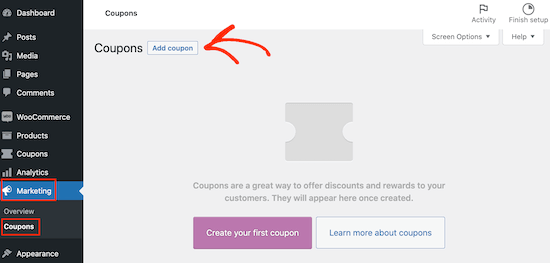
To create a free gift coupon, go to the Marketing » Coupons page.
Here, simply click on the ‘Add coupon’ button.
On the next screen, you need to type in a title for your gift coupon for WooCommerce.
This will also become the actual coupon that customers will use to claim their free gift, so it’s a good idea to use something that’s easy for shoppers to remember and type.
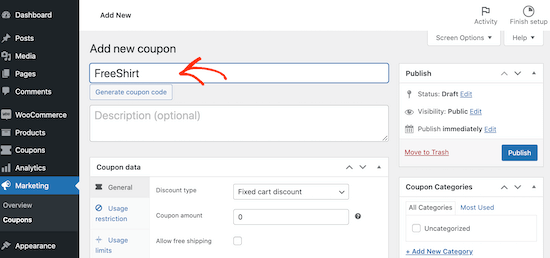
If you don’t want to create your own code, then you can click on the ‘Generate coupon code’ button. This will create a code using a random string of letters and numbers.
Pro Tip: Another option is creating a URL that applies the coupon automatically. For step-by-step instructions, please see our guide on how to auto-apply coupons with coupon URLs.
After that, scroll to the ‘Coupon Data’ section and click on the ‘Add Products’ tab.
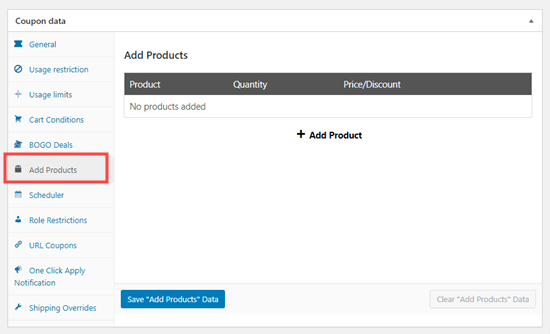
You can now click on the ‘+ Add Product’ button.
In the ‘Type to search’ field, start typing the name of the product that you want to offer as a free gift. When the right product appears, click on it.
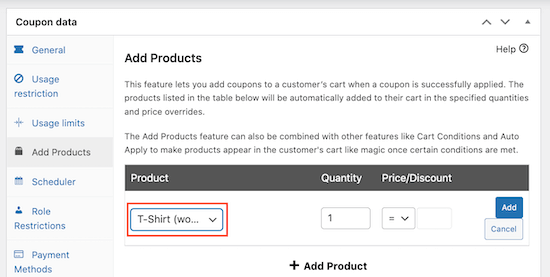
Next, open the dropdown below the ‘Price/Discount’ heading.
You can then select ‘$: Override price.’
📍Important: Once selected, a new price field will appear. You must enter ‘0’ in this box to ensure the product is added to the cart for free.
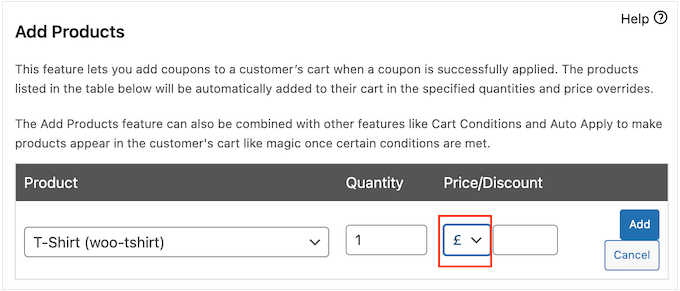
With that done, click on the ‘Add’ button to save this product.
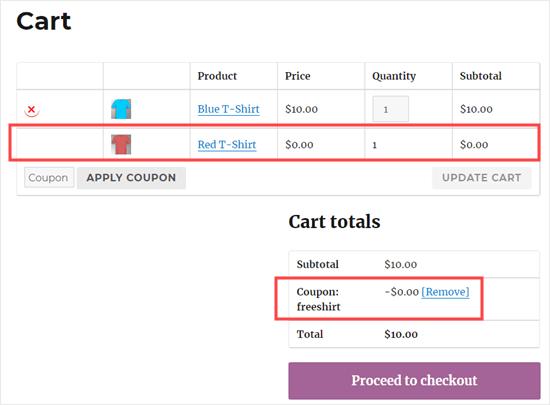
When you are happy with how the coupon is set up, click on the ‘Publish’ button. Now, the customer simply needs to enter the coupon code, and the product will be added to their cart for free.
😎 Want to build social proof for your business? Encourage users to leave a review after purchasing your product by sending them a coupon! Read our guide on how to send a coupon after a WooCommerce product review for more details.
How to Offer Free Gifts With Minimum Spend Amount
You may want to set a minimum amount that shoppers will need to spend to qualify for the free gift coupon. Many popular eCommerce sites use this trick to encourage shoppers to spend more money and increase the average order value.
To do this, create your coupon following the same process described above. However, before publishing the coupon, make sure you click on the ‘Usage restriction’ tab.
In the ‘Minimum spend’ field, type in the amount that shoppers must spend before they can use the free gift coupon.
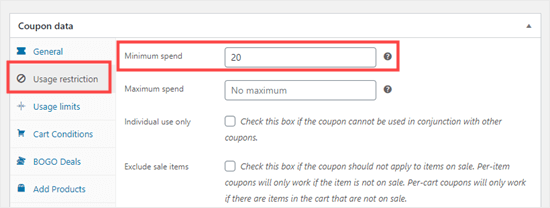
In the image above, customers can only use the free gift coupon when their shopping cart is worth $20 or more.
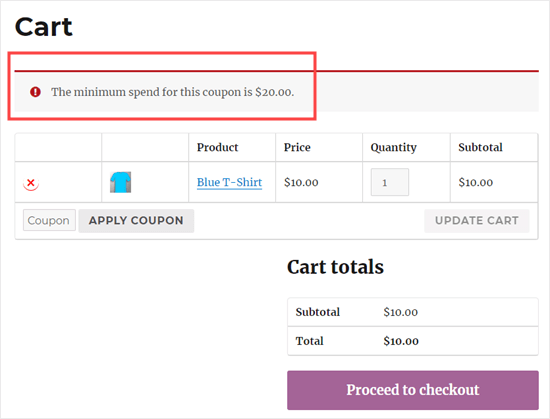
If a customer tries to apply the coupon before reaching the minimum spend, then they’ll see an error message.
How to Schedule WooCommerce Free Gift Coupon
You can often increase conversions using a sense of urgency, often called fear of missing out (FOMO). With that being said, you may want to add a time limit to your free gift coupons.
This encourages customers to act now in order to claim their free gift.
You can schedule all your coupons using Advanced Coupons. Simply create the free gift coupon following the same process described above.
Then, click on the ‘Scheduler’ tab and check the ‘Date Range Schedules’ box.
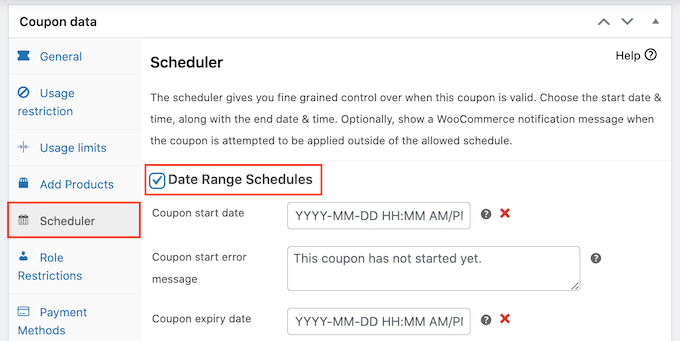
In ‘Coupon start date,’ go ahead and type in the date and time when the coupon will go live.
Then, use the ‘Coupon expiry date’ to specify the date and time when customers will no longer be able to use the free gift coupon.
For more detailed instructions, please see our guide on how to schedule WooCommerce coupons and how to create smart WooCommerce coupons.
How to Promote Your WooCommerce Free Gift Coupon and Boost Sales
Customers love when you offer free products, so it’s a good idea to promote your coupon.
You can use OptinMonster to create floating header bars, exit intent popups, slide-in scroll boxes, or even gamified spin-to-win popups. In this way, you can let shoppers know about the coupon and how they can claim their free gifts.
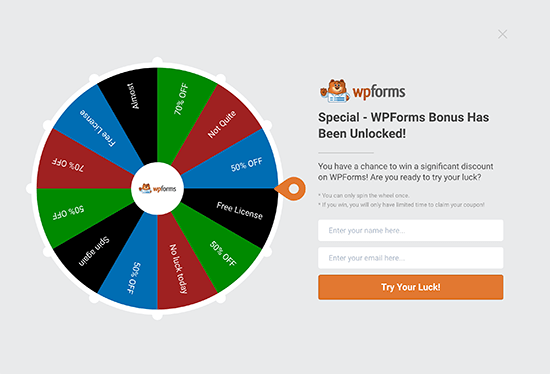
For more information, please see our guide on how to build customer loyalty in WordPress with gamification.
You can even use these display rules to personalize each campaign and offer different free gifts based on factors like the shopper’s location.
No matter how you promote your coupon URLs, it’s important to track visitors to your WordPress website and monitor how they’re using those coupons.
This allows you to see what’s working and what isn’t so you can constantly improve your marketing and deals to get more sales. For more information, please see our guide on how to set up WooCommerce conversion tracking.
Frequently Asked Questions: Free Gift Coupons
Here are some questions frequently asked by our readers about creating free gift coupons:
Will a free gift coupon affect my shipping costs?
If your free gift is a physical product, it can affect shipping costs by adding extra weight or dimensions to the package. If your shipping calculator uses total weight, a heavy gift could push the order into a higher shipping bracket.
By default, WooCommerce calculates shipping based on the items in the cart, including your free gift.
The good news is that most plugins, including Advanced Coupons, let you offer free shipping when a coupon is applied.
You just need to enable this setting in the coupon options and make sure a free shipping method is active in your shipping zones.
What happens if the gift product goes out of stock?
If your gift product is out of stock, you won’t be able to add it to the cart. This can create a frustrating experience for customers if they were expecting a free gift, so it’s important to plan ahead.
To avoid this issue, make sure you keep an eye on stock levels for any products you use as gifts. If you expect high demand, consider enabling backorders in WooCommerce so customers can still claim the gift, even if it ships later.
Another option is to set up a replacement gift as a backup, so your promotion keeps running smoothly without disappointing shoppers.
Can I set an expiration date for my free gift coupon?
Yes, Advanced Coupons makes it super easy to set start and end dates for your coupon.
When you’re creating the coupon, you’ll see an option to add an expiry date. Simply enter the date you want the promotion to end, and the plugin will automatically disable the coupon after that time.
This feature is perfect for limited-time offers, like holiday sales, flash deals, or seasonal promotions.
You can also set a start date if you want the coupon to activate later, which is great for scheduling campaigns in advance. This way, you don’t have to manually enable or disable anything during your sale period—it all runs automatically.
We hope this article helped you learn how to offer WooCommerce free gift coupons. You may also want to see our list of the best WooCommerce plugins for your store or check out our guide on how to create a WooCommerce contest to boost loyalty and engagement.
If you liked this article, then please subscribe to our YouTube Channel for WordPress video tutorials. You can also find us on Twitter and Facebook.




Dennis Muthomi
One thing I found super useful was the section on promoting the free gift coupon.
Using OptinMonster for popups and notifications is genius.
I’ve used OptinMonster for email optins before but never thought of using it for coupon promotion. This could be a big win for coupon usage and ultimately sales.
Thanks for this valuable resource!