


Long WordPress forms can frustrate visitors, and when they give up halfway, you lose potential leads.
A Save & Continue feature solves this problem. It lets users save their progress and return later to finish the form at their convenience, improving the user experience and resulting in more completed forms and higher-quality submissions.
After reviewing the top form plugins, we found that WPForms makes adding this feature simple. Its Save and Resume settings are just one toggle away.
In this guide, we’ll show you exactly how to enable Save & Continue functionality in your WordPress forms, so you never miss out on potential leads or customers. ✅
When to Use Save & Continue in WordPress Forms?
If a form takes too long to complete, many people simply abandon it. A Save & Continue feature solves this problem by letting users save their progress and resume later.
This gives your visitors the flexibility to complete the WordPress form at their own pace, reducing abandonment and increasing submissions.
Save & Continue is especially useful for long or complex forms, such as:
- Surveys or questionnaires – Users can pause and continue without losing their answers.
- Job applications – Applicants can save drafts and return later to complete all sections.
- Multi-step registration forms – People can complete one step at a time without restarting.
With that in mind, we’ll show you how you can add the save and continue functionality in WordPress forms. Here’s a quick overview of all the steps we’ll cover in the following sections:
- Install a WordPress Form Plugin to Add Save & Continue Functionality
- Create a WordPress Form with Save & Continue Functionality
- Embed Your New Form Into Your WordPress Site
- View Your WordPress Form Entries
- Bonus Tip: Set Up WordPress Form Conversion Tracking
- FAQ: Use Save and Continue in WordPress Forms
- More Beginner-Friendly Guides to Using WordPress Forms
Let’s get started.
Install a WordPress Form Plugin to Add Save & Continue Functionality
The easiest way to add save and resume functionality in WordPress is by using WPForms. It is the best WordPress contact form plugin, and over 6 million website owners use it.
In fact, WPForms is our go-to form builder at WPBeginner. From contact forms to our annual user survey, we rely on it daily – and it’s never let us down. For more information, see our complete WPForms review.
With WPForms, you can create any type of WordPress form, including a contact form, payment form, online order form, newsletter signup form, and more.
The plugin offers a drag-and-drop form builder and more than 2,000 pre-made form templates, which makes it beginner-friendly to use. Plus, with WPForms AI rolling out, you can create your own forms from scratch using a simple prompt.

You also get numerous form fields for customization and integration with popular email marketing tools and payment collection services like PayPal.
The best part? The WPForms Save and Resume addon allows your visitors to save their forms and complete them where they last left.
First, let’s create a WPForms account. On the WPForms website, you can start by clicking on the ‘Get WPForms Now’ button. Then, you can pick a plan and follow the on-screen instructions to complete the signup.
📝 Note: For this tutorial, we will be using the WPForms Pro version since it includes the Save and Resume addon and lets you access form entries. However, there is also a WPForms Lite version you can get started with.
With that done, you’ll have your own WPForms account dashboard, where you can find your WPForms Pro zip file and licence key.
From here, you will need to install and activate WPForms on your website.
In your WordPress admin area, go to Plugins » Add New Plugin.

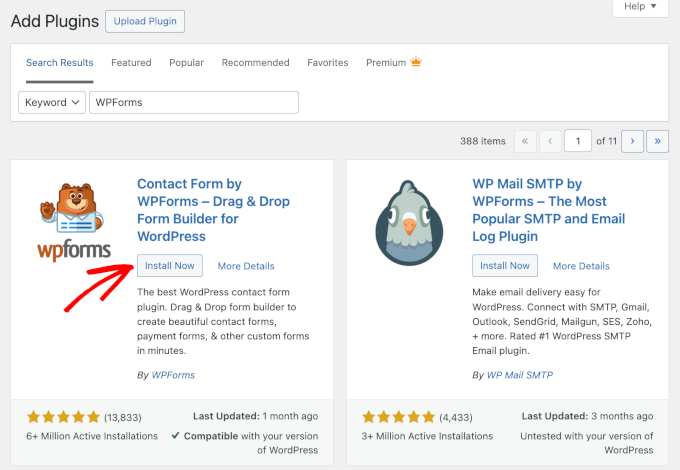
After that, you can simply use the search bar to quickly find the WPForms plugin.
In the search result, click the ‘Install Now’ button and then ‘Activate.’
If you need help, then please see our tutorial on how to install a WordPress plugin.
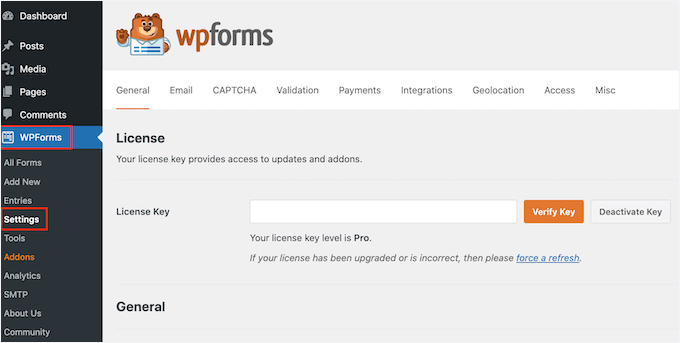
Upon activation, you can head over to WPForms » Settings from your WordPress dashboard and enter your license key. You can find the key in the WPForms account area.
After that, you will need to activate the ‘Save and Resume Addon.’
Let’s navigate to WPForms » Addons from your WordPress admin area. Then, simply click the ‘Install Addon’ button.
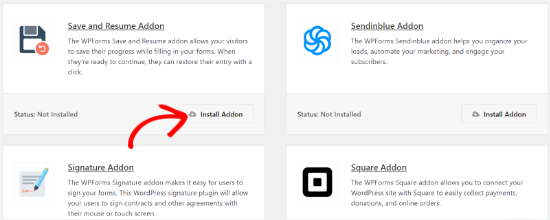
Once the addon is active, you can add the save and continue functionality to an existing form or create a new WordPress form.
Create a WordPress Form with Save & Continue Functionality
To start, simply head over to the WPForms » Add New page.
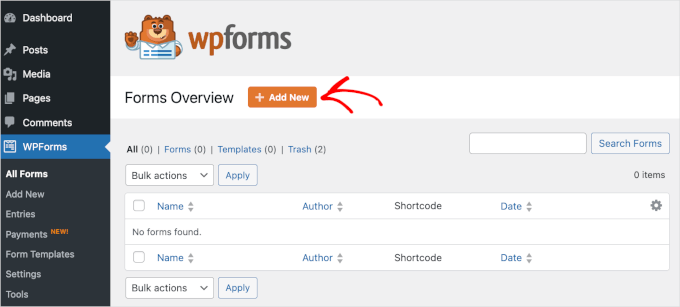
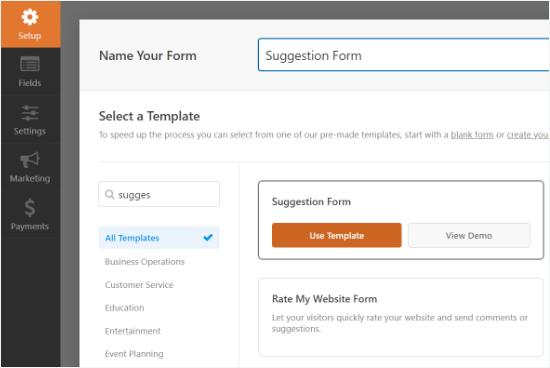
On the next screen, you will see pre-built templates for your form. You can enter a name for your form and select a template to get started.
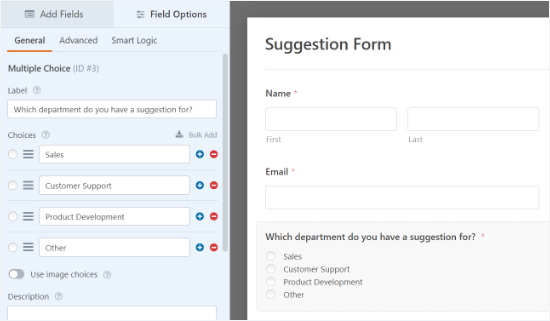
For this tutorial, we’ll select the Suggestion Form template to collect client feedback. Just hover over the template and click the ‘Use Template’ button.
Next, you can edit your form using the drag-and-drop builder.
Simply drag any form field you want to add to your form and drop it onto the template.
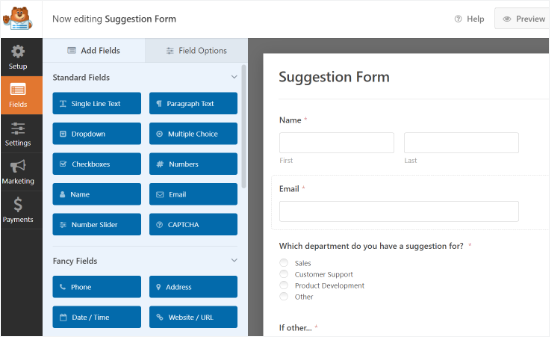
WPForms also lets you edit each field in the form.
For example, you can edit its label, add a description, change the order of the choices, make a field required, and more.
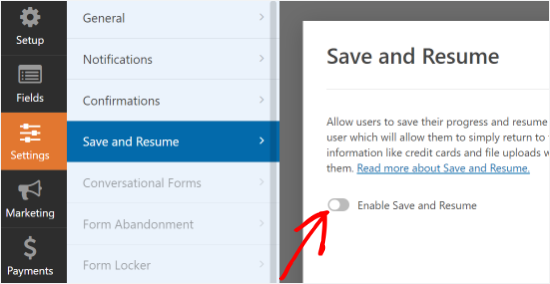
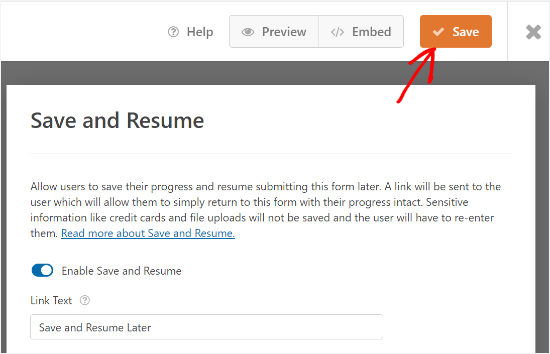
After that, you can head over to the ‘Settings’ tab from the menu on your left and then select ‘Save and Resume.’
Next, click on the toggle for the ‘Enable Save and Resume’ option. This will allow your user to save their form and continue completing it later.
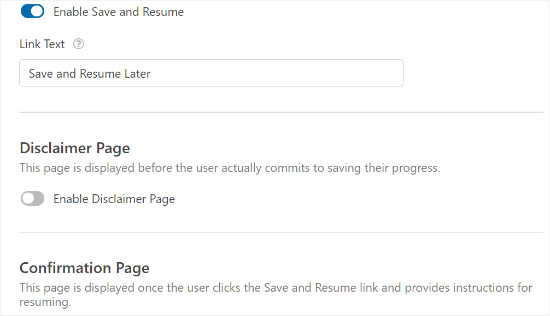
When you enable this option, you will unlock more settings to customize the save and resume functionality. For instance, you can change the text that is displayed next to the submit button and let users save their form’s progress.
Besides that, there is an option to enable a disclaimer page, which is shown to users before they save their progress. WPForms also lets you edit the confirmation page settings and change the text displayed on the page.
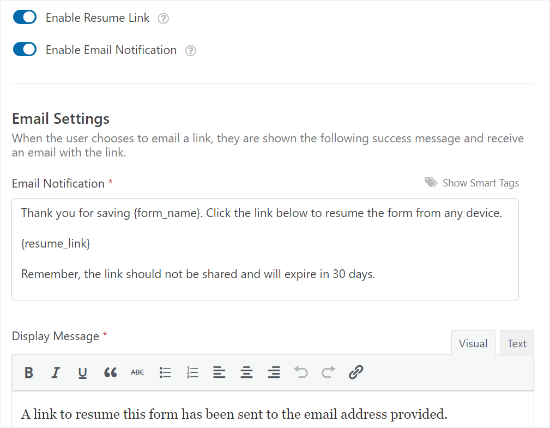
If you scroll down, you’ll find settings to ‘Enable Resume Link’ and allow users to copy the form link and paste it into their browsers to resume later.
There is also an option to ‘Enable Email Notification’ that sends the link to the user’s email address so that they can access their form from their inbox.
You can also edit the email text your visitors will see in their inbox and the display message.
WPForms also lets you change the notification settings and the confirmation email that people will get when they submit a form.
When you have made the changes, go ahead and click the ‘Save’ button at the top and exit the form builder.
📝 Note: If your form emails aren’t reaching your inbox, it’s usually due to how WordPress sends emails by default. WP Mail SMTP can help fix this issue. For step-by-step instructions, check out our guide on how to fix WordPress not sending email.
Embed Your New Form Into Your WordPress Site
Next, you can add your form to any blog post or page.
To start, simply click the ‘Embed’ button from the form builder.
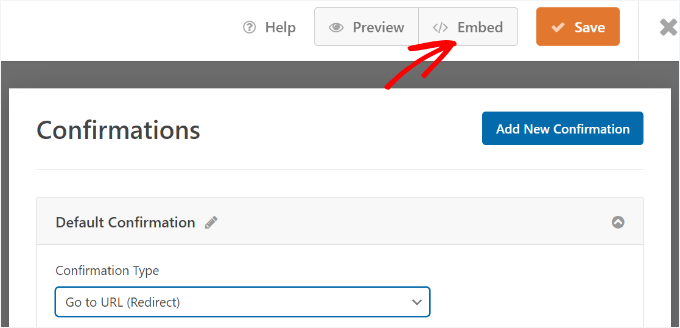
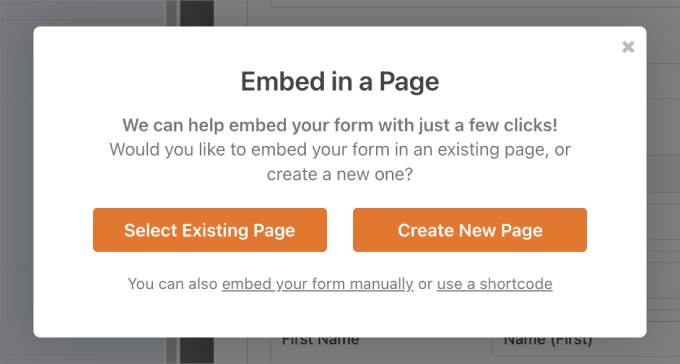
Then, you can choose to embed the form into an existing page or a new one.
For this tutorial, we’ll choose the ‘Create New Page’ option.
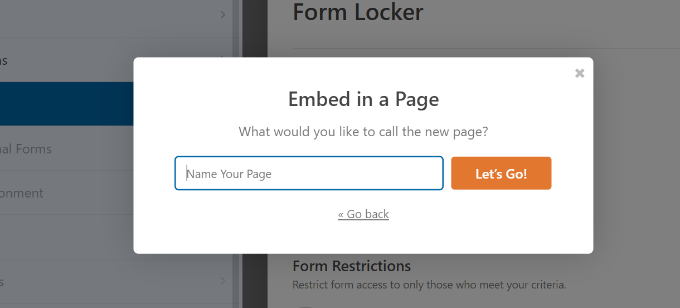
On the next popup, you can name your new page.
After that, go ahead and click the ‘Let’s Go!’ button.
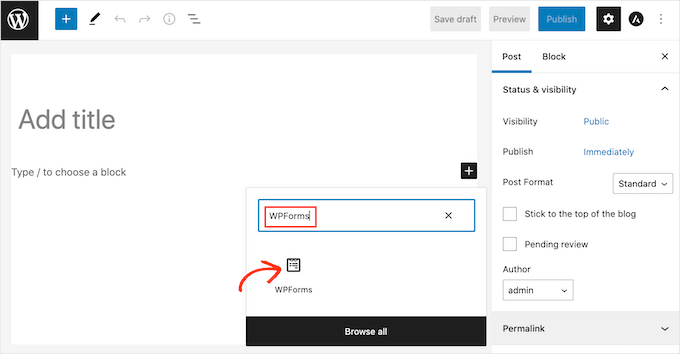
Once you are in the WordPress editor, click the ‘+’ button to add a block.
Then, simply search for the WPForms block and click on it to add it to the content editor.
After that, select the form you just created from the dropdown menu.
The WPForms block will load a preview of your form.
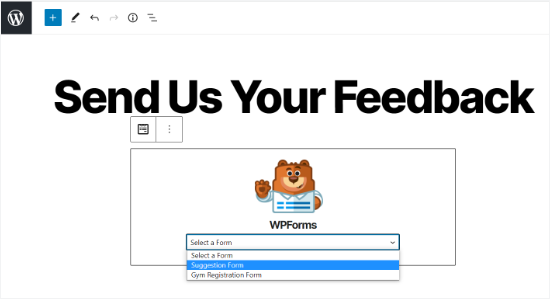
When you are happy with the appearance of your form, you can publish the page.
Now, you can visit your page and scroll down to the end of the form to see the ‘Save and Resume Later’ option next to the ‘Submit’ button.
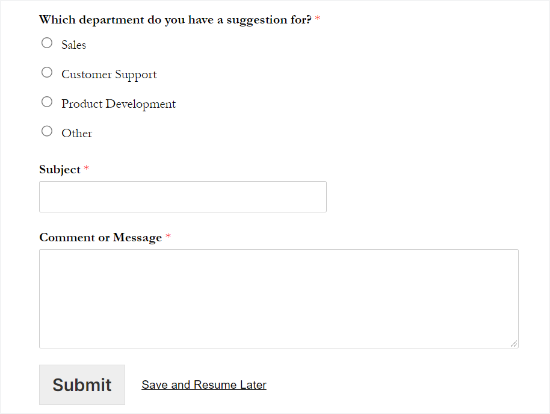
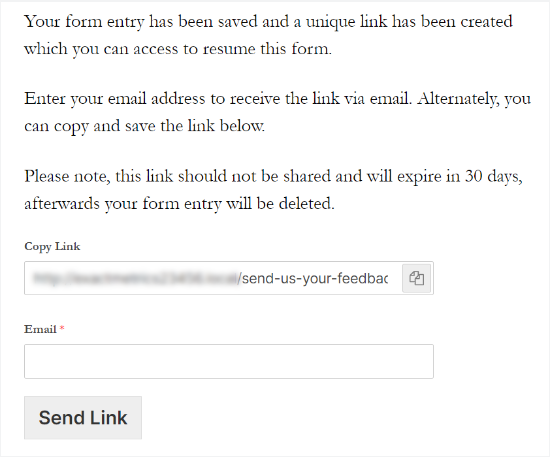
When someone clicks on ‘Save and Resume Later,’ they will see a link to the form, which they can copy.
There will also be an option to enter an email address to receive the form link via email.
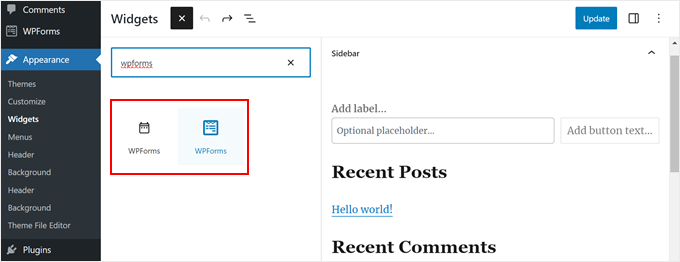
📝 Note: If you use the Classic Editor, you can add a WPForms widget to your sidebar or any other widget-ready area.
Just go to Appearance » Widgets, add a WPForms block to your sidebar, choose your survey form from the dropdown, and click ‘Update’ to save.
View Your WordPress Form Entries
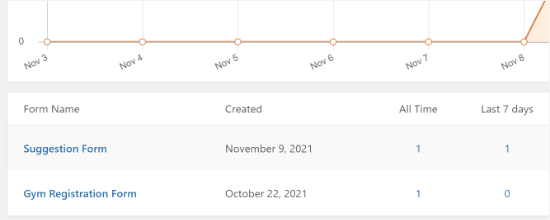
To see if someone partially completed their form and used the save and continue option in WPForms, all you have to do is navigate to WPForms » Entries from the WordPress dashboard.
Then, go ahead and select your form to view its entries.
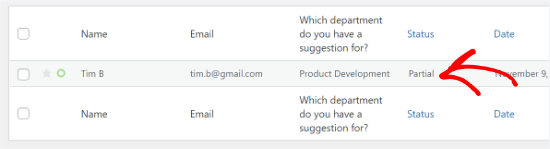
On the next screen, you can look for entries with a ‘Partial’ status. These are people who clicked the Save and Resume functionality and saved their form’s progress.
The status will change to ‘Completed’ automatically when your user returns and completes the form.
Bonus Tip: Set Up WordPress Form Conversion Tracking
Adding ‘Save & Continue’ is a great step toward improving the user experience. But how do you know if your forms are actually helping you grow your business?
That’s why we recommend setting up form tracking. By monitoring form submissions, you can:
- See which forms are performing best
- Identify pages where users are more likely to convert
- Spot drop-off points and reduce form abandonment
- Understand which traffic sources drive signups or leads
In our experience, optimizing forms is so much easier when you’re working with actual data – not just guesswork.
Check out our guide on how to track WordPress form conversions in Google Analytics and start making smarter decisions for your website.
FAQ: Use Save and Continue in WordPress Forms
If you’re wondering about saving form progress or how your submissions are stored, here are some common questions answered:
Does WordPress automatically save form progress?
No, WordPress doesn’t save form progress by default. You need a plugin like WPForms with Save & Continue enabled to let users resume later.
Can you save progress in forms to continue later?
Yes. With the Save & Continue feature in WPForms, users can save their progress and return to finish the form anytime.
Where do WordPress form submissions go?
Form submissions are stored in your WordPress database. If you use WPForms, you can view them directly under WPForms’ Entries section.
More Beginner-Friendly Guides to Using WordPress Forms
We hope this article helped you learn how to add save and continue functionality in WordPress forms. Next, you may also want to read our guides on:
- How to Customize and Style Your WordPress Forms
- How to Create WordPress Forms with Dropdown Fields
- Tips to Create More Interactive Forms in WordPress
- Ways to Use Conditional Logic in WordPress Forms
- Best Online Form Builders (Expert Picks)
If you liked this article, then please subscribe to our YouTube Channel for WordPress video tutorials. You can also find us on Twitter and Facebook.





Dennis Muthomi
Love this save and continue feature! It’s been an absolute game-changer for my web design clients. We added it to our consultation forms, and wow – our completion rates jumped up by 40%!
The email notification option turned out to be super helpful. Most of our clients need to check with different team members to gather all their project details, so being able to save and come back later is perfect.
A little tip from my experience: definitely turn on both the email notifications and the resume link options. I’ve found it’s better to give clients both ways to get back to their form – if they can’t find the email, they’ve still got that resume link as backup!