


Spam WordPress comments are the worst. They’re like uninvited guests scribbling nonsense all over your carefully built website.
In fact, spam comments are one of the most common complaints we hear from WordPress website owners.
But you don’t have to disable comments altogether just to stop the bots. There’s a better solution: Google reCAPTCHA.
Think of Google reCAPTCHA as a security guard for your comment section. It uses smart puzzles and simple challenges to make sure only real people — not bots — can leave comments on your posts.
In this guide, we’ll show you how to easily add Google reCAPTCHA to your WordPress comment form so you can keep spam out and let genuine conversations flow. 🛡️

What is Google reCAPTCHA?
Google reCAPTCHA is a free tool from Google that helps protect your site from spam and abuse. It uses smart checks to tell real people apart from automated bots.
This matters because comment spam is a huge headache on many WordPress sites. For example, the popular spam filter Akismet blocks around 7.5 million spam comments every hour.
reCAPTCHA is one of the best ways to stop that flood. Think of it as a gatekeeper that blocks bots but lets real readers through.
✏️ A quick note on the name: CAPTCHA stands for “Completely Automated Public Turing test to tell Computers and Humans Apart.” Google bought the original CAPTCHA tech in 2009, reworked it, and called the improved version reCAPTCHA – much friendlier for humans to pass.
How do people pass it?
Often it’s as simple as clicking a checkbox that says “I’m not a robot.” If needed, the user may be shown a small image challenge (for example: “click all squares with traffic lights”), which is easy for people but hard for bots.
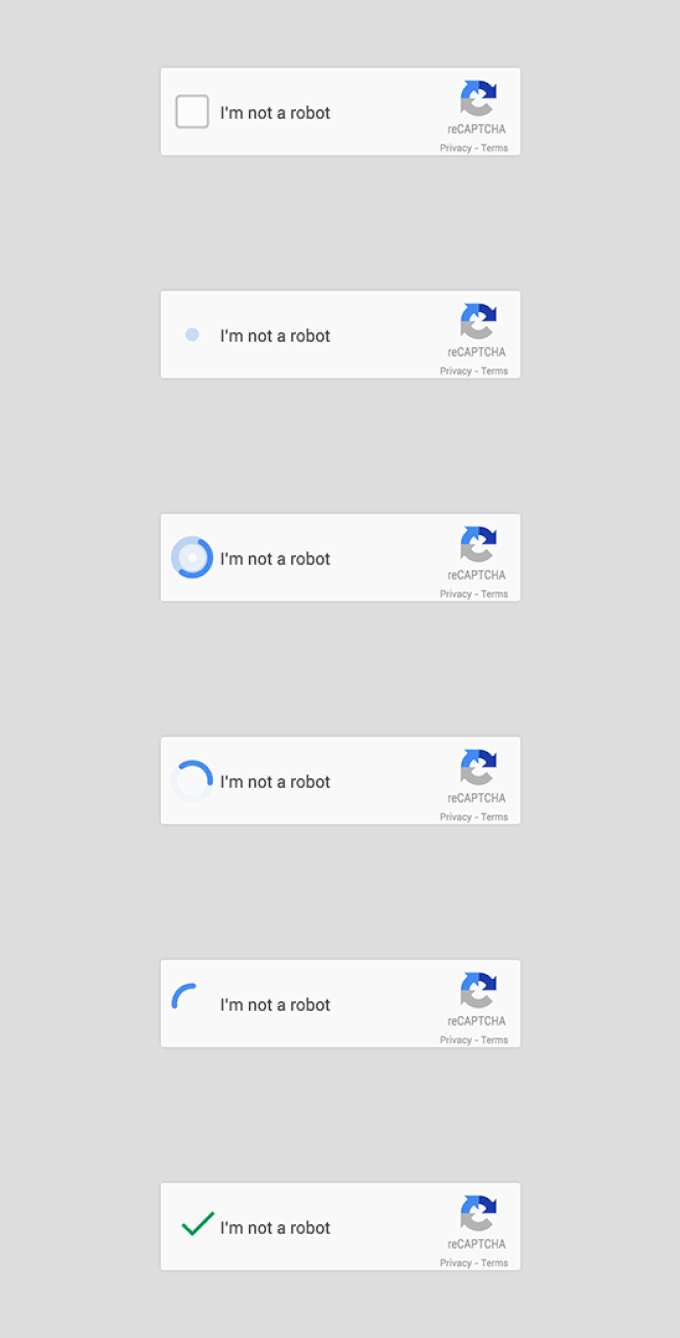
Google makes reCAPTCHA available to anyone, so you can add it to contact forms, login pages, and comment forms. It’s also super easy to set up.
Below, we’ll show step-by-step how to add reCAPTCHA to your WordPress comment form. Here’s a quick overview of what we’ll cover:
- Installing a WordPress reCAPTCHA Plugin
- Registering Your Website to Get reCAPTCHA API Keys
- Adding reCAPTCHA to a WordPress Comment Form
- Bonus Tips: More Ways to Combat Comment Spam in WordPress
- FAQ: Add reCAPTCHA to the WordPress Comments Form
- Expert Guides for Improving the Comment Experience in WordPress
Let’s get started!
Installing a WordPress reCAPTCHA Plugin
The first thing you need to do is install and activate the Advanced Google reCAPTCHA plugin.
To do this, let’s navigate to Plugins » Add New Plugin in your WordPress admin area.

Next, search for “Advanced Google reCAPTCHA” in the search bar. Make sure you look for the plugin developed by WebFactory Ltd.
Once found, go ahead and click the ‘Install Now’ button.
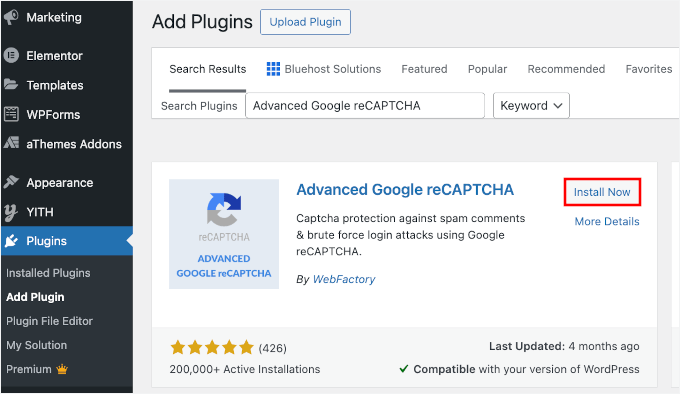
Don’t forget to click on ‘Activate’ to complete the process. You can see our step-by-step guide on how to install a WordPress plugin for detailed instructions.
Upon activation, you need to head over to the Settings » Advanced Google reCAPTCHA page in your WordPress dashboard to configure the plugin settings.
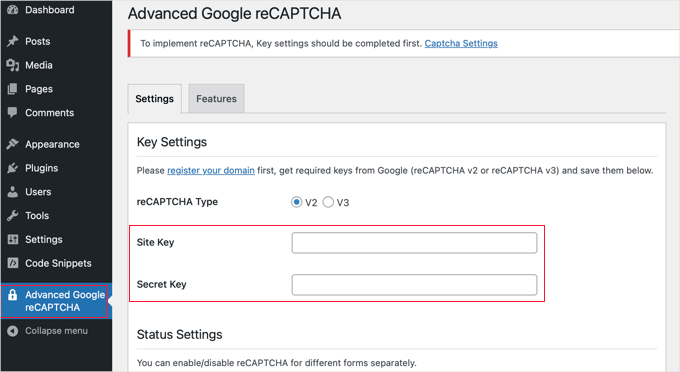
The plugin will ask you to provide your Google reCAPTCHA API keys.
You can create these keys for free from the official reCAPTCHA website. We will show you how to do that in the next step.
Registering Your Website to Get reCAPTCHA API Keys
The ‘register your domain’ link will take you to the Google reCAPTCHA website, where you can register your site to work with reCAPTCHA.
You’ll be asked to sign in with your Google account. After that, you’ll see the ‘Register a new site’ page, where you need to provide some basic information to register your site.
First, you need to type your website name or any name of your choice in the ‘Label’ field. This is for your own reference and will help you easily identify your site in the future.
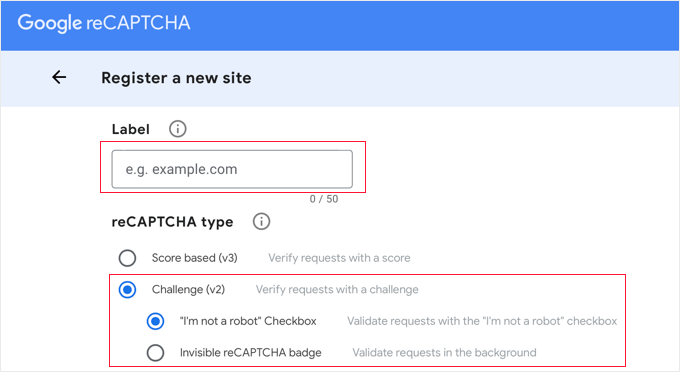
Next, select the ‘Challenge (v2)’ radio button to open up your options.
Since you want to add the reCAPTCHA checkbox to your site, you need to select the first option, ‘I’m not a robot Checkbox’.
When you scroll down, you will see the ‘Domains’ textbox. This allows you to add thedomain name of your website where you would like to add the reCAPTCHA checkbox.
Make sure to enter your domain without https:// or www (e.g., wpbeginner.com).
You can also add multiple domains or subdomains by clicking on the plus (+) icon. This will allow you to use the same API keys on different websites.

Once you have filled out the form, you can click on the ‘Submit’ button to register your site.
Google reCAPTCHA will now show you a success message along with your Site Key and Secret Key.
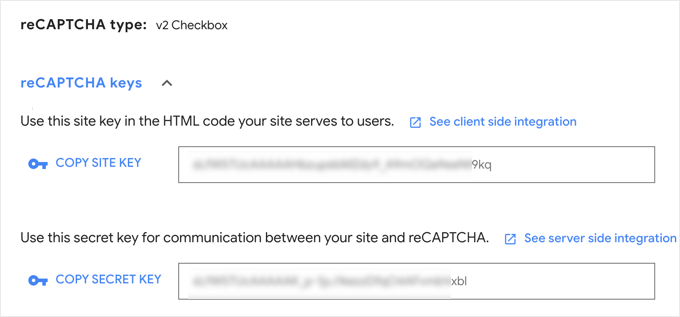
You can now use these API keys in the plugin settings on your WordPress website.
Adding reCAPTCHA to a WordPress Comment Form
Now, you need to head back to ‘Advanced Google reCAPTCHA’ in your WordPress admin area.
On the settings page, paste the Site Key and Secret Key from Google into the corresponding fields.
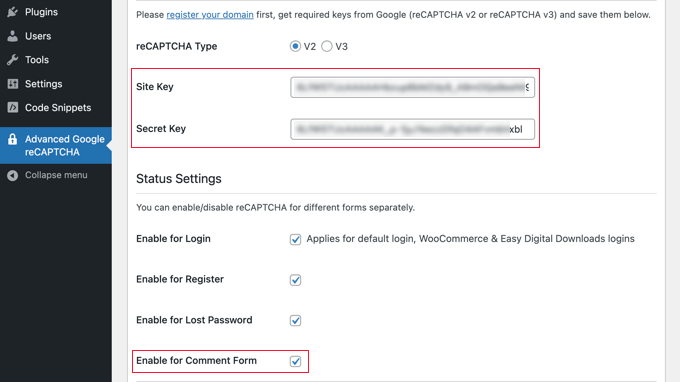
Next, make sure that the ‘Enable for Comment Form’ box is checked.
By default, reCAPTCHA can be enabled on the login page, registration page, lost password page, and comment form.
Once you’re done, don’t forget to click the “Save Changes” button at the bottom of the page to store the API keys and enable reCAPTCHA.
Congratulations — you’ve successfully added reCAPTCHA to your WordPress comment form. You can now check the comment section of your blog posts to confirm that it’s working.
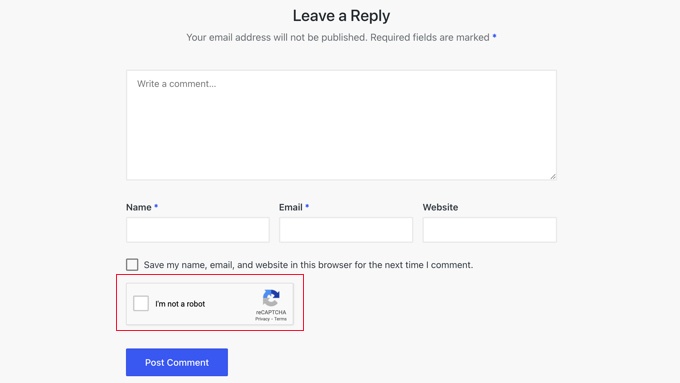
💡 Note: The reCAPTCHA checkbox will be displayed only to logged-out users. To preview reCAPTCHA, you will need to either log out of WordPress or open your website in an Incognito window in your browser.
Bonus Tips: More Ways to Combat Comment Spam in WordPress
reCAPTCHA is just one way to combat comment spam on your website. Here are a few more options to consider:
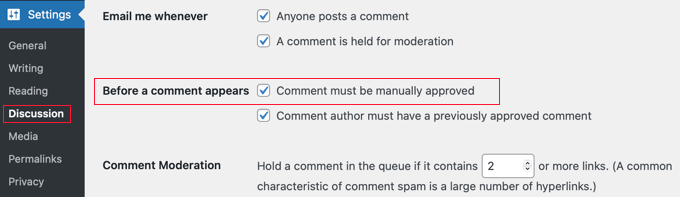
Your first step should be turning on comment moderation. This will give you the opportunity to view and approve comments before they are displayed on your website.
You can also use the Akismet plugin to automatically catch the most common types of spam comments by checking a global spam database. Akismet comes preinstalled with WordPress, but it is not activated by default. You will need to sign up for an API key to enable it.
Even better, the premium Sucuri plugin allows you to block suspicious requests before they even reach your website. This prevents automated bots and scripts from submitting comments at all. We use it on all our websites.
You can also block spam comments using the Antispam Bee plugin. It lets you set rules about which users to trust, such as approved commenters or commenters with a Gravatar. You can also create rules that mark comments immediately as spam, such as when they contain code.
You can learn about these methods and many more in our expert pick of tips and tools to combat comment spam in WordPress.
FAQ: Add reCAPTCHA to the WordPress Comments Form
Before we wrap up, here are a few quick answers to common questions about using reCAPTCHA in WordPress comments.
Is reCAPTCHA free?
Yes. Google reCAPTCHA (v2) is free for most websites, including WordPress. You just need to create API keys to use it.
What is the difference between CAPTCHA and reCAPTCHA?
Traditional CAPTCHA usually asks users to type distorted letters or solve simple puzzles. reCAPTCHA is Google’s upgraded version that uses smarter checks, like clicking a box or analyzing user behavior, to verify someone is human with less friction.
See our guide on CAPTCHA vs reCAPTCHA vs hCAPTCHA for more details.
Is reCAPTCHA v2 still effective?
Yes, reCAPTCHA v2 (“I’m not a robot” checkbox) still works well and is widely supported. Many website owners use it because it’s simple and reliable.
Why can’t AI easily pass reCAPTCHA?
AI can’t pass reCAPTCHA because reCAPTCHA looks at more than just the puzzle. It analyzes how a user behaves — mouse movement, timing, and interactions — to spot bots. AI tools can’t easily mimic those natural human patterns, so they often get flagged.
Expert Guides for Improving the Comment Experience in WordPress
We hope this tutorial helped you learn how to add reCAPTCHA to the WordPress comment form of your website.
You may also want to see some other articles related to improving the comment experience in WordPress:
- How to Create a Recent Comments Page in WordPress
- How to Allow Users to Like or Dislike Comments in WordPress
- How to Allow Users to Edit Their Comments in WordPress
- How to Allow Your Users to Subscribe to Comments in WordPress
- How to Make Blog Post Comments Searchable in WordPress
- Best Plugins to Improve WordPress Comments
If you liked this article, then please subscribe to our YouTube Channel for WordPress video tutorials. You can also find us on Twitter and Facebook.




Jiří Vaněk
I used to use WP Armour before, but unfortunately, some spams started getting through which I had to delete. So, I also set up reCAPTCHA following your instructions. However, I would like to ask: Will it cause any problems on the website if I use two anti-spam solutions? One was insufficient and occasional spams got through. The situation improved after implementing reCAPTCHA, but I’m concerned it might block legitimate comments or forum discussions.
WPBeginner Comments
It shouldn’t conflict, but it may be a good idea to test this kind of setup on you site to make sure it works properly.
Jiří Vaněk
Thank you for your response. I tested everything and also consulted with the plugin support, and it seems to have worked. Both solutions are cooperating and have mutually strengthened the website’s security against spam. I feel that after several months, regular comments are coming through fine, and the spam has stopped. So, for me, the functionality is great. Thank you for your time, response, and answer.
THANKGOD JONATHAN
Easy setup and it just works! reCAPTCHA has significantly reduced spam on my blog.
Spam comments are a thing of the past thanks to reCAPTCHA! My comment section is finally clean and engaging.
Ahmed Omar
it is really an important point in site protection against spam comments and subscription.
I faced this problem few days ago, and the only solution was to put recaptcha.
Thank you
WPBeginner Support
You’re welcome, glad our guide could help include it!
Admin
Ralph
I have Akismet plugin and it is great. Over 5 years of blogging on current blog and over 2200 comments i have little to no spam. And even if, it always go to the spam folder, so i don’t have to worry about it, as noone can see it.
reCAPTCHA can be annoying for readers as it sometimes lag and doesn’t work. I prefer tip you provided with content must be manually approved. I must aprove first comment from particular e-mail and then it accepts that person every time. Never had problems with that.
WPBeginner Support
It is always a question of personal preference but as long as you have found the way that works for you
Admin
afdhal
thanks for the tips! no more bot in my comment.
WPBeginner Support
Glad you found this recommendation helpful
Admin
Moh
Why don’t you have CAPTCHA here on your website?
WPBeginner Support
We are trying other tools on our site, there’s nothing wrong with using CAPTCHA but it is personal preference if you use it.
Admin
Simon Griffiths
The plugin you recommend looks like it’s not supported anymore. Are there any others?
WPBeginner Support
We will be sure to take a look and update our suggestion should we find an alternative we would recommend.
Admin
Jack
Perfect! One huge WordPress annoyance will be gone!
WPBeginner Support
Glad our guide was helpful
Admin
jodarove
Thank you! very helpful!
WPBeginner Support
You’re welcome
Admin
Duncan McCormack
re the reCAPTCHA section when you visit the plugin it says at the top: This plugin hasn’t been tested…
Is this still the best Plugin to use? Is it safe? Or is there now a better one out there?
Cheers, Duncan.
WPBeginner Support
For the not tested warning, you would want to take a look at our article below for our recommendations on this:
https://www.wpbeginner.com/opinion/should-you-install-plugins-not-tested-with-your-wordpress-version/
Admin
Steve
I followed the instructions exactly and the reCaptcha button will not appear on my site at all. Signed out of WP. Incognito window. nothing.
WPBeginner Support
Please reach out to the plugin’s specific support to see if this could be due to a conflict between your specific theme and the plugin itself.
Admin
Desi
This plugin is no longer working. I have installed it and none of the buttons will toggle.
WPBeginner Support
You would want to reach out to the plugin’s support and let them know to help remove the issue.
Admin
DonDee
FYI… The new v3CAPTCHA does not provide a clickable “I am not a Robot” conformation. The only way to tell if it’s running on the site is a CAPTCHA icon floating in the lower right hand side of the screen on the site you’re on.
WPBeginner Support
Thanks for sharing this for anyone using v3
Admin
Pradeep Singh
Hello
If I am using Akismet antispam plugin still I need to use reCaptcha technology?
Thanks
WPBeginner Support
That would be a personal preference question, both are tools to help prevent spam and will work together.
Admin
pepe
The recaptcha is not showing! help!
help!
WPBeginner Support
You may want to check your site in an incognito browser where you’re not logged into your site to make sure it isn’t hiding for your admin user.
Admin
bob martin
Help! I clicked on save api keys button like tutorial said and now my site isn’t working at all.
WPBeginner Support
It would depend on what your error is for the cause and possible solution, for a starting point you would want to take a look at our guide here: https://www.wpbeginner.com/beginners-guide/beginners-guide-to-troubleshooting-wordpress-errors-step-by-step/
Admin
Eva Live
Does this mean if I use this, I don’t really need to moderate all comments? I don’t like that comments don’t show up as soon as they are posted, it has to wait until I get around to reviewing comments.
WPBeginner Support
You would still need to moderate comments, reCAPTCHA is a way to prevent spam from bots but there can be other comments you don’t want on your site
Admin