


When our readers ask us for tips on making their websites more secure, one of our top recommendations is to change the URL of their WordPress login page.
This simple change makes it more difficult for hackers to gain unauthorized access to your site because they won’t be able to find your login page at the URL they are expecting.
In this article, we’ll guide you through the process of adding a custom login URL to your WordPress site.
We will explain each step clearly, so you can follow along even if you are not a tech expert.
💡Quick Answer: How to Add Custom Login URL in WordPress
Here are the 2 easiest ways to add a custom login URL in WordPress:
- Method 1: Use SeedProd – Best if you want to create a fully custom login page and branded login URL using a drag-and-drop builder.
- Method 2: Use WPS Hide Login – Best if you want to quickly change the default WordPress login URL without customizing the login page design.
Why Add a Custom Login URL in WordPress?
A custom login URL helps protect your WordPress site and creates a more professional login experience for users.
By default, WordPress uses common login page URLs like wp-login.php and wp-admin. Because these URLs are widely known, bots and hackers often target them when trying to break into websites.
Here are a few reasons why many site owners change the default login URL:
- Improve security: Changing the login URL makes it harder for bots to find your login page and attempt brute force attacks.
- Reduce automated attacks: Hackers usually try common login URLs first, so hiding them can help limit unwanted login attempts.
- Create a branded login link: A custom URL like
yoursite.com/member-loginlooks more professional than the defaultyoursite.com/wp-login.php. - Better experience for users: Branded login links are easier for members, students, or contributors to remember.
- Customize the login page design: You can style the login page to match your WordPress theme and branding.
That said, changing the login URL should only be one part of your security strategy. It works best when combined with other measures like strong passwords and two-factor authentication.
Now, let’s look at how to add a custom login URL in WordPress.
Which Method Should You Choose?
Before we dive into the tutorial, here is a comparison of the 2 recommended methods to help you make the right decision:
| Feature | SeedProd | WPS Hide Login |
|---|---|---|
| Primary Function | Custom login page builder & URL changer | Only changes login URL |
| Customization | Extensive drag-and-drop design options | None (uses default WordPress login page design) |
| Cost | Premium (free version available with limited features) | Free |
| Best For | Users wanting a fully branded, custom-designed login experience. | Users who only need to change the login URL without altering the page design. |
You can use the links below to jump to the method of your choice:
Method 1: Add a Custom Login URL in WordPress Using SeedProd
The simplest way to add a custom login URL in WordPress is by using a WordPress plugin. This lets you simply change your WordPress login URL without editing any core WordPress files.
We recommend using the SeedProd plugin. It’s the best drag-and-drop WordPress page builder used by over 1 million sites. With this plugin, you can easily customize your WordPress login page and change its URL.
You can use it to create a single custom page or design your entire website for a consistent, professional look. To find out more, see our detailed SeedProd review.
Step 1: Install and Activate SeedProd
The first thing you need to do is install and activate the plugin. For more details, see our step-by-step guide on how to install a WordPress plugin.
Note: There is a free version of SeedProd, but we’ll be using the premium version for this tutorial since it has the login page templates we need.
Upon activation, you need to go to SeedProd » Settings and enter your product license key.
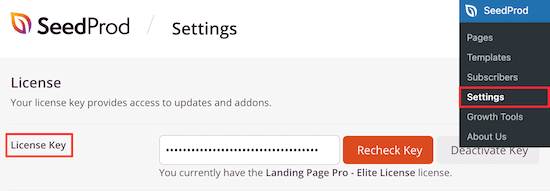
You can find your product license key in your account information on the SeedProd website.
Step 2: Set Up a New Login Page
After that, navigate to SeedProd » Landing Pages and click the ‘Set up a Login Page’ button.
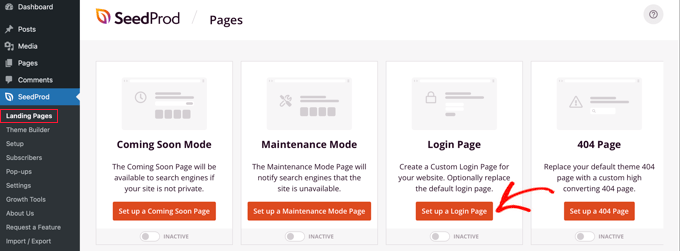
Then, you’ll be taken to a screen that has all of the login page templates.
You can choose one of the pre-made professional templates or select the ‘Blank’ template to build a login page from scratch.
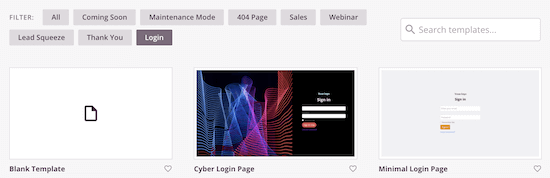
For this tutorial, we’ll choose the ‘Geo Login Page’ template.
Simply hover over the template you want to use and click the check icon.
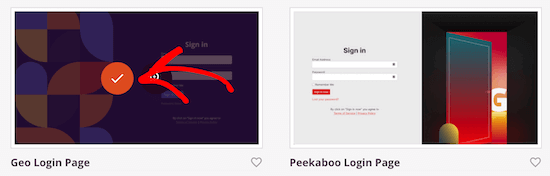
This brings up a popup where you can name your new login page and enter a custom login page URL.
Next, click the ‘Save and Start Editing the Page’ button.
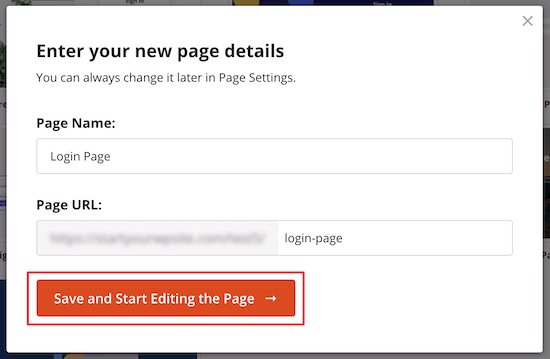
This will take you to the page editor screen.
Step 3: Customize Your Login Page Design
You can customize every element of the page with the drag-and-drop builder.
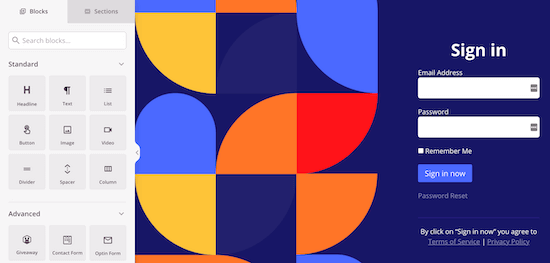
The left side has blocks and sections you can add to the page, and the right side shows a real-time preview of what it looks like.
When you click on any page element, it will bring up a menu to customize it further.
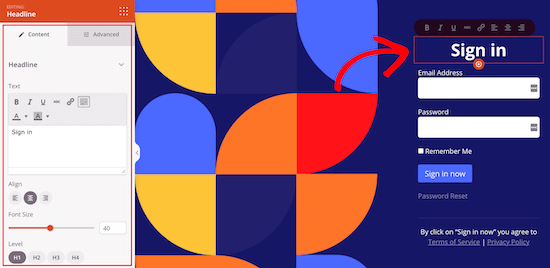
You can customize your login page as much as you want, but we’ll leave the default settings for this tutorial.
For more details on all the customization options, see our ultimate guide on how to create a custom WordPress login page.
Step 4: Publish Your Custom Login Page
Next, you need to click the arrow next to the ‘Save’ box and select ‘Publish’ from the drop-down.
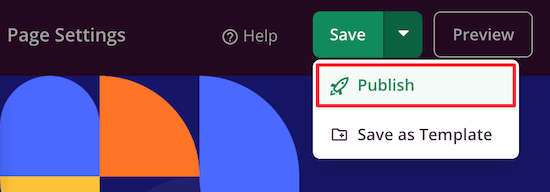
After you publish the page, there is one last step.
You need to tell WordPress to use this new page as your default login screen. This will make the old login URL redirect to your new one.
First, click the ‘Page Settings’ menu option at the top of the page.
Then, scroll down the page until you see the ‘Redirect the Default Login Page’ option. Simply click the ‘Enable’ toggle, and you’ll see it turn orange.
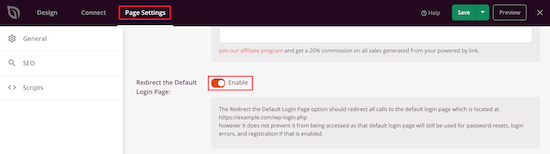
This will redirect the default WordPress login page to the new page you just created.
Don’t forget to click the ‘Save’ button again to make sure all of your changes are now live.
Method 2: Add WordPress Login Page URL With a Free Plugin
We recommend using the SeedProd plugin above because it also lets you easily customize your login page to match the design of your site.
However, some users will want to keep the default WordPress login page and only change the login page URL.
To do this, you can use the free plugin called WPS Hide Login. This plugin lets you simply change the login URL without customizing the page.
Once the plugin is installed and activated, you need to set up the new URL. Simply navigate to Settings » WPS Hide Login.
If you don’t see it there, then you can find the settings at the bottom of the Settings » General page.
Then, add your new login page URL in the ‘Login url’ box.
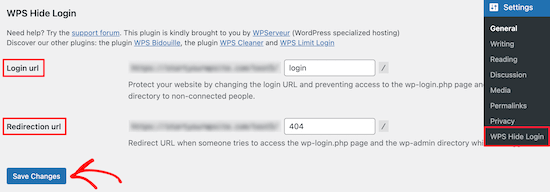
You can also add a redirect URL in the ’Redirection url’ box.
This will redirect people to another page on your WordPress blog when they try to access the default wp-login.php page, and they aren’t logged in.
After that, click ‘Save Changes’.
Pro Tip: After you save your new login URL, make sure to bookmark it right away. If you forget the new URL, you could get locked out of your WordPress admin area.
Now, all visitors will automatically be sent to your new login page URL.
Video Tutorial
If you’re not a fan of written instructions, then you can watch our video tutorial on how to add a custom login URL in WordPress:
Frequently Asked Questions About Custom Login URLs
Having helped thousands of users secure their sites, we’ve answered many questions about custom login pages. Here are the answers to some of the most common ones.
What happens if I forget my custom login URL?
If you forget your new login URL, you can get locked out of your WordPress admin area. The easiest way to regain access is to disable the plugin that changed the URL. You can do this by connecting to your WordPress hosting account using an FTP client or file manager.
For detailed instructions, take a look at our tutorial on how to easily deactivate WordPress plugins.
Will changing the login URL affect my users?
Yes, if you run a membership site or allow user registration, you will need to inform your users about the new login address. You should send out an email to all registered users with a link to the new page.
Is changing the login URL enough to secure my website?
Changing your login URL is an excellent security measure, but it should be part of a broader strategy. It protects you from basic brute-force attacks, but it’s not a complete solution on its own.
We also strongly recommend using strong passwords, adding two-factor authentication, and limiting login attempts to fully protect your site.
Can I change my WordPress login URL back to the default?
Yes, you can easily revert to the default login URL. Simply go to the plugin’s settings page and disable the login page redirect feature, or deactivate the plugin entirely.
Expert Guides for Protecting the WordPress Login Page
Now that you know how to add a custom login URL in WordPress, you may like to see some other guides related to protecting the WordPress login page:
- How to Create a Custom WordPress Login Page (Ultimate Guide)
- How and Why You Should Limit Login Attempts in WordPress
- Beginner’s Guide: How to Find Your WordPress Login URL
- How to Add CAPTCHA in WordPress Login and Registration Form
- How to Add Security Questions to the WordPress Login Screen
- Best WordPress Login Page Plugins (Secure & Customizable)
- How to Password Protect Your WordPress Admin (wp-admin) Directory
- How To Add Social Login To WordPress (The Easy Way)
- How to Add OAuth Login in WordPress (Step by Step)
We hope this article helped you learn how to add a custom login URL in WordPress. You may also want to see our guide on how to add two-factor authentication in WordPress and our expert pick of the best WordPress login page plugins.
If you liked this article, then please subscribe to our YouTube Channel for WordPress video tutorials. You can also find us on Twitter and Facebook.



Olaf
One of the security steps I perform on almost every website. Besides enabling two-factor authentication when possible, changing the URL is a great basic defense against brute-force attacks. The method using SeedProd looks interesting. Personally, I’ve gotten used to the WPS Hide plugin because I rarely use page builders. This plugin has never let me down, always fully compatible with the site, a great developer behind it, and frequent updates. I’ve been relying on this plugin for several years. It’s excellent, and I’m glad it’s mentioned in the article as one of the options.
Samuel
Wow! Thank you for this article. I love that custom login url help to improve security of the WordPress in that it change the default url to the new one making it difficult for the hackers to gain entry and I also think it help reinforce your branding as well as SeedProd offer the ability to customized the page. Overall this is an easy to follow article. Nice job. Thank you so much
Dennis Muthomi
One thing I found particularly resonating with was the explanation of why changing the login URL is important for security. It’s a simple yet effective way to deter potential hackers, especially when combined with other security measures.
I’ve implemented custom login URLs on several client sites and have found it to be an excellent first line of defense.
Jiří Vaněk
Exactly. It’s a very effective preventive measure against brute force attacks because if the attacker doesn’t know the admin URL, they can’t even initiate a brute force attack. I use a changed URL, and I would also recommend enabling two-factor authentication. If you have a strong password and a unique username, it’s practically impossible to bypass this firewall, so to speak, with brute force or other methods.
Dennis Muthomi
Your point about stopping attacks before they even start clicked with me. It’s super smart – if attackers can’t find your login page in the first place, all those automated bots are basically useless.
The way you explained how proper security layers work together is spot-on. When you’ve got all these different security measures working together, it’s practically impossible for attackers to get through. That’s what makes this approach so effective.
Really appreciate you replying with these insights
Gerard
The plugin you refer to has seen no updates in over 2 years. might wanna update your post.
Ashfaq
there is a problem with these plugins.
if we enter just LOGIN instead of wp-admin or anything else we redirected to the dashboard login page
PseudoGeek
I got tired of getting hundreds of brute-force login attempts per day from around the world. WordFence blocked them, but I got tired of the constant barrage of notifications of blocked attempts. I installed a different plugin than what you’re recommending – WPS Hide Login – on all my sites, and changed the login location from the plugin’s default to something I made up. Now I get ZERO brute-force login attempts because the bad guys can’t find wp-admin any more – it just throws a 404 page not found error. Please tell me why you think this does not improve the security of my sites!
Syams
Dear, how to make like this login?
WPBeginner Support
Take a look at our tutorial on how to password protect your WordPress admin directory
Admin
Rod Salm
This is built into another plugin I love, iThemes Security (formerly known as Better WP Security). It provides this functionality and many more simple to implement security features for your WP install.
Rod Salm
jusTravis
The custom login url is 1 of the main reasons I used iThemes Security, but I switched to WP All-In-One Security because it also offers a honeypot on the login page.
Dan Wheeler
An Many of your posts you recommend plugins that are out of date. Login Lockdown is over a year old. You should keep your recommendations to plugins that have been tested and updated recently. Reader’s following your instructions may get undesired results following your recommendations.
WPBeginner Support
Please see our article, Should you install plugins not tested with your WordPress version. We test all plugins that we recommend, and we regularly update old articles to replace expired plugins with new and better plugins. We also rely on our users to alert us when a plugin we recommended has expired or is no longer available.
Admin
Shantanu Patil
Sir i am getting error in the Theme. I installed ColorMag theme and In the homepage the images of the post is not show my Blog link
WPBeginner Support
Try deactivating all your WordPress plugins, and then check to see if this resolves your problem. If it does, then this means that there is a plugin causing the issue. Activate each plugin one by one and test your website after activating each plugin until you find the culprit. If the plugins are not the issue then you may want to checkout our guide on fixing common image issues in WordPress.
Admin
Lars B
I would like to know more aboth this ….
“…. a custom WordPress login URL will help them improve their website security, it’s not true at all.
Changing the default login URL doesn’t improve your security at all. It’s just a matter of personal preference that’s all.”
Could you please explain this in detail ?
If the site’s login URL is strickly for the owner and administrator – and therefore there’s no public links to the custom login – Wouldn’t a custom URL to the login in this case be an improvement of the security?
WPBeginner Support
Accessing /wp-admin/ directory will redirect users to custom login URL.
Admin
Lars B
I use iThemeSecurity …. and I change the login-URL to something custom line …. if someone is trying to find /wp-admin they will find the “Page Not Found”-page
…. or is there a way around this that I’m not aware of??
Dave
If you try to access wp-admin and it gives you the custom URL, the plugin isn’t doing a very good job of hiding the URL. Plugins like iThemes Security, as Lars mentioned, and Rename WP-Login will throw an error message if you try to access the admin area or default login URL in any way that isn’t the customized one.
It does help the security because the attacker can’t find the form to attack it.