


When you read an article online, it helps to put a face to the name. Seeing a real person builds trust and makes the content feel much more personal.
However, many themes just show a generic icon by default. Even if the author has a Gravatar, it might not be the professional headshot you want to display on your business site.
We have managed a large team of writers at WPBeginner for over a decade. We know how important it is to have total control over your editorial team’s bios and photos.
In this guide, we will show you exactly how to add or change an author’s photo in WordPress.

When Do You Need to Add an Author’s Photo in WordPress?
If you run a multi-author WordPress site, then you may decide to add an author info box in WordPress posts. These author bio boxes typically show the author’s profile photo, a brief bio, and a link to their website or social profiles.
By default, most WordPress themes use the person’s Gravatar as their author photo. However, sometimes, you may prefer to use a different image for the author’s photo.
As a WordPress website owner, you may even have rules about the kind of photos you want to show in your author bio boxes. For example, maybe you require your authors to use a professional headshot.
If the author’s Gravatar doesn’t meet your rules, then you may want to edit their profile and upload an image that better suits your brand.
With that in mind, we’ll show you how to add an author’s photo in WordPress. Here’s a quick overview of all the steps we’ll discuss in the following sections:
Let’s take a look at how to set this up.
How to Add an Author’s Photo in WordPress
The easiest way to add an author photo in WordPress is by using the PublishPress Authors plugin.
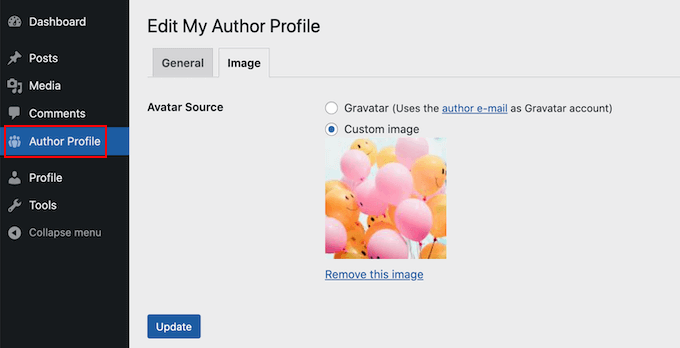
This plugin lets authors edit their own profile and author photo by adding a new ‘Author Profile’ area to their WordPress dashboard. It also gives site admins the power to edit the author’s profile, including changing their photo.
First, you’ll need to install and activate the PublishPress Authors plugin. If you need help, then please see our guide on how to install a WordPress plugin.
Upon activation, let’s head over to Authors » Settings. You can then go ahead and switch to the ‘Display’ tab.
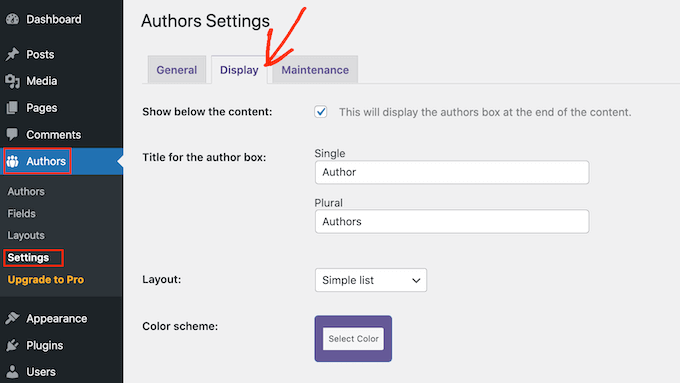
In this tab, look for the default ‘Layout’ option. Here, you can choose a layout that includes an author photo.
You might notice that the default layout is ‘Boxed.’ This shows the author’s information in a box, along with the author’s photo.
The ‘Centered’ layout is similar to boxed, but with all of the author’s information centered inside the author bio box.
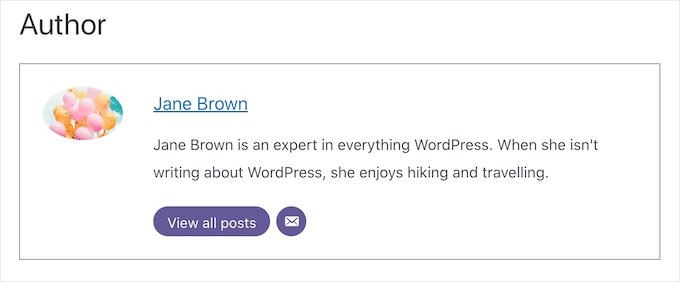
‘Inline with avatar’ and ‘Simple List’ are both layouts that include space for an author photo.
Here’s an example of the ‘Simple List’ layout:

Keep in mind that these layouts are designed to be compact, so they will not display the author’s biography text. If you want to show the full bio, stick to the ‘Boxed’ or ‘Centered’ layouts.
After choosing your layout, you can click on the ‘Save Changes’ button.
You can now visit your website to see the author’s photos on your WordPress posts and pages.
Anyone who has registered on your site with the ‘Author role will now be able to upload a photo using the ‘Author Profile’ settings in their WordPress dashboard.
How To Change an Author’s Photo in WordPress
As an admin, you can also use PublishPress Authors to change any of the individual author photos that appear on your website. This is useful if an author chooses a photo that isn’t a good fit for your site.
To change an author’s photo, simply go to Authors » Authors.
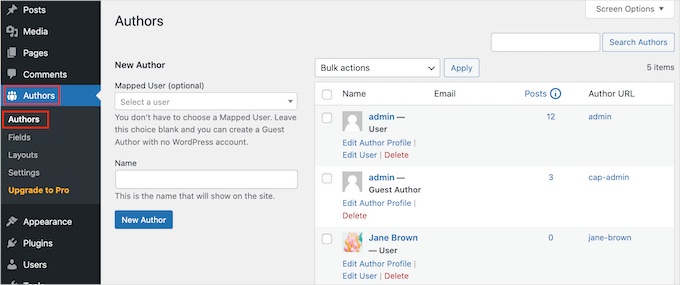
You will now see a list of all the authors who are registered with your WordPress blog.
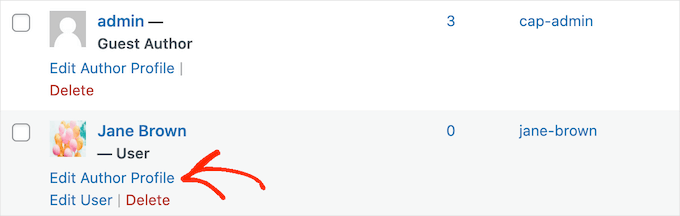
From here, you can click on an author’s ‘Edit Author Profile’ link.
Then, just click the ‘Image’ tab.
By default, PublishPress will try to find a gravatar linked to the author’s email address. To use a different author photo, you can click the ‘Custom image’ radio button.
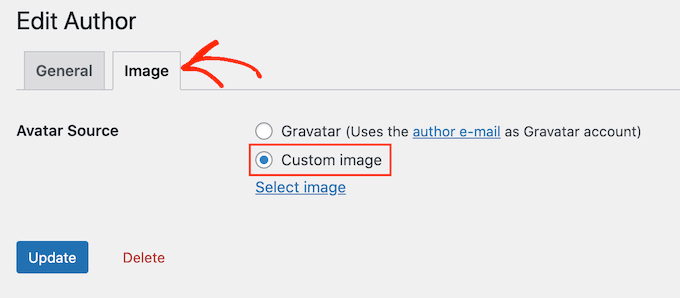
Once you’ve done that, you’ll want to click on ‘Select Image.’
You can now choose any image from your WordPress media library or upload a new image.
Then, let’s just click the ‘Update’ button.
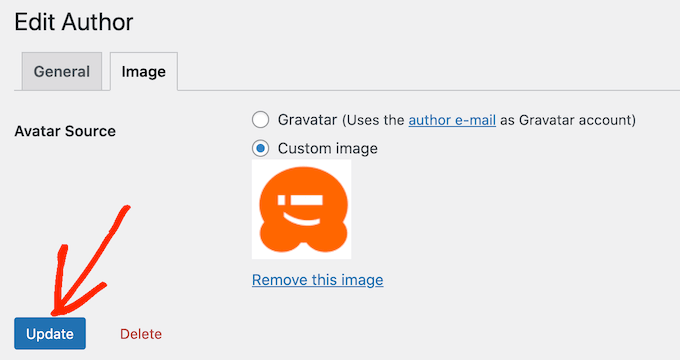
Your website will now use this new image as the author’s photo.
Expert Tip: If you like this tool, we recommend checking out the entire suite of PublishPress plugins. They offer a lot of really powerful tools that can help you produce the best content possible.
Bonus Tip: How to Enforce Clean Image Filenames
If you have a multi-author blog, it can be tough to ensure every image uploaded has a clean filename. A clean filename avoids special characters like accents, non-Latin characters, or symbols, which is better for search engine optimization (SEO).
This applies to your author photos as well. For example, a file named john-smith-photo.jpg is much better for SEO than IMG_1234.jpg. By fixing filenames, you improve both user experience and your site’s search visibility.
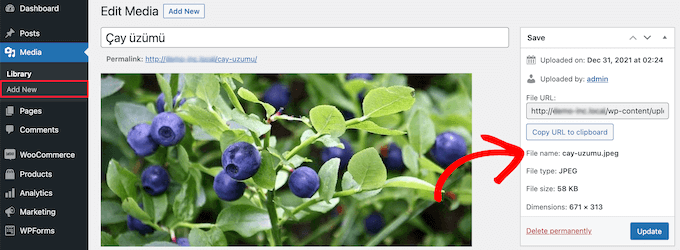
For detailed instructions, you can check out our guide on how to enforce clean image filenames in WordPress.
Frequently Asked Questions (FAQs)
Here are some of the most common questions we get asked about managing author photos in WordPress.
What is the best image size for an author photo in WordPress?
The ideal size often depends on your WordPress theme, but a square image of 256 x 256 pixels is a safe and effective choice. This resolution is clear enough for most layouts without negatively impacting your site’s loading speed.
We recommend checking how the photo appears on a live post, as some themes may crop images differently.
Can I add an author photo in WordPress without a plugin?
Yes, it is possible, but it requires adding custom code to your theme’s files. You would need to edit the functions.php file to add a custom field to user profiles, which can be risky if you’re not familiar with code.
For this reason, we strongly recommend using a plugin like PublishPress Authors. It’s a much safer and simpler solution for most users.
How do I change my author photo if it’s a Gravatar?
You have two options. You can log in to the official Gravatar website to change your image globally across the web. Or, if you only want to change the photo for this specific website, you can use the PublishPress Authors method we showed above to override the Gravatar with a custom image.
Why isn’t my custom author photo showing up?
A caching issue is the most common reason for this. Try clearing your WordPress cache and browser cache first.
If the problem persists, double-check your plugin’s settings to ensure you’ve selected a layout that displays author photos. Also, confirm that your theme is set up to show author bio boxes on your posts.
Additional Resources for Managing WordPress Images & Authors
We hope this article helped you learn how to add an author’s photo in WordPress. Now that you have that sorted, you may want to check out these other helpful guides:
- How to Add an Author Info Box in WordPress Posts
- How to Easily Lazy Load Images in WordPress
- What is Gravatar and Why You Should Start Using It
- How to Add Image Hover Effects in WordPress
- How to Allow Multiple Authors for a Single Post
If you liked this article, then please subscribe to our YouTube Channel for WordPress video tutorials. You can also find us on Twitter and Facebook.



Dennis Muthomi
The solution that I have REALLY wanted!!
I have been looking for ways to add an author photo without using Gravatar option.
You always the best solution! THanks WPBeginner.
Arshad
Always got a perfect solution! Thumbs Up..
WPBeginner Support
Glad to hear our guide was helpful!
Admin
Rachel
I have followed these steps, but there is still no option to add a profile pic – it just shows the ‘blank’ image and no button to ‘add image’.
Any ideas?
WPBeginner Support
You would want to reach out to the plugin’s support if the add image option is not available and they should be able to assist.
Admin
Amanda Don Williams
Thanks…. awesome plugin very easy to use…
WPBeginner Support
Glad you like our article
Admin
Aditya
Hi, i have a user registration page on which user registers as a contributor. Then he/she can submit blogs for moderation. However, on that registration page i want users to add their photos mandatorily so we don’t have to rely on them adding it later from their profiles or do the task ourselves.
WPBeginner Support
To set a requirement like that, you would want to take a look at our article here: https://www.wpbeginner.com/plugins/how-to-create-a-custom-user-registration-form-in-wordpress/
Admin
Sébastien
How to show avatar on the frontpage? This method only show on the loaded pages.
WPBeginner Support
If you are displaying your posts on your home page instead of a static home page then you would need to reach out to the support for your specific theme to edit the theme’s template
Admin
Helen
Thank you! Been trying to work this out for ages!!
WPBeginner Support
Glad our tutorial could help
Admin
Tony
If anyone else is wondering why your photo isn’t showing up in author bio, it may be because there’s also separate settings for the plugin itself. You have to check the box that says, “display author avatars”. At first all I did was went to the author settings and uploaded the photo not realizing that there was extra settings for the plugin itself.
Alexander
awesome resource….my picture appeared in a twinkle of an eye.thank you very much
Jason
Doesn’t seem to show my picture. It uploads and shows in the Author page in Word Press but not showing on the actual site. Help!
nestor fuhr
after proving a dozen plugin…. this is the only that works correctly. Thank you
Adey Jones
I am using this plugin on a site that also uses co-authors plus as some posts are written by 2 people, but this plugin only allows 1 author image to display, how can I amend the userphoto_the_author_photo() to display both authors images in 1 post?
Tim
Hey, just wanted to add that there’s a function for exactly that:
<?php echo get_avatar( get_the_author_meta( 'ID' ), 32 ); ?>
32 being the size of the image but that’s optional. If you only want to add a picture of the author, this function seems better than a plugin.
Source: https://codex.wordpress.org/Function_Reference/get_avatar#Return_Values
Constantin Colac
Thanks mate. I was actually surprised people go for a plugin instead of a function..
You get some good karma from me
Ryan
Is there a way around having to deal with Gravatar.com or whatever? It seems crazy it isn’t just a built in feature of Wordpress.
Simon Green
Just use gravatar! Tried this plug-in and was not satisfied. I don’t want the author photo pasted everywhere that there’s a post, multiple times on the site. No good.
Keith Agnew
Awesome Plugin. Worked perfect immediately. Thanks!!!
Raj Kumar
Thanks, but can we do it without any plugin?
Keme Kenneth
Simple Local Avatars is working fine for me. Thanks all.
Yoopd
Thank you!!!
heny astuti
it works..tx
Juan Manuel
Hello!
Thanks for sharing this info. However I am not sure if this is what I need. When I write a post on my website (http://juanmacarlupu.com.ar/blogdetraduccion) at the end of each post it says: “This article was written by: Juan Manuel Macarlupu Peña” and a default picture and mi bio. I have tried everything on earth (or that’s what I think) and I cant change that default picture. Can you help me with that?
I would reaaaaaally appreciate it.

Editorial Staff
It might be easier to just use Gravatar – https://www.wpbeginner.com/beginners-guide/what-is-gravatar-and-why-you-should-start-using-it-right-away/
Admin
Juan Manuel
I think it goes without saying that it worked!
Thank you sooooo much!!!
Regards,
Kat
Hi
Can you help, I had this plugin working fine on a test site but not on the live site – the user pictures appear in the user back-end but not on the post or author pages?
Does anyone have any ideas why this would happen?
thanks
Kat
Editorial Staff
Extremely hard to tell without looking at the site.
Admin
Shonda Rogers
So I have to download the plugin to get the image to show on google searches, am I correct? I have everything else setup and linked with google+ profile, email verification etc. I was thinking the image would show up from my google+ profile. But it sounds like I need the WP plugin as well. Can you please confirm?
Editorial Staff
No, this is for WordPress itself. If you want to show author picture next to google search results, then you need this article:
https://www.wpbeginner.com/wp-tutorials/how-to-get-googles-verified-authorship-for-your-wordpress-blog/
Admin
Nida's Beauty Bag
Is there any way that a non wordpress user can use an image while commenting on my blog??? whenever people comment on my blog , if they are non-wordpress user no display picture is shown
Editorial Staff
Most WordPress themes come with Gravatar support. If your users are signed up with Gravatar, then their picture will show up. Like your picture did in this comment.
https://www.wpbeginner.com/beginners-guide/what-is-gravatar-and-why-you-should-start-using-it-right-away/
Admin
Joey
A better and more updated plugin: Simple Local Avatars (search wordpress plguin reposiroty)
No need of editing any files.
Ken
Joey, that plugin you posted is useless and very broken. The User Photo plugin is the best one out there right now and works perfectly!
kuyax
joey is the best, it’s working perfectly…
thanks dude…
Emilio
Thanks Joey! Simple Local Avatars was awesome! For anyone downloading this plugin, there plugin settings are not in the “settings” or “tools” section. Just upload the plugin and go to the “Users” section. The upload form will be in the users information where you put the bio, email, and other social media contact info.
Nadir
Thanks Joey, it works… perfect… saved me from frustration
Jennifer
Thank you! It realy works fine!
Sham
The image is not displaying in all user lists. Can any one help ?
wpbeginner
@Sham You have to make sure that you have the php code to display the image in your template.
caspian
We have a theme that has a registration/profile page on the front end. any idea on how to add the upload image option to the front end? thanks.
ushackers
really helpful post
ArsalanTosifi
Hi
I have successfully uploaded user photo plugin. Successfully imported image. But image does not display. What is missing?
Rahoof PM
@ArsalanTosifi me also have the same problem.
wpbeginner
@Rahoof PM @ArsalanTosifi You do not have the code in your theme to display it. You have to add the user photo code. Click on the plugin page, they have the code there.
Ruth Martin
Hi!
Thank you for this post and plugin! I have been searching for something and am so happy to have found my answer!
Thanks again!
Ruth M
Brian
Any idea on how to integrate this with bbpress discussions?
thanks
Editorial Staff
Nope. We haven’t really looked into bbPress yet.
Admin
Aaron
Hi,
I have about 200 jpeg photossaved, and I would like to put them in the userphoto folder and have them become that person’s photo, and the user can come back and change it if they wish. I tested this out by placing a photo admin.jpeg in the folder, but it did not take effect. do you know how I can do a mass upload of photos for userphoto?
Thanks,
Aaron
Editorial Staff
You can’t just FTP stuff because the value is also stored in the database. It is better to ask all your editors to add the pictures by themselves.
Admin
Omaha Homes
Yeah this is nice good wp plugin to share author’s picture.
TeShadow
Thankyou for this Useful plugin
Rick
Thank you for highlighting this plug-in.
Luke Jones
Thank you, this is one thing that has stressed me out.