


Want to leverage the power of social proof on your WordPress site? A well-designed customer reviews page can be your secret weapon.
We’ve seen firsthand how a great customer reviews page can build trust and boost sales.
After a lot of testing on our own sites and with our partner brands, we’ve pinpointed the best ways to add powerful social proof to your WordPress site.
In this guide, we’ll show you exactly how to add a professional-looking customer reviews page, step by step.

💡The 2 Easiest Ways to Add a Customer Reviews Page
The two simplest methods for adding a customer reviews page in WordPress are:
- Use a Reviews Feed Plugin: Use a plugin like Smash Balloon’s Reviews Feed Pro to automatically pull in and display reviews from sources like Google, Yelp, and Facebook. This is the best option for a hands-off, always-updated feed.
- Use a Page Builder: Use a plugin like SeedProd to manually create a custom page. This method gives you full control to hand-pick your best testimonials and design a unique layout.
Why Add a Customer Reviews Page in WordPress?
The main reason to add a customer reviews page is to build trust and increase sales.
By showcasing feedback from real customers, you provide powerful social proof that encourages new visitors to buy from you.
The key benefits include:
- Higher Conversions: Positive reviews act as testimonials that can directly influence purchasing decisions.
- Improved SEO: Fresh, user-generated content from reviews can help your site rank better in search engine results.
- Stronger Brand Loyalty: Displaying customer feedback builds a sense of community and makes your customers feel valued.
That being said, let’s take a look at how to add customer review pages in WordPress. You can use the quick links below to jump to the method you want to use:
Method 1: Add Customer Reviews Using Reviews Feed Pro
The easiest way to display reviews on your WordPress website is by using the Smash Balloons Reviews Feed Pro plugin.
It is the best WordPress customer reviews plugin that allows you to add reviews from the biggest platforms on the internet, including Google, Yelp, and Facebook.
Plus, we love that it automatically copies your website design so that the reviews suit your WordPress theme and look like a natural part of your blog.
To find out more about its features, see our Smash Balloon review.
Step 1: Install and Activate Reviews Feed Pro
First, you need to install and activate the Reviews Feed Pro plugin. For more details, you may want to see our beginner’s guide on how to install a WordPress plugin.
Note: Reviews Feed also has a free version that you can use to integrate with Google or Yelp. However, we will be using the Pro version in our tutorial as it has more features and integrations.
Upon activation, head over to the Reviews Feed menu tab from the WordPress admin sidebar.
Step 2: Enter Your License Key
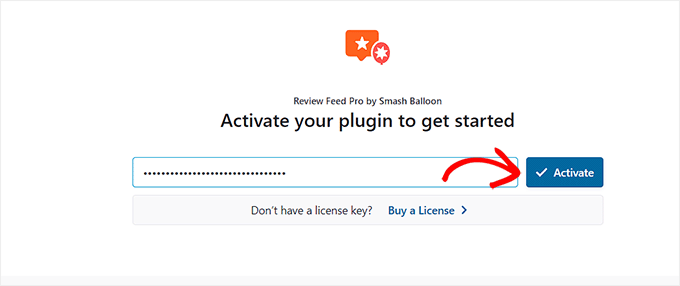
Once there, simply copy and paste your license key into the field and click the ‘Activate’ button.
You can get this information from your account on the Smash Balloon website.
Step 3: Add a Review Source
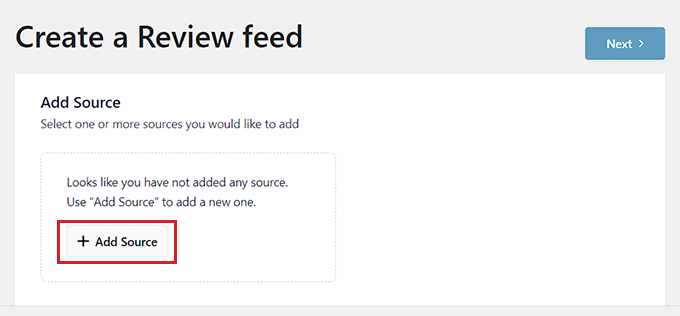
Once you have done that, the ‘Create a Review Feed’ page will open up on your screen.
From here, just click the ‘+ Add Source’ button to add a source for your customer reviews.
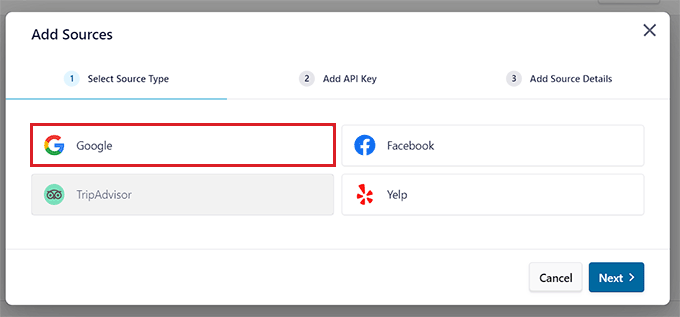
This will open the ‘Add Sources’ prompt on the screen, where you can select the source for your reviews. For this tutorial, we will be using Google as the source.
After making your choice, click the ‘Next’ button to move forward.
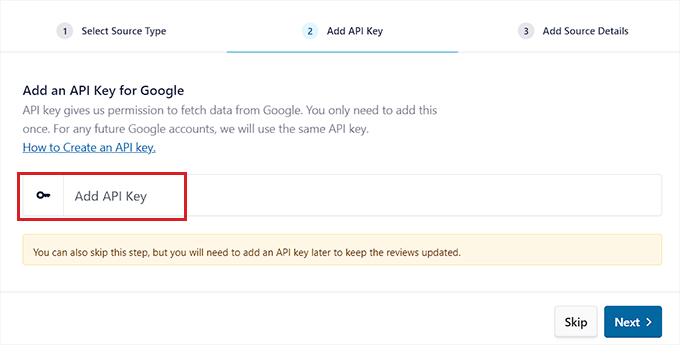
Now, you’ll need to create a special key, called an API key.
This lets the Reviews Feed plugin talk to Google to securely fetch your reviews.
Step 4: Create a New Project in Google Cloud
To get an API key for Google reviews, visit Google Console and sign in using your Google account.
Note: The Google Cloud interface changes often, so your screen may look slightly different from our screenshots. However, the main steps of enabling the Places API and creating an API key are the same.
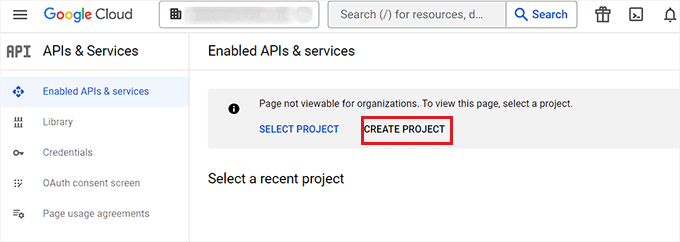
Once you are on the ‘Google Cloud’ page, click the ‘Create Project’ button.
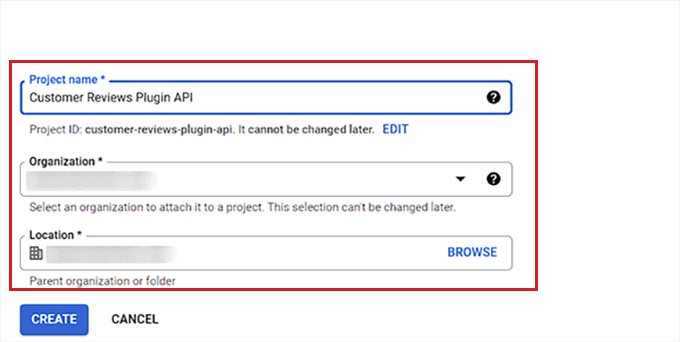
This will take you to the ‘New Project’ page, where you can start by typing in a name. For instance, we will be naming our project’ Customer Reviews Plugin API’.
After that, choose an Organization and Location for the project from the dropdown menus and click the ‘Create’ button.
Step 5: Enable the Places API
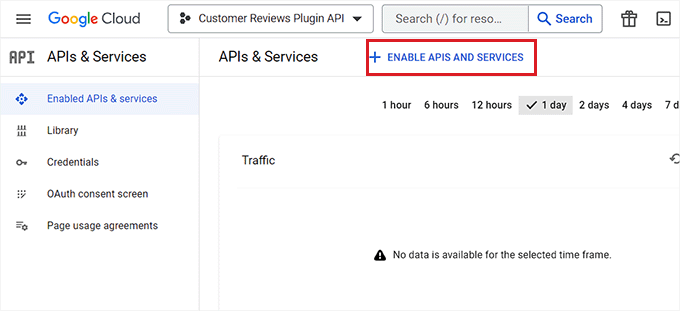
Once you have created the project, you will be redirected to the ‘APIs & Services’ page.
From here, first, make sure that the project you have created is selected in the dropdown menu at the top.
After that, click the ‘+ Enable APIs & Services’ button.
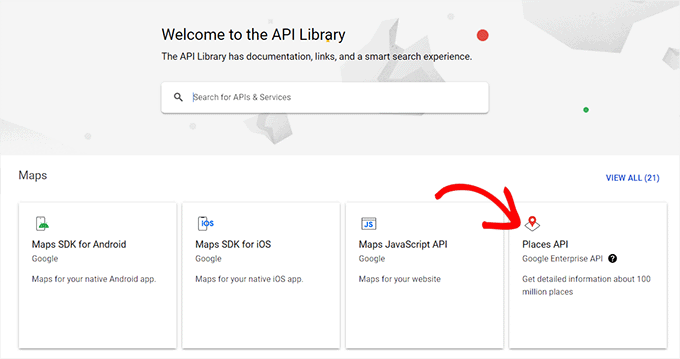
You will now be taken to the API library.
Here, click on the ‘Places API’ option in the right corner of the screen.
This will take you to a new page where you can activate the key for making Places API requests.
To do this, simply click the ‘Enable’ button.

Step 6: Generate and Copy Your API Key
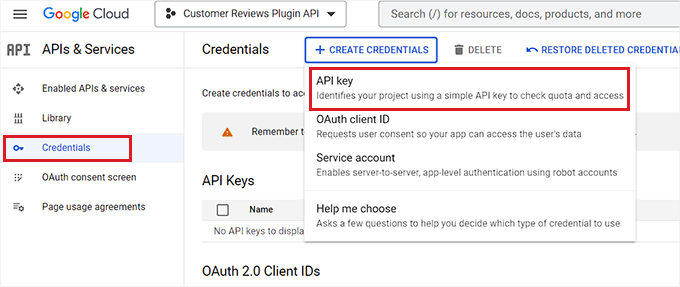
Now, head back to the ‘APIs & Services’ page and switch to the ‘Credentials’ tab in the left sidebar.
Once you are there, just click the ‘+ Create Credentials’ button to open up a dropdown menu and select the ‘API Key’ option.
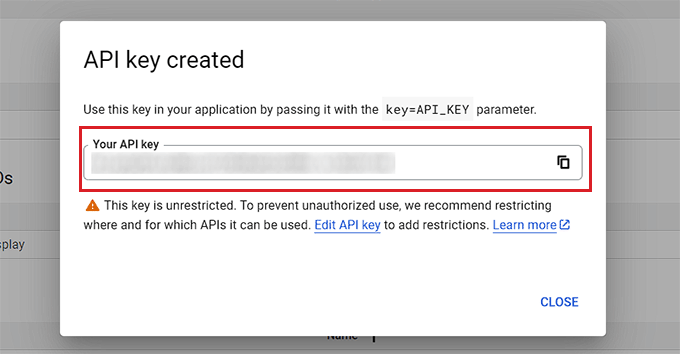
After your API key is created, a new prompt will open up on the screen.
From here, simply copy your key and head back to the WordPress admin dashboard.
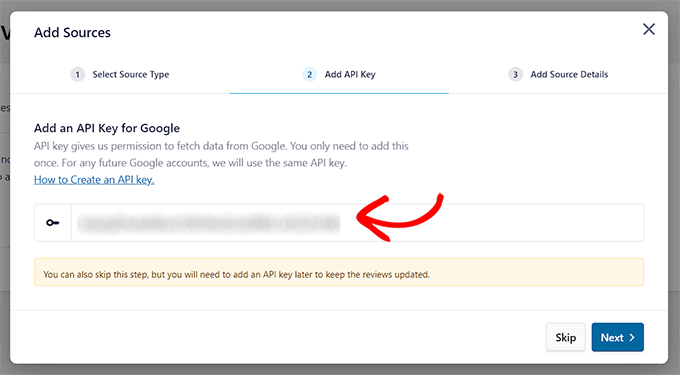
Once you are there, open up the ‘Add Sources’ prompt once again.
After that, paste your Google Reviews API key into the field and click the ‘Next’ button to continue.
Step 7: Find Your Google Place ID
Next, you need to find your business’s unique Google Place ID. This is how Google knows exactly which business’s reviews to fetch for your feed.
Heads up: The Google Places API is a paid service, but it comes with a generous free tier. This is usually more than enough for most small business websites, so you’re unlikely to be charged.
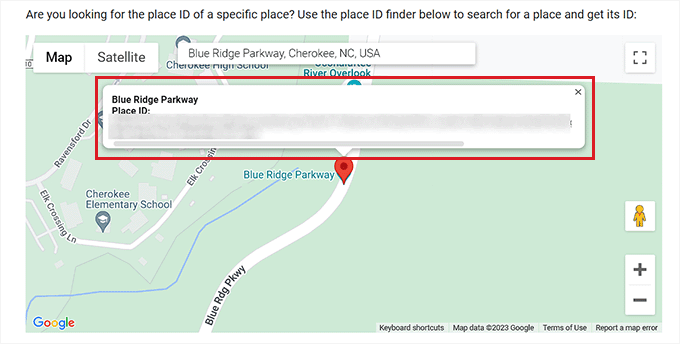
To do this, visit Google’s Place ID page and scroll down to the ‘Find the ID of a particular place’ section.
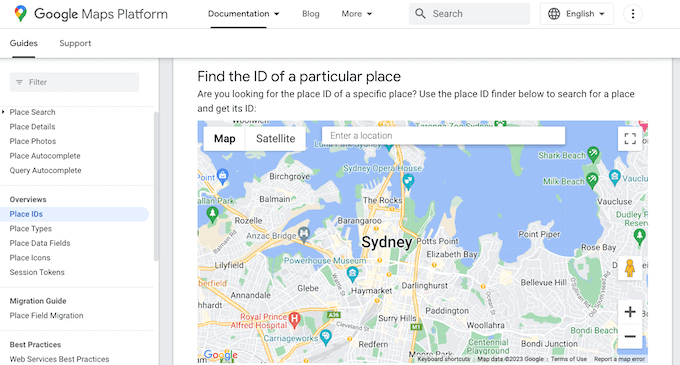
From here, enter the address or name of the venue you want to locate and click on the right one when it appears.
Google will now show the Place ID in a small popup. Simply go ahead and copy the ID.
Step 8: Connect the Source in WordPress
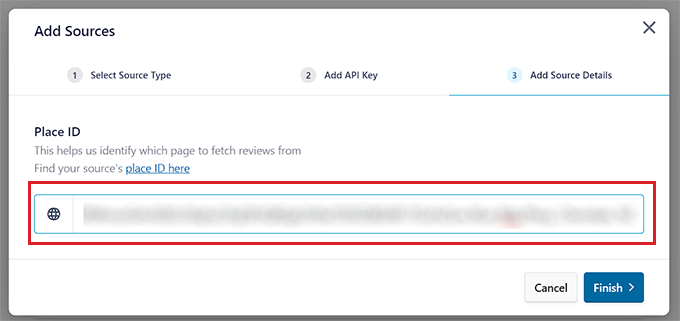
Now, head over to the WordPress dashboard and paste the Place ID into the box.
After that, click the ‘Finish’ button to complete the setup.
You have now successfully integrated Google Reviews with Smash Balloon Reviews Feed Pro.
Step 9: Customize the Reviews Feed
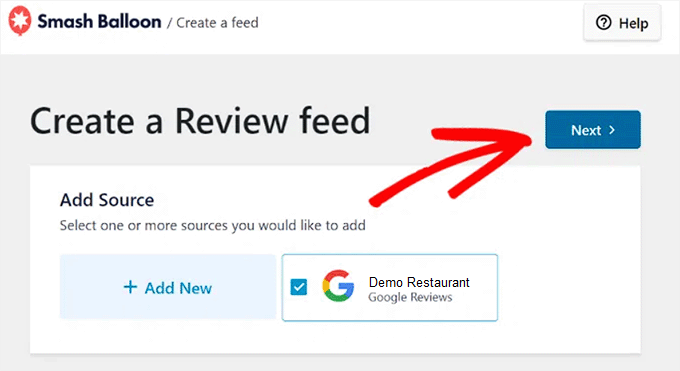
The Google Reviews feed will now be displayed in the ‘Add Sources’ section.
From here, simply choose the feed and click the ‘Next’ button at the top.
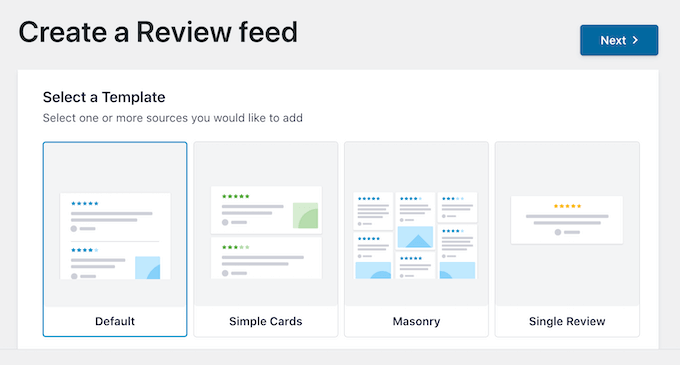
You will now be taken to the ‘Select a Template’ page.
Here, select a template for the reviews feed according to your liking.
Once you have done that, the feed editor will automatically open up on your screen.
On the right side, you’ll see a live preview of how your reviews will look. On the left, you’ll find all the customization settings.
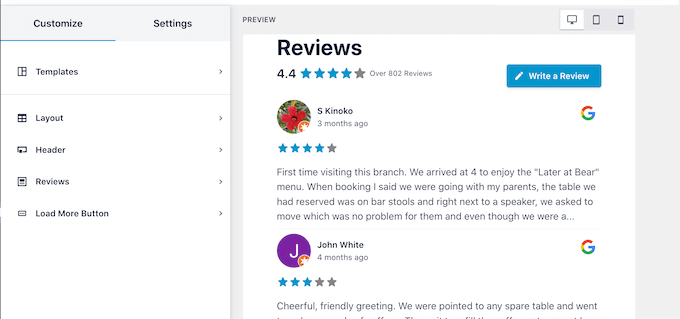
From here, you can customize the layout, header, colors, and more of your reviews feed. For more details, you may want to see our tutorial on how to show Google, Facebook, and Yelp reviews in WordPress.
After you have finished customizing the feed, don’t forget to click the ‘Save’ button at the top right corner to store your settings.
Step 10: Embed the Customer Reviews Feed on a WordPress Page
To embed the reviews feed in a WordPress page, click on the ‘Embed’ button at the top right corner.
This will open up the ‘Embed Feed’ prompt on the screen. From here, simply click on the ‘Add to a Page’ button.
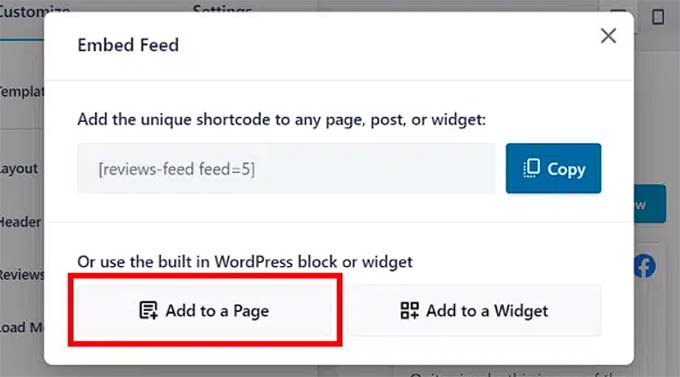
The plugin will now display all the pages on your WordPress website.
You have to click on the page where you want to add the reviews feed and click the ‘Add’ button.
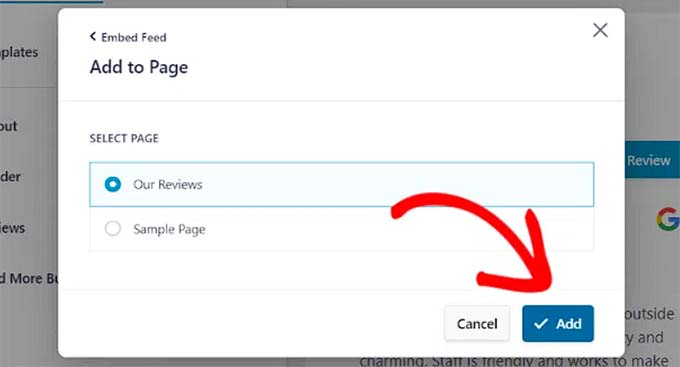
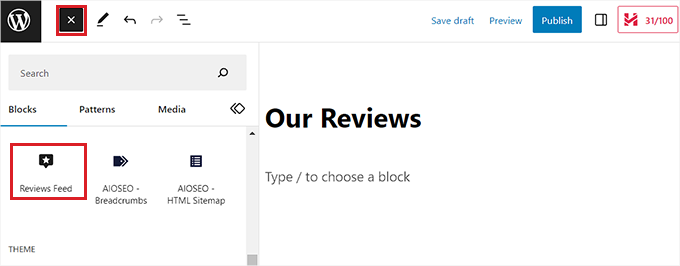
The page you chose will now open up in the block editor.
Here, click the ‘Add Block’ (+) button at the top left corner of the screen and find the ‘Reviews Feed’ block.
Upon doing that, the reviews feed will automatically be added to the WordPress page.
Once you are done, don’t forget to click the ‘Update’ button to save your changes.
Now, you can visit your WordPress blog to check out the reviews feed in action.
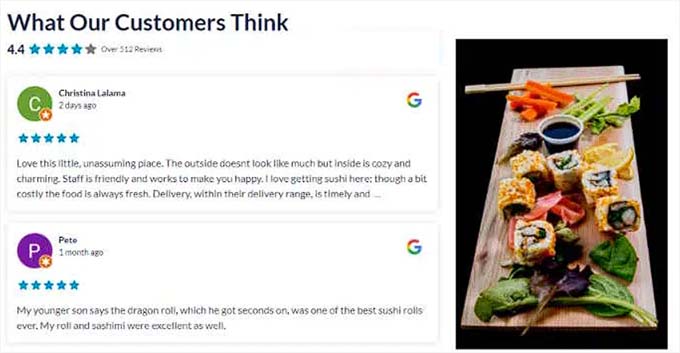
Method 2: Create a Customer Reviews Page Using SeedProd
If you want to add customer reviews to your website manually, then this method is for you.
SeedProd is the best WordPress page builder plugin on the market that allows you to create aesthetically pleasing themes and pages without using any code.
It comes with a powerful Testimonials block that lets you manually add customer reviews. You can use this block to create a brand new reviews page or add testimonials to existing pages like your homepage or about page.
Several of our partner brands have designed their entire websites using it and they’ve had great results. To find out more, see our SeedProd review.
Step 1: Install and Activate SeedProd
First, you need to install and activate the SeedProd plugin. For detailed instructions, please see our step-by-step guide on how to install a WordPress plugin.
Note: SeedProd also has a free version that you can try. However, we will be using the premium version in our tutorial as it has more features.
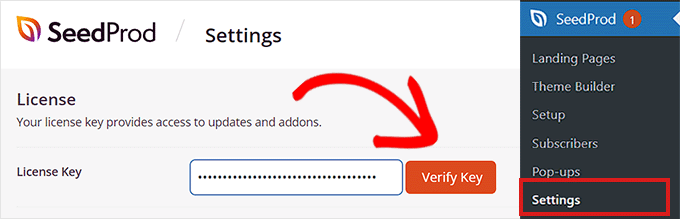
Upon activation, head over to the SeedProd » Settings page to enter the plugin license key.
You can find this information in your account on the SeedProd website.
Step 2: Create a New Landing Page
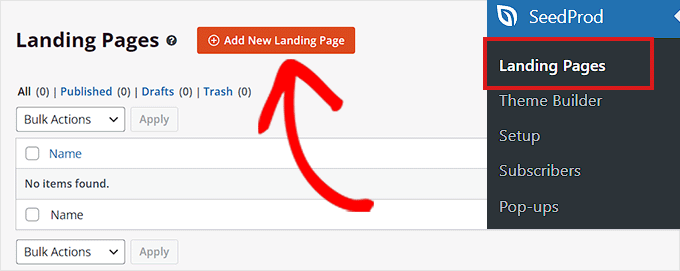
Next, go to the SeedProd » Landing Pages section from the admin dashboard and click on the ‘Add New Landing Page’ button.
For this tutorial, we will be adding customer reviews to a landing page.
This will direct you to the ‘Choose a New Page Template’ screen.
SeedProd offers many pre-made layouts that you can use for your landing pages. Simply choose one and click on it.
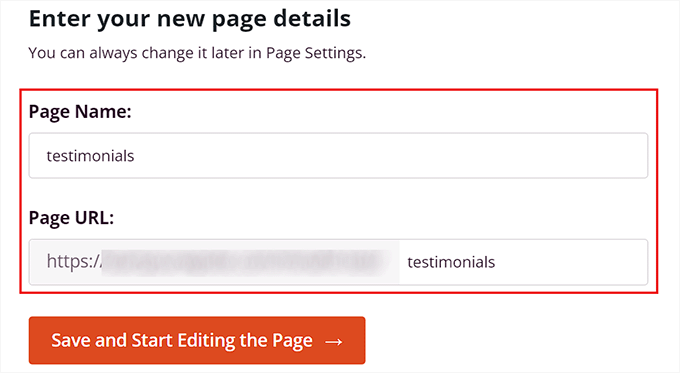
You will then be asked to enter a page name and choose a URL. After entering this information, click on the ‘Save and Start Editing the Page’ button to continue.
Step 3: Add the Testimonials Block
This will launch SeedProd’s drag-and-drop page builder, where you can now start editing your page. For detailed instructions, please see our tutorial on how to create a landing page in WordPress.
Once here, you need to look for the Testimonials block in the block panel on the left side of the screen. Upon finding the block, simply drag and drop it to your preferred location on the landing page.
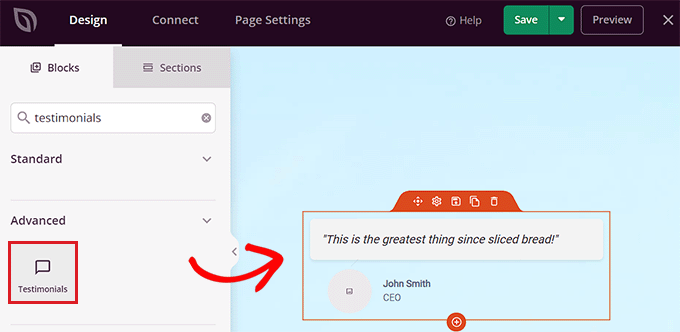
Step 4: Add Review Content and Customize Settings
Now that the ‘Testimonials’ block has been added, you can click on it to open its settings in the left sidebar.
After that, click on the demo testimonial to open its settings in the sidebar.
Next, you can add the text, image, name, and title for the customer review.

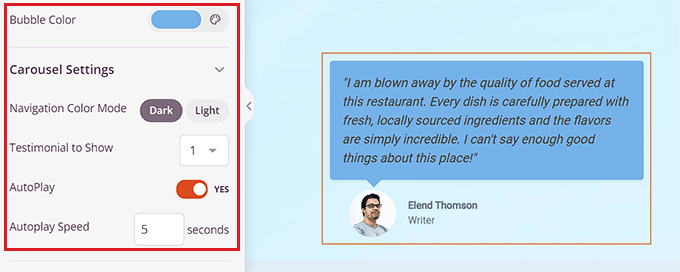
Once you have done that, scroll down to the ‘Carousel Settings’ section in the left column.
From here, you can choose the testimonial color mode, autoplay speed, the number of testimonials shown in a row, and more.
You can even change the color of the speech bubble by clicking on the ‘Bubble Color’ option to open up a color picker.
Step 5: Save and Publish Your Page
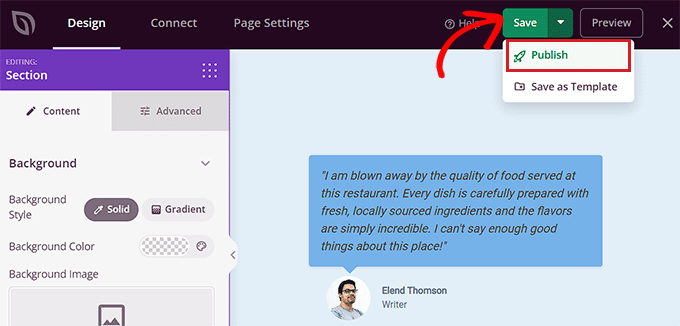
Once you are done, don’t forget to click the ‘Save’ button at the top to store your settings.
Finally, click the ‘Publish’ button to publish the landing page on your website.
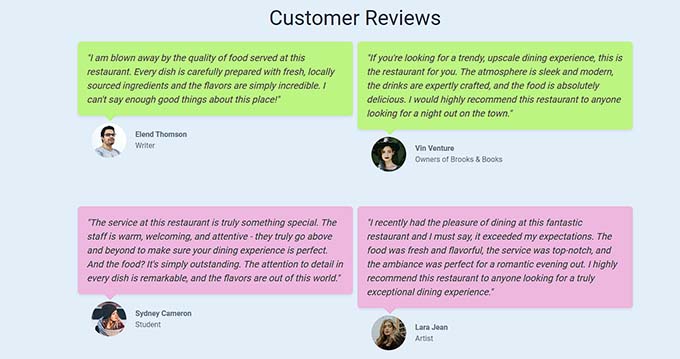
This is how the customer reviews section looked on our demo page.
As you can see, we have different colors for our customer reviews.
Bonus: Add Social Proof in Real-Time to Increase Conversions
Another way to encourage users to buy your products or services is by adding real-time social proof to your WordPress website.
Social proof is a psychological phenomenon where users have a natural urge to copy other people’s actions.
This means that you can show a notification bubble with recent purchases, online reviews, and form submissions by other users on your website in order to encourage potential customers to take action.
You can easily do this using TrustPulse. It is the best WordPress social proof plugin on the market that allows you to display real-time user activity notifications on your website, such as products being purchased or form submissions.

The plugin also includes features like real-time event tracking, smart targeting, flexible design options, actionable analytics, and more. For more information, see our complete TrustPulse review.
With this plugin, you can use FOMO to create anticipation and excitement around your products or store, ultimately leading to increased conversions.
For detailed instructions, you can see our tutorial on how to use FOMO on your WordPress site to increase conversions.
Frequently Asked Questions About Adding Customer Reviews
Here are some questions that our readers have frequently asked before creating a customer reviews page on their websites:
What should I do if I get a negative review?
Negative reviews can be an opportunity. We recommend responding to the review publicly and professionally, offering to resolve the issue. This shows potential customers that you care about feedback and provide good support.
Additionally, plugins like Reviews Feed Pro include moderation features. These allow you to hide specific reviews from your feed if they are spam or inappropriate.
How can I get more customers to leave reviews?
The easiest way is to simply ask. You can send a follow-up email after a purchase or include a link on your receipts. You can also use a plugin like WPForms to create a simple review submission form directly on your website.
Where is the best place to display customer reviews on my website?
While a dedicated reviews page is great, don’t stop there.
Consider adding your best testimonials to your homepage to build instant trust and on your product or service pages to influence decisions. You can even add it to your website’s footer for constant social proof.
We hope this article helped you learn how to add a customer review page in WordPress. You may also want to see our tutorial on how to automatically add WordPress products in Google Shopping and our top picks for the best inventory management plugins for WordPress.
If you liked this article, then please subscribe to our YouTube Channel for WordPress video tutorials. You can also find us on Twitter and Facebook.





Dennis Muthomi
a local restaurant reached out to me a few weeks ago to audit their website, and I found that they were using screenshots of user reviews. I hadn’t considered integrating and embedding reviews directly from Google, but after reading this, i will definitly upgrade my client’s review section
thanks WP Beginner! Your content is always so helpful and informative
Jiří Vaněk
User reviews are very valuable feedback. However, I sometimes encounter the problem that many websites only display the positive ones, so I seek reviews elsewhere, for example, using Google. Nevertheless, as a user of Seed Prod, I thank you for the guide on how to make reviews using this builder. This is something I will definitely use and also always recommend to anyone I’ve ever made a website for. It increases trust and provides feedback from people who have already ordered a service from the website owner. And I always recommend including a photo if possible (with the reviewer’s consent).
Moinuddin Waheed
Customer reviews helps in making an informed decision regarding consuming content or product.
I wanted to explore some kind of reviews plugin that works like customer itself gives reviews and that gets appear on the website without having to do anything else.
like we do see many reviews on ecommerce websites and other many such platforms.
is there a way to achieve that through plugin?
WPBeginner Support
There are a few options to achieve that, we would recommend taking a look at our list below for some of the plugin options:
https://www.wpbeginner.com/showcase/best-star-rating-plugins-for-wordpress/
Admin
Moinuddin Waheed
I will explore this list of plugins and see to it which suits my needs.
These recommended tools are really helpful and solves a big problem which otherwise seems insurmountable.
Thanks wpbeginner for the recommendation.
THANKGOD JONATHAN
It just worked perfectly for me in my Wordpress site.
I am using the Review Feed pro plugin and it works. thank you for the tutorial
WPBeginner Support
You’re welcome
Admin
Khaled
Does not work at all. It creates the testimonials page automatically with links to individual testimonials that you publish. But when I click on the link it goes to a page not found page.
WPBeginner Support
You may want to try some of the recommendations in our article below:
https://www.wpbeginner.com/wp-tutorials/how-to-fix-wordpress-posts-returning-404-error/
Admin
Bamidele
This is what have you been looking for, thanks to wpbeginner editor for this wonderful post
WPBeginner Support
You’re welcome, glad our article could help
Admin
Obed
Hi man,
I need to add a rating option to all comments and remove it on single posts.
Please suggest best idea on how to do it or plugin.
Thanks.
JJ
I find it funny, that most reviews plugins always have a (sometimes) optional picture of the person righting the review. In the real world, companies don’t ask for a photo and are lucky to just get the review in the first place
roshan
HI,
i need seperate customer review in every pages. please suggest me best idea or plugin.
Nalin Mishra
Dear Sir,
I want a page for my website ,onto which anyone can share there things there .
Please suggest.
Varsha
I want to add Facebook reviews on my website do u have any idea about it how I can add
RG
Get an admin or editor to copy paste a paragraph from an email? Not to mention most testimonials are collected either via a website form or word of mouth. The free version of this plugin ranks very high on the useless list.
Bachitter Chahal
I want to create a deals page like your so what should I use any special plugin or code.
Please tell me.
WPBeginner Support
Hi Bachitter,
Our deals page is a custom post type with advanced custom fields. our theme is custom made so we have different templates to display deals page and single deal.
Admin
Bachitter Chahal
I want to know the best plugin I can use to for deals page on my site
WPBeginner Support
Please take a look at our guide on creating a coupons site with WordPress and scroll down to section “Adding a Coupons Section to an Existing WordPress Site”.
Bachitter Chahal
Which is the best plugin I can use for this purpose on my site techdino.tk
Bachitter Chahal
Thankz WPBeginner for help me out.