


I still remember the first time I helped a client log in to their WordPress site after a few months of use. Their dashboard was so cluttered with plugin notices and extra widgets that they didn’t even know where to click to write a new post.
It’s a common problem. The default admin area is functional, but it can quickly become overwhelming, especially for non-technical users.
In this guide, I’ll show you how to safely customize your WordPress admin area without writing any code. These are the exact, beginner-friendly steps I use to create a more streamlined admin area on my sites.
TL;DR: 6 Quick Ways to Customize Your WordPress Admin:
- Use Screen Options: Instantly hide unwanted dashboard widgets and page columns.
- Customize the Block Editor: Adjust preferences to create a distraction-free writing environment.
- Hide Admin Menu Items: Use a plugin to control which menu items are visible to different user roles.
- Clean Up the Admin Toolbar: Remove unnecessary links from the top bar for a cleaner look.
- Change the Color Scheme: Choose a new color palette or create your own to match your brand.
- Create a Custom Login Page: Use a page builder to design a professional, branded login screen.
Here is a brief overview of the topics I will cover in this article:
- Why Customize the WordPress Admin Area?
- Hiding WordPress Admin Elements with Screen Options
- 2. Customize the Block Editor Screen
- Show or Hide WordPress Admin Menu Items
- Customize What Appears in WordPress Admin Toolbar
- Change The WordPress Admin Color Scheme
- Create a Custom Login Page for The WordPress Admin Area
- Frequently Asked Questions About Customizing the WordPress Admin Area
Why Customize the WordPress Admin Area?
If you’ve been managing a WordPress website for a while, you’ve probably seen the admin area fill up with widgets, menu items, and plugin notices. A site with just 10-15 common plugins can add over a dozen new menu items and multiple dashboard widgets, often overwhelming non-technical users.
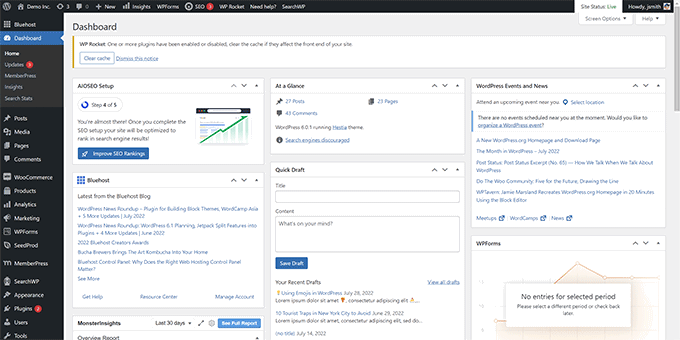
Some alerts disappear after you dismiss them. But many others stick around and show up across different admin screens.
What most beginners don’t realize is that you can actually clean this up. You can hide unwanted items, rearrange widgets, and personalize the dashboard to fit your workflow.
I’ve done this for clients to help them focus on what matters and avoid distractions. It’s a great way to simplify the admin area, especially for non-technical users.
1. Hiding WordPress Admin Elements with Screen Options
Many WordPress admin pages, including the main Dashboard, have a Screen Options button in the top right corner of the screen.
Click the ‘Screen Options’ button to open a menu that slides down from the top of the screen. Uncheck the box next to any item you wish to hide, and it will disappear from that page.
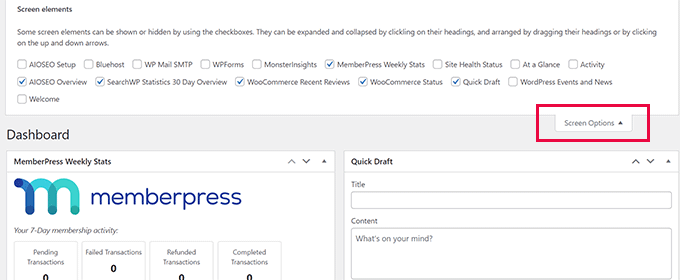
For instance, on the ‘Dashboard’ page, you can hide widgets you have never used. Keep the widgets that provide valuable information.
While on the ‘Dashboard’ page, you can also drag and drop widgets to rearrange them on the screen. For instance, move your ‘At a Glance’ widget and ‘Site Health‘ widget to the top.
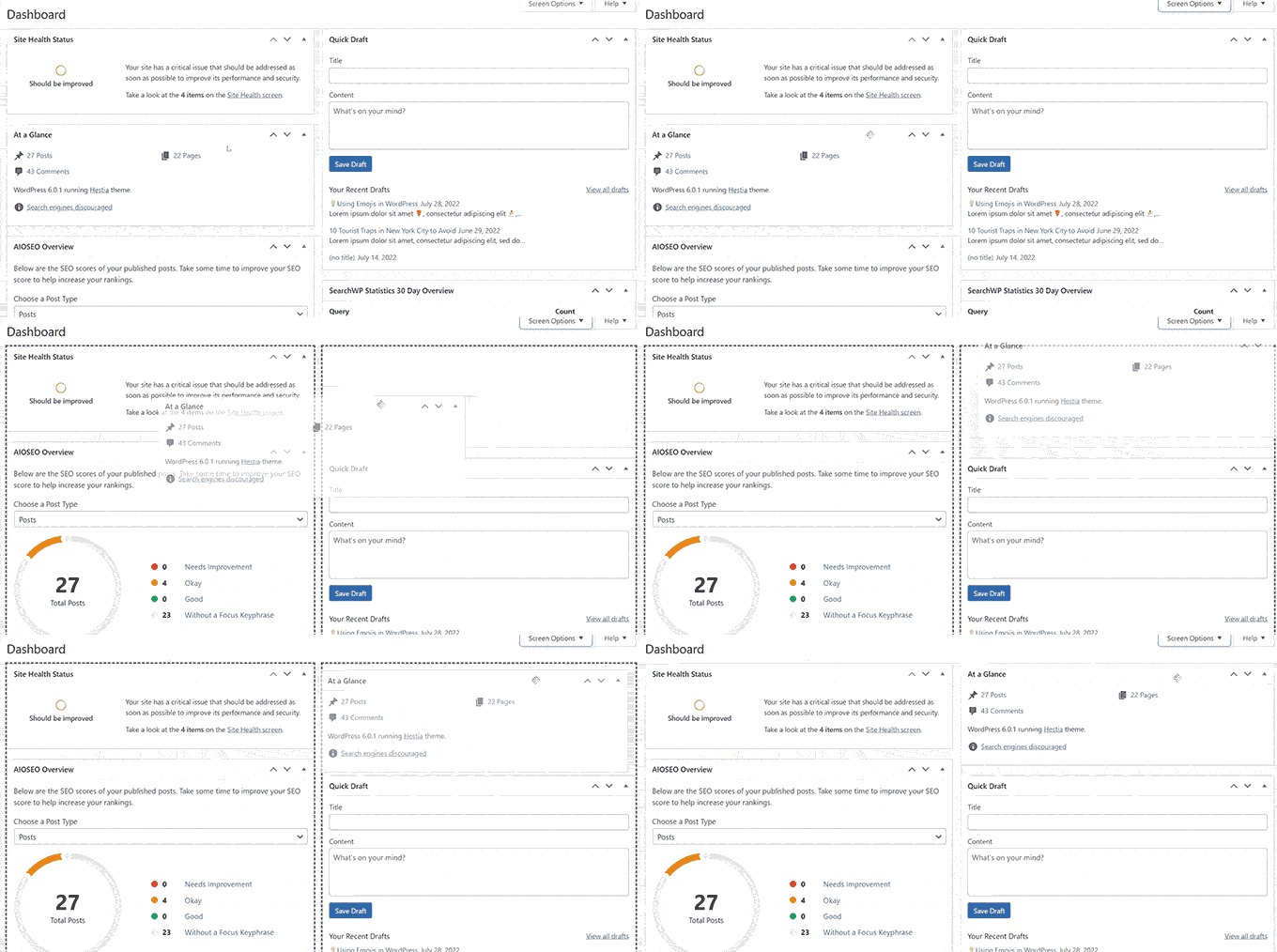
The ‘Screen Options’ button will show you different options depending on which page you are viewing inside the WordPress admin area.
For example, on the Posts » All Posts page, the screen options button will allow you to show or hide columns, change the number of posts displayed, or switch to an extended view.
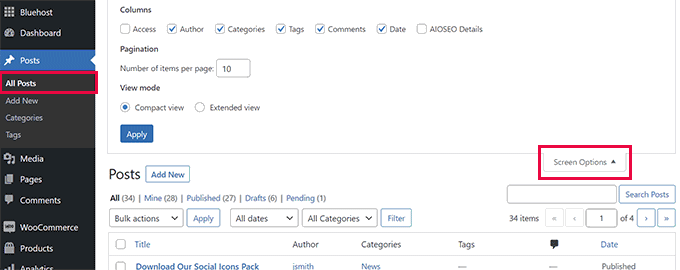
Try using the ‘Screen Options’ feature on different pages inside your WordPress admin area to adjust them to your needs.
Note: Screen Options settings are stored for each user. Your changes will not apply to other users or authors on your WordPress site.
2. Customize the Block Editor Screen
An average WordPress user spends most of their time using the Block Editor. This is the default WordPress content editor you use to write blog posts and create pages.
The block editor already comes with a clutter-free user interface. However, it also allows you to adjust specific settings to make your writing experience even better.
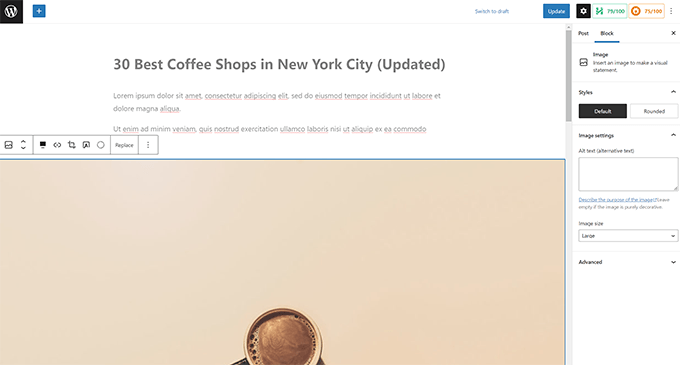
Here’s how to access your preferences:
- Click the three-dot menu icon in the top-right corner and select ‘Preferences.’ A popup will appear where you can adjust different settings.
- Under the ‘General’ tab, check the box for ‘Reduce the user interface.’ This useful option makes the toolbars and menus slightly smaller, allowing you to focus more on your content. You can also turn on ‘Spotlight mode’ to highlight only the block you are currently working on.
- Switch to the ‘Blocks’ tab. From here, you can show and hide any blocks that you do not use.
- Finally, open the ‘Panels’ tab. This lets you decide which panels are shown or hidden inside the block editor’s right-hand sidebar.
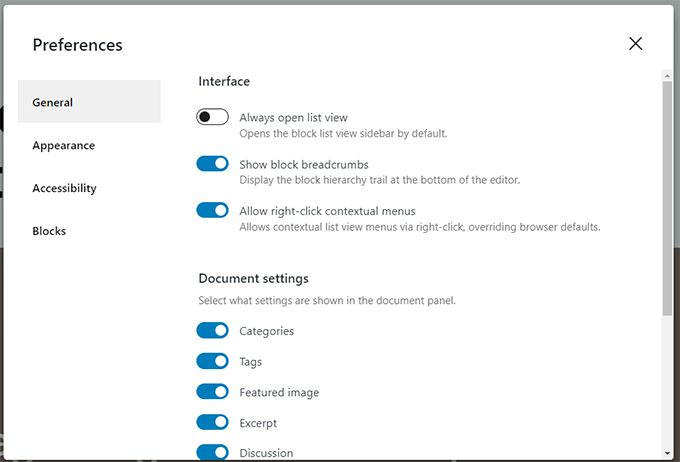
Once you have hidden the features you don’t use, you can click the ‘X’ in the upper-right corner to return to the post editor.
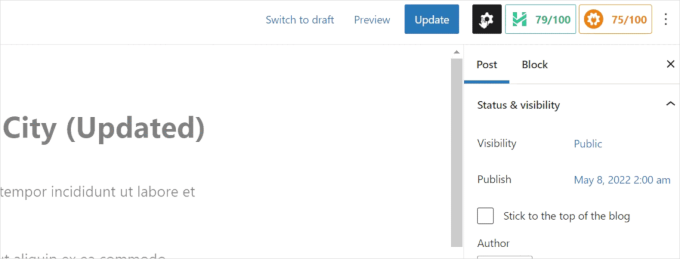
You can also click the ‘Gear’ icon at the top to expand or hide the settings panel. This is handy when you are working with full-width content layouts.
For more tips, see our guide on mastering the WordPress content editor.
3. Show or Hide WordPress Admin Menu Items
As you install more WordPress plugins, you will see that many of them add their own menu items to the left-hand sidebar.
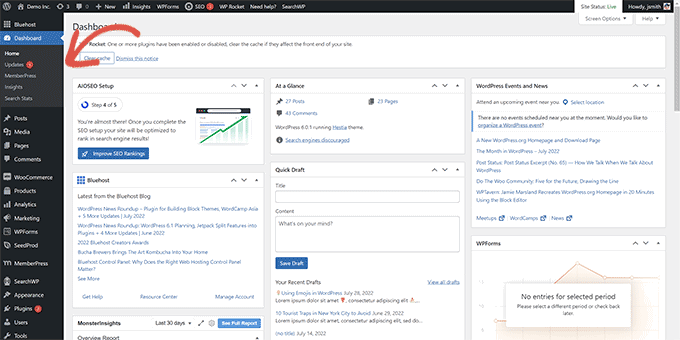
You may need to access some of them regularly. For instance, you may want to easily access contact form entries from WPForms or fine-tune SEO settings with All in One SEO.
However, you may not need constant access to other menu items, or you may not want other users on your site to see them.
A plugin can help you control which menu items appear. You can also control which user roles can see a menu item in the admin area.
First, you need to install and activate the Admin Menu Editor plugin. It’s a free tool that provides control over which menu items are visible in the admin sidebar and who can see them. For more details, see our step-by-step guide on how to install a WordPress plugin.
Upon activation, visit the Settings » Menu Editor page to configure the admin menus.
You will see all the main menu items in the first column. Clicking on a menu item will show its sub-items in the second column.
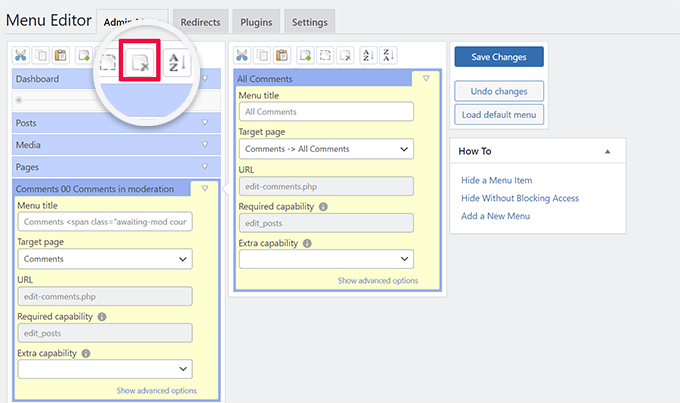
You can click to select a menu item and then click the delete button on the top toolbar to remove it.
You can also choose which user roles can see a menu item. Select a menu, and then look for the ‘Extra capability’ setting. From here, you can choose the minimum user role required to view that item, like ‘Administrator’ only.
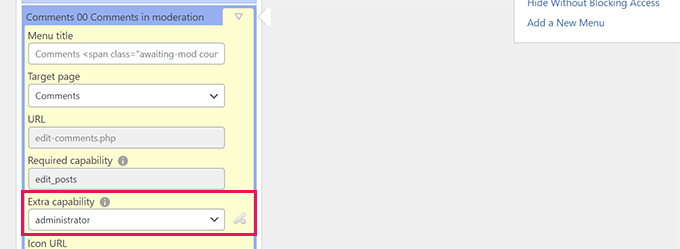
Once you have made changes, don’t forget to click the ‘Save Changes’ button to store your settings.
For more details, see our complete tutorial on how to hide unnecessary menu items in the WordPress admin area.
4. Customize What Appears in WordPress Admin Toolbar
The admin toolbar is the menu at the top of your WordPress admin screens. The toolbar is also visible when you visit the public areas of your website while logged in.
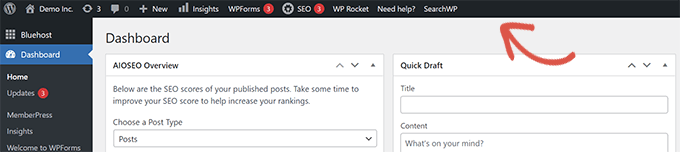
To customize the WordPress admin toolbar, install and activate the Adminimize plugin. This is a powerful tool that allows you to selectively hide elements in the admin bar for different user roles. For more details, see our guide on how to install a WordPress plugin.
Note: The plugin may show a warning that it hasn’t been updated for a while. It has been tested by us and is safe to install.
Upon activation, go to the Settings » Adminimize page and look for the ‘Admin Bar Backend Options’ and ‘Admin Bar Front End Options’ tabs.
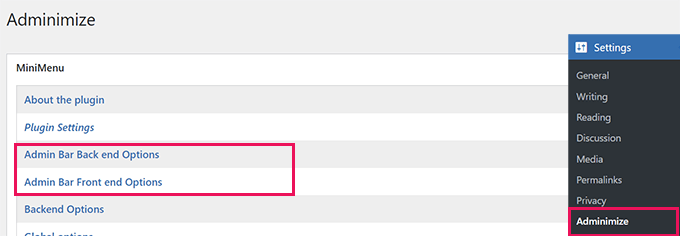
Clicking on either of them will take you to an options screen where you can select which items to display in the WordPress admin bar.
You can also choose items that will be visible to each user role.
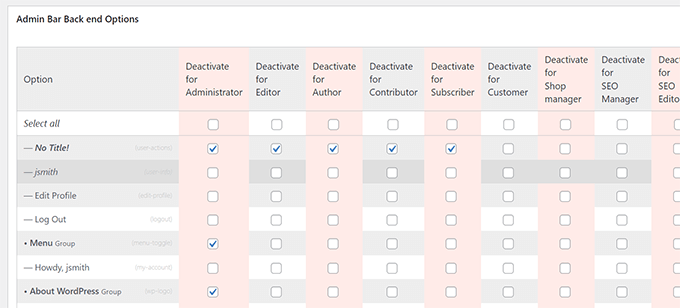
Don’t forget to click the ‘Update options’ button to save your changes.
For more details, see our beginner’s guide to the WordPress admin toolbar.
5. Change The WordPress Admin Color Scheme
I manage multiple WordPress sites, and I find it easy to use different WordPress admin color schemes on different sites. This allows me to instantly realize which site I am working on.
Sometimes, a change of color is all you need to give your WordPress admin dashboard an uplift.
There are two ways you can do this. First is a built-in approach, and the second one requires an additional plugin.
Method 1: Using WordPress’s Built-In Color Schemes
WordPress comes with a few basic color options that you can use for the admin area. Simply head over to the Users » Profile page and find the ‘Admin Color Scheme’ options.
You can click a color scheme to preview it in the WordPress admin area.
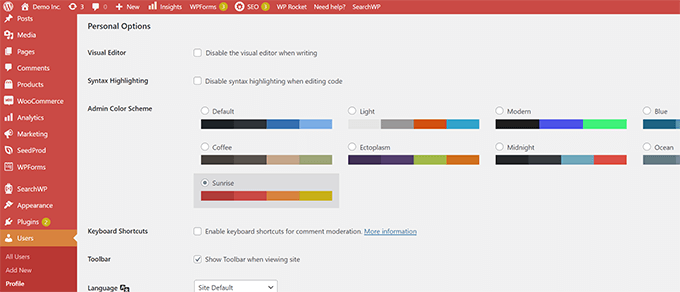
Don’t forget to click on the ‘Update Profile’ button at the bottom to save your changes.
Method 2: Creating a New Scheme with a Plugin
If you don’t like the available color schemes, you can make your own by installing and activating the Admin Color Schemer plugin. For more details, see our guide on how to install a WordPress plugin.
Note: The plugin may show a warning that it hasn’t been updated for a while. It was created by a trusted WordPress core developer and is safe to install.
Upon activation, visit the Tools » Admin Colors page to create your color scheme.
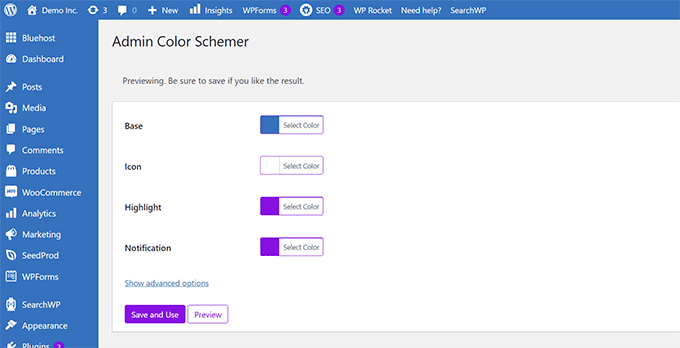
When you’re happy with your customizations, click ‘Save and Use’ to apply them to the dashboard.
For more details, see our tutorial for beginners on how to change the WordPress admin color scheme.
6. Create a Custom Login Page for The WordPress Admin Area
Want to replace the default WordPress login page with your own custom login page without writing code? For that, you’ll need SeedProd.
It is the best WordPress page builder that allows you to design your WordPress website with a beautiful drag-and-drop tool (no coding required).
Expert Tip: At WPBeginner, we use SeedProd‘s theme builder to create custom WordPress themes for our partner brands like WPForms and Duplicator. It’s a powerful tool for building completely custom designs without code.
Here is how to create a custom login page with SeedProd:
- First, install and activate the SeedProd plugin. For more details, see our guide on how to install a WordPress plugin.
- Upon activation, go to the SeedProd » Settings page to enter your license key. You can find this information under your account on the SeedProd website.
- After that, head over to the SeedProd » Landing Pages page. Find the one labeled ‘Login Page’ and click the ‘Set up a Login Page’ button.
- Next, you’ll be asked to choose a template. SeedProd comes with many beautiful designs you can use as a starting point. Simply click to select a template and provide a name for your login page.
- Click ‘Save and Start Editing the Page’ to launch the SeedProd page builder interface. You can point and click on any item on the screen to edit it, or add new items from the sidebar.
- Once you are finished with the design, switch to the ‘Page Settings’ tab. Scroll down to the ‘Redirect the Default Login Page’ option and turn it on.
- Finally, click the ‘Save’ button in the top-right corner, and then click ‘Publish’ to make your new login page live.
You can now visit the normal login page of your WordPress website. You’ll see your custom design instead, and so will your users.
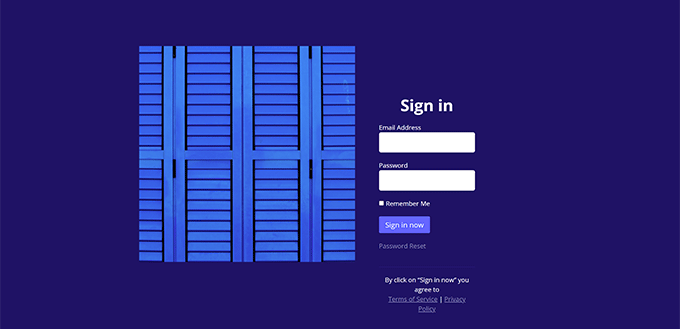
For more details, see our guide on how to create a custom login page for WordPress.
Frequently Asked Questions About Customizing the WordPress Admin Area
The following are some of the most common questions I have heard from users about decluttering and customizing the WordPress admin area.
Can I customize the WordPress admin for different user roles?
Yes, absolutely. Plugins like Admin Menu Editor and Adminimize are specifically designed for this. You can hide certain menus or toolbar items from users with roles like ‘Editor’ or ‘Author’ while keeping them visible for ‘Administrators’.
Will customizing the admin area slow down my site?
No, the methods shown in this guide will not impact your website’s frontend speed. These customizations are very lightweight and only affect the backend administrative views, which are not visible to your regular visitors.
Is it safe to hide admin menus and dashboard widgets?
Yes, it is completely safe. Hiding an item does not delete it or remove the functionality. It simply changes the view to reduce clutter. The features are still installed and can be made visible again at any time by reversing the steps.
Can I revert the changes I make?
Yes, all these customizations are easily reversible. You can re-check boxes in the Screen Options, reset the plugin settings to their defaults, or simply deactivate the plugins to restore the original WordPress admin appearance.
I hope this article helped you learn how to customize the WordPress admin area easily. You may also want to see our guide on adding a notification center to the WordPress dashboard or check out these useful plugins to improve the WordPress admin area.
If you liked this article, then please subscribe to our YouTube Channel for WordPress video tutorials. You can also find us on Twitter and Facebook.




Jiří Vaněk
I really appreciate the section about customizing the block editor. I’m used to Elementor and SeedProd Page Builder, so Gutenberg has always felt a bit cluttered to me. This helped me optimize it and make it much more user-friendly. Thanks!
WPBeginner Support
You’re welcome!
Admin
Dayo Olobayo
I literally laughed at for not knowing what the “screen options” button is used for all this while. Using this alone just made my admin dashboard look neat. I’m definitely trying the other tips out. Thanks a bunch!
tony robert
well…everything has a cost…i feel you should have provided few more info about the side bar tools like appearances – widgets…description…tittle..tags..few more
Melissa
I did use the wordpress during the college about 3 years ago. Right now, I don’t want to use hosting service…just want to use the wordpress to practice more, updated stuff to learn and play around. Is there a way to use without install the hosting?
WPBeginner Support
No. However, you wouldn’t have to deal with hosting stuff. Once setup properly, your WordPress site would run without you having to manage any hosting related issues.
Admin
mandy
Thank you so much……I learn many things for my beginning WordPress career……wpbeginer is so helpful for me
Gowebbaby
I think this is most basic yet most important part. Everyone don’t know how to customize admin area in WP and your article is very helpful for the.
If the first step will be right then rest will go fine…
Thanks for nice sharing.
Diana M Cook
I found this to be a wonderful tool…I am a novice but not for long now..this tool is perfect for the novice..thanks so much for lessening the load…too much dashboard is not helpful..lol
Brad
You know I have been using WP for about 2 years and have never looked at changing the Admin area to be more suited to my needs, I didnt even know it could be done! thanks for the tip, will get on it!
Adam W. Warner
Nice write up and clear instruction as always. I wrote a similar tutorial a couple weeks ago focused on decluttering the admin area for your users (Authors, Editors, etc.)
[Link Removed]