


Do you hate waiting for a slow website to load? Your visitors feel the same way, and they will often leave if your pages take too long to appear.
A slow WordPress site hurts your search rankings and costs you potential sales. At WPBeginner, we obsess over speed to ensure the best possible experience for our readers.
In this guide, we will share the practical tips we use to keep our site lightning-fast. Let’s look at why WordPress gets slow and how you can fix it.
Why Is a Slow WordPress Website a Problem?
We’ve all experienced the frustration of waiting for a slow website to load. Those precious seconds feel like an eternity, and most visitors simply won’t wait around. Studies consistently show that users abandon websites within just a few seconds if they don’t load quickly.
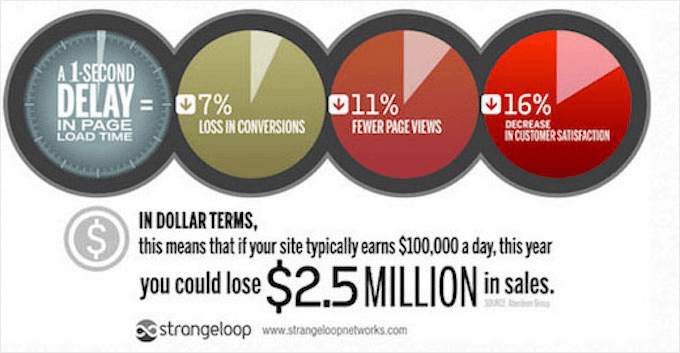
The impact goes far beyond user frustration. Research from Akamai shows that a 100-millisecond delay in website load time can hurt conversion rates by 7%. For an e-commerce site making $100,000 per day, that single second of delay could cost $2.5 million in lost sales annually.
Here’s what slow loading speeds actually cost your business:
- Lost conversions: Every second of delay reduces conversions by 7%
- Fewer page views: Slow sites see 11% fewer page views
- Damaged reputation: Customer satisfaction drops by 16%
- Lower search rankings: Google uses Core Web Vitals as a ranking factor
- Reduced mobile traffic: 53% of mobile users leave sites that take over 3 seconds to load
Google has made website speed a critical ranking factor through its Core Web Vitals update. This means slow sites don’t just lose visitors, they also get buried in search results, cutting off your primary source of organic traffic.
At WPBeginner, we’ve seen firsthand how speed improvements can transform a website’s performance. That’s why identifying and fixing speed issues isn’t just recommended – it’s essential for your online success.
How Slow Is My Website and Why?
You can quickly find out how slow your website is by running a speed test. We cover the many tools you can use in our guide on how to properly run a website speed test.
We recommend running the test at least 3 times to allow for internet fluctuations and average the results. You may also want to repeat the test using different speed test tools.
Pay special attention to the page load metric, which shows how long visitors need to wait to see your web page.
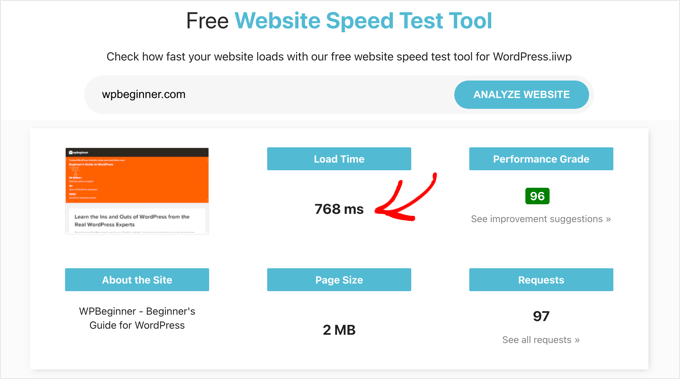
If your website takes longer than 2 seconds to load, then you need to find out what is slowing it down. Luckily, most speed test tools will highlight major problems and allow you to drill down to see detailed reports.
Now that you know the speed of your website, you need to identify any issues that are slowing it down. Fortunately, there are plenty of good ways to audit your website performance.
For example, you can use GTmetrix to improve WordPress site performance by running it as a plugin or by visiting their website to quickly run a speed test on any website.
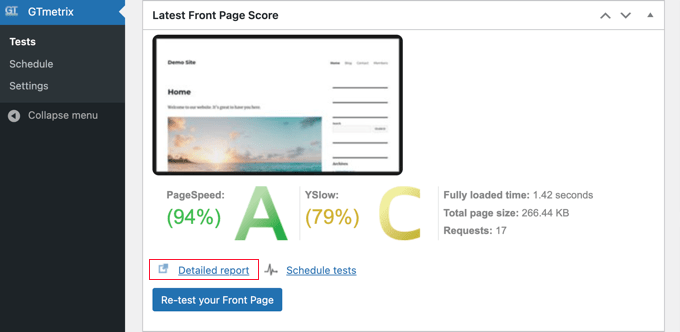
GTmetrix will give your website a score so you can quickly see how it rates.
You can also click on the ‘Detailed report’ link to learn more about potential issues. Green items don’t need your attention, while orange or red items are slowing down your site.
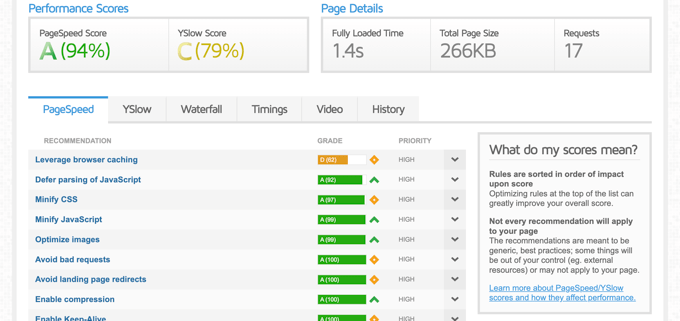
You can click on an issue to see more technical details about what is causing the slowdown, which will help you decide which fixes to apply.
With that being said, let’s take a look an in-depth look at the main issues that slow WordPress down and how to fix them:
- Your WordPress Website Is Not Up to Date
- You Are Not Using a WordPress Cache
- You Are Not Using a CDN
- Too Many Files Need to Be Loaded to View the Page
- Your Images Are Too Large or Unoptimized
- Your WordPress Database Is Unoptimized
- You Are Running Slow or Inefficient Plugins
- Your Scheduled Website Tasks Are Not Optimized
- You Are Using Slow WordPress Hosting
- Your Server Software Is Out of Date
- Frequently Asked Questions About WordPress Speed
- Additional Resources to Speed Up WordPress
Your WordPress Website Is Not Up to Date
You need to make sure that your WordPress website is up to date, and that includes the WordPress software as well as your plugins and themes. Developers often release updates to optimize performance and fix bugs.
Important: Before clicking the update button, you should always create a complete backup of your site. We recommend using Duplicator to keep your data safe.
Once you have a backup, we recommend using the proper update order. Start with the WordPress core and then update your plugins and themes. You can do this conveniently from the Dashboard » Updates page.
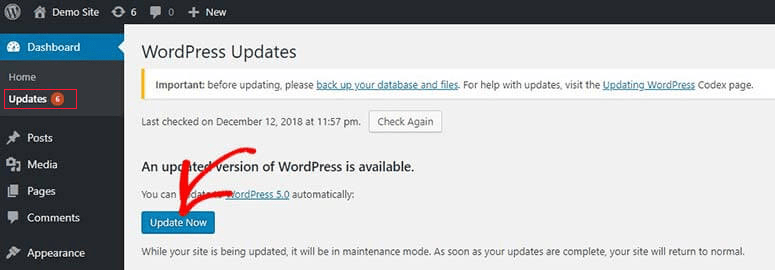
For detailed instructions, please refer to these step-by-step guides:
- Beginner’s Guide: How to Safely Update WordPress
- How to Properly Update WordPress Plugins (Step by Step)
- How to Update a WordPress Theme Without Losing Customization
You Are Not Using a WordPress Cache
Every time someone visits a page on your website, WordPress builds it dynamically from a MySQL database. This involves running scripts and querying the database, and the end result is an HTML page that can be displayed in the user’s browser.
When a large number of people visit your site at the same time, your database will receive many requests, leading to slower loading times.
A WordPress caching plugin is one of the best ways to speed up your website because it bypasses this process.
When someone visits your site, and the HTML page is generated, it is stored in a cache so that it doesn’t need to be rebuilt for future visitors. Instead, they simply view the cached page.
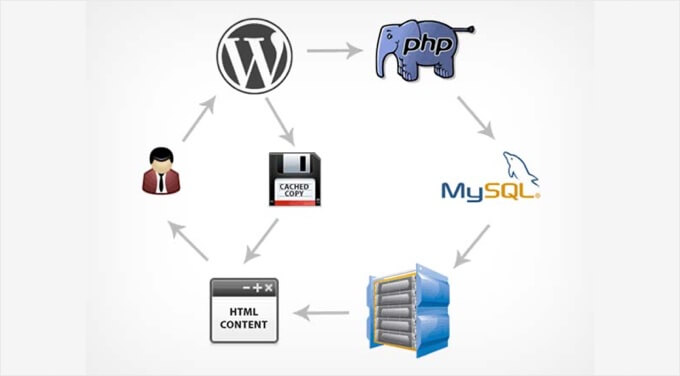
This places less load on your web server, and the page will load faster.
You can learn how to install the most popular caching plugins using these guides:
- How to Properly Install and Setup WP Rocket in WordPress
- How to Install and Setup W3 Total Cache for Beginners
- How to Install and Setup WP Super Cache for Beginners (Easy)
You can also leverage browser caching, which stores a copy of the web page and other resources on the user’s computer so it loads faster the next time they visit.
You Are Not Using a CDN
A Content Delivery Network (CDN) caches your files on multiple servers around the world. Besides caching the generated HTML pages, it also stores all of the other resources needed to view the page, including images, CSS stylesheets, JavaScript files, and more.
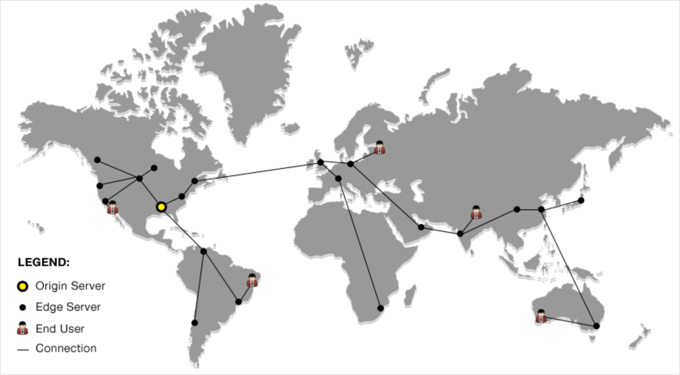
This content is served from the server closest to each user. This offers big speed gains if you have visitors from many locations around the world, as we do at WPBeginner.
If you are not already using a CDN, then you can choose from many excellent WordPress CDN services:
- Bunny.net is the best WordPress CDN with servers spread across the world. Our team at OptinMonster uses it because their pricing is very affordable for small businesses.
- We use Cloudflare because they offer a powerful WordPress CDN with a firewall to protect your site from threats.
- We like Envira CDN because it’s a simple and affordable CDN built specifically to speed up images. It activates with a single click, avoiding the complex setup of other services.
- We also recommend Sucuri, another CDN with security features we used for many years.
For more information on the benefits of a Content Delivery Network, see our guide on why you need a CDN for your WordPress blog.
Too Many Files Need to Be Loaded to View the Page
Before a visitor can view your web page, their browser first needs to request and download all of the required files. This includes all of the images you want to display, stylesheets that format the page, JavaScript files that add functionality, fonts, and more.
The more files there are, the slower the page will load, especially if some of the files are very large or are stored on a slow third-party server.
These are called HTTP requests, and we have written a detailed tutorial on how to reduce HTTP requests in WordPress.
Advanced users can identify slow HTTP requests using their browser’s Inspect tool. By looking at the ‘Network’ tab, you can see exactly which files are loading and how long each one takes.
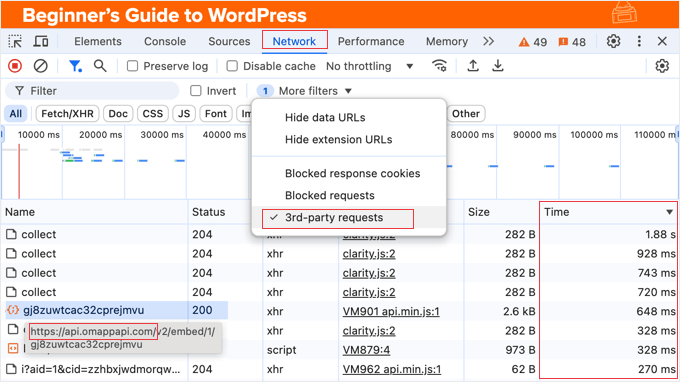
You can click the Time column’s header twice to sort the list with the slowest resources at the top. Any that takes more than half a second or a second to load may be slowing down your site, although this is just a guideline.
Let’s take a quick look at some ways you can fix this issue to speed up your website.
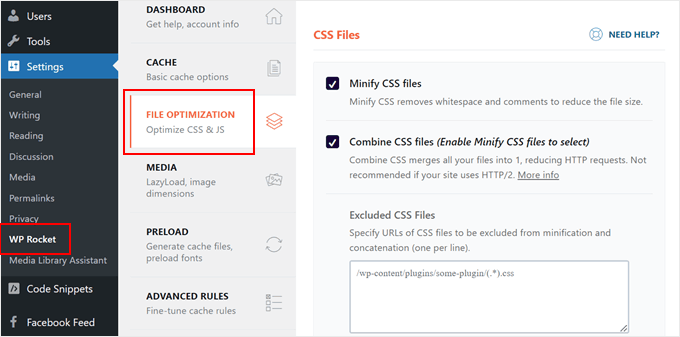
First, your CSS and JavaScript files often contain more information than is necessary, such as whitespace and developer comments. You can reduce the size of these files by minifying them, which makes them much faster to load.
Another problem is that all of the images displayed on the entire page are being loaded, even if they won’t be visible until the user scrolls down. Lazy loading images can speed up your page load time by only downloading the images that are visible on the user’s screen. The rest get loaded as the user scrolls down.
You can also lazy load videos and the comment section at the bottom of the page.
You’ll find more techniques in the guide we mentioned earlier on reducing HTTP requests.
Your Images Are Too Large or Unoptimized
One of the most common speed issues we see on beginner websites is unoptimized images. In their original formats, photos and other images have huge file sizes that take a long time to load.
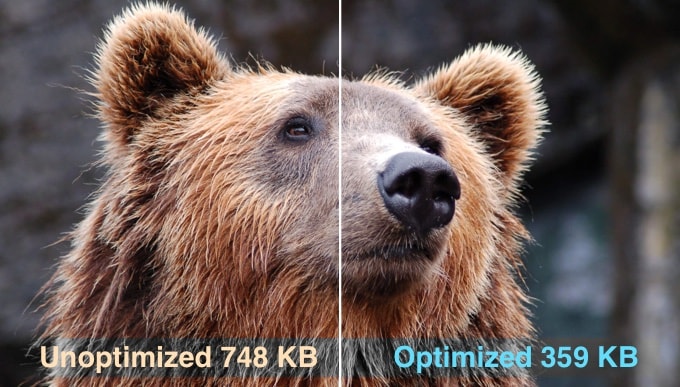
At WPBeginner, we use photo editing software to optimize our images before we upload them to our website. We resize the images to the height and width they will be displayed at on our site, tweak the image compression settings, and choose the most appropriate image format.
We aim for the smallest file size while maintaining an acceptable image quality.
For detailed instructions on optimizing your images without sacrificing quality, see our guide on how to optimize images for web performance without losing quality.
Videos take up even more space and bandwidth, so we recommend you don’t upload them to your WordPress website at all. Instead, you should use a dedicated third-party video site like YouTube and then embed the videos in your blog posts.
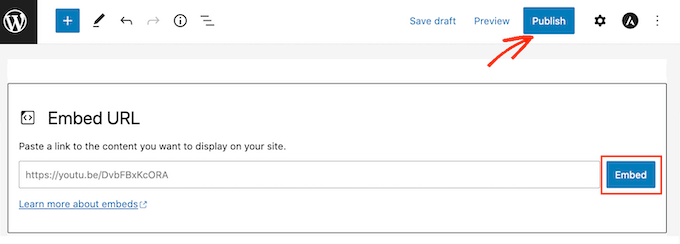
For more details, see our guide on why you should never upload a video to WordPress.
Your WordPress Database Is Unoptimized
As content is added and removed from your WordPress database over the years, it may contain a lot of unneeded information that can slow it down. This can have a serious impact on your website’s load time.
It is important to perform regular WordPress database maintenance and optimization to maintain fast website performance.
One of the best ways to clean up your database is using the WP-Optimize free version. Besides database maintenance, it can also help compress your images, remove unused image sizes, cache your content, and reduce the size of HTML, CSS, and JavaScript files.
Note: Make sure you create a backup of your database before running any cleanup tasks. While this plugin is safe, it is always better to be careful.
You can choose the database management tasks you want it to perform on the WP-Optimize » Database page of your WordPress dashboard.
For example, you can improve WordPress performance by optimizing database tables, removing unnecessary post revisions, clearing auto-draft posts, and eliminating spam and trashed comments, among other tasks.
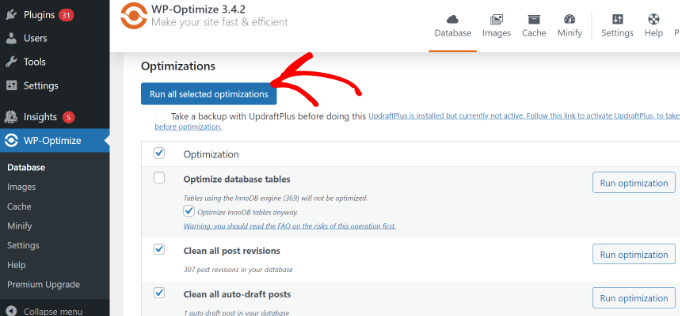
You can then run these tasks by clicking a single button at the top of the page.
For details on how to use this plugin, see our guide on how to optimize your database.
You Are Running Slow or Inefficient Plugins
Before a page on your website can be loaded, WordPress first needs to load its core files and active plugins. If a plugin loads slowly, it affects your WordPress performance.
Note that inactive plugins won’t slow down your website at all, and even having a lot of plugins installed won’t usually have a big impact on site speed. The problem is badly behaving plugins.
These are plugins that query the WordPress database more than necessary, load files from slow third-party plugins, or are simply bloated or offer more features than you need.
We have a guide on Which WordPress plugins are slowing down your site? Here, we cover a few different methods that will help you identify plugins that behave badly.
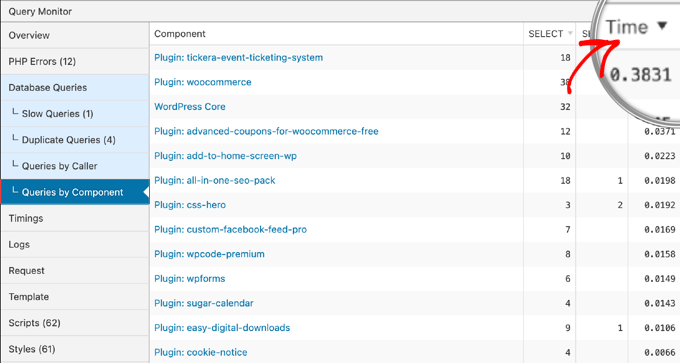
Once you have found them, you can replace them with alternative plugins that are optimized for speed or contact the plugin developer for support.
Your Scheduled Website Tasks Are Not Optimized
Some very important WordPress plugins run essential background tasks that use significant server resources and slow down your website.
Some examples include:
- Image optimization plugins perform image compression using server resources.
- Plugins that check for broken links crawl your entire website and check every link.
- Plugins that scan for malware by looking for dangerous code in your files and database.
- Backup plugins copy and compress a lot of data to keep it safe.
These tasks are necessary, so you can’t disable the plugins.
However, you can schedule these important tasks at low-traffic times when your site has fewer visitors. You can also adjust how frequently these plugins run to reduce unnecessary load on your server.
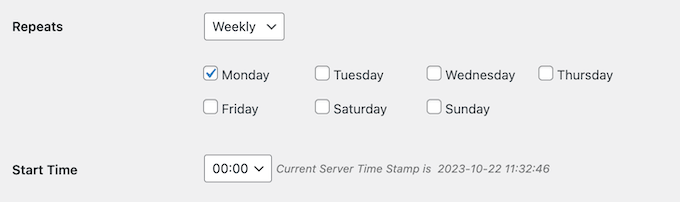
For example, if you only publish one or two articles a week, then you can schedule your backups to run just once or twice a week after the new articles have been scheduled.
You will be able to configure the schedule for each task using the plugin’s settings.
You can also see our guide on how to view and control WordPress cron jobs to learn how to configure regular tasks performed by WordPress.
You Are Using Slow WordPress Hosting
No matter how much you optimize your WordPress website, it will always be slow if you are using a slow or unreliable hosting provider. This is why we recommend that you don’t use free hosting for a live business website.
Instead, most small websites can start with a shared hosting plan with a reputable and affordable hosting company like Bluehost or Hostinger.
However, shared hosting is often too limited for larger websites with a lot of traffic, like WPBeginner. That’s why we use SiteGround’s Enterprise Cloud Infrastructure for our own website.
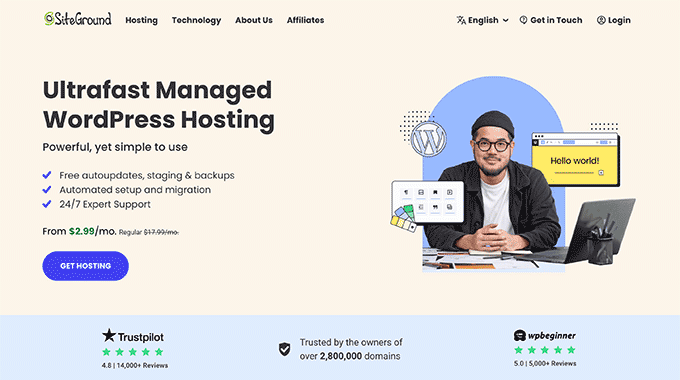
We performed thorough speed tests on the leading WordPress hosting services, including from different locations around the world, and how each provider handled a lot of traffic.
You can see the results of our performance tests in our article on the fastest WordPress hosting.
Now, changing hosting providers is a big step. So you may also want to see our guide on the top key indicators of when you should change your WordPress web hosting.
Your Server Software Is Out of Date
WordPress relies on other software to run, including the PHP programming language and MySQL database management system. This software is installed on your web server.
Like WordPress and your plugins, these programs are updated from time to time to improve performance, fix bugs and security vulnerabilities, and add new features. Using the latest version can speed up your website.
There is also a faster version of PHP that is optimized for performance, especially when your site is getting a lot of visitors.
For example, the team at SiteGround built an optimized version called Ultrafast PHP. Since WPBeginner is hosted on SiteGround, this is one of the factors that improves our website speed.
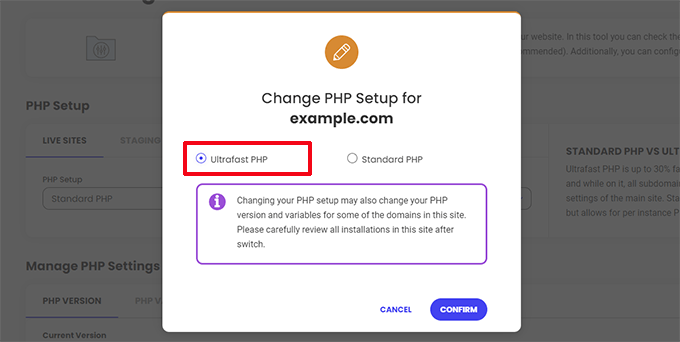
You can learn more in our guide on how fast PHP & MySQL can boost website speed.
Frequently Asked Questions About WordPress Speed
We hear from thousands of readers looking to improve their website performance. Here are answers to some of the most common questions we get about fixing a slow WordPress site.
1. Why is my WordPress site so slow on mobile?
Mobile phones often have slower data connections and weaker processors than desktop computers. If your images are not optimized or your theme loads too many scripts, mobile users will feel the delay more. Using a responsive theme and a CDN is the best way to fix this.
2. Do inactive plugins slow down my site?
No, inactive plugins do not load any code when a visitor views your website. They sit in your database but do not affect your page load speed. However, we still recommend deleting them to keep your dashboard tidy and secure.
3. Is WordPress slower than website builders like Wix?
Out of the box, WordPress might seem slower because it gives you full freedom rather than a locked-down system. However, a properly optimized WordPress site is usually much faster than Wix or Squarespace. You have full control over the hosting and resources, which allows for better performance.
4. How often should I run a speed test?
We recommend running a speed test whenever you install a new plugin or make design changes. It is also smart to do a routine check once a month. This helps you catch new issues before they drive visitors away.
5. Can I fix a slow site without coding knowledge?
Yes, you can solve most speed issues without writing a single line of code. Using a caching plugin like WP Rocket and optimizing your images will fix the biggest problems. You do not need to be a developer to make your site fast.
Additional Resources to Speed Up WordPress
Now that you know how to troubleshoot a slow website, you might want to dive deeper into specific optimizations. Here are some of our best guides to help you boost performance:
- The Ultimate Guide to Boost WordPress Speed & Performance
- Best WordPress Caching Plugins to Speed Up Your Website
- How to Optimize Images for Web Performance Without Losing Quality
- Fastest WordPress Hosting (Performance Tests)
- Tips to Improve Your WordPress Site Health Check Score
- How to Optimize Core Web Vitals for WordPress (Ultimate Guide)
If you liked this article, then please subscribe to our YouTube Channel for WordPress video tutorials. You can also find us on Twitter and Facebook.


Have a question or suggestion? Please leave a comment to start the discussion.