


Switching to the WordPress block editor can be a big step if your site has been running smoothly with the classic editor.
The block editor introduces a modern experience. It makes it easier to create rich layouts without extra plugins or shortcodes.
The update brings exciting possibilities, but it is important to make the transition carefully.
Testing your site ahead of time helps you avoid surprises. It ensures you preserve your current design and that everything continues to work as expected.
We have helped many WordPress users prepare for this shift. A little planning goes a long way. In this guide, we will walk you through the exact steps we follow to test a site before enabling the block editor.
This will help you move forward with confidence and make the most of what the block editor has to offer.
Quick Summary: How to Test Your Site For Updating to Gutenberg
To safely test your site for the block editor, follow this 4-step workflow:
- Create a full backup with Duplicator.
- Set up a staging site (or local server).
- Switch to the block editor in that test environment.
- Review your site for errors before updating your live site.
Why Test Your WordPress Site Before Updating to Gutenberg?
While modern WordPress themes and plugins are largely compatible with the block editor, testing is the only way to be 100% safe.
Creating a test environment before you switch from the Classic Editor allows you to:
- Detect Incompatibilities: You can find out if any of your older plugins or custom theme features conflict with the block editor.
- Protect Your Live Traffic: You avoid broken layouts or error messages that could drive visitors away.
- Safeguard Revenue: You ensure your contact forms, checkout pages, and advertisements continue working perfectly.
- Practice Risk-Free: You can get comfortable with the new interface without the pressure of editing a live website.
That being said, let’s check how to test your website for switching to the block editor step-by-step. You can use these quick links to navigate through this tutorial:
Step 1: Create a Complete Backup of Your Website
You must always create a complete backup of your WordPress website before any major update. Backups protect you against any damage and avoid problems that can happen during the update process.
Keeping regular website backups is important even if you aren’t updating your site because they can save you in emergency situations like malware attacks, hacking, and more.
There are plenty of WordPress backup plugins that you can choose from, but we recommend using Duplicator.
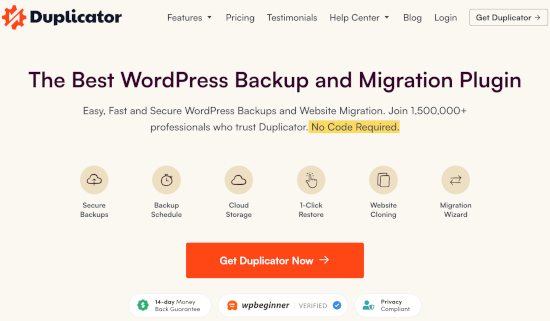
We’ve thoroughly tested it across various WordPress setups, and it has consistently proven to be reliable and user-friendly.
Whether you’re creating manual backups or setting up automated schedules, Duplicator gives you full control and flexibility.
If you’re curious about how it compares to other tools, we’ve also published a hands-on Duplicator review sharing our experience in more detail.
Step 2: Test Your Site on a Local Server or Staging Site
After you have created a complete backup of your website, you are ready to test. You can now check your website with the block editor safely.
There are two common methods to test new updates without actually affecting your live site:
- Test your website on a local server installed on your computer.
- Test your website on a staging server.
Both options allow you to test WordPress with the block editor and your existing content, plugins, and themes.
1. Test Your Website on a Local Server
Using a local server means installing your WordPress site on your personal computer. You can use local development tools like WAMP or MAMP (for Mac) to set this up easily.
In this method, you will first move a copy of your live WordPress site to the local server using a migration plugin like Duplicator.
Then, on the local site, you can switch to the block editor. You can test all your plugins and themes for compatibility.
You can also make changes on the local site and upload them to your live site when you are done.
If you did not need to make changes locally and everything seemed fine, you can update your live site.
2. Test Your Website in a Staging Environment
A staging site is a separate development version of your website where you can try out new features.
It’s usually a subdomain of your site that’s restricted from public access. It’s where you can test new updates, themes, and plugins, or use it for all your development. Once you have tested everything necessary, you can then upload it to your live site.
Most top WordPress hosting companies offer 1-click staging site installation from your hosting account.
If your site is hosted with Bluehost, then you will find an option to create a staging site in the Bluehost menu in your WordPress admin dashboard.
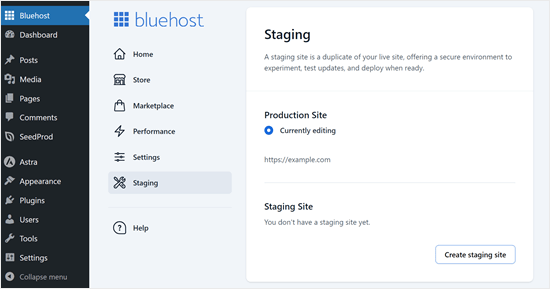
You can also create 1-click staging sites on Hostinger, WP Engine, and SiteGround. If you are not using any of these hosting companies, then you should ask your host because they may offer this feature.
If your hosting service doesn’t have a staging site installation feature, then you can still do it manually on your own. Here’s our step-by-step tutorial on how to set up a staging environment in WordPress.
Step 3: Install the Classic Editor Plugin in Case of Compatibility Issues
There is a chance that a theme or plugin might not work after you switch. This means you still have work to do.
You need to reach out to the theme or plugin developer. Ask them to make it compatible with the block editor.
If you do not get a positive response, you may need to find an alternative theme or plugin.
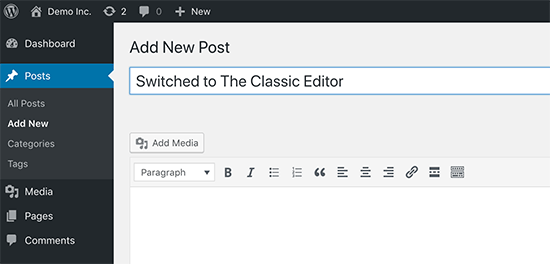
Alternatively, you can keep using the Classic Editor plugin. This allows you to update WordPress safely while keeping the writing experience you are familiar with.
Classic Editor is an official WordPress plugin. It allows you to hide the block editor and create content the same way as before.
This is also a good option if you are not ready to switch to the Block Editor yet.
Step 4: Learn More About the Gutenberg Editor
If you are just starting your first WordPress blog, then you are in luck. You will quickly get used to the awesome new block editor, which is faster, more modern, and incredibly powerful.
On the other hand, if you have been using WordPress for a while, the new editor is an exciting change. Most of us are used to working with the old editor. We have set up our workflows around it.
The good news is that you can still do all the things you did in the old editor with the block editor. To help you learn new features, we have created these articles:
- How to Use the WordPress Block Editor (Gutenberg Tutorial)
- How to Bulk Convert Classic Blocks to Gutenberg in WordPress
- Beginner’s Guide to Updating Your Old WordPress Posts with Gutenberg Block Editor
- How to Add a New Post in WordPress and Utilize All Features
- How to Add and Align Images in WordPress Block Editor (Gutenberg)
- Ultimate Guide to Selecting and Use Nested Blocks in WordPress
- How to Use Distraction Free Fullscreen Editor in WordPress
- How to Undo Changes in WordPress with Post Revisions
- Beginner’s Guide: How to Use WordPress Block Patterns
You can also see our complete guide on the Full Site Editor, which is like the block editor but for editing your WordPress themes.
Frequently Asked Questions About Updating Your Site to Gutenberg
Here are some questions that our readers have frequently asked about updating their WordPress site editor to Gutenberg.
How do I test my WordPress website safely?
The safest way is to use a staging environment. This creates a clone of your site where you can try updates, switch editors, or change themes without breaking your live content.
Is Gutenberg better than Elementor?
It depends on your specific needs. The Block Editor (Gutenberg) is faster and built into WordPress, which is better for site performance. However, Elementor offers more granular design control for complex, custom layouts.
How do I activate the Gutenberg editor in WordPress?
The Block Editor is active by default in all modern WordPress versions. If you do not see it, you likely have the “Classic Editor” plugin active. You simply need to go to Plugins » Installed Plugins and deactivate the Classic Editor.
Why is my block editor not working in WordPress?
This is usually caused by a conflict with an outdated plugin or theme. We recommend temporarily deactivating all plugins to see if the editor loads correctly, then reactivating them one by one to find the specific plugin causing the conflict.
For more information, check out our guide on common WordPress block editor problems and how to fix them.
How do I switch to the block editor?
If you are using the Classic Editor plugin but want to switch, go to Settings » Writing in your dashboard. Under “Default editor for all users,” select “Block Editor” and save your changes.
We hope this article helped you learn how to test your WordPress site for updating to the block editor. You may also like to see how to fix common block editor problems, and our expert picks for the best Gutenberg block plugins.
If you liked this article, then please subscribe to our YouTube Channel for WordPress video tutorials. You can also find us on Twitter and Facebook.





Anibal
You can use DemosWP , it’s a site to créate WordPress installtions for free
WPBeginner Support
Thanks for bringing this site to our attention, we’ll certainly take a look at it.
Admin
Tomy
This is very useful, thanks, very helpful
WPBeginner Support
Glad our article was helpful
Admin