


Square makes it easy to accept recurring payments on your WordPress site, even without setting up a full online store.
If you’ve ever wanted to add subscriptions, memberships, or donation forms but felt overwhelmed by WooCommerce, then you’re in the right place.
In this guide, I’ll show you exactly how I set up recurring Square payments on WordPress, step by step.
By the end, you’ll be able to create your first subscription form, connect it to Square, and start collecting recurring payments without touching any code—even if you’ve never done this before.
💡Quick Answer: How to Accept Recurring Square Payments Without WooCommerce
You can easily accept recurring Square payments in WordPress by using the right plugin:
- Choose WPForms if: You want to accept recurring payments and build other forms on your site, like contact forms, surveys, event registrations, or membership signups.
- Choose MyPayKit if: You only need a simple payment or subscription form connected to Square. It’s a good choice if you want the fastest setup.
- Choose Charitable if: You run a nonprofit or fundraising website and need to accept recurring donations through Square. It’s built specifically for donation campaigns.
Why Accept Recurring Payments on Your WordPress Site?
Recurring payments turn one-time customers into steady, predictable income. There’s no need to send invoices or chase payments each month, and automatic billing helps maintain long-term relationships through consistent engagement.
This works especially well for these kinds of websites:
| Type of subscription | Example |
|---|---|
| Memberships or Subscriptions | Premium content, online communities, or courses |
| Service Retainers | Monthly web services, consulting, or maintenance plans |
| Subscription Products | Recurring product boxes or digital downloads |
| Donations | Monthly contributions for nonprofits or causes |
Why Is Square a Good Choice for Recurring Payments?
Square is a popular payment platform that makes accepting online recurring payments simple and secure. It handles everything from credit card processing to PCI compliance (the strict security standards required for accepting credit cards), so you don’t have to worry about the technical side.
Plus, if you already use a Square card reader in your physical store, using it for your website keeps all your online and offline sales in one single dashboard.
Here’s why Square works well for accepting payments in WordPress:
- Easy to Use: The dashboard is clean and intuitive, making it easy for beginners to accept payments quickly.
- Secure Payment Handling: Square manages card security and compliance, keeping customer information safe.
- No Extra Hardware Needed: Online subscriptions work without card readers or point-of-sale equipment.
- Works With WordPress Plugins: Plugins like WPForms, MyPayKit, and Charitable integrate with Square, allowing recurring payments to be set up without coding.
In my experience, Square’s combination of simplicity, security, and plugin support makes it a reliable option for recurring payments.
Why Not Use WooCommerce?
WooCommerce is great for full online stores, but it can feel overkill if all you want is a simple subscription, membership, or donation form.
I’ve seen beginners get overwhelmed by its many settings when there’s no need to manage products, shipping, or inventory.
Here’s why lightweight payment plugins often make more sense:
- Faster to Set Up: No need to configure products, shipping, or checkout pages.
- Easier to Manage: A simpler dashboard means fewer settings to navigate.
- Beginner-Friendly: Focused tools for payments or donations make it easier to get started.
- Targeted Features: Lightweight plugins provide exactly what’s needed for recurring payments without extra clutter.
For most subscription or donation setups, using a plugin that connects directly to Square is simpler, faster, and less stressful than going through WooCommerce.
What You’ll Need Before You Start
Before getting started with one of the methods in my tutorial, make sure you have the basics ready. This will make the process much smoother:
- A Self-Hosted WordPress.org Site: You’ll need a WordPress.org site with hosting and a domain name. Self-hosted WordPress gives you full control, lets you install plugins, and works perfectly with Square. For details, see our guide on how to create a WordPress website.
- SSL Certificate: You must have an SSL certificate enabled (so your site uses https://). Square requires a secure connection to process payments and protect data.
- A Square Account: Square handles all credit card payments for recurring subscriptions. Signing up is free and only takes a few minutes. You’ll need a business name, an email address, and a bank account to receive payments.
- Admin Access to Your Site: You need the Administrator user role to install plugins, connect payment processors, and manage site settings.
Once these are ready, it’s time to choose a plugin to make recurring payments easier. There are three main options, depending on what you want to do:
| Plugin | Best For | Ease of Use | Other Benefits |
|---|---|---|---|
| WPForms | Subscriptions + other payment forms | Beginner-friendly | Contact forms, surveys, registrations |
| MyPayKit | Simple Square payment forms | Very easy | Lightweight setup |
| Charitable | Nonprofits / donation forms | Easy | Donation campaigns, supporter management |
Now, let’s look at the 3 easiest ways to accept recurring Square payments in WordPress without WooCommerce.
You can use the links below to jump to the method of your choice:
- Method 1: Accept Recurring Square Payments With WPForms (For Beginners Who Want Recurring Payments + Other Forms)
- Method 2: Accept Recurring Square Payments With MyPayKit (For Simple Recurring Payment Forms)
- Method 3: Accept Recurring Payments With Charitable (For Nonprofits and Recurring Donations)
- Before You Go Live With Recurring Square Payments (Final Checks)
- Frequently Asked Questions About Accepting Recurring Square Payments in WordPress
Method 1: Accept Recurring Square Payments With WPForms (For Beginners Who Want Recurring Payments + Other Forms)
I recommend WPForms for anyone who wants to accept recurring payments and the flexibility to create other forms. It integrates smoothly with Square, and it offers plenty of extra features if you want to expand beyond payments.
Overall, it is the best WordPress form builder, great for small businesses, service providers, and membership sites.
We use WPForms at WPBeginner to build all our contact forms, so I’ve seen firsthand how reliable and easy it is to use. For a deeper look, you can check out our full WPForms review.
That said, I don’t recommend WPForms if you only need a single payment form. In that case, a lighter plugin like MyPayKit is usually a better fit. But for most WordPress sites that need recurring payments, WPForms is my go-to choice.
Step 1: Install and Activate WPForms
First, you need to install and activate WPForms on your WordPress site. If you don’t know how to do that, don’t worry, I’ve got you covered. Just follow our guide on installing a WordPress plugin to get started.
📍Note: WPForms does have a free version that works well for basic contact forms. However, to use Square and set up recurring subscriptions, you’ll need the Pro plan or higher, which unlocks the Square addon and all the advanced payment features.
After activation, you’ll need to enter your license key. Think of the license key like a password that tells WPForms your site is allowed to access Pro features and updates.
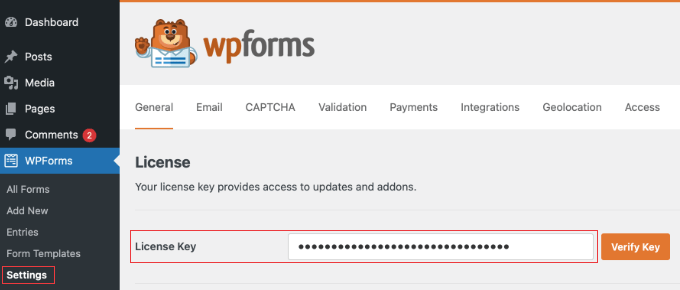
You can find this information in your account on the WPForms website. Then, just click the ‘Verify Key’ button.
Step 2: Enable the Square Addon
Next, you need to enable the Square addon so your forms can accept recurring Square payments.
From your WordPress dashboard, go to the WPForms » Addons page. Find the Square addon in the list and click the ‘Install Addon’ button.
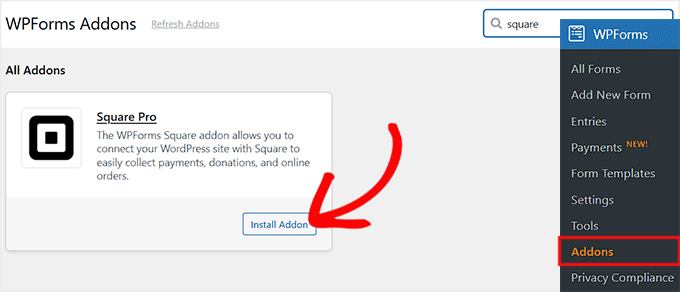
Once the Square addon is installed and activated, your WPForms plugin is ready to start creating subscription forms that can take Square payments.
Step 3: Connect Square to WPForms
Previously, you downloaded and activated the Square addon, which added Square as a payment option in WPForms. But at this stage, it’s not yet connected to your Square account.
Without this connection, the forms you create won’t be able to process any payments. I’ve seen many beginners miss this step, so it’s important to follow it carefully.
To connect Square, go to WPForms » Settings » Payments » Square in your WordPress dashboard. You’ll see a section labeled ‘Connection Status’ with a ‘Connect with Square’ button.
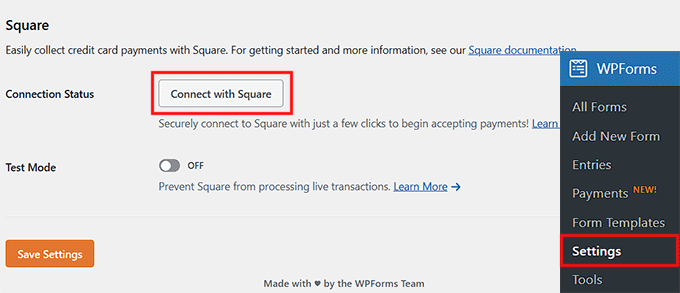
Click it, and you’ll be redirected to the Square login page. Here, you need to enter your email and password, then click ‘Sign In.’
When you log in, Square will show a permissions screen. Don’t worry—this is just asking for approval so WPForms can manage payments on your behalf.
I recommend taking a moment to read through the permissions so you know exactly what access is being granted. Then, click ‘Allow’ to proceed.
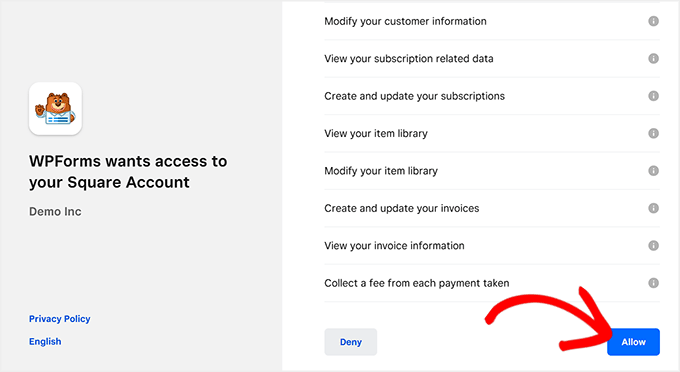
Once you allow permissions, you’ll be sent back to your WPForms settings. If the connection is successful, you’ll see a green checkmark and a success message next to Connection Status.
Finally, don’t forget to click ‘Save’ to confirm the settings.

💡Expert Tip: WPForms offers a Test Mode, which I always recommend using first. It lets you simulate payments to make sure everything is working correctly before going live.
Once you’re confident, switch to Live Mode to start accepting real recurring payments.
Step 4: Create a Square Payment Form
If you don’t have a form yet, creating one with WPForms is really easy thanks to its drag-and-drop builder. From your WordPress dashboard, go to WPForms » Add New Form.
WPForms offers 2000+ premade templates for contact forms, surveys, order forms, and more, so you can get started quickly without building everything from scratch.
You can also use its AI Form Builder to generate a custom template—just give your form a name, describe what you want, and it will create a starting point for you.
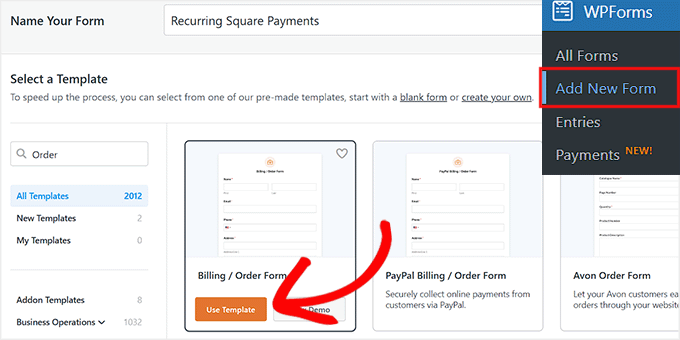
Once your template is ready, it will open in WPForms’ visual editor, where you can easily edit, delete, or rearrange form fields with just a few clicks.
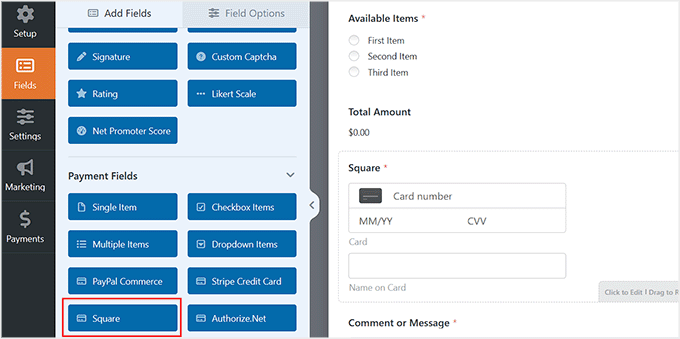
After that, make sure to add the ‘Square’ payment field from the left column. This is the field where users enter their credit card information.
Right now, it is just a basic payment field. It does not yet accept recurring payments—that comes in the next step.
For more information, see our tutorial on integrating Square payments in WordPress.
If you want to see real-world examples of how recurring forms can be used, check out these guides:
- How to Create a Subscription Box Service in WordPress
- Beginner’s Guide to Selling Cleaning Services with WordPress
- How to Create an Online Order Form in WordPress
Step 5: Enable Recurring Payments on Your Form
Now it’s time to set up recurring payments for your Square payment form. From the WPForms visual editor, switch to the Payments » Square tab on the left.
To charge users on a recurring basis, toggle on the ‘Enable recurring subscription payments’ option. This tells WPForms that the payment field you added in the previous step should be used for subscriptions, not just one-time payments.
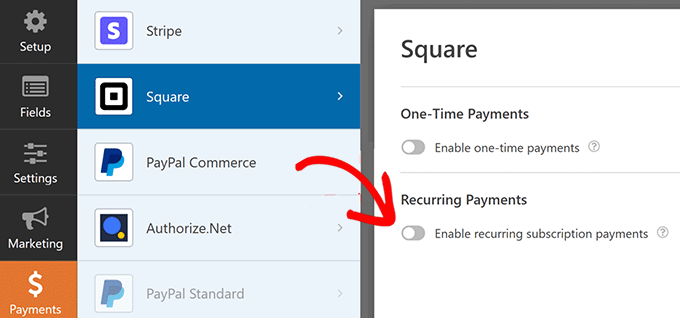
Once you enable recurring payments, you’ll need to fill in a few key fields:
- Plan Name: Give your subscription a title. This is what will appear in transactions in your Square account, so make it clear and descriptive.
- Phase Cadence: This is just a technical term for the billing cycle. Choose how often the payment should occur—options include Monthly, Yearly, or a custom interval.
- Customer Email: Select the email field from your form to map it to Square. This ensures Square can send the receipt to the right person.
- Customer Name: Select the field in your form that contains the customer’s name so it appears correctly in your Square dashboard.
- Customer Address: Select the field containing the customer’s address (required for some payment types).
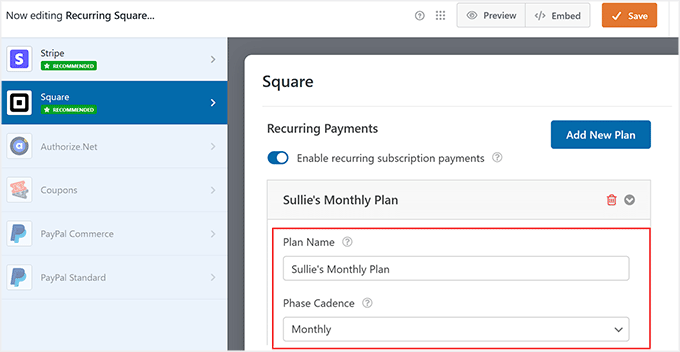
You can also add as many payment plans as you need by clicking the ‘Add New Plan’ button.
For example, if you run a subscription box service, you might offer a Monthly Premium Box plan, a Quarterly Box plan, or even a Yearly VIP Box plan, each with its own recurring payment schedule.
This flexibility lets you tailor subscriptions to your customers’ preferences and needs. Once your plans are set up, don’t forget to click the ‘Save’ button to store your changes.
Step 6: Embed Your Form and Manage Payments
Once your form is ready, the next step is to make it accessible to your users.
WPForms comes with a built-in block that lets you add your form to any page or post without touching a single line of code.
Just open the page or post where you want the form, click ‘Add Block’, select WPForms, and choose the form you just created.
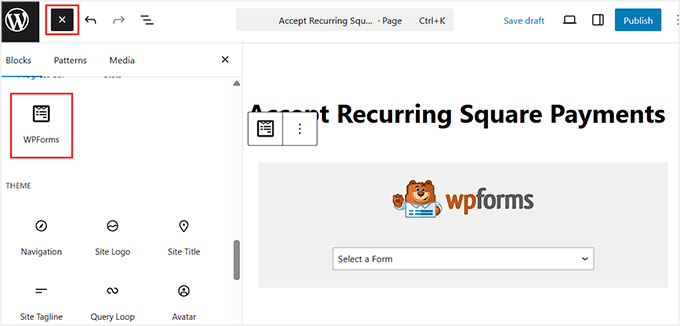
That’s it—your form is live, and users can start subscribing right away.
For a more detailed walkthrough, you can see our guide on how to embed a form in WordPress.
After you start receiving payments, WPForms makes it easy to track and manage everything directly from your WordPress dashboard.
Go to WPForms » Payments and open the ‘Overview’ tab. Here, you can see all your transactions, track revenue trends, and monitor how your subscription forms are performing.
You can also view subscriber details, manage refunds, or adjust subscriptions if needed.
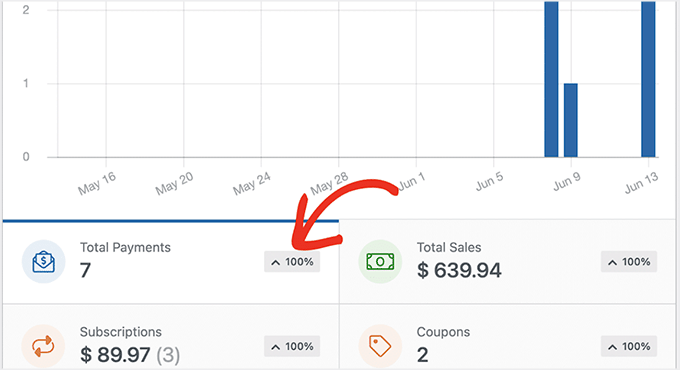
I’ve found this Payments overview really convenient because it keeps all your transaction information in one place—no need to switch between WordPress and Square.
Method 2: Accept Recurring Square Payments With MyPayKit (For Simple Recurring Payment Forms)
If you’re looking for a simple way to accept recurring payments through Square, I recommend MyPayKit.
It’s a lightweight payment plugin that focuses specifically on collecting Square payments, making it perfect for service businesses, memberships, and deposits.
The plugin handles both one-time and recurring payments, and setting it up usually takes just a couple of minutes—even if you’re not very technical.
I’ve tested MyPayKit myself, and it delivered on its promise: clean, professional payment forms that connect directly to Square’s payment system.

Step 1: Install and Activate MyPayKit
The first step is to install the MyPayKit plugin on your WordPress site.
If you want a detailed walkthrough, check out our guide on how to install WordPress plugins. It covers everything step by step, so even beginners can follow along easily.
📍Note: To use recurring payments, you’ll need the Pro plan of MyPayKit. The free version works for simple one-time payments, but subscriptions and recurring billing require the Pro upgrade.
Step 2: Connect Your Square Account
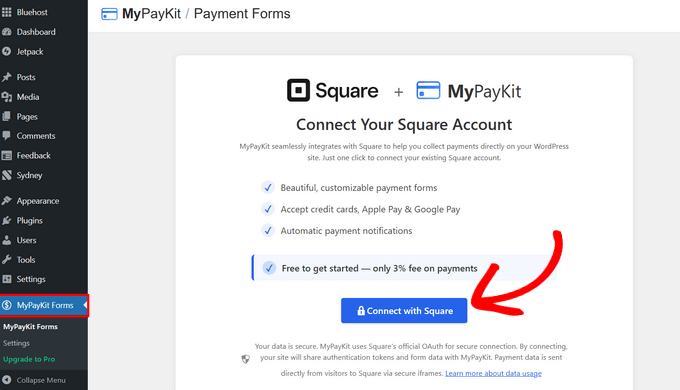
Once MyPayKit is activated, you’ll see a new menu in your WordPress dashboard called MyPayKit Forms. Click on it to get started.
This will take you to a new screen where you have to click the ‘Connect With Square’ button.
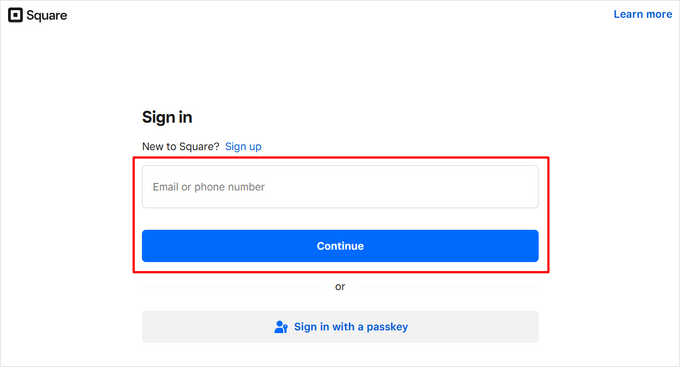
This will open the Square login page. Sign in using the email address or phone number associated with your Square account.
Then, click the ‘Continue’ button.
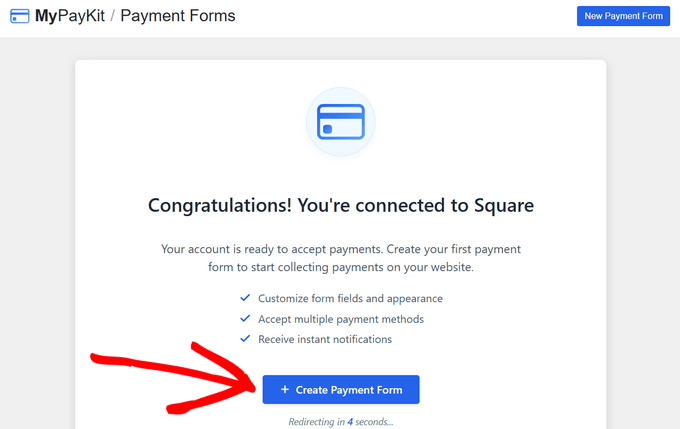
After that, you’ll be sent back to your WordPress site. You should see a success message letting you know MyPayKit is now connected to Square.
Once the connection is complete, you can click ‘+ Create Payment Form’ to start building your first payment form.
Or, if you prefer, just wait a few seconds—you’ll be automatically taken to the form builder.
Step 3: Create a Square Payment Form
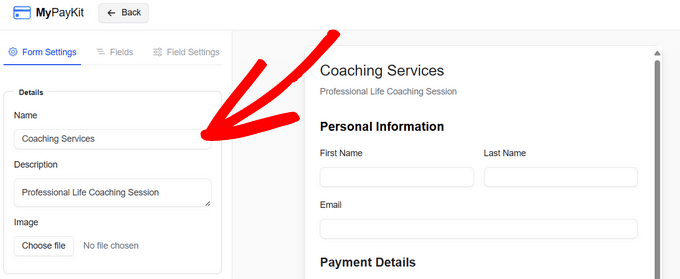
Once you’re in the MyPayKit form builder, you’ll see the form settings panel on the left and a live preview of your form on the right.
By default, it already includes fields for the customer’s first name, last name, email, and payment details.
I suggest starting by giving your form a clear name so you can easily identify it later, and adding a short description to explain what the payment is for.
You can also upload an image, like your business logo, to make the form look more professional and match your branding.
After that, decide what your customers see once they complete their payment by scrolling down to the ‘Confirmation Option’ section.
I recommend either showing a custom thank-you message on the screen or redirecting them to a specific page, like a dedicated thank-you page on your site.
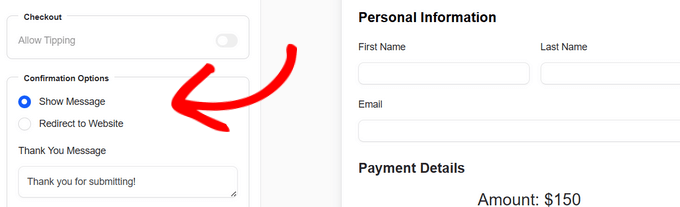
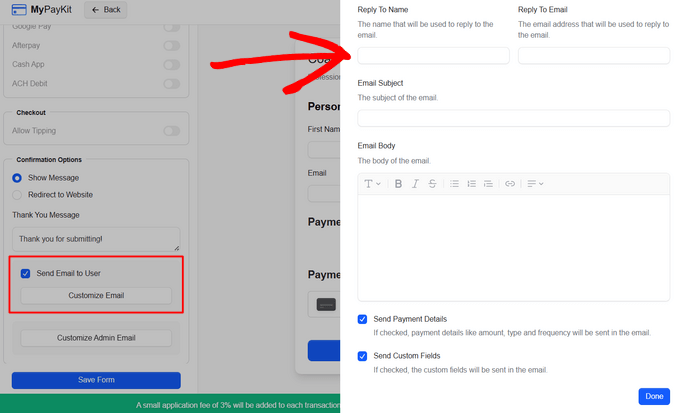
You can also send a confirmation email to your customers after payment.
Just enable the email option and click ‘Customize Email’ to set the subject, ‘Reply To’ information, and message. I’ve found this helps build trust and keeps everything professional.
Finally, if you need extra information from customers, you can add more fields to your form. Click the ‘Fields’ tab, choose the type of field you want—like text, dropdowns, checkboxes, or date pickers—and it will appear on your form.
If you need more guidance, check out our full guide on how to integrate Square payments in WordPress.
Step 4: Set Up Recurring Payments
Now it’s time to set up recurring payments in MyPayKit. From the form builder, scroll down to the ‘Amount Type’ section in the left column.
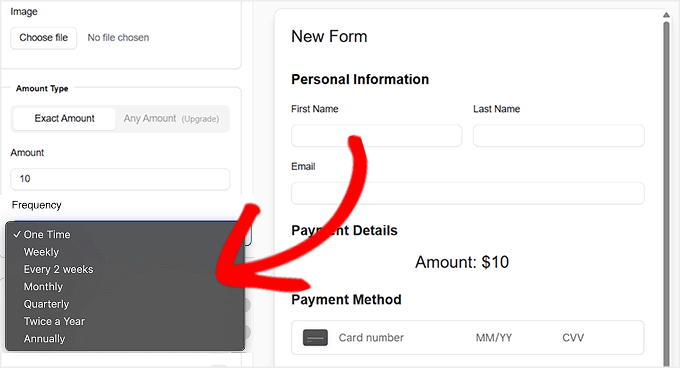
Here, you have two main options. First, you can set an exact amount that you want your customers to pay. Then, select how often the payment should repeat using the dropdown menu.
You can choose one-time, weekly, every 2 weeks, monthly, quarterly, twice a year, or annually. This is perfect for a monthly service retainer, a quarterly subscription box, or an annual membership.
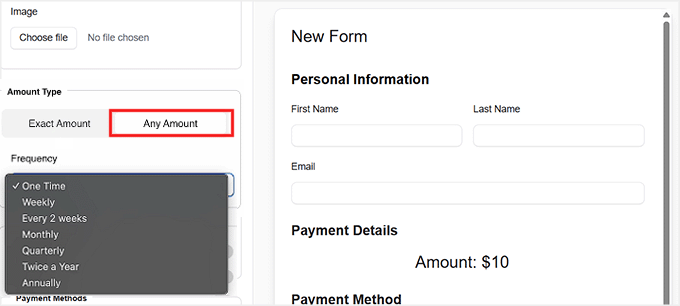
On the other hand, if you want customers to decide how much they pay, switch to the ‘Any Amount’ option. This comes in handy for donations, pay-what-you-want services, or flexible subscription models.
Once you select this, you can still choose the frequency of the recurring payment, and your customers can enter the amount they want to pay each period.
When you’re happy with your payment form and recurring settings, don’t forget to click ‘Save Form.’ This will lock in all your choices and make your form ready to start accepting recurring payments.
Step 5: Embed Your Payment Form
Now that your form is ready, go back to the main MyPayKit Forms page in your WordPress dashboard. You’ll see the form you just created listed there.
Next to the form, you’ll find a shortcode. If you’re new to WordPress, a shortcode is a small piece of code that makes it easy to add features, like forms, directly into posts or pages without touching any other code.
Click the ‘Copy’ button next to this shortcode.
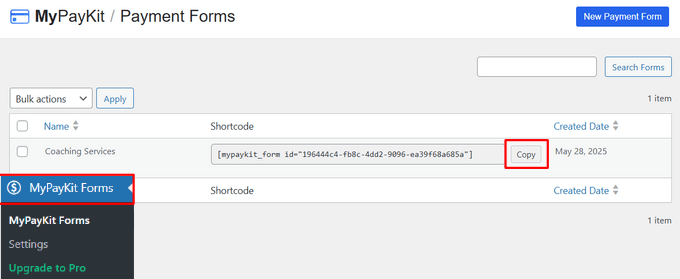
To add the form to your website, open the page or post where you want it to appear.
You can also create a new page if needed. In the WordPress editor, click the ‘Add Block’ button, choose the ‘Shortcode’ block, and paste your shortcode there.
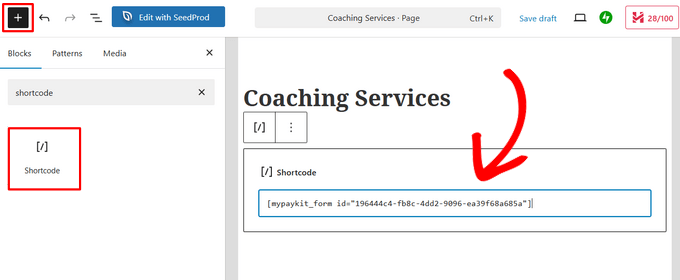
After that, just click the ‘Update’ or ‘Publish’ button.
Then, simply visit the page to see your form in action.
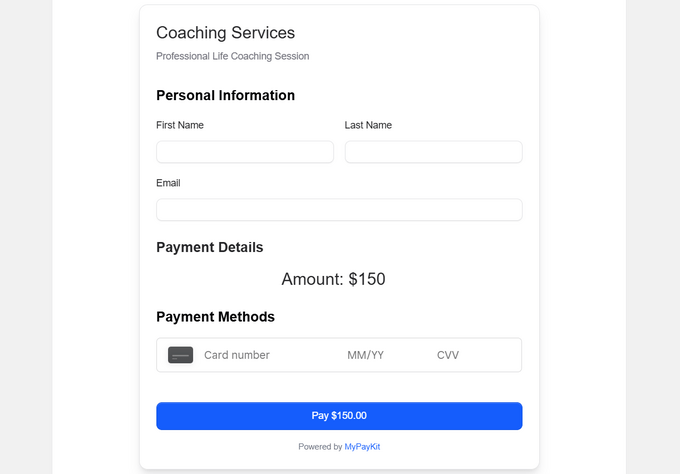
Method 3: Accept Recurring Payments With Charitable (For Nonprofits and Recurring Donations)
If you’re running a nonprofit, church, or fundraising website, then I recommend using Charitable.
It’s hands down the best donation plugin for WordPress, especially when you need to collect recurring donations through Square.

Instead of trying to adapt a general payment or eCommerce plugin, Charitable gives you tools that actually make sense for fundraising, donor management, and ongoing contributions.
If you want a deeper look at everything it can do, check out our Charitable review.
Step 1: Install and Activate Charitable
You can start by installing and activating the Charitable plugin on your WordPress site.
If this is your first time, we have a step-by-step guide on how to install a WordPress plugin that walks you through the entire process.
📍Note: Charitable has a free version, which is great for collecting one-time donations.
However, to accept Square payments and set up recurring donations, you’ll need at least the Charitable Plus plan. This plan unlocks both the Square addon and the Recurring Donations addon, which are required for this method.
Upon activation, the next step is to add your license key. This ensures you receive updates and can use all the premium features.
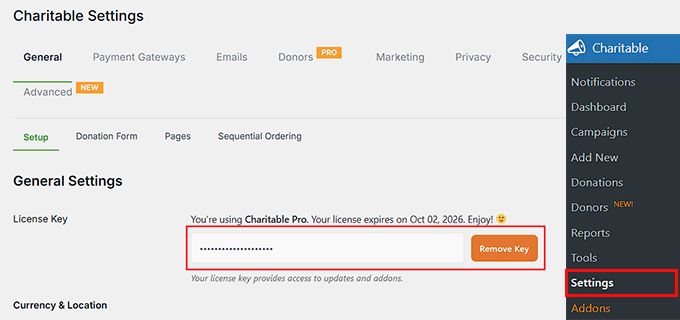
To do this, go to Charitable » Settings from your WordPress dashboard. From there, paste your license key into the ‘License Key’ field and save your settings.
You can find this information in your account on the Charitable website.
Step 2: Enable the Square and Recurring Donations Addons
Next, you’ll need to enable the Square and Recurring Donations addons in Charitable. These two work together to make recurring donations possible.
The Square addon lets you accept Square payments directly on your donation forms, while the Recurring Donations addon lets donors give on an ongoing schedule, such as monthly or yearly.
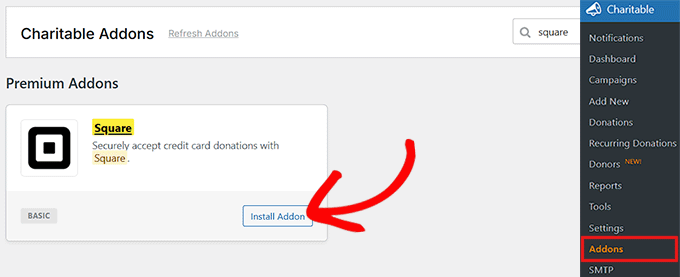
To get started, go to Charitable » Addons from your WordPress dashboard. From here, locate the Square addon and click the ‘Install Addon’ button.
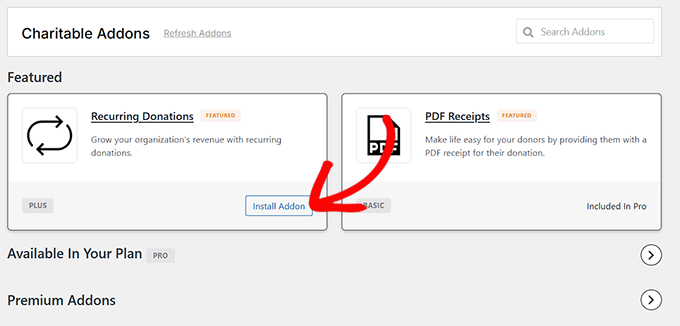
After that, find the Recurring Donations addon and click ‘Install Addon’ for that as well.
Once installed, both addons will be automatically activated, so there’s no extra setup needed at this stage.
Step 3: Connect Square to Charitable
Now it’s time to connect your Square account to Charitable.
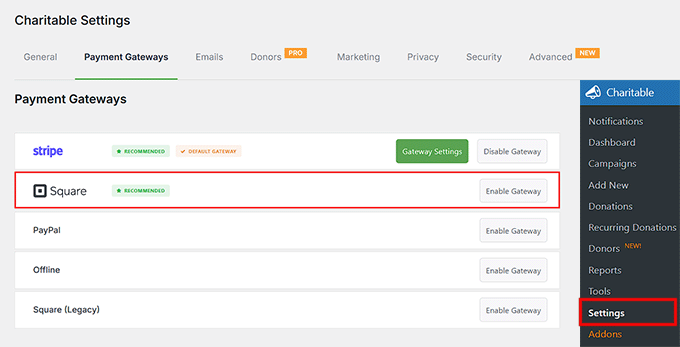
From your WordPress dashboard, go to Charitable » Settings » Payment Gateways. You’ll see Square listed there. Simply click the ‘Enable Gateway’ button next to Square.
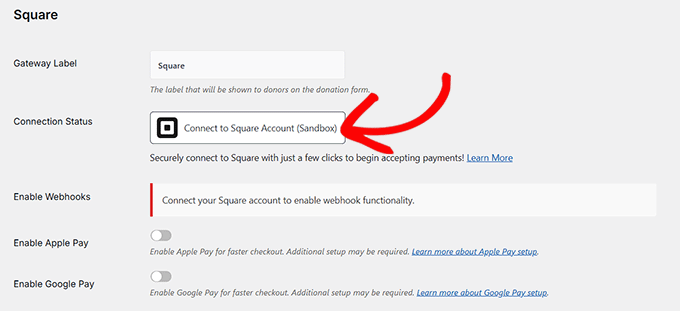
Once you do that, Charitable will take you to a new screen where you can click the ‘Connect to Square Account’ button. This opens Square’s secure login screen.
To complete the connection, Square will ask you to grant Charitable a few permissions related to your account.
This is required so Charitable can properly process donations and manage recurring payments. Go ahead and click ‘Allow’ to continue.
After approving the permissions, you’ll be redirected back to the Charitable payment settings page.
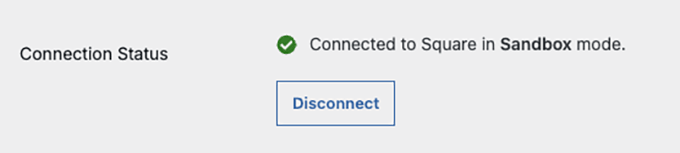
If everything is set up correctly, you’ll see a green check mark and a success message next to the connection status. That’s your confirmation that Square is connected.
Don’t forget to click ‘Save’ to apply your changes.
Step 4: Create a Donation Form
Now it’s time to create your first donation form in Charitable.
From your WordPress dashboard, go to Charitable » Add New. This is where you’ll set up your fundraising campaign and donation form.
Start by giving your campaign a clear, descriptive name. I usually recommend something short and specific, like ‘Support Local Animal Rescue.’
This title appears on your donation form and campaign page, so it should instantly tell visitors what they’re supporting.
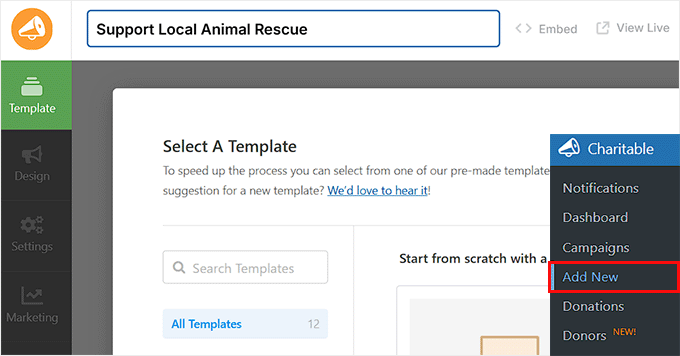
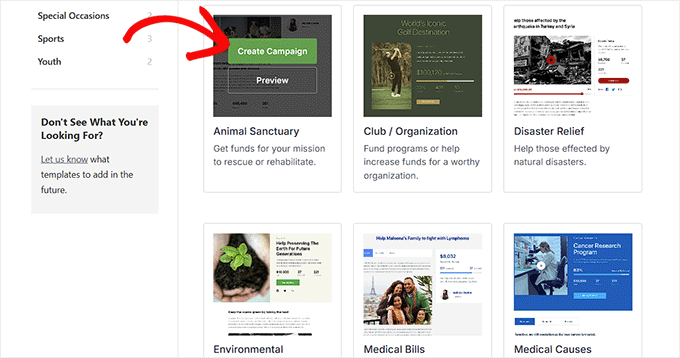
Next, choose a campaign template. Charitable comes with several ready-made templates, each designed for different causes.
You’ll see options like Animal Rescue, Disaster Relief, Medical Support, and Environmental Campaigns. I suggest picking the one that best matches your goal because you can always customize it later.
Once the Campaign Builder opens, you’ll see a live preview of your donation form on the right and a list of fields on the left. You can drag and drop fields to rearrange them, edit existing ones, or remove anything you don’t need.
Common fields include the donation amount, progress bar, social sharing buttons, and donor details.
You can also add images, videos, and a short description to explain your cause. I’ve found that a simple story and a clear goal go a long way in encouraging people to donate.
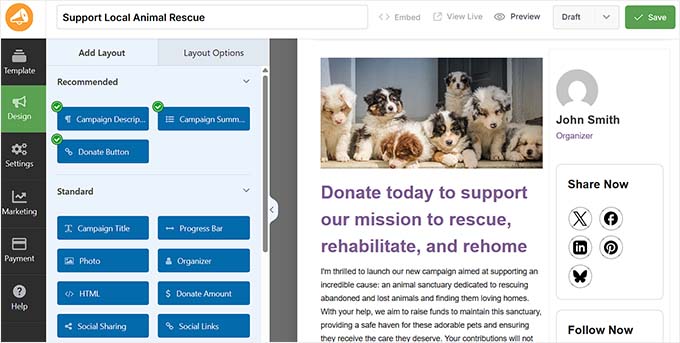
One thing worth noting is that Charitable doesn’t use a separate Square payment field like some form plugins. Instead, it uses a Donate button.
When a visitor clicks that button, Charitable automatically shows the available payment options, including Square, based on what you’ve enabled in your settings.
This keeps the donation process clean and easy for donors, without overwhelming them with extra steps.
If you’d like more detailed guidance, you can check out our tutorial on how to create a donation form in WordPress.
Step 5: Set Up Recurring Donations in Your Form
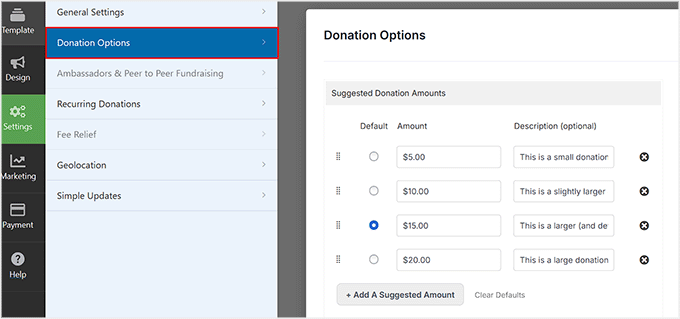
Next, you’ll go to Settings » Donation Options in the Charitable Campaign Builder. This is where you control all the details for your donation form, including recurring donations.
Start by reviewing the ‘Suggested Donation Amounts.’
Here you can define preset donation amounts, like $5, $10, $15, or $20, and even add a short description for each, such as ‘This is a small donation.’
I usually make the middle option the default because it encourages most donors to give a reasonable amount without feeling pressured.
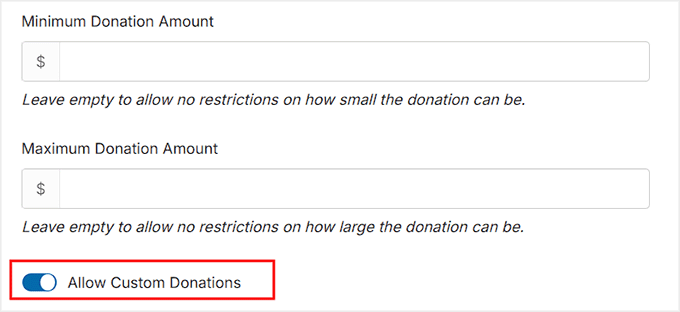
Next, check the minimum and maximum donation amounts. Leaving these blank allows donors to give any amount they choose, while filling them in sets limits.
I often leave the minimum blank to be inclusive, but set a reasonable maximum to prevent accidental large contributions.
You can also enable ‘Allow Custom Donations,’ which lets donors enter any amount they’re comfortable with.
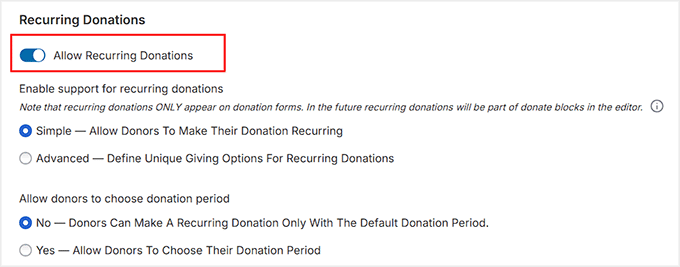
Now scroll down to the ‘Recurring Donations’ section and toggle ‘Allow Recurring Donations’ to ‘On.’
Charitable offers two modes for recurring donations: Simple and Advanced.
I usually recommend starting with Simple. With this option, donors can set their donations to recur using the default period you set, keeping things straightforward for both you and your supporters.
If you want, you can also let donors choose their own donation period by turning on the ‘Allow donors to choose donation period’ option.
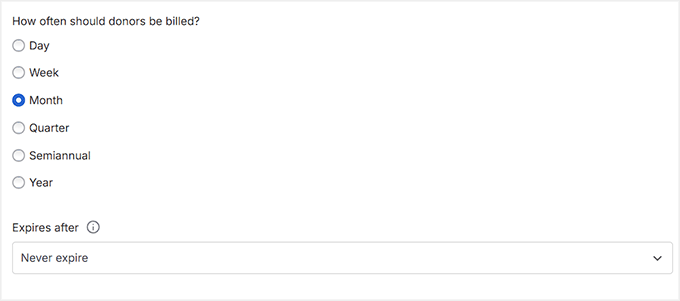
You can offer daily, weekly, monthly, quarterly, semiannual, or yearly intervals, depending on what works best for your cause.
Other than that, decide how often donors are billed and whether the recurring donation never expires or ends after a set number of payments.
For most campaigns, I recommend at least a monthly interval—it’s easier for donors and reduces churn.
For more detailed instructions, see our guide on creating a recurring donation form in WordPress.
Step 6: Publish Your Recurring Square Donation Form
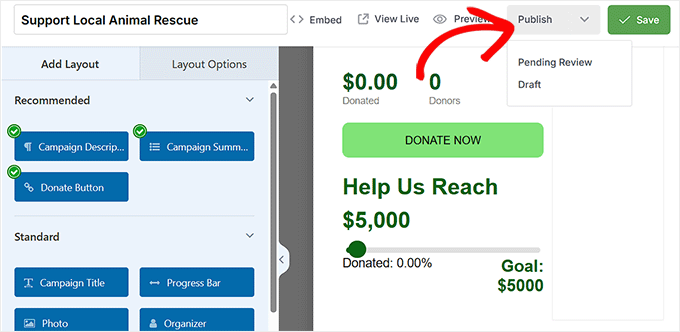
Once you’ve finished configuring your recurring donation form, the next step is to publish it. Switch the form’s status to ‘Publish’ and click ‘Save’ to store your changes.
Your fundraising campaign is now ready to accept recurring payments through Square.
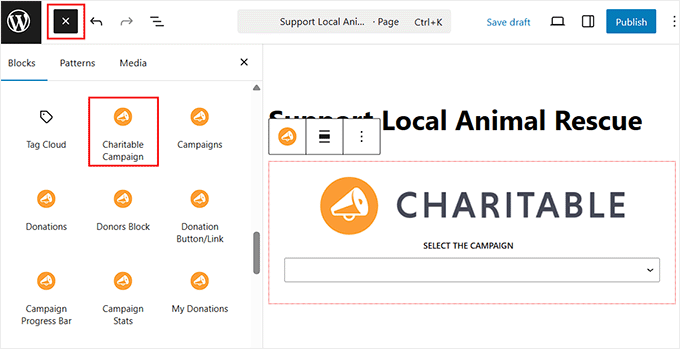
To display the form on your site, open any page or post in the WordPress block editor and add the ‘Charitable Campaign’ block. From the dropdown, select the campaign you just created.
This embeds your recurring donation form directly on the page, so visitors can start donating right away.
After adding the block, click ‘Update’ or ‘Publish’ to save the page.
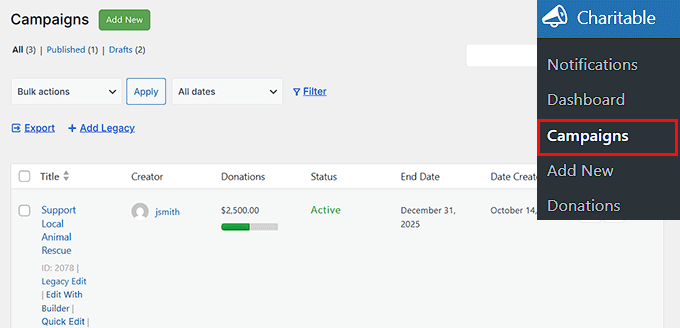
Managing your recurring donations is just as easy. From your WordPress dashboard, go to Charitable » Donations to see all contributions for your campaigns.
Each donation is linked to the donor and their chosen recurring schedule, giving you full visibility into who is subscribed and when payments will be processed.
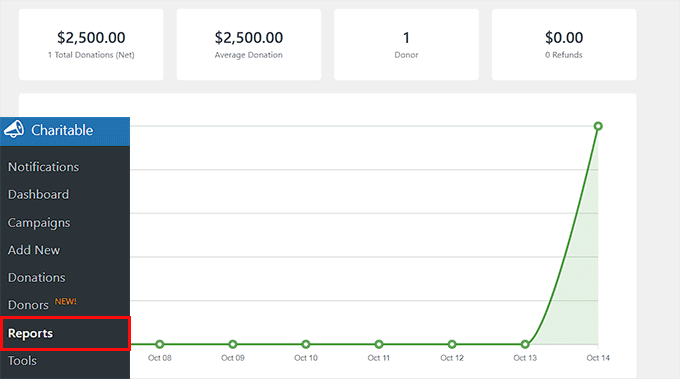
You can also check the Reports page for a summary of total donations, total donors, and other key donor management statistics.
If you ever need to adjust the campaign—like changing the donation amounts, updating the frequency options, or extending the campaign’s duration—you can do so from the campaign settings.
This makes it easy to keep your recurring donation campaign flexible as your nonprofit grows.
Before You Go Live With Recurring Square Payments (Final Checks)
Before you start accepting recurring payments, I always recommend a few important checks.
This ensures your forms run smoothly and your customers have a clear, professional experience.
1. Testing Your Recurring Payments
I always recommend running a full test before going live.
Most WordPress payment plugins, including WPForms, MyPayKit, and Charitable, let you test Square payments in test or sandbox mode, so you can simulate real payments without actually charging a card.
To start testing, first enable Test Mode (sometimes called Sandbox Mode) in your plugin settings. This ensures you don’t accidentally charge your own credit card while trying things out.
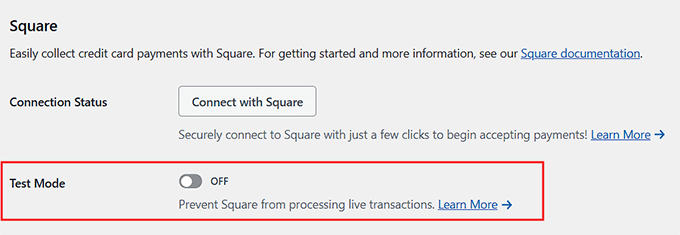
Then create a test subscription with a test card and ensure the payment goes through successfully. Finally, verify that the recurring process works correctly.
For subscriptions, I usually create a test plan with a shorter interval, like daily or weekly, so I can see automatic renewals in action before going live.
I’ve tested this myself, and it’s the best way to make sure everything runs smoothly from day one. If you want, our guide on testing Stripe payments in WordPress covers the process, and testing Square works in a very similar way.
⚠️ Important: Once you have finished testing, don’t forget to disable the Test Mode and switch back to Live Mode. If you skip this step, you won’t be able to accept real payments.
2. Add Clear Payment Terms
Next, make sure your payment terms are crystal clear. I suggest adding this information to the page where your payment form is embedded, so customers see it before they submit their payment.
Ideally, you should include:
- Billing Frequency: How often payments will be charged (monthly, quarterly, annually, etc.)
- Cancellation Policy: Explain how users can stop their subscription.
- Refund Policy: Whether refunds are available, and under what conditions.
Here’s an example you can use or tweak:
“Your subscription will renew automatically every month. You can cancel anytime from your account. Refunds are available within 14 days of payment.”
Clear terms reduce confusion and build trust with your subscribers.
3. Setting Up Email Notifications
Next, make sure your email notifications are configured. WPForms and Charitable let you set these up directly in the plugins. At a minimum, enable notifications for payment confirmations, failed payments, cancellations, and renewal reminders.
Here’s a quick overview of what each email does:
| Notification Type | What It Does |
|---|---|
| Payment Confirmation | Immediately lets customers know a payment was successful. |
| Failed Payment Notice | Alerts customers if a payment didn’t go through, so they can update their card. |
| Cancellation Confirmation | Confirms when a subscription is canceled |
| Renewal Reminders | Optional. Reminds customers before a recurring payment is processed. |
💡Expert Tip: WordPress sends emails using PHP, the underlying programming language on your server. By default, this can sometimes cause emails to end up in spam or not arrive at all.
To fix this, I recommend using WP Mail SMTP. It is the best WordPress SMTP plugin that ensures your payment receipts and admin notifications are actually delivered to the inbox, not the spam folder.
To get started, take a look at our tutorial on fixing the WordPress not sending email issue.
Frequently Asked Questions About Accepting Recurring Square Payments in WordPress
Even after setting up your recurring payment form, it’s normal to have a few questions.
In this section, I’ll answer the most common questions I get about using Square with WordPress. This will help you avoid surprises and make sure your recurring payments run smoothly from day one.
Can I use Square on WordPress.com?
Yes, but only on a Business or eCommerce plan. Square works best on self-hosted WordPress.org sites, which give you full control to install plugins like WPForms, MyPayKit, or Charitable.
Does Square charge extra for recurring payments?
No, Square doesn’t add a separate fee for recurring payments. You’ll pay the standard Square transaction fee for each payment processed. This makes it simple to budget for your subscriptions without hidden costs.
Can customers cancel their own subscriptions in Square?
Yes, but it depends on how you set it up in WordPress. With WPForms or Charitable, customers can cancel from a dashboard or account page if you enable that option. Otherwise, you’ll manage cancellations from your Square account.
What happens if a Square payment fails?
If a payment fails, Square will not automatically retry it unless your plugin supports it. WPForms and Charitable can notify the customer via email so they can update their card.
Can I offer free trials for my service or product with Square?
Yes, you can offer free trials through Square using a plugin that supports recurring payments, like WPForms or Charitable.
You can set a trial period, and the customer’s subscription will start charging automatically afterward.
Do I need Square hardware to accept payments on my website?
No, Square hardware, such as card readers, is not required for online subscriptions. All recurring payments can be processed online directly through your WordPress payment forms.
Can I accept multiple currencies with Square?
Yes, but there is a catch. Square accounts are tied to the currency of your country (for example, a U.S. account can only accept USD). You generally cannot accept a different currency than the one associated with your bank account.
If you need to accept multiple currencies on your site, I recommend using Stripe instead. Most payment plugins support both Square and Stripe.
I hope this article helped you learn how to accept recurring Square payments in WordPress without WooCommerce. You may also want to see our guide on adding a PayPal payment form in WordPress and our list of important online payment statistics.
If you liked this article, then please subscribe to our YouTube Channel for WordPress video tutorials. You can also find us on Twitter and Facebook.



Have a question or suggestion? Please leave a comment to start the discussion.