


Imagine being able to open a full version of your WordPress site, right on your computer, without touching your live website.
That small shift can make a big difference when it comes to testing updates, experimenting with changes, or simply feeling more in control of your site.
One of the most reliable ways to do this is by using Duplicator to create a complete backup and Local WP to run that backup as a working site on your computer.
We’ve tested this workflow ourselves and found it to be one of the simplest and most effective setups — even for non-technical users.
In this guide, we’ll show you exactly how to get it working step by step, so you can manage your site with more confidence and fewer surprises.

💡Quick Summary: How to View a Backup as a Website
In a hurry? Here are the steps to quickly view your site’s backup:
- Create Backup: Use the Duplicator plugin to export your site (ensure you choose “Zip” format).
- Install Viewer: Download and install Local WP (free tool) on your computer.
- Import & Launch: Drag the Duplicator Zip file into Local WP to instantly load your site as a functioning website.
When to View a WordPress Backup as a Website
Backing up your WordPress site regularly is one of the best ways to protect your online presence. We do this ourselves to safeguard our content and data on WPBeginner and our partner websites.
When your site suddenly experiences an error, you can easily restore it using a backup. That said, before doing that, you may want to know if you’re restoring the right backup in the first place.
To do this, you need to be able to view your WordPress backup as a functioning website. This allows you to check if the backup contains the correct WordPress files and functionality before applying it to your live site.
That’s where this beginner’s guide comes in handy. We will show you how to easily back up your website and use a WordPress backup viewer. This method allows you to inspect your backup thoroughly before deciding to use it.
Here are some scenarios where viewing a backup file can be useful:
- After a major update: You’ve made significant changes to your site and want to ensure your backup captured everything correctly.
- Before a site restoration: You’re about to restore your site from a backup and want to check it’s the right version.
- Troubleshooting: You’re trying to pinpoint when an issue first appeared on your site.
- Content recovery: You need to retrieve specific content from an old backup without restoring your entire site.
With all that in mind, let’s go through the steps to easily view your WordPress backup as a website. You can use the quick links below to navigate through this tutorial:
Let’s get started!
Step 1: Install and Set Up Duplicator
The first thing you need to do is install a WordPress backup plugin. Our go-to choice is Duplicator because it’s easy and straightforward to use. This makes it perfect for WordPress users of all skill levels.
What’s more, Duplicator offers both free and pro versions. The good news is that this tutorial works with the free version of Duplicator, so you won’t need to spend a dime to follow the instructions.
That being said, we recommend upgrading to the pro version to get advanced features like automatic backups, multisite support, and cloud storage integration for storing your backup files. We talk more extensively about this plugin’s features in our Duplicator review.
So, go ahead and install the WordPress plugin on your website. Then, move on to the next step.
Step 2: Back Up Your WordPress Site
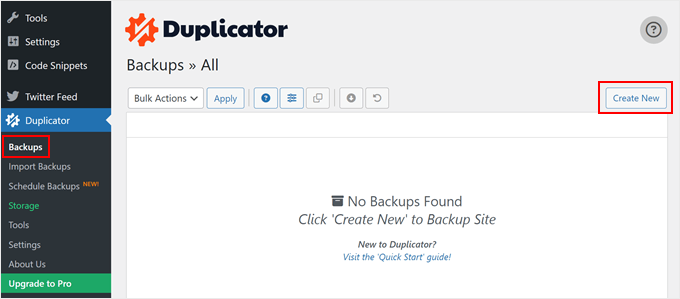
Once the plugin is active, you can go to Duplicator » Backups.
Here, click on the ‘Create New’ button at the top of the page. Doing this will initiate the site backup process.
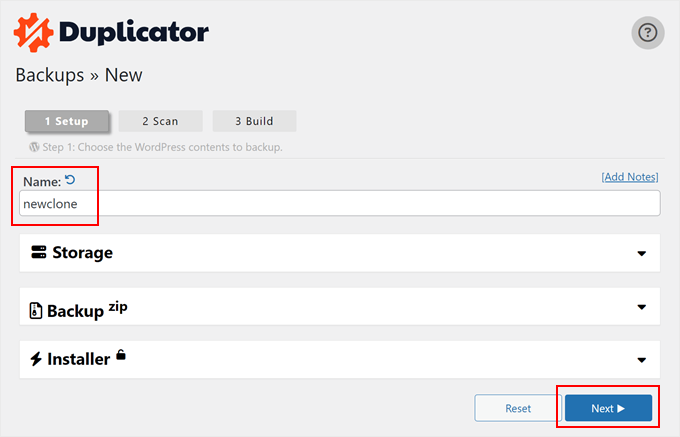
Next, you can type in a name for the website backup file. This is just for your reference, so you can name it anything you want.
After that, click the ‘Next’ button.
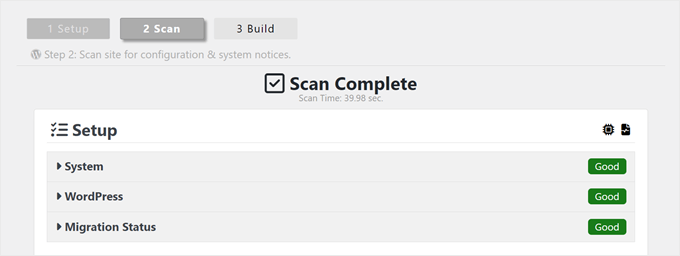
At this stage, Duplicator will scan your website.
If Duplicator finds an error with your website, then you will see a warning and an explanation behind the WordPress error. If not, you will only see a green label that says ‘Good.’
Now, you can move down the page.
Next, press the ‘Build’ button.
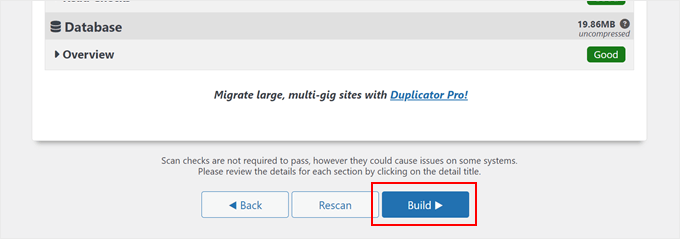
Duplicator will now create a complete WordPress backup of your files, including your database, images, and plugins. This will be in a single downloadable package.
The process usually takes a couple of minutes, but it may take longer or shorter, depending on the size of your WordPress site.
Also, if you use the pro version of Duplicator, you’re able to choose whether to back up your database, your media files, or create a custom backup file. This is great for cases when you’re short on storage space. You can just back up everything except your media files.
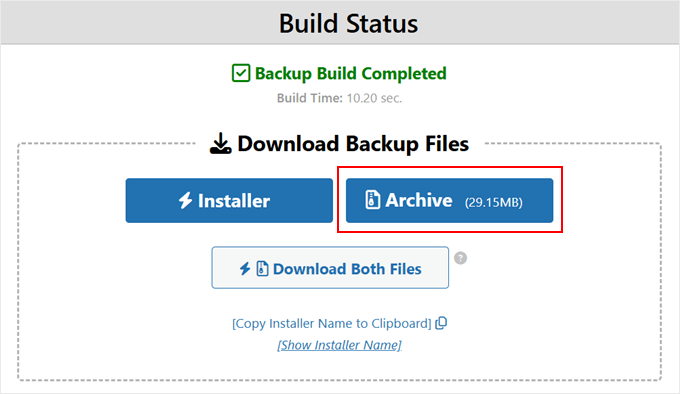
Once the backup is complete, you’ll see options to download your files, including an ‘Installer’ file and an ‘Archive’ file. For a standard restore on a web host, you would need both.
However, for our purpose of viewing the site in Local WP, you only need to download the ‘Archive’ file. Click the ‘Archive’ button to save the backup zip file to your computer.
Step 3: Download and Install Local WP
Next, you’ll need to install Local WP. This is a free tool that lets you install WordPress locally on your computer.
A lot of our own team members use it to create demo sites. It is also perfect for testing WordPress plugins and themes.
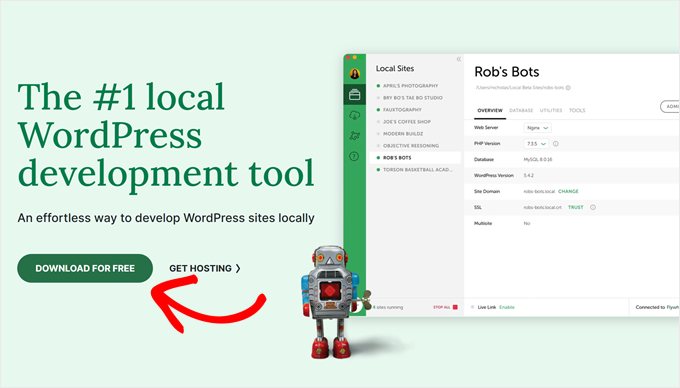
Local WP is what we’ll use as our WordPress backup viewer. To get started, simply go to the website and click the ‘Download for Free’ button.
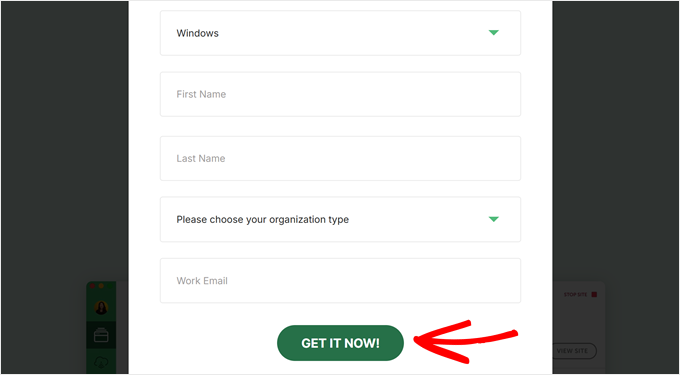
Now, a popup window will appear. You need to select your computer’s operating system, such as Mac, Windows, or Linux.
You will also need to fill out a short form with your name and email address. Once you’re done, just click ‘Get It Now!
Your browser will immediately download the Local WP software to your computer.
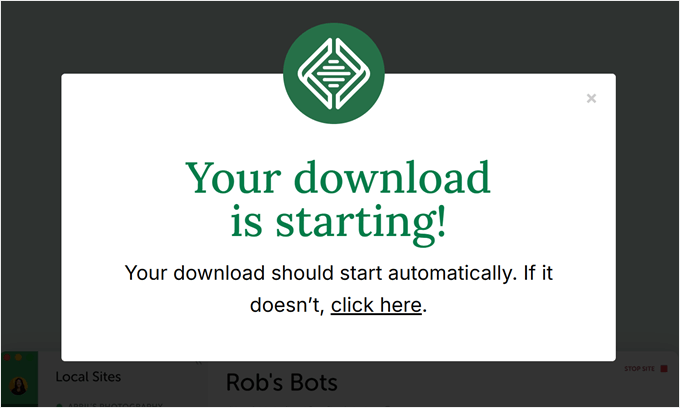
If the download doesn’t start right away, use the ‘click here’ link instead.
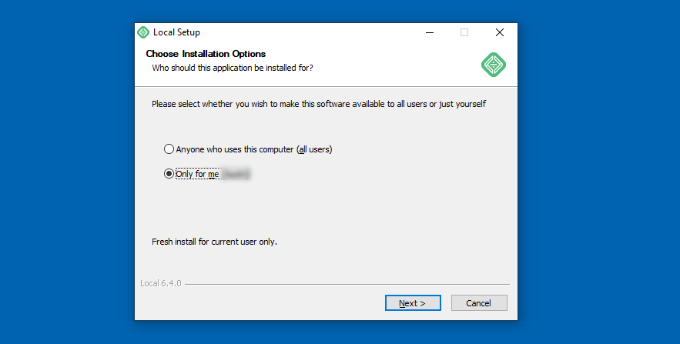
Now that the file has been downloaded, you can launch the setup wizard. Here, you need to choose whether to install Local WP for all users or only for you.
After selecting an option, click the ‘Next’ button.
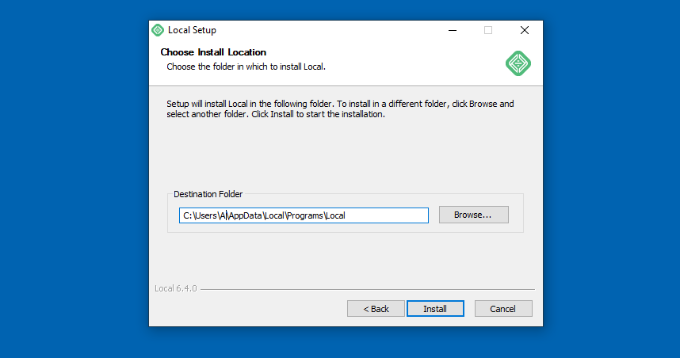
Then, you can pick the destination folder where the software will be stored.
You can click the ‘Browse’ button to select the folder. Then, click on the ‘Install’ button.
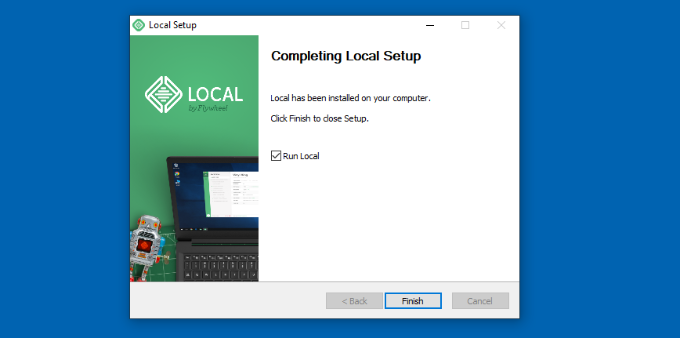
Local WP will now be installed on your computer.
Once done, just click on the ‘Run Local’ checkbox and then hit the ‘Finish’ button.
Local WP will now launch on your computer, and you can continue to the next step.
Step 4: Upload Your Backup to Local WP
The final step is to import your WordPress backup archive file to Local WP. This is basically the same as restoring a WordPress backup.
Since we are doing it on a local environment, your live WordPress website won’t be affected.
To do this, open Local WP. You can click the ‘+’ button or the ‘Create a new site’ button to get started.
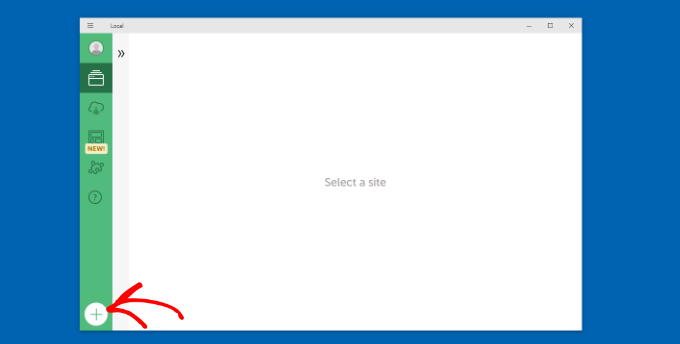
At this point, you can create a new site with the Local WP software.
To view your backup, select the option to import from an existing Zip file. You can also drag the Duplicator zip file directly into the window.
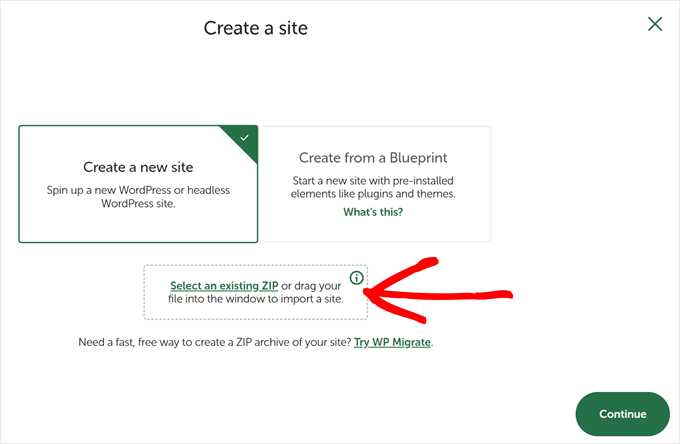
Local WP will now analyze your WordPress files and see if it’s possible to import them.
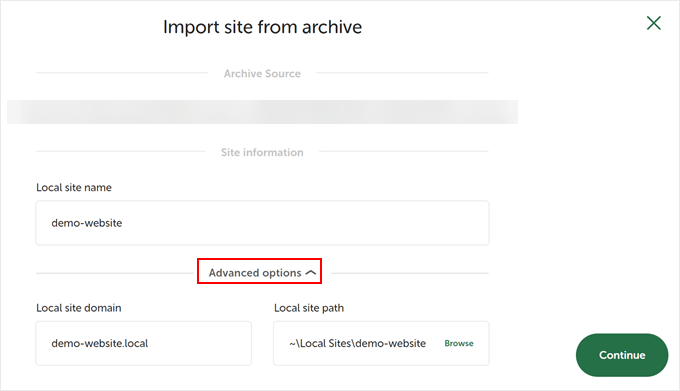
Local WP will ask you to name your site environment. You can enter any name you like, then click ‘Continue’.
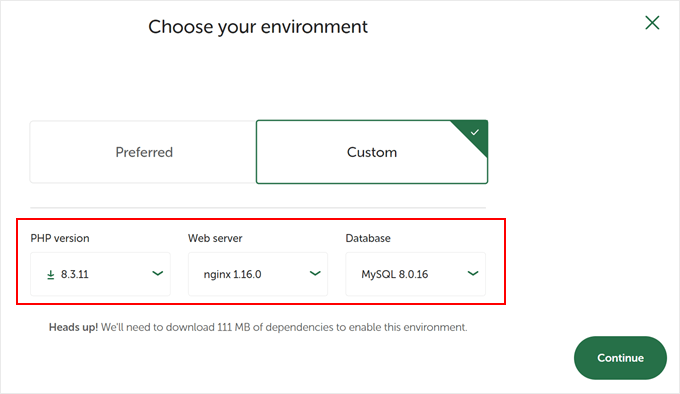
The next step is to set up your WordPress environment. If you want to stick with the default settings, then just select ‘Preferred.’
Once done, just click ‘Import site.’
Now, simply wait for Local WP to set up your backup as a WordPress blog. This process can take a few minutes.
To log in to your local website, click the ‘WP Admin’ button. This will open your computer’s default browser.
Note: You must use the same username and password as your live website. Since this is a clone of your site, your login credentials are identical.
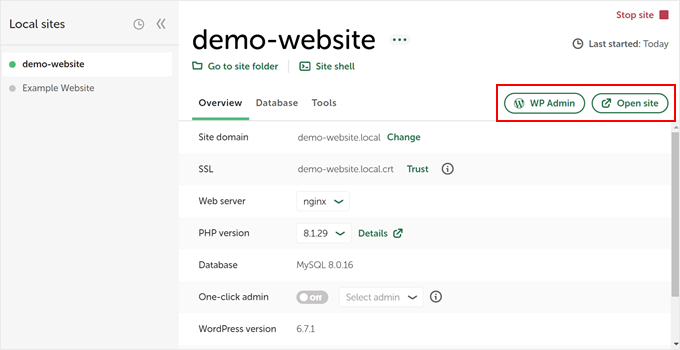
When you’re done viewing the backup, you can close the browser tab.
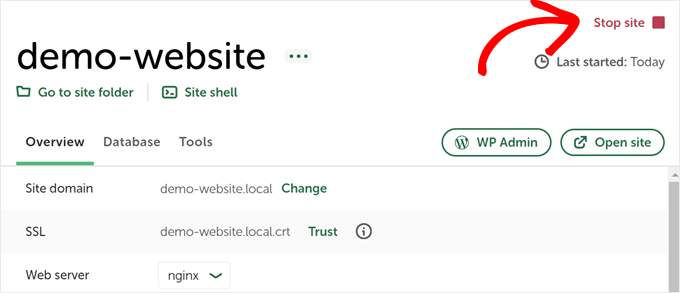
Then, in Local WP, click on the ‘Stop site’ button at the top right corner.
If this is the right backup version, then you can now follow our guide on how to restore a WordPress backup to make the changes live.
Frequently Asked Questions About WordPress Backups
Here are some common questions we receive about viewing and managing WordPress backups.
How to view a WordPress backup file?
The easiest way to view a WordPress backup file is by importing it into Local WP. This free software creates a virtual server on your computer, allowing you to browse and interact with your backup site exactly as if it were live on the web.
How to get a backup of a WordPress website?
You can create a backup using a plugin like Duplicator. Simply install the plugin, navigate to Duplicator » Backups, and click ‘Create New’ to build an archive of your site. Once finished, you can download the package to your computer.
For more information, you can also see our tutorial on creating a site backup.
How do I access the backend of a WordPress website?
You can access the backend (dashboard) by adding /wp-admin to the end of your website’s URL. For a local backup site running on Local WP, you simply click the ‘WP Admin’ button in the app and enter your original username and password.
Where is the WordPress backup located?
If you used a plugin, backups are typically stored in a specific folder within your wp-content/uploads directory. If you downloaded the backup manually, it will be located wherever you saved the file on your computer’s hard drive.
How to install a WordPress site from a backup?
To install a site locally from a backup, drag your backup zip file directly into the Local WP window. If you want to restore the backup to a live server, you typically upload the archive file using the ‘Import’ feature of your backup plugin.
How do I access my WordPress files?
On a live site, you can access files using an FTP client like FileZilla or the File Manager in your hosting control panel. For a local site, you can right-click the site name in Local WP and select ‘Show Folder’ to view the files on your computer.
Explore More WordPress Backup Tips
Looking for more tips and tricks to manage your backups? Just check out these articles below:
- Back up your WordPress site to Dropbox – Save storage space on your computer and hosting plan by using Dropbox as an external backup location.
- Learn how to save a blog post to your computer – This will be handy when you want to keep local copies of your content in case your site goes down.
- Connect Google Drive to your WordPress media library – This can make it easier to manage large amounts of media content.
We hope this article helped you learn how to view a WordPress backup as a website. You may also want to check out our list of the best Dropbox plugins for WordPress and our guide on how to restore a WordPress site with just a database backup.
If you liked this article, then please subscribe to our YouTube Channel for WordPress video tutorials. You can also find us on Twitter and Facebook.




Have a question or suggestion? Please leave a comment to start the discussion.