


Ever wonder how well your WordPress forms are really doing? You might get a few submissions here and there, but without data, it’s hard to know what’s working and what isn’t.
We’ve had forms that looked great on paper but barely converted, and others that performed surprisingly well for reasons we didn’t understand at first.
That’s when we learned the value of tracking.
With Google Analytics form tracking, you can see exactly where users drop off, which forms convert best, and which traffic sources drive the most leads.
In this guide, we’ll show you how to set up WordPress form tracking in Google Analytics so you can start using real data to improve your conversions. 📈
Why Track WordPress Forms in Google Analytics?
Tracking your WordPress forms in Google Analytics gives you clear data on how well your forms are performing and what you can do to improve them.
Forms are a key part of any website. They help you connect with your audience, collect leads, boost eCommerce sales, and grow your business.
With tracking in place, you can spot which of your forms convert best and which ones need improvement. You can even see which pages visitors land on before submitting a form.
Form tracking also provides deeper insights into your audience, including:
- The channels that bring in the most form submissions
- The performance of your lead generation campaigns
- Referral sites that drive valuable leads
- Drop-off points where users abandon your forms
Armed with this data, you can segment submissions by traffic source, demographics, or device type. This makes it easier to tailor your marketing and content to match your audience’s needs.
With that in mind, we’ll show you how to track WordPress forms in Google Analytics. Here’s a quick overview of all the topics we’ll share in this article:
Ready? Let’s get started.
Step 1. Setting Up WordPress Form Tracking in Google Analytics
The best way to set up WordPress form tracking in Google Analytics is with MonsterInsights. It’s the top Google Analytics plugin for WordPress, and over 3 million professionals use it to uncover insights and use data to grow their businesses, including our site.
At WPBeginner, we use MonsterInsights for many kinds of tracking, including for our form conversion rates. Check out our detailed MonsterInsights review to see what more it can do.
Other than forms, MonsterInsights also makes tracking website traffic, top referral traffic sources, your top-performing posts and pages, and more, easier.
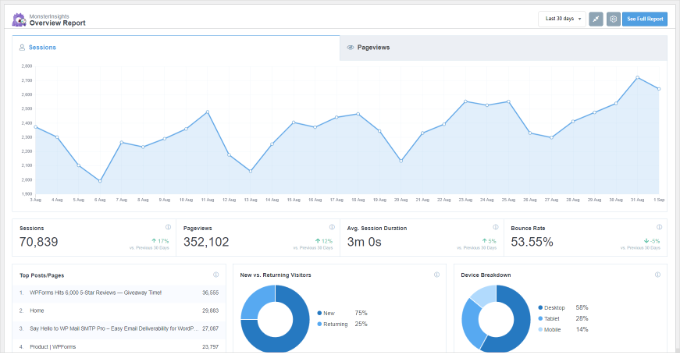
Before we start, please note that Google Analytics doesn’t track WordPress forms by default. You would have to edit the code to track your forms. This can be tricky for beginners, as the slightest mistake can mess up your tracking and break your website.
MonsterInsights removes the need to write code or hire a developer. So, it allows you to set up Google Analytics and track WordPress forms without editing code.
Plus, it easily integrates with all of the most popular WordPress form plugins, like WPForms, Formidable Forms, Contact Form 7, and more.
For this tutorial, we’ll be using MonsterInsights Pro because it includes the Forms addon, dashboard reports, and other advanced tracking features. There is also a MonsterInsights Lite version that you can use to get started.
First, let’s create a MonsterInsights account. On their website, just click the ‘Get MonsterInsights Now’ button. Then, you can just follow through with the on-screen instructions to complete checkout.

After signing up on the MonsterInsights website, you can copy your license key and install the MonsterInsights plugin (which your Pro license will upgrade).
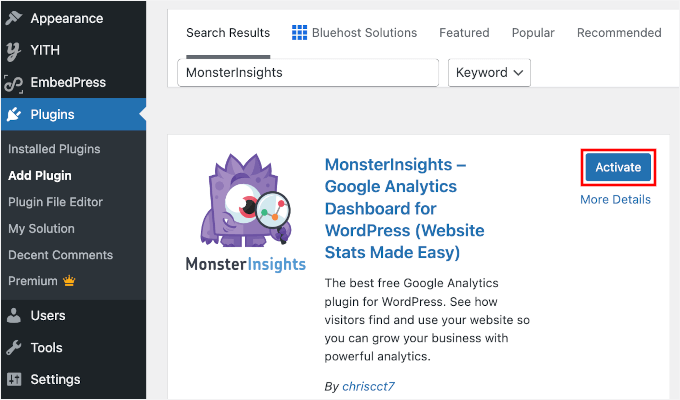
From your WordPress dashboard, go to Plugins » Add Plugin and search for “MonsterInsights.”
On the search results, you can click the ‘Install Now’ button and then ‘Activate’ when it appears. If you need help, feel free to refer to our guide on how to install a WordPress plugin.
Upon activation, you’ll be taken to ‘Insights’ in your WordPress dashboard and see the MonsterInsights welcome screen.
Go ahead and click the ‘Launch the Wizard’ button to configure the plugin and connect it with Google Analytics. By the end of this process, you’ll find a field to enter your license key and activate your MonsterInsights Pro.

For detailed instructions, follow our guide on how to install Google Analytics in WordPress.
With that done, you can head over to the Insights » Addons page and click the ‘Install’ button for the Forms addon.
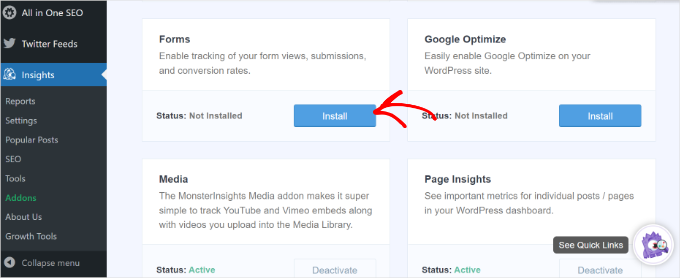
Once the addon is installed, you should see the ‘Status’ change from ‘Not Installed’ to ‘Active.’
MonsterInsights will now automatically detect your WordPress form plugin and track your forms in Google Analytics.
To check the settings, you can head over to Insights » Settings from your admin dashboard and go to the ‘Conversions’ tab.
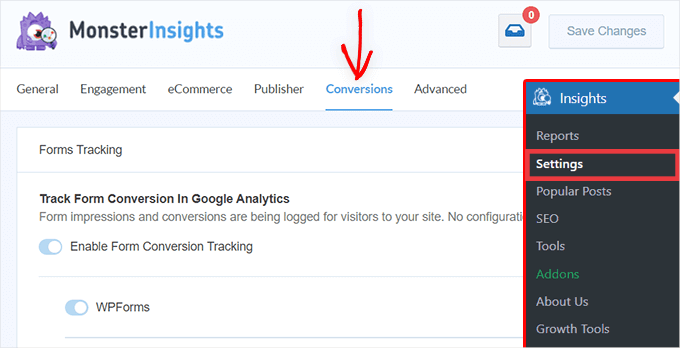
You’ll see that the toggle for the ‘Form Conversion Tracking’ option is already enabled.
Now, are you ready to see how your forms are performing?
Step 2: See How Your WordPress Forms Are Performing
MonsterInsights makes it super simple to see Google Analytics data by showing stats inside your WordPress dashboard. This helps save time, as you can quickly find the data you need to make decisions.
To view the report, head over to Insights » Reports from the admin area, and then click the ‘Forms’ tab.
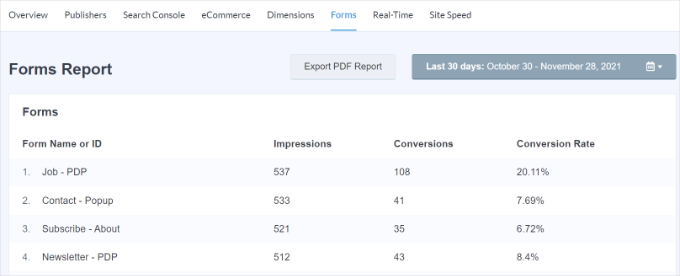
In the report, you’ll see:
- Impressions – The number of people who have viewed your form.
- Conversions – The number of people who completed the form.
- Conversion Rates – For each form on your website.
Now, let’s see how to find your form tracking data directly in Google Analytics 4 (GA4).
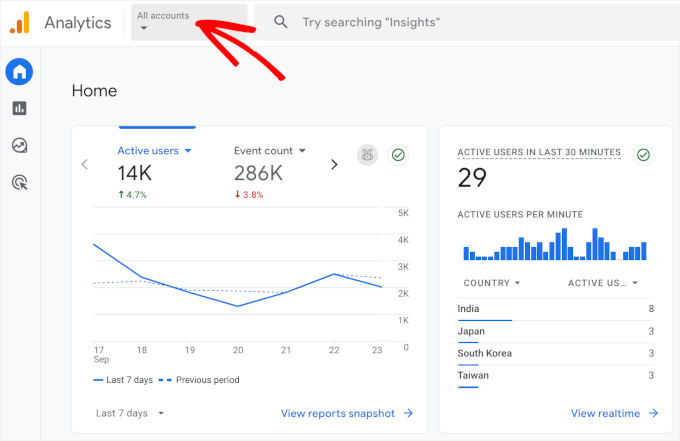
In your Google Analytics account, you can select your website from the menu at the top.
Next, in the left-hand menu, you can go to Reports » Engagement » Events.
In the list of all the events MonsterInsights is tracking for you, look for the form-related events like:
- form_impression – when someone views a form.
- generate_lead – when a form is submitted successfully.
Note that you won’t see these events in GA4 unless you’re using the MonsterInsights Forms addon. The plugin automatically tracks form impressions and submissions for you.
Here’s what it might look like (we’ve checked the boxes for the form-related reports to make it easier to spot for you):
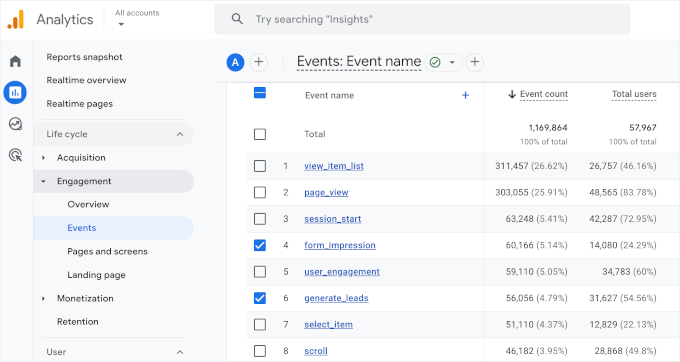
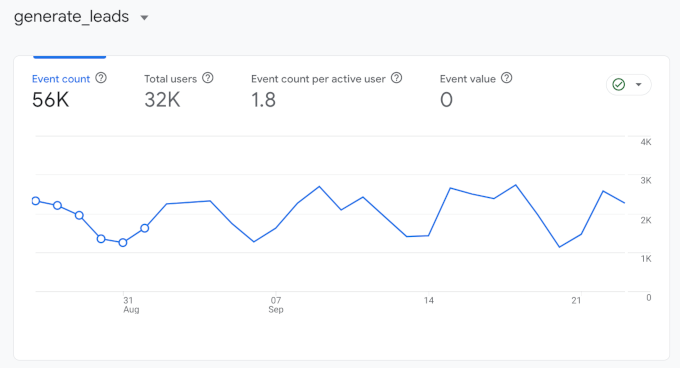
To dive deeper into your form submissions, for example, you can click on the ‘generate_lead’ event.
This will display a detailed report showing the frequency of the event, the total number of users, and the event count per active user. This is how you can confirm that your form conversions are being tracked correctly in GA4.
✋ Pro Tip: It can take 24–48 hours for new data to appear in your Google Analytics reports, so don’t worry if you don’t see your form submissions right away!
Besides Google Analytics, there’s another way to see how people interact with your forms. Let’s take a look.
Bonus Tip: Track User Journey in WPForms
If you’re using the WPForms plugin to add a contact form or any other type of form, then you can see what each user did on your site before submitting a form.
WPForms is the best contact form plugin for WordPress. It offers a User Journey addon that shows the steps your visitors took before submitting a form. For example, you can see the pages they viewed or opt-in campaigns they clicked.
WPForms has been our go-to tool for creating forms, which include our contact form and annual user surveys. For a deeper look into all its features, see our extensive WPForms review.
Before you start, you’ll want to get your WPForms account first. On their website, click on the ‘Get WPForms Now’ button and complete your checkout.
💡 Note: Do note that you’ll need the WPForms Pro version to use the User Journey addon. If you want to see how it works, there’s a free version of WPForms you can use.
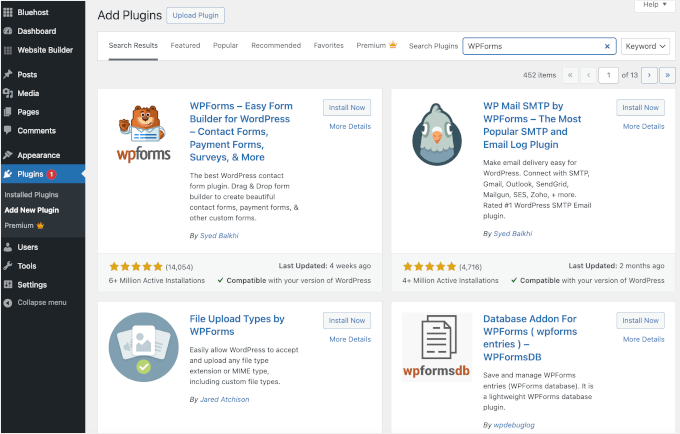
After that, you can install and activate the WPForms plugin, which the WPForms Pro will upgrade. Just go to Plugins » Add New Plugin and search for WPForms.
In the search result, simply click the ‘Install Now’ button and ‘Activate’ when it appears.
For more details, please see our tutorial on how to install a WordPress plugin.
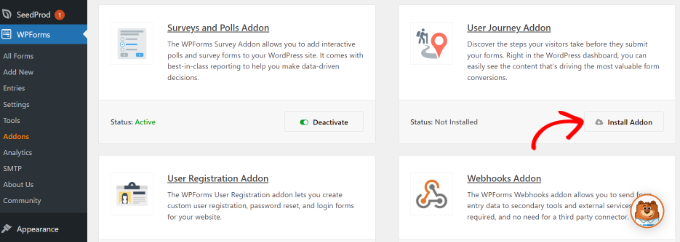
Next, you can head over to WPForms » Addons from your WordPress admin area.
Then, navigate to the User Journey Addon and click the ‘Install Addon’ button.
Once the addon is installed, let’s head over to WPForms » Entries.
Then, you can select a WordPress form to see the user journey.
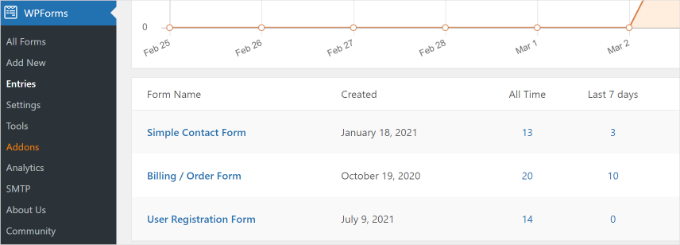
For this tutorial, we’ll view the Simple Contact Form entries.
Next, you can click the ‘View’ button under ‘Actions’ for any entry and see the user’s steps before submitting the form.
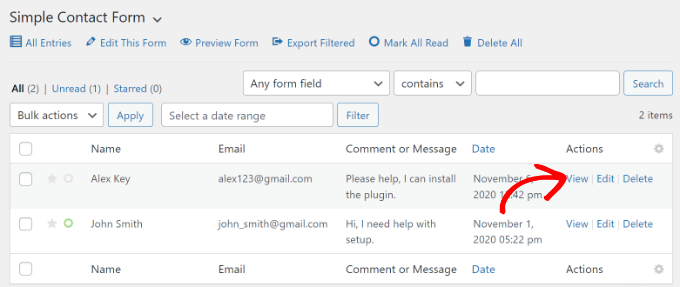
On the next screen, you’ll see details of your user.
Simply scroll down to the ‘User Journey’ section to see their path before completing the contact form and submitting it.
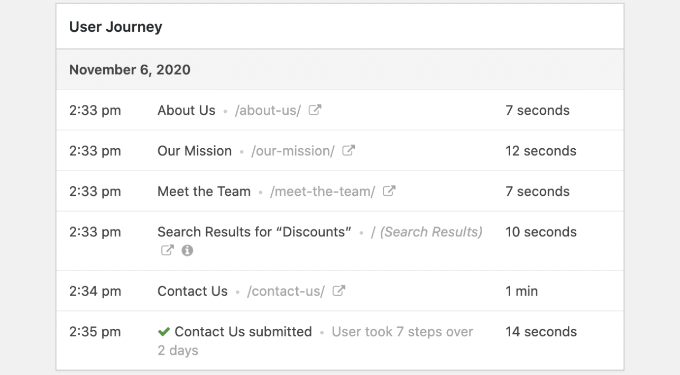
Using the data, you can better understand your users and see which pages or campaigns they visit before converting them into leads.
This way, you can promote your forms on pages that people view the most and increase your marketing campaigns’ visibility to get more leads.
For more details, please see our tutorial on how to track user journeys on WordPress lead forms.
🧑💻 Get WPForms Today: With its powerful User Journey addon, lets you get insights into the exact pages and posts a visitor looked at on your site before they submitted a form. Start tracking user journeys to better understand your audience!
Frequently Asked Questions About Form Tracking
Why aren’t my form submissions showing up in Google Analytics?
This usually happens for a few common reasons. First, make sure the MonsterInsights Forms addon is installed and active.
Next, check that your Google Analytics account is properly connected in the MonsterInsights settings. If you’re using a caching plugin, clear your site’s cache – sometimes tracking can be delayed because of caching.
Can I track forms without using a plugin?
Yes, you can. It’s possible to set up form tracking manually with custom event-tracking code, often using JavaScript or Google Tag Manager.
That said, this method is pretty technical and not beginner-friendly. Even a small mistake in the code can stop your tracking from working. This is why we recommend using a plugin to handle it automatically.
Will tracking WordPress forms slow down my website?
No, if you’re using a performance-optimized plugin like MonsterInsights. It loads tracking scripts asynchronously, which means they run in the background alongside other site elements. This way, your page load speed won’t be affected.
What’s the difference between a form ‘impression’ and a ‘conversion’?
A form impression is counted when someone views your form. A conversion is only counted when the form is actually submitted.
Looking at both helps you calculate your form’s conversion rate, so you can see how effective your form is at getting visitors to take action.
Other Helpful Guides for Using WordPress Analytics
We hope our article helped you learn how to set up WordPress form tracking in Google Analytics.
You can also see our guides on:
- How to Do A/B Split Testing in WordPress
- How to Set Up WordPress Heatmaps (Easy Ways)
- Important Metrics to Measure on Your WordPress Site
- How to Keep Personally Identifiable Info Out of Google Analytics
- Best Data Visualization Plugins for WordPress
If you liked this article, then please subscribe to our YouTube Channel for WordPress video tutorials. You can also find us on Twitter and Facebook.




Moinuddin Waheed
This is one of the best aspect of monster insights that it helps us track the website in its entirety.
i used to think that forms as such can’t be tracked this way but having a tracking mechanism for forms data and having right insights will help improve in forms conversion.
This guide is very helpful for employing forms tracking in our website.