


Sometimes the most helpful thing you can do for your readers is point them to the right resource – even if it’s not on your own WordPress site.
But by default, WordPress doesn’t make that easy. Every post title links back to your post, even when you just want to send users straight to an external tool, article, or guide.
This creates unnecessary friction: readers have to click your post, scan it, then click again to reach the actual resource. While small, these inconveniences can harm your overall user experience.
In this guide, we’ll show you how to link your WordPress post titles directly to external URLs using WordPress plugins: Page Links To and WPCode. After extensive testing, we found that they offer the cleanest, easiest way to do this – no theme edits required. 🙌
When Do You Need to Add Links in the WordPress Post Title?
There are several situations where linking your WordPress post, page, or custom post type title to a custom URL comes in handy.
Let’s say you offer ad space on your WordPress site that resembles a regular post. The title can link to the advertiser’s website instead of your own content, creating a clear path for users.
Or maybe you run a news aggregator website featuring both your own content and curated articles from other sources. Ideally, your homepage’s news section would automatically link the article titles to the right destination, whether that’s on your own site or an external one.
Alternatively, perhaps your homepage showcases products, but clicking them leads to individual product pages. You might prefer to link the titles directly to the category’s product catalog page for a broader overview.
With all that in mind, we’ll show you how to link post titles in your WordPress website to external URLs. You can use these quick links to navigate through the tutorial:
Ready? Let’s get going!
Method 1: Using the Page Links To Plugin (Beginner-Friendly)
This method is perfect for beginners or anyone who wants a simple solution to link their post or page title to an external URL. Plus, it’s a great option if you want the title to link to custom URLs across your entire website.
First, you’ll need to install the Page Links To plugin. We have a helpful guide on how to install a WordPress plugin if you need a step-by-step walkthrough.
⚠️ Disclaimer: We are aware that this plugin has not been officially tested with the last 3 major WordPress updates. That said, we’ve personally tested it and found that it works well in our environment.
Please note that results may vary depending on your specific setup. And if you’re worried about using an unmaintained plugin, see our experts’ opinion on whether it’s safe to use an outdated plugin.
Once the plugin is installed and activated, you’ll want to open up a new post, page, or custom post type or edit an existing one using the block editor.
You’ll now see a new tab called ‘Page Links To’ in the ‘Post Settings’ sidebar.
Here, there will be 2 options: ‘Its normal WordPress URL’ (the default) and ‘A custom URL.’ Since we want to link to an external site, choose ‘A custom URL.’
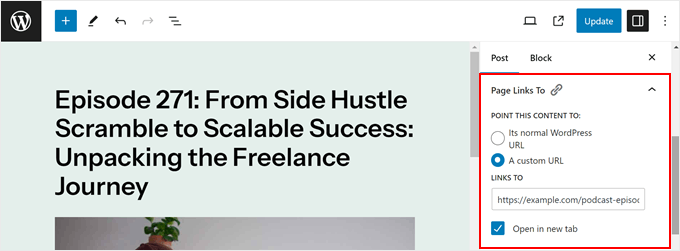
Now, simply paste the full external URL (including the https://) into the ‘Links To’ field. For example, if you were linking to the WPForms website, then you would enter ‘https://wpforms.com.’
There’s also a checkbox for ‘Open in new tab’ if you want visitors to the external site to keep your page open in the original tab when they click the title. You can tick that box if needed.
Finally, go ahead and click ‘Update’ or ‘Publish’ to save your changes.
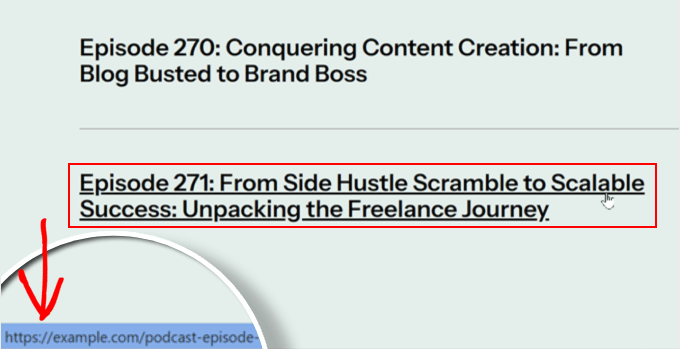
If you go to your WordPress blog page, homepage, archive page, or anywhere else where your post or page title is displayed as an excerpt, you can try hovering over the title.
You will see that it now links to the external URL you specified.
Method 2: Using Custom Code (More Control)
This method is ideal for users who are comfortable with code and people who want more control over which pages their post titles link to a different URL.
For example, you may want the post title to link to an external URL if it’s viewed in the single post template but not when it appears on the homepage or archive pages.
To make things safe, we will use WPCode instead of editing theme files directly. This plugin makes it secure to insert custom code into WordPress, as it can prevent you from breaking your website if there are errors in the code.
Our business partners actually use WPCode to add and manage their custom code snippets. You can check out our full WPCode review to learn more about the plugin.
Step 1: Install and Set Up WPCode
First, let’s install and activate the WPCode plugin. We have a guide on how to install a WordPress plugin if you need help with that.
📝 Note: In this guide, we’ll use the free version of WPCode, since it includes everything we need. However, you may want to explore WPCode Pro to unlock advanced features like full code revision history and scheduling.
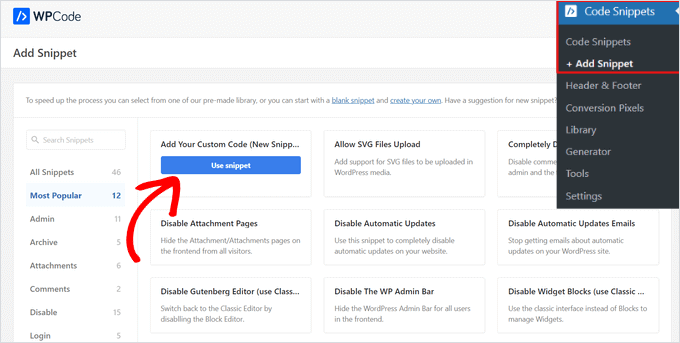
Once activated, you can navigate to Code Snippets » + Add Snippet. Here, simply hover over ‘Add Your Custom Code (New Snippet)’ and click the ‘Use snippet’ button.
Next, you’ll change the ‘Code Type’ from HTML Snippet to ‘PHP Snippet.’
After that, you’ll arrive at the code editor page.
The first thing to do here is to give your snippet a clear name, like ‘External Links from Post Titles,’ so that you can easily identify it later on.
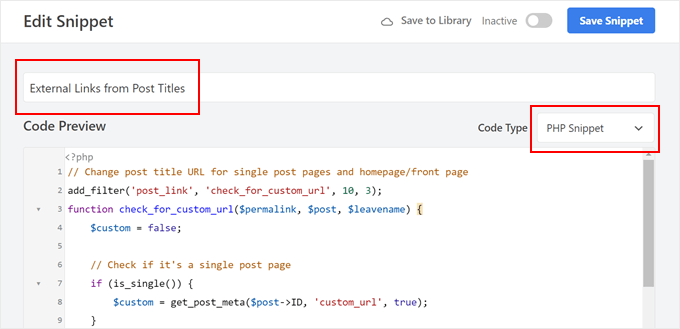
Now, you can choose one of the following code snippets:
Option 1: Make All Post Titles Link to External URLs
This code snippet will modify the URL of your post titles across various locations on your site, including single posts, the homepage, and archive pages.
The code checks if it’s a single post page, homepage, front page, or archive page. If it is, and you’ve set a custom URL using the steps mentioned later, the code will use that URL instead of the default permalink.
In the next step, we will add a custom field named ‘custom_url’ in the block editor to specify the external URL for each post:
// Change post title URL for single post pages and homepage/front page
add_filter('post_link', 'check_for_custom_url', 10, 3);
function check_for_custom_url($permalink, $post, $leavename) {
$custom = false;
// Check if it's a single post page
if (is_single()) {
$custom = get_post_meta($post->ID, 'custom_url', true);
}
// Check if it's the homepage, front page, or archive pages
elseif (is_home() || is_front_page() || is_category() || is_tag() || is_archive()) {
$custom = get_post_meta($post->ID, 'custom_url', true);
}
// Return the custom URL if set, otherwise return the default permalink
return ($custom) ? esc_url($custom) : $permalink;
}
Let’s say you want this code to run only on the front page and not on the archive pages.
Then, you can just remove the code that says is_category(), is_tag(), or is_archive(), like so:
// Change post title URL for single post pages and homepage/front page
add_filter('post_link', 'check_for_custom_url', 10, 3);
function check_for_custom_url($permalink, $post, $leavename) {
$custom = false;
// Check if it's a single post page
if (is_single()) {
$custom = get_post_meta($post->ID, 'custom_url', true);
}
// Check if it's the homepage, front page, or archive pages
elseif (is_home() || is_front_page()) {
$custom = get_post_meta($post->ID, 'custom_url', true);
}
// Return the custom URL if set, otherwise return the default permalink
return ($custom) ? esc_url($custom) : $permalink;
}
Option 2: Make Post Titles in Single Post Templates Link to External URLs
This code is useful if you want only the post title in the single post template to link to external URLs, not the ones on other pages like the homepage, archive pages, and so on.
This way, the user can still visit the blog post and read it, but they can also click on the post title to check out another resource.
An example of this is a podcast website. You can use your WordPress site to publish the summaries or transcripts of the episodes, but host the audio on Spotify.
With this method, you can publish your podcast episodes on your site, but direct people to Spotify when they click on the post title.
The code below checks if the current request is for a single post. If it is, and you’ve set a custom URL using the custom field, it will use that URL in the post title:
// Hook into the 'post_link' filter to modify the permalink of a post.
add_filter('post_link', 'check_for_custom_url', 10, 3);
// Define the callback function for the 'post_link' filter.
function check_for_custom_url($permalink, $post, $leavename) {
// Check if the current request is for a single post.
if (is_single()) {
// Retrieve the value of the 'custom_url' custom field for the current post.
$custom = get_post_meta($post->ID, 'custom_url', true);
// If the custom field has a value, use it as the permalink. Otherwise, use the default permalink.
return ($custom) ? esc_url($custom) : $permalink;
} else {
// If the current request is not for a single post, return the default permalink.
return $permalink;
}
}
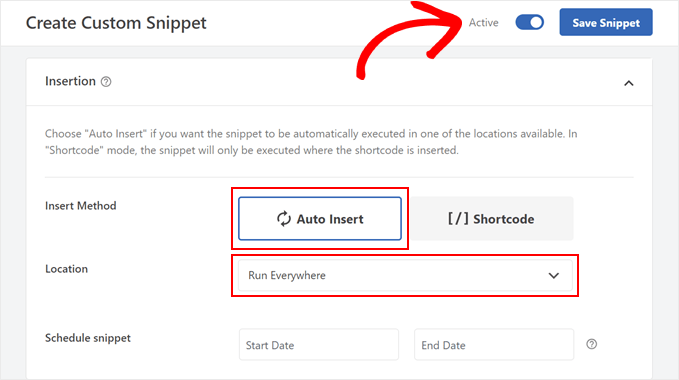
Once you’ve pasted the code snippet, let’s scroll down to the ‘Insertion’ section.
From here, you’ll want to make sure the ‘Insert Method’ is set to ‘Auto Insert’ and the ‘Location’ is set to ‘Run Everywhere.’
Finally, go ahead and activate the snippet using the toggle and click ‘Save Snippet.’
Step 2: Enable Linking in Titles (Block Theme Users Only)
If you are using a block theme, there’s an extra step you should take to ensure the code works.
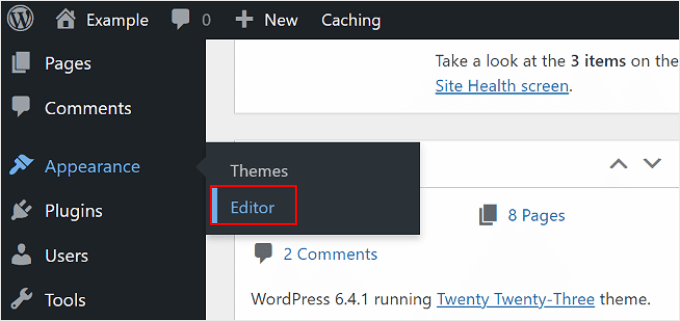
First, you can go to Appearance » Editor to open the Full Site Editor.
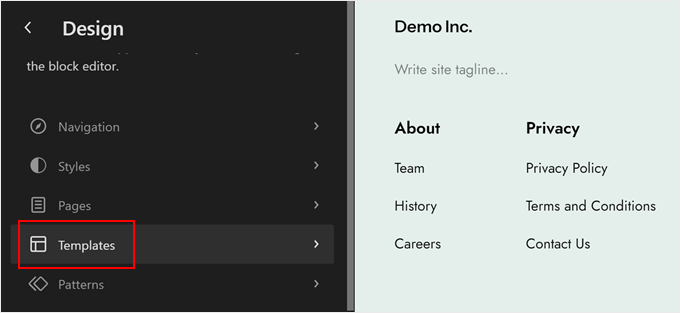
You will now see some options to edit your block theme.
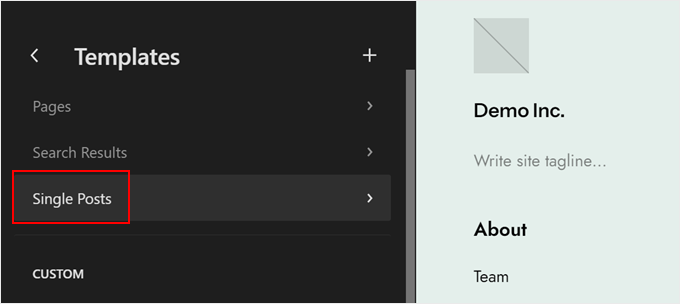
Go ahead and click on ‘Templates.’
At this stage, you’ll want to locate the ‘Single Posts’ template.
Once you’ve found it, simply click on it to select it.
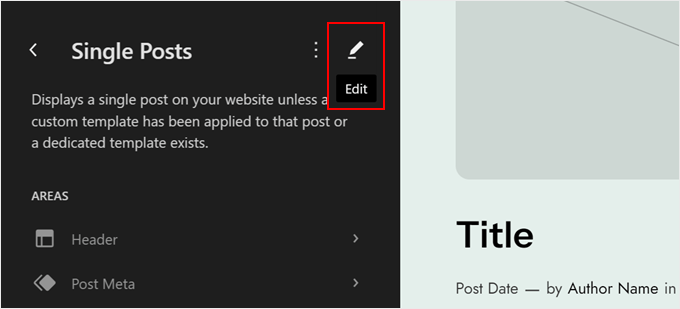
Now, you’ll need to click the pencil ‘Edit’ icon.
This will open the block editor.
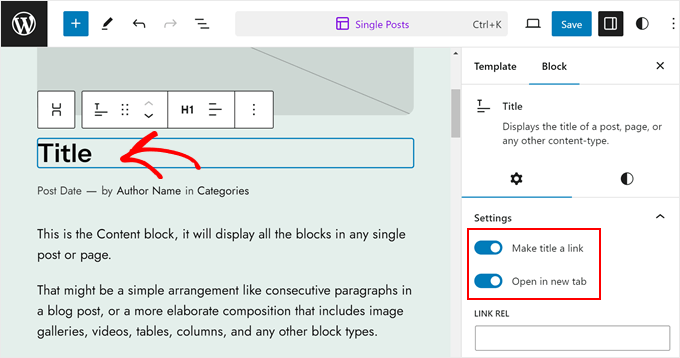
Once inside the editor, go ahead and click on the ‘Title’ block.
In the ‘Block Settings’ sidebar, enable the ‘Make title a link’ option and the optional ‘Open in new tab’ option. Then, leave the ‘Link Rel’ field empty.
After that, just go ahead and click ‘Save.’
Step 3: Add a New Custom Field
Now, it’s time to add the ‘custom_url’ custom field in the block editor.
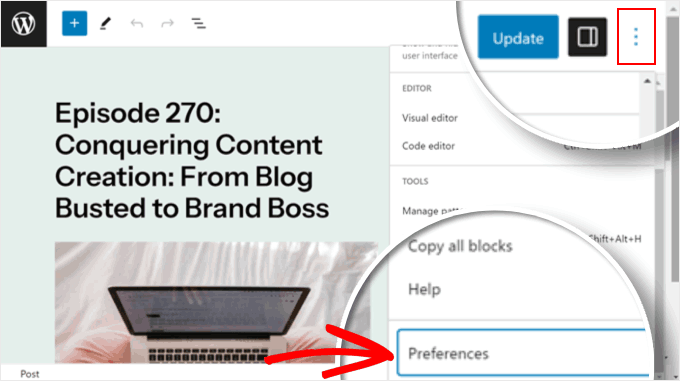
Inside the editor, you can click the three-dot menu in the top right corner of the block editor and select ‘Preferences.’
From here, you’ll want to navigate to the ‘General’ tab.
After that, you can scroll down to ‘Custom fields.’ Enable it and refresh your page by clicking ‘Show & Reload Page.’
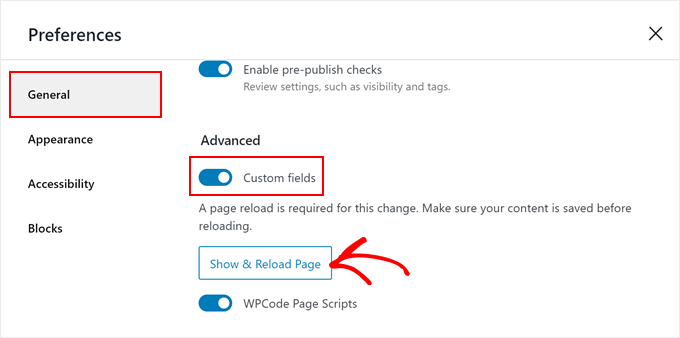
A new custom field section will appear.
You need to click ‘Enter New’ there.
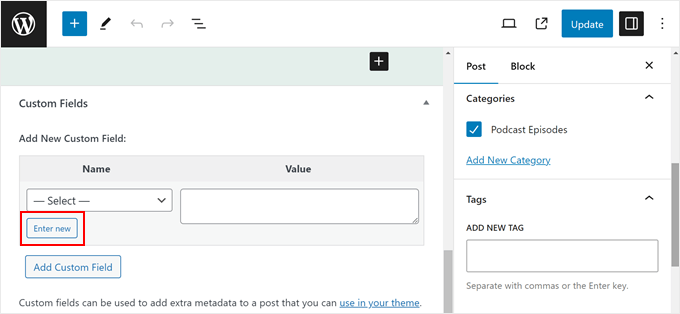
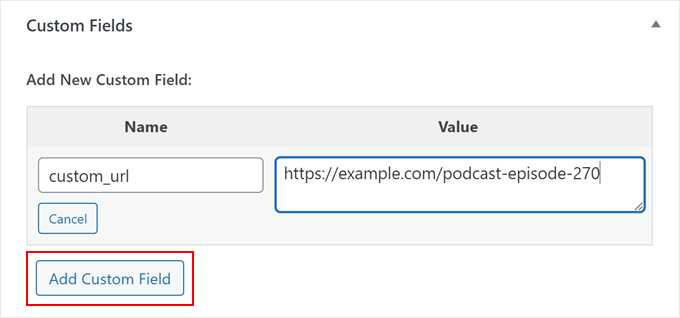
In the ‘Add New Custom Fields’ section, let’s enter ‘custom_url’ or whatever custom field you specified in the code earlier in the ‘Label’ field.
In the ‘Value’ field, you can paste the external URL you want to link to.
Once done, just click ‘Add Custom Field.’
Next, simply click ‘Update’ or ‘Publish’ to make your changes live.
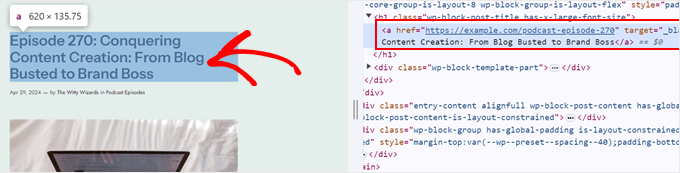
Finally, you can visit your website to see if the code works. You can hover over your post title or use the inspect tool to check.
Here’s what the post title’s URL should look like if you use the code from option 2:
Bonus Tip: Will Adding External Links in Post Titles Affect SEO?
Adding external links directly in your post titles has minimal impact on search engine optimization (SEO).
However, there are a few things to consider. When you link out to another website, you are essentially telling search engines that the other site might be a good source of information. Some of your “link juice” might pass to the external site, but it’s generally a small amount.
That said, if your titles contain many external links, they might confuse users or make them think they are leaving your WordPress site immediately.
If you still want to use external links in titles, we recommend only linking out when the external site truly adds value to your content, is high-quality, and is highly relevant to your audience.
You can also add the ‘nofollow’ attribute to your external links in the title code. This tells search engines not to follow those links for ranking purposes.
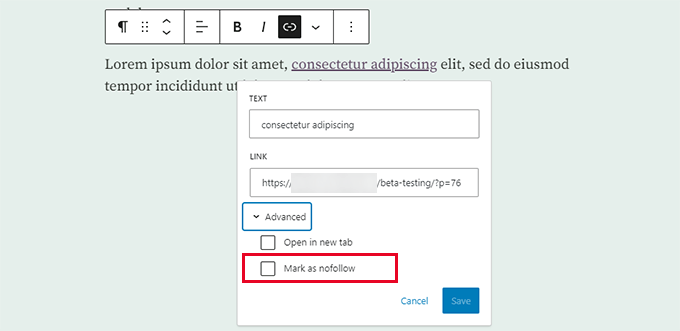
On the other hand, if you’re reading this tutorial to direct users from your old website to your new one, you might want to consider using redirects instead.
Redirects tell search engines (and users) that a particular page has permanently moved to a new location. This can be beneficial for WordPress SEO because the link juice from your original page will transfer to the new location.
All in One SEO (AIOSEO) is a WordPress plugin that can help you do just that. Its user-friendly interface makes it easy to set up redirects for specific posts or pages. No code is required, making this plugin beginner-friendly.
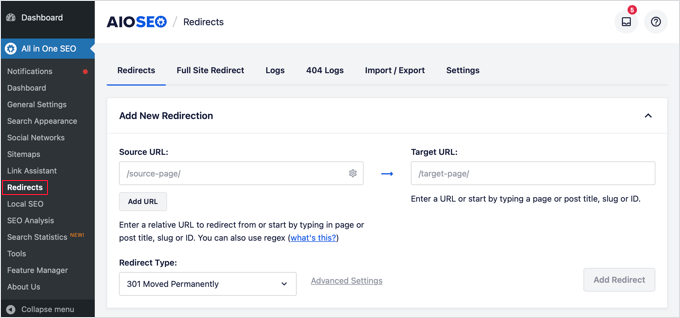
You can learn more about the topic in our beginner’s guide to setting up 301 redirects.
FAQs About Linking to External Sources in the WordPress Post Title
If you’re just getting started (or wondering about the impact of linking post titles externally), these common questions can help clear things up. Let’s walk through the key things you need to know.
Can I link a WordPress post title to an external URL without a plugin?
By default, WordPress doesn’t support this feature. You’d need to modify your theme’s template files or use custom code, which isn’t ideal for most users, especially beginners. Plugins like WPCode or Page Links To offer a much easier and safer solution.
Will changing the post title link affect SEO?
It can – but not necessarily in a bad way. If you’re linking to a high-quality, relevant external resource, it can improve user experience and even improve SEO indirectly. Just make sure you’re not replacing valuable content with thin posts that only link out.
Is it better to open external links in a new tab?
Yes, in most cases. Opening external links in a new tab keeps your site open in the user’s browser, which can reduce bounce rate and improve session time.
What happens to the original post content if I link the title externally?
The post itself still exists and can be indexed by search engines, but readers who click the title will be taken to the external URL.
You can still add internal content for SEO, summaries, affiliate disclosures, or context.
Can I use this method for affiliate links?
Absolutely. Linking directly to affiliate URLs from post titles is a common use case. Just make sure you’re following proper disclosure guidelines and using a nofollow or sponsored attribute if required.
What plugins will work with custom post types?
WPCode (with the right snippet) and Page Links To work with custom post types, as long as the plugin or theme registers them properly. Always test to make sure it behaves as expected.
What if I switch themes – will the external link still work?
Yes. Since the link is stored in the post meta (not hardcoded in the WordPress theme), your custom post title link will continue to work even after switching themes.
We hope this article helped you learn how to link to external links from the post title in WordPress. You may also want to check out our ultimate guide to internal linking and our expert picks of the best related posts plugins for WordPress.
If you liked this article, then please subscribe to our YouTube Channel for WordPress video tutorials. You can also find us on Twitter and Facebook.


John
Will this work on images relating to the post titles as well? So clicking on either image or post title takes you to the page on the external site?
WPBeginner Support
The plugin would do that for your featured image if that is what you mean.
Admin
Alessandro
is there a way to link post titles to custom links, but only if they are present in one page (so not for the whole site)?
Example: search results page of plugins like search & filter or toolset
WPBeginner Support
We do not have a recommended method for setting that up at the moment.
Admin
Kam
Thank you. This is really helpful. Would this plugin work for automated RSS feeds? i.e. for aggregator sites? I’m assuming no, as the titles are constantly changing. I’m trying to take the user to the original source with one click on the title.
WPBeginner Support
You would want to reach out to the support for the aggregator tool you are using for the options you have available.
Admin
Sing
Is the above method and Content syndication are one and the same? Or both are different topic.
WPBeginner Support
That is a different topic
Admin
Maksym
Amazing! This is what I was looking for. Thank you so much
WPBeginner Support
Glad our article was helpful
Admin
mostafa
Thank you for this tutorial. It helped me a lot but how to use this for cpt (in my case a testimonial) and open the link in a new tab . Thank you.
WPBeginner Support
You’re welcome
Admin
Brandon H.
You saved my website! Thank you so much!!
mehmet
Thank you for useful information.
My English is a little bad.
I want to use this kind of plugin on my site
But the bold type in the text will be automatically linked to the text.
Links to other posts within the site
Is there such an extension?
kzain
No direct plugin, but try internal linking or keyword optimization plugins. Might help!
martin
Thanks for that, pretty helpful. Found a lot of help on this site already!
Best from Italy,
Martin
Tammy
Is there a way to require the external url to be unique? I’m using wp-directory and would love to be able to make this custom field “unique required”
Melch Wanga
Its a good post indeed. In response to Toni, in my case I am developing a website for film production company and I have “Equipment Hire” as a services in ‘service’ custom post type. Equipment Hire is quite huge and I am using WooCommerce to add the various equipment hence I have Shop page that lists all the equipment available for hire. The trick is to ensure that whenever a user clicks on “Equipment Hire” service, they are directed to the Page set as the Shop page instead of the default Equipment Hire single post page.
Mel
Hi, how is this going to affect SEO? Can we add rel=”nofollow” to an external link?
Thanks
Ariel
great post!
Palashtd
Recently I have started blogging.
I could think how to add External Links from the Post Title. But finally I got an awesome tip from this post. I have tested by following this tutorial. I am happy to get these tips because it’s working for me.
Thanks for sharing this information.
Toni Weidman
I’m not sure why you would want to do this. Can you clarify what the purpose of this process is. Thank you.