


I remember the struggle of trying to get Pinterest traffic without ruining my blog posts. The tall, vertical images looked awkward and cluttered up my content.
It felt like I had to choose between a clean layout and images that actually get shared. Plus, large graphics can slow down your site, which is bad for SEO.
We found a solution that lets you add Pinterest-optimized images that remain invisible to your regular readers. This gives you the best of both worlds without compromising your design.
Here is how to hide Pinterest images in your WordPress blog posts.

In this article, we will show you the best way to add hidden Pinterest images to your WordPress posts using a plugin. You can use the links below to jump straight to the section that interests you most.
Add Pinterest-Friendly Images to WordPress (Without Ruining Your Blog’s Layout)
By adding a Pinterest-friendly image to your blogs, you can encourage visitors to pin your content. This can help you stand out in the Pinterest pin feed and search results and increase your blog traffic.
That’s why so many website owners verify their WordPress website with Pinterest.
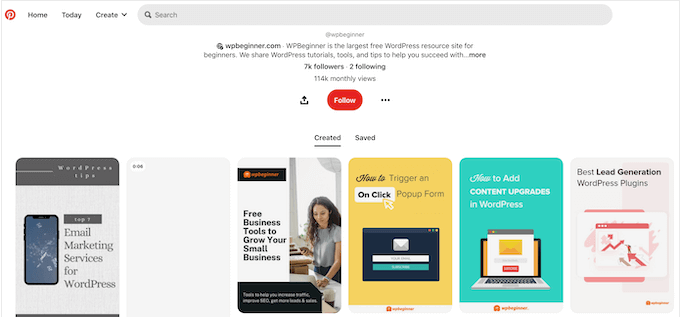
However, the ideal Pinterest image is tall and narrow, with a recommended aspect ratio of 2:3.
These vertical images can look strange in standard WordPress blog layouts and image galleries. These large images can also slow down your website, which will affect the user experience and could even hurt your image SEO.
Too often, website owners compromise by using images that don’t look great when shared on Pinterest. Other bloggers ignore Pinterest completely.
However, this means you’re missing out on a potential source of traffic. Instead of neglecting this social media platform, we recommend creating images that are optimized for Pinterest and then hiding them on your site.
In this way, you can make sure your graphics look great on Pinterest, without ruining your blog’s layout or slowing down your site.
It’s an easy fix, for a frustrating problem!
How to Hide Pinterest Images in WordPress
The best way to hide Pinterest images in your blog posts is by using WP Tasty Pins.
WP Tasty Pins is the best WordPress Pinterest plugin for image SEO. It lets you upload a separate image that’s optimized for Pinterest, and then enable ‘force pinning’ that image. With that done, the visitor can only pin this exact graphic, no matter what image they originally clicked.
In addition, WP Tasty can add ‘Pin It’ hover buttons over all your images and create fully customizable ‘Pin It’ banners. This actively encourages visitors to share your pictures across social media.
First, you’ll need to install and activate the plugin. If you need help, then please see our guide on how to install a WordPress plugin.
Upon activation, just go to Settings » Tasty Pins. You need to add your license key in the field toward the top of the screen to receive automatic updates and support.
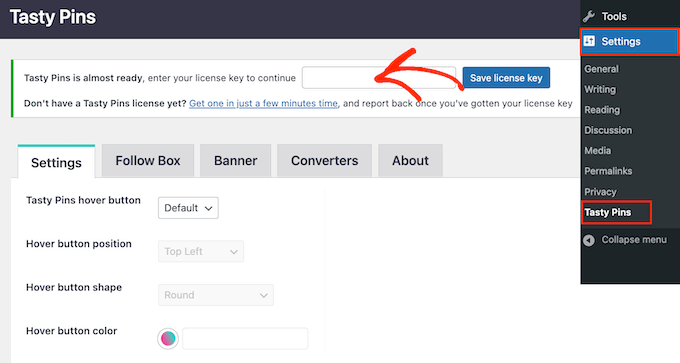
You will find this information in your account on the Tasty Pins website and in the confirmation email you got when you purchased Tasty Pins.
With that done, click on the ‘Save license key’ button.
You can now add images that are optimized for Pinterest, but don’t appear on your WordPress website. To do this, simply open the page or post in the WordPress editor and then scroll to the ‘Tasty Pins’ section.
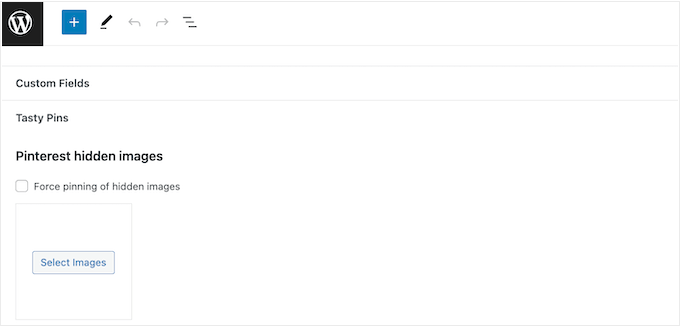
To start, click on ‘Select Images’ and then choose the image you want to use when a visitor attempts to share this content to Pinterest.
Pro Tip: This plugin may hide the Pinterest image, but lots of large, high-resolution images can still affect your site’s loading speeds. With that in mind, it’s still important you optimize your images before uploading them to WordPress.
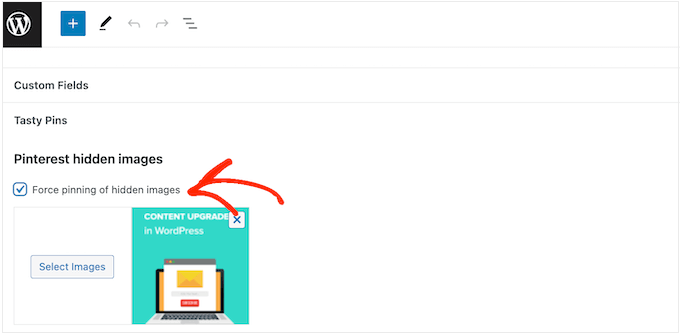
You then have the option to force pin this image. As already mentioned, this exact graphic will be pinned in Pinterest, no matter what image the visitor originally clicked on.
To force pin this image, check the box next to ‘Force pinning of hidden images.’
Similar to how WordPress alt text helps Google understand your images, this description helps your content rank higher in Pinterest search results.
However, keep in mind that Pinterest users will see the title and description when they are scrolling through their feed, so you’ll also want to make this information eye-catching.
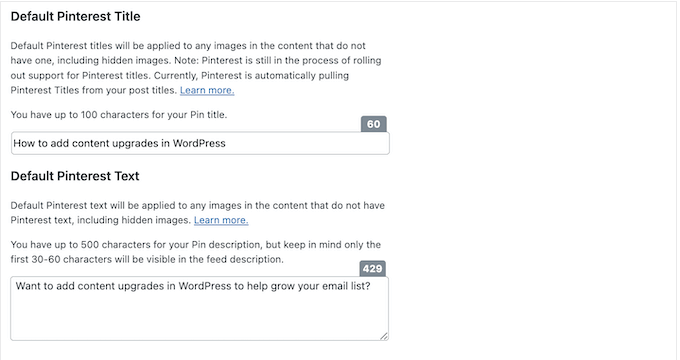
When you are happy with the information you’ve entered, either click on ‘Update’ or ‘Publish’ to make your changes live.
Now, visitors will only see the Pinterest image when they save your site to Pinterest.
FAQs About Hiding Pinterest Images in Your WordPress Blog Posts
In this guide, we showed you how to improve your website’s performance and layout by hiding Pinterest images. If you still have questions, then here are our FAQs about hiding Pinterest images in your WordPress blog posts.
Can I Hide Pinterest Images in WordPress Without Breaking Terms of Service?
You might have heard that hiding Pinterest images on your WordPress blog goes against the Pinterest Terms of Service (TOS). We can confirm this isn’t true.
You are allowed to hide Pinterest images on your website as long as you meet the following criteria:
- The Pinterest image matches your post’s content.
- The Pin description matches your post’s title or content.
Essentially, you can hide images on your WordPress website as long as the image you are hiding is relevant to your page. Follow these guidelines, and you won’t have any problems.
Do Hidden Pinterest Images Impact My Google Ranking?
Google has to index your content before it can properly rank your site. This means the search engines need to be able to crawl your site and see all your pages and media.
For this reason, Google isn’t necessarily a big fan of hidden images or hidden content. In fact, hidden content is often associated with spam websites and black hat SEO scams.
The great news is that plugins like Tasty Pins hide the image from your visitors, but the image is still in the website’s code. This means search engines like Google can still see and index the image, understanding that it’s relevant to your page.
Because you aren’t trying to deceive search engines, this method is widely considered safe and won’t negatively impact your Google ranking.
You can keep an eye on your search traffic with a Google Analytics plugin like MonsterInsights. If you want to track specific keyword rankings, you can use an SEO plugin like All in One SEO.
Additional Resources to Boost Your Pinterest Marketing
Now that you know how to add hidden Pinterest images, you can explore other ways to improve your marketing efforts on the platform. These guides will help you get even more traffic from Pinterest.
- How to Add a Pinterest “Pin It” Button in WordPress
- How to Track User Engagement in WordPress (Step by Step)
- Is Pinterest Dead? How to Supercharge Pinterest Traffic to Your Blog
If you liked this article, then please subscribe to our YouTube Channel for WordPress video tutorials. You can also find us on Twitter and Facebook.




Daniel
Is there not a free way to do this with simple html (probably the same html that Tasty Pins injects)? I tried using the “data-in-media” html tag per the instructions from another site, but for some reason it’s not working.
WPBeginner Support
What needs to be changed is not something we would recommend for beginners which is why we do not have an alternative available at this time but if we find a method we would recommend, we will be sure to share.
Admin
Ismail
Hello, I’m wondering if there’s any other free alternative to this plugin as Shared Counts – Pinterest Image needs to work with Shared Counts plugin. Thanks.
WPBeginner Support
We will take a look into other alternatives but for plugin compatibility questions we would recommend reaching out to the support for the plugin you are using and they should have a recommendation
Admin
Micki
Thank you for your help.
WPBeginner Support
You’re welcome!
Admin
Micki
In the WordPress plug-in library, the Shared Counts-Pinterest image plug in is showing as not having been updated for two years and not tested with my version of WordPress. Is it safe to install a plug in that hasn’t been updated in 2 years? I really want to install it but don’t want to break anything on my site.
Thank you so much for all of the information you provide.
WPBeginner Support
The plugin should still be working, for the warnings you are receiving we would recommend taking a look at our recommendations below!
https://www.wpbeginner.com/opinion/should-you-install-plugins-not-tested-with-your-wordpress-version
Admin