


The ‘Error too many redirects’ issue is one of the most common WordPress errors, and you can usually fix it in a few minutes.
The error simply means that your website is stuck in a redirect loop, and it can even lock you out of your WordPress admin area.
In this article, we will show you how to easily fix the ‘Error too many redirects’ issue in WordPress, step by step, even if you can’t log in.
Quick Answer: How Do I Fix the Too Many Redirects Error in WordPress?
Clear your browser cookies first. If the error stays, it is almost always one of three settings: your WordPress Address and Site Address have to match exactly, Cloudflare’s SSL mode has to be set to Full, and / or your .htaccess file may need resetting.
You can do all of that even if you are locked out of your dashboard, by editing wp-config.php over FTP.
What Causes the Too Many Redirects Error in WordPress?
A redirect loop happens when page A sends your browser to page B, and page B sends it straight back to page A. Your browser tries again and again, gives up after about 20 attempts, and shows the error instead of your website.
Redirects themselves are normal. WordPress and many plugins use them to create permanent 301 redirects and fix 404 errors. The problem starts when two redirect rules point at each other.
This error usually appears immediately after one of these actions, not because the action is wrong, but because a setting was configured incorrectly while doing it:
- You moved the site to HTTPS or installed an SSL certificate.
- You turned on Cloudflare (or another reverse proxy / CDN).
- You installed an SSL plugin or a redirect-manager plugin.
- You edited the site URL, migrated hosts, or pasted a ‘force HTTPS’ rule into .htaccess.
Plugins that fix the SSL insecure content issue or a WordPress caching plugin can also cause this error.
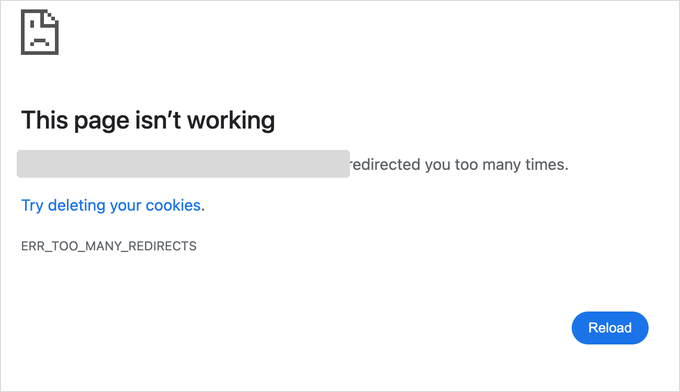
This is how the ‘ERR_TOO_MANY_REDIRECTS’ message looks in Google Chrome.
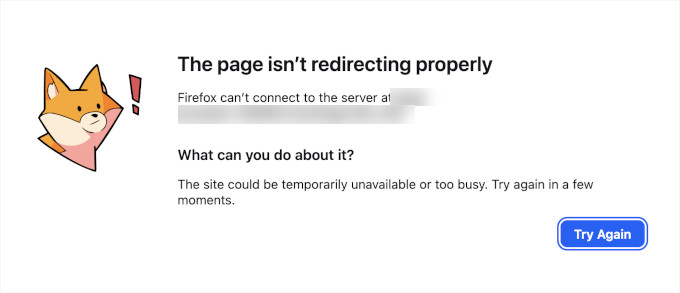
This is how the error looks in Firefox with the message ‘The page isn’t redirecting properly’.
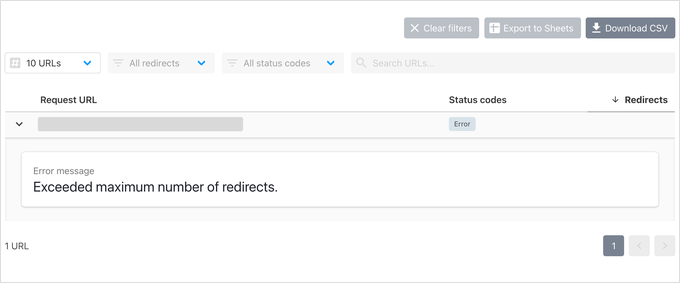
The error page does not tell you what causes the loop. To find out the issue, you can use a free tool like httpstatus.io, enter your website URL and look at the redirect chain.
A healthy site shows one 301 (a permanent redirect) ending in a 200 status code, which means the page loaded normally.
A broken site shows a long chain of 301s bouncing between the same two URLs, and those two URLs tell you what cause the issue. For example, if they differ by http and https or www and non-www, then you can follow the steps below to fix them.
Important: Some of the fixes below change your site’s core files and database. Before you change anything, please create a backup. You can follow our guide on how to make a WordPress database backup manually.
Here are the steps we will cover:
- Clear Your Browser Cache and Cookies
- Make Your WordPress Address and Site Address Match
- Fix Cloudflare’s SSL Setting
- Reset Your WordPress .htaccess File
- Deactivate All WordPress Plugins
- Fix the Redirect Loop on wp-admin Only
- Fix Too Many Redirects After Migrating Your Site
- What to Do If the Error Is Still Not Fixed
1. Clear Your Browser Cache and Cookies
A common cause of the error could be your web browser cookies. First, try a hard refresh (Ctrl + F5 on Windows or Cmd + Shift + R on Mac), and then try accessing your website using a different web browser, like Firefox, Safari, Opera, or Microsoft Edge.
If you are able to access your website normally using a different browser, then you need to clear the cookies and cache in your regular browser.
You don’t have to wipe everything. Clearing the cookies for just your own website is enough.
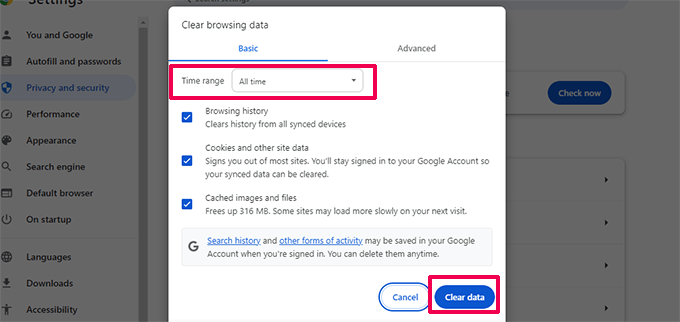
We have a detailed guide on how to clear your browser cache in all major browsers that will help you do that.
On the other hand, if a different browser shows the same error, then the loop is coming from your website rather than your browser, and your URL settings are the next thing to check.
2. Make Your WordPress Address and Site Address Match
A major cause of this error is a mismatch in your WordPress URL settings.
Normally, you can view these options on the Settings » General page.
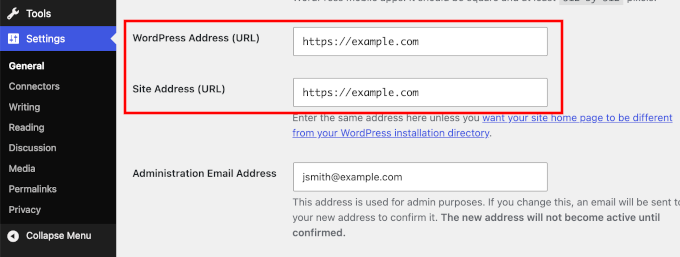
For most websites, the URLs in the ‘WordPress Address’ and ‘Site Address’ fields must be exactly the same. Check all three of these details in both fields:
- http vs https – both fields must use the same one.
- www vs non-www – pick one version and use it in both fields.
- Letter case – the URLs should be all lowercase.
Since the error might have locked you out of the WordPress admin area, you may need to fix the URLs without the dashboard. You can do that by editing the wp-config.php file, which sits in the root folder of your website.
Connect to your site using an FTP client or the File Manager app in your hosting control panel. Then, open wp-config.php in a plain text editor and add these two lines just above the line that says ‘That’s all, stop editing!’:
define( 'WP_HOME', 'https://example.com' );
define( 'WP_SITEURL', 'https://example.com' );
Don’t forget to replace ‘https://example.com’ with your own site URL. Now, save the file and upload it back to your website, then visit your site to see if this resolves the error.
Note: These two lines override the URL settings in your database. Once your site is working again, you can leave them in place. The fields on the Settings page will just appear locked.
For more methods, see our tutorial on how to easily change WordPress URLs.
3. Fix Cloudflare’s SSL Setting
If the error started right after you connected your site to Cloudflare, then this is almost certainly your fix.
Cloudflare works as a reverse proxy. That means it sits between your visitors and your server, answering requests from its own network to make your site faster and safer.
The usual cause is Cloudflare’s SSL mode being set to Flexible, which creates an infinite loop. With Flexible SSL, visitors connect to Cloudflare over HTTPS, but Cloudflare talks to your server over plain HTTP. Your server then redirects that HTTP request back to HTTPS, and the loop begins.
To fix this you need to follow these two steps.
First, in Cloudflare dashboard go to SSL/TLS » Overview and change the mode from Flexible to Full, or Full (strict) if you have a real SSL certificate installed on your server, which you should.
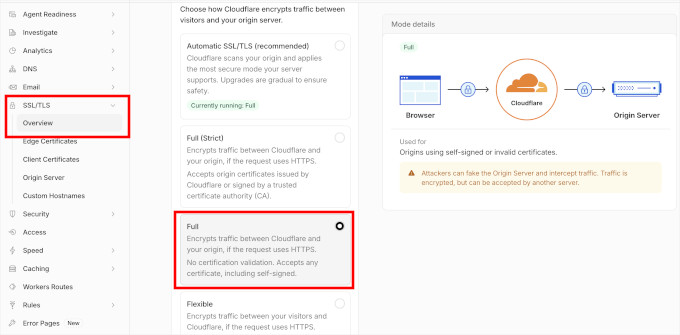
Second, add the snippet below to the wp-config.php file so that WordPress correctly detects that the visitor is on HTTPS behind the proxy.
Add this to wp-config.php, above the ‘stop editing’ line:
if ( isset( $_SERVER['HTTP_X_FORWARDED_PROTO'] ) && $_SERVER['HTTP_X_FORWARDED_PROTO'] === 'https' ) {
    $_SERVER['HTTPS'] = 'on';
}
That pairing resolves the large majority of Cloudflare redirect loops.
The same snippet also works if your site sits behind any other reverse proxy, load balancer, or NGINX front end.
While you are in the Cloudflare dashboard, purge its cache as well, so an old cached redirect doesn’t keep showing the error. Go to Caching » Configuration and click the ‘Purge Everything’ button.
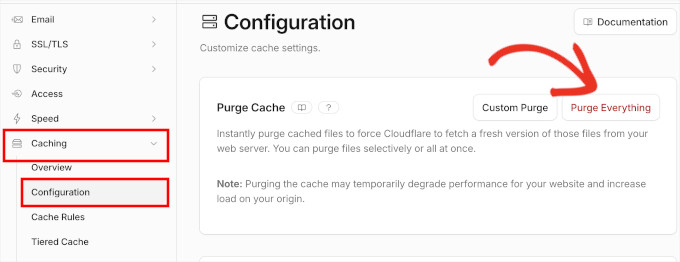
4. Reset Your WordPress .htaccess File
Note: This step applies to websites running on Apache, the most common type of web server. If your site runs on NGINX, another popular web server, then there is no .htaccess file. On NGINX the redirect rules live in the server configuration, which you cannot edit over FTP, so ask your host to check it for a rule that points back on itself.
The .htaccess file is a special file that your web server uses to manage redirects and other server settings. WordPress also uses this file for SEO-friendly URLs and other redirects.
Sometimes, WordPress plugins may make changes to your website’s .htaccess file, which can trigger this error. It is also possible that deactivating a plugin will not remove those changes from your .htaccess file.
In that case, you will need to manually reset your WordPress .htaccess file.
Again, you will need to access your website using an FTP client or the File Manager app in your hosting dashboard.
Once connected, you will see the .htaccess file in the root folder (usually /public_html/) of your website.
Note: If you cannot find your .htaccess file, then see our guide on how to find .htaccess file in WordPress.
First, you need to download a copy of your .htaccess file to your computer as a backup.
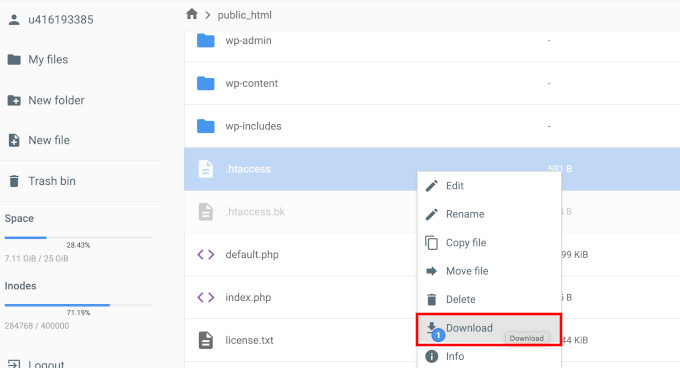
After that, rename the file to .htaccess_old rather than deleting it. Your server stops reading it either way, and renaming means you can undo this in two seconds if the file turns out not to be the cause.
You can now try visiting your homepage. If it loads, then your .htaccess file was causing the redirect error. Your inner pages will return 404 errors until you recreate the file below, so don’t read that as a failed test.
Now you will need to recreate the .htaccess file.
Normally, your WordPress website can do it on its own. Simply go to the Settings » Permalinks page and click on the ‘Save Changes’ button at the bottom.
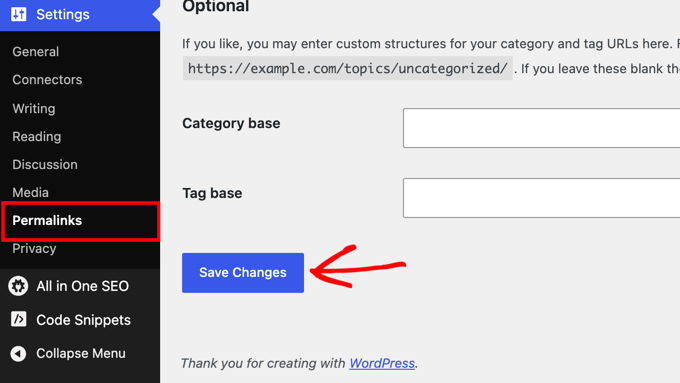
If you prefer, you can also recreate the file yourself.
Simply create a new .htaccess file in your site’s root folder and paste in the default WordPress rules:
# BEGIN WordPress
<IfModule mod_rewrite.c>
RewriteEngine On
RewriteRule .* - [E=HTTP_AUTHORIZATION:%{HTTP:Authorization}]
RewriteBase /
RewriteRule ^index.php$ - [L]
RewriteCond %{REQUEST_FILENAME} !-f
RewriteCond %{REQUEST_FILENAME} !-d
RewriteRule . /index.php [L]
</IfModule>
# END WordPress
5. Deactivate All WordPress Plugins
If resetting the .htaccess file did not clear the loop, then the next likely cause is a plugin conflict.
Any plugin that sets up a redirect in a way that conflicts with the default WordPress redirects can cause this error. The usual suspects are SSL or HTTPS-forcing plugins, redirect managers, caching plugins, and security or login plugins.
To fix this, you need to deactivate all WordPress plugins on your website. Normally, you can just go to the Plugins » All Plugins page in the WordPress admin area and deactivate plugins from there.
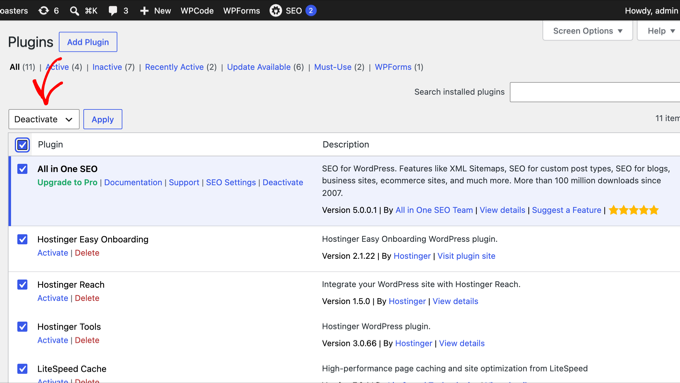
However, we are assuming that due to the redirect error, you may be unable to access the WordPress admin area.
In that case, you will need to deactivate WordPress plugins using an FTP client like FileZilla or the File Manager app in your WordPress hosting control panel.
Simply connect to your website using an FTP client and go to the /wp-content/ folder.
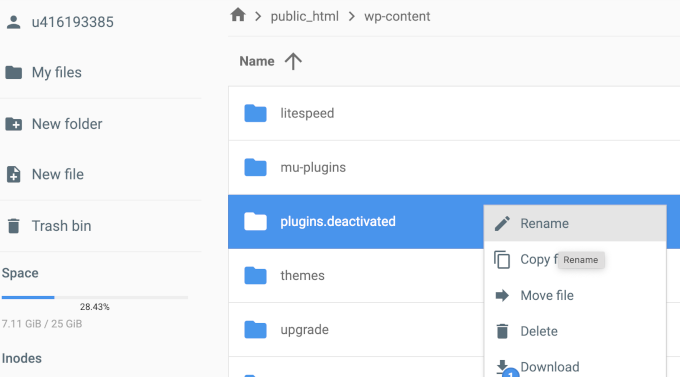
There you will find the plugins folder, which you need to rename to ‘plugins.deactivated’.
Doing this will deactivate all the WordPress plugins on your site.
Basically, WordPress looks for a folder called plugins to load the plugin files. When it does not find the folder, it automatically disables the active plugins in the database.
Now, you can try visiting your WordPress website. If you are able to log in to your WordPress admin area now, then this means one of the plugins was causing the error.
To figure out which plugin was the culprit, you need to switch back to the FTP client or File Manager app and rename your plugins.deactivated folder back to ‘plugins’.
After that, switch to the WordPress admin area of your website and go to the Plugins » All Plugins page. From here, you can activate your plugins one by one and then visit your website to see if you can reproduce the error.
Once you find the plugin that is causing the error, you can find an alternative to that plugin or report the issue to the plugin’s WordPress support forum.
6. Fix the Redirect Loop on wp-admin Only
Sometimes, your website works fine for visitors, but the login page or the wp-admin area keeps redirecting. This version of the error usually comes from your WordPress login cookie or a URL mismatch that only affects the admin area.
Here is what to check, in order:
- Clear your cookies for the site – a corrupt login cookie is the most common cause, and Step 1 above shows you how.
- Make your URLs match – a www vs non-www mismatch sometimes breaks only the admin area, so double-check Step 2.
- Look for a COOKIE_DOMAIN line – open wp-config.php and check for a line containing
COOKIE_DOMAIN. If it doesn’t match your domain exactly, remove that line, save, and try logging in again. - Deactivate security and login plugins – plugins that change your login URL or limit login attempts can create admin-only loops. Use the FTP method from Step 5, but rename only that one plugin’s own folder inside /wp-content/plugins/. Renaming the whole plugins folder would take every plugin offline for the visitors who can still browse your site.
For more solutions, see our guide on how to fix the WordPress login page refreshing and redirecting issue.
7. Fix Too Many Redirects After Migrating Your Site
If the error appeared right after you moved your website to a new domain or a new host, then some part of your site is still pointing at the old address.
First, make sure your WordPress Address and Site Address use the new domain. If you cannot log in, use the wp-config.php method from Step 2 to set them.
Next, you need to update the old links left in your database. Your posts, pages, and theme settings can still contain links to your old domain, and those links can bounce visitors between the old and new addresses.
Install the free Search & Replace Everything plugin and go to the Tools » WP Search & Replace page.
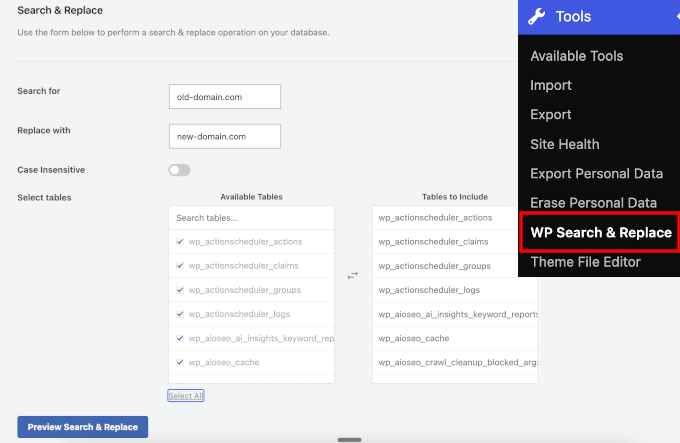
Here, you can run a search for your old domain and replace it with the new one.
You should also check your old site or old host for a redirect that points at the wrong address. For step-by-step instructions, see our guide on how to fix WordPress redirecting to the old domain after migration.
If you are planning another site move, you can avoid this error next time by following our checklist on how to properly move WordPress to a new domain.
What to Do If the Error Is Still Not Fixed
If they did not fix the problem, then you may need to talk to your WordPress hosting company to make sure that there isn’t a server issue.
Once they fix the issue on your site, you should also be able to figure out what caused it.
If it was a plugin, then you need to report the issue to the plugin’s support forum. See our guide on how to ask for WordPress support. However, if you are unable to get help, then you can always find an alternative plugin that does the same thing.
If the error was caused by a WordPress site misconfiguration, then you can make a note of it and ensure that your site settings are properly set up.
For more tips, see our detailed tutorial on how to troubleshoot WordPress issues on your own like a total WordPress pro.
Frequently Asked Questions
How can I fix the ‘Too many redirects occurred’ error?
This is how Safari words the same redirect loop error. Clear the cookies for the website in Safari’s Privacy settings and try again. If it is your own website, work through the fixes in this article, starting with your URL and SSL settings.
How do I fix ‘localhost redirected you too many times’?
This happens on local WordPress installs when the site URL still points at your live domain. Add the WP_HOME and WP_SITEURL lines from Step 2 to wp-config.php using your local address, such as http://localhost/mysite, and then clear your browser cookies.
How do I fix a website that keeps redirecting?
Run the website address through a redirect checker like httpstatus.io to see the full chain. Then remove the conflicting rule. It is usually a redirect plugin, an .htaccess rule, or an SSL setting sending visitors back and forth between two versions of the same URL.
Video Tutorial
If you don’t enjoy written instructions, you can follow along with our video tutorial instead:
We hope this article helped you resolve the ‘error too many redirects’ issue on your website. You may also want to bookmark our ultimate handbook of common WordPress errors and see how to contact WordPress support.
If you liked this article, then please subscribe to our YouTube Channel for WordPress video tutorials. You can also find us on Twitter and Facebook.


Akash Gadiya
I’ve tried all the suggested solutions but unfortunately none of them seem to work for me. The last thing I remember doing on the cPanel was to use the Backup wizard to take a full backup of the site. After that I’m assuming, the too many redirects error started showing up. I don’t even have access to the admin panel now. Could that in any way be linked to this problem?
Here’s what I’ve done so far:
1) I added those lines of code to the wp-config.php file with and without www
2) I deleted 2 .htaccess files, one in the root directory and another in the wp-content folder, one by one
3) I renamed the plugins folder to deactivate it
4) I downloaded the backup file from the root directory and deleted it from the server
4) I ran through all the comments scanning for a possible fix, but to no avail
Any assistance in any way would be highly appreciated.
Thanks!
alin
that’s work great for wordpress.
many thanks!
Jason Lee
It can be fixed by disable or enable plugins on WordPress Tools.
Caspian Canuck
In my case the culprit was a redirect plugin that had a feature (which I don’t remember turning on, so it may have been done automatically during a version update) that monitors changes in page URLs and creates automatic redirects. The idea behind it is, if you had a page that you originally created under Category A, then moved it to Category B, the plugin would automatically create a HTTP 301 redirect from /category_a/slug to /category_b/slug. Except it isn’t smart enough to delete that redirect if you subsequently decided to move the page back to Category A and would stupidly create a second redirect from /category_b/slug to /category_a/slug. This would create an infinite redirect loop.
My solution to this idiocy was to disable the auto-redirect feature.
Renan
Thanks a lot !
Muqarrab Zaidi
My website is running fine no problem with that i have edited .htaccess file also the code you provided but still this problem exist
Muqarrab Zaidi
I have deactivated all plugins (folder name changed in wp-content) but still unable to login into admin area error is same that ERR_TOO_MANY_REDIRECTS please suggest me I am trying to resolve this I can’t publish my articles since 2 days
Webadmin
I found out that there are two .htaccess files, one in www folder and other www/wp-admin folder. I also discovered that I had security enable where the admin folder was only allowed from a specific IP. My DSL provider changed my outbound IP at sometime and start causing me “redirect” issues. Once I add the new IP into www/wp-admin/.htaccess file, I was able to see my admin login page.
Amber
I deleted the .htaccess file but a new one has not generated. Is there something I need to do to generate the new .htaccess file?
Martha
After deleting the .htaccess file, you need to log in to your admin area, go to Settings -> Permalinks, select the appropriate url choice you prefer, then hit Save. A new .htaccess file will be generated for you.
Lookman
After trying all the solutions suggested above without success. I stumbled upon a solution, my wp-admin folder was inside a cgi-bin folder, I don’t know how the folder was create, I copied my wp-admin folder to the main folder and deleted the cgi-bin folder.
Thanks all
Emma
When I change my domain, on both the WordPress address and the site address, when I log it to the admin page will it be with my new domain?
Right now it is http://www.example.com/wp-admin/
when I change it and remove the www will it be the same login in or will it now be
http://example.com/wp-admin/?
WPBeginner Support
Hi Emma,
It will be http://example.com/wp-admin/
Admin
hossam elbadry
Please happened to me the same problem on a link to the Control Panel( wp-admin) and you just experimenting with the second solution did not succeed with me
Romas
I have infinite loop redirection when I change in settigns->general
http://example.com to https://example.com , I think this means that there is some redirection from https to http, but I cannot find it, as far as I know I dont have plugins that redirect from https to http, but I think this is a standard feature of worpdress, how can I turn it off?
Thanks.
WPBeginner Support
Hi Romas,
No it is not a WordPress feature. If you do not have SSL installed on your site then you need to use http:// in both site address and WordPress address fields on Settings -> General page.
Admin
Balamurugan
Thank you so much.Just saved my day.
Accidently i changed my site url.thanks for the help
Graham
Thank you! Fixed my redirect issue by turning off a WordPress HTTPS plugin!
Alex Lucchesi
My solution: when I noticed that none of the above solutions worked, I realized that each time the only way I was able to successfully get to mydomain/wp-admin was to go to GoDaddy cPanel, Installatron, My Applications and click on the link for mydomain.com/wp-admin
So I right-clicked on that link and pasted it to the Bookmark property. When I did that the path was really long and not the expected mydomain.com/wp-admin
GoDaddy was doing a lot more than that to get me in.
Once I updated the Bookmark with the right path I now have a one click solution to get me to Admin level.
hugo
466/5000
The same thing is happening to me. I was unable to access the administrator when the Polylang add-in is active.
I have used the method of deactivating the polylang folder (wp-content / plugins / polylang) by ftp, changing its name to “polylang_backup” so that it at least enters the dashboard.
But I need it to work with the activated polylang. We have a lot of content with the customer already translated.
* I noticed this happened when I cleared the cache
Please help
Tunc
Thank you for your tutorial. I recently moved my website to https but I realized it put a lot of cpu load on the server so I decided to change it back to http after 3 days. I received the too many redirects error but I was able to fix it following your tutorial and clearing cookies.
My problem is, the people who visited the https version of my website are getting too many redirect errors and some do not know that they should clear their cookies. Is there any way I can do something on the server side so they won’t get redirect errors?
Kind regards
Akash Negi
Hello wp beginner
My website was not opening with non www version so i have done some changes like domain forwarding to my own domain (i really don’t know what i was doing). But now i am facing problem. My website has too many redirect loop error. Please help me how to solve this error. It’s very important for me
Thanks!
WPBeginner Support
Hi Akash,
First, you need to undo the changes you made to your website like domain forwarding. Next you need to contact your WordPress hosting provider. Some WordPress hosting providers configure their servers in a way that allows you to automatically redirect users from non-www to www URL and vice-versa. Choose the one and then stick to it and don’t forget to enter your prefered URL in WordPress settings.
Admin
Vinny
You saved my day !!
Thanks
Diego
You are the man!!! thank you so much for this article.. it solved my problem
Thomas F.
I had this problem after I changed a setting in PLESK. In “hosting settings”. I set “preferred domain” to instead of and couldnt reach my wordpress anymore.
Dave 'Niyi
How Blessed & pleasant Today is!
It took me 51 days to solve all these problems.
My site problems started with “Error establishing Database Connection”.
I visited many web forums for help but to no avail, until I changed my host.
The new host did all they could then my admin back end started working. My site started another error ” Internal Server Error” and this was solved after googling for solution. Then the third error started “Too many redirection”.
I read this post and did all prescribed solutions, also to no avail. I Continued reading the comments until I came across SARAH HAYES comment. Guess what?
A single capitalLetter that I used in my domain name caused the error.
This is what I did:
I replaced myDomainName.com with mydomainname.com in my wordpress database and my wp-config.php file and the problem was solved immediately.
What a painful lesson to learn. NEVER USE CAPITAL LETTERS FOR DOMAIN NAMES in your website settings and files.
always use small letters all through.
Thanks everyone for sharing.
mamun
I plugged one last time. I read this article and unplugged. My problem is solved. Thanks for your article.
Sarah
I haven’t been able to access Network Admin after installing Multisite with localhost. Since I don’t yet have a site URL, is adding the below lines to my wp-config.php file even a possible solution? What would I put in place of the URL? Any insight into this would be much appreciated.
define(‘WP_HOME’,’http://example.com’);
define(‘WP_SITEURL’,’http://example.com’);
El
I deleted the. htaccess file and everything worked fine.
Maoz
Hey there apparently the wooCommerce plugin did that problem for me and i deactivated it.. but i need a plugin to put in my store… any suggestions ?
WPBeginner Support
WooCommerce shouldn’t cause the issue. Try to figure out why WooCommerce is causing the issue on your website. If you really want to use some other plugin, then check out our list of 5 best WordPress eCommerce plugins.
Admin
Nathan
I have the same issue happening to me.
I uninstalled Woocommerce, then re-activated it, and every time I get the error message.
Musab Kara
try to change permalink
sadiq ali
thanks very much it works.
Sines
Hi there,
I want to share my solution. I had the same issue and I was searching for a hole day to fix that. I had tried all of the solutions above, but nothing worked for me. For me it has something to do with my hoster.
After I deactivated my ssl certificate it workt again. So I dug deeper and find the reason. The ssl certifacation was for my domain without “www”. After I activated ssl again and changed this lines in wp-config, everythink worket again:
FROM
define(‘WP_HOME’,’https://www.example.com’);
define(‘WP_SITEURL’,’https://www.example.com’);
TO (without www)
define(‘WP_HOME’,’https://example.com’);
define(‘WP_SITEURL’,’https://example.com’);
I hope I could help somebody with the same problem.
Thanks for that article, it brings me on the right way.
Oliver Gehrmann
You, good sir, are a lifesaver! Thank you very much!
Ray Fadly Franata
Where i put the two lines on config.php ?
nitin verma
hey man , I am getting redirect error from last day . can you please help me out , actually when i am searching from google search engine , this error occurs , i have tried the steps as mentioned above but it doesn’t work for me .
you can also search punjab police physical details , it will not open first time , and when refreshed again it will open .
Can you please help me out .
Armie
Check the .htaccess
That’s how I fix my problem.
Hope this helps.
Byamugisha Phillimon
on which line should i add
define(‘WP_HOME’,’http://example.com’);
define(‘WP_SITEURL’,’http://example.com’); am using atom editor.
WPBeginner Support
Just before the following line:
/* That’s all, stop editing! Happy blogging. */
Admin
Byamugisha Phillimon
This is the message it shows in my browser, Parse error: syntax error, unexpected ‘:’ in /hermes/bosnaweb10a/b2702/ipg.villsmed/public_html/kob/Freestyle/wp-config.php on line 83. Thanks for your coperation
WPBeginner Support
The error means that there is an extra colon : in your wp-config.php file’s code at line 83. You need to edit that file using an FTP client, and go to the line 83. The code on that line has a misplaced or unwanted colon.
Fiona
Thank you so much – I’m glad i found this. I was able to fix the error after being on hold on support for 2 hours with my host who had no idea!! Kudos to you.
Vinita
Hi,
Can you help me out with this redirection issue?
My Site Address is example.com/some-page.php and wordpress url is example.com/some-page/
Now google sees both as different pages. So I want to redirect some-page.php to /some-page/
How am i supposed to do it?
I used 301 redirection but it gives Redirect Loop Problem error.
Any help would be highly appreciated.
WPBeginner Support
Connect to your website using an FTP client. Locate the .php file and download it to your computer as a backup. Once you have it on your computer, you can safely delete it from your server. Your redirects should work fine now.
Admin
musthafa
Even i had a same issue “redirected too many times” on all web browsers.The issue was because of “WC Vendors”. I deactivated this plugin after that my site is working perfectly. So deactivate “WC Vendors” everything will be fine..
Sarah Hayes
I had this issues and I did everythign that was listed above and still had redirect issuses. The problem was the use of capitals.
Sheila
Anyone had the issue during localhost development? I had indeed recently updated plugins, however moving all plugin folders to the trash didn’t help. I do have access to the database: If I add the suggested language to the wp-config.php file,wp-options then shows a “fatal Javascript error”. Further suggestions? The www idea isn’t relevant on localhost (I use the #s url, not localhost: language)
Daniel Lofaso
Thanks for the post. My client’s site had this issue and it was caused by a plugin called the “Verve SSL” which alters the https and http URL settings. I deactivated it and no longer got this error. Now we will have to work with our host to troubleshoot further as I don’t know if this is a required plugin for my client’s HTTPS site.
Matthew
Thank you. Been searching for hours to work out why pretty links weren’t working and my site had crashed.
Simple fix
define(‘WP_HOME’,’http://example.com’);
define(‘WP_SITEURL’,’http://example.com’);
Manos
Hello Matthew
It seems a very clever fix – thank you for sharing
However for us the landlubbers – would you be so kind to add only couple of lines to explain, what is exactly you have done and it fixed the issue??
Many Many Thanks
Juan Torrijos
Hello Everyone, I had the same issue (Too many redirects) and I wanted to share my solution.
I have an intranet with a custom made theme.
The issue started when I changed the Front End template in Reading Settings, from Your latest post to a Static page. I switched back to Latest Post and it worked.
I didn’t notice it right away because I was logged in all the time. I only saw it when I tried to log back in. But I had made so many changes that I didn’t know what was the problem right away, leading me to this great post!
Laura Paulus
I have been trying to fix my site for days and nothing worked! I just read your comment and tried it. BAM! Working! Thanks so much for posting this!!!
Juan Torrijos
Hi Laura, I’m glad it helped.
It turned out that I was using the wp_redirect( home_url() ) function in my index.php, which generated the home_url() so it redirected back to that same page, which will cause and infinite redirect loop.
I ended up removing that line of code from the index.php and using the static page as the home page. If the user is not logged in, instead of redirecting it simply displays the login form.
Dave
Juan, you nailed it! That worked for me. Thx!
Juan Torrijos
Hi Dave, I’m glad it worked for you. Did you remove the wp_redirect() function from your index.php or did you change your front page displays in your settings?
Geordie
Hi, I had a redirect issue on chrome after changing a setting in my custom permalink. Deleting the .htaccess file for the server to regenerate it fixed the problem. Thank you.
Martin
Hi guys,
recently I installed Wordpress and Travelo – Travel and Booking Theme. Everything worked smoothly from the beginning. Then too_many_redirects issue occured on my screen. I have an access to my Wordpress Admin Panel. Everything is set well (site url, wordpress url), my permalinks are set on Day and name. I deactivated all plugins, deleted .htaccess file, contacted my host provider (they were nice and trying to help me) and we found out that Travelo theme causing the issue. Everytime I activate Travelo the issue occures. When I change the theme everything is in perfect shape. I concacted Soap Theme Support and waiting for their solution. If you guys have an idea how to fix it, please let me know. Thanks.
33qamar
hi @Martin!
I’ve had same issue tried so many solutions but after a lot of tries i came to know that some .php files of my themes (from Woocommerce) were outdated. after updating everything became ok. Now its working well.
Dipesh
I am also facing same problem. But finally i solve it by spending whole day hahah. I mistakenly move the wp-admin folder inside wp-content so i am round the problem whole day………hahah…
Glenn
Right! A missing wp-admin folder results in the same symptoms. I apparently accidentally deleted my localhost wp-admin folder. Discovered the folder was missing when I went to restore from backup.
33qamar
Hey!
I am also facing this problem and As a regular reader of this blog i come to this blog and reach this post done this all but still there.
i’ve use a migrator plugin “duplicator” for website megrate from localhost to my hosting.
The page isn’t working redirected you too many times.
Try:
Reloading the page
Clearing your cookies
ERR_TOO_MANY_REDIRECTS
ChrisSnipe
I have the exact same problem, did you get a solution 33qamar?
Kyle
I’ve had the same issue after migrating the site to a new hosting provider. Can anyone help us? We’re getting “too many redirects” with a newly migrated site.
e-colori
Thank you!
only adding to the wp-config.com
define(‘WP_HOME’,’http://example.com’);
define(‘WP_SITEURL’,’http://example.com’);
fixed it! Finally after trying many things!!!
ewan yates
Perfect! Turns out my site url was changed by a careless tech support guy. I managed to find and correct the error and now my site is back up and running
Jason
I am wondering if anyone else has seen redirect issue(s) related to using the plugin named Rename wp-login.php. I like using that plugin to change the default address of wp-admin. I have used it along with a function that adds a specific sting to the end of the login URL (example: ?jedi=theforce). This additional function uses a couple redirects. The function only specifies that if the string is missing or not correct, then redirect to Google. It (I think) has caused the too many redirects on one of my sites. If anyone has a possible resolution, please let us know.
Thanks!
kulbir singh
and second think is this,,,,when i open to this next time on same computer , than that will not redirect on any website ,,,,,if you want to see this problem next time on same computer ,,than clear cookies from same computer and if you try again to open my website than same problem showing
main consider is this
if cookies are already store in computer of my website ,,,than this problem not showing
if i will clear cookies from my computer ,,,than this problem show again
ViralKida
define(‘WP_HOME’,’http://example.com’);
define(‘WP_SITEURL’,’http://example.com’);
will work well… Thanks….. ADMIN
Angie
Oh my goodness, you are the best. I couldn’t find this fix anywhere else!!!
Marie
Thank you so freaking much! I searched last night and searched. This morning after hours of exhaustion trying to figure it out last night. I found your video this morning on this page!
I so appreciate it!
Thank you again!