


The ‘Error too many redirects’ issue is one of the most common WordPress errors, and you can usually fix it in a few minutes.
The error simply means that your website is stuck in a redirect loop, and it can even lock you out of your WordPress admin area.
In this article, we will show you how to easily fix the ‘Error too many redirects’ issue in WordPress, step by step, even if you can’t log in.
Quick Answer: How Do I Fix the Too Many Redirects Error in WordPress?
Clear your browser cookies first. If the error stays, it is almost always one of three settings: your WordPress Address and Site Address have to match exactly, Cloudflare’s SSL mode has to be set to Full, and / or your .htaccess file may need resetting.
You can do all of that even if you are locked out of your dashboard, by editing wp-config.php over FTP.
What Causes the Too Many Redirects Error in WordPress?
A redirect loop happens when page A sends your browser to page B, and page B sends it straight back to page A. Your browser tries again and again, gives up after about 20 attempts, and shows the error instead of your website.
Redirects themselves are normal. WordPress and many plugins use them to create permanent 301 redirects and fix 404 errors. The problem starts when two redirect rules point at each other.
This error usually appears immediately after one of these actions, not because the action is wrong, but because a setting was configured incorrectly while doing it:
- You moved the site to HTTPS or installed an SSL certificate.
- You turned on Cloudflare (or another reverse proxy / CDN).
- You installed an SSL plugin or a redirect-manager plugin.
- You edited the site URL, migrated hosts, or pasted a ‘force HTTPS’ rule into .htaccess.
Plugins that fix the SSL insecure content issue or a WordPress caching plugin can also cause this error.
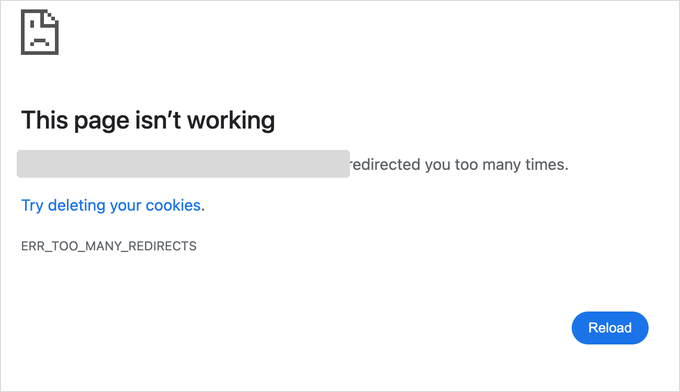
This is how the ‘ERR_TOO_MANY_REDIRECTS’ message looks in Google Chrome.
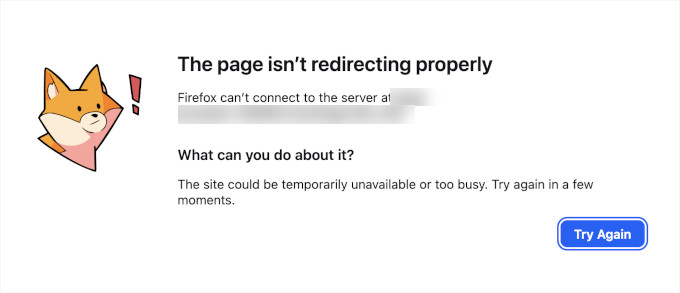
This is how the error looks in Firefox with the message ‘The page isn’t redirecting properly’.
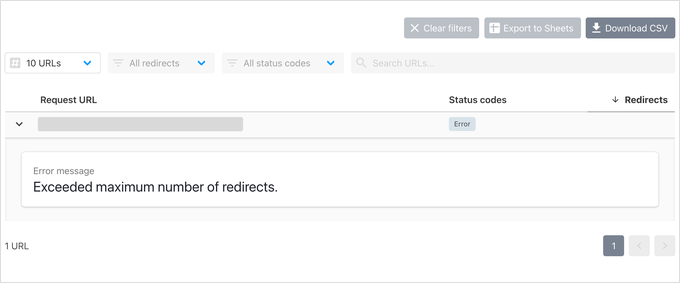
The error page does not tell you what causes the loop. To find out the issue, you can use a free tool like httpstatus.io, enter your website URL and look at the redirect chain.
A healthy site shows one 301 (a permanent redirect) ending in a 200 status code, which means the page loaded normally.
A broken site shows a long chain of 301s bouncing between the same two URLs, and those two URLs tell you what cause the issue. For example, if they differ by http and https or www and non-www, then you can follow the steps below to fix them.
Important: Some of the fixes below change your site’s core files and database. Before you change anything, please create a backup. You can follow our guide on how to make a WordPress database backup manually.
Here are the steps we will cover:
- Clear Your Browser Cache and Cookies
- Make Your WordPress Address and Site Address Match
- Fix Cloudflare’s SSL Setting
- Reset Your WordPress .htaccess File
- Deactivate All WordPress Plugins
- Fix the Redirect Loop on wp-admin Only
- Fix Too Many Redirects After Migrating Your Site
- What to Do If the Error Is Still Not Fixed
1. Clear Your Browser Cache and Cookies
A common cause of the error could be your web browser cookies. First, try a hard refresh (Ctrl + F5 on Windows or Cmd + Shift + R on Mac), and then try accessing your website using a different web browser, like Firefox, Safari, Opera, or Microsoft Edge.
If you are able to access your website normally using a different browser, then you need to clear the cookies and cache in your regular browser.
You don’t have to wipe everything. Clearing the cookies for just your own website is enough.
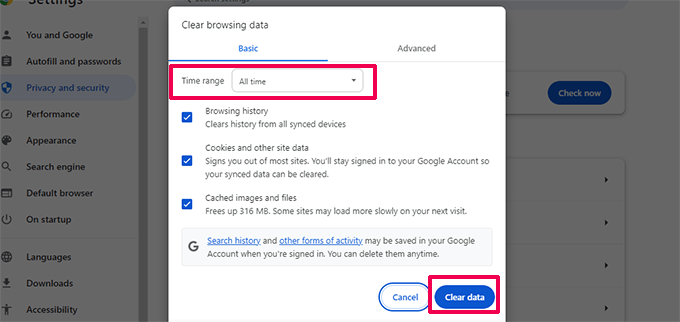
We have a detailed guide on how to clear your browser cache in all major browsers that will help you do that.
On the other hand, if a different browser shows the same error, then the loop is coming from your website rather than your browser, and your URL settings are the next thing to check.
2. Make Your WordPress Address and Site Address Match
A major cause of this error is a mismatch in your WordPress URL settings.
Normally, you can view these options on the Settings » General page.
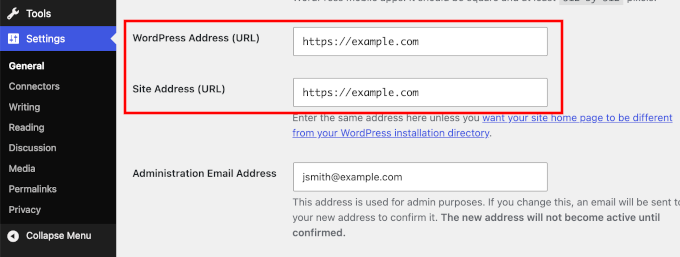
For most websites, the URLs in the ‘WordPress Address’ and ‘Site Address’ fields must be exactly the same. Check all three of these details in both fields:
- http vs https – both fields must use the same one.
- www vs non-www – pick one version and use it in both fields.
- Letter case – the URLs should be all lowercase.
Since the error might have locked you out of the WordPress admin area, you may need to fix the URLs without the dashboard. You can do that by editing the wp-config.php file, which sits in the root folder of your website.
Connect to your site using an FTP client or the File Manager app in your hosting control panel. Then, open wp-config.php in a plain text editor and add these two lines just above the line that says ‘That’s all, stop editing!’:
define( 'WP_HOME', 'https://example.com' );
define( 'WP_SITEURL', 'https://example.com' );
Don’t forget to replace ‘https://example.com’ with your own site URL. Now, save the file and upload it back to your website, then visit your site to see if this resolves the error.
Note: These two lines override the URL settings in your database. Once your site is working again, you can leave them in place. The fields on the Settings page will just appear locked.
For more methods, see our tutorial on how to easily change WordPress URLs.
3. Fix Cloudflare’s SSL Setting
If the error started right after you connected your site to Cloudflare, then this is almost certainly your fix.
Cloudflare works as a reverse proxy. That means it sits between your visitors and your server, answering requests from its own network to make your site faster and safer.
The usual cause is Cloudflare’s SSL mode being set to Flexible, which creates an infinite loop. With Flexible SSL, visitors connect to Cloudflare over HTTPS, but Cloudflare talks to your server over plain HTTP. Your server then redirects that HTTP request back to HTTPS, and the loop begins.
To fix this you need to follow these two steps.
First, in Cloudflare dashboard go to SSL/TLS » Overview and change the mode from Flexible to Full, or Full (strict) if you have a real SSL certificate installed on your server, which you should.
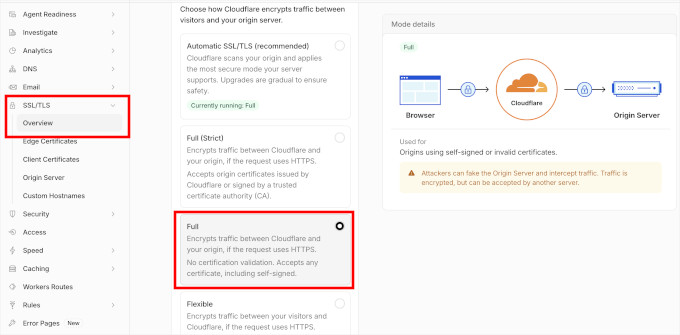
Second, add the snippet below to the wp-config.php file so that WordPress correctly detects that the visitor is on HTTPS behind the proxy.
Add this to wp-config.php, above the ‘stop editing’ line:
if ( isset( $_SERVER['HTTP_X_FORWARDED_PROTO'] ) && $_SERVER['HTTP_X_FORWARDED_PROTO'] === 'https' ) {
    $_SERVER['HTTPS'] = 'on';
}
That pairing resolves the large majority of Cloudflare redirect loops.
The same snippet also works if your site sits behind any other reverse proxy, load balancer, or NGINX front end.
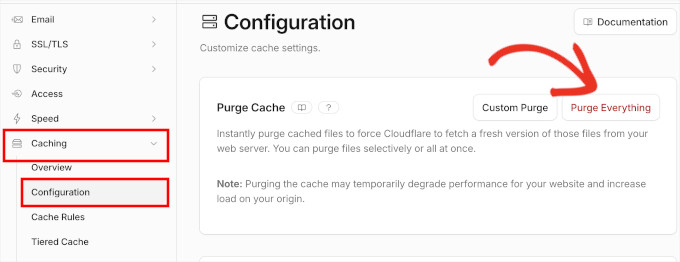
While you are in the Cloudflare dashboard, purge its cache as well, so an old cached redirect doesn’t keep showing the error. Go to Caching » Configuration and click the ‘Purge Everything’ button.
4. Reset Your WordPress .htaccess File
Note: This step applies to websites running on Apache, the most common type of web server. If your site runs on NGINX, another popular web server, then there is no .htaccess file. On NGINX the redirect rules live in the server configuration, which you cannot edit over FTP, so ask your host to check it for a rule that points back on itself.
The .htaccess file is a special file that your web server uses to manage redirects and other server settings. WordPress also uses this file for SEO-friendly URLs and other redirects.
Sometimes, WordPress plugins may make changes to your website’s .htaccess file, which can trigger this error. It is also possible that deactivating a plugin will not remove those changes from your .htaccess file.
In that case, you will need to manually reset your WordPress .htaccess file.
Again, you will need to access your website using an FTP client or the File Manager app in your hosting dashboard.
Once connected, you will see the .htaccess file in the root folder (usually /public_html/) of your website.
Note: If you cannot find your .htaccess file, then see our guide on how to find .htaccess file in WordPress.
First, you need to download a copy of your .htaccess file to your computer as a backup.
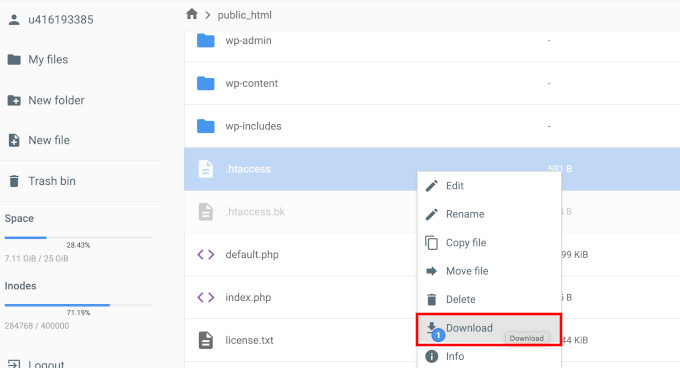
After that, rename the file to .htaccess_old rather than deleting it. Your server stops reading it either way, and renaming means you can undo this in two seconds if the file turns out not to be the cause.
You can now try visiting your homepage. If it loads, then your .htaccess file was causing the redirect error. Your inner pages will return 404 errors until you recreate the file below, so don’t read that as a failed test.
Now you will need to recreate the .htaccess file.
Normally, your WordPress website can do it on its own. Simply go to the Settings » Permalinks page and click on the ‘Save Changes’ button at the bottom.
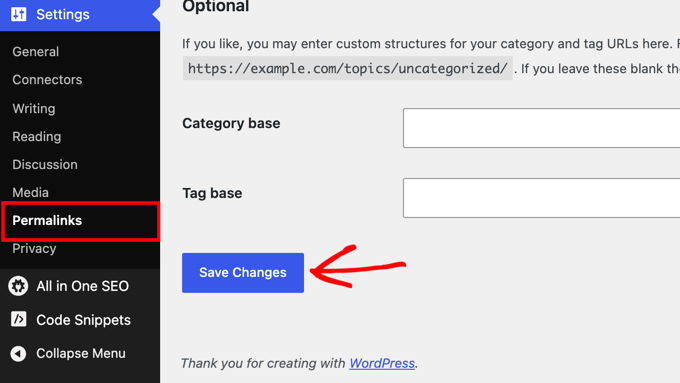
If you prefer, you can also recreate the file yourself.
Simply create a new .htaccess file in your site’s root folder and paste in the default WordPress rules:
# BEGIN WordPress
<IfModule mod_rewrite.c>
RewriteEngine On
RewriteRule .* - [E=HTTP_AUTHORIZATION:%{HTTP:Authorization}]
RewriteBase /
RewriteRule ^index.php$ - [L]
RewriteCond %{REQUEST_FILENAME} !-f
RewriteCond %{REQUEST_FILENAME} !-d
RewriteRule . /index.php [L]
</IfModule>
# END WordPress
5. Deactivate All WordPress Plugins
If resetting the .htaccess file did not clear the loop, then the next likely cause is a plugin conflict.
Any plugin that sets up a redirect in a way that conflicts with the default WordPress redirects can cause this error. The usual suspects are SSL or HTTPS-forcing plugins, redirect managers, caching plugins, and security or login plugins.
To fix this, you need to deactivate all WordPress plugins on your website. Normally, you can just go to the Plugins » All Plugins page in the WordPress admin area and deactivate plugins from there.
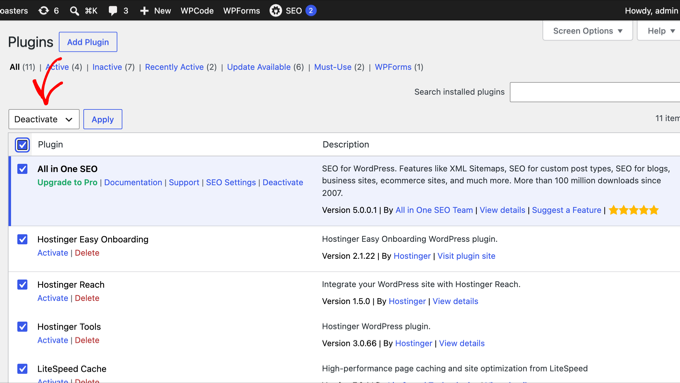
However, we are assuming that due to the redirect error, you may be unable to access the WordPress admin area.
In that case, you will need to deactivate WordPress plugins using an FTP client like FileZilla or the File Manager app in your WordPress hosting control panel.
Simply connect to your website using an FTP client and go to the /wp-content/ folder.
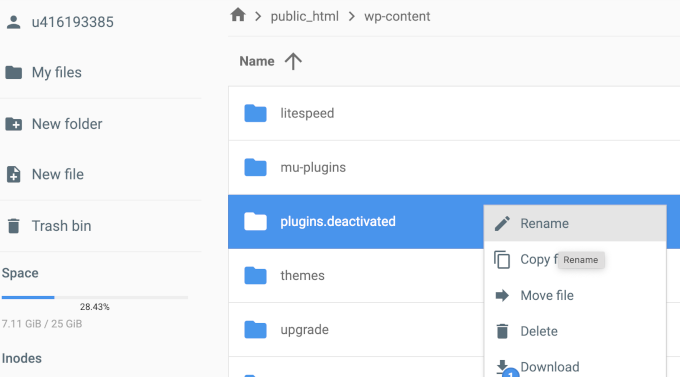
There you will find the plugins folder, which you need to rename to ‘plugins.deactivated’.
Doing this will deactivate all the WordPress plugins on your site.
Basically, WordPress looks for a folder called plugins to load the plugin files. When it does not find the folder, it automatically disables the active plugins in the database.
Now, you can try visiting your WordPress website. If you are able to log in to your WordPress admin area now, then this means one of the plugins was causing the error.
To figure out which plugin was the culprit, you need to switch back to the FTP client or File Manager app and rename your plugins.deactivated folder back to ‘plugins’.
After that, switch to the WordPress admin area of your website and go to the Plugins » All Plugins page. From here, you can activate your plugins one by one and then visit your website to see if you can reproduce the error.
Once you find the plugin that is causing the error, you can find an alternative to that plugin or report the issue to the plugin’s WordPress support forum.
6. Fix the Redirect Loop on wp-admin Only
Sometimes, your website works fine for visitors, but the login page or the wp-admin area keeps redirecting. This version of the error usually comes from your WordPress login cookie or a URL mismatch that only affects the admin area.
Here is what to check, in order:
- Clear your cookies for the site – a corrupt login cookie is the most common cause, and Step 1 above shows you how.
- Make your URLs match – a www vs non-www mismatch sometimes breaks only the admin area, so double-check Step 2.
- Look for a COOKIE_DOMAIN line – open wp-config.php and check for a line containing
COOKIE_DOMAIN. If it doesn’t match your domain exactly, remove that line, save, and try logging in again. - Deactivate security and login plugins – plugins that change your login URL or limit login attempts can create admin-only loops. Use the FTP method from Step 5, but rename only that one plugin’s own folder inside /wp-content/plugins/. Renaming the whole plugins folder would take every plugin offline for the visitors who can still browse your site.
For more solutions, see our guide on how to fix the WordPress login page refreshing and redirecting issue.
7. Fix Too Many Redirects After Migrating Your Site
If the error appeared right after you moved your website to a new domain or a new host, then some part of your site is still pointing at the old address.
First, make sure your WordPress Address and Site Address use the new domain. If you cannot log in, use the wp-config.php method from Step 2 to set them.
Next, you need to update the old links left in your database. Your posts, pages, and theme settings can still contain links to your old domain, and those links can bounce visitors between the old and new addresses.
Install the free Search & Replace Everything plugin and go to the Tools » WP Search & Replace page.
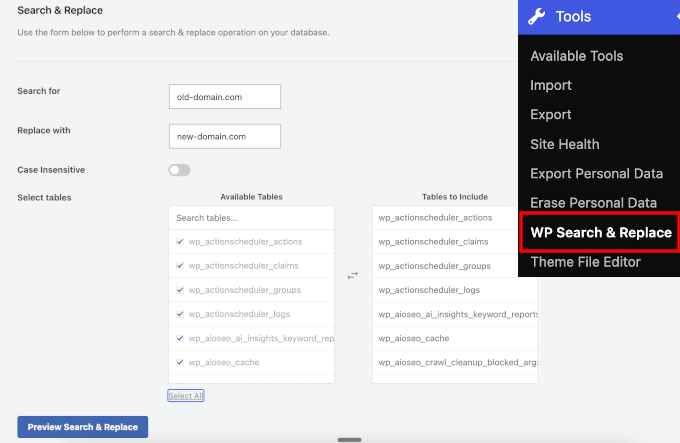
Here, you can run a search for your old domain and replace it with the new one.
You should also check your old site or old host for a redirect that points at the wrong address. For step-by-step instructions, see our guide on how to fix WordPress redirecting to the old domain after migration.
If you are planning another site move, you can avoid this error next time by following our checklist on how to properly move WordPress to a new domain.
What to Do If the Error Is Still Not Fixed
If they did not fix the problem, then you may need to talk to your WordPress hosting company to make sure that there isn’t a server issue.
Once they fix the issue on your site, you should also be able to figure out what caused it.
If it was a plugin, then you need to report the issue to the plugin’s support forum. See our guide on how to ask for WordPress support. However, if you are unable to get help, then you can always find an alternative plugin that does the same thing.
If the error was caused by a WordPress site misconfiguration, then you can make a note of it and ensure that your site settings are properly set up.
For more tips, see our detailed tutorial on how to troubleshoot WordPress issues on your own like a total WordPress pro.
Frequently Asked Questions
How can I fix the ‘Too many redirects occurred’ error?
This is how Safari words the same redirect loop error. Clear the cookies for the website in Safari’s Privacy settings and try again. If it is your own website, work through the fixes in this article, starting with your URL and SSL settings.
How do I fix ‘localhost redirected you too many times’?
This happens on local WordPress installs when the site URL still points at your live domain. Add the WP_HOME and WP_SITEURL lines from Step 2 to wp-config.php using your local address, such as http://localhost/mysite, and then clear your browser cookies.
How do I fix a website that keeps redirecting?
Run the website address through a redirect checker like httpstatus.io to see the full chain. Then remove the conflicting rule. It is usually a redirect plugin, an .htaccess rule, or an SSL setting sending visitors back and forth between two versions of the same URL.
Video Tutorial
If you don’t enjoy written instructions, you can follow along with our video tutorial instead:
We hope this article helped you resolve the ‘error too many redirects’ issue on your website. You may also want to bookmark our ultimate handbook of common WordPress errors and see how to contact WordPress support.
If you liked this article, then please subscribe to our YouTube Channel for WordPress video tutorials. You can also find us on Twitter and Facebook.




David Najman
Hi,
I had this error on the product tag page. I tried all the possible repairs mantioned above with no luck.
Finally, I had to rename slug for tags not to be numbers, eg. 2016, so I renamed it to r2016 and it started to work!
It must have been caused by some wordpress update, because it have been working few years before with tags named as numbers.
WPBeginner Support
Thanks for sharing what worked for you, if your product page is created by a plugin you may want to try reaching out to the plugin’s support to let them know about that issue
Admin
Yavan Kumar
Hi,
My whole website is running properly, but the homepage is redirected too many times and same issue with the wp-admin page too. I tried all the methods you mentioned but nothing worked for me.
Please advice me if there is any another solution for that.
Thanks in advance…
WPBeginner Support
If none of the methods from the article worked, you would want to reach out to your hosting provider for them to see if there are any issues they can see on their end.
Admin
John Zoetebier
My web site is a Bitnami Wordpress deployment on Google Cloud Platform.
When I use:
define(‘WP_SITEURL’, ‘http:/example.cloud’);
the home page gets redirected to itself and browsers error message.
I now use the original Bitnami setting and it works great !
define(‘WP_SITEURL’, ‘http://’ . $_SERVER[‘HTTP_HOST’] . ‘/’);
WPBeginner Support
You are missing a slash next to your http in the first define statement but thank you for sharing your workaround.
Admin
Chad
I had to desactivate a plugin and it worked back fine. I identified the plugin to desactivate by looking into my URL where I was getting a redirect error. The plugin name was written there.
WPBeginner Support
Thanks for sharing how you found the error for others trying to solve this problem
Admin
Nirav Patel
Thanks you bro for information of wp error
WPBeginner Support
Glad our article could help
Admin
irga
yeah, you know,,, i searching for it,,,,, and then mys wordpress site working again, thanksfull
Rahul
Thans buddy , really helps
Josh
I’ve tried all the steps here with no luck today. Luckily my website is functioning ok but I can’t log into the wp-admin dashboard for anything.
What are the other options? There must be other ways I can figure out what’s causing it?
Deby
I’m having the same. My site works fine for visitors, but I only get the redirect error for the backend, my WP dashboard.
It’s a new site and I don’t even have any plugins installed yet. I’m stumped.
Bryant Thomas
Holy Cow That worked, I’ve done many websites migrations and never ran into this issue. Thank you the define(‘WP_HOME’,’http://example.com’);
define(‘WP_SITEURL’,’http://example.com’); worked with the www.
Rutvi Trivedi
Hi, My problem is when I go to my site’s dashboard(/wp-admin) it is giving me this error I tried this solution and unfortunately it is not working. Please help me to solve this error.
Shakeane
I just want to say thank you so much for sharing this knowledge, you wouldn’t understand how much this has helped me, something as minor is adding www or leaving the forward slash at the end has caused so many headaches, thank you so much.
Marc
Awesome! Only took 5 minutes and fixed!!!
hassan
dear sir,
i have huge data on my website i change my address directly from http://www.example.com to example.com i remove www from wp-confiq and phpmyadmin without doing the above procedure, now i update all the plugin and theme everything is fine but my theme setting is not editing when i am going to change setting of my theme the changes reverting …please help how to solve this problem i will be thankful to you
i am trying to solve this problem from three days but fail
please help
Sachin
Hi, my website is running without any error but i have this issue in backend when i open appearance>customize tab. I am unable to customize my website from backend. How can i solve it?
Adrian Daniels
Wow, this actually worked, thanks!!
Toheeb
Hi!
Thank you for your post…
I was able to solve mine changing the WP_SITEURL and WP_HOME to lowercase letters. I capitalized each word formerly for readability and as it turned out, it redirects post paginated pages.
Everything seems fine now. Thank You
Laurena
Hey, this was my problem! Thanks for your comment here.
scott
This was my problem as well.
Karla
This was my problem too! Thanks for your comment! I tried everything in the video but nothing worked.
Rudy Reteig
I made a redirect in ADDOn Domain to rid my site of a tail, “/blog”, behind my URL, appeared when launched the site. This was in my opinion automatically done, as I have two sites on the same PUBLIC_html directory. probably to avoid conflict of files with the same name of the two sites
Robin
None of these fixes worked for me. In the end it turns out I had setup a custom page rule in CloudFlare a long time ago to treat the wordpress dashboard different to the rest of the site. It had “SSL – Flexible” set which causes the error. I just set the rule to “Full” and it works fine again.
Ada
This was the fix for me. Thank you so much!
Damien
Oh God! Thank you so much
Daniel
Thanks a lot for this fix, after like 5 hours on this error, finally solved the issue. I spend more time on fixing errors than building website with wordpress. I’m tired
Simon
Thanks bro. Hours of checking .htaccess etc and its just a simple cloudflare problem.
Rares
This was the solution for me too. Thank you so much for sharing!
Jack
This fixed mine! Thanks!
Jeenie
Same here – once “Flexible” was changed to “Full” in the Cloudflare SSL settings, it worked! Phew. (Wish I saw your comment sooner!)
Nancy
Thank you soooooo much for this! It worked.
Florian
I also had the problem, so I started searching for a solution and found out that the CDN was causing that error. I switched it off and it worked again
Jennifer
Thank God I saw your reply. I thought because I had added the Yoast SEO plugin, it was causing the issues, but I had also activated CDN in my control panel and that was the problem!
Alex Jr
I deactivated all plugins, disabled the current theme, deleted .htaccess, but I’m still getting the “too many redirects” error when I try to access my wordpress site. What is causing it and how can I fix it?
Dan
Just had this happen to me on a new site I’m working on. The issue turned out that I created my child theme with spaces in the name. As soon as I renamed the child theme folder to my-child-theme it worked. I did have to go and make my child theme active again to make it work right. Hope this saves someone so grief and aggravation!
ANA
Dan, I just wanted to say THANK YOU!!!!!!!
That was my problem too, apparently. I changed the name and folder to include a dash and everything works fine.
Santiago
I’m finding that when I try to set my Permalink to Post Name I get the redirect issue. When I set it to Plain, no issues. I’ve disabled all the plugins and still the same thing.
I’m new to WP but 20+ years IT, any help would be greatly appreciated.
Damion
+1 on this and thank for for so thoroughly and generously sharing your knowledge – you saved me hours of work today.
Bilal Asghar
This is a really helpful article. I had the redirection issues with my WordPress website. I just changed my Post URLS going to Setting>Permalinks.
Ebad Ur Rehman
My site is redirected too many time in the preview of customization
other functions of theme are working fine.
please tell the solution for the problem
Sharon Booker
Thank you so much. I called my hosting service help desk twice and nothing they told me to do helped. This fixed the error.
Amit Khandelwal
I’m getting “ERR_TOO_MANY_REDIRECTS” problem only on website Home page but other pages working fine. I think plugin “Redirection” create this problem but it’s my need to keep activate this.
Please suggest.
Tenzin Nima
Thank you so much!! I have been looking for solution for whole day and finally solved it.
Thank you
maria
ive tried the first option, Settings » General and changed the url. the thing is, i accidentally put a ; instead of a . on the adress.
Now the site is all messed up and i cant even login on the admin user anymore, to change it back :/ any tips?
WPBeginner Support
Hi Maria,
You can fix this by adding this code to your WordPress site’s wp-config.php file.
define('WP_HOME','http://example.com'); define('WP_SITEURL','http://example.com');1-click Use in WordPress
Don’t forget to replace example.com with your own domain name.
Admin
Yildirim
hi,
what about https
WPBeginner Support
The code is example code, if you are using https then you would put https in the code
Em Walker
Hi, Every time I go to the WIDGET page to load my adsense ads then my page freezes up and becomes unresponsive, how can I fix this, please
Mark
Thank you that worked
Abiskar Bharati
I tried all the things mentioned in the blog but issue still persisted so I did what Jake Philips(one of the comment above) did and I found that something had changed the permalink structure setting to:
/’/%year%/%monthnum%/%day%/%postname%/’
I changed it back to (as the comment suggests) :
/%year%/%monthnum%/%day%/%postname%/
and then everything was working fine again…
Abhishekh Maharjan
Thank You. It worked
Cindy
When I put my link on Facebook my photo that’s on my webpage does not come up just my website name and URL. Any idea what I need to do to have a thumbnail photo?
Felix
Hi, CINDY.
That’s because you didn’t use Yoast plugin, and didn’t set the rules on Facebook tab. The issue is related to open graph protocol.
Khori Carnes
Hi. I am having a some what odd issue, i feel. My redirect issue is that when i attempt to access my wordpress admin page using my domain, it redirects me to godaddy.com. my only explanation I can come up with is that i purchased my domain name from godaddy. However i purchased my web hosting from hostgator. Regardless, i can not access my admin page for wordpress to begin establishing my new website.
Any and all help or suggestions would be greatly appreciated! Thanks
WPBeginner Support
Hi Khori,
You can contact GoDaddy support and they can help you point out your domain name to your hosting provider. All you need to do is go to your GoDaddy account and point Name Server settings for your domain name to HostGator.
Admin
Ralf
In my case the problem was special characters in the URL. You can’t have those with wordpress. E.g. German umlauts: ÄÖÜ – need to be converted.
Teemu
Yes and no. I succesfully ran a website with “ä” character in there for a few years. But this time this might be the reason why I’m searching help to this problem here with a website that now has the same “ä” character there also…
Don Stewart
I panicked when I could not access my website home screen (though I could the other pages). I messed around with the Settings=>General URL settings, and I saw that the same address appeared as the Wordpress URL and the website URL—which meant it was going around in circles, as you pointed out. I fiddled with that for awhile, almost locking myself out of Wordpress altogether, but then deactivated several recently installed plugins. Fixed! I’m not sure which plugin caused it—I will investigate that, by omitting the one I think is most likely and one-by-one reactivating the others, but my suggestion is to follow your article from the bottom up. Check out those recent plugins!
Jake Phillips
I had just enabled CDN and SSL in Bluehost for my WordPress site when this started happening. I found that something had changed the permalink structure setting to:
/’/%year%/%monthnum%/%day%/%postname%/’
I changed it back to:
/%year%/%monthnum%/%day%/%postname%/
and then everything was working fine again…
Asma
Hi,
Your article is really good and may be a solution of my recent problem. But I am not a WordPress expert and not enough brave to experiment with my site, though the blog is completely built by myself.
However, I’m seeing the following things from last two days–
“This page isn’t working
m redirected you too many times.
Try clearing your cookies.
ERR_TOO_MANY_REDIRECTS”
I’ve tried many times after clearing cookies, still, I can’t log into my site.
Can you please give a solution?
WPBeginner Support
Hi Asma,
If you have tried steps mentioned above, then you can try our WordPress troubleshooting guide. It will help you figure out what’s causing the issue and how to fix it.
Admin
Adeshola
My problem seemed to be a mixture of plugins and wp-config.php. After deactivating my plugins, I was able to access my site but not my wp-admin area. I fixed this by updating my wp-config with the codes provided above. However, they worked only after I put them before the “/* That’s all, stop editing! Happy blogging. */” line. This was something you guys didn’t include in your tutorial but I found somewhere else. So thanks for everything. My site works now.
George
Just wanted to say this article helped me a great deal… Here’s my case:
WP installed in a directory: domain.com/widget
domain.com .htaccess edited for SEO purposes to say
DirectoryIndex /widget/index.php /widget/
This caused the “too many redirects” issue. Possibly because of the trailing slash in the domain.com .htaccess file??
Anyway, this fixed it:
domain.com .htaccess edited to:
DirectoryIndex /widget
Now it works.
Huzzay for cPanel!!!
Mirjam
My issue is that trying to access the login page keeps giving me a redirect to https:// but my site is in http://. Have tried everything, adding home url to config.php, disabling plugins, renewing .htaccess. There is no redirect defined in CPanel so I’m lost as to why this is happening. The site is available, but I cannot access admin.
Getting a bit hopeless here…
WPBeginner Support
Please contact your WordPress hosting provider, they may be able to help you out.
Admin
Gilbert Stawny
If none of the above works, rename your .htaccess file to htaccess.old or something. Try to log in again.
Talha Wahid
Thanks a lot, Finally i solve it by spending whole week. only adding to the wp-config.com
define(‘WP_HOME’,’http://example.com’);
define(‘WP_SITEURL’,’http://example.com’);
Adrian
One way that you can create the infinite redirect loop is to set WordPress Address and Site Address using camel case, MyExampleWebsite.com for example . The domain part of a URI is supposed to be case-insensitive, the file part has to be case sensitive to cope with case-sensitive file systems. WordPress breaks if you use camel-case.
Adnane
I had the same problem, solved it by going to cpanel then look in the security tab if there is mod security , if yes deactivate it.
That was it for me.
Howard Bussey
Thank you for writing this. I set up redirection with Easy HTTPS Redirection, and ran into the “too many redirections” problem. I solved it by turning off a property in Woo Commerce. In the checkout settings, I had both “force secure checkout” and “force HTTP when leaving the checkout” selected. I unselected the “force HTTP when leaving the checkout”, and no longer see the “too many redirections” problem. I didn’t have to edit any .htaccess file.
Asser
If the issue is happening only when accessing the admin control panel , then look at the wp-admin and check if there is htaccess file in place (www/wp-admin/.htaccess ) and if you find one then rename it and refresh the admin URL (example.com/wp-admin/) and it should work .
Suraj
Simply superb, this resolved the redirect loop issue I was facing, thanks a lot, appreciate the article
Akash Gadiya
Hi, I’ve tried all the troubleshooting options here but nothing seems to work. The last thing I remember doing was to take a full backup using the Backup Wizard on the cPanel. Could that in any way lead to this error (Too many redirects)
Here’s a list of what I’ve done so far to fix this issue:
1) Removed the backup file from the root directory
2) Edited the wp-config file by adding those 2 lines of code, both with and without www
3) Deleted the .htaccess files from the root directory and wp-content folder one at a time
4) Scanned through all the comments to see if there is any possible solution, to no avail
I have sought for the help of the root admin, hopefully we’d be able to fix this ASAP. If you think I’ve missed out on anything or could try anything apart from these, please do let me know.
Thanks
Akash
Akash Gadiy
I could finally fix the problem. It had something to do with the backend I guess. My admin reset the server and that breathed life into my website again. Thanks for this post though. Good luck to all trying to fix this problem. May the force be with you