


A common mistake many WordPress site owners make is allowing every page to appear in search results. Instead of finding helpful blog posts or product pages, visitors often end up on irrelevant pages like “Terms of Service,” “Privacy Policy,” or “Thank You for Your Purchase.”
This can hurt the overall user experience, as these pages aren’t particularly helpful in search results. For eCommerce sites, pages such as the checkout or user account pages typically don’t need to be searchable either.
After extensive testing, we’ve found a plugin that makes it simple to decide exactly what shows up in your site’s search results – SearchWP.
In this guide, we’ll show you exactly how to exclude pages from WordPress search results. By excluding irrelevant pages, you’ll create a much better user experience and help visitors find the content that actually matters to them. 🕵️♀️
Why Exclude Pages from WordPress Search Results?
You should exclude certain pages from WordPress search results to make your site’s search more useful and improve the experience for your visitors.
By default, WordPress search includes all posts and pages in search results, but not every page is helpful to users. Common examples of pages you might want to exclude include:
- Online store pages: Account page, checkout page, thank you page, or other pages visitors don’t need to find via search
- Membership websites: Subscriber-only pages or protected content that shouldn’t appear in public search results
- Other internal pages: Terms of Service, Privacy Policy, or admin/utility pages that aren’t useful for visitors
Excluding these pages keeps search results relevant and prevents visitors from landing on pages they can’t access.
With that said, we’ll show you how to exclude pages from the WordPress search results. You can use the quick links below to navigate through this tutorial:
- Step 1: Install a WordPress Search Plugin
- Step 2: Create a Custom Search Algorithm
- Step 3: Exclude Specific Pages From the WordPress Search Results (Optional)
- Step 4: Create and Embed Your Search Form
- Bonus Tip: Exclude Posts, Taxonomies, and More from WordPress Search Results
- FAQs: Excluding Pages from WordPress Search Results
- More Guides for Improving WordPress Search
💡 Note: In this guide, we’re focusing on on-site search, where a visitor uses your website’s search box to look through your content.
If you want to exclude pages from Google search results, then you should see our guide on how to hide a WordPress page from Google.
Let’s get started.
Step 1: Install a WordPress Search Plugin
The easiest way to exclude pages from the WordPress search results is by using the SearchWP plugin. It’s the best search plugin for WordPress, used by over 30,000 websites.
With SearchWP, you can search content that WordPress ignores by default, including comments, custom post types, PDF files, WooCommerce products, and categories. You can also use it to exclude specific content from search results.
To learn all of their features, see our detailed SearchWP review.
The first thing you need to do is install and activate the plugin. For more details, see our step-by-step guide on how to install a WordPress plugin.
Upon activation, go to SearchWP » Settings and then click on the ‘General’ tab.
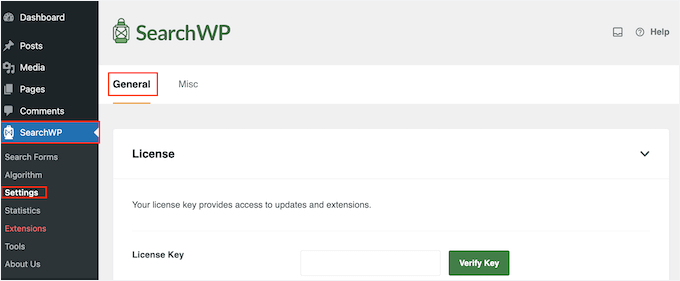
Here, you need to enter your license in the ‘License Key’ box. You can find this information under your account on the SearchWP site. Once you are done, make sure to click the ‘Verify Key’ button.
Step 2: Create a Custom Search Algorithm
After activating the plugin, you can fine-tune how SearchWP indexes, searches, and displays your content. You can think of this as creating a custom Google search algorithm that’s just for your WordPress blog or website.
You’ll need to create a sitewide search engine before you can start excluding pages from the search results, so head over to SearchWP » Algorithm.
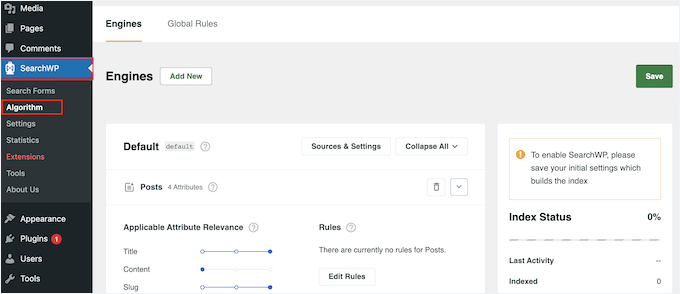
Here, you’ll see a section for the different content types that SearchWP searches by default, such as pages, posts, and media files.
Each section has its own Application Attribute Relevance sliders, which allow you to control how SearchWP ranks the content on your online marketplace, blog, or website.
For example, if you move the ‘Title’ slider to the left and the ‘Content’ slider to the right, then the content will carry more weight than the title.
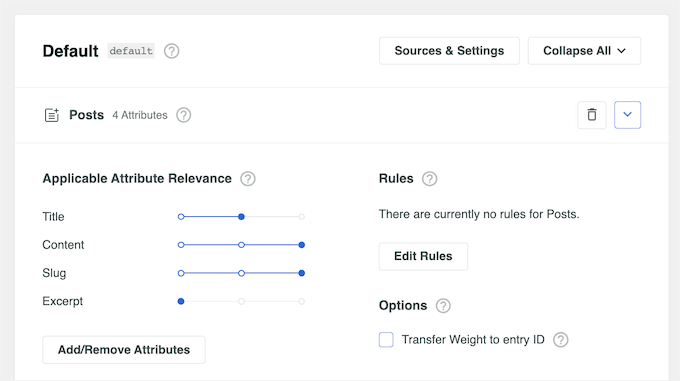
You can either exclude all pages from the search results or exclude specific pages only.
To stop all pages from appearing in your WordPress website search results, click on the small trash icon next to ‘Pages.’
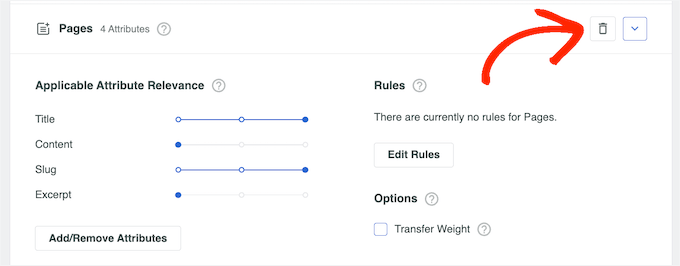
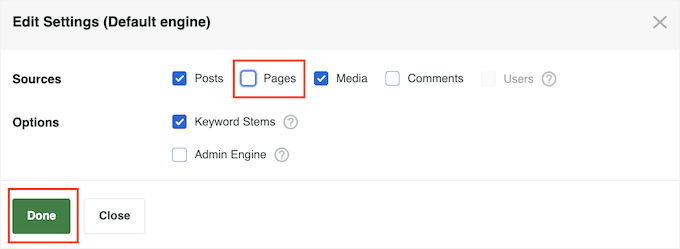
This opens a popup where you can uncheck the ‘Pages’ box.
After that, simply click on ‘Done’ to exclude all pages from the search bar and results.
When you’ve finished customizing the default search engine settings, it’s time to save your changes. Even if you plan to exclude specific pages or posts, you’ll still need to save your new sitewide search algorithm first.
To do this, scroll to the top of the screen and click the ‘Save’ button.
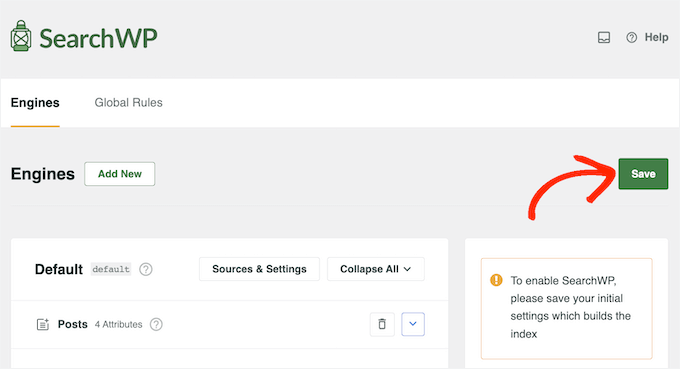
SearchWP will now rebuild the index automatically. Depending on the speed of your Internet connection, this may take a few minutes.
As soon as you see ‘Index Status 100%,’ you’ll know that SearchWP has indexed all your content and settings.
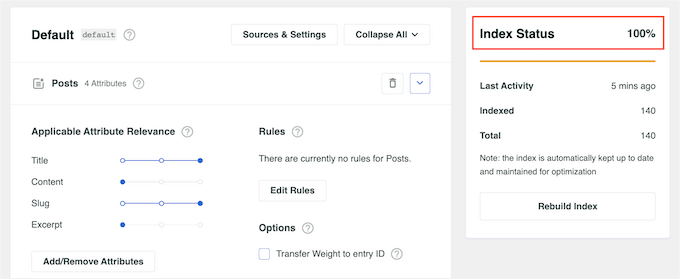
Your site will now start using the improved WordPress search automatically.
Step 3: Exclude Specific Pages From the WordPress Search Results (Optional)
Do you want to exclude specific pages from the search results, such as the WooCommerce checkout page?
After creating a sitewide search algorithm following the process described above, you can exclude individual pages from the search results.
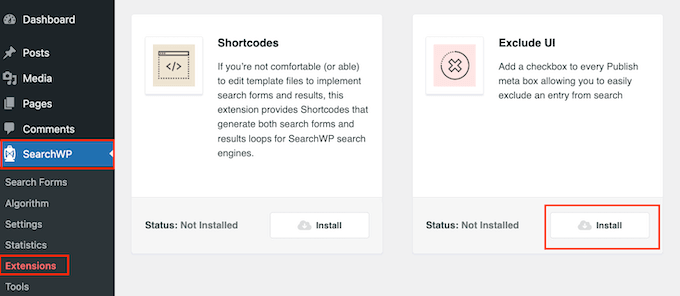
To do this, you’ll use the Exclude UI extension, which adds an ‘Exclude from search’ box to the page editor.
In the WordPress dashboard, head over to SearchWP » Extensions. Here, find the Exclude UI extension and click on its ‘Install’ button.
After that, open the page that you want to exclude from the search results. In the right-hand menu, make sure the ‘Page’ tab is selected.
You can now go ahead and check the ‘Exclude from search’ box.

Then simply click the ‘Update’ button, and this page will no longer appear in the search results. If you want to hide more pages from the search results, then simply follow the process described above.
Step 4: Create and Embed Your Search Form
Now that you have created a custom WordPress search engine that excludes pages, you need to make a search form using that engine.
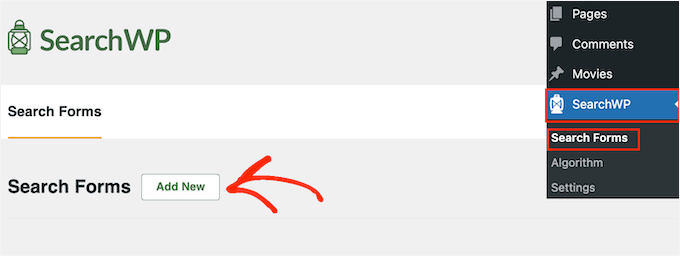
All you need to do is go to SearchWP » Search Forms and click the ‘Add New’ button. This will create a new search form that you can customize.
For step-by-step instructions, check out our guide on how to create a custom WordPress search form. This guide walks you through creating and embedding the search form on your pages, posts, and widget-ready areas.
You can also add the search form to your search bar. If you use a classic theme, then you will need to use the SearchWP Modal Search Form plugin.
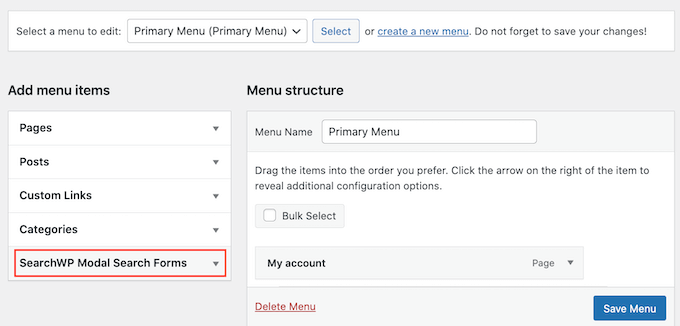
If you use a block theme, then you can use the Full Site Editor to add your SearchWP form to the navigation menu.
You can get more detailed information in our guide on how to add a search bar to the WordPress menu.
Bonus Tip: Exclude Posts, Taxonomies, and More from WordPress Search Results
Sometimes you might want to fine-tune your WordPress search results even further to only include specific content.
This could be useful for excluding items like private posts, custom post types you don’t want users searching for, or even specific taxonomies like tags.
For instance, excluding tags from search results might be helpful if you use them internally for organization but don’t want them to confuse users.
In this case, you can read our guide on how to exclude specific pages, authors, and more from WordPress search.
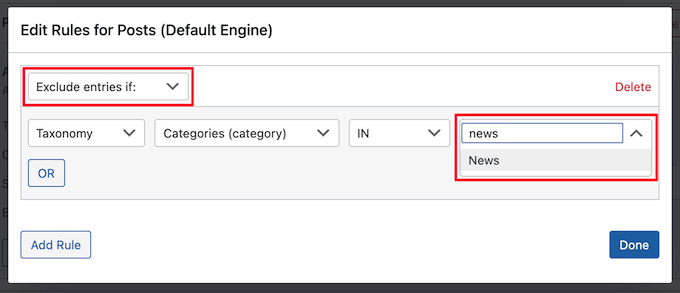
Another option is to exclude specific page categories from the search results.
To do this, you’ll need a clear system for categorizing your pages, which may take some planning. However, you won’t need to install any extra extensions.
To show the pages from specific categories only, see our guide on how to search by category in WordPress.
FAQs: Excluding Pages from WordPress Search Results
Still have questions about hiding certain pages from WordPress search? Below are some frequently asked questions to help you out.
Will excluding pages from search results affect my SEO?
No, removing pages from your site’s internal search won’t affect your WordPress SEO. It only changes what users can find through your site’s search bar.
But if you block pages from Google using things like noindex or nofollow, that can affect how search engines rank or show them.
How do I exclude certain types of content from search results?
The easy way to hide things like posts, pages, or custom post types is by using a plugin. Typically, you can go to the plugin’s settings and uncheck the content types you don’t want to include in your search results.
Can I exclude specific pages without using a plugin?
Yes, but it’s more complicated. You’d need to add custom code to your theme’s functions.php files, which isn’t recommended if you’re not comfortable editing code. Using a plugin is much easier and safer.
To learn more about it, check out our comparison article on WordPress Plugin vs Functions.php File.
Are there other benefits to customizing WordPress search results?
Absolutely. Cleaning up your search results makes it easier for visitors to find what they need. That means better user experience, more time spent on your site, and possibly more conversions if people find your best content faster.
More Guides for Improving WordPress Search
We hope this article helped you learn how to exclude pages from the WordPress search results. You may also want to see our guides on:
- How to Add Multilingual Search in WordPress
- How to Add Voice Search Capability to Your WordPress Site
- How to Add Live AJAX Search to Your WordPress Site
- How to Add Fuzzy Search in WordPress to Improve Results
- How to See Search Analytics in WordPress
- How to Fix WordPress Search Not Working
- How to Improve WordPress Search with SearchWP
If you liked this article, then please subscribe to our YouTube Channel for WordPress video tutorials. You can also find us on Twitter and Facebook.



Have a question or suggestion? Please leave a comment to start the discussion.