


Are you collecting form submissions on your WordPress site but never showing them to your visitors? That’s a missed opportunity.
Showing entries like reviews, member lists, or event calendars on your site gives them a purpose. They can help visitors find information, see real feedback, or discover people and events in your community.
At WPBeginner, we’ve helped plenty of site owners make their hidden form data useful. After testing lots of approaches, we’ve found 2 that work really well.
In this guide, we’ll show you how to display WordPress form entries on your site in 2 easy ways – whether you’re running a directory, a showcase, or a community site. 🙌
Why Display WordPress Form Entries on the Frontend?
Displaying form entries means taking the data your visitors submit and showing it on the public pages of your WordPress website. One of the biggest benefits is building social proof.
By default, form submissions are only visible to administrators.
But showing testimonials or product reviews that use real customer feedback is a great way to build trust. In fact, a study found that displaying reviews can increase conversion rates by up to 270%.
You can also use form entries to create other useful resources for your visitors, like business directories, member lists, or user-submitted events on a calendar.
In the following sections, we’ll show you how to display form entries on the front end of your WordPress website using Formidable Forms and WPForms.
Here’s a quick overview of all the things we’ll cover in this guide:
- Displaying WordPress Form Entries by Using Formidable Forms (Easy Way)
- Displaying WordPress Form Entries by Using WPForms (Advanced)
- Bonus Tip: Creating GDPR-Compliant Forms
- Frequently Asked Questions About Displaying Form Entries in WordPress
- Video Tutorial: Displaying WordPress Form Entries
- Additional Resources for Using WordPress Forms
Let’s get started.
Method 1: Displaying WordPress Form Entries by Using Formidable Forms
The easiest way to show form entries in WordPress is by using Formidable Forms. It’s a popular WordPress contact form plugin and offers an all-in-one form builder with lots of customization features.
You can create all kinds of forms, especially advanced forms like event calendars, directories, and calculators.
We have tested Formidable Forms thoroughly to learn about all its features. You can see why we recommend it in our complete Formidable Forms review.
Step 1: Set Up Formidable Forms
To get started, let’s install and activate the Formidable Forms plugin on your site. For this tutorial, we’ll use the Formidable Forms Pro version because it includes the ‘Visual Views’ addon.
If you need help, please see our guide on how to install a WordPress plugin.
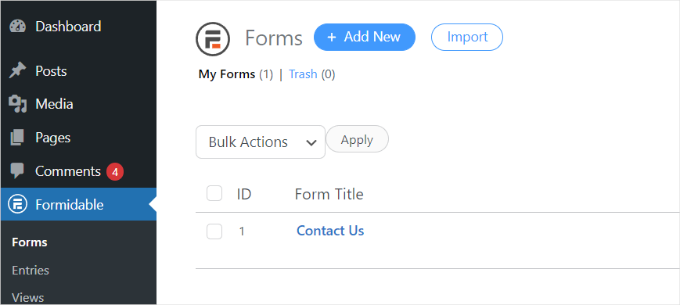
Upon activation, you can go to Formidable » Forms and click the ‘+ Add New’ button at the top.
Step 2: Create a Form
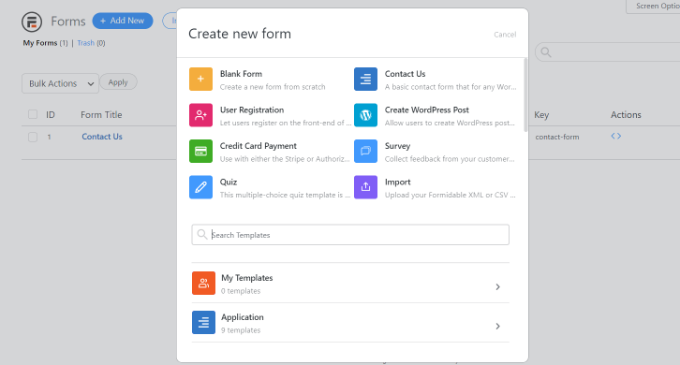
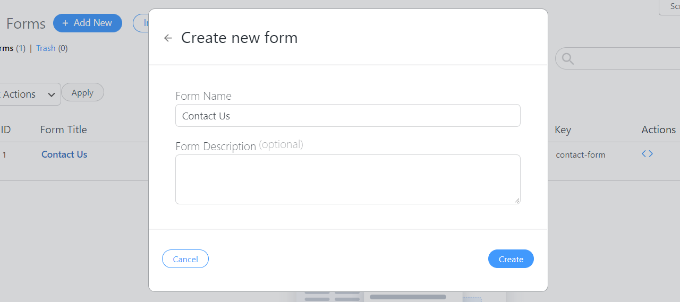
After that, a popup will appear asking you to select a form type, such as a contact form, user registration form, survey, or other.
Go ahead and select your preferred form type. For this tutorial, we’ll create a contact form to collect testimonials from users.
Next, you’ll need to enter a form name and description.
When you’re done, simply click the ‘Create’ button.
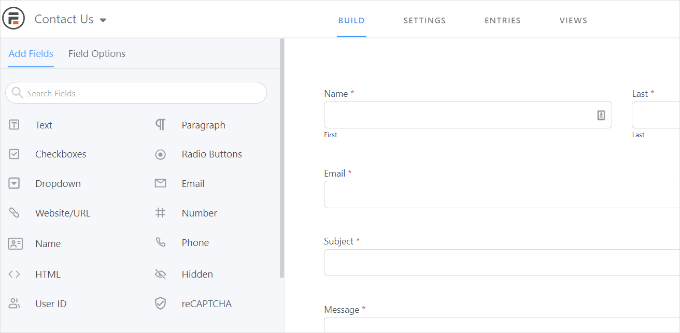
Now, you can use the form builder to customize your form.
Formidable offers a drag-and-drop builder that is super easy to use. Simply select any form field you would like to add to your form from the options on the left and place it in the form template.
Step 3: Publish the Form
After customizing, you can embed the form anywhere on your website.
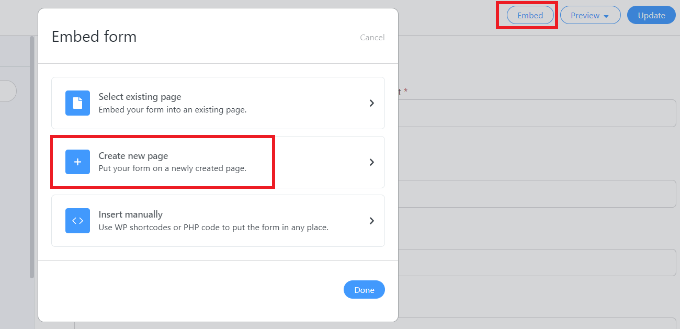
The plugin offers multiple options for adding your form. The easiest way is to click the ‘Embed’ button in the form builder at the top, and then select an existing page or create a new page to add your form.
Alternatively, you can use a ‘Formidable Forms’ block or a shortcode block in the WordPress content editor to embed your forms.
For this tutorial, we’ll choose the ‘Create new page’ option.
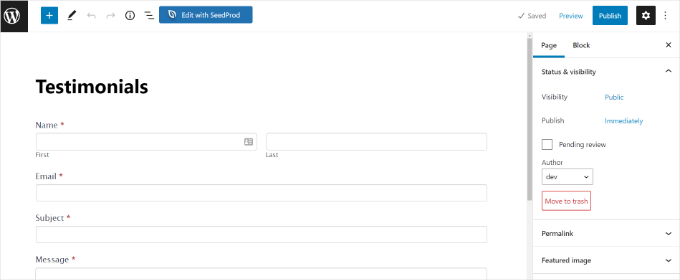
Once you’re inside the content editor, you’ll see that you have created a dedicated page for your Formidable Forms form.
Before making it live, you might want to preview it by clicking the ‘Preview’ button.
When you’re satisfied with its appearance, go ahead and publish your page.
Step 4: Turn On Visual Views
After your form is live and you start receiving entries, you’ll want to install and activate the ‘Visual Views’ add-on in Formidable Forms.
To do that, simply go to Formidable » Add-Ons from your WordPress admin area. Next, you can scroll down to the ‘Visual Views’ addon and click the ‘Install’ button.
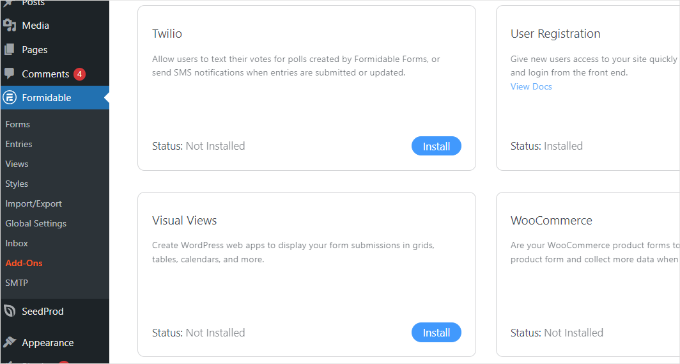
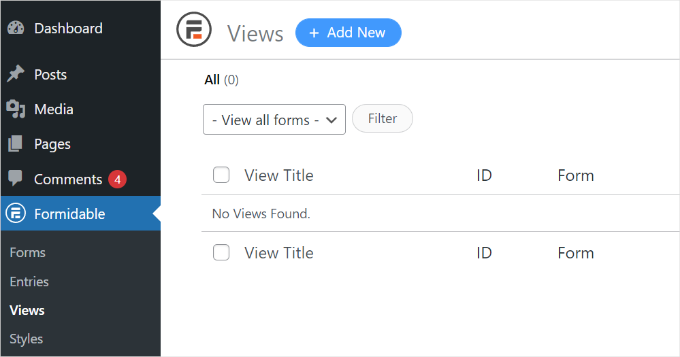
Once the addon is active, you can go to the Formidable » Views page.
Then, go ahead and click the ‘+ Add New’ button at the top.
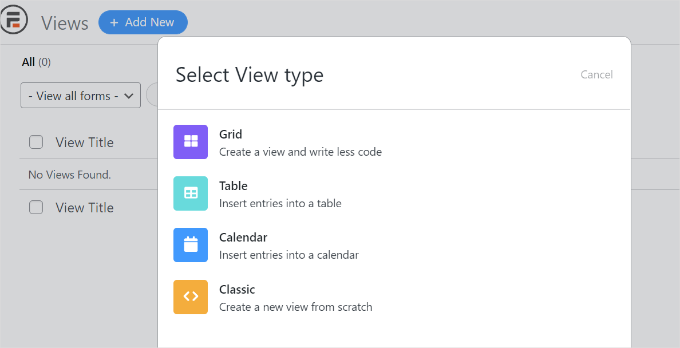
A popup window will appear. Here, you’ll need to select a view type, such as grid, table, calendar, or classic view.
For this tutorial, we’ll choose the ‘Grid’ view to show form entries.
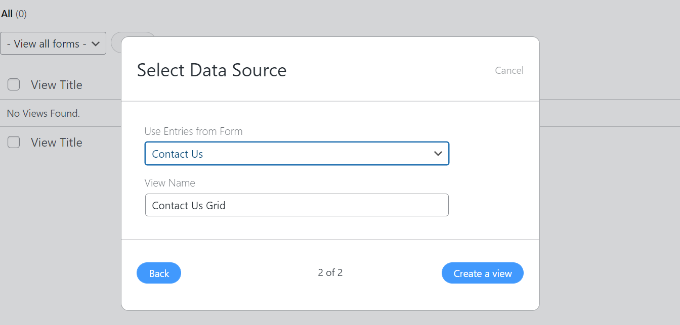
The next step is to select a data source for your view.
Go ahead and click on the ‘Use Entries from Form’ dropdown menu to select your form. You can also enter a view name.
After selecting your data source, simply click the ‘Create a view’ button.
This will launch the view builder in Formidable Forms.
To get started, go ahead and click the ‘Layout Builder’ button.
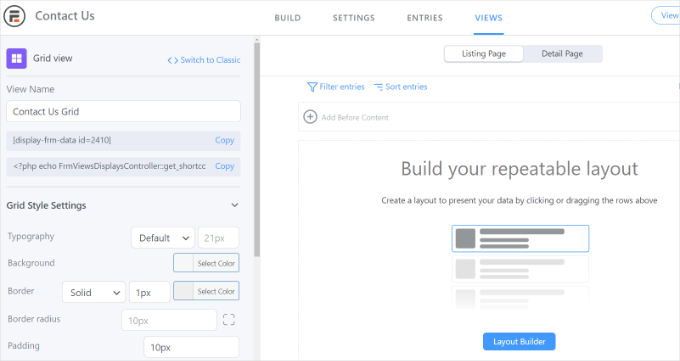
Next up, you’ll need to select a layout to display your form entries.
Simply choose a layout from the given options at the top. You can add multiple layouts to show form entries.
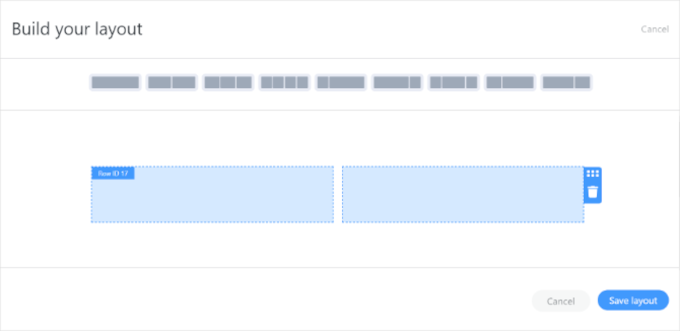
After selecting a layout, go ahead and click the ‘Save layout’ button.
You can then add content to the view builder by clicking the ‘+’ button. There are options to customize the layout of the form entries and add content before and after the form entries.
The plugin also gives options to change the typography, background color, border, and more under the ‘Grid Style Settings’ panel on your left.
You’ll also see a shortcode under the ‘View Name’ field, which you’ll need when showing form entries on your site.
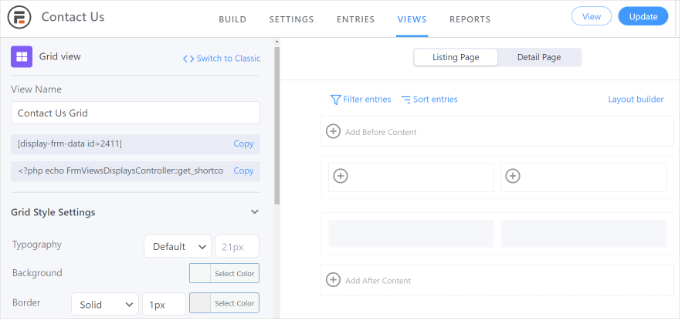
There are more advanced options in the ‘Grid Style Settings’ panel. In the advanced settings, you can limit the number of entries, page size, and more.
When you’ve customized the view, don’t forget to click the ‘Update’ button at the top.
Step 5: Display Form Entries on the Front End
Next, you’ll need to display your form entries on your WordPress website. To do that, copy the shortcode given under the ‘View Name.’
The shortcode will look like this:
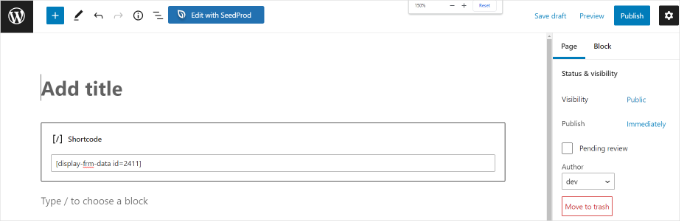
[display-frm-data id=2410]
Once you’ve copied the shortcode to the clipboard, you can go to any post or page where you’d like to display form entries.
In the content editor, simply add a ‘Shortcode’ block.
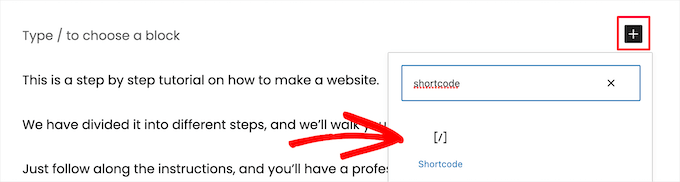
Now, add the shortcode you copied earlier in the shortcode block.
After that, you might want to preview the page before publishing it.
You can now visit your website to see the form entries in action.
Here’s what they look like on our demo website:

Method 2: Displaying WordPress Form Entries by Using WPForms
You can also display form entries using WPForms, one of the best WordPress contact form plugins. This method is more advanced because it requires adding a PHP code snippet to your site.
To do this, you’ll need WPForms Pro, which stores all form entries in your WordPress database. The free WPForms Lite version only sends entries via email and does not save them, so it won’t work for this method.
At WPBeginner, we use WPForms to create various forms, like contact forms and annual user surveys. Get more information about it in our detailed WPForms review.
Step 1: Install WPForms
First, let’s sign up for a WPForms account.
You can simply click the ‘Get WPForms Now’ button on their website to purchase a plan and create your account.

With that done, go ahead and copy your license key.
Now, let’s get the plugin set up.
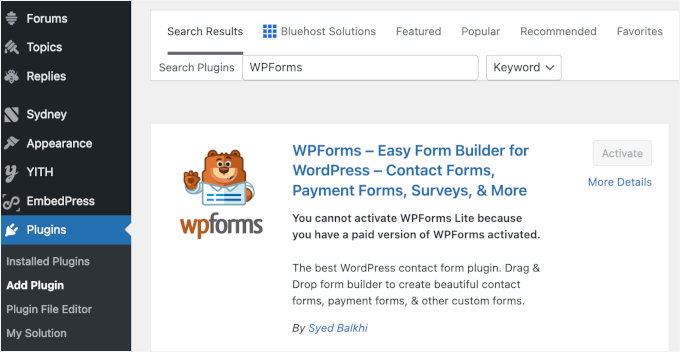
To do this, you’ll need to install the free version of the WPForms plugin from the WordPress repository, which provides the basic framework. After that, you’ll enter your license key to unlock all the Pro features.
To start, you can go to Plugins » Add New Plugin from your WordPress admin area.

Then, use the search feature to quickly find the WPForms plugin.
In the relevant search result, click on ‘Install Now’ and ‘Activate.’ For more details, please see our guide on how to install a WordPress plugin.
Step 2: Create a Form and Display Its Entries
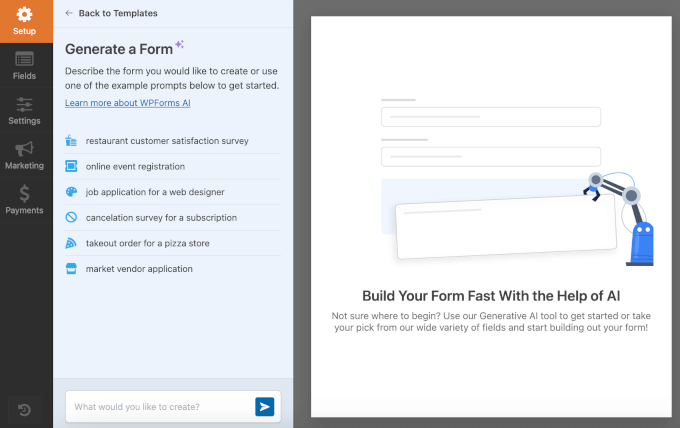
Upon activation, you can start creating an online form using WPForms. You can check out our step-by-step guide on how to create a contact form in WordPress.
Once you start to get form entries, you’ll need to enter the following code into your theme’s functions.php file.
But do note that doing so can break your website if you make even a small mistake.
That’s why we always recommend using WPCode, the best code snippet plugin for WordPress.
Some of our partner brands use this plugin because it’s the safest and easiest way to add custom code snippets to WordPress without risking breaking the site. For a deeper look into the platform, check out our WPCode review.

Don’t worry, you don’t have to understand what the code below does.
You just need to copy it. Then, to enter the code, please see our guide on how to easily add custom code in WordPress for more information.
/**
 * Custom shortcode to display WPForms form entries in table view.
 *
 * Basic usage: [wpforms_entries_table id="FORMID"].
 *
 * Possible shortcode attributes:
 * id (required)  Form ID of which to show entries.
 * user           User ID, or "current" to default to current logged in user.
 * fields         Comma separated list of form field IDs.
 * number         Number of entries to show, defaults to 30.
 *
 * @link https://wpforms.com/developers/how-to-display-form-entries/
 *
 * Realtime counts could be delayed due to any caching setup on the site
 *
 * @param array $atts Shortcode attributes.
 *
 * @return string
 */

function wpf_entries_table( $atts ) {

    // Pull ID shortcode attributes.
    $atts = shortcode_atts(
        [
            'id'     => '',
            'user'   => '',
            'fields' => '',
            'number' => '',
                        'type' => 'all' // all, unread, read, or starred.
        ],
        $atts
    );

    // Check for an ID attribute (required) and that WPForms is in fact
    // installed and activated.
    if ( empty( $atts['id'] ) || ! function_exists( 'wpforms' ) ) {
        return;
    }

    // Get the form, from the ID provided in the shortcode.
    $form = wpforms()->form->get( absint( $atts['id'] ) );

    // If the form doesn't exists, abort.
    if ( empty( $form ) ) {
        return;
    }

    // Pull and format the form data out of the form object.
    $form_data = ! empty( $form->post_content ) ? wpforms_decode( $form->post_content ) : '';

    // Check to see if we are showing all allowed fields, or only specific ones.
    $form_field_ids = isset( $atts['fields'] ) && $atts['fields'] !== '' ? explode( ',', str_replace( ' ', '', $atts['fields'] ) ) : [];

    // Setup the form fields.
    if ( empty( $form_field_ids ) ) {
        $form_fields = $form_data['fields'];
    } else {
        $form_fields = [];
        foreach ( $form_field_ids as $field_id ) {
            if ( isset( $form_data['fields'][ $field_id ] ) ) {
                $form_fields[ $field_id ] = $form_data['fields'][ $field_id ];
            }
        }
    }

    if ( empty( $form_fields ) ) {
        return;
    }

    // Here we define what the types of form fields we do NOT want to include,
    // instead they should be ignored entirely.
    $form_fields_disallow = apply_filters( 'wpforms_frontend_entries_table_disallow', [ 'divider', 'html', 'pagebreak', 'captcha' ] );

    // Loop through all form fields and remove any field types not allowed.
    foreach ( $form_fields as $field_id => $form_field ) {
        if ( in_array( $form_field['type'], $form_fields_disallow, true ) ) {
            unset( $form_fields[ $field_id ] );
        }
    }

    $entries_args = [
        'form_id' => absint( $atts['id'] ),
    ];

    // Narrow entries by user if user_id shortcode attribute was used.
    if ( ! empty( $atts['user'] ) ) {
        if ( $atts['user'] === 'current' && is_user_logged_in() ) {
            $entries_args['user_id'] = get_current_user_id();
        } else {
            $entries_args['user_id'] = absint( $atts['user'] );
        }
    }

    // Number of entries to show. If empty, defaults to 30.
    if ( ! empty( $atts['number'] ) ) {
        $entries_args['number'] = absint( $atts['number'] );
    }

// Filter the type of entries all, unread, read, or starred
    if ( $atts['type'] === 'unread' ) {
        $entries_args['viewed'] = '0';
    } elseif( $atts['type'] === 'read' ) {
        $entries_args['viewed'] = '1';
    } elseif ( $atts['type'] === 'starred' ) {
        $entries_args['starred'] = '1';
    }

    // Get all entries for the form, according to arguments defined.
    // There are many options available to query entries. To see more, check out
    // the get_entries() function inside class-entry.php (https://a.cl.ly/bLuGnkGx).
    $entries = wpforms()->entry->get_entries( $entries_args );

    if ( empty( $entries ) ) {
        return '<p>No entries found.</p>';
    }

    ob_start();

    echo '<table class="wpforms-frontend-entries">';

        echo '<thead><tr>';

            // Loop through the form data so we can output form field names in
            // the table header.
            foreach ( $form_fields as $form_field ) {

                // Output the form field name/label.
                echo '<th>';
                    echo esc_html( sanitize_text_field( $form_field['label'] ) );
                echo '</th>';
            }

        echo '</tr></thead>';

        echo '<tbody>';

            // Now, loop through all the form entries.
            foreach ( $entries as $entry ) {

                echo '<tr>';

                // Entry field values are in JSON, so we need to decode.
                $entry_fields = json_decode( $entry->fields, true );

                foreach ( $form_fields as $form_field ) {

                    echo '<td>';

                        foreach ( $entry_fields as $entry_field ) {
                            if ( absint( $entry_field['id'] ) === absint( $form_field['id'] ) ) {
                                echo apply_filters( 'wpforms_html_field_value', wp_strip_all_tags( $entry_field['value'] ), $entry_field, $form_data, 'entry-frontend-table' );
                                break;
                            }
                        }

                    echo '</td>';
                }

                echo '</tr>';
            }

        echo '</tbody>';

    echo '</table>';

    $output = ob_get_clean();

    return $output;
}
add_shortcode( 'wpforms_entries_table', 'wpf_entries_table' );
Once you’ve added the code to your website using the free WPCode plugin, you’re ready to display your form entries. You’ll do this using a shortcode that you can place on any page or post.
The basic shortcode looks like this:
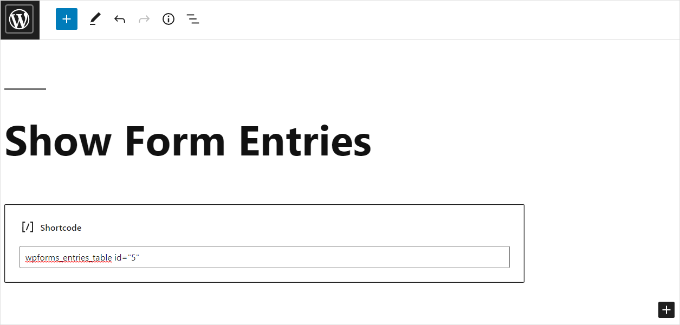
[wpforms_entries_table id="FORMID"]
Just remember to replace FORMID with your actual form’s ID.
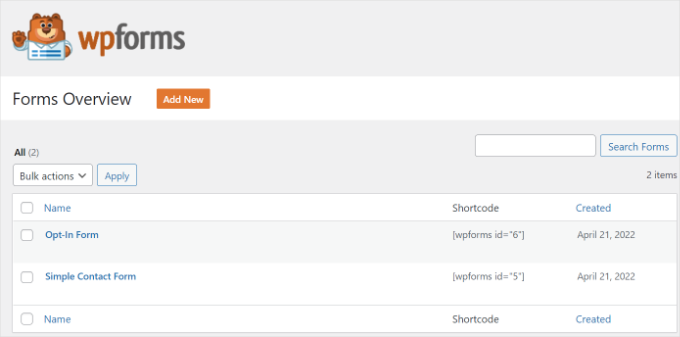
You can find the form ID by going to WPForms » All Forms and then looking at the Shortcode column.
Customizing Your WPForms Entry Display (Alternative)
You can also customize this shortcode to change which fields are displayed and how many entries are shown. This is super helpful for creating clean, focused displays.
Here are a couple of useful options:
- Show specific fields: To only show certain columns, add a
fieldsattribute with the Field IDs from your form. For example, to show only the fields with IDs 1 and 3, you would use:[wpforms_entries_table id="123" fields="1,3"] - Limit the number of entries: To show only the 5 most recent entries, add the
numberattribute:[wpforms_entries_table id="123" number="5"]
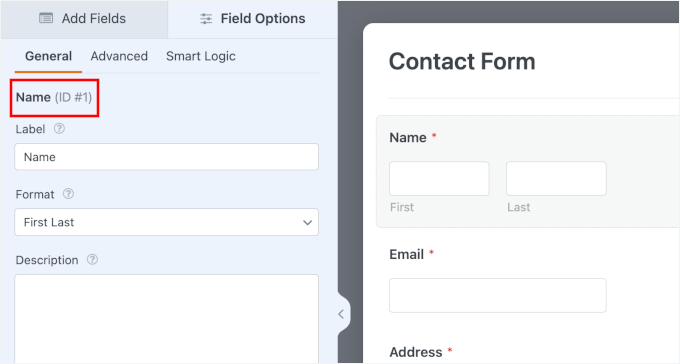
You can find the ‘Field ID’ for any field by opening your WordPress form in the WPForms builder and clicking on that field. The ID is shown at the top of the settings panel on the left.
Step 3: Adding the Shortcode to Your Page
To add a shortcode, simply create a new page or edit an existing one.
Next, go ahead and add a ‘Shortcode’ block.
Then, simply add your shortcode to the block.
With that done, you can preview your WordPress page and click the ‘Publish’ button at the top.
And that’s all there is to it!
Here’s what the preview of our form entries looked like on the front end:
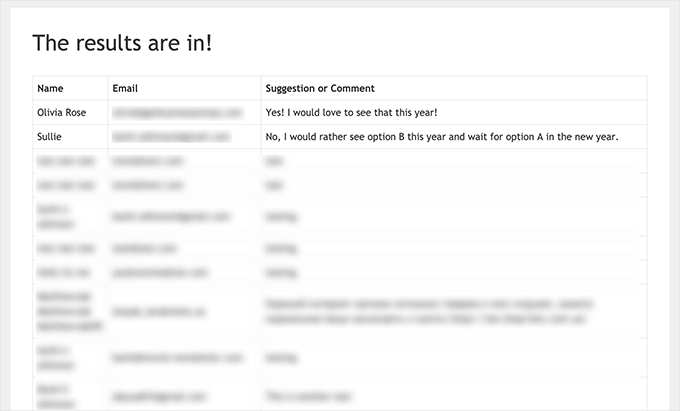
You can further customize the display using custom CSS styles as needed.
Bonus Tip: Creating GDPR-Compliant Forms
The General Data Protection Regulation (GDPR) is a European Union law that gives people more control over their personal data. If your website collects information from users, especially through forms, it’s important to follow these rules.
To make your forms GDPR-compliant, you should:
- Get explicit consent: Ask users if it’s okay to store and use their personal info.
- Fulfill access requests: Let users see the personal information you have about them.
- Honor deletion requests: Allow users to ask for their data to be deleted from your site.
🚨 Warning: The steps in the above methods cover collecting data. Since this tutorial is about displaying that data publicly, you must get separate, clear consent from users to do so.
The easiest way is to add a checkbox on your form that clearly states their submission will be shared on your WordPress website.
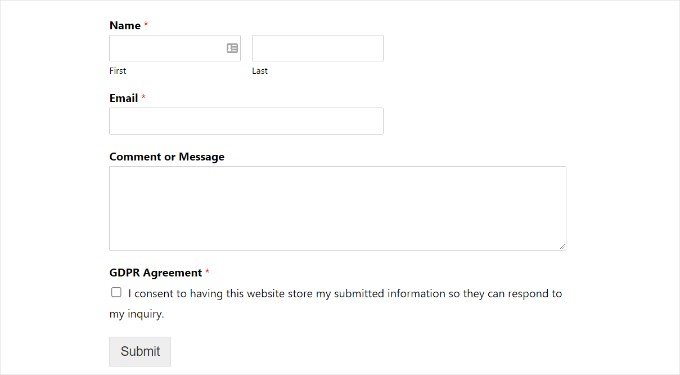
For more details, you can check out our guide on how to create GDPR-compliant forms in WordPress. It’ll answer all your questions in easy-to-understand language.
Frequently Asked Questions About Displaying Form Entries in WordPress
Can I display form entries without a plugin?
Yes, but it’s very technical. You’d need to write custom PHP and SQL code to query your WordPress database and display the results. Using a plugin like Formidable Forms or the WPForms code snippet method is much easier and safer for most users.
Is it safe to display user-submitted data on my site?
It can be, but you need to be careful. Always get explicit consent from users before making their data public.
Plus, it is very important to moderate submissions before they appear on your site. You should review every entry to prevent inappropriate content from being published.
Rule of thumb: Never publicly display sensitive personal information like full names, email addresses, phone numbers, or home addresses without explicit, case-by-case permission.
How can I style the appearance of my form entries?
Both methods in this guide let you style entries. Formidable Forms’ Visual Views addon has built-in settings for colors, fonts, and layout. The WPForms table method produces a basic HTML table that you can style with custom CSS to match your theme.
Video Tutorial: Displaying WordPress Form Entries
🎬 See it in action! Watch our video tutorial to display WordPress form entries on your site:
Additional Resources for Using WordPress Forms
We hope that this article helped you learn how to display WordPress form entries on your site.
Next, you may also want to see our other helpful guides on:
- How to Create an Online Order Form
- How to Add a Coupon Code Field to Your WordPress Forms
- How to Add Autocomplete for Address Fields in WordPress
- Ways to Use Conditional Logic in WordPress Forms
- How I Blocked 18,000 Spam Lead Attacks in My WordPress Form
- Ultimate Guide on Using WordPress Forms
If you liked this article, then please subscribe to our YouTube Channel for WordPress video tutorials. You can also find us on Twitter and Facebook.




Dennis Muthomi
Nice article on showing WordPress form entries! The Formidable Forms section was super helpful. I used this method for a client’s testimonial page and it worked like a charm. One more tip: consider adding a moderation step before entries are shown publicly especially for user generated content. That extra layer of control will help keep the entries relevant and quality and prevent spam or inappropriate content.
Melanie
I made this table for a front end page for a Wpforms form. But I’d like to add a filter where users can select date range like you see on the back end when you view entries. How can I do that?? Thanks!
WPBeginner Support
We don’t have a recommended method at the moment but should that change we will be sure to share!
Admin