


When we built our own video membership site, the biggest hurdle wasn’t creating the content. It was finding a platform that could deliver lessons, manage students, and handle signups without unnecessary complexity.
So here’s our hot take: most of us don’t get stuck because teaching online is hard – we get stuck because the technical setup feels overwhelming.
The good news is that building an eLearning website no longer requires months of custom development or expensive platforms.
With WordPress and MemberPress, you can launch a professional-looking course platform in just a few hours. In this step-by-step guide, we’ll show you how to create an eLearning website with WordPress – polished, user-friendly, and built to grow. 📈

Why Should You Create an eLearning Website?
Creating an eLearning website opens up endless opportunities to share knowledge, reach a wider audience, and even make money online.
Whether you’re a teacher, business owner, or content creator, an online learning platform lets you connect with students from anywhere in the world.
It’s also a cost-effective way to provide valuable resources. Instead of renting classroom space or printing materials, you can create online courses that are accessible 24/7.
Plus, you’ll have complete control over the design, branding, and content of your learning hub, so it’s easy to build a website that reflects your vision.
- How to Create an eLearning Website
- Step 0: Choose a Domain Name and Web Hosting
- Step 1: Install WordPress and Pick an eLearning-Friendly Theme
- Step 2: Build Your eLearning Homepage
- Step 3: Set Up a Learning Management System
- Step 4: Create Your First Online Course Content
- Step 5: Restrict Access to Your Course Content
- Step 6: Add a Contact Form for Students
- Final Step: Set Up and Customize Your Navigation Menu
💡 Why Trust WPBeginner? This guide on how to create an eLearning website follows WPBeginner’s editorial process. Every step is reviewed to make sure it’s accurate, helpful, and easy to follow.
How to Create an eLearning Website
You might feel tempted to offer your online courses on a third-party platform like Teachable or Skillshare. But we highly recommend using WordPress instead.
WordPress is a popular website builder that makes it super easy to create your own eLearning platform. It allows you to have full control over your earnings and ownership of your content.
Plus, with its flexible learning management system (LMS) plugins and education themes, WordPress makes it easy to set up a professional-looking site that serves both educators and students.
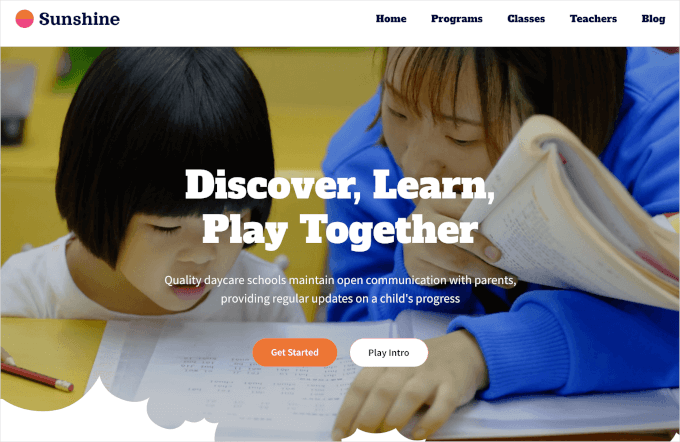
You also don’t need to be a tech whiz to use WordPress. It gives you all the tools you need to build a website without learning how to code.
Now, keep in mind that when we refer to WordPress, we’re talking about WordPress.org. It’s an open-source platform that gives you full control over your website, allowing you to customize and extend its features however you like.
For more detailed information, you can check out our in-depth comparison of WordPress.com vs. WordPress.org.
Step 0: Choose a Domain Name and Web Hosting
Before we jump in, let’s quickly cover what you need to set up your WordPress eLearning site.
To set up a WordPress website, you’ll need two things: a domain name and web hosting.
Your domain name is your website’s address on the internet, such as “learnsphere.com.” Web hosting is where your site lives online and makes it accessible to visitors.
Since you’re building an eLearning site, your hosting should be able to handle things like secure logins, webinars, payments, live sessions, and a growing number of students.
We’ve put together a list of the best WordPress hosting providers to make this easier.
While WordPress is free, a domain usually costs about $14.99/year. And web hosting starts around $7.99/month.
That’s why we recommend Bluehost. It’s officially recommended by WordPress and offers a special deal for our readers — plans start at $2.99/month and include a free domain name and SSL certificate.
In addition to excellent web hosting services, you’ll get a free domain name and SSL certificate for just $2.99 per month.
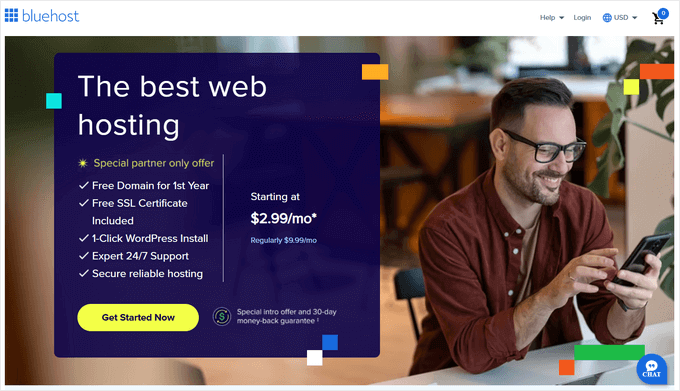
The SSL certificate keeps your site secure by encrypting data shared between your site and its visitors, such as login details and payments.
Once you choose a Bluehost plan, their setup wizard walks you through everything – choosing a domain name, creating your account, and selecting any extras you want.
Step 1: Install WordPress and Pick an eLearning-Friendly Theme
The first step is to install WordPress so that you can create an eLearning website. Most of the process should be automatic, though it depends on your web host.
For example, after you sign up for a web hosting plan with Bluehost, you’ll be taken to the control panel, where WordPress is automatically installed on your domain name.
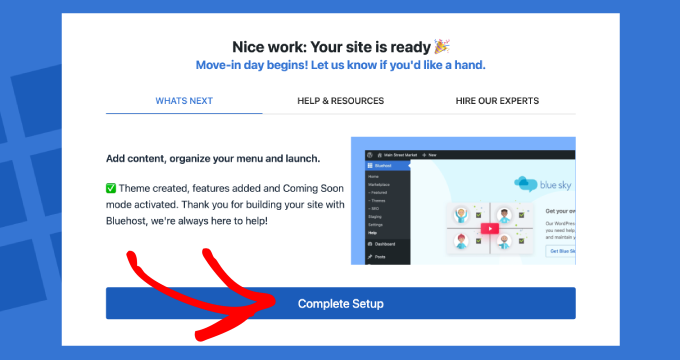
For step-by-step instructions, you can check out our comprehensive guide on how to install WordPress. It includes detailed installation steps for some of the most popular WordPress hosting providers, including Bluehost.
With WordPress up and running, you can go ahead and install a WordPress theme.
WordPress themes, sometimes called layouts or templates, control the look and feel of your site. Your eLearning website needs a WordPress theme that not only looks great but also supports the functionality you need for courses, lessons, and student engagement.
Here’s how you can find the perfect theme for your site.
Explore the WordPress Theme Directory
The WordPress theme directory is a great place to start if you’re on a budget. It’s packed with free themes that are easy to install directly from your admin dashboard.
Simply go to Appearance » Themes and then click ‘Add New.’ From here, you can use the ‘Search Themes’ feature to look for designs tailored to educational sites.
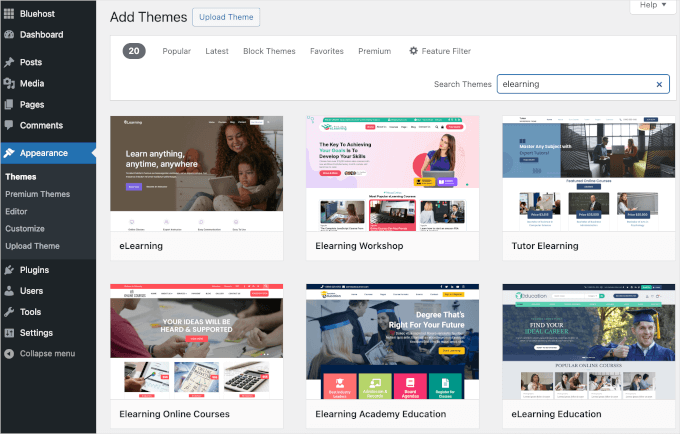
For curated picks, see our post on the best WordPress education themes for teachers.
Check Out Premium Theme Marketplaces
If you want more advanced features and unique designs, premium theme marketplaces like ThemeIsle or Themify offer a wide range of options.
These themes usually include extras like better customization, advanced support, and pre-built layouts specifically for eLearning websites.
Use SeedProd for Total Customization
If you want ultimate flexibility when designing your web pages, then we recommend using SeedProd.
It’s the best drag-and-drop website builder that lets you design your site from scratch or use ready-made templates. You can customize everything, from fonts to layouts, without writing a single line of code.
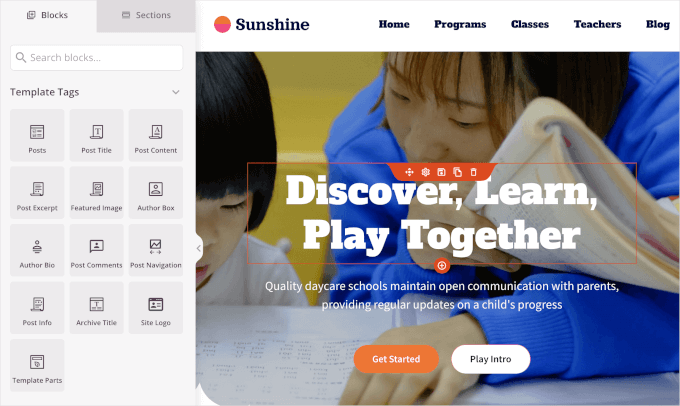
Several of our partner brands have used this page builder to create entire websites that sell their software, and they’ve had excellent experiences with it. Our readers frequently ask us about using SeedProd, so we regularly test it ourselves as well.
For more information, see our full SeedProd review.
Plus, SeedProd works seamlessly with WordPress, so adding features like course registration or payment forms is a breeze. You can even use SeedProd’s AI Theme Builder to generate entire websites in less than 60 seconds.
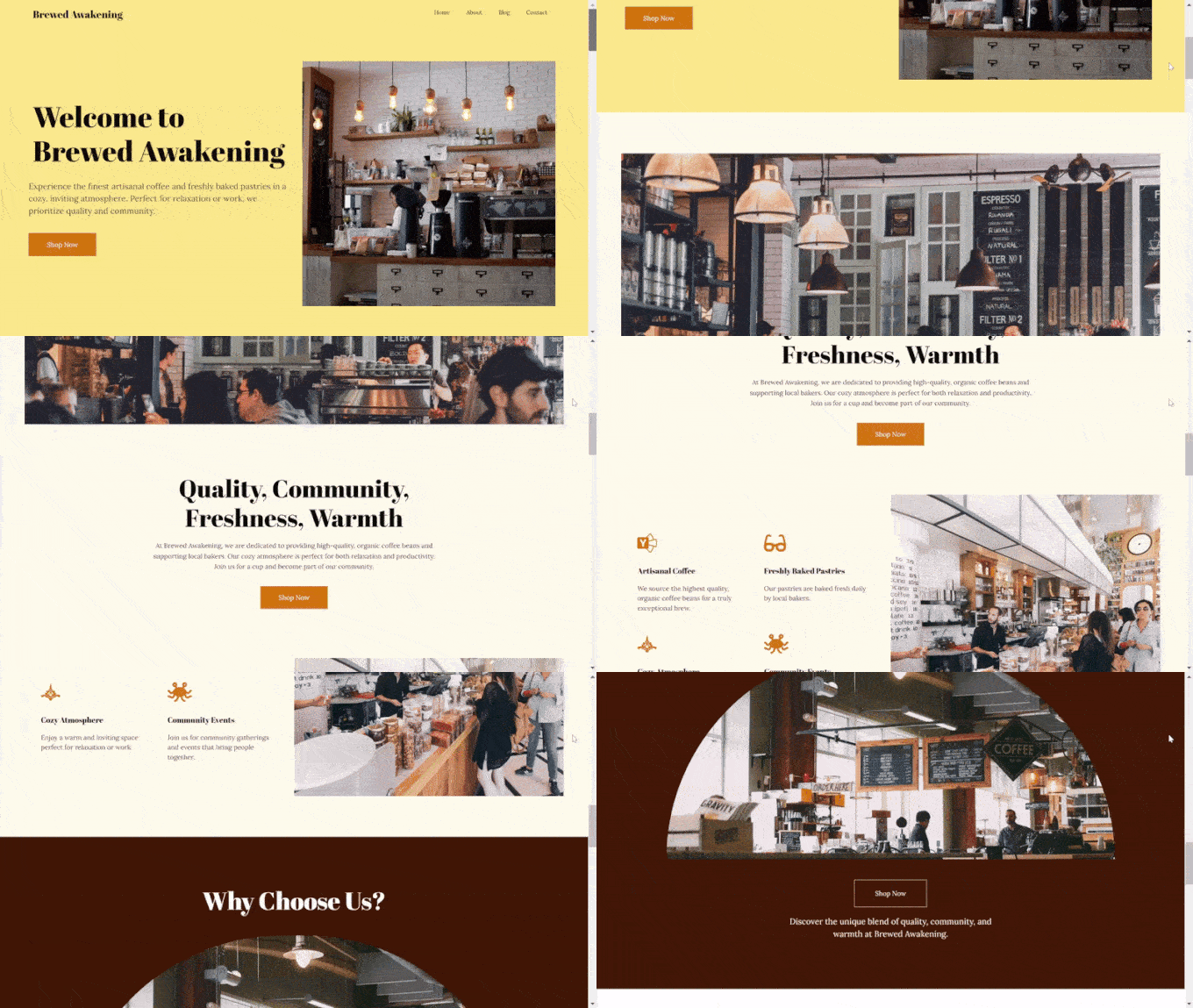
Other than that, there are AI assistants to write content and translate it, as well as generate images. For instructions, see our guide on how to make a custom WordPress theme.
Each option has its perks. Free themes are perfect for a quick start, premium themes offer polished designs, and SeedProd lets you build something truly unique.
Once you’ve chosen an eLearning theme, you can follow our guide on how to install a WordPress theme.
💡 Reminder: You can completely change your WordPress theme at any point, so you’re not locked into your site’s original design.
Step 2: Build Your eLearning Homepage
Now that you’ve installed a theme, you’re ready to create the home page for your eLearning website.
You can do this using the WordPress block editor.
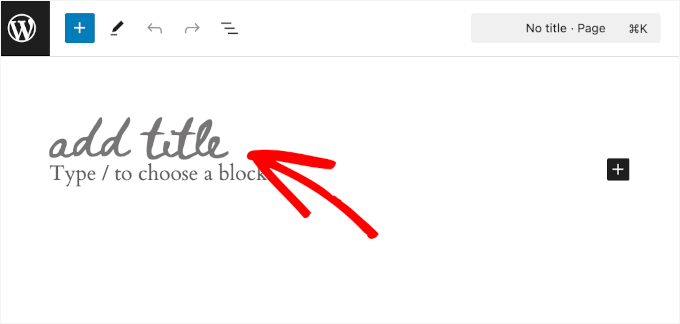
You may want to start building your homepage by adding a page title and tagline. Simply click on the relevant blocks and type them in.
Next, you might want to add a hero image.
A hero image is the big, eye-catching image you see at the top of a homepage. It’s one of the first things people notice when they visit your WordPress site, so it’s a great spot to show what your site is all about.
For an online course site, the hero image could show students learning, collaborating, or engaging with your content.
🧑💻 Expert Tip: A hero image is often paired with a headline that tells visitors what your site offers and a call-to-action button that encourages them to take action. For instance, you could tell people to check out your courses. So, adding a hero image makes your site more inviting and encourages people to get involved right away.
For a detailed guide on adding and customizing hero images, you can check out our article on how to add a hero image.
After that, you’ll need to add key text elements. Here are some of the essential eLearning homepage elements you may want to include:
- Course Highlights: Feature your top or most popular courses with images, descriptions, and buttons to enroll.
- About Section: Share a brief introduction about yourself or your eLearning platform. That way, visitors know why they can trust you.
- Testimonials: Showcasing student reviews and feedback helps build trust and enhance your brand’s credibility with potential learners. You can check out our guide on how to add rotating testimonials for details.
A quote from an influential figure is a nice element to add, too. It can inspire or motivate your visitors, connecting with them on an emotional level.
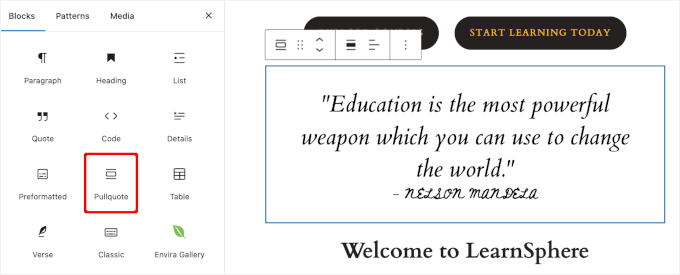
When you’re satisfied with the layout, you can just click the ‘Publish’ button in the block editor.
Here’s what our custom home page looks like:
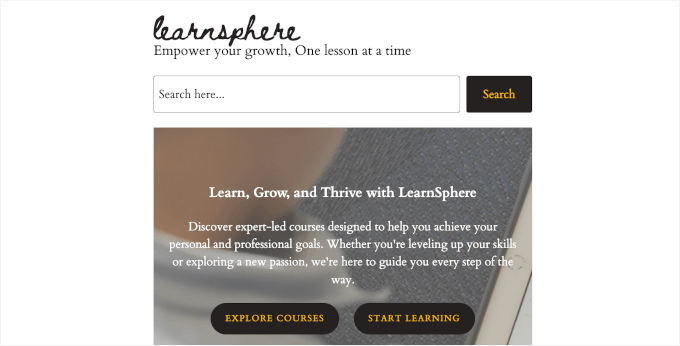
For details, you can read our guide on how to create a custom homepage in WordPress.
Step 3: Set Up a Learning Management System
Soon, you’ll be ready to start creating your eLearning content.
But first, you’ll need to set up a Learning Management System (LMS). That way, you can offer exclusive lessons or courses behind a membership paywall and turn your knowledge into a source of income.
A membership site also helps you build a community where users can interact, ask questions, and share ideas.
Out of all the LMS plugins we’ve tested, MemberPress stands out for its Classroom Mode. The plugin also offers helpful add-ons like course assignments, grade books, and quizzes. Plus, you can track student progress directly from your WordPress dashboard.
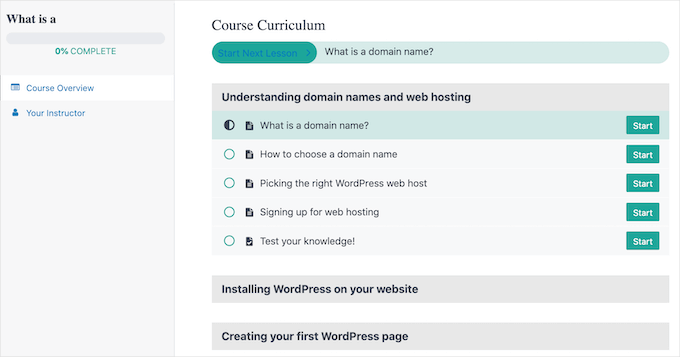
All of this might sound impressive, but you might wonder if it’s complicated to set up. The good news is that it’s simpler than it looks.
We’ve worked on plenty of projects like this ourselves, including building a free membership website to offer our WordPress courses. Feel free to check out our comprehensive MemberPress review for more details.
To do this, you can install and activate the MemberPress plugin. You can start by creating an account on the MemberPress website and uploading the zip file to your WordPress site.
If you need help, then you can read our guide on how to install a WordPress plugin.
After activation, you’ll see the MemberPress menu in your dashboard. Go ahead and click on it, and you’ll be guided through a series of setup steps.
Then, you’ll need to configure your payment methods. To do this, let’s navigate to MemberPress » Settings and switch to the ‘Payments’ tab.
After that, you can click on the ‘+ Add Payment Method’ button and start setting up your payment gateways.
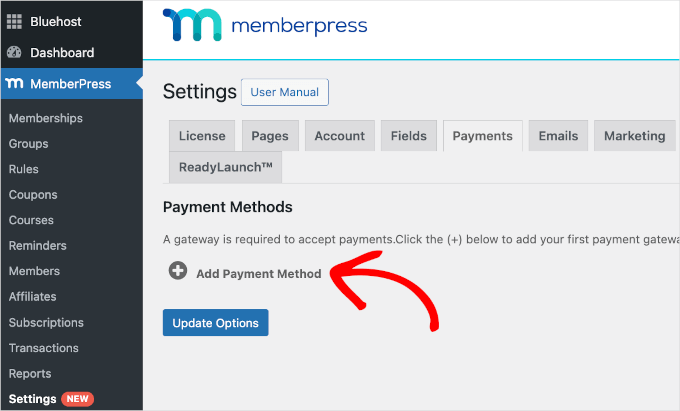
Once you’ve entered all the payment details, you’ll be ready to create your first online courses.
Before we move on, it’s important to note that while MemberPress is an excellent choice for creating eLearning websites, there are several other plugins you can use as alternatives:
- Thrive Apprentice is a great option for course creators who need to focus on detailed reporting and personalized content. For more information about the tool, read our detailed Thrive Themes Suite review.
- WishList Member offers a great way to improve course engagement with gamification features. For more details about our experience testing it, you can see our full WishList Member review.
- AccessAlly allows you to build powerful online courses and members-only content, including cohort-based WordPress group learning, online learning communities, and more.
- Courses for MemberMouse is a great option for teachers who need an all-in-one membership and course solution. You can get more information about the platform in our complete MemberMouse review.
🔗 Related: For more options, you might want to check out expert picks of the best WordPress LMS plugins or our comparison of MemberPress Courses vs. LearnDash.
Step 4: Create Your First Online Course Content
Now it’s time to start creating your online learning materials. With MemberPress, you have all the tools you need to make your courses stand out.
You can easily create lessons, add quizzes, and even award your students certificates. Every feature you need is already available, so you can focus on teaching instead of getting stuck on setup.
To get started, you’ll need to activate the MemberPress Courses add-on. Just go to the MemberPress » Courses page, and you’ll find a button to install and activate the add-on.
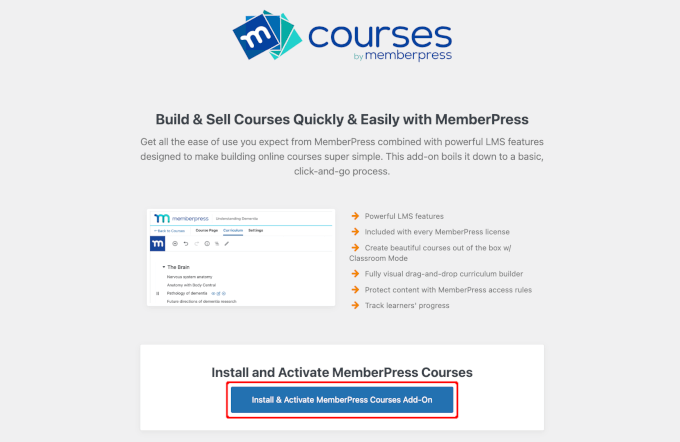
Upon activation, you’ll see a new menu item called ‘MP Courses’ in your WordPress dashboard.
You can go ahead and click the ‘Add New Course’ button.
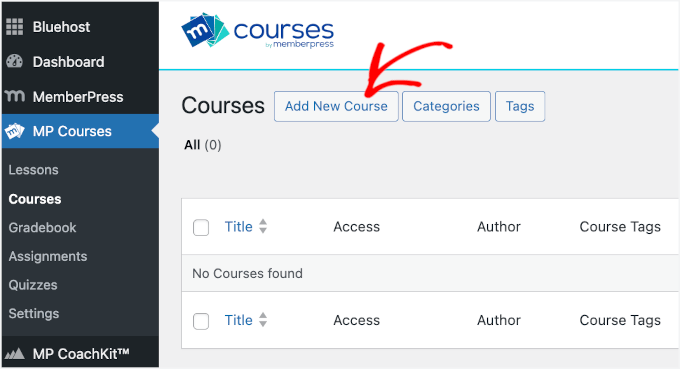
This opens the MemberPress course builder.
You might notice that the MemberPress course builder uses the default WordPress block editor. With its drag-and-drop interface, you can easily add and customize blocks to create engaging course layouts without needing any coding skills.
From here, you can explore the builder to craft your first course. For detailed instructions, please see our guide on how to create and sell online courses in WordPress.
If you’re offering online coaching, you might also want to use the CoachKit™ addon.
CoachKit lets you create as many coaching programs as you want. It also allows you to set milestones to keep clients motivated and sync your website with Calendly to schedule coaching sessions.
To start, you can install and activate it by navigating to MemberPress » CoachKit™.
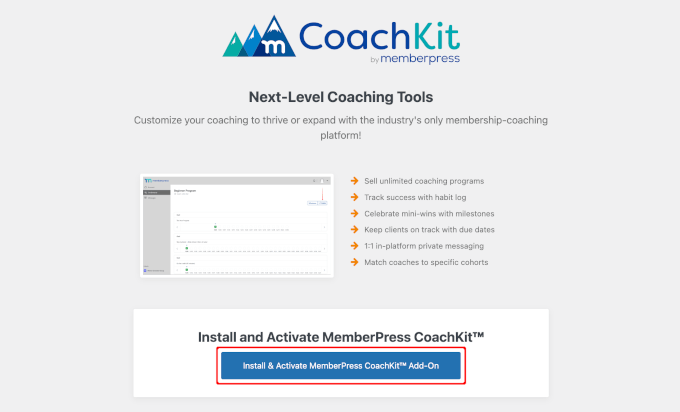
This will create an ‘MP CoachKit™’ menu in your WordPress dashboard. Before creating any programs, you’ll need to configure a few settings.
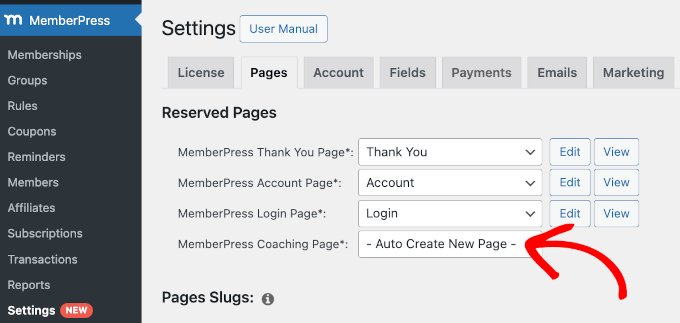
By default, MemberPress will create a ‘Coaching’ page for you to manage your clients and track their progress. You can check it out by heading over to MemberPress » Settings and switching to the ‘Pages’ tab.
In the ‘MemberPress Coaching Page*’ field, you’ll see ‘Auto Create New Page’ selected from the dropdown menu.
Next, move to the ‘CoachKit™’ tab.
We recommend enabling the live chat ‘Messaging’ feature on your eLearning site so that you can talk directly with your clients.
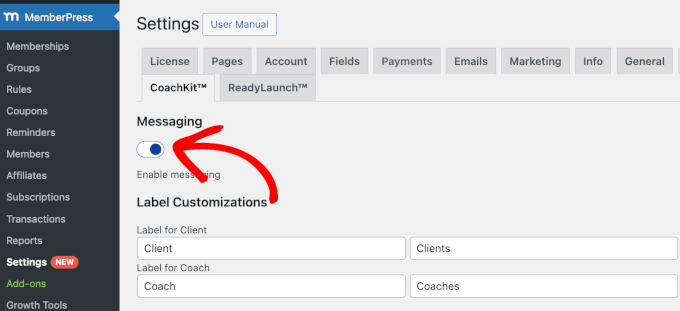
Once that’s done, you can start creating your first online coaching program.
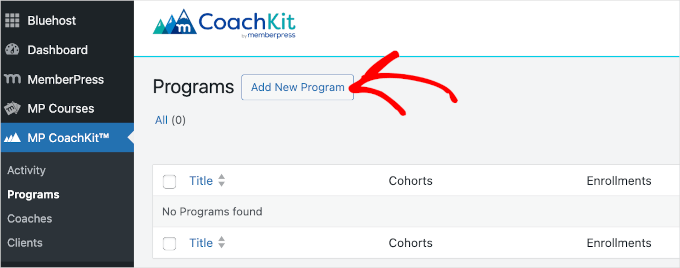
Let’s navigate to ‘MP CoachKit™’ and click the ‘Add New Program’ button.
For more details, you can check out our guide on how to start an online coaching business.
Step 5: Restrict Access to Your Course Content
Once you’ve set up your courses, it’s time to create rules that control who can access your educational content. This is where MemberPress really shines.
The plugin lets you set up different membership levels and then restrict access to certain lessons or materials based on those levels. You can also restrict access to specific categories, tags, or even individual lessons.
Creating Membership Levels
To get started, you’ll first need to create your membership levels. Simply go to the MemberPress » Memberships page and click the ‘Add New’ button.
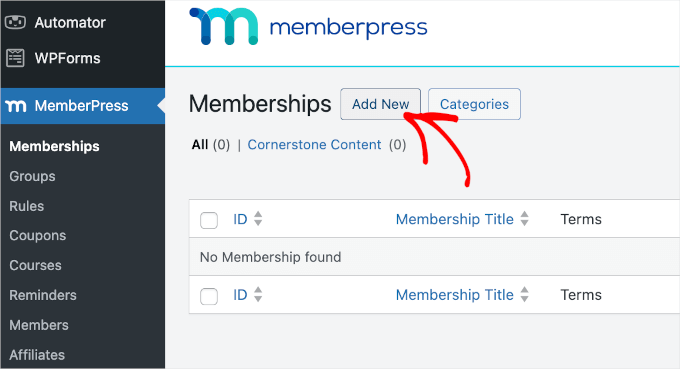
This will open an editor where you can choose all the essential settings for your membership.
For example, you’ll be able to pick the name, add a description, and configure membership terms like price and billing intervals.
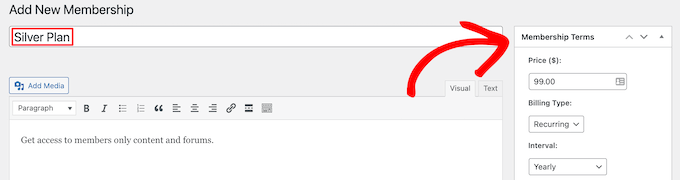
When you’re finished, you can hit the ‘Publish’ button to save your new membership plan. Then, you can repeat the process to create as many membership levels as you need.
Adding Membership Rules
After that, head over to MemberPress » Rules. Then, click the ‘Add New’ button.
On the next screen, you can choose the content you want to protect in the ‘Protected Content’ section. Then, you can configure the access condition.
For instance, you might set posts categorized as “Premium Content” to be available only to your highest-tier subscribers.
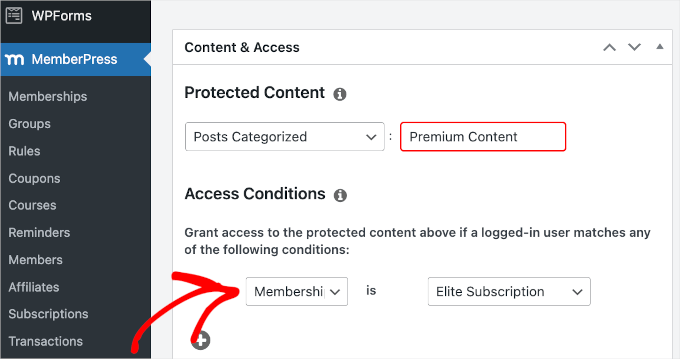
Don’t forget to click the ‘Save Rule’ button to store your settings.
Creating User Login Forms
Once your memberships and rules are set up, you’ll need to provide a way for students to log in to and out of your portal.
To do this, you can simply use MemberPress’ pre-made login shortcode, which generates a form with all the essential elements. Create a new page with the block editor or open an existing one where you want to add your login form.
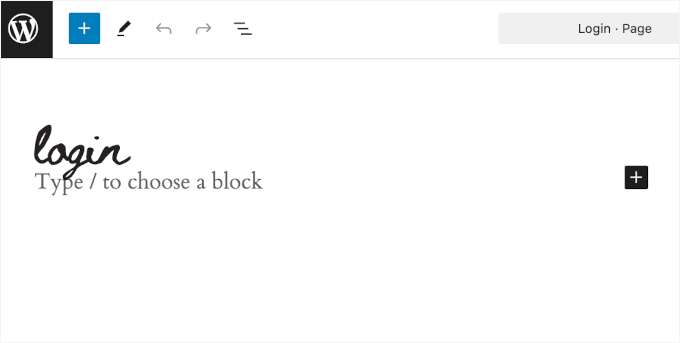
Then, scroll down to the ‘MemberPress Settings’ area at the bottom of the editor.
Here, you can check the box next to ‘Manually place the login form on the page.’ This will then reveal the login shortcode.
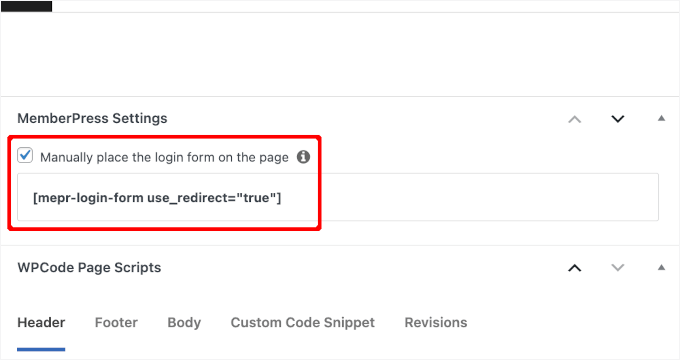
Now, all you have to do is copy the shortcode and paste it into the content editor above.
Here’s an example of what a MemberPress login page will look like on a live site:
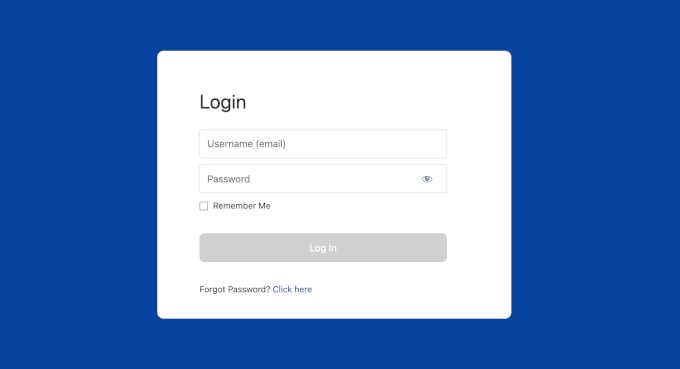
For more information on setting up membership levels, restricting access to content, and adding login forms, see our ultimate guide on how to create a membership site.
Step 6: Add a Contact Form for Students
Having a ‘Contact Us’ form on your eLearning website is super important. It gives your visitors an easy way to reach out if they have questions, feedback, or need support. So, we recommend adding one as the next step.
The good news is that creating a contact form is simple and doesn’t require any coding. The best tool to use for this is WPForms. It’s easy to use, even for beginners, and offers lots of helpful features like AI tools, spam protection, and the ability to customize your form fields.
We have a lot of firsthand experience with WPForms, and it’s become one of our favorite tools. At WPBeginner, we use it for our contact forms, website migration forms, and annual user surveys. You can learn more about it in our complete WPForms review.
With WPForms, you can create a contact form in just a few minutes. Once live, it gives potential students or clients a direct way to reach you with any questions.
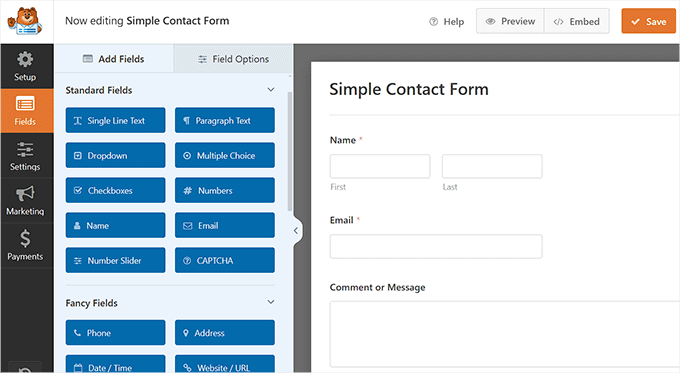
💡 Note: You can create a simple contact form using the WPForms free version. That said, upgrading to the WPForms premium version will unlock more advanced features, including smart conditional logic.
To set one up, let’s install and activate the WPForms plugin on your eLearning site. If you need help, you can see our guide on how to install a WordPress plugin.
Then, you can follow our step-by-step instructions on how to create a contact form.
Final Step: Set Up and Customize Your Navigation Menu
At this point, you’re very close to finalizing your eLearning website.
In this final step, you’ll set up an easy-to-follow navigation menu to help visitors find their way around your platform. Plus, if you created a custom homepage, then you might not have a navigation bar yet.
A clear and simple menu helps your visitors find what they’re looking for, be it your online courses, coaching programs, or contact page.
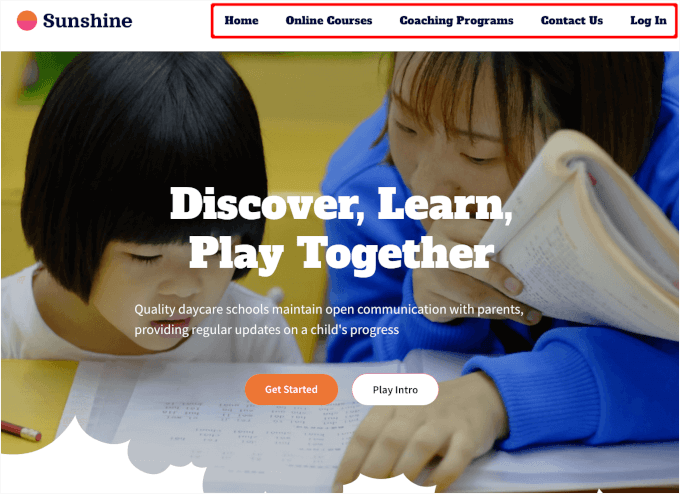
Luckily, WordPress makes it easy to create menus and sub-menus no matter what theme you’re using. For step-by-step guidance, you can go ahead and check out our beginner’s guide on how to add a navigation menu in WordPress.
Bonus Tip: How to Grow Your New eLearning Website
After launching your site, you’ll want to start bringing in students and building an audience. Here are a few simple strategies to help you grow:
| Strategy | Why It Helps | Helpful Resource |
|---|---|---|
| Blogging about your niche | Builds authority and attracts organic traffic | Write a Great Blog Post Start a Blog |
| SEO optimization | Helps your site rank and get found in search results | WordPress SEO Guide Set Up AIOSEO |
| Free lead magnets | Grows your email list with interested learners | Create Lead Magnets Create and Sell eBooks |
| Email marketing | Keeps students engaged and encourages enrollments | Email Marketing 101 |
When you follow these tips, you can grow your eLearning website and build a loyal audience that keeps coming back for more.
How to Create an eLearning Website FAQs
Below, we’ve answered some of the most common questions about how to create an eLearning website to help you get started.
Is creating an online course easy?
Creating an online course can be straightforward, but it depends on your content and goals. With the right tools and platform, you can build an engaging and educational course. One of the best options is MemberPress with its Courses and CoachKit™ add-ons.
Which are the best platforms for building an eLearning portal?
Some of the best platforms for building an eLearning portal include WordPress with an LMS plugin such as MemberPress, AccessAlly, or LearnDash. These platforms provide various features to help you create and manage your courses.
Can I create a learning management system using Wix?
Wix is mainly a website builder, so you might find a template kit for creating a basic eLearning site. However, if you need more advanced features for your online courses, platforms like WordPress integrated with MemberPress Courses and CoachKit™ might be a better choice.
How much does it cost to create an eLearning website?
The cost of creating an eLearning website can vary widely. For basic setups, you may only need to cover platform fees, which can start at $0-$50/month. More advanced setups require hosting, premium plugins, and course development, potentially totaling $200-$500+ per year.
Next Steps: Improve Your WordPress eLearning Site
We hope this guide has helped you learn how to create an eLearning website. Next up, you might want to see our guides on:
- How to Run a Virtual Classroom Online with WordPress
- How to Run WordPress Group Learning
- How to Create and Sell Online Courses
- Best Course Creation Software and Tools (Expert Picks)
- Best WordPress LMS Plugins Compared (Pros and Cons)
If you liked this article, then please subscribe to our YouTube Channel for WordPress video tutorials. You can also find us on Twitter and Facebook.



Winston Chamama
It’s been an eye opener content , of course am in the process of diversifying from refrigeration technician to a different profession altogether but venturing to digital marketing brings me much hope beyond survival.
WPBeginner Support
Glad to hear you found our content helpful!
Admin