


Do you know exactly what your website visitors are looking for?
Guessing can only get you so far. To grow your business, you need direct answers from your audience about their needs and struggles.
Questionnaires are the perfect way to gather this feedback. However, many site owners avoid them because they worry that building interactive forms requires complex coding or expensive developers.
The good news is that you can build one without writing a single line of code. At WPBeginner, we use questionnaires for our annual reader survey, and it helps us shape our content strategy every year.
In this guide, we will show you how to create a questionnaire in WordPress the easy way.

Why Create a Questionnaire in WordPress?
Creating a questionnaire is a great way to learn more about your audience. This lets you tailor your content to their needs. You can also use the results to create or modify the products/services that will be most helpful to your audience.
There are several survey tools that you can use outside your website, but having your questionnaire on your WordPress website itself means you have full control over how it’s displayed. Plus, it’s more familiar and reassuring for your audience.
That being said, let’s take a look at how to easily add a questionnaire to your WordPress site.
How to Create a Questionnaire Form in WordPress
You can easily create a questionnaire using WPForms. It offers a simple drag-and-drop builder and allows you to view all your form entries directly in the WordPress dashboard.
We love using WPForms for all our contact form needs. We also use it to create our annual survey, which is a type of questionnaire. To learn more about our experience with the plugin, see our WPForms review.
First, you need to install and activate WPForms. For more details, see our step-by-step guide on how to install a WordPress plugin.
Note: WPForms also has a free version. However, you’ll need the pro version of the plugin to unlock the add-ons we will be using in the tutorial.
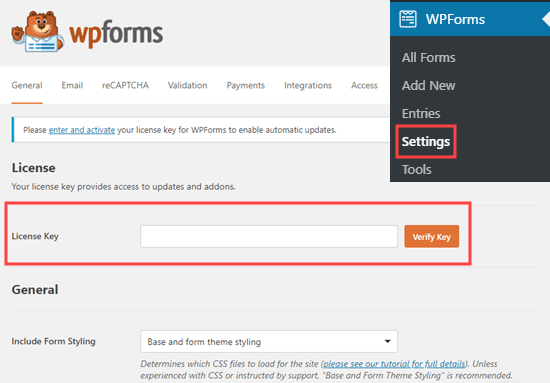
Upon activation, head over to the WPForms » Settings page in your WordPress admin area to enter your license key.
You’ll find the license key in your account on the WPForms website.
Now, it’s time to move on and create your questionnaire.
Method 1: Creating a Questionnaire Using WPForms’ Survey and Polls Feature
WPForms’ powerful surveys and polls addon lets you create questionnaires easily, making it the best WordPress survey plugin on the market. It also produces beautiful visual graphs of the results.
First, visit the WPForms » Addons page to install the Survey and Polls addon.
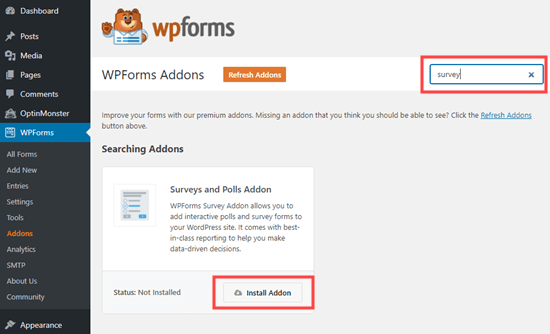
Once you’ve located it, click on the ‘Install Addon’ button to install and activate it.
After that, go to the WPForms » Add New page from the WordPress dashboard to create a new form.
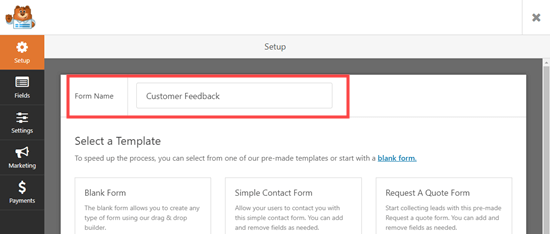
From here, you can start by typing a name for the form that you are about to create at the top of the screen.
Next, there are 4 different pre-built survey form templates to choose from. These are the Poll Form, the Survey Form, the NPS Survey Simple Form, and the NPS Survey Enhanced Form.
We are going to use the Survey Form for our questionnaire.
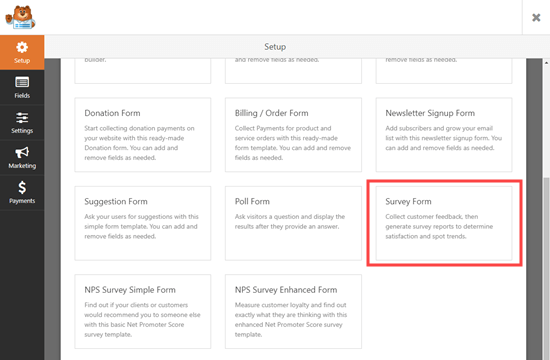
After you select the template, it will open up in the WPForms form builder.
Here, you’ll notice the field options in the left column and a form preview on the right corner of the screen.
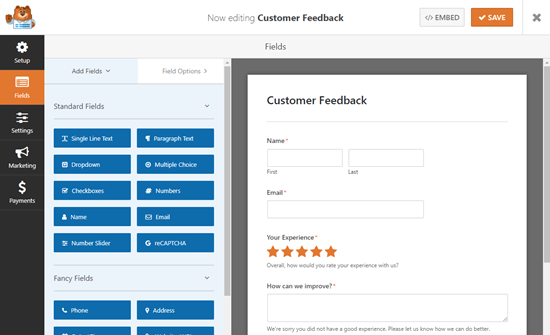
We recommend that you edit the questions to make them appropriate for your audience and needs.
For example, we are going to use the form to gather customer feedback on products and delivery.
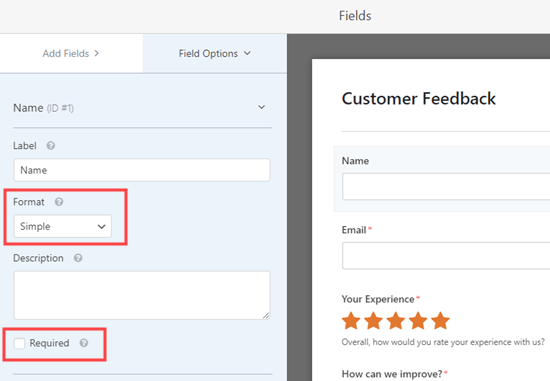
To edit any field, simply click on it. This will open up the editing options in the left column from where you can change the label, description, or format of the field.
Here, we are editing the Name field at the top. We changed the format to ‘Simple’ using the dropdown.
We also made it optional by unchecking the ‘Required’ box.
Next, you can scroll down to the ‘How can we improve?’ field in the form.
This field only appears if the user rates their experience as 1 star or 2 stars.
However, you can also add a similar field that will appear once a user rates their experience on your WordPress blog as 3 or 4 stars.
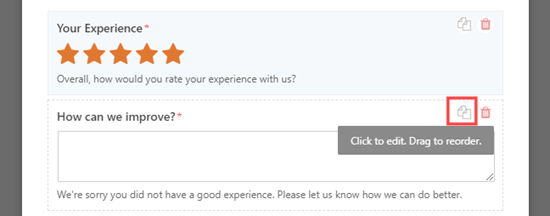
To do this, hover your mouse cursor over the ‘How can we improve?’ field and click the Copy icon. When the popup prompt appears, click ‘OK’ to duplicate the field.
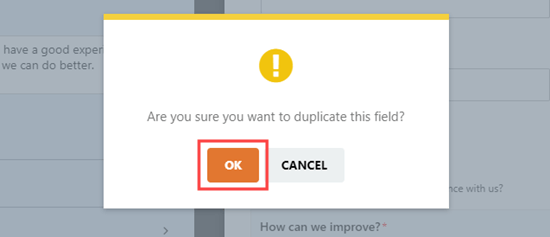
This will open a prompt on your screen to make sure that you really want to duplicate this field.
From here, click the ‘OK’ button to continue.
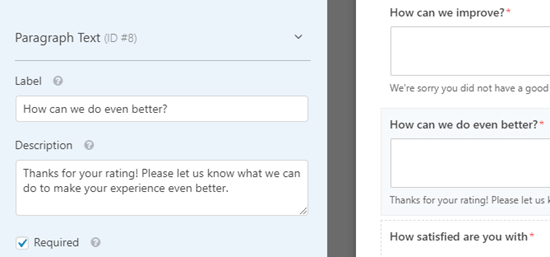
Now, you can edit this new field to ask a specific question to users who gave a higher rating. This allows you to tailor your follow-up questions based on the user’s experience.
For example, instead of asking how to improve, you can ask happy customers what they liked most, or what you can do to earn a perfect 5-star rating next time.
For example, if a user gives your WordPress site 4 stars, then you can ask them how to do even better to achieve 5 stars.
You can also change the description and make the field required for your users.
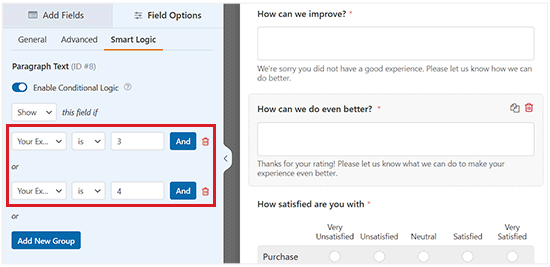
After that, you need to set up conditional logic so this question only appears for happy customers. To do this, click on the Smart Logic tab to expand it and toggle the ‘Enable Smart Logic’ switch.
You will see a rule that says ‘Process this field if’. You need to edit this rule so that the field displays if the ‘Rating is 3’ or the ‘Rating is 4’.
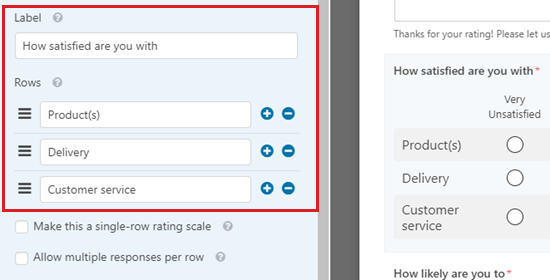
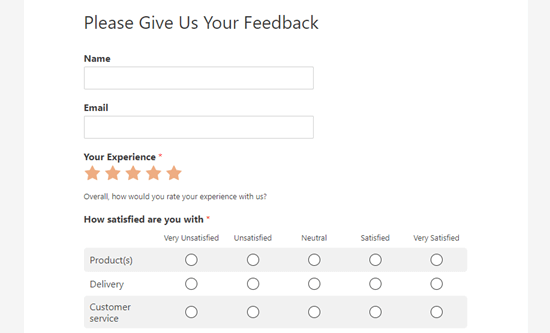
Finally, we are going to edit the ‘How satisfied are you with’ Likert scale.
A Likert rating scale is a 5 or 7-point scale that is often used to measure satisfaction or attitudes.
Again, simply click on the field to edit it. Then, change the labels of the rows or columns to the text you want to use.
We are going to change the labels of the rows to make them more specific.
After that, go ahead and make as many changes to the form as you like.
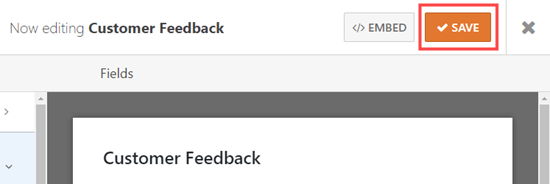
Finally, don’t forget to click the ‘Save’ button at the top of the screen.
Setting Up Notifications for Your Questionnaire
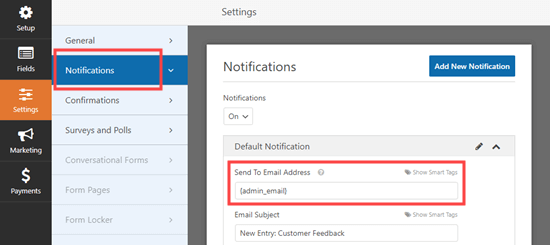
WPForms will send each completed questionnaire to the business email address that’s set in your website settings. It’s easy to change this by going to the Settings » Notifications tab from the form builder.
Once you’re there, delete the {admin_email} in the ‘Send To Email Address’ box and enter the email address you want to use instead.
For more detailed instructions, you may want to see our tutorial on how to send confirmation emails after WordPress form submission.
Tip: Not sure what your WordPress administration email is? Visit the Settings » General page from the admin sidebar and check the ‘Administration Email Address’ box.
Don’t forget to save your questionnaire after making any changes.
Adding Your Questionnaire to Your Website
You can embed your questionnaire in any post or page on your website. You can even add it to your sidebar.
To add your form to a page, edit your page or go to the Pages » Add New screen from the WordPress admin menu to create a new one.
From here, click the ‘Add Block’ (+) button to open the block menu.
Next, locate and add the WPForms block to the WordPress page/post.
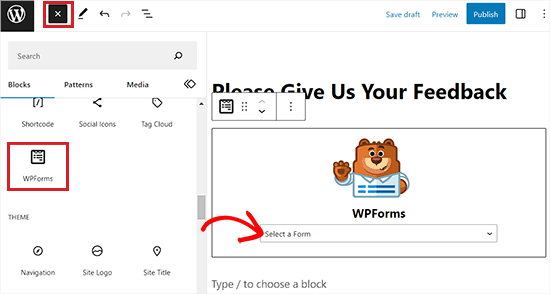
Once you’ve done that, click on the dropdown and select your questionnaire form.
Now, simply preview or publish your post to see the form live on your WordPress website.
Method 2: Creating a Questionnaire Using Conversational Forms
You can also use WPForms’ conversational forms addon to create a questionnaire.
A conversational form is an interactive form that flows like a conversation. Users answer a question and it automatically shows them the next one.
It makes longer forms like a questionnaire easier to fill out and reduces form abandonment.
First, you need to visit the WPForms » Addons page from the WordPress admin sidebar.
Once you’re there, locate and install the Conversational Forms Addon.
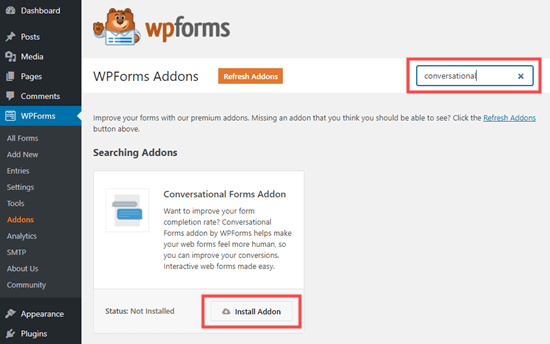
After that, visit the WPForms » Add New screen and create a new form using the instructions in the previous method.
If you already created your form, then simply go to the WPForms » All Forms page and click on it to edit it.
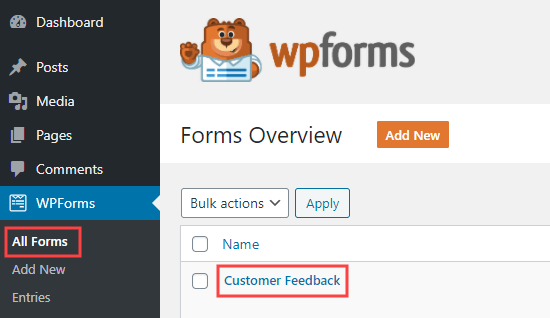
Now, we are going to convert your form into a conversational form.
To do this, head over to the Settings » Conversational Forms tab from the WPForms form builder.
Next, simply toggle the ‘Enable Conversational Form Mode’ switch to active.
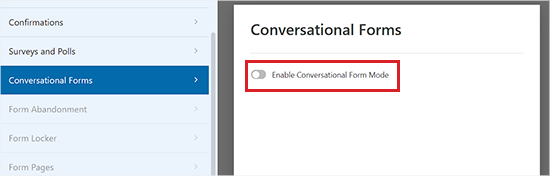
You will then see a number of extra options to fill in.
Since conversational forms create a standalone, full-page layout rather than embedding inside a post or page, you need to provide a custom title here.
You can also write any text that you want to display above the form in the ‘Message’ section.
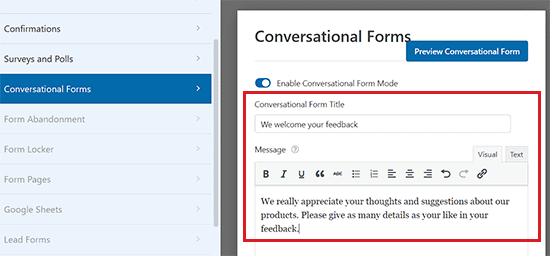
WPForms will automatically create a URL for your conversational form based on the form’s name. If you want to change this, simply type in a different URL here.
Optionally, you can also upload a header image, choose a color scheme, and change the Progress Bar style.
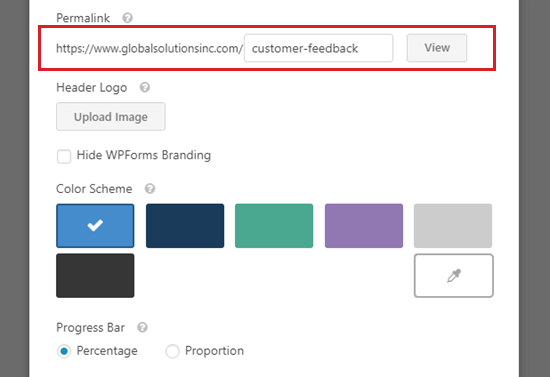
Once you are happy with your form’s settings, don’t forget to click the ‘Save’ button at the top of the screen.
After that, click the ‘View’ button next to the permalink for your form to see it live on your site.

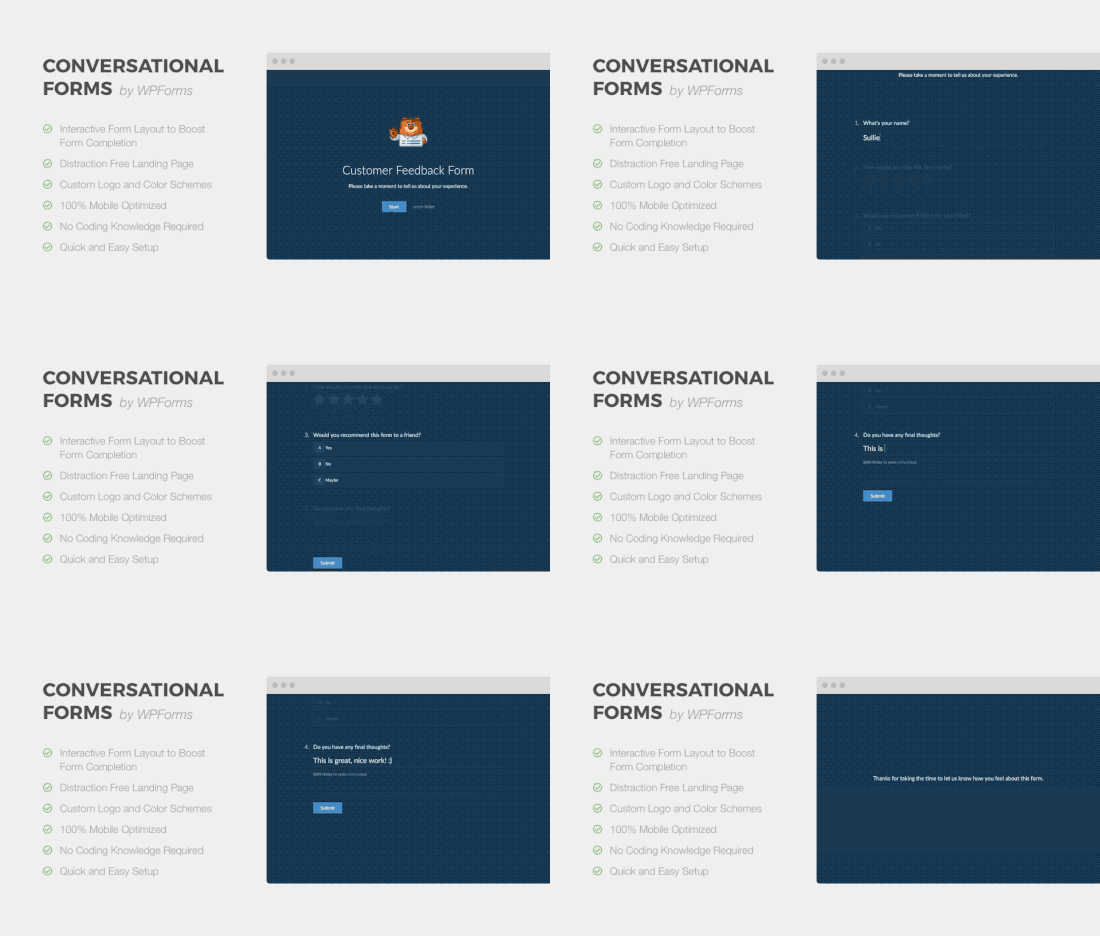
This is how the conversational questionnaire looked on our demo website.
Here, the customer simply needs to click the Start button to begin the form.

They can then enter their responses one question at a time.
The questions that aren’t active will fade out until the customer moves to them.

The customers will also see a sticky progress bar at the bottom of the screen.
This bar will indicate how far through the form the customer is.
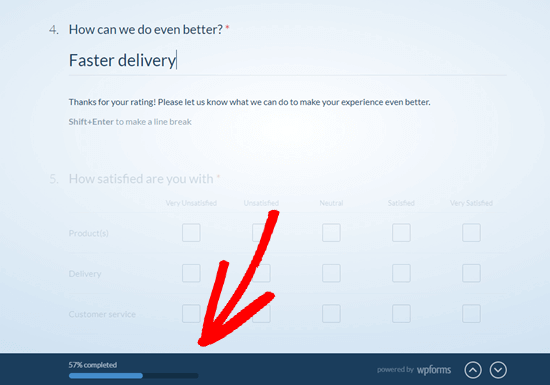
That’s it. You’ve successfully created your conversational questionnaire.
Viewing the Results from Your Questionnaire
Whether you created a regular survey or a conversational form, the process for viewing the results is the same.
Each questionnaire response will be emailed to the email address you set up under the Settings » Notifications tab in the form builder.
WPForms also stores all your survey results in your WordPress database. To view them, go to the WPForms » Entries page in your WordPress dashboard.
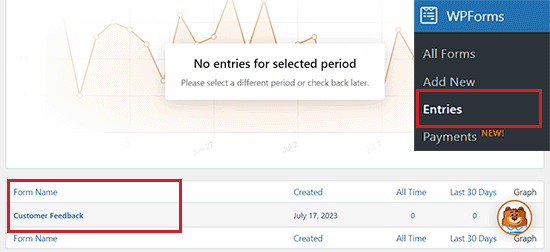
From here, click on the name of your survey form.
You will then see some of the answers from your questionnaire. Simply click the ‘View Survey Results’ button to view all the questionnaire results.
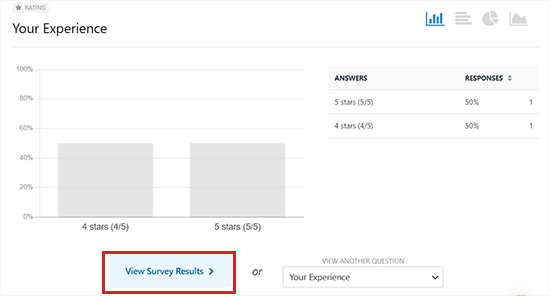
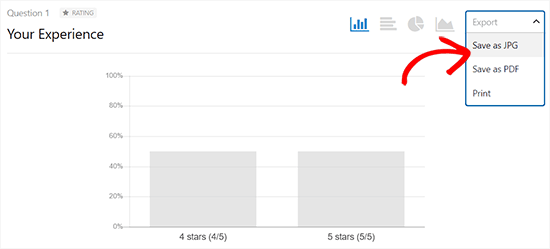
WPForms will now automatically create graphs and charts to make it easy to interpret the results.
It also allows you to export any of the graphs as a PDF or JPG. This is perfect for including data in company presentations or sharing visual feedback reports with your team.
Just click the ‘Export’ link next to any item and choose from the dropdown menu.
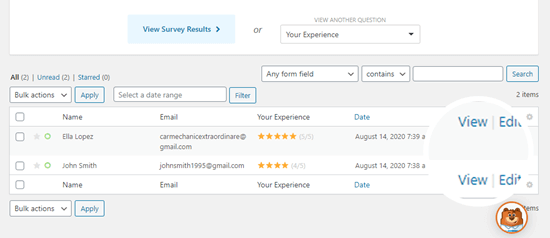
If you want to view the questionnaire answers from individual customers, then click the ‘Back to All Entries’ button at the top.
Next, scroll down to the table at the bottom of the screen and click the ‘View’ button for the entry you want to see.
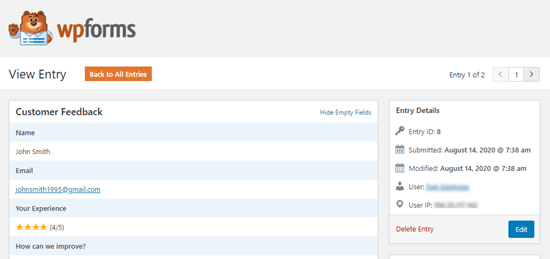
You will now see all the answers submitted by that person.
Here is an example below:
Bonus: Creating a Questionnaire in WordPress with UserFeedback
You can also create a simple questionnaire in WordPress using a free plugin like UserFeedback.
UserFeedback lets you easily create popup questionnaire widgets to collect feedback from your website visitors in real-time.
We have used this plugin to collect quick feedback from our visitors, and we had a great experience with it. To learn more, see our UserFeedback review.
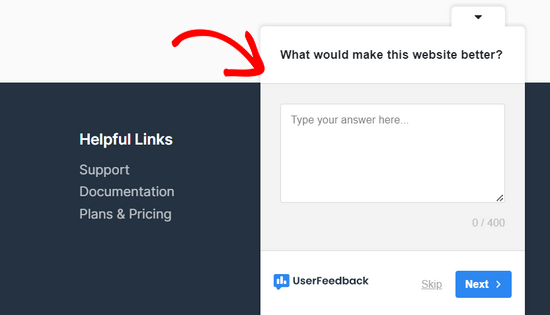
You can ask multiple-choice questions, free-form questions, and even capture email addresses to grow your newsletter and generate leads. Plus, you can create unlimited questionnaires and receive unlimited responses.
There’s also a premium version of UserFeedback that offers features like advanced targeting rules, custom branding, all question types, and more.
For detailed instructions, you may want to see our tutorial on how to create a survey in WordPress.
Frequently Asked Questions About WordPress Questionnaires
We often receive questions from our readers about creating surveys and collecting user feedback. Here are the answers to some of the most common questions.
1. Can I create a questionnaire in WordPress for free?
Yes, you can use the free version of WPForms to create a basic questionnaire using standard form fields.
However, the free version does not include the beautiful visual graphs or charts we showed in this tutorial. To get the interactive reports and the Survey and Polls addon, you will need the WPForms Pro plan.
Alternatively, the UserFeedback plugin has a free version for simple popup surveys.
2. How do I export my questionnaire results to Excel?
If you use WPForms, you can easily export your form entries. Simply go to the entries page for your form and select the ‘Export All’ option. You can download the data as a CSV file, which opens in Microsoft Excel or Google Sheets.
3. What is the difference between a poll and a questionnaire?
A poll typically consists of a single multiple-choice question designed for a quick answer. A questionnaire usually includes a series of questions intended to gather detailed feedback, preferences, or data from the user.
4. How do I stop spam on my questionnaire?
Questionnaires can sometimes attract spam entries. WPForms includes a built-in anti-spam token that protects your form automatically. You can also enable CAPTCHA or use a specific spam protection plugin like Akismet to keep your data clean.
Additional Resources
We hope this article helped you learn how to create a questionnaire in WordPress. You may also want to see these additional resources:
- Best WordPress Survey Plugins Compared
- How to Create a Survey in WordPress (with Beautiful Reports)
- How to Track and Reduce Form Abandonment in WordPress
- How to Create a Net Promoter Score (NPS) Survey in WordPress
- How to Get Quick Feedback on Your Articles in WordPress
If you liked this article, then please subscribe to our YouTube Channel for WordPress video tutorials. You can also find us on Twitter and Facebook.




Jiří Vaněk
The questionnaire is a very important part of communication with users to get feedback for your blog, website or e-shop. It’s great that WP Forms is so versatile that apart from the classic contact form, it can do many other things like questionnaires, polls and much more. I’m glad I have it in full version now and can use it. It’s a great plugin.
Johnpaul
I love using wpforms
WPBeginner Support
Glad to hear you enjoy using the plugin
Admin
Ajayi Victor Semiloore
Does this work for the free wpform?
WPBeginner Support
As we state in the article, you will need the pro version for these features.
Admin