


You have spent hours creating the perfect video, but it is frustrating when it gets buried in search results. If Google cannot understand your content, your audience will never find it.
Video schema markup acts like a translator, giving search engines the details they need to rank your videos higher. This often leads to rich snippets, which are proven to get more clicks.
At WPBeginner, we use video schema to ensure our tutorials reach the widest audience possible. It is a simple step that makes a big difference for your site’s visibility.
In this guide, we will show you how to add video schema markup in WordPress using two easy methods.
Why You Need Video Schema Markup?
Imagine this: you’ve spent hours creating a fantastic video. You hit publish, eagerly waiting for the influx of views and engagement.
But days go by, and your video remains buried in search results, unseen and unappreciated. Frustration sets in as you realize that all your hard work isn’t reaching the audience it needs.
That’s where video schema markup comes into play.
Video schema markup is a type of code added to a webpage to help search engines better understand and display your video content in search results.
It provides additional information about your videos, such as the title, thumbnail, description, upload date, video duration, and more.
Google uses this information to display rich snippets, which look something like this.
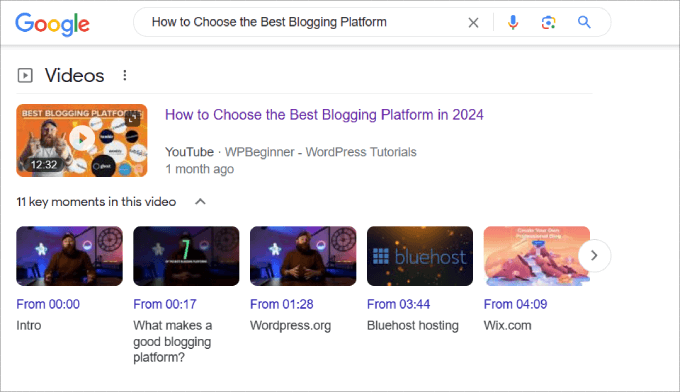
This helps to make your content stand out and can help to improve your organic click-through rates.
Without the video schema markup, your video won’t be eligible to appear in the rich snippet format, which is a big opportunity you’ll miss. That’s because videos often appear near the top of search engines under ‘videos,’ giving an opportunity for your video to rank up top.
When you rank in Google’s video search results, your content will be eligible for the inclusion of other features, such as video previews and key moments, so users can get a glimpse of what your video is about.
Besides the Videos section, Google also displays thumbnails of posts with videos in them.

You might notice the difference between posts with rich snippets and those without them. Users are way more inclined to click on posts when there is a video thumbnail included.
On top of that, video schema markup allows search engines to better understand your video content, which boosts the odds that your page will rank higher. It’ll also help you rank new WordPress content faster, provided you’ve optimized all the other areas of your page and website.
Once you’ve embedded videos in your WordPress blog posts or page, you’re ready to add schema markup.
With that in mind, we’ll show you two methods for how to add video schema markup to your post. Feel free to use the links below to jump to any section you prefer.
Ready? Let’s get started.
Method 1: Add Video Schema Markup with All in One SEO Plugin (Easy Way)
The easiest way to add video schema markup in WordPress is by using All in One SEO for WordPress. It is the best WordPress SEO plugin on the market and comes with a schema generator that lets you easily add schemas to your videos without any hassle.

Normally, you would have to write the JSON-LD code and ensure it’s correctly implemented into the HTML of your webpage. And on top of that, you need to check that the code works.
Note: Although there is a free version of All in One SEO, you’ll need the paid version to get schema controls for videos.
Step 1: Install All in One SEO plugin.
To get started, the first thing you need to do is install and activate the All in One SEO plugin for WordPress. For more help, you can follow our tutorial on how to install a WordPress plugin.
Upon activation, the plugin will launch a setup wizard that will guide you through the entire setup process. For more details, see our step-by-step guide on how to set up All in One SEO for WordPress.
Step 2: Enable Video Sitemaps in WordPress.
Before you add schema markup, you want to ensure your WordPress website has a video sitemap set up. While the schema helps your video look good in search results, the sitemap helps Google find and index the video in the first place.
Using a video sitemap gives your media content the best chance of ranking. A video sitemap is an XML file that provides search engines with information about the videos on your site.
That way, search engine crawlers are aware of all the video content on your site.
This helps you to rank content faster rather than waiting for Google to naturally find your video content.
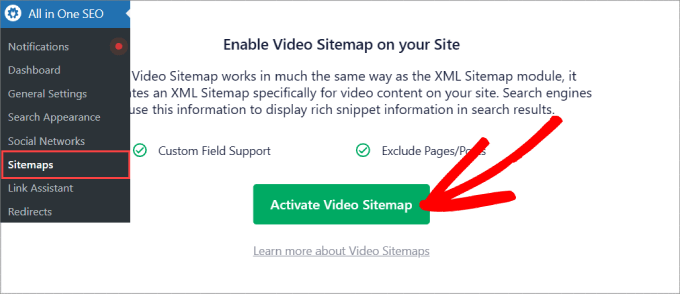
To create a video sitemap, you’ll want to head over to All in One SEO » Sitemaps. From there, you need to click on ‘Activate Video Sitemap.’
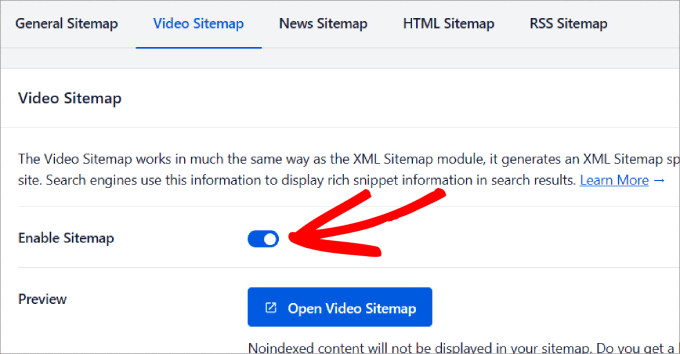
Under the ‘Video Sitemap’ tab, you should see that the ‘Enable Sitemap’ is on.
If it’s off, you’ll need to turn it on.
You can also view your sitemap by clicking on the ‘Open Video Sitemap’ button. This will bring you to a list of all of the video content on your site, and you can view the information included with each media.
If you scroll down, you choose whether to ‘Include All Post Types’ and ‘Include All Taxonomies’ to appear in your sitemap.
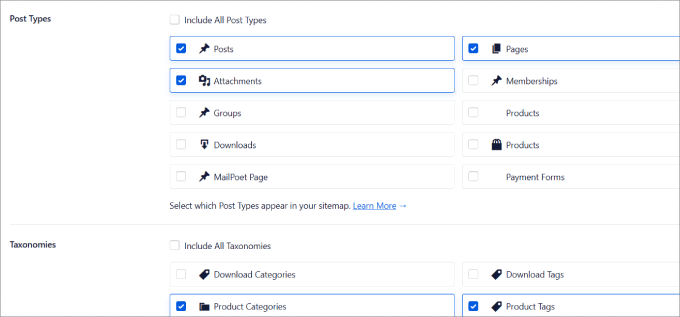
Here, you can uncheck any post types or categories and tags that you don’t want to appear in the sitemap.
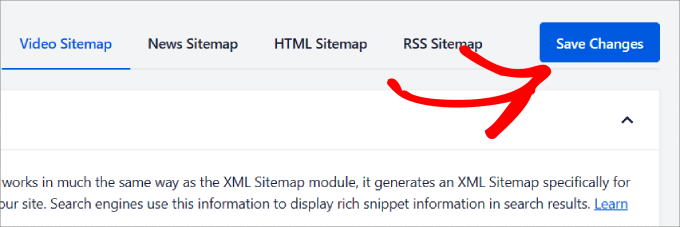
If you’ve made any changes, you should make sure to hit the ‘Save Changes’ button up top.
Step 3: Add the video schema markup to WordPress.
Once you have your video sitemap enabled and configured, it’s time to head over to any page or post that you want to add video schema markup to.
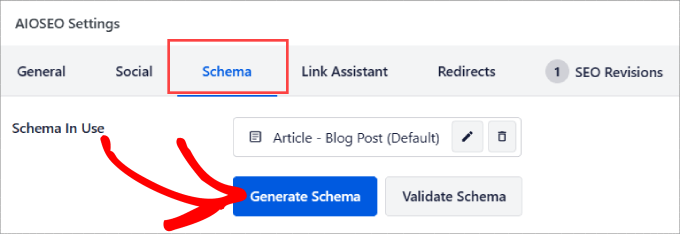
Then, you can scroll to the bottom of the page to get to ‘AIOSEO Settings’ and to the ‘Schema’ tab. And then, simply hit the ‘Generate Schema’ button.
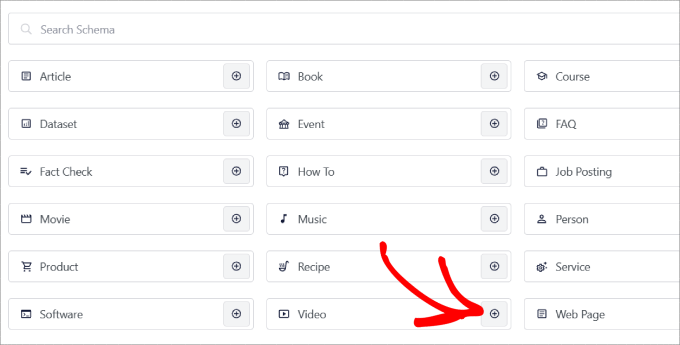
You’ll be taken to a pop-up window that shows all of the ‘Schema’ templates that AIOSEO has to offer.
Go ahead and click the ‘+’ icon next to ‘Video.’
Now you can customize all of the details of the video, such as:
- Name: What is the name of your video?
- Description: Tell people what your video is about
- Content URL: What is the URL of the video file?
- Embed URL: Enter the video hosting site you used, such as YouTube, Vimeo, Wistia, etc.
- Upload date: Tell people when the video was published
- Family-Friendly: Is your video family-friendly?
- Thumbnail URL: Show off an eye-catching thumbnail that attracts visitors to your page.
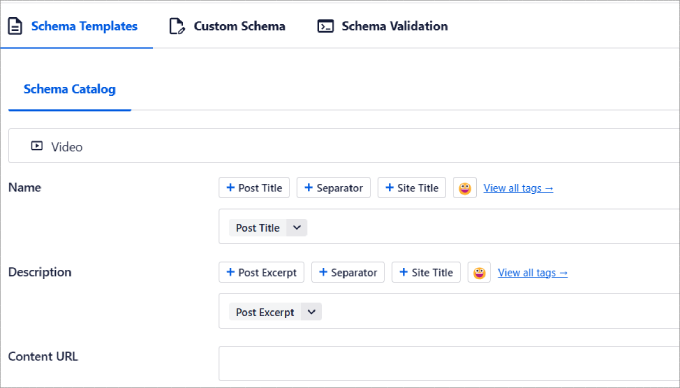
When you’re done entering your video details, just click on the ‘Add Schema’ button.
And if you want to save this schema as a template for other pages, you can hit the ‘Save Schema as Template’ button.
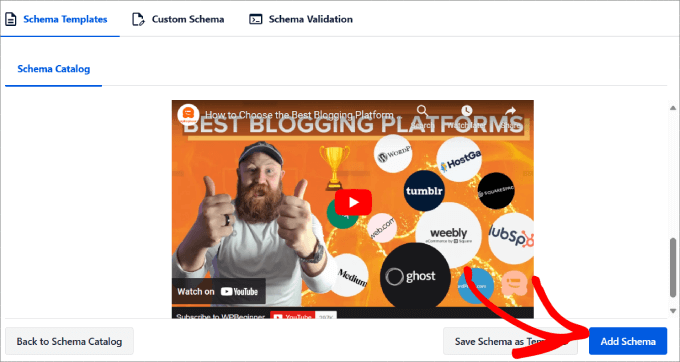
Step 4: Validate the schema.
Now that you’ve added your video schema markup, all that is left to do is validate it.
Go ahead and click the ‘Validate Schema’ button.
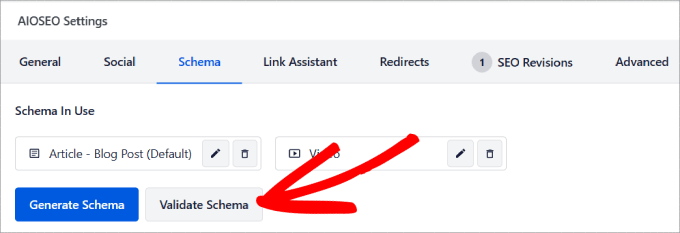
You’ll then be directed to the Google Rich Results test tool.
This is designed to help WordPress site owners and developers check the structured data markup on their web pages. It ensures that the HTML code follows Google’s guidelines and tells you if there are any errors with your code.
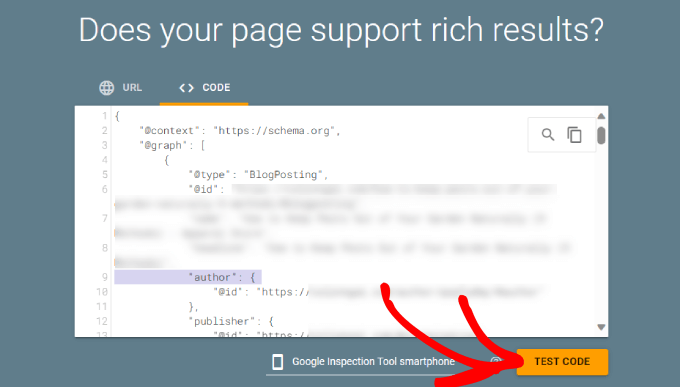
Under the ‘Schema Validation’ tab, you’ll want to select ‘Test with Google.’
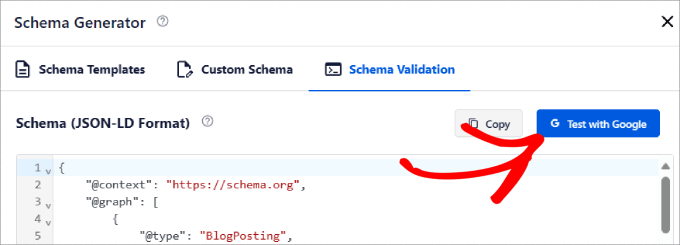
All in One SEO will automatically paste the structured schema markup data into the tool.
All you need to do is to hit the ‘Test Code’ button.
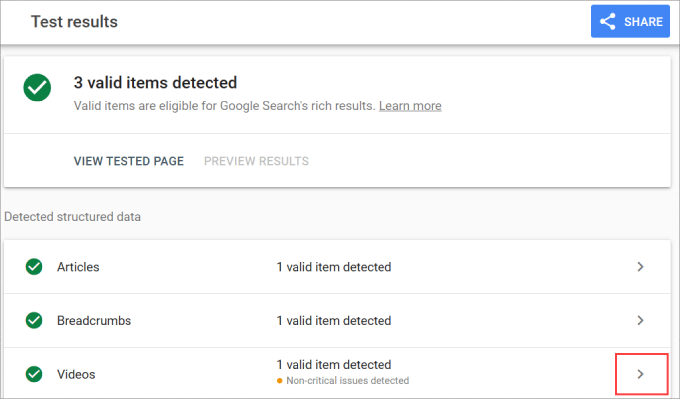
Give it a minute or two, and you should then see checkmarks across the board, especially next to ‘Videos.’
If not, then you can click the arrow to expand the option and see how you can fix the issue.
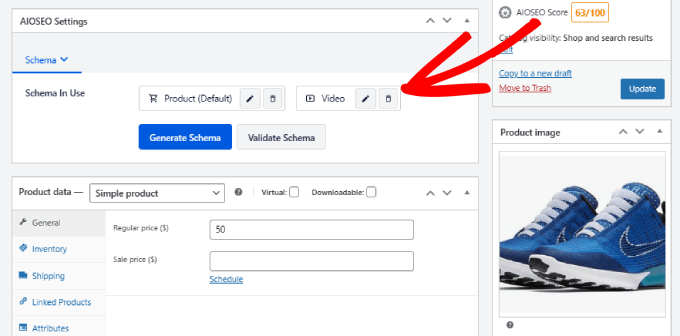
Keep in mind that this works for online stores as well.
For example, the All in One SEO settings also appear within WooCommerce pages. That means you can add schema markups to them.
While there are many schema markup plugins for WordPress, such as Schema Pro, there’s no other tool that has as many schema markup options or other SEO optimization features as All in One SEO.
Method 2: Add Video Schema Markup Manually
If you want to add video schema markup manually, you can do so by writing and pasting code into the HTML of any web page.
While you may save some money, you wouldn’t get the automation benefits that the All in One SEO plugin brings. For example, if you ever change your video title or thumbnail, you will have to manually update this code again. Additionally, even the slightest mistake in code could break your WordPress website.
That said, if you’re comfortable working with code, here’s how you can do it.
Expert Tip: Remember that no matter your skill level, you should always back up your WordPress website before you try to manually change its code. This way, you can recover your data and files if anything goes wrong.
Step 1: Write and customize the video schema markup code.
To get started, you’ll need to copy and paste this code into a text editor.
<script type="application/ld+json">
{
  "@context": "https://schema.org/",
  "@type": "VideoObject",
  "name": "Name of the Video",
  "description": "A brief description of what your video is about.",
  "thumbnailUrl": "https://example.com/thumbnail.jpg",
  "uploadDate": "2026-01-28",
  "contentUrl": "https://example.com/video.mp4"
}
</script>
After that, you need to replace the placeholder data with your actual video name, description, thumbnail URL, video file URL, and upload date.
Step 2: Validate the schema markup code.
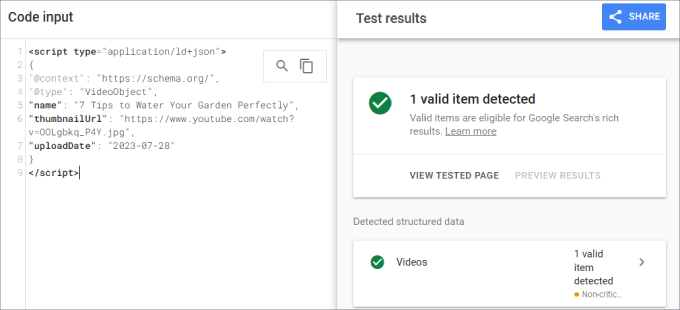
Next, let’s head over to Google’s Rich Results Test. Under the ‘Code’ tab, you can paste your custom video schema markup.
Then, you’ll want to click ‘Test Code’ to validate this code.
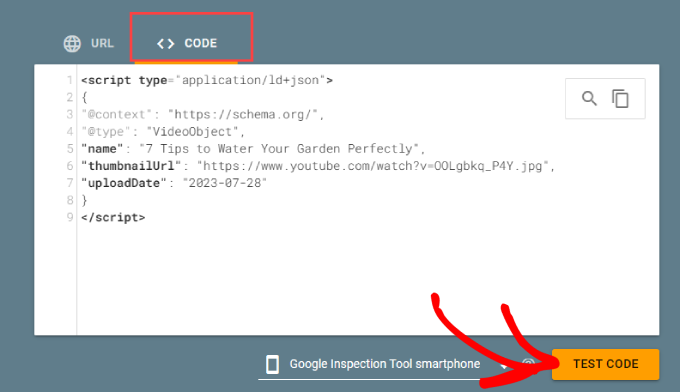
You’ll be given the test results to see whether the code follows Google guidelines and that there are no errors.
If there’s an issue, it’ll tell you which part of the code to fix.
Step 3: Add the code to your WordPress page.
Once validated, you can now paste it into the HTML of your WordPress webpage.
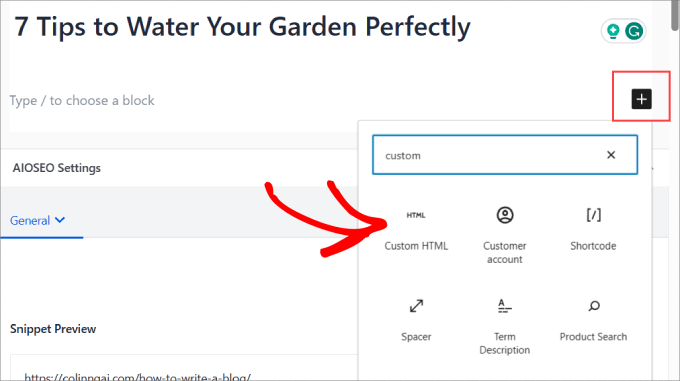
Head over to the WordPress block editor for any post or page with embedded video content.
You can choose a block and click the ‘+’ icon. Then, simply search for the ‘Custom HTML’ block and add it to your page.
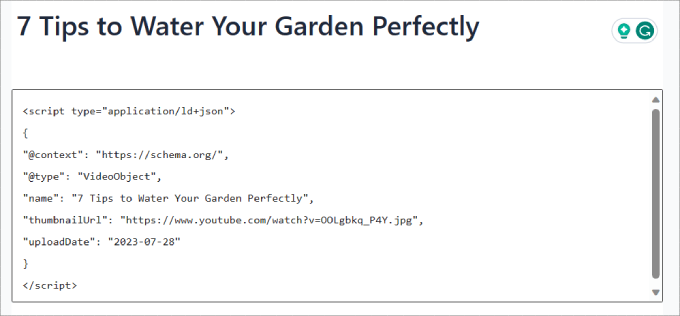
From there, you’ll see an HTML box.
This is where you paste the code into to add the video schema markup to that page.
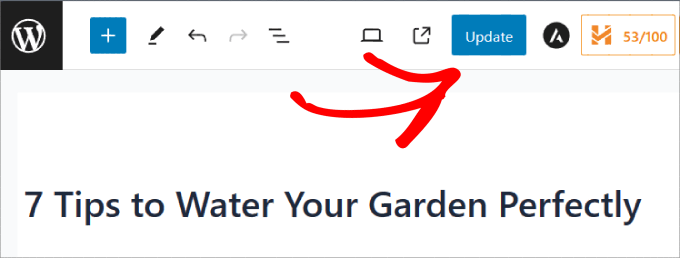
Finally, go ahead and click ‘Update.’
Now you’ve added the video schema markup manually, and it will be eligible for rich snippets.
Tips for Video Schema Markup
Using video schema markup is a great way to strengthen your organic marketing strategy.
That said, here are some best practices to keep in mind to ensure you’re keeping your video schema markup up to date:
- Whenever you replace your videos or make changes to the title, thumbnail, or description, you’ll need to update the schema markup code.
- Do not excessively stuff your video schema with keywords. Instead, include keyword phrases naturally.
- Always run your code or URL through a validation tool to test your schema markup.
- Perform a WordPress SEO audit regularly to identify and fix any new schema markup issues.
- Track how your video content is performing organically.
- Add transcripts to your video schema to help search engines understand your content better.
- Use accurate timestamps to improve user experience and SEO.
If you follow these tips, you will be able to maximize the benefits of using schema markup on your WordPress site.
Measuring the Impact of Video Schema on SEO
Using video schema markup can help you improve your organic reach and boost WordPress SEO. But you’ll want to measure the performance of the pages with video content to determine the impact it’s having.
There are a few ways you can measure this. The idea is to use SEO rank tracker tools for keyword tracking to see if your content is climbing up the search engine results.
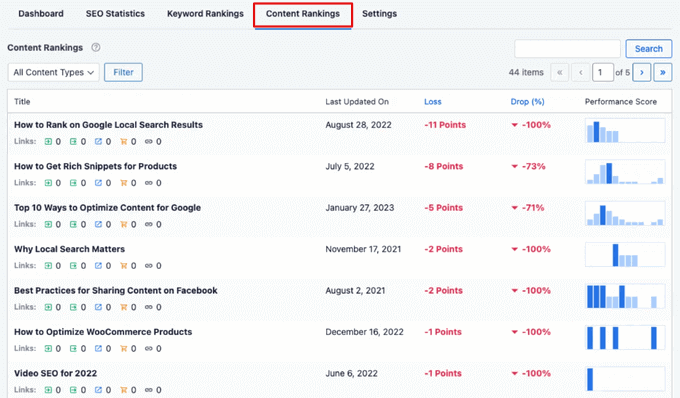
All in One SEO has a Content Rankings Report within the ‘Search Statistics’ addon.
Here, you can filter by all content types, including video. That way, you can track keywords on your site that use video content. You’ll want to monitor your content to see if it’s improving or experiencing content decay.
Tip: You can also check the ‘Video pages’ report in your Google Search Console account. This will tell you exactly which videos Google has indexed and if there are any issues preventing them from showing up in search results.
You could also use SEO tools like Semrush for position tracking.
Beyond monitoring the keyword positioning of your content, you also want to measure video engagement.
Even if you’re attracting more visitors with the rich snippet, you could still see a stagnant dropoff in WordPress conversions, whether that is email signups or purchases.
You can track videos on your site by using MonsterInsights. It is the best WordPress analytics solution that allows you to set up Google Analytics in your WordPress dashboard without any coding.

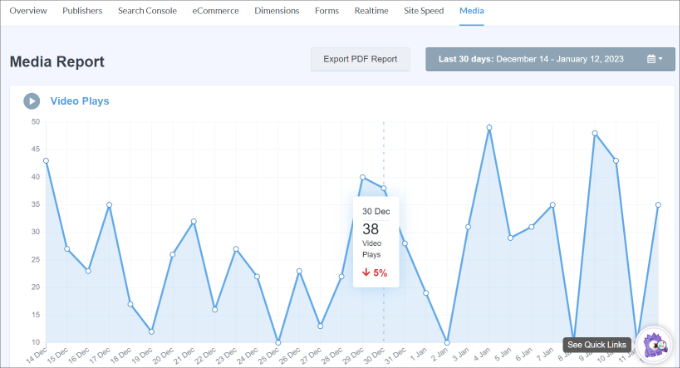
All you have to do is head over to the ‘Media’ tab in MonsterInsights.
This will show you a graph of the video plays on your website.
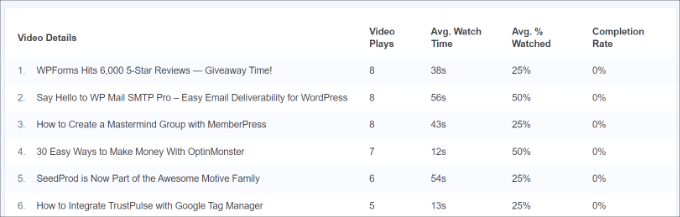
If you scroll down, then you will see more in-depth information about each video.
The report will include metrics like the number of video plays, average watch time, average percentage watched, and completion rates.
If you want to learn more about video tracking, read our tutorial on how to track video analytics in WordPress.
Bonus: Adding Schema Markup for Local SEO
Besides optimizing your video SEO, there are plenty of other schema markups you can add, such as one for local SEO. With over 40% of users performing local searches, adding this schema is incredibly important for small businesses.
As a result, your business will appear in local search results.
All you need to do is head over to the All in One SEO » Local SEO page and click the ‘Activate Local SEO’ button.
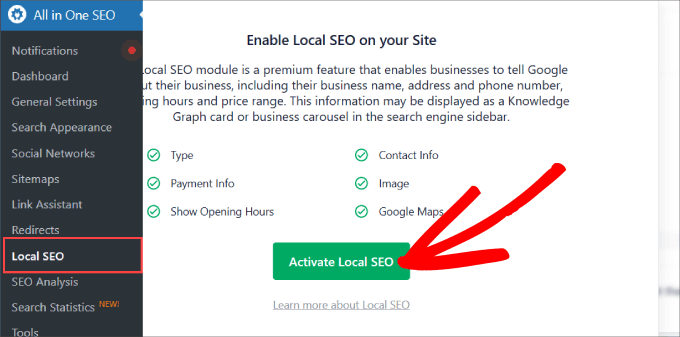
Then, under the Locations tab, you can add important information about your business.
You can include your business name, logo, phone number, business type, any payment options you accept, and more.
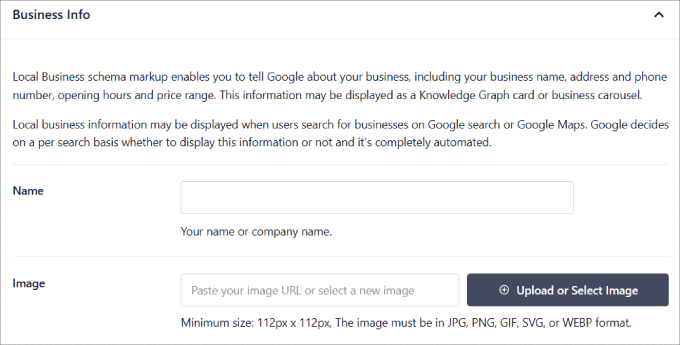
If you want step-by-step instructions, you can check out our tutorial on how to add schema markup in WordPress and WooCommerce.
Frequently Asked Questions About Video Schema Markup
We know that diving into a new topic like schema markup can bring up a few questions. To help you out, we’ve put together answers to some of the most common things people ask about adding video schema to WordPress.
1. What is video schema markup?
Video schema markup is a specific type of code that you add to your website. It acts like a detailed label for your videos, telling search engines like Google important information like the video’s title, description, and length.
This helps search engines understand your content and feature it in enhanced search results, like with a video thumbnail.
2. What is the easiest way to add video schema in WordPress?
The simplest and most reliable way is by using a WordPress plugin like All in One SEO (AIOSEO). It handles all the technical code for you. You just need to fill in a few details about your video in a simple form, and the plugin automatically adds the correct schema markup to your page.
3. Can I add video schema markup for free?
You can add video schema manually for free by writing the code yourself and adding it to a Custom HTML block, as we showed in Method 2. However, this method carries a risk of errors if you’re not comfortable with code.
Premium plugins like All in One SEO offer video schema features that make the process safe, easy, and error-free.
4. Do I need video schema for YouTube videos embedded on my site?
Yes, we highly recommend it. While YouTube adds its own schema on its platform, adding video schema to your own WordPress page tells Google that your page is the primary, authoritative source for that embedded video. This helps your website’s SEO and increases the chances of your page ranking in video search results.
5. How can I check if my video schema is working?
You can easily test your video schema using Google’s free Google’s Rich Results Test tool. After you add the schema markup using either a plugin or the manual method, you can use this tool to validate it. The tool will confirm that your page is eligible for video rich results or point out any errors that need to be fixed.
Additional Resources
We hope this article helped you learn how to add video schema markup in WordPress. You may also want to see these other guides to help improve your site:
- Ultimate WordPress SEO Guide for Beginners (Step by Step)
- How to Properly Setup Video SEO in WordPress (Step by Step)
- How to Easily Embed Videos in WordPress Blog Posts
- Beginner’s Guide: How to Use Rich Snippets in WordPress
- Best Video Hosting Sites for Bloggers, Marketers, and Businesses
If you liked this article, then please subscribe to our YouTube Channel for WordPress video tutorials. You can also find us on Twitter and Facebook.





Dennis Muthomi
Thank you for the tutorial and most importantly showing us how to update the video schema data mark up because that was what I was concerned about.
Jiří Vaněk
Thank you for the complete guide. Since using AIO SEO, I have seen markup schema as something that has helped me a lot. I rather checked whether I am adding this type according to your instructions and everything fits. Now just waiting for the Google robot.