


Adding dark mode to WordPress websites has become a hot topic among our readers. 🌙
It’s not just about following trends. Research shows that dark mode can reduce eye strain for nighttime readers and potentially save battery life on mobile devices.
While many site owners assume it requires technical expertise, modern WordPress tools have made it much more accessible.💡
In this guide, we’ll share our proven way to add dark mode in WordPress. We’ve tested this solution across various themes and setups to ensure it’s reliable and easy to add.
⚡ Quick Summary: How to Add Dark Mode in WordPress
The easiest way to add dark mode to WordPress is by installing the WP Dark Mode plugin.
It automatically adds a customizable toggle switch to your site so visitors can choose their preferred option, and it even supports dark mode in the WordPress admin area.
What Is Dark Mode and Why Add it to Your Website?
Many mobile devices and computers use dark mode to minimize the amount of white light that comes from the screen. This can reduce eye strain, especially in low-light conditions.
Using dark mode allows you to use computers and mobile devices late into the night. It helps prevent white and blue light from ruining your sleep.
Dark mode is also helpful for people with visual impairments. It improves accessibility for users with light sensitivity (photophobia).
Some devices come with a built-in night mode that simply uses warmer color tones. However, dark mode actually adds dark colors to the device’s background. Some popular websites, like YouTube, offer a built-in dark color scheme.

On desktop computers, you can visit websites in dark mode by using a Chrome extension such as Night Eye.
Here’s how the WPBeginner website looks using that extension:
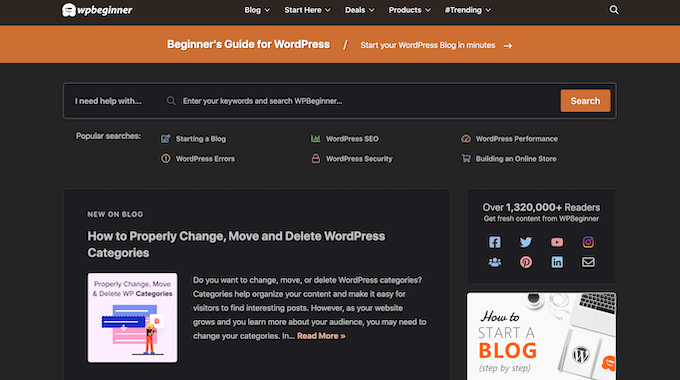
By adding a dark mode toggle to your website, users can choose their preferred mode without installing a special browser extension.
You can even add dark mode to your WordPress admin area. This can be useful if you work on your site at night or if you are suffering from eye strain.
With that in mind, let’s see how you can add dark mode to your website’s public-facing front end and the admin area of your WordPress website.
Tip: Want to use a dark color scheme, even when the visitor’s device is in normal or daytime mode? Then check out our list of the best dark themes for WordPress.
How to Add Dark Mode to Your WordPress Website
The easiest way to create a dark mode for your website is by using WP Dark Mode.
This plugin adds a toggle so that visitors can enable dark mode on your website. It can even add a toggle to the admin area, so you can enable dark mode for the WordPress dashboard.
You can learn more about it in our detailed WP Dark Mode review.
First, you’ll need to install and activate the free WP Dark Mode plugin. For more details, please see our guide on how to install a WordPress plugin.
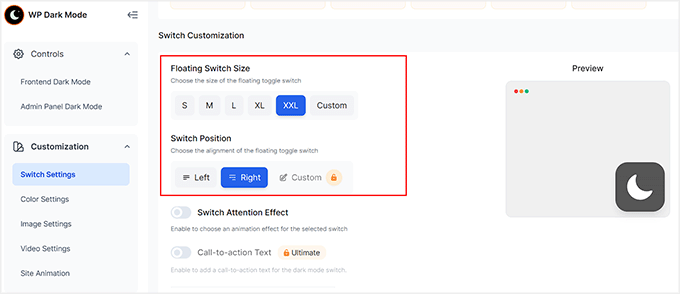
Upon activation, visit the WP Dark Mode » Settings page from the WordPress dashboard and toggle the ‘Enable Frontend Dark Mode’ switch to ‘ON.’
Once you do that, you can also choose a default mode for your website frontend.
After that, click the ‘Save Changes’ button to store your settings.
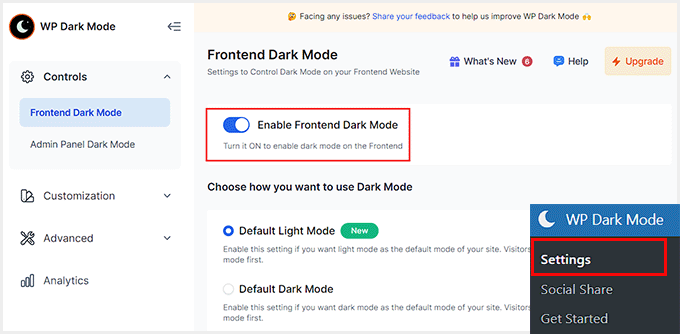
Next, switch to the ‘Customization’ tab to customize the switch layout, size, and position.
You can also change the color of the dark mode switch, but you will need the pro version of the plugin for that.
Once you are done, just click the ‘Save Changes’ button to store your settings. Now, visit your WordPress site to see the dark mode toggle in action.
You can also visit your website on your mobile or tablet. This lets you see that the dark mode works on mobile devices, too

Adding Dark Mode to Your WordPress Admin Area
You can change the admin color scheme in WordPress using the built-in settings. However, none of the default color schemes reduces the white light coming from the screen.
If you work late into the evening or suffer from eye strain, you can try adding dark mode to the WordPress admin area and the block editor.
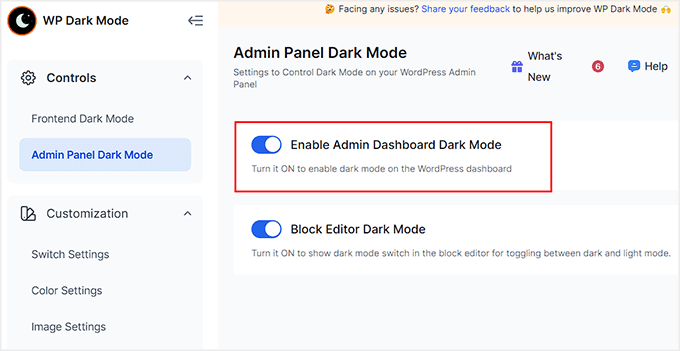
To do that, visit the WP Dark Mode » Settings page and switch to the ‘Admin Panel Dark Mode’ tab from the left column.
Here, toggle the switch for the ‘Enable Admin Dashboard Dark Mode’ option to ‘ON’ and click the ‘Save Changes’ button.
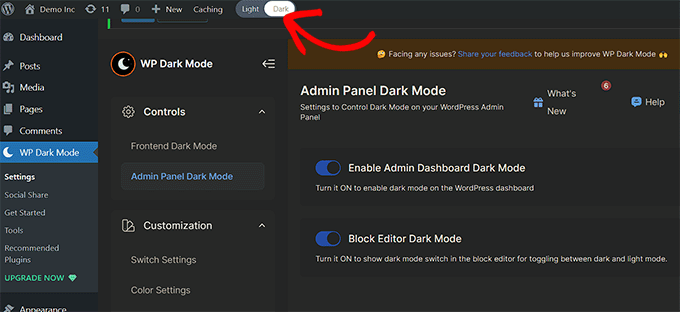
Once you do that, you will notice that the dark mode switch has been at the top of your WordPress dashboard.
From here, you can toggle the switch to activate this mode whenever you like.
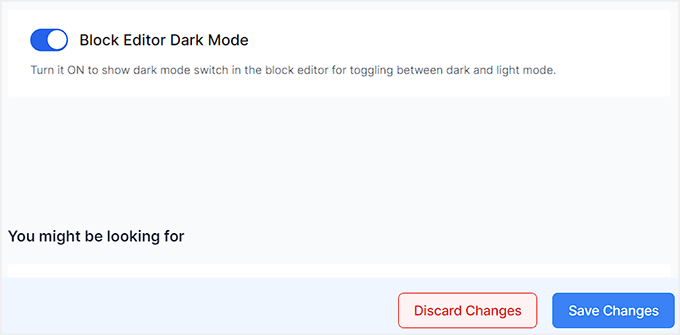
If you want to add a dark mode for the block editor as well, then you must toggle the ‘Block Editor Dark Mode’ switch to ‘ON’.
Then, click the ‘Save Changes’ button.
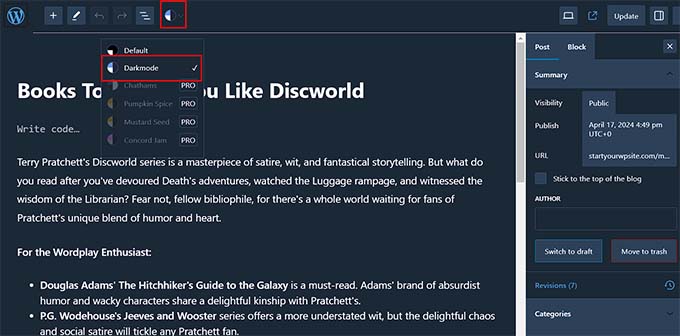
Now open a page or post in the content editor. You will notice a dark mode icon at the top. Click on it to expand the tab and select the ‘Dark Mode’ option.
This is how your block editor will look in dark mode.
Video Tutorial
Frequently Asked Questions About Dark Mode in WordPress
Here are some questions that our readers have frequently asked before enabling dark mode in WordPress:
Does WordPress have night mode?
No, WordPress does not have a built-in night mode feature for the front end of your website. To add this functionality, you need to use a plugin like WP Dark Mode or install a specific dark theme.
How to change theme into dark mode?
The easiest way to change your current theme into dark mode is by installing a plugin that adds a toggle switch. Alternatively, you can navigate to Appearance » Themes and activate a theme that is designed with a dark color scheme.
What are the disadvantages of dark mode?
The main disadvantage is that dark mode can be difficult to read in bright, sunny environments. Additionally, standard logos or transparent images with dark elements may disappear or look distorted against a dark background.
Which color mode is best for eyes?
Dark mode is typically best for your eyes in low-light conditions because it reduces glare and screen flicker. However, light mode is often better for readability and text comprehension during the day or in well-lit rooms.
What percent of people use dark mode?
Recent data suggests that over 80% of mobile users prefer to use dark mode on their devices. Supporting this mode on your website ensures you are catering to the vast majority of user preferences.
Is dark theme healthier for eyes?
Yes, a dark theme can be healthier for your eyes as it minimizes exposure to harsh blue light. This reduction in blue light can help prevent digital eye strain and may improve sleep quality if you use devices late at night.
We hope this article helped you learn how to add dark mode to your WordPress website. You may also want to see our guide on how to choose a perfect color scheme for your WordPress site or see our expert picks for the best WordPress theme builders to customize your site.
If you liked this article, then please subscribe to our YouTube Channel for WordPress video tutorials. You can also find us on Twitter and Facebook.




Jiří Vaněk
I often work on my website at night, and my eyes sometimes get tired from the light mode that WordPress uses. Additionally, it’s not great for sleep. Thanks for this guide, as switching both the website and admin area to dark mode now helps a lot to reduce eye strain.
Oreofe Oyebamiji
Great info. I really love the plug-in and easy to use
WPBeginner Support
Glad you found it helpful!
Admin
Kurt
I generally prefer dark modes in apps that support it. Thank you for this great tip.
WPBeginner Support
Glad we could share this option
Admin
Iponk
wow…nice info, thanks
WPBeginner Support
You’re welcome, glad our guide was helpful
Admin
Agung
This is wonderful. Thanks I’ll try it!
WPBeginner Support
Glad our guide was helpful
Admin
Bryan Durio
This is a fantastic plugin to save people’s eyes. I’ve used dark color schemes in Windows for years and now I can add it to my WP site. I appreciate your explanation of a few of its options. Thank you profusely!
WPBeginner Support
Glad you found our guide helpful
Admin
Richard hickman
What does this feature do to Accessibility requirements?
WPBeginner Support
It would depend on the specific accessibility requirements you are attempting to comply with for if this does anything or not.
Admin
Richard Mayowa
It is just too awesome possibility
WPBeginner Support
Glad you like the available option
Admin
Jennifer C. Valerie
This is awesome. Thanks!
WPBeginner Support
You’re welcome
Admin
Adarsh Gupta
Wow Amazing.
I haven’t know about the Dark mode. But it’s so easy to add dark mode in WordPress
Thanks for Great Explained
WPBeginner Support
You’re welcome, glad our guide was helpful
Admin