


We’ve seen many WooCommerce stores miss out on sales simply because shoppers don’t realize free shipping is available.
A free shipping bar fixes that problem instantly. It places a clear, friendly message at the top of your site that says exactly what customers need to do to unlock free shipping, for example, “Spend $50 more and get free shipping.”
Shoppers love saving on shipping and often add extra items just to avoid that additional cost. By making your free shipping offer impossible to miss, you can increase cart sizes and boost your average order value without changing your pricing.
After testing several tools, we found that OptinMonster is the easiest way to add a high-converting free shipping bar to a WooCommerce store.
In this guide, we’ll walk you through the setup step by step, so you can start turning more visits into sales today.
💡Quick Answer: How to Add a Free Shipping Bar in WooCommerce
The fastest way to add a free shipping bar is to use OptinMonster.
Simply create a new ‘Floating Bar’ campaign, enter your promotional text (e.g., ‘Free Shipping on orders over $50’), and set the display rules to appear on your WooCommerce store.
This method works with any WordPress theme and doesn’t require writing code.
Important: Configure Your Shipping Rules First
Before we begin, it’s important to understand that the free shipping bar is a promotional tool. It announces your offer to customers, but it doesn’t create the actual shipping rule itself. You must first set up free shipping in your WooCommerce settings.
This ensures that when a customer meets the requirement, the discount is applied automatically at checkout.
To learn more, see our guide on how to offer a shipping discount in WooCommerce.
Why Display a WooCommerce Free Shipping Bar?
Shipping costs are one of the top reasons behind abandoned cart sales. Many online stores deal with this by offering free shipping.
Letting customers know about your offer is a great way to boost sales. A free shipping bar is a prominent banner that stays visible as the user scrolls, constantly reminding them of the deal.
This encourages users to add more to their cart to qualify for free shipping, increasing your average order value and overall sales.
You can offer WooCommerce free shipping by using the Advanced Coupon plugin (a powerful tool for creating smart coupons and shipping deals) or just by setting up the shipping methods in your online store.
Regardless of how you enable free shipping, properly highlighting it on your site is key. That’s where a free shipping bar comes in.
To create the shipping bar, we will be using OptinMonster. It’s the best lead generation plugin for WordPress that lets you create popups, floating bars, and other on-site campaigns to grab visitors’ attention.
It is also what we use at WPBeginner and our partner websites to run marketing campaigns. To learn more, see our full OptinMonster review.
Here are the steps we’ll cover:
Step 1: Set Up an OptinMonster Account
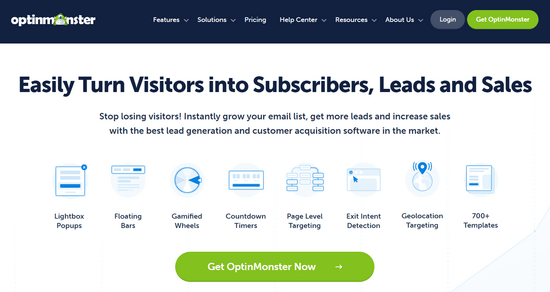
First, you will need to visit the OptinMonster website and sign up for an account.
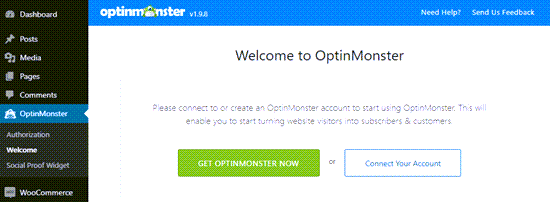
After you have signed up for OptinMonster, the next step is to install and activate the free OptinMonster plugin for WordPress. Please see our step-by-step guide on how to install a WordPress plugin.
This plugin connects the OptinMonster app to your WordPress site.
Upon activation, the setup wizard may launch automatically. If so, simply follow the on-screen instructions to complete the setup.
If the wizard does not appear, click on the OptinMonster menu in your WordPress dashboard. Then, click the ‘Connect Your Account’ button to link WordPress to your OptinMonster account.
Step 2: Create a WooCommerce Free Shipping Bar
Now, you can create the floating bar to offer WooCommerce free shipping.
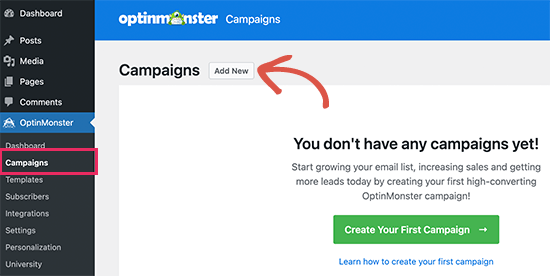
First, go to the OptinMonster page in your WordPress dashboard and then click the ‘Add New’ button on the top right or click the ‘Create Your First Campaign’ button.
Choosing Campaign Type and Template
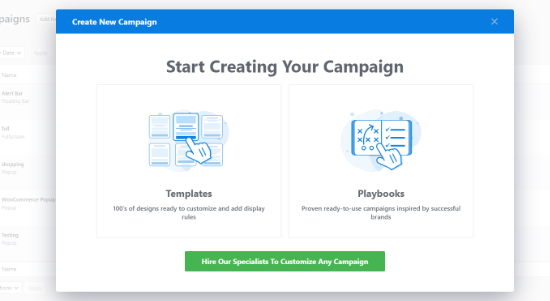
A new popup window will open where you can choose templates or playbooks.
OptinMonster offers beautiful templates for your campaign. You can select one and customize it according to your needs. On the other hand, it also offers ready-to-use campaigns inspired by successful brands.
For this tutorial, we will select the ‘Templates’ option.
This will take you to the OptinMonster campaign builder.
Here, you’ll need to select ‘Floating Bar’ as your campaign type.
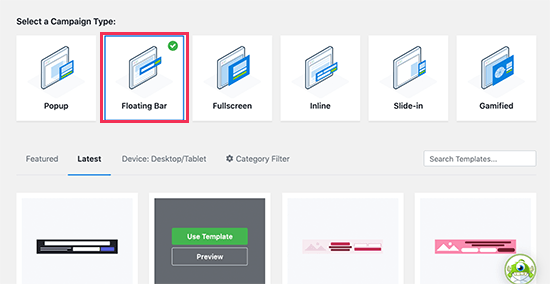
Next, scroll down and choose your campaign template. OptinMonster has a great range of professional templates to choose from. Bring your mouse cursor over the template and click the ‘Use Template’ button.
Naming Your Campaign
OptinMonster will now ask you to name your campaign. You can use any name that you like here.
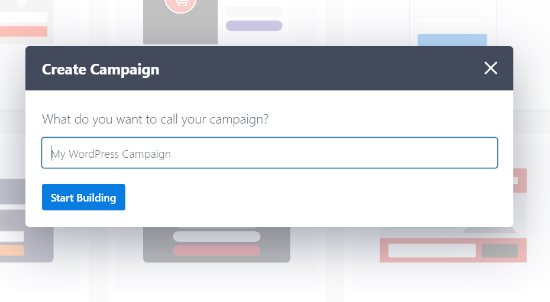
Once you are ready, just click the ‘Start Building’ button.
Customizing the Bar’s Appearance
You will then see the OptinMonster builder interface, with different blocks that you can add to the template.
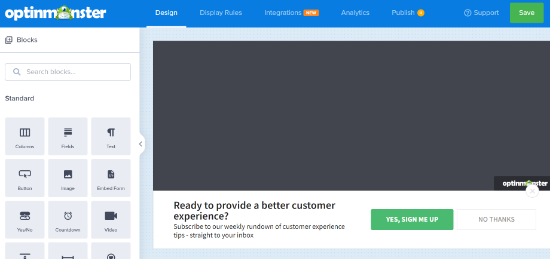
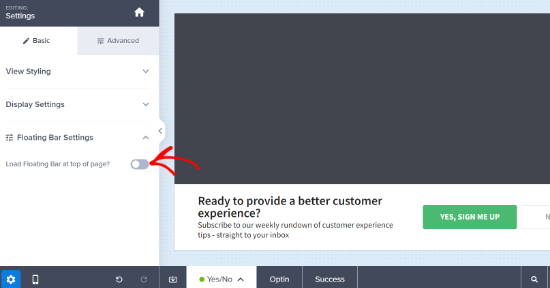
By default, the floating bar will stick to the bottom of the screen. If you want it at the top of the screen instead, that’s easy to change.
Simply select the floating bar and then click on ‘Floating Bar Settings’ in the left-hand menu. Then, turn on the ‘Load Floating Bar at Top of Page?’ option.
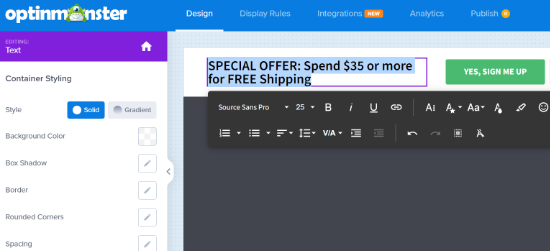
To change the text in the bar, simply click on it.
You can customize the text as needed. You can also change the font style, color, font size, and more. The preview of your campaign will automatically update to show how it will look live.
We recommend prominently displaying your minimum order amount (for example, ‘Free shipping on orders over $50!’) to qualify for free shipping.
📍Note: This text creates a static announcement and does not sync with your WooCommerce store settings. If you later change your shipping rules in WooCommerce, remember to manually update this text so they match.
This clear messaging can motivate customers to add more items to reach the free shipping tier, effectively boosting your average order value.
Here, we have changed the text and the font. We have also slightly increased the font size:
You can change the button on your free shipping bar, too.
Simply click on the button, and the settings will open up in the left-hand panel. You can change the text of the button there.
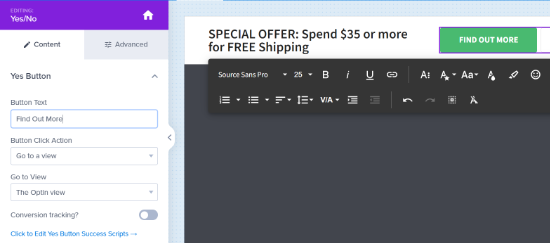
To direct customers to a specific page, you can enter its URL in the ‘Redirect URL’ field.
We recommend linking this button to your Cart page or Shop page. This makes it easy for users to continue shopping or check out after seeing the deal.
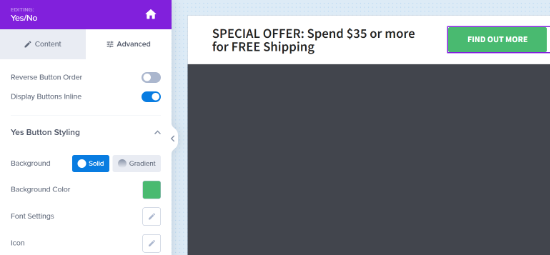
If you want to use a different color for your free shipping bar, that’s easy too. First, click the ‘Advanced’ tab in the menu on your left, then change the button’s background color.
Step 3: Adjust Rules to Display Free Shipping Bar
Next, you will need to select the display rules that control who should see the free shipping bar on your site.
Setting Your Display Rules
Simply click on the ‘Display Rules’ tab at the top of your screen.
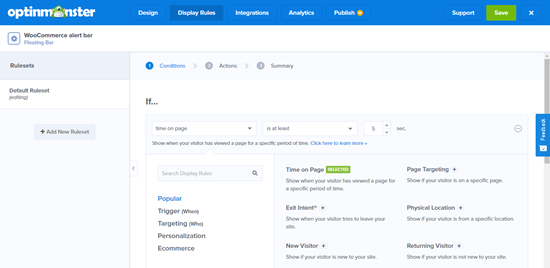
By default, OptinMonster displays your floating bar after the user has been on any page of your site for 5 seconds.
You may want to have your free shipping bar load instantly. To do this, simply remove the time delay rule. Click the minus icon on the right-hand side to do so:
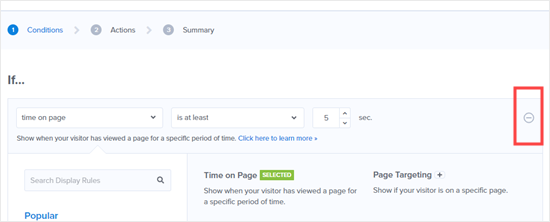
Once you remove the timer, the campaign will default to the rule ‘Current URL path is any page.’ This ensures the bar appears immediately when a visitor arrives.
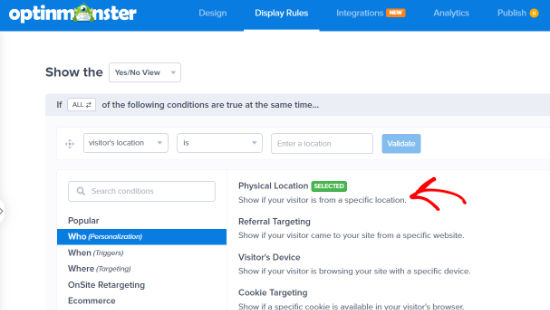
Aside from that, you can also choose different display rules. For example, depending on your OptinMonster plan, you can show the free shipping bar to users from specific geographic regions.
This is great for targeted promotions. For instance, you could create a bar that reads “Free Shipping on all camping gear!” and set it to appear only when a visitor is browsing your ‘Camping’ product category.
Publishing Your Campaign
The final step is to make your campaign live on your site. Click the ‘Publish’ tab at the top of the screen.
While you are building your campaign, it’s paused by default. You can switch it from Draft to Publish.
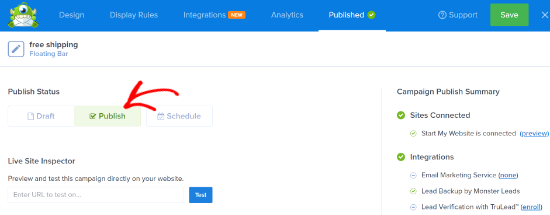
Once that’s done, simply click the ‘Save’ button and close the campaign builder.
Next, you’ll see the Campaign Output Settings for your free shipping alert bar. Make sure that the Status is published, or just click the dropdown menu and change it from Pending to Published.
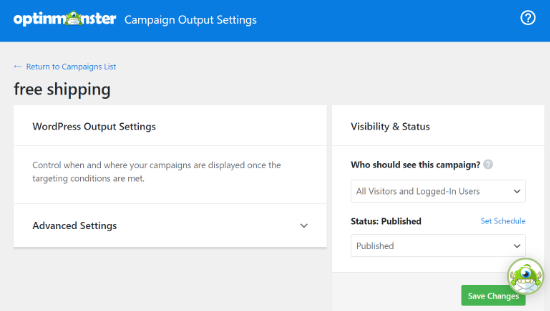
Don’t forget to click the ‘Save Changes’ button when done.
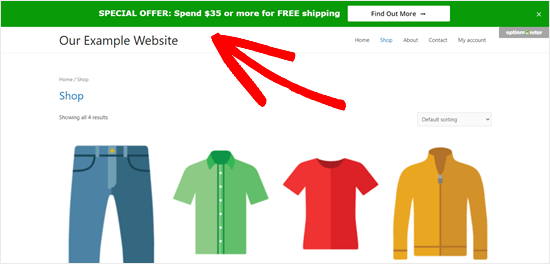
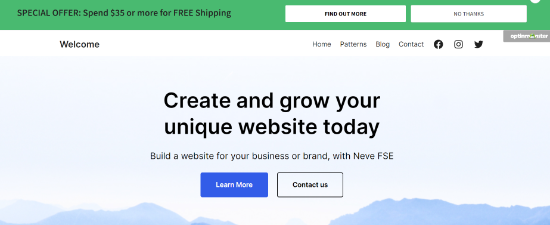
Now, you can visit your website and see your free shipping bar live. Here’s a preview of how an alert bar looked on our demo shopping site.
Frequently Asked Questions About Adding a Free Shipping Bar
Here are some questions frequently asked by our readers about shipping bars:
Can the free shipping bar be displayed on specific product pages or categories?
Yes, with OptinMonster’s advanced display rules, you can highly customize the free shipping bar’s visibility settings.
This allows you to target specific product pages or categories, ensuring that the promotion reaches the audience most likely to benefit from it.
Is it possible to customize the appearance of the free shipping bar after its initial setup?
Yes, absolutely! The OptinMonster builder is super flexible. You can jump back in anytime to change the colors, text, fonts, and even where the bar appears on the page.
It’s easy to make sure your promotions always match your brand’s style.
What if I want the free shipping bar to display only for returning visitors?
OptinMonster includes options to configure your campaign based on visitor behavior, letting you tailor the display of the free shipping bar specifically to returning visitors.
This strategy can improve user experience and engagement by offering incentives to customers who have previously shown interest in your products. It can be a powerful tool in encouraging repeat purchases and building customer loyalty.
We hope this article helped you learn how to add a free shipping bar in WooCommerce. You might also want to check out our list of the best WooCommerce plugins for your online store and our tutorial on how to schedule coupons in WooCommerce and save time.
If you liked this article, then please subscribe to our YouTube Channel for WordPress video tutorials. You can also find us on Twitter and Facebook.





Have a question or suggestion? Please leave a comment to start the discussion.