


Comments aren’t just feedback — they’re powerful signals of an active, engaged community. Plus, a high comment count on your blog posts can act as social proof. It encourages new visitors to read, participate, and stay longer.
But when the number next to your posts doesn’t match the real activity in the comment section, it can send the wrong message. 🤷
That’s why it’s important to show an accurate comment count.
In this tutorial, we’ll show you how to display the most accurate comment count in WordPress. That way, you can highlight real engagement and build more trust with your readers!

Why Display an Accurate Comment Count in WordPress?
Comments allow readers to engage with you and other visitors. This can help create a sense of community and keep people coming back to your website. With that being said, you will want to do everything you can to get more comments on your WordPress posts.
You can allow users to subscribe to comments, end each post with a question to generate discussion, and more. Another option is to display an accurate comment count.
A high comment count will encourage visitors to join the conversation. It’s also a form of social proof, as readers may visit your posts just to see why so many people are commenting.
There’s no default way to show an accurate comment count in WordPress, especially if your site gets lots of trackbacks and pings. Comment spam can also make it difficult to display an exact comment count.
With that being said, you’ll want to do everything you can to get more comments on your WordPress posts.
Simply use the quick links below to jump straight to the method you want to use:
Method 1: Using Simple Blog Stats (Quick and Easy)
The easiest way to accurately display comment counts is by using Simple Blog Stats.
This plugin shows the total number of approved comments and comments in moderation. It also automatically filters out pings and trackbacks to ensure the count represents real user engagement.
Many websites turn off trackbacks and pingbacks to block spam comments in WordPress, anyway, so this may not be a big problem for your site.
However, if you prefer to use a manual code method to ensure your count is strictly accurate (excluding trackbacks and pings), then we recommend using Method 2 instead.
To get started, you need to install and activate the Simple Blog Stats plugin. In your WordPress dashboard, go to Plugins » Add New Plugin.

Then use the search bar to quickly find the plugin.
Once you’ve found it, click the ‘Install Now’ button and ‘Activate’ to complete the process.
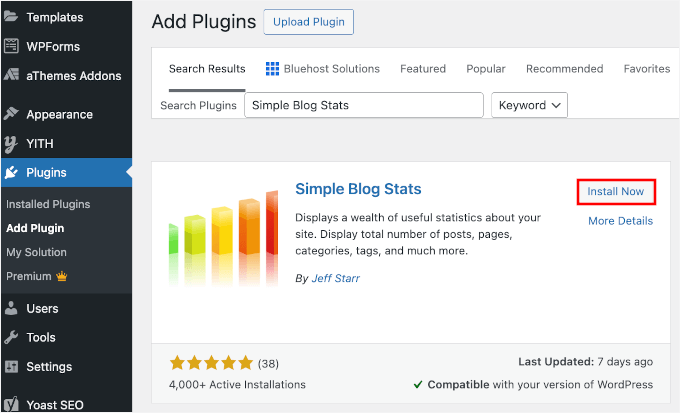
For more details, see our step-by-step guide on how to install a WordPress plugin.
Upon activation, you can see all the plugin’s shortcodes by going to the Settings » Simple Blog Stats page.
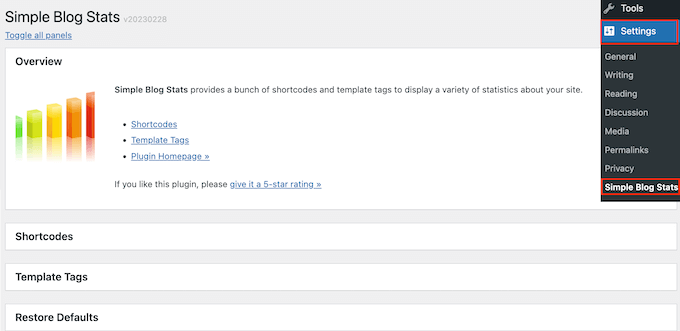
Here, simply click to expand the ‘Shortcodes’ section.
To display the total number of approved comments on your WordPress blog, simply use the following shortcode: [sbs_approved]
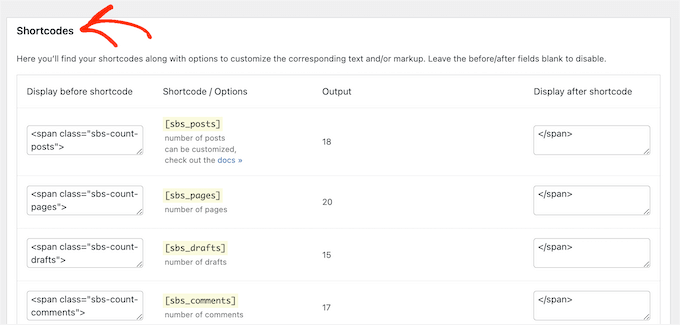
If you want to show the total number of approved comments plus comments that are still in the WordPress comment moderation queue, then you can use [sbs_comments] instead.
For more information on how to place the shortcode, please see our guide on how to add a shortcode in WordPress.
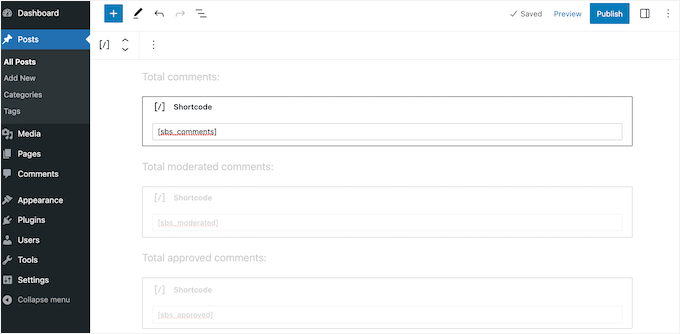
After adding the shortcode, you can visit your WordPress website to see the total comment count live.
Method 2: Using a Custom Shortcode (Most Accurate)
If you want to ensure your comment count is 100% accurate by only counting real comments (and excluding pingbacks and trackbacks), you can use custom code.
Often, tutorials ask you to add custom code snippets to your theme’s functions.php file. However, we don’t recommend this method because a small mistake in your code could cause a number of WordPress errors. Or worse, break your site entirely.
That’s why we recommend using WPCode. It is the easiest and safest way to add custom code in WordPress without editing any WordPress theme files.
Some of our partner brands use WPCode to add and manage custom code snippets. Plus, we’ve tested all the features ourselves, and you can find more about it in our detailed WPCode review.

🧑💻 Pro Tip: You can use the free WPCode plugin to follow our tutorial. That said, if you manage a lot of custom code snippets, we recommend upgrading to WPCode Pro to unlock code scheduling, complete revision history, and more.
The first thing you need to do is install and activate the free WPCode plugin on your website. From your WordPress admin dashboard, let’s navigate to Plugins » Add New Plugin.
On the next screen, you can quickly find the WPCode plugin using the search feature.
Then click the ‘Install Now’ button in the search results.
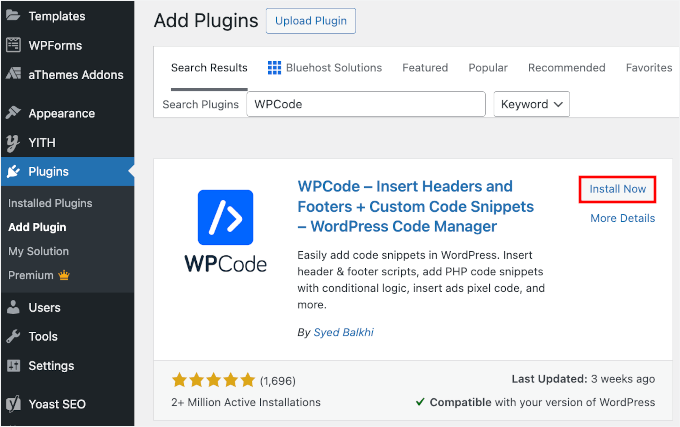
Don’t forget to click ‘Activate’ to enable it on your site. For more details, see our step-by-step guide on how to install a WordPress plugin.
Upon activation, you need to go to Code Snippets » + Add Snippet.
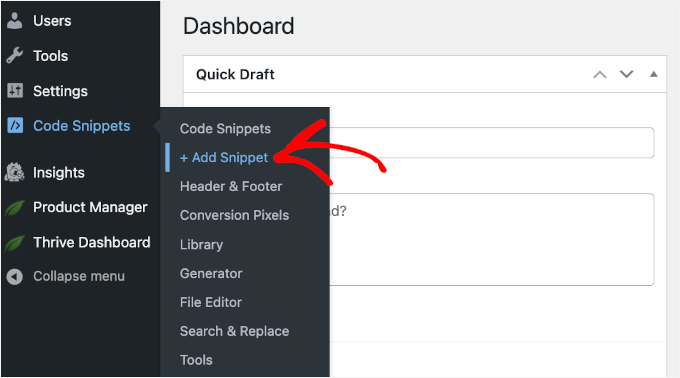
On the next screen, you’ll see all of WPCode’s ready-made snippets you can add to your site.
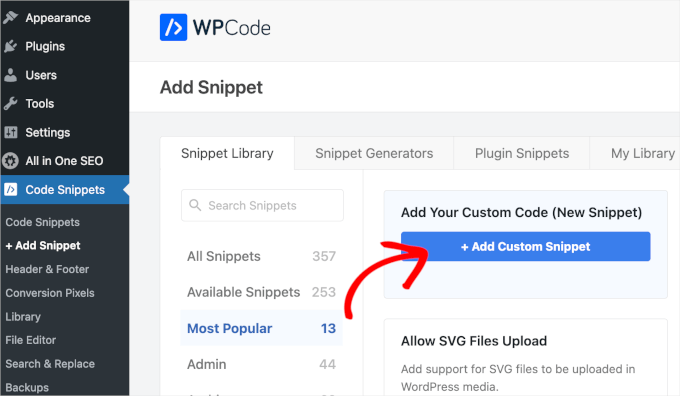
We’re going to create a custom shortcode that allows you to add an accurate comment count to any page, post, or widget-ready area.
To get started, hover your mouse over ‘Add Your Custom Code (New Snippet)’ and then click ‘+ Add Custom Snippet.’
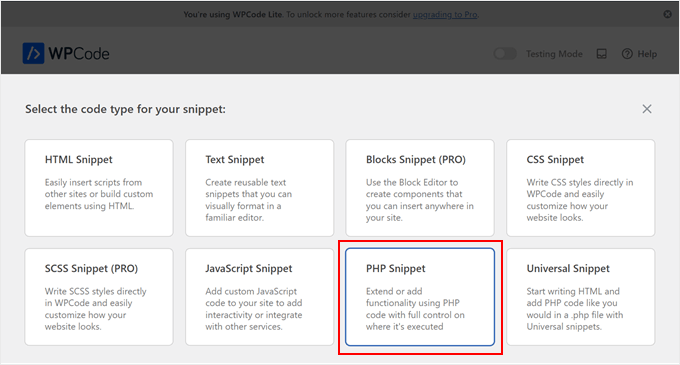
On the slide-in that appears, WPCode will ask for the code type.
Let’s choose ‘PHP Snippet.’
To start, you need to enter a title for the custom code snippet.
This can be anything that helps you identify the snippet in your WordPress dashboard.
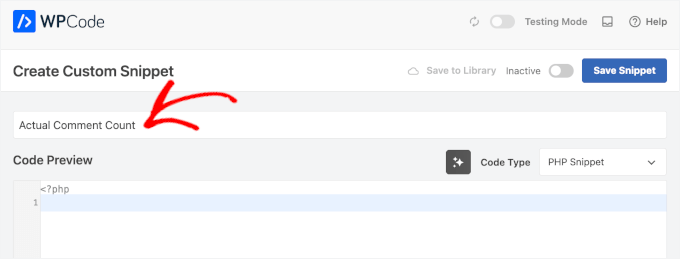
Once you have done that, simply paste the following snippet into the code editor:
function wpbeginner_actual_comment_count() {

    // Get the total count of approved comments that are NOT pings/trackbacks
    $comments = get_comments( array(
        'status' => 'approve',
        'type'   => 'comment',
    ) );

    // Return the number of comments
    return count($comments);
}
add_shortcode('actual_comment_count', 'wpbeginner_actual_comment_count');
This code creates a shortcode named [actual_comment_count]. It queries your database for all approved comments, automatically excludes pings and trackbacks, and displays the accurate number.
Because it filters out automated notifications, the number shown will represent real engagement from your visitors. The count is then displayed wherever you use the [actual_comment_count] shortcode on your site.
Below the code box, you will see insertion options.
To create a shortcode that you can use on any page, post, or widget-ready area, open the Location dropdown menu and click on ‘Run Everywhere.’
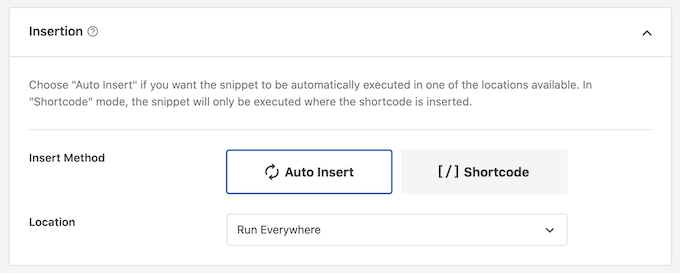
After that, scroll to the top of the screen and click on ‘Inactive’ so it changes to ‘Active.’
With that done, simply click on ‘Save snippet’ to make the snippet live on your website.
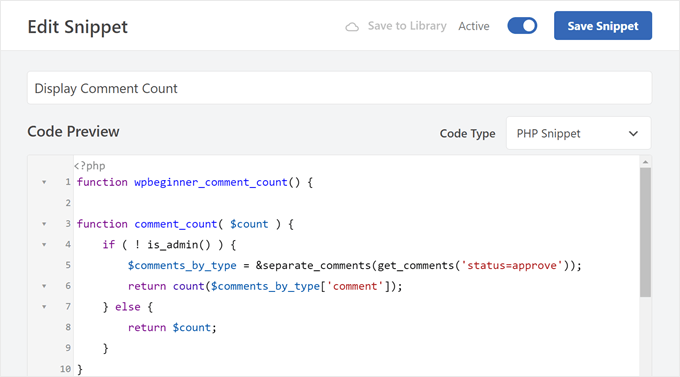
You now have a shortcode that you can use to show the total number of real, approved comments on your site.
Simply add the [actual_comment_count] shortcode anywhere you want to show the comment count. For more information on how to place the shortcode, please see our guide on how to add a shortcode in WordPress.
Showing Comment Count for a Specific WordPress Post
Do you want to show the comment count for a single post or page?
You can simply add the following PHP code snippet to WPCode, following the same process described above:
function wpbeginner_post_comment_count() {
    global $post;

    // Check if we are on a post
    if ( ! $post ) { return 0; }

    // Get comments for this specific post ID, approved only, no pings
    $comments = get_comments( array(
        'post_id' => $post->ID,
        'status'  => 'approve',
        'type'    => 'comment',
    ) );

    return count($comments);
}
add_shortcode('post_comment_count', 'wpbeginner_post_comment_count');
This creates a [post_comment_count] shortcode that you can add to any page or post.
Bonus Tip 💡: Use Thrive Comments to Boost Your Comment Engagement
Do you want to get more comments on your WordPress website?
High comment engagement is a good sign that readers are enjoying your blog content and want to engage with your community. That said, first-time bloggers may find it tricky to get visitors to leave comments on their blog posts.
If you need help, then we recommend using Thrive Comments – the best WordPress comment plugin to improve your blog’s commenting experience.

With Thrive Comments, you can allow users to like or dislike comments in blog posts and upvote and downvote comments. These features can make your commenting experience much more exciting.
Plus, you can add a post-comment action to redirect users to a relevant post or an optin form to make people engage more with your website.
For more information, you can check out our Thrive Themes Suite review.
FAQ: Display Accurate WordPress Comment Count
If you’re still unsure about how comment counts work in WordPress, or want to double-check that everything is displaying correctly, these quick answers should help.
How do I see the comment count in WordPress?
You can see your total comment count from the WordPress dashboard by going to ‘Comments.’ This shows all comments across your site, including approved, pending, spam, and trash.
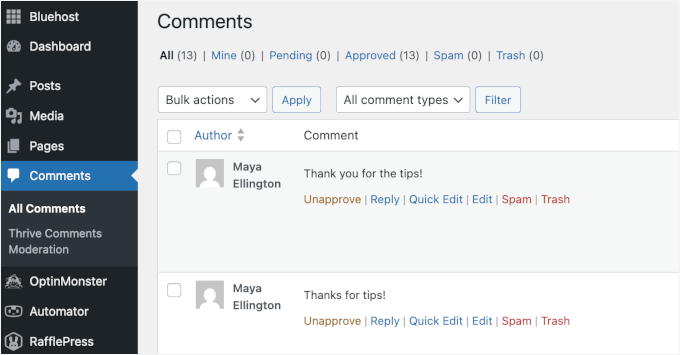
For individual posts, the comment count is usually shown on the post itself or in the Posts » All Posts screen, where each post has a comments column.
What is the correct way to display comments using CSS?
CSS is only used to style how comments look – it doesn’t control the actual comment count. To display the correct number of comments, WordPress needs to output the count first using PHP or a block/theme setting.
Once the count is showing properly, you can use CSS to change things like font size, color, spacing, or alignment.
How do I add a counter in WordPress?
In most cases, WordPress adds comment counters automatically if your theme supports them. You can also enable comment display options in your theme settings, use a block or widget that shows comment count, or add a code snippet to your theme (if no support).
How do I see all comments on WordPress?
To view all comments on your WordPress site, go to Comments in your admin area. From there, you can filter comments by status, search for specific ones, or manage them in bulk. It shows everything in one place, even comments that don’t appear publicly on your site.
How accurate are WordPress stats?
WordPress stats are generally reliable, but they depend on what’s being counted. For comments, the number may sometimes look higher than expected because WordPress counts pingbacks and trackbacks as comments.
Next Steps to Improve WordPress Comments
We hope this article helped you learn how to easily display the most accurate comment count in WordPress.
Next, you may also want to read our guides on:
- How to Fix ‘Comments Are Closed’ in WordPress
- How to Export Email Addresses from WordPress Comments
- How to Add Custom Fields to Comments Form in WordPress
- How to Allow Your Users to Subscribe to Comments in WordPress
- Ways to Get More Comments on Your Blog Posts
If you liked this article, then please subscribe to our YouTube Channel for WordPress video tutorials. You can also find us on Twitter and Facebook.




WPBeginner Support
Glad you liked our recommendations, for your concern on plugins we would recommend taking a look at our post below that goes over why using plugins is not an issue
https://www.wpbeginner.com/opinion/how-many-wordpress-plugins-should-you-install-on-your-site/
Admin
mohadese esmaeeli
Hello, good day! I think having a comment counter is a very good idea to achieve a more effective categorization of user opinions. In my opinion, the second method is more practical and better since it does not require installing any plugins. I really liked the idea.
Chris
Hi,
on my website it only works in Gutenberg block “shortcode” not in “paragraph”. Am I doing something wrong?
insitedesignlab
You guys always have the best tutorials. I searched Google for this because my site was prominently displaying inflated comment counts and found exactly what I was looking for!
Thanks again!
imranansari
This code is helpful.
I have paste this code in function.php and call this function in my template
<?php echo comment_count(); ?>
Thanks.
Ezuca
I have been searching the web for this solution. Plugins are available but I’m not into it. I tried your code and it works! Thanks a lot.
Tricyclic Antidepressants
Very interesting article and very good blog. Very much interested to know)
I will add this blog to RSS Reader
Wordpress Developer
I was looking similar a wordpress plugin. This code very useful for me. Thank you.