


After all that work on a WordPress blog post, watching readers leave after one page is frustrating.
One big reason? The plain text navigation links at the bottom of your posts barely get noticed.
Adding thumbnail images to these navigation links can help you grab attention. Readers can instantly see what’s coming next, which makes them much more likely to stick around and explore your content.
We’ve tested many methods and found that WPCode is the best tool for the job. It lets you add custom code snippets safely without touching your theme files.
In this guide, we’ll show you exactly how to add thumbnails to your previous and next post links in WordPress. It’s easier than you think! 💡
🗝️ Key Takeaways: The safest and easiest way to add thumbnails with Previous and Next Post links is by using the WPCode plugin, which lets you add custom code safely without editing your theme files.
Why Display Thumbnails With the Previous and Next Post Links?
Thumbnails instantly make your navigation links more eye-catching and clickable. They can encourage readers to keep exploring your site, potentially increasing pageviews and dwell time.
Your WordPress blog offers some helpful features to help visitors find new content and navigate your site.
These features include:
- Navigation menus
- A search bar, and
- A post archives widget.
Another helpful navigation feature is found at the bottom of each blog post. There, you will find links to your site’s previous and next posts.
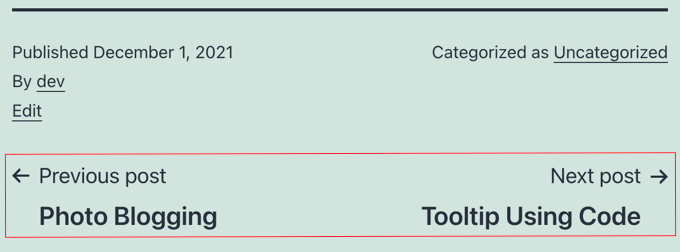
These links build user engagement because when visitors finish reading one blog post, they might look for something else to read. However, if you add thumbnails, the links will look more interactive.
It’s also a great way to bring attention to your best-performing or popular blog posts.
For example, you may have pillar content that is already driving a ton of traffic and converting those readers into email subscribers. Adding thumbnails with post links would only help you build your email list and grow your small business.
With that in mind, we’ll show you how to add thumbnails to the previous and next post links in WordPress. Here are all the topics we’ll cover in this article:
Let’s get started!
Using Thumbnails with Previous and Next Post Links in WordPress
To add thumbnails to your previous and next post links, you’ll have to add code to your WordPress theme’s files.
We recommend using WPCode, the best code snippets plugin for WordPress. It allows you to add code without breaking your site and comes with plenty of ready-made templates, so you don’t have to write code from scratch.
Across our websites, we use WPCode to create and manage custom code snippets. It has worked incredibly well for us, and you can check out our complete WPCode review to explore its features.
If you haven’t done this before, then see our guide on how to copy and paste code in WordPress.
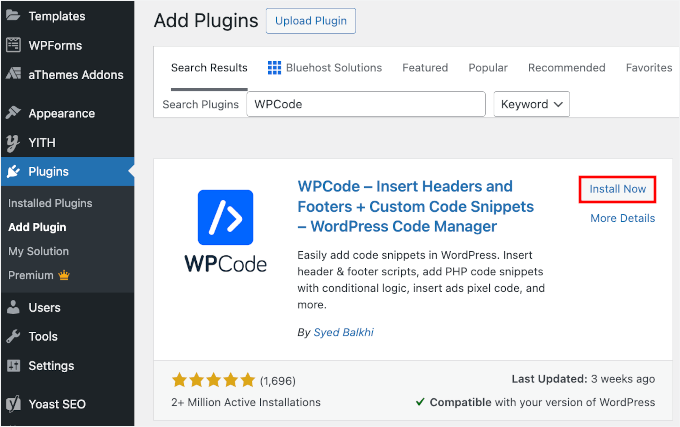
To get started, you’ll need to install and activate the WPCode plugin. From your WordPress admin area, go to Plugins » Add Plugin.

✋ Note: You can use the WPCode free version to add a custom snippet, but upgrading to WPCode Pro gives you access to the full code revision history and scheduling features.
On the next screen, use the search box to quickly find the WPCode plugin.
Click ‘Install Now’ in the search result, followed by ‘Activate.’
If you need help, you can check out our article on how to install a WordPress plugin.
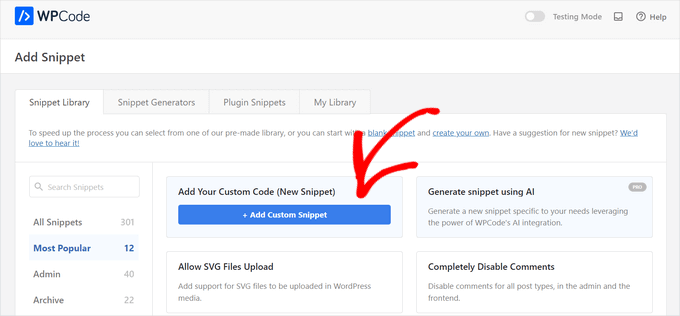
Upon activation, go to Code Snippets » + Add Snippet from your WordPress dashboard.
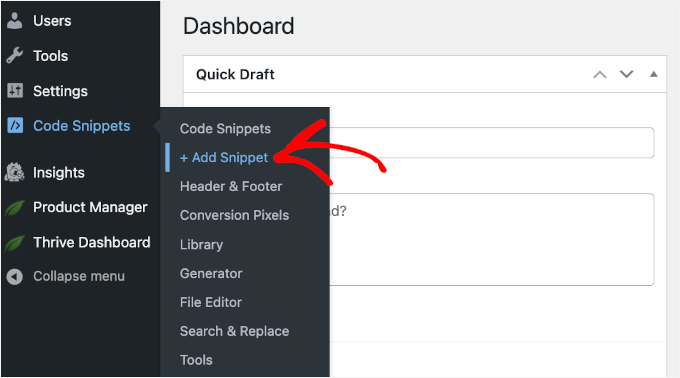
You’ll be redirected to a code snippet library, where you can choose from a wide variety of pre-made templates.
To add thumbnails to the previous and next post links, we’ll upload a string of custom code.
So, let’s click on ‘+ Add Custom Snippet’ under ‘Add Your Custom Code (New Snippet).’
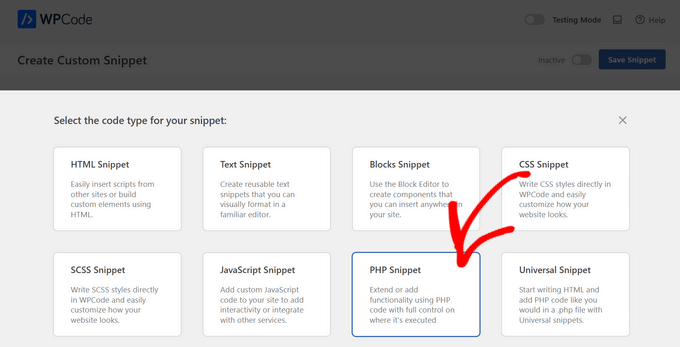
On the popup that appears, you’ll select the code type.
Here, you’ll want to choose ‘PHP Snippet,’ which is a small piece of code used to extend WordPress functionality.
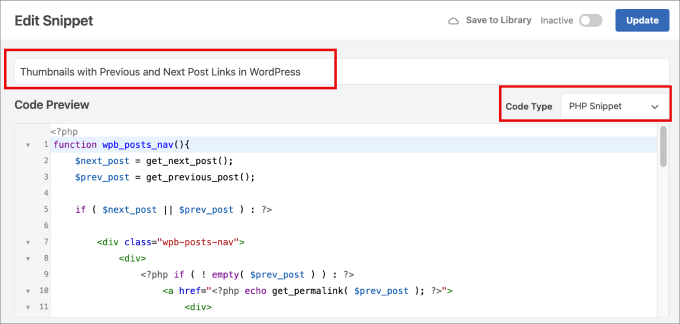
The next step is to give the code snippet a name so that you can refer back to it later.
Then, simply copy the following code into the WPCode text editor:
function wpb_posts_nav(){
    $next_post = get_next_post();
    $prev_post = get_previous_post();

    if ( $next_post || $prev_post ) : ?>

        <div class="wpb-posts-nav">
            <div>
                <?php if ( ! empty( $prev_post ) ) : ?>
                    <a href="<?php echo get_permalink( $prev_post ); ?>">
                        <div>
                            <div class="wpb-posts-nav__thumbnail wpb-posts-nav__prev">
                                <?php echo get_the_post_thumbnail( $prev_post, [ 100, 100 ] ); ?>
                            </div>
                        </div>
                        <div>
                            <strong>
                                <svg viewBox="0 0 24 24" width="24" height="24"><path d="M13.775,18.707,8.482,13.414a2,2,0,0,1,0-2.828l5.293-5.293,1.414,1.414L9.9,12l5.293,5.293Z"/></svg>
                                <?php _e( 'Previous article', 'textdomain' ) ?>
                            </strong>
                            <h4><?php echo get_the_title( $prev_post ); ?></h4>
                        </div>
                    </a>
                <?php endif; ?>
            </div>
            <div>
                <?php if ( ! empty( $next_post ) ) : ?>
                    <a href="<?php echo get_permalink( $next_post ); ?>">
                        <div>
                            <strong>
                                <?php _e( 'Next article', 'textdomain' ) ?>
                                <svg viewBox="0 0 24 24" width="24" height="24"><path d="M10.811,18.707,9.4,17.293,14.689,12,9.4,6.707l1.415-1.414L16.1,10.586a2,2,0,0,1,0,2.828Z"/></svg>
                            </strong>
                            <h4><?php echo get_the_title( $next_post ); ?></h4>
                        </div>
                        <div>
                            <div class="wpb-posts-nav__thumbnail wpb-posts-nav__next">
                                <?php echo get_the_post_thumbnail( $next_post, [ 100, 100 ] ); ?>
                            </div>
                        </div>
                    </a>
                <?php endif; ?>
            </div>
        </div> <!-- .wpb-posts-nav -->

    <?php endif;
}
🎨 Pro Tip: Notice the [ 100, 100 ] in the code? That controls your thumbnail size in pixels. Feel free to adjust those numbers to better fit your WordPress theme‘s design.
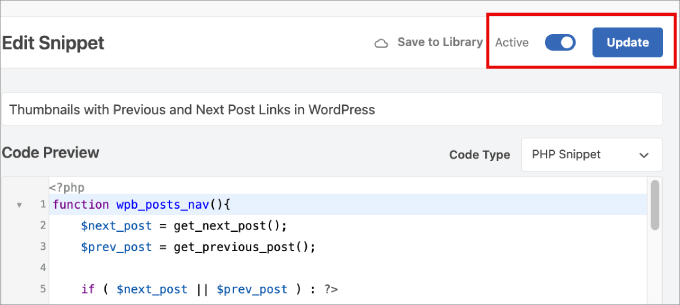
Here’s what it might look like on your screen:
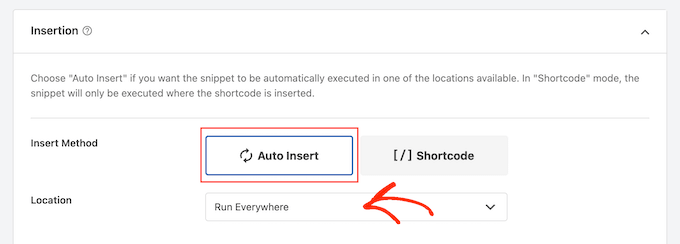
Before activating, scroll down to the ‘Insertion’ section to check the settings.
Here, ensure the ‘Insert Method’ is set to ‘Auto Insert’ and the ‘Location’ is ‘Run Everywhere.’
Then, you can scroll up again and toggle the button from ‘Inactive’ to ‘Active.’
Don’t forget to click the ‘Save Snippet’ or ‘Update’ button to activate your new function.
Now that the function is created, we need to create a second snippet to tell WordPress exactly where to display it on the page. By splitting this into two snippets, we safely create the feature first, and then easily place it without overwhelming your site or breaking your layout.
Let’s go back to the Code Snippets » + Add Snippet page.
Again, under the ‘Add Your Custom Code (New Snippet)’ option, click ‘+ Add Custom Snippet.’
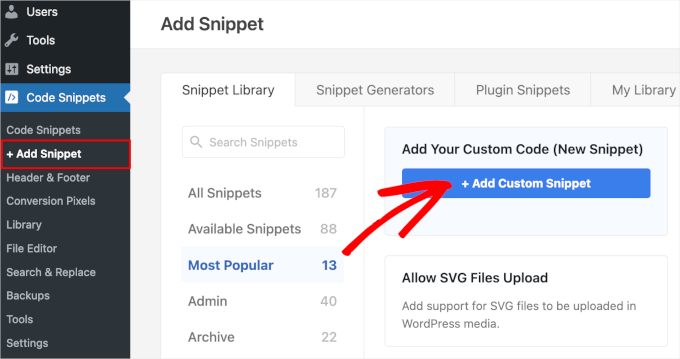
In the popup that appears, WPCode will ask for your code type.
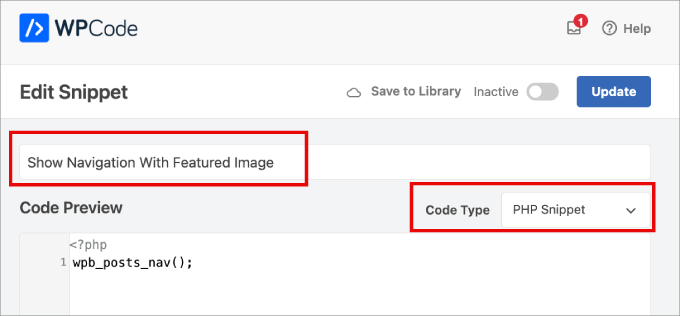
You can select ‘PHP Snippet.’
This will open the same text editor as before.
Go ahead and give a descriptive name for your new custom snippet so you can easily refer back to it later.
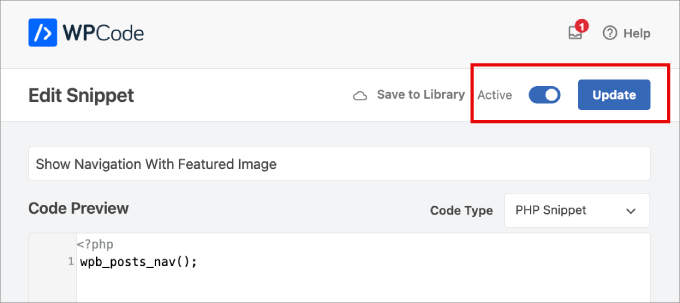
Now, you can copy and paste the following code into the WPCode text editor. This code tells WordPress where to show the navigation with the featured image.
wpb_posts_nav();
Here’s what it might look like on your screen:
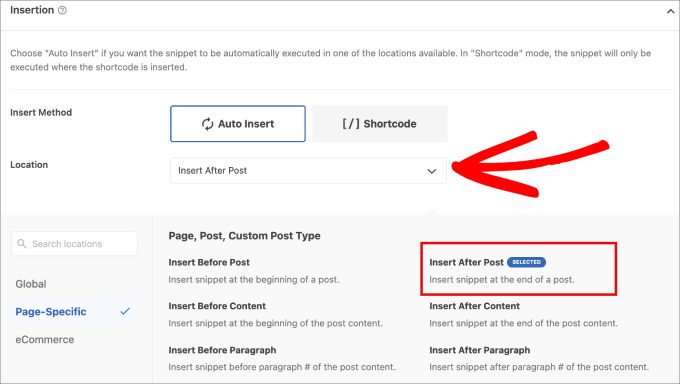
With that done, you’ll want to scroll down to the ‘Insertion’ section and click on the dropdown next to ‘Location.’
From here, go to ‘Page-Specific’ and choose ‘Insert After Post.’ That way, the thumbnails will appear properly next to the links.
Finally, you can toggle on the ‘Active’ and click ‘Save Snippet’ (or ‘Update’).
After saving your changes, you can use this function in the template where you want to show previous and next post links with thumbnails.
Because you set the location to ‘Insert After Post’, WPCode will automatically handle the placement for you. There is no need to edit your theme files.
And that’s it – you’ve added and configured your previous and next post thumbnails!
Now, when you view a post on your website, you will see that the previous and next links at the bottom of the post now have thumbnails.
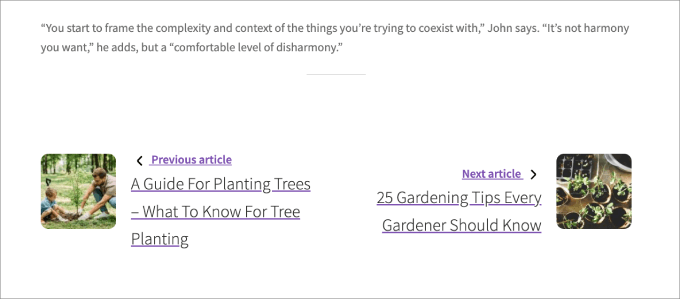
✋ Note: If one of the linked posts does not already have a featured image, then you will not see a thumbnail. To learn how to add thumbnails to a post, you can see our guide on how to add featured images or post thumbnails in WordPress.
Alternative: Displaying Popular Posts with Thumbnails
Another way to engage your readers after they read a post is to display a list of popular posts after each article. This will allow your readers to see your best content rather than just the previous and next published articles.
Your popular posts contain your most successful content. Displaying them to your visitors will help increase your pageviews and boost user engagement.
While previous and next links are great for chronological reading, a tool like MonsterInsights allows you to automatically surface your absolute best, highest-converting content to keep readers engaged.
At WPBeginner, we use MonsterInsights to keep a close eye on our website’s performance. You can see our full MonsterInsights review and see why it’s our go-to tool for making data-driven decisions.
MonsterInsights’ Popular Posts Widget offers a wide range of attractive themes and a lot of customization options.
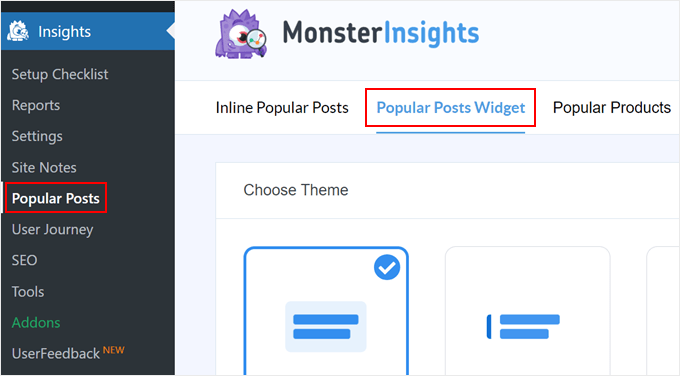
You can learn how easy it is to set this up in our guide on how to display posts by views in WordPress.
Or you can see our guide on how to add custom after-post widgets in WordPress, where you can learn how to add various types of content to the end of each blog post.
Frequently Asked Questions About Post Navigation Thumbnails
Got questions about adding thumbnails to your post navigation? Here are some of the things readers often ask before getting started.
Can I change the size of the thumbnails?
Absolutely. In the first code snippet, look for the lines containing [ 100, 100 ]. These numbers represent the width and height in pixels; keep in mind that WordPress will attempt to scale images to this size, so check how larger dimensions look on mobile devices.
Will adding thumbnails with code slow down my website?
Not at all. The code is lightweight and built with performance in mind, so you shouldn’t notice any slowdown. Plus, WPCode makes sure the snippet only loads on single post pages where it’s needed.
What happens if a post doesn’t have a featured image?
No worries. If a linked post doesn’t have a featured image, the code will just show the text link, though you might see a blank space where the image would be. That said, setting a default featured image for every post helps ensure the layout remains perfectly aligned.
Is it better to show previous/next links or a popular posts section?
It depends on your goal. Previous and next links are great for guiding readers through related content in order.
But if you want to keep people browsing your top articles, a popular posts section (using a tool like MonsterInsights) can work wonders.
Bonus Links for Using Images and Other Media Files in WordPress
We hope this tutorial helped you learn how to use thumbnails with previous and next post links in WordPress.
Next, you may also want to learn:
- How to Crop and Edit WordPress Post Thumbnails
- How to Add Featured Video Thumbnails in WordPress
- Image Alt Text vs Image Title in WordPress
- How to Fix Featured Image Not Showing in WordPress
- How to Optimize Images for Web Performance Without Losing Quality
If you liked this article, then please subscribe to our YouTube Channel for WordPress video tutorials. You can also find us on Twitter and Facebook.


Atesz
Hello,
thnak you for this code. I would like to add the post navigation in the middle of my page as a block. So I tried to create a shortcode calling the wpb_posts_nav funtion:
add_shortcode( ‘custom-post-nav’, ‘wpb_posts_nav’ );
but if I use the shortcode [custom-post-nav] in the block editor, I cannot publish the post and I get the following: “Updating failed. The response is not a valid JSON response”
The post nav still appears but only If I paste the code at the end of the page and then they go to wrong place (to the top).
Do you know where is the problem?
Thank you in advance!
WPBeginner Support
For your JSON response error, we would recommend going through our troubleshooting guide below!
https://www.wpbeginner.com/wp-tutorials/how-to-fix-the-invalid-json-error-in-wordpress-beginners-guide/
Admin
Sekh Sahajahan
Hello sir have you any solution to remove the 3 line navigation bar from menu bar because it automatically added.
Markus Martin
Hi Syed. Does this still work especally with the new version of wordpress?
patricia
Hello! How would I do, if i want to use this for custom post type? thanks
MarykeVanRensburg
I got it to work. It seems the } in this “<?php } ?>” was the problem. I removed it and it works. Now just to figure out how to only show next and previous in same category. Thanks
bowetech
HOw would i set it up so that it will actually get the next post from its current category ?
Japh
Nice and simple solution, I really like it. Great answer for your Facebook asker
Wordpress Themes Labs
nice guide
MarykeVanRensburg
Can you tell me how to only show previous and next in the same category? Thanks for this code. I’m going to try it.
wpbeginner
@MarykeVanRensburg I think the TRUE variable there means in category browsing.
MarykeVanRensburg
@wpbeginner I used the code, but it doesn’t work in an Artisteer created theme. The code in my theme is as follows:
‘next_link’ => theme_get_previous_post_link(‘« %link’), ‘prev_link’ => theme_get_next_post_link(‘%link »’),
and I need to change it to show a thumbnail and only a certain category. Thanks.
wpbeginner
@MarykeVanRensburg AFter the link area just add ,true
our code above will do only category browsing. Unfortunately we do not provide support for specific frameworks.
Sugeng Santoso
I love this.
Dragon Blogger
Really cool, I do think using thumbnails with latest/next post may be overkill if you already use it with “related posts” there is limited real estate which is especially true for the growing trend of mobile browsing.
wpbeginner
@Dragon Blogger That is only if you are assuming that the site has related posts. Some may not. We are using it on our List25 site which is relatively new site, so related articles is not very helpful at the time. That is why we are using single post navigation.
Dragon Blogger
@wpbeginner @Dragon Blogger
Dragon Blogger
@wpbeginner your are right and make a good point about newer sites without enough content to do images for related content.