


You likely installed Contact Form 7 on your WordPress site because it is free and has been one of the most popular contact form plugins for WordPress.
However, you may have noticed that the default forms look quite plain on your live site. That basic gray styling can clash with the rest of your site and make the overall design feel less polished.
Since Contact Form 7 doesn’t include a visual editor or built‑in styling options, making changes requires a little bit of work if you’re not comfortable with code.
The good news is, you don’t need to be a developer to fix this. With just a few CSS tweaks, you can make your forms look clean, modern, and completely on‑brand.
In this beginner‑friendly guide, we’ll walk you through how to customize Contact Form 7 step by step, without any advanced coding or design skills. 🙌
Why Style Your Contact Form 7 Forms?
Styling your Contact Form 7 forms makes your site look more professional, improves readability, and helps your forms match your brand. All these can increase trust and form conversions.
Before we dive in, Contact Form 7 is one of the most popular contact form plugins for WordPress. It’s free to use and lets you add a WordPress form using shortcode.
The drawback is that Contact Form 7 is quite limited in terms of design and customization features. Plus, it doesn’t offer any built-in options to change the style of your forms.
This makes it difficult to match your contact form’s design with your website theme or change basic details like the font and background color to make your form stand out.
More importantly, the plugin has frozen new feature development, meaning it won’t receive updates beyond critical bug fixes and security patches.
📦 Insider Tip: If you want more customizable forms with advanced features, then we recommend WPForms. It comes with a drag-and-drop form builder, AI tools, 2,100+ pre-built form templates, and numerous customization options.
We actually use WPForms for almost all of our forms – from the WPBeginner contact form to our annual readers’ surveys and the site migration request form. Check out our detailed WPForms review to see why we highly recommend this form builder.
If you’re on a budget, there’s a free version of WPForms. It includes free templates, basic form fields, Stripe payments, and more.
We have a head-to-head comparison of Contact Form 7 vs WPForms you can check out!
That said, we’ll now look at how to style a Contact Form 7 form in WordPress. Here’s what we’ll cover in the following sections:
Let’s get started!
Getting Started with Contact Form 7
First, you’ll need to install and activate the Contact Form 7 plugin on your website.
To do this, let’s head over Plugins » Add New Plugin in your WordPress admin area.

This will open the page where you can choose a plugin from the WordPress plugin directory.
Go ahead and use the search feature to quickly find the plugin. Then, you can click the ‘Install Now’ button in the search result.

Don’t forget to click on the ‘Activate’ button to enable it on your WordPress site. If you need help, please see our guide on how to install a WordPress plugin.
Upon activation, you can head over to Contact » Add New from your WordPress dashboard.
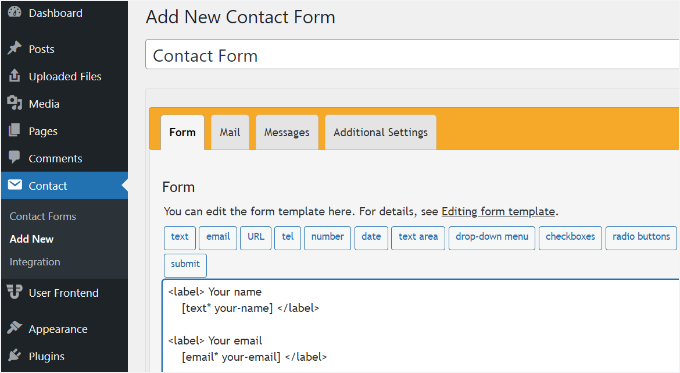
You can now edit the form settings for your website and start by entering a title for your form.
The plugin will automatically add the default fields for name, email address, subject, and message. You can also add more fields by simply dragging and dropping them where you want.
When you’re done, don’t forget to click the ‘Save’ button and copy the shortcode.
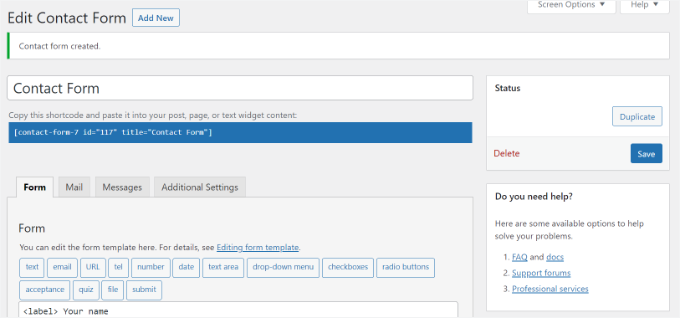
The next thing to do is embed the form into your blog post or page.
To do that, simply edit a post or add a new one.
Once you’re in the WordPress editor, go ahead and click the ‘+’ sign at the top and then add a Shortcode block.

After that, simply enter the shortcode for your Contact Form 7 form in the shortcode block. It will look something like this:
[contact-form-7 id="117" title="Contact Form"]
Now, go ahead and publish your post or page to see the contact form in action.
For this tutorial, we used the default contact form and added it to a WordPress page. This is how the contact form looked on our test site.
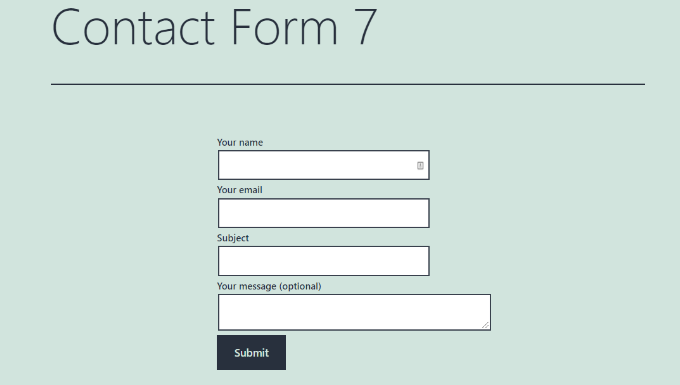
Now you’re ready to customize your Contact Form 7 form in WordPress.
Method 1: Styling Contact Form 7 Forms Using Custom CSS
Since Contact Form 7 doesn’t have built-in style options, you’ll need to use CSS to style your forms.
Contact Form 7 adds standard CSS classes and IDs to the form elements. This makes it easier to customize the design if you know a little CSS.
Each Contact Form 7 form uses the CSS class .wpcf7, which you can target to style your form.
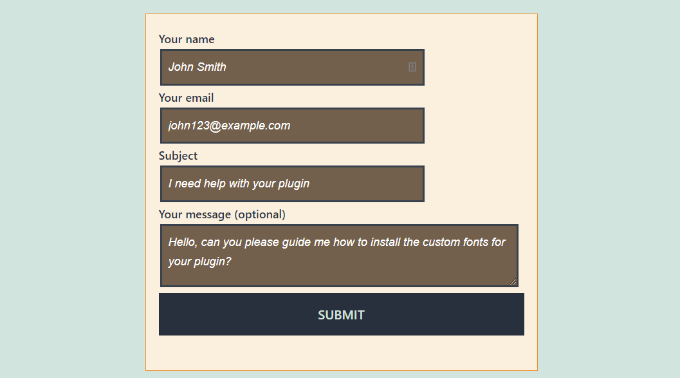
In this example, we will use a custom font called Lora in our input fields and change the background color of the form. Make sure this font is loaded by your WordPress theme, or simply change ‘lora’ to a font your theme already uses:
.wpcf7 {
  background-color: #fbefde;
  border: 1px solid #f28f27;
  padding: 20px;
}

.wpcf7 input[type="text"],
.wpcf7 input[type="email"],
.wpcf7 textarea {
  background-color: #725f4c;
  color: #FFF;
  font-family: lora, sans-serif;
  font-style: italic;
}

.wpcf7 input[type="submit"],
.wpcf7 input[type="button"] {
  background-color: #725f4c;
  width: 100%;
  text-align: center;
  text-transform: uppercase;
}
You can easily add this CSS by going to Appearance » Customize » Additional CSS in your WordPress dashboard.
📝 Note: The location of Additional CSS depends on your WordPress theme type:
- Classic Themes like Sydney, OceanWP, or Astra: Go to Appearance » Customize » Additional CSS
- Block Themes like Neve or Twenty Twenty-Four: Go to Appearance » Editor, click Styles (paintbrush icon), then scroll down to Additional CSS
Both methods work the same way, and it’s just the path that differs based on your theme architecture.
If you need more help, please refer to our guide on how to easily add custom CSS to a WordPress site.
This is how our contact form looked after applying this CSS.
Styling Multiple Contact Form 7 Forms
If you are using multiple contact forms and want to style them differently, you can target the unique ID that Contact Form 7 generates for each form.
The downside of the CSS we used above is that it will be applied to all Contact Form 7 forms on your website.
To start, simply open the page containing the form you want to modify. Then, right-click on the first field in the form and select the ‘Inspect‘ option.
Don’t worry if the code looks complex; you just need to find one specific line.
A Developer Tools panel will open at the bottom or side of your screen, showing the page’s HTML code. In this panel, you need to locate the starting line of the form code.
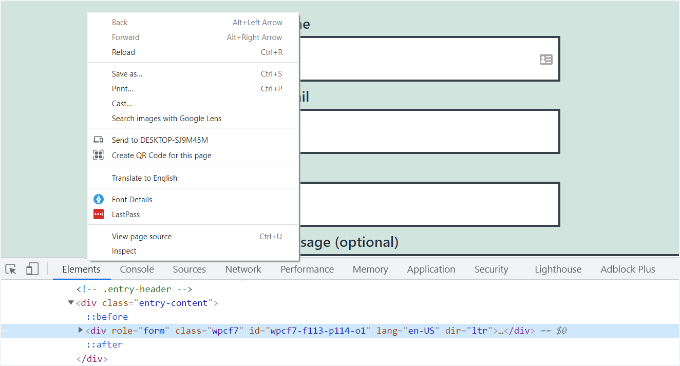
As you can see in the screenshot above, our contact form code starts with the line:
<div role="form" class="wpcf7" id="wpcf7-f113-p114-o1" lang="en-US" dir="ltr">
The ID attribute is a unique identifier generated by Contact Form 7 for this particular form. It is a combination of the form ID and the post ID where this form is added.
We’ll use this ID in our CSS to style just this specific contact form. In the code below, replace the standard .wpcf7 with your unique ID (e.g., #wpcf7-f113-p114-o1).
div#wpcf7-f113-p114-o1{
background-color: #fbefde;
border: 1px solid #f28f27;
padding:20px;
}
#wpcf7-f113-p114-o1 input[type="text"],
#wpcf7-f113-p114-o1 input[type="email"],
#wpcf7-f113-p114-o1 textarea {
background:#725f4c;
color:#FFF;
font-family:lora, "Open Sans", sans-serif;
font-style:italic;
}
#wpcf7-f113-p114-o1 input[type="submit"],
#wpcf7-f113-p114-o1 input[type="button"] {
background-color:#725f4c;
width:100%;
text-align:center;
text-transform:uppercase;
}
Do note that you must use the ID generated on your own site, or the CSS will not work. Also, because this ID includes the specific page ID (like p114), if you move this contact form to a different page later, you will need to update your CSS with the new ID.
You can now repeat this process for each form you want to customize, replacing the ID with the one generated for that specific form.
Styling Forms Based on Submission Status
Contact Form 7 automatically adds CSS classes to your form based on user interactions, allowing you to style success messages, error states, and loading states differently.
Here are the status classes Contact Form 7 applies:
.wpcf7-init— Initial state (before user interaction).wpcf7-sent— Form successfully submitted.wpcf7-failed— Submission failed (server error).wpcf7-invalid— Form has validation errors.wpcf7-spam— Submission flagged as spam.wpcf7-aborted— Submission aborted by user
Example: Style successful form submission with a green border:
div.wpcf7.wpcf7-sent {
    border: 3px solid #4caf50;
    background-color: #e8f5e9;
    padding: 20px;
}
Example: Style validation errors with a red border:
div.wpcf7.wpcf7-invalid {
    border: 3px solid #f44336;
    background-color: #ffebee;
}
Example: Add a subtle loading indicator:
div.wpcf7.wpcf7 form.submitting {
    opacity: 0.7;
    pointer-events: none;
}
These status classes let you provide clear visual feedback to users, improving form usability and user experience.
Method 2: Styling Contact Form 7 Forms with CSS Hero
An easier way to change the style of Contact Form 7 forms is by using CSS Hero. It lets you edit your forms without writing any CSS.
We’ve tried and tested this plugin to see if it’s any good. See everything about it in our complete CSS Hero review.
Since CSS Hero is a premium plugin, you’ll first need to create a CSS Hero account on their website. Simply click the ‘Get it now’ button, select a plan, and complete the checkout process.
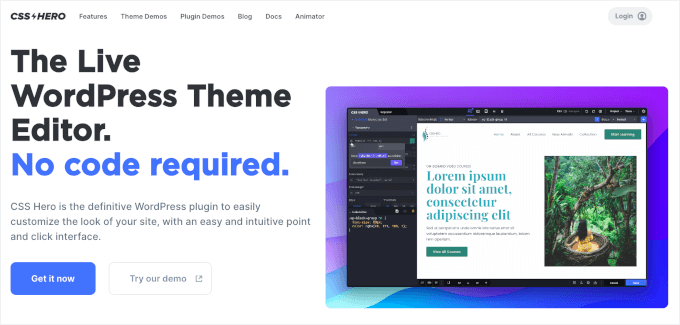
With that done, you’ll get your CSS Hero account dashboard, where you can find your plugin’s zip file and license key.
You can now install and activate the CSS Hero plugin on your website. In your WordPress admin area, go to Plugins » Add New Plugin.
You can then click the ‘Upload Plugin’ button to open the file uploader.
After that, just click on ‘Choose File’ and select the plugin’s .zip file.
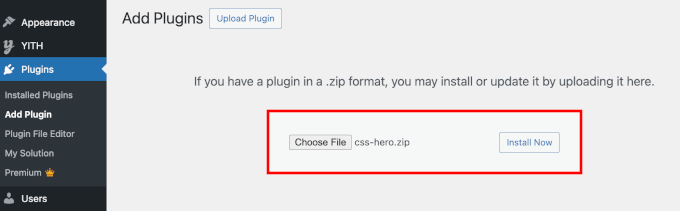
Once uploaded, you can click the ‘Install Now’ button and then ‘Activate’ when it appears. For details, see our guide on how to install a WordPress plugin.
Upon activation, you can visit the page containing your form on your live website. You will see a ‘Customize with CSS Hero’ option in the admin toolbar at the top.
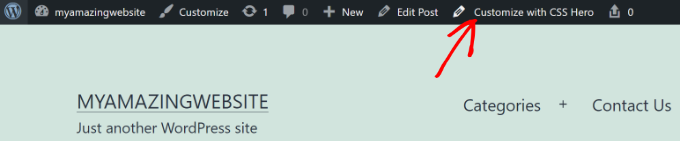
CSS Hero provides an easy, point‑and‑click interface to edit the CSS without writing any code.
Using the plugin, you can click on any field, heading, and other elements on your form and edit the background color, font, borders, spacing, and much more.
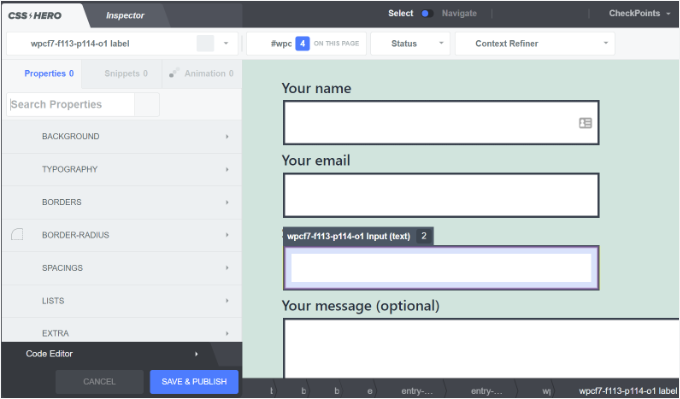
After you’ve customized your form, simply click the ‘Save & Publish’ button at the bottom.
Bonus Tip 💡: A Code-Free Way to Style WordPress Forms
If CSS isn’t your thing, there’s a much easier way to create beautifully styled forms in minutes: WPForms. While Contact Form 7 requires CSS knowledge to customize, WPForms gives you professional-looking forms straight out of the box with zero coding required.
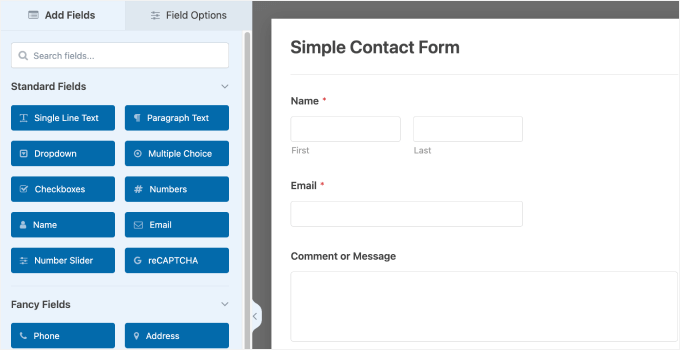
Why WPForms Users Love It (Over Contact Form 7)
WPForms is used by over 6 million websites and consistently rated as easier to use than Contact Form 7. Here’s why:
- 5-Minute Form Creation: Real users report creating their first professional form in under 5 minutes using the drag-and-drop builder. No CSS learning curve required.
- 2,100+ Pre-Built Templates: Choose from thousands of ready-made form templates for contact forms, surveys, registrations, payments, and more. Just pick one and customize.
- AI-Powered Form Builder: Describe your form in plain English, such as “I need a conference registration form with meal choices,” and WPForms AI generates it instantly.
- Professional Design Without Design Skills: Forms look clean and polished on your site automatically, matching modern web design standards without manual styling work.
- Outstanding Support: When you need help, you get fast, expert responses from the WPForms team, unlike relying on community forums for free plugins.
How to Style a Form in WPForms
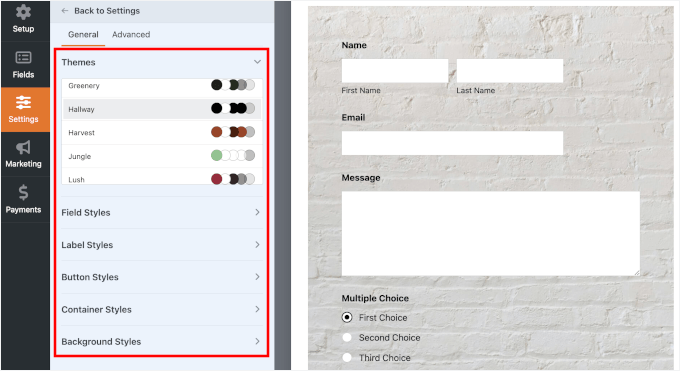
While creating your contact form, go to the Settings » Themes section inside the WPForms drag-and-drop builder.
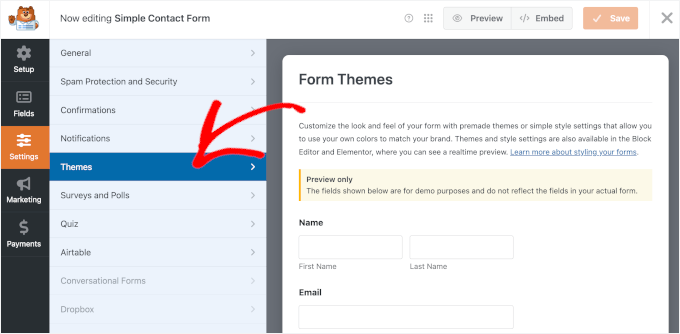
Once inside, you pick from 40+ beautiful, pre‑designed themes to instantly match your site’s design.
These themes are fully customizable. You can:
- Adjust field size, borders, and colors
- Tweak label fonts, sub-labels, and error messages
- Style the submit button to match your branding
Here’s what it may look like on your screen:
Alternatively, you can apply a WPForms theme from the WordPress block editor.
After adding your form to a page, open the block settings panel on the right and scroll to the ‘Themes’ section. You’ll then find WPForms’ built-in form themes, the same list as the one inside the form builder.
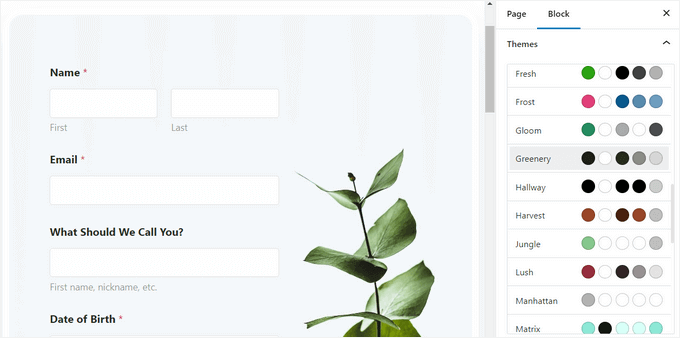
You’ll also find customization options for the form field, label, button, container, and background.
For step-by-step instructions, see our guide on how to customize and style WordPress forms.
The Bottom Line: If you want to skip the CSS tutorial and get professional forms live today, WPForms is your best bet. It saves hours of styling work and delivers results that look like a designer built them.
🎟️ Get Started with WPForms: You can try the free WPForms version today! Need more power? Premium plans start at $49.50/year, and WPBeginner users can score 50% OFF any license using our special WPForms coupon.
FAQ: Styling Contact Form 7 in WordPress
If you’re just getting started with Contact Form 7 or want to fine‑tune your design, these quick FAQs will help you with the most common styling questions.
How do I style the Contact Form 7 submit button?
You can style the Contact Form 7 submit button with CSS by targeting the default submit class .wpcf7-submit. Then add your custom styles in Appearance » Customize » Additional CSS.
How to configure Contact Form 7 in WordPress?
To configure Contact Form 7, you can open your form, go to the ‘Mail’ tab, set the ‘To’ address (where messages should be sent), and make sure the mail tags match your form fields.
Is Contact Form 7 free to use?
Yes, Contact Form 7 is completely free to download and use from the official WordPress.org plugin directory. The core plugin doesn’t cost anything, although some optional third‑party add-ons or integrations may be paid.
Is Contact Form 7 any good?
Contact Form 7 is a functional, widely used option if you want a free and flexible form plugin and don’t mind a slightly more technical setup.
It’s powerful when combined with custom HTML and CSS, but it doesn’t offer a visual drag‑and‑drop builder, so styling and layout changes often require editing code or using additional tools.
Can I put Contact Form 7 in Canva for editing?
No, you can’t edit a Contact Form 7 form inside Canva because Contact Form 7 is a WordPress plugin and needs a WordPress environment to run. You can, however, design the look of your form in Canva as a mockup and then recreate that design in WordPress.
Additional Resources for WordPress Form Customization
We hope this article helped you learn how to style Contact Form 7 forms in WordPress.
You may also want to see our other helpful guides on:
- How to Add Image Choices in WordPress Forms
- How to Add Autocomplete for Address Fields in WordPress
- Tips to Create More Interactive Forms in WordPress
- Using Conditional Logic in WordPress Forms
- Ultimate Guide to Using WordPress Forms
If you liked this article, then please subscribe to our YouTube Channel for WordPress video tutorials. You can also find us on Twitter and Facebook.





Alejandro
Thanks!
Your instructions were very useful.
Thanks for taking the time to share them!
WPBeginner Support
Glad our guide was helpful
Admin
hmi
Hi sir, where can I find the css code of fields ?
Thank you
WPBeginner Support
For finding the current CSS you would want to use inspect element:
https://www.wpbeginner.com/wp-tutorials/basics-of-inspect-element-with-your-wordpress-site/
Admin
Tony Tran
i can’t change color background css button submit….please help
WPBeginner Support
You may be targeting the wrong object, you may want to take a look at our article here:
https://www.wpbeginner.com/wp-tutorials/basics-of-inspect-element-with-your-wordpress-site/
Admin
Deshave
Submit button in pdf no longer works since uploading form to WordPress website.
WPBeginner Support
The pdf embed we’re recommending is for viewing content. For filling out forms we recommend using a form plugin
Admin
zeeshan alam
Thanks for sharing Sir
WPBeginner Support
You’re welcome
Admin
Steve
Hello is it possible to ad a message if i dont filled out one ore more “Required fields” to get a Message ? Because i Only get the “red arrows” on the “Required fields” that I don’t filled out. In I want additionally a error Message like
“One or more Required fields have an error. Please check and try again.”
But i Only have the red arrows, and the Problem is on mobile Phones the red arrows are not in the window and the Client don’t see it.
WPBeginner Support
You would need to reach out to contact form 7’s support for what they currently have available.
Admin
FRED_VERSATILE
Hello,
Thank you for this tutorial.
I would like to add a custom image at the right of the “send” label, in the button.
I’ve done it with a :before for the other buttons on my website, but i can’t find the element in the send form to put the CSS…
WPBeginner Support
Depending on your form ot would change what to target, if you use inspect element you should be able to see the ID or class of the object:
https://www.wpbeginner.com/wp-tutorials/basics-of-inspect-element-with-your-wordpress-site/
You could also use :after instead of :before as another option
Admin
Muhammad Tahir
How to change response text color of SPECIFIC contact form
waqas
Can we add a time field in contact form 7 without plugin?
Mary Lou Hoffman
I’m a novice, but determined to figure this out! So, please – give me baby steps if you answer.
I have a contact7 form on my website. The font is showing up as white on a white background for the labels (Your name, Your email, etc).
How do I change the color – where do I go to tell it to change color?
I tried copying and pasting some of the codes ya’all had in your answers above, but they just showed up on my page, but didn’t change the font.
Karu Price
You can target the lable area like this-
.wpcf7 form p label {
color: white;
background: black;
font-family: sans-serif;
}
Rita Accarpio
Hi there!
I’m here struggling with modal headings. I changed the form background to a darker color but now I want to change the heading’s color. Doesn’t seem to change at all with all the different options I tried so far.
Do you know anyway to do this? Help me please!
Thanks!
Chris
Thanks!
Abhijeet
I want to reduce gap between name and email boxes…how to do it.
Naveen
Thanks for a great post, was very helpful.
Josh
This helped heaps. Thanks!
Joel Desrosiers
My contact form has a dark image background so I need “your name”, “your email” and “your message” to be white. I can’t find a class or id for those elements, I tried with inspect element but I can’t find anything that works. This is the only contact form on this site. I’m using css on the stylesheet of my childtheme and I tried different options but can’t change the color. Can anyone help me?
Merriann Fu
I’m pretty new to Wordpress and Plugins in general but have this Plugin installed and everything is working correctly but instead of seeing the person’s message, it just shows [your-message] in the body of the email. I have everything set up like above and spelled correctly so i’m not sure what the problem is. Any help would be much appreciated! Thanks!
Don Walley
I have the same problem. I’m only new to forms on WP but I’m stuck too. I’m trying to build a Registration page with business name, address, etc along with personal contact information and a drop down to make their choice and of course a comment field. After testing this numerous times I get the same as you; the content of the comment field.
Wish there had been an example or two on the Docs page of Contact 7; something besides only the default Contact Form.
Miguel Ceballos
I don’t think Contact Form 7 is the most popular. It comes pre-installed with many themes and wordpress instalations, that’s the reason they have so many users. It is so frustrating to edit anything in this plugin.
Osama Ali Khan
Hello if some one want contact form with transparent background or want to add contact form 7 on the big banner image with transparent background then add this code to your custom css.
.wpcf7 input[type=”text”],
.wpcf7 input[type=”email”],
.wpcf7 textarea
{
background-color: Transparent;
color: BLUE;
width: 100%;
}
div.wpcf7 {
color: white;
margin: 0;
padding: 0;
}
Deborah
You are an absolute life saver. I’ve been battling with this for hours.
One point I’d make that others might find it useful to know, is that I was trying to style the submit button, which was on a contact form 7 I’d put on my sidebar.
This worked for the first page it was on but then wouldn’t on subsequent pages. However, I then noticed that the f2 code on the second page had a suffix of ‘o2’, and when I added this to my css, the styling on this page worked too.
Thank you again.
WPBeginner Support
Glad you found it helpful.
Admin
Mikko
Thanks for a great post, was very helpful. One thing still bothering me and it’s that i haven’t found a way to customize checkboxes. Have you found a way how it would be possible to change checkbox size for example so that it would work on every browser?
Seems like the input structure isn’t modified so no extra spans could be added to fake the checkboxes an i right?
Glad if you have time to help me out, cheers.
Wendy
Oh my gosh! You have no idea how grateful I am for this post! THANK YOU!
I simply wanted to change the font used in the Submit button. I searched and searched for hours and tried various CSS code variations and nothing worked until I came across your code and then added a font element to it. Problem solved!
pranav shinde
contact-form-7/includes/css/styles.css (inactive) this appears above my css edit file,,by which none of changes are applied to website help me how to make it active
WPBeginner Support
You should not edit the core plugin files. Instead you should add your CSS to your theme’s stylesheet.
Admin
pranav shinde
ya i understood then can you please help me how can i do it..please help me in detail
pranav shinde
thanks a lot sir very much helpfull will suscribe your channel
pranav shinde
means i hould copy this code in my themes css file righht??
Monique
Hello,
I am wondering if any one can help me fix the contact form for mobile. I am able to see the form but it is too wide and gets cut off.
Thank you.
puneet singh
this very helpful realy nice tutorial
Jiniya
I find your website very helpful.just a suggestion it would be great if u could launch an app for your website soon…apps are more convenient than following emails
WPBeginner Support
Sound like a good idea. Meanwhile, you can access WPBeginner using Feedly app on your mobile device.
Admin
Anee
Top most features in WordPress you can own style easily no need deeply knowledge for manage your site in WordPress. In Contact 7 form, you can your own structure that you have already design in HTML or other one.
Neil Murray
If working with CSS is a little beyond your current skill levels you might also consider using https://wordpress.org/plugins/contact-form-7-skins/ .
Contact Form 7 Skins which works right within the normal Contact Form 7 interface, making it easier for regular WordPress users to create professional looking Contact Form 7 forms using a range of compatible Templates and Styles – even if you don’t have HTML and CSS skills.
Sam
thanks Neil
Andrew Wilkerson
Thanks Neil, I think that’s just what I needed. I got excited and installed it then wiped out my existing form, so I had to restore a backup of my site to get it working again, I’ll look into it more when I have time, I guess i’ll have to copy my current form into it or start from scratch with a new one. Off to watch some tutorials. Hopefully this is still the best one to use. I know it’s an old post here but it does say it was recently updated on the plugin page.
Bhongo
Fantastic article. I will use this to style one my website.
Mark
Another good article where you do not end up using yet another plug in.