


One of the biggest challenges nonprofits face is making it easy for supporters to donate. If the process feels confusing or takes too many steps, people often give up before completing their donation.
That’s why we often recommend PayPal donate buttons. They’re fast to set up, familiar to donors, and work well on almost any WordPress site.
We’ve also used PayPal extensively across our own eCommerce projects, so we know the platform is reliable, easy to manage, and trusted by users worldwide.
In this guide, we’ll walk you through the three most effective ways to add a PayPal donate button in WordPress. These methods are quick, secure, and tested across real nonprofit websites, making them perfect if you want to start collecting donations right away.
💡Quick Answer: Add a PayPal Donate Button in WordPress
The easiest way to add a PayPal donate button is by using a WordPress plugin. Here are the three methods we cover in this guide:
- Use a Free Plugin: We recommend Donations via PayPal for a simple donation button.
- Build a Custom Form: Use a form builder like WPForms to create a more advanced donation form that can collect donor information.
- Add HTML Manually: You can add a simple button by pasting HTML code directly from PayPal into your site.
- Create Complete Fundraising Campaigns. Use Charitable to accept donations via PayPal, credit cards, ACH, Google Pay, and more.
Why Use a PayPal Donate Button in WordPress?
Using a PayPal donate button is an effective way to accept online donations because it’s simple to set up, and donors trust the brand. This familiarity can lead to more successful contributions for your cause.
Here are the key benefits of using PayPal for donations:
- Trusted by Donors: With over 430 million active accounts, PayPal is a globally recognized brand. Donors feel secure using a platform they already know and trust.
- Simple for Everyone: The process is straightforward for both you to set up and for your visitors to make a donation in just a few clicks.
- Boosts Contributions: Because of the high level of brand trust, visitors are more likely to complete the donation process.
Many bloggers add PayPal donate now buttons on their WordPress sites to help cover the website’s running costs.
Non-profit organizations also use their websites for fundraising for their causes.
Expert Tip: Keep in mind that PayPal charges a transaction fee for each donation you receive. However, registered 501(c)(3) charities can often apply for a discounted transaction rate.
We recommend checking PayPal’s official website for its current fee structure.
Before you start, you will need to create a PayPal account or log in to your existing account.
Since this is a comprehensive guide, we have created a table of contents so you can easily jump to the section you need:
- Method 1: Use a Simple & Free PayPal Donation Plugin
- Method 2: Build a Custom Donation PayPal Form with WPForms
- Method 3: Manually Add a PayPal Button with HTML
- Bonus: Use Charitable For Full Fundraising Campaigns
- Frequently Asked Questions About PayPal Donate Buttons
Ready? Let’s get started.
Method 1: Use a Simple & Free PayPal Donation Plugin
This method is recommended if you are looking for a free WordPress PayPal donation plugin. It is simpler but very limited in terms of what you can do.
First, you’ll need to install and activate the Donations via PayPal plugin. For more details, you can see our step-by-step guide on how to install a WordPress plugin.
Upon activation, you’ll want to go to the Settings » PayPal Donations page to create your donation button.
Here, go ahead and enter your PayPal email address. This is the address you use to log in to PayPal.
You might notice that the donation currency is set to US dollars by default. To change this, simply select your preferred currency from the dropdown menu.
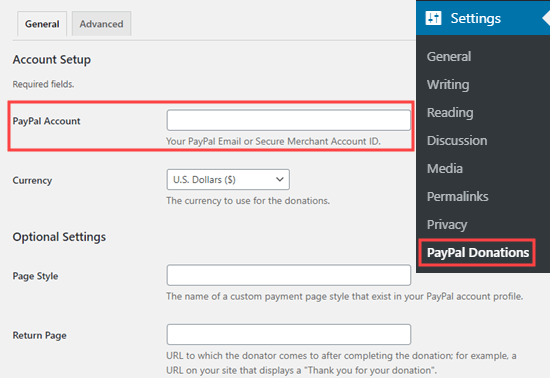
Then, you may want to create a Thank You page on your site and set this up as the ‘Return Page’ in the ‘Optional Settings’ section.
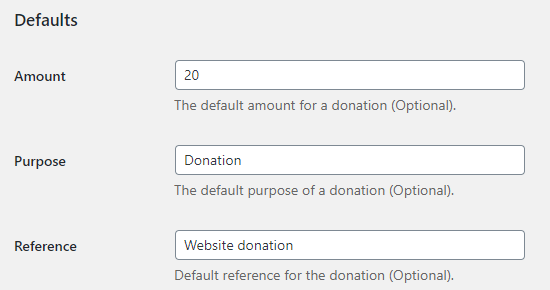
You can optionally add a default amount, purpose, and reference for your PayPal donations.
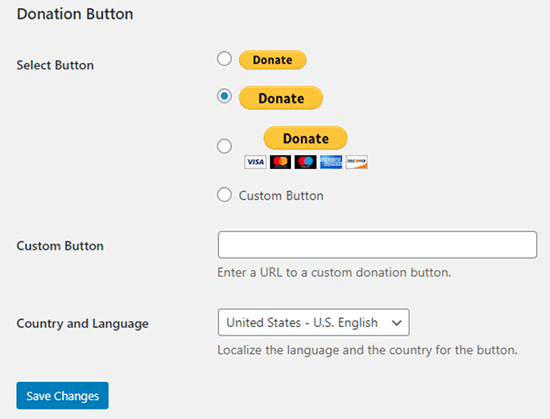
Next, you can select a donate PayPal button style or enter a URL for a custom button image. You can also change the donation country and language, which defaults to the United States and US English.
Once you’re done, don’t forget to press the ‘Save Changes’ button to store your settings.
Adding Your PayPal Donate Button to Your Website
The plugin allows you to easily display the PayPal donate button anywhere on your WordPress website using a shortcode.
Simply edit the post or page where you want to display the donate now button, and then add the Shortcode block in the content editor.
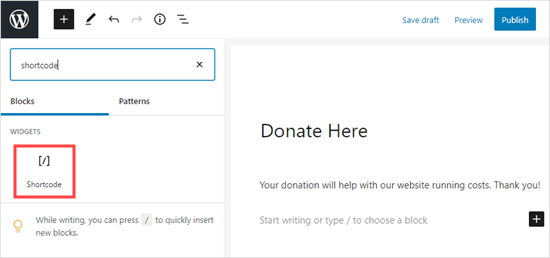
Inside the settings, you need to add [paypal-donation] a shortcode. You can now save your changes and preview your post or page.
Here’s the donate PayPal button live on our demo site.

This plugin also lets you add the button to a sidebar or footer widget area.
Simply go to the Appearance » Widgets page from the WordPress dashboard. After that, click the + button and add the ‘PayPal Donations’ widget block to your sidebar or footer.
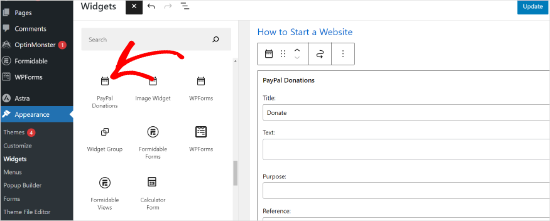
The widget has the same settings, so all you need to do is provide a title and text. Don’t forget to press the ‘Update’ button to create your widget.
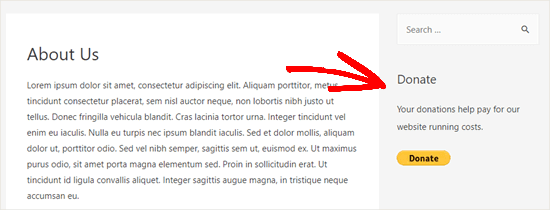
Here’s the donate widget in our demo website’s sidebar.
Method 2: Build a Custom Donation PayPal Form with WPForms
Another great way to create a PayPal donation button is with WPForms. It is the best WordPress form builder plugin on the market, used by over 6 million website owners.
When testing the tool, we found that it allows you to easily create beautiful donation forms to accept payments using a credit card and/or PayPal.
This method gives you more flexibility and control. For example, using WPForms you can:
- Collect donor information like names and email addresses.
- Automatically add donors to your email list to build a community.
- Send customized thank-you receipts automatically
- Easily add other fields to your form, like surveys or polls.
To learn more about the tool, you can see our WPForms review.
Note: There is a free version of the WPForms plugin, but you will need the Pro version or higher in order to take PayPal payments.
First, you need to install and activate the WPForms plugin. For more details, see our step-by-step guide on how to install a WordPress plugin.
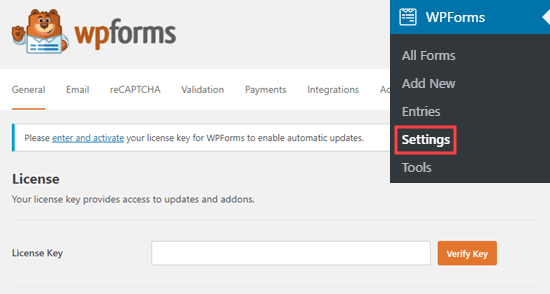
Upon activation, you’ll want to head over to WPForms » Settings to enter your license key. You can find this information under your account on the WPForms website.
Next, let’s navigate to WPForms » Addons.
Here, you need to install the PayPal Standard Addon. Simply find it in the list then click the ‘Install Addon’ button below it. The addon will be automatically installed and activated for you.
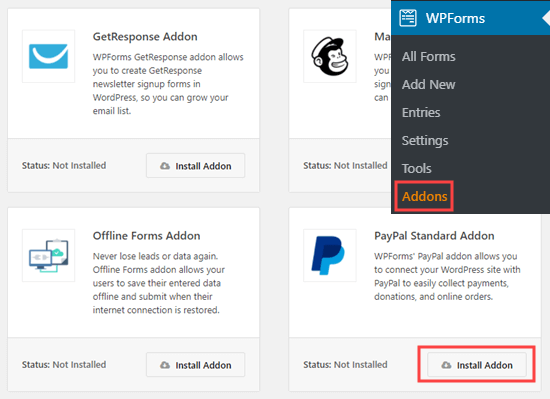
Now, it’s time to create your donation form.
Simply go to the WPForms » Add New page in your WordPress admin area to launch the form builder.
But first, you’ll need to provide a title for your form and then choose the ‘Donation Form’ template.
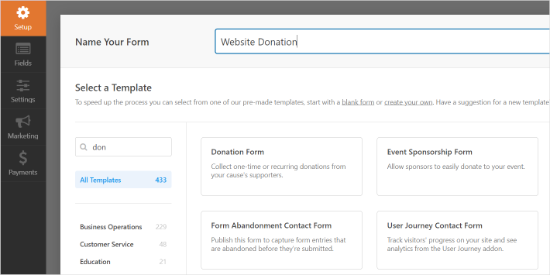
WPForms will now automatically load your form template in the WPForms builder. It’s easy to add, remove, or change the fields on your form.
To add a field, simply drag the field from the left-hand side menu. We’ve added a ‘How Did You Hear About Us?’ multiple choice field.
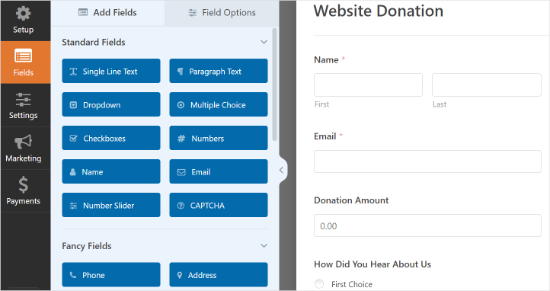
Next, you might want to change the Submit button to read Donate instead.
To do this, you can either click on the button or go to the Settings » General tab for your form. Under the ‘Submit Button Text, simply add the text ‘Donate.’
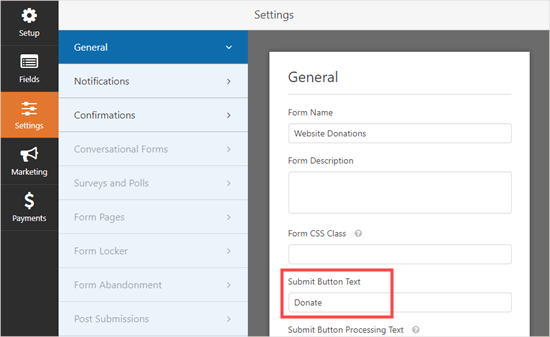
Next, let’s navigate to Payments » Paypal Standard to set up the payments for your form.
Simply check the ‘Enable PayPal Standard payments’ and enter your PayPal email address. Under Payment Type, go ahead and select ‘Donation.’
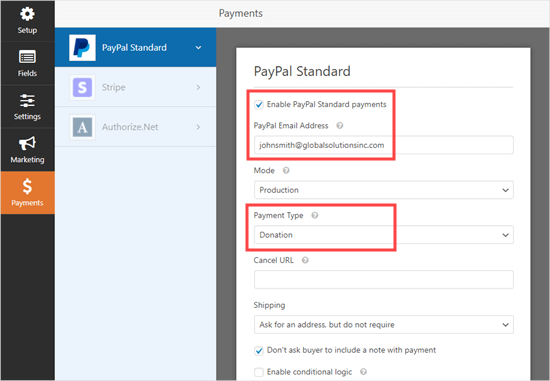
Once you’re done, click the Save button to store your settings.
Expert Tip: You can send donors a receipt for their donation. Take a look at our instructions on creating a form with multiple recipients for help with this.
Adding Your Donation Form to Your Website
Once you’ve finished creating your PayPal donation form, it’s time to add it to your website.
WPForm makes it super easy to add forms anywhere on your website.
Simply create a new post or page or edit an existing one. Then, you can add a WPForms block to the WordPress content editor and select the form you created earlier from the dropdown menu.
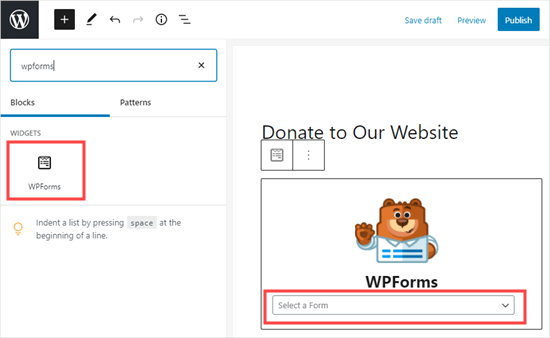
Once you’re ready, preview or publish your page to see your donation form.
Congratulations, you’ve now created a smart PayPal donation form in WordPress.
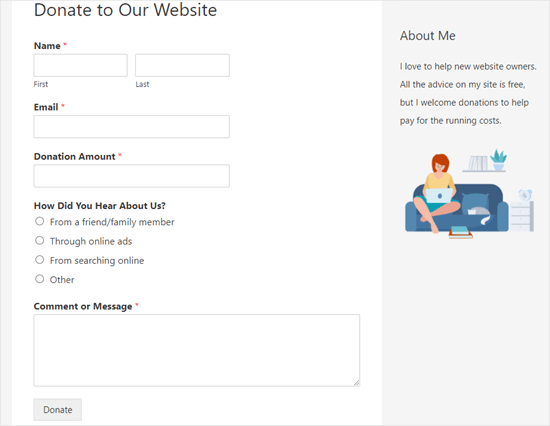
You are now ready to take donations!
Method 3: Manually Add a PayPal Button with HTML
If you prefer not to install a plugin, you can add a PayPal button using HTML code. This method also works if you are on a WordPress.com plan that allows custom code (like the Premium, Business, or eCommerce plans).
Pro Tip: While this manual method is quick, it doesn’t let you collect donor information or customize the form on your site. For more features and better donor management, we recommend using a plugin.
First, you need to log in to your PayPal account and go to the Pay & Get Paid » PayPay Buttons page.
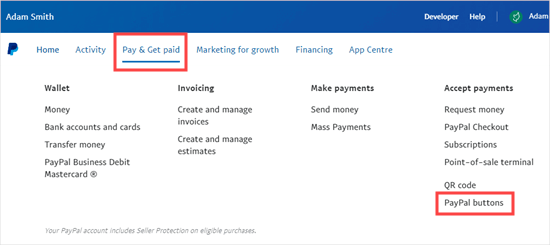
On the next page, you’ll see different types of buttons.
Simply click the ‘Donate’ button option.
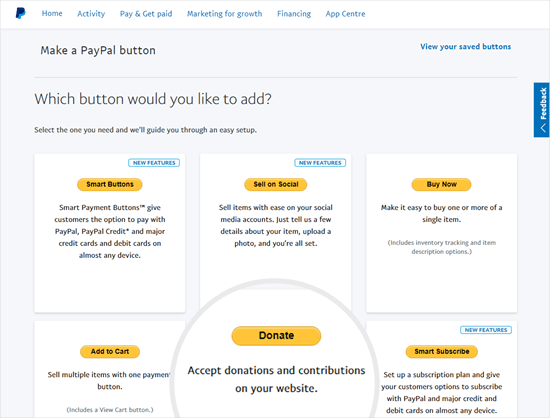
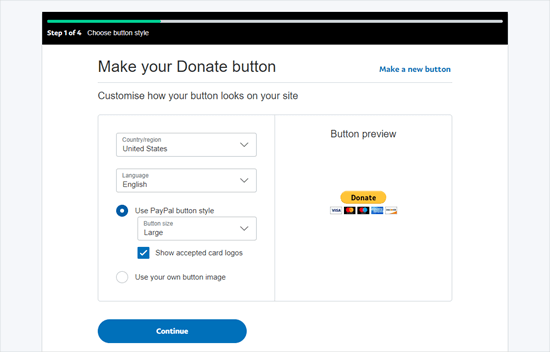
Now, you can follow the on-screen instructions to create your button.
For example, select your country, language, and button style. When you’re done, click the ‘Continue’ button.
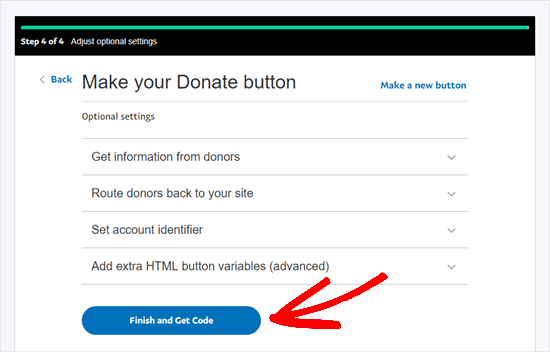
After that, you will have some optional settings.
On the final screen of the button creation wizard, click the ‘Finish and Get Code’ button.
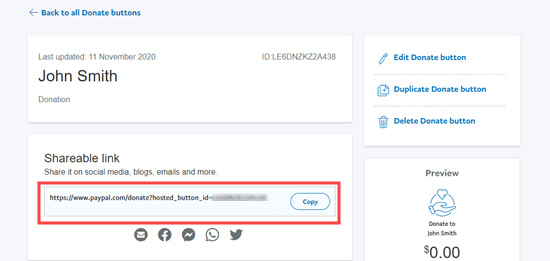
You will now see a page with a shareable link.
This is the URL you need, so you’ll want to keep it open in this tab or save it in a safe place.
Next, you can go to your WordPress admin area and edit a post or page where you want to add the PayPal donate button.
You need to add a new HTML block to your page or use the Text mode if you’re using the Classic editor.
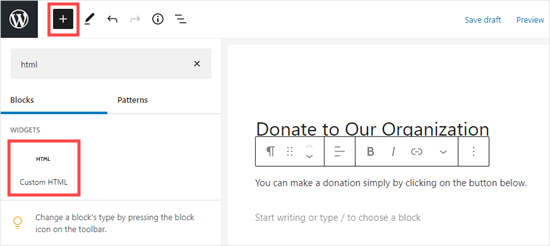
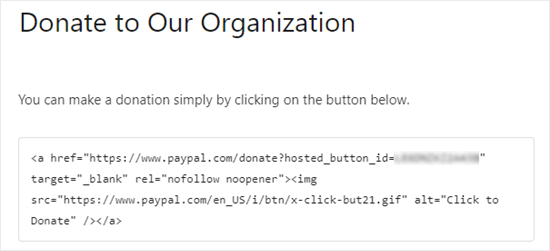
From here, paste the following code into your HTML block:
<a href="Your Shareable Link that you got from PayPal" target="_blank" rel="nofollow noopener"><img src="https://www.paypal.com/en_US/i/btn/x-click-but21.gif" alt="Click to Donate" /></a>
Let’s make sure to replace the words ‘Your Shareable Link that you got from PayPal’ with the actual link from PayPal.
Go ahead and publish your page. You now have a PayPal donate button on your WordPress site without using a plugin.
If you want to add the donation button to other places on your site, you can also paste this HTML code inside a ‘Custom HTML’ widget to add it to your sidebar or other widget areas of your block-enabled theme.
Here’s a live example of the donate button:

Feel free to click on it to see how it works. You can make a donation to help us if you find this article helpful.
Customization Options
The reason why we chose the shareable link instead of the full donate button code is so you can easily customize the donation image.
Below are some other official PayPal donate buttons. Simply copy the code and replace the image section in your main code above.
Option 1

<img src="https://www.paypal.com/en_US/i/btn/btn_donate_LG.gif" alt="Click to Donate" />
Option 2

<img src="https://www.paypal.com/en_US/i/btn/btn_donateCC_LG.gif" alt="Click to Donate" />
Option 3

<img src="https://www.paypal.com/en_US/i/btn/btn_donate_SM.gif" alt="Click to Donate" />
Option 4
<img src="https://www.paypal.com/en_US/i/btn/x-click-but21.gif" alt="Click to Donate" />
Option 5

<img src="https://www.paypal.com/en_US/i/btn/x-click-but04.gif" alt="Click to Donate" />
Option 6

<img src="https://www.paypal.com/en_US/i/btn/x-click-but11.gif" alt="Click to Donate" />
If you don’t like any of these images, then you can create your own. Simply upload that image into your WordPress media library and get the direct link to that file. Next, add that link in the code below:
<a href="Your Sharable Link that you got from PayPal" target="_blank" rel="nofollow noopener"><img src="The Image URL" alt="Click to Donate" /></a>
Bonus: Use Charitable For Full Fundraising Campaigns
The methods above are perfect for adding a simple PayPal button or creating a custom donation form. They are also great for collecting individual contributions on your blog or website.
However, if you need a dedicated donation management system for ongoing fundraising campaigns, then Charitable is the best plugin for the job.
Unlike a simple form builder, Charitable is a complete fundraising solution built for nonprofits. It lets you create unlimited campaigns, set fundraising goals, and easily manage all of your donors from a single dashboard.
Best of all, you can pass the transaction fees to donors, so all the money goes to your cause.
If you are interested in creating a fundraising campaign, see our tutorial on how to create a recurring donation form in WordPress.
Frequently Asked Questions About PayPal Donate Buttons
Here are some questions that our readers frequently ask before adding a PayPal donate button on their websites:
How can I set up recurring donations with PayPal?
Setting up recurring donations is a feature offered by most advanced donation plugins, including Charitable and WPForms. During the form setup process in these plugins, you can enable recurring payments and give donors options to donate on a weekly, monthly, or yearly basis.
PayPal’s own button generator also has an option to create a ‘Subscribe’ button for recurring payments. For more information, see our tutorial on how to create recurring donation forms in WordPress
Do I need a PayPal Business account to accept donations?
It is highly recommended to use a PayPal Business account. While a Personal account can receive payments, a Business account is designed for commercial and nonprofit use.
It offers more features, better reporting, and helps you stay compliant with PayPal’s policies. For registered charities, a Business account is necessary to apply for discounted transaction fees.
We hope this article helped you add a PayPal donate button in WordPress. Next, you might also want to check our guide on how to raise money with crowdfunding or our proven tips for top donation form best practices to boost donations.
If you liked this article, then please subscribe to our YouTube Channel for WordPress video tutorials. You can also find us on Twitter and Facebook.





David Lim
Yes, this method is especially likely for non-profit organizations. Or, as the article says, it could be the maintenance or restoration costs. Or even if I think about it for a good cause of public interest.
Dennis Muthomi
a huge thank you for this tutorial article. I’ve been on the hunt for a way to accept donations from my site, but all the other articles I found online were talking about using Stripe for processing donation transactions and it is not available in my country. It’s great to see this guide that focuses on PayPal, which is perfect for my needs.
your instructions were super clear and easy to follow. Seriously, you guys are lifesavers.
Jiří Vaněk
I have the option to donate on the website using the elementor button. There is a button directly for paypal. At the same time, I also have WP Forms in the full version. Is it ok if I do Paypal using WP Forms? The button in Elementor is basically just a classic button with a url that leads to the possibility of paying by Paypal directly to my account.
WPBeginner Support
Yes, you are not required to use a specific method and if you wanted to you could even use multiple methods for different sections if you wanted.
Admin
Jiří Vaněk
Thank you for the advice. In the end, I followed your suggestion and am indeed combining it. It’s working very well so far, which is great since the majority of the website’s monetization is based on donations.
varun
all rubbish info doesnt work at all
WPBeginner Support
Apologies if it is not working for you, you may want to reach out to the plugin’s support with whatever error you are running into for them to take a look at it. We will also take a look at our article
Admin
Robert
My blog is on Wordpress.com so I attempted to follow your instructions to manually add a PayPal button. Your instructions state:
“Start by logging in to your PayPal account, and click on the Tools menu item”
I cannot find the Tools menu item on PayPal. Please can you advise.
Vanessa
Thanks for all this info. I am not clear if I need a paid version of wordpress.org if I want to add a donations button. I probably won’t be selling anything, just hope for a few donations. Thanks for your help
WPBeginner Support
Hi Vanessa,
Please see our comparison of WordPress.org vs WordPress.com. WordPress.org itself is free but you will need to pay for hosting and domain name. Please see our guide on how to start a website for step by step instructions.
Admin
Vanessa
I have set up a wordpress.org blog by following your very clear instructions….thank you very much!! I have gone to widgets to install a paypal donations button but there does not seem to be one there to choose. Have I made a mistake?? I chose the cheapest bluehost option. Have I done something wrong?
Also, just so you know…..when I got nearly to the end of the bluehost procedure, having followed your link to get there, intending that you got the commission for my purchase, there was another pop-up offer, which offered even more discount. I clicked on this, so I hope you have not lost the commission. If so, it is a bit of a dirty trick, which may have robbed you of your commission. I hope not. Thanks for your great advice.
martha rees
I like the idea of the video, but my version of wordpress doesn’t let me install plugins, and so that won’t work. When I tried with the email link, I got the message that ‘payment did not go through’. So I couldn’t put the button or a link on the page. Thanks
Mark Bologna
This was perfect – exactly what I needed to add a donate button to the podcast webpage. Thanks!
Gandire
I can create the button image, but nothing happens when I click. I’m suspecting it wasn’t made clickable?
Haitham Alnaqeb
Did you use a plugin to create the click button? or did you copy it from PayPal itself? what is the source of the code did you use?
Apata
Hello please engineer Sayed,
I am worried as to how could I know or find the payment gateway that support my country Nigeria. I am still searching, but I have not found one.
Please help me and recommend one to me.
Thanks.
Haitham Alnaqeb
You may want to try Google Checkout. They are supporting Nigeria.
Good luck.
Mandy
I have been beating my head up against a brick wall for HOURS trying to fix the oversized, pixelated donate button in my wordpress site. I finally came across this article and it was just the fix!!!!! Thank you!!!
WPBeginner Support
Glad you found it helpful Don’t forget to join us on Twitter for more WordPress tips and tutorials.
Admin
Michelle H
I tried this and it is not working. It keeps coming up as “no follow”
Ye Thu
This is excellent and worked well. Thank you very much for your post. It was a great help.
jof
There is no “PayPal Donations” button in my self hosted WordPress.
Any help is appreciated. Thanks.
Aims
Thanks for this post! It’s been most helpful. But how do you create code for the image when you personalise it? I have an image , now what?!
Paul Mozina
I got the PayPal button to work on a post, np, thanks to you. Now, how do I add the PayPal button to my main sidebar?
Paul Mozina
Got it! Use a Text Widget.
Michelle
When I tried adding it in a text widget it didn’t work. How did you get yours to work?
Jen Maffett
I pasted the code from Paypal into my Wordpress page, post and project page and in each instance it appears when I switch back to Visual, but then when I publish the code gets stripped out and nothing appears on the actual page. When I go back to the editor the code has been erased or truncated. Is there something I can do to make it “stick”?
I see that this happened to others in the comment string, but I didn’t see a solution mentioned.
WPBeginner Support
Basically you just need the link from the PayPal under the Email section. This is a plain URL and the code just adds the link to a donate button image. You can download the donate button image from PayPal website and upload it in post editor. Right click on it and link it to your PayPal email URL.
Admin
Leon Zak
Having WP mess with the code after pasting has been a problem for me also. I finally found an acceptable way that so far seems to work.
I found putting the PayPal code in a table is working for me. I can go back and forth from visual to text and the code stays the same. I put in table tags, then for my case I put in two rows with one column (td tag) in each. In the first row I’ve put some text for the what the button payment is for and then I put the PayPal code in the 2nd row.
The only thing I notice is a light border shows up around the table. Putting the border = 0 in the table doesn’t remove it. I think the border is getting introduced elsewhere (I”m using Elegant Themes DIVI). I don’t mind the thin border in this application so I haven’t done much work trying to find how to remove it.
To see what it looks like – the page is one of my clients at (take the spaces out, I didn’t want this to get tagged as spam)
Hope this helps someone with the same problem.
Patel jignesh
I found this one is best suitable plugin for paypal donation
Lucy Barret
This post is pretty handy for me as I was about to add PayPal buttons on my clients site. Thansk…
Wll
Make sure to watch that you put the URL within the ” ” brackets and hit refresh button on your site, worked fine for me
D.
Hello, I visited paypal site today and noticed that it said to only use the donation button for a fundraising cause. It said to chose another option if you are not raising money for a cause. So are we no longer able to use donate buttons on our blogs if it is not for a cause? I was hoping to raise money to help finance my blog.
Editorial Staff
You can definitely use the donate button as several folks are using it.
Admin
Dorothy Reedy
I tried this (I have a mac) and it didn’t work at all; instead of a button I just have a really long bunch of text.
leoo
the problem is that I am not seeing PayPal Donation Button , only other buttons like , buy , add card , subrscribe etc … donation isn’t :S please help me
Shara
Hello. I have followed your instructions for adding the donate button to my side bar but it is not activated. When I click on the button nothing happens. Any advise would be greatly appreciated.
Thank you so much!
Sagar P
So can the people who don’t use Paypal would also be able to donate right?
Tech Punk
Thank you for your help. It works great.
Tessa Rathsack
I know this is a super old post, but I just wanted to take a sec to thank you! I’ve been driving myself crazy trying to figure this simple thing out. I kept trying to copy/paste the “website” code into the widget, which obviously didn’t work. Thanks again!
Ms. Kisha
I added the ‘donate’ button to a page on my site but it is not displaying correctly. It is huge and extremely pixelated. Any suggestions on how to fix this? Thank you!
Marcus
So, I want to add a “donate” button to my blog so that I may expand later and use the money to buy vB 5 or something of the kind.
However, PayPal only allows non-profit organizations to use their donate feature from what I have seen.
How do I solve this?
Thanks in advance.
Sam
This may be a very old post but it’s still getting traffic so I thought I’d answer this. I also believed donate buttons were only for charities but that’s apparently not true. You can read more about it here:
They do take a cut but I’m wondering what happens if you choose not to use the word “donate” and instead add the word near the regular icon? I just find it absurd that everyone wants a cut of what you’re attempting to get fundraising for.
Rich Pickens
Thanks, the button shows up and works but there is some extra code showing either side of it. I replaced the code in blue in this string:
for the 2 URL bits but didn’t know what I am supposed to put for the “_blank’ del and “nofollow” bits…I am guessing this is the issue the extra code is “” after it…
Thanks in advance for your help!
WPBeginner Support
Rich Pickens, you only need to enter your email URL and don’t change any thing else.
Admin
Rey
Hi there.. I’m trying to use my custom Donate button and replacing the default PayPal button, for some reason it’s not displaying correctly, the border appear but I have specified border=”0″. Also the image is shrink though I used width=”value” and height=”value”. Hope you can help, thanks much.
soniya
i want to add paypal after login the user
how can i add this
plz help me
i have text tyep member then opn a login page afetr login opn payapal process page
how is it possible
WPBeginner Support
You might need to create a custom page template for the page with the paypal donation button. In the custom page template you can put conditional tags to check a user’s logged in status and show them a paypal button, like this:
<?php if ( is_user_logged_in() ) { echo 'your paypal button code here'; } else { echo 'Please sign in to see the Payment options'; } ?>1-click Use in WordPress
Admin
Kristin
Once my Donate button on my WordPress sidebar takes me to the PayPal donation page, my email address shows up as the default email in the “Log In To PayPal” box. Is there any way to leave the email box blank instead? I would prefer that my email address not show up.
WPBeginner Support
you probably need to upgrade your paypal account to a business account.
Admin
Sabine
So easy and straightforward with your step by step guide! Thanks.
vivian
For some reason i only see 3 options under {choose a button type}: 1.shopping cart, 2.buy now, and 3.subscription? I don’t see donation btn. Are they the same thing?
vivian
I just figured out paypal has different options for different countries. However, I have another question, How do you really use “Use my secure merchant account ID” to protect email address? Under “Merchant account IDs ” I chose this option “Use my secure merchant account ID” instead of “Use my primary email address xxxxx” for security purpose. After I Copy/paste the code and test out the donate btn, it took me to “pay with paypal page”, but i see my email displayed “huge” on the top left corner. I see some blogs have their logo display there instead of email address. How do I do that? I really don’t want junk mails. Thank you!!
Beate Smock
Very good and THAN the button appears and it doesn’t work.
Editorial Staff
What doesn’t work in the button? It doesn’t open a donation link or what. Can you please elaborate a bit more, so we can help.
Admin
Athman
Thank you so much. This has really helped me.
T.Seekins
Thank you so much!
Nizam Khan
Wow! This is awesome and very useful info. It is easy to follow with this step by step process. Thanks a lot for sharing and tweeted
Delany Martinez
Thank you, thank you, thank you. I was tearing my hair out before I had the good sense to Google how to get the button up there. You guys rock!
Editorial Staff
Glad we were able to help Delany.
Admin
Valerie
Hi! Thanks so much for this! Do you know how to center it in the sidebar?
Editorial Staff
You would have to use CSS for the div and have it aligned center.
Admin
Dan Taylor
You are the bomb. Just posted a Donate button in my wordpress sidebar, your tip worked the first time. Thanks a lot man, good looks.
Half Green Records
Jennifer
Hi,
I’m trying to implement a donation code on my wordpress blog. When I press save after pasting the code into the text widget, the code instantly shortens and then nothing shows up. What am I doing wrong? Please help!
Editorial Staff
The text widget is not suppose to shorten anything. Are you using the sidebar text widget? This could be an issue with a plugin.
Admin
Stephen
The “Donate” button is only to be used by charities and non-profit corporations. If you do other wise, PayPal will freeze your account. See their rules.
Editorial Staff
I suppose if that is true, then all the plugin developers with donate button should get their accounts banned.
-Syed
Admin
Madison
Hi, I am having a problem with the code above. The code where you can post it on a page or post. I was trying to post my code on a page, and the image shows up,but it is not functioning. The image is the only thing that shows up the button does not work I copied the code and tried to link them together,but nothing is working. Am I doing the code right? Could I send you my code or something and maybe you or someone can fix it?
Editorial Staff
If you are just pasting the image code, then it would just show the image. You have to combine the image code and the link code.
Admin
Thor
Thank you, it wasn’t easy for me but I finally got it! Phew!
Dave Stevens
The above code works. However, I am having a problem with using the PayPal return URL under the advance section. I have created a WP page to return with a thank you message. However, the PayPal return is sending the user back to the home page of the WP site. It has replace my http://www.kingsportsavealife.com/?page_id=62 with a return link code for the PayPal page that indicated that the donation has been made. Any idea how to get PayPal to send to the WP page that I want to show? Thanks
Editorial Staff
Consider changing your permalink (url) structure.
https://www.wpbeginner.com/wp-tutorials/seo-friendly-url-structure-for-wordpress/
Admin
Marno
Thanks! Worked great.
intellexity
this is a great post – seriously it was frustrating me to the extent where i was about to pack in Wordpress – thanks for the information!
LoveNevaeh
Hi, I am having trouble with this!! Please can someone help!!!
Bet
I know you are mostly geared for bloggers, and this article focuses on donations for support. But I run a WP website for my business. What would be the best way for me to put a PayPal button on my site that would let my clients pay their invoices from me? Those might be all kinds of different amounts– how can the client enter the exact amount of their bill? I don’t see any option in PayPal for the user to enter an amount except in a “donation” button, and these are definitely not donations!
Paulo
Thank you for this, I’d been meaning to add a donate button to my site for a while. Have it done now in less than 5 minutes. Cheers!