


I used to stare at the publish button and wonder if I had done enough to rank high in search results.
It is frustrating to write a great post only to have it disappear on page 10 of Google. You worry about keyword usage, readability, and if you missed a technical detail.
That changed when I started using an SEO writing assistant on WPBeginner. It acts like an expert coach, fixing optimization issues while I type, so I do not have to guess.
In this guide, I will show you how to use the SEO writing assistant in WordPress to improve your SEO rankings.
Why You Need an SEO Writing Assistant in WordPress
Writing SEO-friendly content without proper tools can be really challenging. You’re guessing at keyword placement, wondering if your headings are optimized, and crossing your fingers that search engines will notice your hard work.
Early in my blogging journey, I used to write entire blog posts, then spend another hour going back to add keywords and fix SEO issues. Sometimes, I’d even realize my target keyword barely appeared in the content, or that I’d stuffed it in so many times it sounded robotic.
The biggest frustration was the constant back-and-forth. I’d write a paragraph, then stop to check if it was optimized, then write another paragraph, and repeat the process.
An SEO writing assistant solves these headaches by giving you guidance as you write. Instead of fixing problems after you’re done, you prevent them from happening in the first place.
You get real-time feedback on keyword usage, readability, and content structure. The assistant tells you when your sentences are too long, when you need more subheadings, or when your keyword density is off.
This means you write better content faster. Your first draft is already optimized, so you spend less time editing and more time creating.
The result is content that ranks higher in search results because it follows SEO best practices from the start. You’re not just writing for readers anymore – you’re writing for both readers and search engines at the same time.
Having said that, let’s take a look at how to use an SEO writing assistant to improve your SEO and get more Google search traffic to your website.
Here is a summary of all the steps I will cover:
- Step 1: Install and Activate All in One SEO (AIOSEO)
- Step 2: Connect SEOBoost to AIOSEO
- Step 3: Create Your First SEO-Optimized Post
- Step 4: Use Real-Time SEO Suggestions
- Step 5: Generate SEOBoost AI Content Reports
- Step 6: Optimize Your Content with Data-Driven Insights
- Step 7: Use AI to Generate Content Quickly
- Step 8: Review and Publish Your Optimized Content
- Using SEOBoost as a Standalone Writing Assistant
- Pro Tips for Better SEO Writing
- Common Mistakes to Avoid When Using SEO Writing Assistants
- Frequently Asked Questions About SEO Writing Assistants
- Get Better Search Rankings with Your SEO Writing Assistant
Step 1: Install and Activate All in One SEO (AIOSEO)
First, you need to install All in One SEO, which will provide the foundation for your SEO writing assistant.
AIOSEO is the best WordPress SEO plugin, and I’ve been using it on my sites for years because of its user-friendly interface and powerful features.
Note: For the comprehensive SEO writing assistant features we’ll cover in this tutorial, you’ll need AIOSEO Pro. The free version provides basic SEO analysis, but not advanced writing assistant capabilities.
To install AIOSEO Pro, just see our step-by-step guide on how to install a WordPress plugin. Once you’ve installed and activated the plugin, you’ll see a new All in One SEO menu item appear in your WordPress dashboard sidebar.
After activation, AIOSEO will automatically launch a setup wizard to help you configure the basic settings. This wizard asks about your site type, whether you’re a business or personal blog, and what features you want to enable.
We take you through the process step-by-step in our ultimate guide on how to set up All in One SEO for WordPress correctly.
I recommend going through this setup process because it configures AIOSEO specifically for your needs. The wizard takes about 5 minutes and ensures that the SEO writing assistant features are properly enabled from the start.
Step 2: Connect SEOBoost to AIOSEO
Next, you need to sign up for SEOBoost, which will work alongside AIOSEO to provide AI-powered content suggestions. I’ve found that SEOBoost’s real-time writing recommendations complement AIOSEO’s technical SEO features perfectly.
SEOBoost is a premium service that uses artificial intelligence to analyze your content as you write. It provides suggestions for improving readability, keyword optimization, and content structure while you’re actively creating your posts.
The great thing about SEOBoost is that you can access its features directly through AIOSEO in WordPress. This integration means you don’t need to install a separate plugin or switch between different tools.
Simply navigate to AIOSEO » General Settings and click on the ‘Writing Assistant’ tab. There you will find buttons to either purchase a new SEOBoost account or connect to an existing one.
Simply click the appropriate button and then follow the prompts to authorize access.
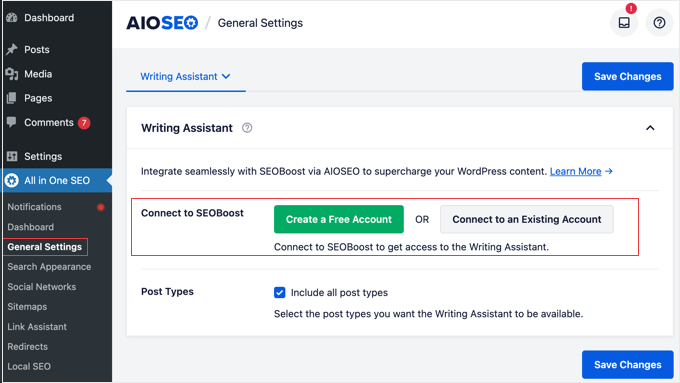
The SEOBoost features will then appear within your WordPress post editor through AIOSEO’s interface. This gives you AI-powered writing assistance without leaving your WordPress dashboard.
Step 3: Create Your First SEO-Optimized Post
With AIOSEO and SEOBoost connected, it’s time to create your first optimized post and see the writing assistant in action.
I always get excited at this stage because you can immediately see how the tools guide your writing process.
Go to Posts » Add New in your WordPress dashboard to create a new blog post. You’ll notice that AIOSEO has added a new section below your content editor called ‘AIOSEO Settings’ with various tabs and options.
Start by adding your post title in the title field at the top of the page. As soon as you do this, AIOSEO will begin analyzing your content, and you’ll see a TruSEO score appear, usually starting quite low since you haven’t added content yet.
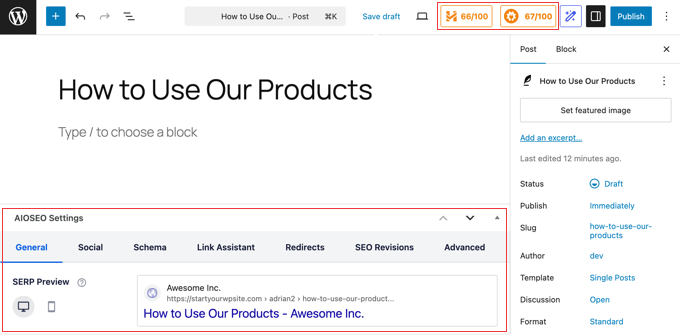
Next, scroll down to the AIOSEO Settings section and click on the ‘Focus Keyphrase’ field.
Enter the main keyword or phrase you want this post to rank for in search engines, and then click the ‘Add Focus Keyword’ button.
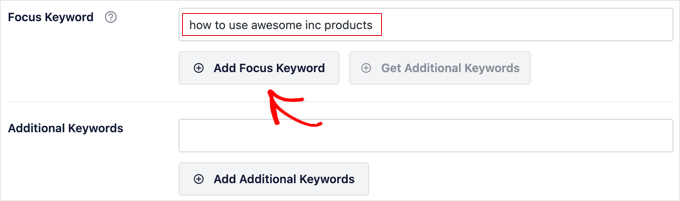
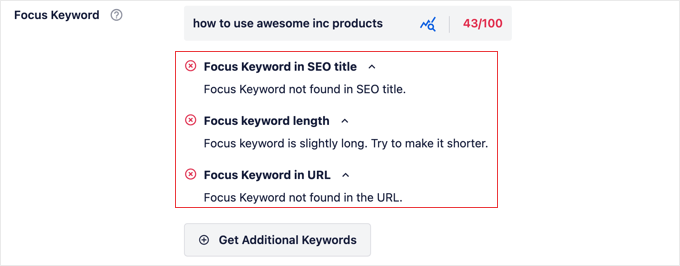
Once you’ve added your focus keyword, AIOSEO will update its analysis recommendations.
You’ll see a checklist of items to improve, like adding your keyword to the title, using it in headings, and including it naturally throughout your content.
Step 4: Use Real-Time SEO Suggestions
Now comes the fun part – watching the SEO writing assistant guide you through the content creation process. I love this feature because it’s like having an SEO expert looking over your shoulder, giving you instant feedback on every paragraph you write.
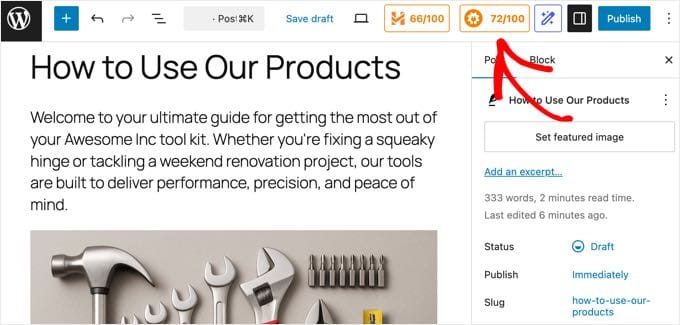
As you start typing in the content editor, you’ll see the TruSEO score update in real-time. The score changes based on how well your content follows SEO best practices, and it gives you specific suggestions for improvement.
Look for the checklist that appears in the AIOSEO Settings section below your content.
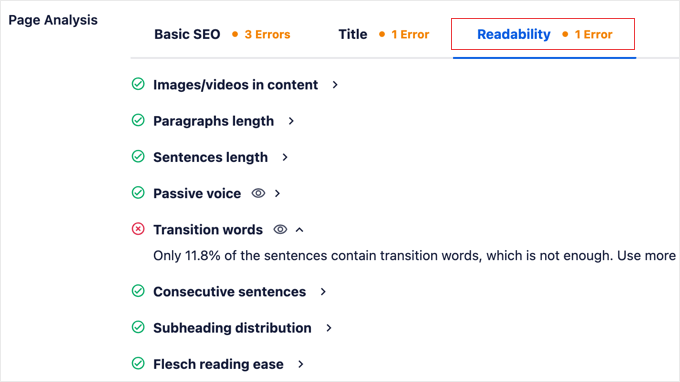
The Page Analysis list shows you exactly what needs attention, like ‘Add your focus keyphrase to your content’ or ‘Use your focus keyphrase in a subheading.’ There are tabs with suggested improvements for ‘Basic SEO’, ‘Title’, and ‘Readability’.
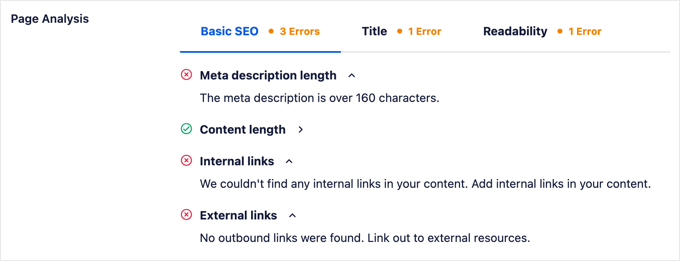
Each suggestion comes with a color-coded indicator:
- Red for issues that need immediate attention
- Yellow for improvements you should consider
- Green for elements that are already optimized.
I find this visual system makes it easy to prioritize which changes to make first.
By default, you will see suggestions on how to improve basic SEO. You can click on the ‘Title’ and ‘Readability’ tabs for more suggestions. For example, AIOSEO checks for basic readability issues like sentence length and paragraph structure.
If your sentences are too long or your paragraphs are too dense, then you’ll get suggestions to break them up for a better user experience.
Another way to see these suggestions is to click on AIOSEO’s TruSEO score at the top of the page. This will open AIOSEO Settings in the right pane.
You can click to expand each section and see specific recommendations.
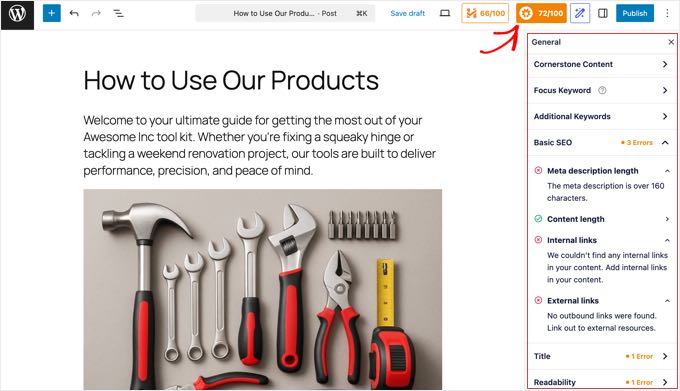
As you address each suggestion, you’ll watch your TruSEO score climb higher, giving you confidence that your content is properly optimized for search engines.
For more on using AIOSEO to check your content’s SEO, see our guide on how to do real-time content analysis.
Step 5: Generate SEOBoost AI Content Reports
Once you’ve written your content and addressed the basic AIOSEO suggestions, it’s time to get deeper insights from SEOBoost’s AI analysis.
I’ve discovered issues in my content through these reports that I never would have caught on my own.
Scroll down to the ‘Page Analysis’ section in your AIOSEO settings while editing your post. You’ll see a ‘Writing Assistant’ section with a ‘Generate a New Report’ button and text explaining how to use data-driven insights for better optimization.
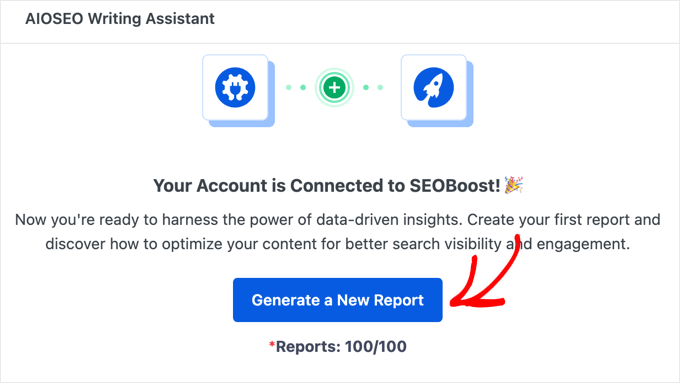
Click the ‘Generate a New Report’ button to create a comprehensive analysis of your content.
Next, you will be asked to provide the keyword, region, and language that the report will be based on. This helps the AI compare your content against competitors ranking in your specific target location.
SEOBoost’s AI will examine your post and provide detailed insights across three key areas.
The report opens with an ‘Overview’ tab that shows your content’s grade summary and readability level. This lets you compare the reading level, length, and grade of your content with high-ranking competitors.
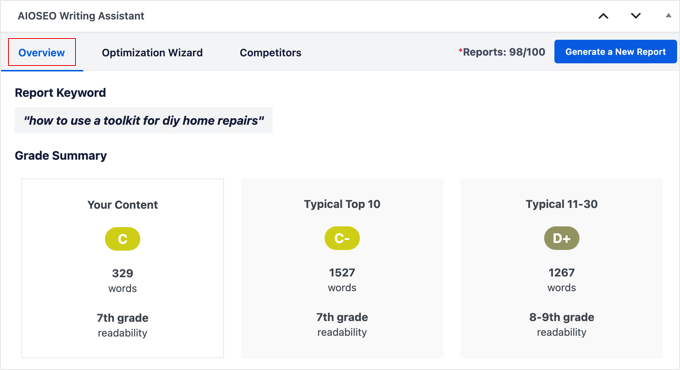
You’ll also see the top competitor content currently ranking for your target keyword.
This gives you a benchmark to measure against.
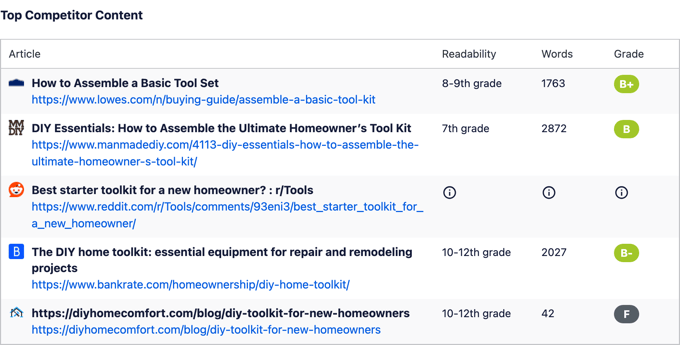
You can learn how to use this information to improve your ranking in our guide on how to do an SEO competitor analysis in WordPress.
Next, navigate to the ‘Optimization Wizard’ tab, which displays a list of important terms related to your keyword.
Each term shows its heading presence, usage frequency, and importance level for ranking. You can also see how many times the term is typically used in your competitors’ articles.
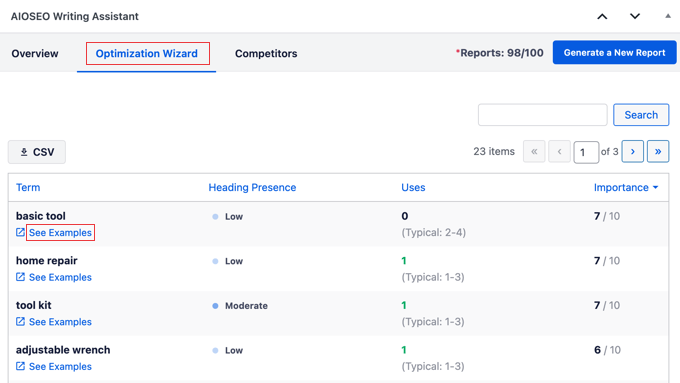
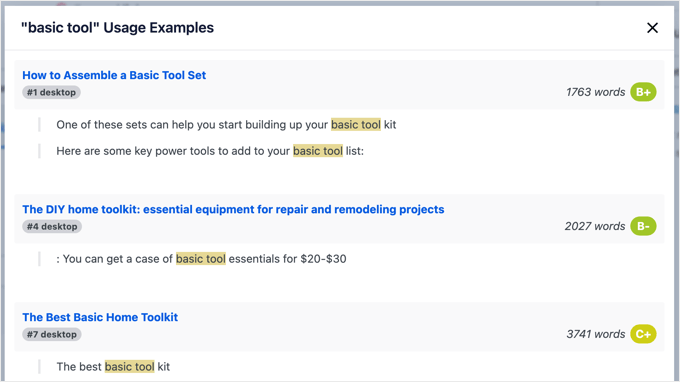
The ‘See Examples’ links under each term are particularly valuable. They show you exactly how top-ranking competitors use these terms in their content.
I use this feature to identify important keywords and phrases I might have missed in my initial writing. I can add them to my post to improve its ranking.
Finally, the ‘Competitors’ tab reveals the top posts currently ranking for your keyword, complete with their readability levels, word counts, and content grades.
This gives you a clear picture of what you’re competing against.

Step 6: Optimize Your Content with Data-Driven Insights
Now that you have your SEOBoost report, it’s time to put those insights to work. I’ve found that this step often makes the biggest difference in how well my content performs in search results.
Start by reviewing the terms in the Optimization Wizard that show high importance but low usage in your content. These are opportunities to naturally incorporate relevant keywords that your competitors are using successfully.
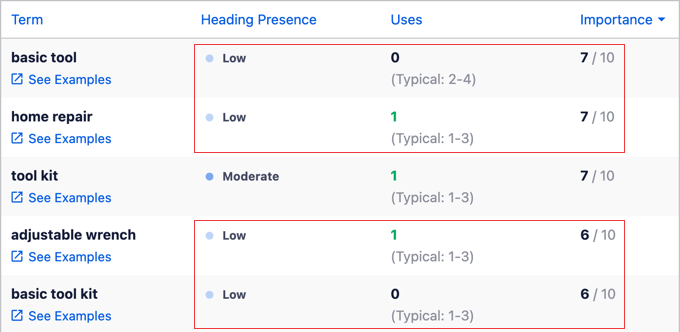
Look for terms that appear frequently in competitor headings but are missing from yours. Add these as subheadings or work them into your existing H2 and H3 tags to better match search intent.
Pay attention to the word count data from the Competitors tab. If top-ranking posts average 2,500 words and your post is only 1,200 words, then consider expanding your content with additional sections or more detailed explanations.
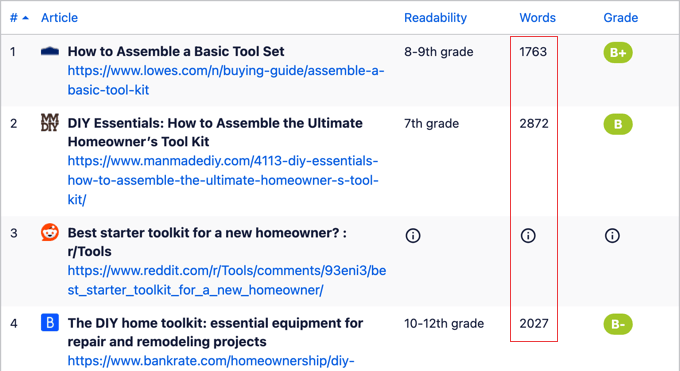
Check your readability grade against the competition. If your content is significantly harder or easier to read than what’s currently ranking, then you should adjust your sentence structure and vocabulary accordingly.
You can also use the competitor examples to identify content gaps in your own post. If several top-ranking articles cover specific subtopics that you haven’t addressed, then consider adding those sections to make your content more comprehensive.
Make these changes directly in your WordPress editor, and watch your TruSEO score update as you follow the SEOBoost recommendations.
Step 7: Use AI to Generate Content Quickly
AIOSEO also has a helpful AI Content tool that can speed up the writing process. I use it to quickly create things like SEO titles, meta descriptions, and even social media posts without having to leave the WordPress editor.
To find it, scroll down to the AIOSEO Settings box below your post and click the ‘AI Content’ tab.
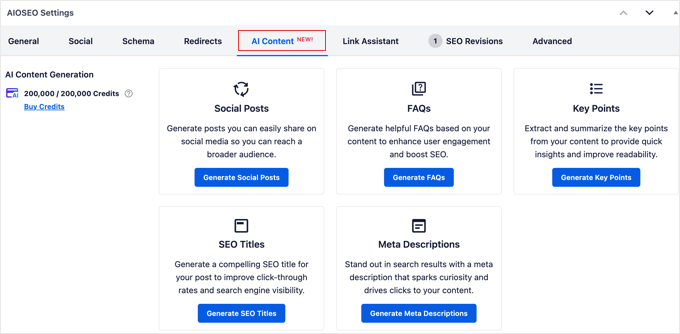
From here, you can generate different content snippets based on your article. For example, you can get suggestions for meta descriptions, a ‘Key Points’ summary of your content, or a list of frequently asked questions (FAQs) to add.
Just choose the type of content you want. When you find a suggestion you like, you can often add it with a single click. For social media posts, you can simply copy the text to use later.
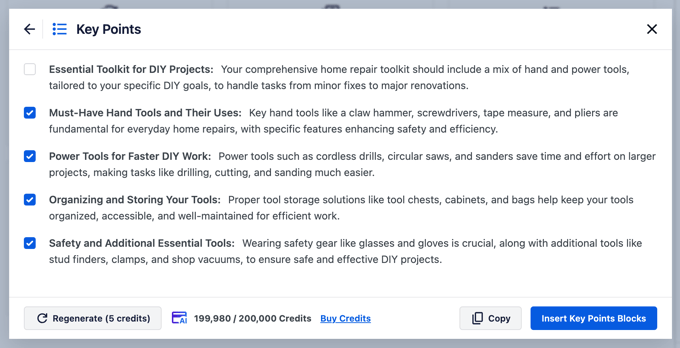
This is a great way to fill in any missing pieces for your on-page SEO right before you do a final review.
Step 8: Review and Publish Your Optimized Content
Before hitting the publish button, I always do a final review to make sure everything is working together properly. This last check has saved me from publishing content with obvious optimization issues more times than I can count.
Go back to your AIOSEO Settings section and review your TruSEO score one more time. Aim for a score of at least 80/100, though I’ve found that scores above 90 tend to perform best in search results.
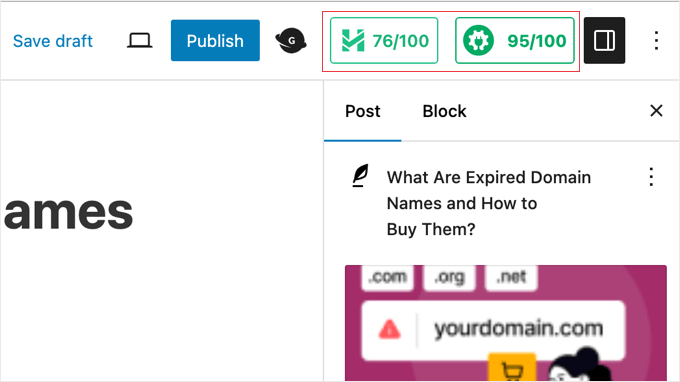
Check that all the red and yellow indicators in your AIOSEO checklist have been addressed.
Pay special attention to your meta description, title tag optimization, and focus keyword placement.

Preview your post to see how it looks to readers. Sometimes, content that scores well technically can feel awkward or over-optimized when you read it as a complete piece.
Make sure your headings flow naturally and your keyword usage doesn’t sound forced. The goal is to create content that ranks well while still providing genuine value to your readers.
Once you’re satisfied with both the SEO score and the reading experience, click the ‘Publish’ button to make your optimized content live.
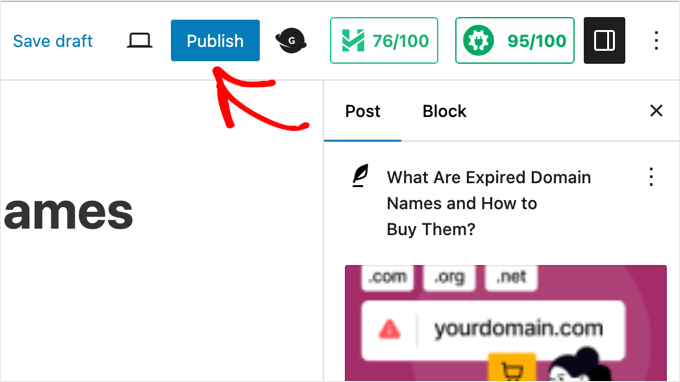
Your post now has the best chance of ranking well because you’ve followed data-driven recommendations from both AIOSEO and SEOBoost.
After publishing, keep an eye on your search rankings over the next few weeks to see how your optimized content performs compared to posts you’ve written without the writing assistant.
Using SEOBoost as a Standalone Writing Assistant
While integrating SEOBoost with AIOSEO gives you the best WordPress experience, you can also use SEOBoost as a standalone tool outside of WordPress. I’ve found this approach helpful when writing content in Google Docs or optimizing existing articles.
SEOBoost is a web-based platform where you can analyze and optimize your content before publishing it to WordPress. This gives you flexibility to work on your content anywhere, then bring the optimized version to your WordPress site.
The standalone version includes two main features that I use regularly. First, you can build a comprehensive Topic Report by simply entering your focus keyword.
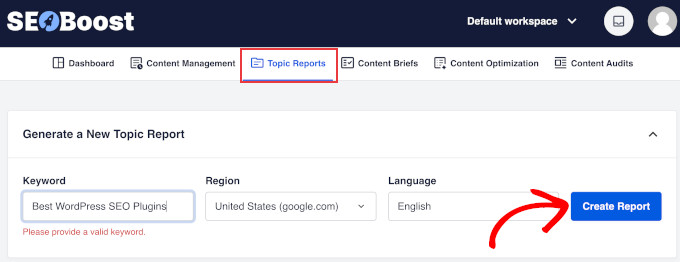
SEOBoost analyzes top-ranking competitor content and tells you exactly what topics and subtopics you should include in your post to have the best chance of ranking. This research phase helps me plan better content from the start.
Once you’ve written your content, you can paste it into SEOBoost’s Content Optimization tool. This feature provides detailed SEO suggestions, including important phrases to use, optimal word count, readability level recommendations, and semantic keywords.
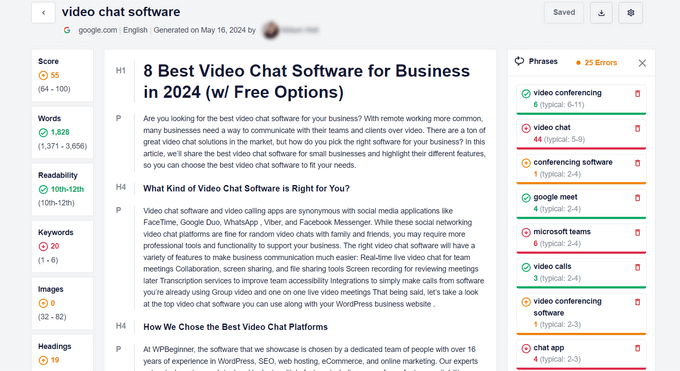
The tool shows you which terms are missing from your content compared to top-ranking competitors. You can then revise your content to include these important phrases before publishing to WordPress.
I find the standalone approach particularly useful for content planning and research. You can generate topic reports for multiple keywords, then use that research to create comprehensive content that covers all the important angles.
After optimizing your content in SEOBoost, simply copy it back to WordPress and use AIOSEO’s features for final technical optimization before publishing.
Pro Tips for Better SEO Writing
After using AIOSEO and SEOBoost together, I’ve picked up some tricks that can take your SEO writing to the next level.
These aren’t obvious features, but they make a real difference in how well your content performs:
- Don’t chase a perfect 100/100 TruSEO score if it makes your content sound robotic. I’ve found that a score between 85-95 often performs better because the content reads more naturally while still being well-optimized.
- Use the competitor analysis to find content gaps, not just keyword opportunities. If the top-ranking posts all miss a specific angle or question, then that’s your chance to create something more comprehensive.
- Pay attention to the reading level data in your SEOBoost reports. I noticed my posts performed better when I matched the reading level of top competitors rather than trying to write at a higher or lower level.
- Don’t ignore the semantic keywords (related terms and phrases) from the Optimization Wizard. These help search engines understand your content’s context better than just repeating your main keyword.
- Check your reports again after major content updates. Sometimes, adding new sections changes which terms become important for optimization.
- Save time by generating SEOBoost reports early in your writing process, not just at the end. Knowing what terms and topics competitors cover helps you plan better content from the start.
You can also see our checklist of tips to optimize your blog posts for SEO like a pro.
Common Mistakes to Avoid When Using SEO Writing Assistants
Even with powerful tools like AIOSEO and SEOBoost, you can still make mistakes that hurt your content’s performance. Learning from these errors will save you time and help your content rank better from the start.
The biggest mistake I see people make is keyword stuffing to improve their TruSEO score. Just because the tool suggests using your focus keyword more doesn’t mean you should cram it into every sentence.
It’s also easy to overlook the competitor analysis section. But that’s a missed opportunity to make your articles more comprehensive and rank higher.
Additionally, don’t copy competitor content just because it ranks well. The goal is to understand what topics and keywords they cover, then create something better and more comprehensive.
Many people also focus only on the technical SEO score and forget about user experience. A post that scores 95/100 but reads poorly won’t keep visitors engaged, which hurts your rankings long-term.
I’ve also learned not to change everything at once based on one report. Make gradual improvements and test what works for your specific audience and niche.
Finally, don’t rely completely on the tools without using your own judgment. These assistants provide data and suggestions, but you still need to create content that genuinely helps your readers solve their problems.
Frequently Asked Questions About SEO Writing Assistants
Our readers often ask us about the best ways to optimize their content using AI tools. Here are the answers to some of the most common questions we see about using SEO writing assistants in WordPress.
1. Is the SEO writing assistant free to use?
The basic TruSEO score analysis is available in the free version of All in One SEO. However, the advanced content reports and AI-powered suggestions provided by SEOBoost require a premium subscription to both All in One SEO Pro and SEOBoost.
2. Can I use the SEO writing assistant with page builders like Elementor?
Yes, All in One SEO integrates smoothly with popular drag-and-drop page builders. You can view the SEO analysis and writing suggestions directly inside the editing interfaces for Elementor, Divi, and SeedProd.
3. Will using an AI writing assistant hurt my Google rankings?
No, using tools like SEOBoost and All in One SEO will not hurt your rankings if you use them to assist your writing rather than replace it. Google does not penalize AI-assisted content as long as the article provides value, is factually accurate, and is written for human readers first.
4. What is the difference between All in One SEO and SEOBoost?
All in One SEO is a WordPress plugin that manages technical SEO settings, sitemaps, and basic on-page scoring. SEOBoost is a specialized content optimization tool that provides competitor data, keyword reports, and AI suggestions. The two tools connect to provide a complete workflow inside your WordPress dashboard.
Get Better Search Rankings with Your SEO Writing Assistant
I hope this guide helped you set up and use SEO writing assistant features in WordPress.
Using AIOSEO and SEOBoost together has completely changed how I approach content creation. Instead of guessing what search engines want, I now have data-driven insights that guide every piece of content I write.
You may also want to see some other articles related to WordPress content optimization:
- How to Do a SEO Content Gap Analysis (Beginner’s Guide)
- What is Content Decay? (And How to Fix It)
- How to Avoid Keyword Stuffing & Fix Over-Optimization in SEO
- Categories vs Tags – SEO Best Practices for Sorting Your Content
- Is AI Content Bad for WordPress SEO? (Expert Insights & Tips)
- Internal Linking for SEO: The Ultimate Guide of Best Practices
- Tips to Optimize Your Blog Posts for SEO Like a Pro (Checklist)
- How to Rank New WordPress Content Faster
- Ultimate WordPress SEO Guide for Beginners (Step by Step)
If you liked this article, then please subscribe to our YouTube Channel for WordPress video tutorials. You can also find us on Twitter and Facebook.




Jiří Vaněk
I use similar tools in AIO SEO for text and keyword checks. SEMrush offers excellent and sophisticated tools. I also use some of them, but they can be limiting for me because they work best with the English language. For example, the plagiarism checker doesn’t support Czech very well, which makes it challenging to use this tool for Czech texts. It’s a shame, especially considering how many languages AI can handle today.
Nadun Prabodhana
This article helped me for better understand how to find best keywords and SEO tips. Thanks for sharing WPB ❤️
WPBeginner Support
Glad our article was able to help
Admin
Kalyon Subbarao
Nice idea this was very essential plugin/tool for any blogger or online publishers,
WPBeginner Support
Thank you, glad you like our article
Admin
Caden O'Rourke
What do you believe is the best free SEO plugin?
WPBeginner Support
For the moment we are using and recommending Yoast SEO
Admin
The 'Staunch
This plugin is awesome! Does it work with RankMath SEO plugin? And can it also work with trial accounts?
Editorial Staff
Yes it works with Rank Math and all other SEO plugin. The free trial is limited.
Admin
John harris
I have Yoast premium at the moment. Should I delete this plugin and use this one instead or have the two running side by side.
Also what wordpress theme do you guys use?
Editorial Staff
No you need to keep Yoast for meta title and other on page optimizations.
But we wouldn’t recommend focusing too much on the green light in Yoast and rather focus on the SEO writing assistant by SEMRush.
Yoast SEO and SEO Writing Assistant by SEMRush are meant to work alongside each other
Admin
John Conroy
How much does it cost.
WPBeginner Support
There is a free version for you to test and if you need more recommendations you would look at their subscriptions
Admin
Catherine Rochereul
Does this tool have language options? Like French for example? And if yes, is it as efficient as in English? Just had a bad experience with hiring a SEO agency that poorly translated existing English articles into French, placing keywords randomly.
WPBeginner Support
Sadly you would need to check with SEMrush for languages currently supported with this tool.
Admin