


Creating detailed, long-form content is excellent for building authority, but it can be overwhelming for your readers. If a visitor only needs one specific answer, they shouldn’t have to scroll through thousands of words to find it.
That is why we love linking to specific paragraphs or sentences. It acts like a personal map, guiding your visitors directly to the exact information they need instantly.
At WPBeginner, we use this strategy to make our comprehensive guides easier to navigate and more user-friendly. It also makes sharing quotes or specific steps much cleaner on social media.
In this article, we will show you how to reference a specific paragraph or sentence in your WordPress posts using two simple methods.
Why Reference Specific Parts of a Post?
When you create a new post on your WordPress blog, you may wish to link to a specific paragraph or sentence.
For example, a journalist may need to reference the exact source of a quote. Or a blogger can make it easy for their readers to jump to a specific section of the blog post.
If you simply link to a long web page, then your readers may find it difficult to find the information. Taking them to the right paragraph or sentence and highlighting the relevant text offers a better user experience.
Let’s look at how to link to a specific paragraph or sentence in your WordPress posts. We will cover two methods. The first will often work better for posts on your own blog, while the second method is better for external links:
Method 1: Linking to a Specific Part of a Post Using Anchor Links
The best way to link to a specific section of the posts on your own WordPress website is to use anchor links. This method won’t highlight the sentence or paragraph, but unlike Method 2, it will work with all web browsers.
Anchor links will immediately jump your readers to a specific place on the same page that is marked with an ID attribute. They are often used when building a table of contents. However, anchor links can also link to specific sections of other posts.
To do this, simply select the block (like a heading) inside the WordPress content editor. Then, expand the ‘Advanced’ tab in the right-hand settings panel and type your keyword into the ‘HTML Anchor’ field.
If you are linking to an external website, you can often find these IDs used in its table of contents.
You will need to be able to edit the post to add an ID attribute to the sections you wish to link to. However, if you notice that an external website has used ID attributes, such as in a table of contents, then you can use them in links as well.
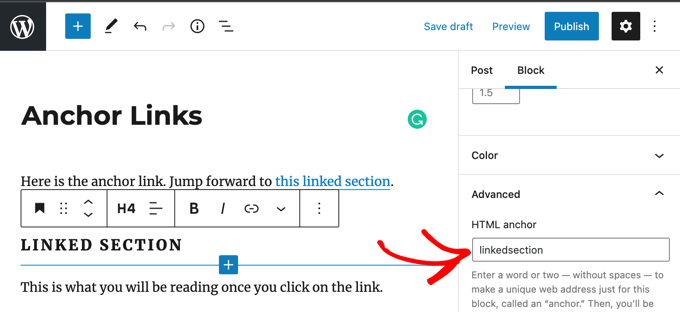
Once you know the ID of a specific section of the post, then you can use it to build a link. It will look something like this:
<a href="#linkedsection">
Or, if you wish to link to an ID attribute on a different web page, then the link will look like:
<a href="https://example.com/#linkedsection">
To learn the right way to create anchor links, see our step-by-step guide on how to easily add anchor links in WordPress.
Method 2: Linking to Highlighted Text Using Google Chrome
Google Chrome can create links to specific paragraphs and sentences found on web pages. This is a built-in feature in Google Chrome and most modern web browsers. It allows you to create a special link that opens a page and immediately highlights specific text.
This method works for linking to other websites because it doesn’t rely on ID attributes. It also automatically highlights the text that you are linking to.
You should start by highlighting the text you wish to reference. After that, you need to right-click the text and choose ‘Copy Link to Highlight’ from the menu.
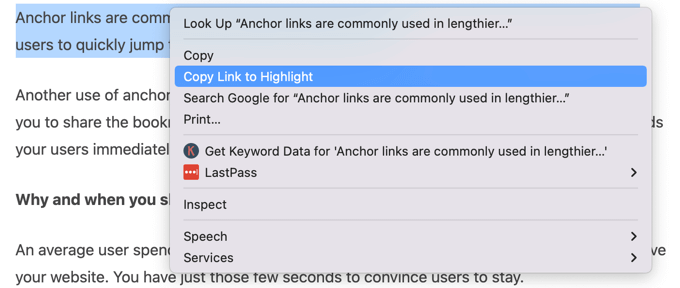
As you can see, it includes the URL of the web page followed by the characters #:~:text= and then the highlighted passage:
https://example.com/wordpress-post/#:~:text=Start%20highlight%20hereThese links will work with any compatible browser, including Chrome and Edge, and version 80 and above of all Chromium-based browsers.
This is how it will look when your Chrome users click on a link to a highlight:
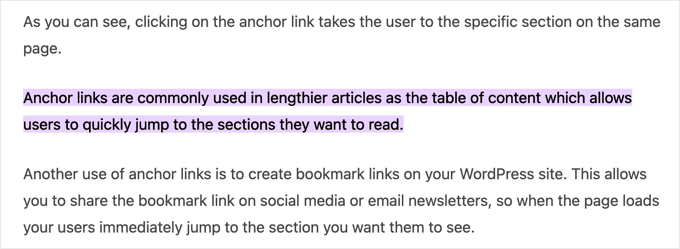
These links are supported by the majority of modern web browsers, including Google Chrome, Edge, Safari, and Firefox.
If a visitor is using a very old browser version that does not support this feature, the link will simply behave like a normal link and take them to the top of the post.
Frequently Asked Questions About Referencing Text in WordPress
Below are answers to some of the most common questions we receive about creating links to specific paragraphs and sentences. This will help you choose the best method for your needs.
1. What is the easiest way to link to a specific paragraph in WordPress?
The quickest method is using the built-in ‘Copy Link to Highlight’ feature in your browser. You simply highlight the text you want to reference, right-click, and copy the special link. This is supported by most modern browsers.
2. What is an anchor link and why is it used?
An anchor link (or jump link) is a special link that takes a user to a specific section on the same page or another page. You first assign a unique HTML ID to a block (like a heading or paragraph), and then you link to that ID. They are most commonly used to create a table of contents, helping users navigate long articles.
3. What is the difference between an anchor link and a highlight link?
The main difference is compatibility. Anchor links are a standard web feature that you create, and they work perfectly in all browsers.
Highlight links (Text Fragments) generate a special URL that highlights specific text when the page loads. While originally a Chrome feature, this is now supported by all major browsers, including Safari and Firefox.
4. Do anchor links work on all websites?
Yes, anchor links are a fundamental part of HTML and will work on any website and in all modern web browsers. This makes them the most reliable method for linking to specific sections, especially within your own website, as you can ensure a consistent experience for all visitors.
5. Can I link to a specific sentence in a post I didn’t write?
Yes, the ‘Copy Link to Highlight’ method in Google Chrome is perfect for this. Since you cannot edit the external website to add an anchor ID, you can use Chrome to highlight any sentence you want and create a direct link to it for sharing.
Additional Resources on Adding Links in WordPress
We hope this tutorial helped you learn how to reference specific paragraphs and sentences in WordPress posts. You may also want to see some other articles related to adding links:
- Beginner’s Guide on How to Add a Link in WordPress
- How to “Easily” Add Anchor Links in WordPress (Step by Step)
- How to Find and Fix Broken Links in WordPress (Step by Step)
- How to Open External Links in a New Window or Tab with WordPress
- How to Add Nofollow Links in WordPress (Simple Guide for Beginners)
- How to Add Title and NoFollow to Insert Link Popup in WordPress
- How to Track Outbound Links in WordPress
- Best Internal Linking Plugins for WordPress (Automatic + Manual)
- How to Create a Short Link in WordPress (The Easy Way)
- How to Change the Link Color in WordPress (Beginner’s Guide)
If you liked this article, then please subscribe to our YouTube Channel for WordPress video tutorials. You can also find us on Twitter and Facebook.


Jiří Vaněk
I used to work with anchors, but linking to highlighted text was always a mystery to me. It’s actually quite simple. It’s very useful for me when writing articles, and I’m glad I learned it from this article. I really didn’t expect it to be that easy.
WPBeginner Support
Glad we could help clarify the process
Admin
Dennis Muthomi
found the tip about using Google Chrome’s “Copy Link to Highlight” feature particularly useful
It reminds me of how Google’s featured snippets work – when you click on a sitelink, it takes you directly to the relevant section and highlights the text. This is a handy way to reference specific parts of an article without having to manually add anchor links. Thanks for sharing these techniques, they’ll definitely come in handy for improving the user experience when linking to content
WPBeginner Support
You’re welcome!
Admin