


We’ve filled out our fair share of online forms and often find ourselves constantly retyping the same address.
Imagine this instead: a visitor lands on your contact page, sees their address auto-filled, and a pin already placed on the map. It’s fast, personal, and saves them time.
Adding a Google Map with a location pin to your WordPress contact form may seem like a small touch, but it can make a big impact. In our experience with WPForms, it can help boost form completion rates and give users a smoother, more satisfying experience.
In this step-by-step guide, we’ll show you how to embed an interactive Google Map directly into your WordPress contact form – no code required. 🗺️

Why Embed a Google Map in Your Contact Form?
When you set up your WordPress site, you likely added a contact form so visitors can reach you about your products or services. And if you have a physical store, you probably added a Google Map to help people find your location easily.
What many business owners don’t know is that you can use geolocation to automatically fill in the address field on your contact form and display the visitor’s location on a map. Then, they can easily verify that their address is correct or drag the pin to change it if necessary.
This improves the overall user experience and can help reduce form abandonment.
Knowing your users’ locations also lets you use geolocation targeting to show personalized content and boost conversion rates.
Now, let’s look at how to embed a Google Map in your contact forms. Here’s an overview of all the topics we’ll cover in this article:
Let’s get started!
How to Embed a Google Map in a Contact Form
For this tutorial, we will be using WPForms, the best contact form plugin for WordPress. It lets you easily create any type of form with a simple drag-and-drop form builder.
There is a free version of WPForms available with all the features you need to create a basic contact form. For this tutorial, however, we will use WPForms Pro since it includes the Google Map addon.

ℹ️ Did you know? At WPBeginner, we use WPForms for a lot of things. For example, it powers our contact form and annual readers’ satisfaction surveys. We’ve had a great experience with it, and you can learn more in our in-depth WPForms review.
The first thing you need to do is create a WPForms account. On the WPForms website, click on ‘Get WPForms Now’ and then complete the registration process.
With that done, you’ll land in your WPForms account dashboard, where you can access your WPForms Pro ZIP file and license key.

Next, you can install and activate the WPForms plugin.
From your WordPress admin area, you can go to Plugins » Add New Plugin.

Then, go ahead and use the search bar to quickly find the WPForms plugin.
In the search results, simply click the ‘Install Now’ button and then ‘Activate’ to start using it on your WordPress site.
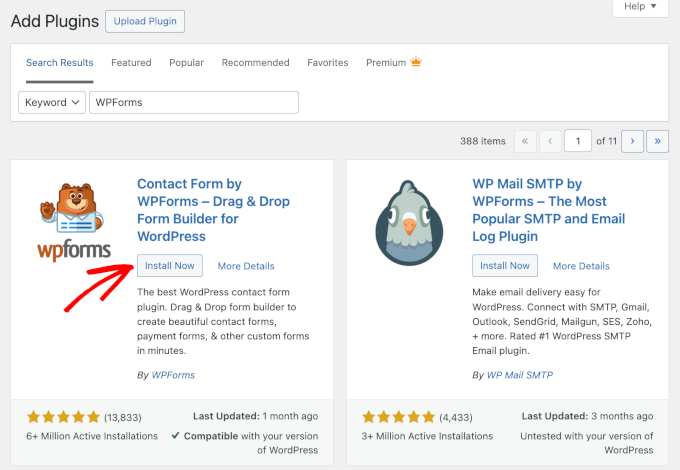
For more details, see our step-by-step guide on how to install a WordPress plugin.
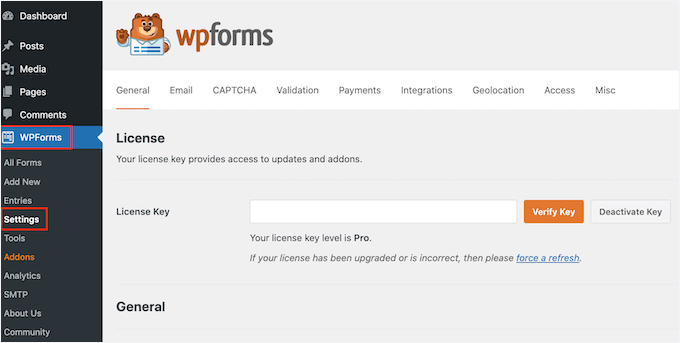
Upon activation, you need to visit the WPForms » Settings page to enter your license key. You can find this information in your WPForms account area. Make sure you click the ‘Verify Key’ button to activate your license.
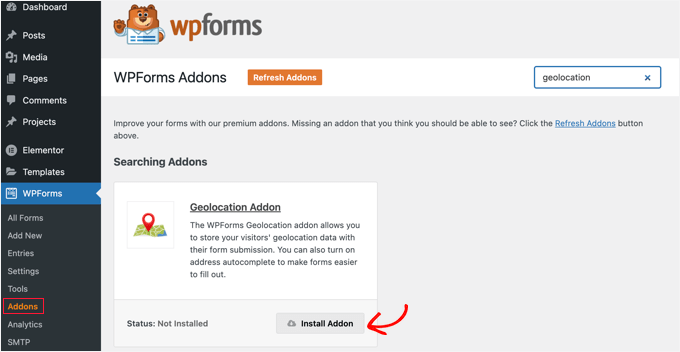
Next, you need to navigate to WPForms » Addons and find the Geolocation Addon.
You can use the search option at the top of the screen or simply scroll through the available addons.
Once you’ve found it, go ahead and click the ‘Install Addon’ button.
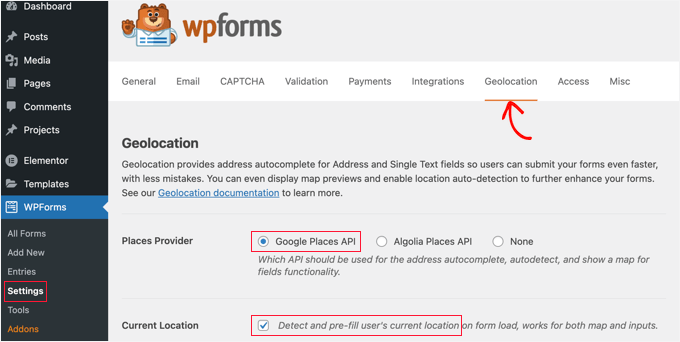
Now that the Geolocation addon is activated, you will need to configure its settings. To do that, navigate to WPForms » Settings and click on the ‘Geolocation’ tab.
On this page, you need to select a geolocation provider.
For this tutorial, we will choose the ‘Google Places API.’
You should also click the ‘Current Location’ checkbox. This asks the user’s browser for their location to automatically pre-fill the address field. It saves time and helps improve accuracy.
Next, you need to scroll down to the Google Places API settings.
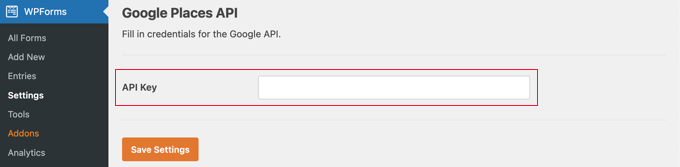
Here, WPForms will ask you to enter your Google API key. You can get your key from Google and then paste it into the input field. We will show you how to do that in the next section.
Generating a Google Places API Key
You can get an API key for Google Places by going to the Google Cloud Console website.
First, simply select your country from a drop-down menu and agree to the terms of service. In some countries, you may also be offered the chance to sign up for a mailing list.
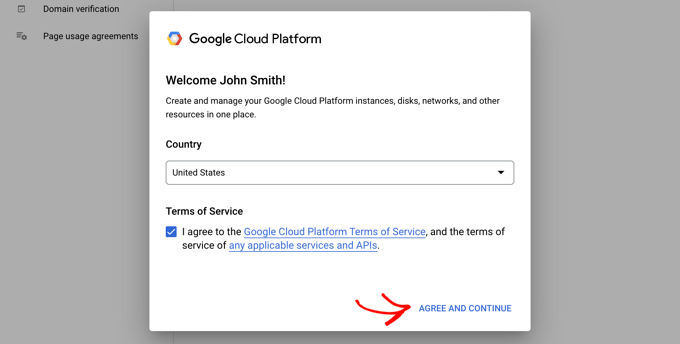
When you are ready to move to the next step, click on ‘Agree and Continue’.
Next, you’ll need to select a project for the API key. Simply click on ‘Select a project’ and click on the project you want to use from the list.

If you haven’t created a project before, or this is a new website you have not yet added to Google, then you should click ‘New Project’ to set one up.
📝 Note: Google requires you to enable billing for your project to use the Places API. Even so, most small sites won’t pay anything. Google provides a recurring $200 monthly credit – more than enough for a simple map embed like the one in this tutorial.
You should now be on the ‘APIs & Services’ page, where you can enable the APIs needed to display Google Maps on your WordPress site.
You’ll need to click the ‘+ Enable APIs and Services’ button at the top of the page.

This will take you to Google’s API Library, where you’ll need to turn on three mapping APIs:
- Google Places API – lets your form pull in suggested addresses as users type.
- Maps JavaScript API – displays the interactive map on your site.
- Geocoding API – turns an address into exact coordinates so the map can place the pin correctly.
You can find these by using the search bar at the top or by clicking the ‘View All’ button in the Maps section.

From here, let’s find and enable the Places API. Once you locate it, you will need to click it.
On the next page, go ahead and click the ‘Enable’ button.
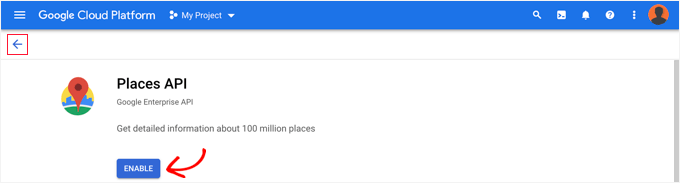
After that, you should do the same thing for the Maps JavaScript API and Geocoding API.
And once you have enabled the three APIs, you can create an API key.
In the menu on the left, you need to navigate to APIs & Services » Credentials.
From here, you will be able to click the ‘+ Create Credentials’ button at the top of the screen and then select the ‘API key’ option.

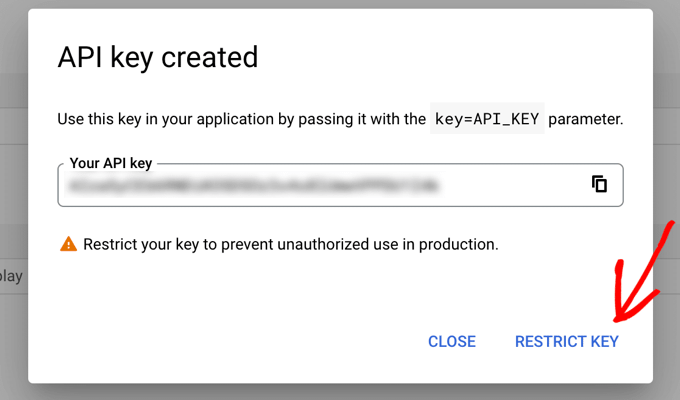
Your API key will be created and displayed in a popup window.
Later in this tutorial, you’ll need to copy that key into WPForms’ settings. For now, let’s take a look at how to place some restrictions on the use of the API key.
Restricting Your Google Places API Key
Overusing the API key may move you out of the free tier and cost more than you expect. We recommend that you restrict the key to prevent unauthorized or unexpected use.
To do that, you need to click the ‘Restrict Key’ link at the bottom of the ‘API key created’ popup in the screenshot above.
On the next page, you can set up several different restrictions. The first of these is ‘Application restrictions’.
In this section, you should click on the ‘HTTP referrers (web sites)’ option. Then, the key will only be used on websites.

Next, you should make sure it is only used on your own website. To do that, you should scroll down to the ‘Website restrictions’ section and then click the ‘Add an Item’ button.
Now, you should type your website domain name into the ‘New item’ field using the pattern *example.com/*.
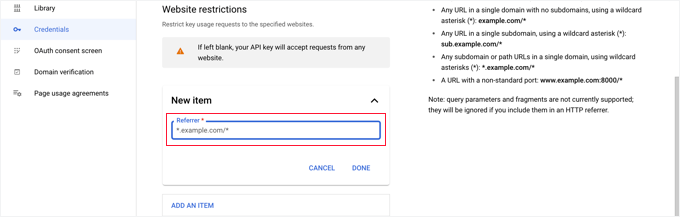
If you will be using Google Maps on more than one website, then you can click the ‘Add an Item’ button and add as many domains as you need.
Now that you’ve restricted the API key to only your own websites, you can also restrict it to work with only the Google APIs that you added above.
You need to scroll down to the ‘API restrictions’ section of the page and select the ‘Restrict key’ option. This will reveal a dropdown where you should check the ‘Geocoding API’, ‘Maps JavaScript API’, and ‘Places API’ boxes.
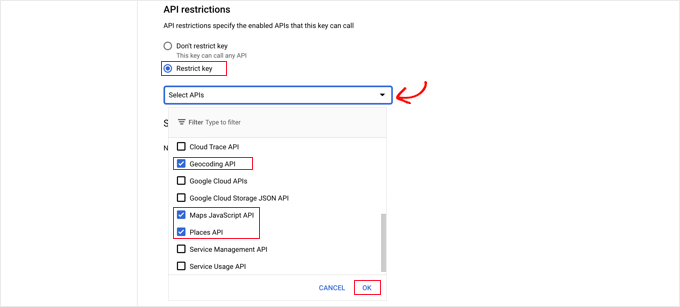
Once you’ve done that, you should click the ‘OK’ link to store your settings.
Finally, make sure you click the ‘Save’ button at the bottom of the page to activate all of the restrictions you have chosen.

Note that it may take up to 5 minutes for the settings to take effect.
Adding the Google API Key to WPForms Settings
You’ll now see the API key listed alongside any others you have available. You should click the ‘Copy’ icon so you can add the key to the WPForms Geolocation settings page.

Note that if you ever need to change any of the API’s settings or restrictions, then you can click the Edit icon on the right.
Now you need to return to your website, which should still be on the WPForms » Settings » Geolocation page.
Once there, paste the key into the ‘Google Places API’ field in the WPForms settings. And make sure you click the ‘Save Settings’ button.
📝 Note: Google Places requires you to have an SSL certificate for your site. To learn how to get one, check out our beginner’s guide on how to get a free SSL certificate.
Creating a Contact Form With Embedded Google Map in WordPress
Now that you have configured WPForms and Google Places, you are ready to create a contact form in WordPress.
There are a few different ways you can build your WordPress forms with WPForms.
First, you can start with a blank canvas. This gives you full control to add and arrange form fields from scratch, making it perfect for fully customized designs.
Second, you can use the AI form builder to generate a complete form based on a simple text prompt. This is a great time-saver if you’re not sure where to begin.

Lastly, you can select from 2,000+ pre-made form templates. Whether you need a contact form, survey, booking form, or anything more complex, there’s likely a template that fits your needs!
You can get started by following our guide on how to create a contact form in WordPress.
Once you’ve made a basic form, you need to add an address field. You can use either an Address block or a Single Line Text field.
For this tutorial, we’ll use a ‘Single Line Text’ field. So, let’s simply drag the ‘Single Line Text’ block onto the form.
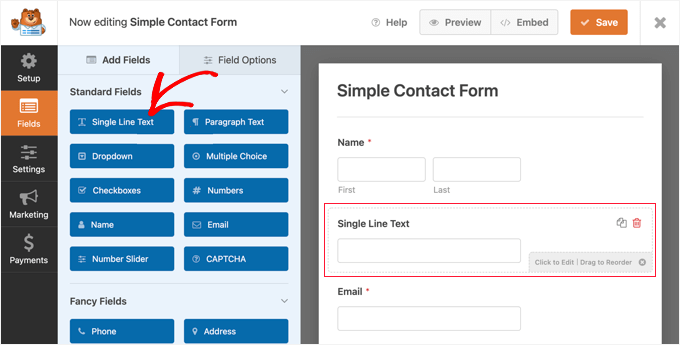
Next, we’ll customize the field’s settings.
To do that, you need to click on the field to display the Single Line Text settings.
First, you should change the field’s label to ‘Address’. This will make it clear to your users what they should type in the field.
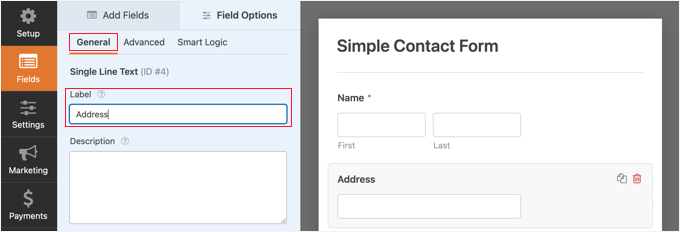
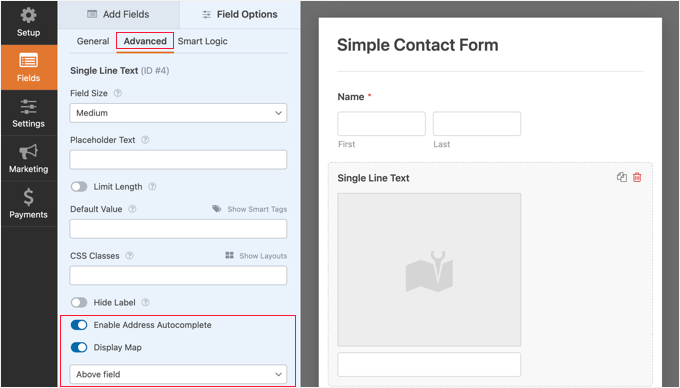
After that, you need to change the field’s settings so that it displays a map on the WordPress form. To do that, you’ll need to click on the Advanced tab.
Once there, you should look for the ‘Enable Address Autocomplete’ option at the bottom of the settings and toggle it to the ‘On’ position.
You will then see another option, ‘Display Map’, which you should also enable. You can choose to display the map above or below the field.
Adding the Contact Form to Your Website
The simplest way to add the contact form to your website is to click the ‘Embed’ button. You’ll find it next to the ‘Save’ button at the top of the form editor screen.
You’ll be asked whether to add the form to an existing page or create a new one.
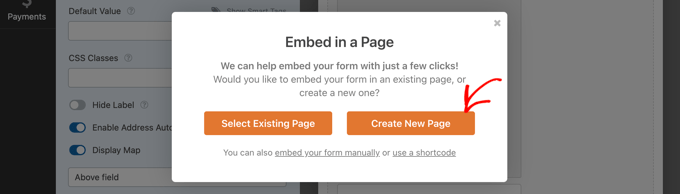
For this tutorial, we’ll click the ‘Create New Page’ button.
Next, you should give the page a name and then click the ‘Let’s Go!’ button.
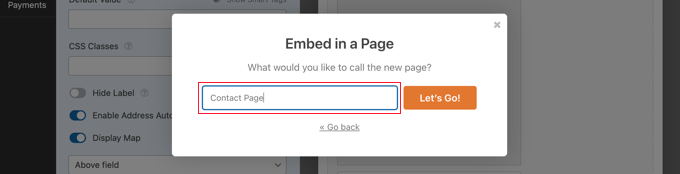
A new page with that name will be created, and your contact form will be added automatically.
All you need to do is click the ‘Publish’ button to push the page live.

Viewing the Google Map in the Contact Form
When a user visits your contact form, they will be asked whether they wish to allow your website to access their location.

If they click the ‘Allow’ button, then their current location will be entered into the address field, and a pin of that location will be added to the map.
This autocomplete feature will save your visitors time by making it faster and easier to enter their addresses.
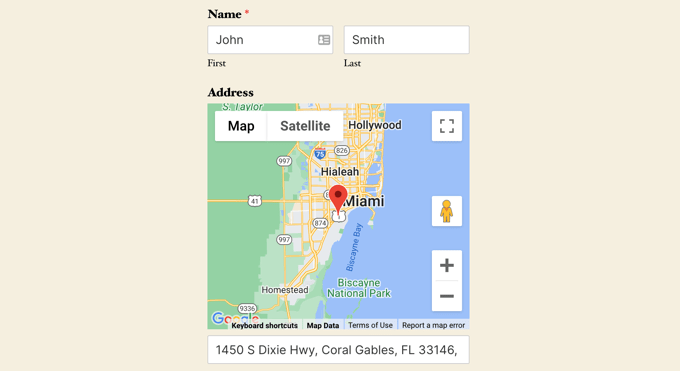
If they need to change the address, then they can simply type a new one or drag the pin to a different location on the map.
How to View User Location Data on a Form
Once you enable geolocation, WPForms will also record each user’s location when they submit your form. Knowing the location of your users may help you find better leads.
You’ll need to navigate to WPForms » Entries and then click on your contact form.
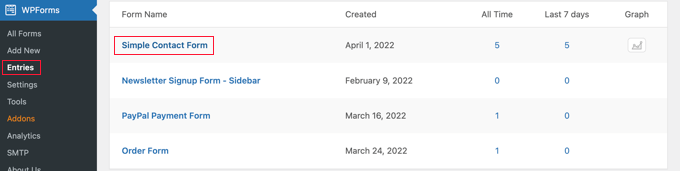
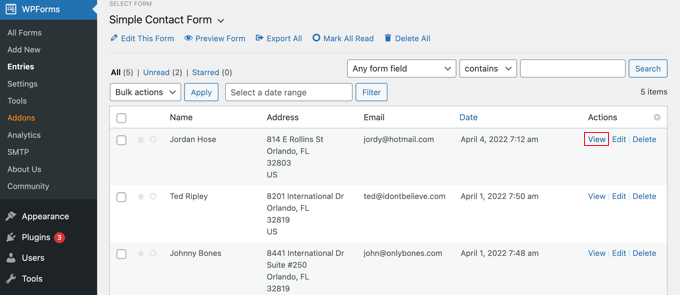
You will now see a list of entries filled in by your users for that form.
To view a particular form submission, simply click the ‘View’ link on the right.
You will now see the form data submitted by the user, such as their name, business email, and business phone number, along with some location data.
This includes a pin on Google Maps, the user’s location, zip code, and country. Do note that the accuracy depends on the user’s device; GPS data from mobile phones is usually very precise, while IP-based location from desktop computers may be approximate.
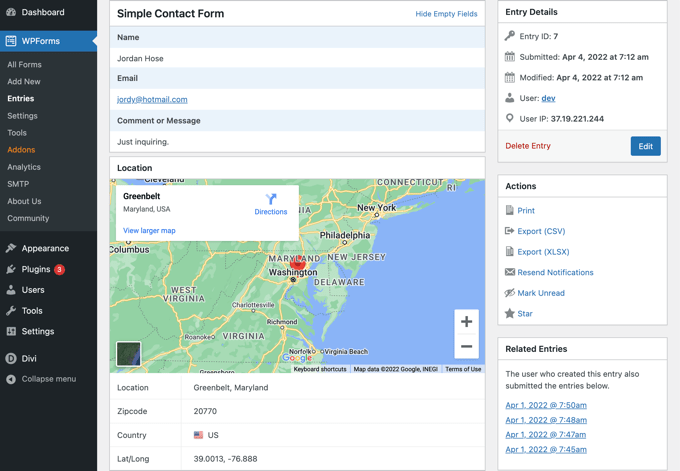
Of course, if the user didn’t grant permission for the form to know their location, then no location data will be displayed.
That’s all. You have successfully added a Google Map to your contact form in WordPress. You can also use WPForms to build surveys in WordPress, create a payment form to accept online payments, and more.
Video Tutorial: Embed a Google Map in Contact Forms
Want to see how it works? Just click the Play ▶️ button on the video tutorial below to learn how to embed a Google Map in your contact form.
Bonus Resources 🔗: Best Guides on Using Maps on WordPress
We hope this tutorial helped you learn how to embed a Google Map in contact forms. Next, you may also want to see some of our other guides on using maps on your website:
- How to Add Google Maps in WordPress (The RIGHT Way)
- How to Add Google Maps Store Locator in WordPress
- How to Embed Bing Maps in WordPress (Step by Step)
- How to Add an Interactive Map in WordPress
- Best Google Maps Plugins for WordPress (Most Are Free)
- Best Mapbox WordPress Plugins
- Best WordPress Geolocation and GeoIP Plugins
If you liked this article, then please subscribe to our YouTube Channel for WordPress video tutorials. You can also find us on Twitter and Facebook.




David Lim
I’ve been thinking about and struggling with this map insertion for a while, but this guide and video have made my job a lot easier. I saved this page to my bookmarks. Thank you
WPBeginner Support
You’re welcome
Admin
Jiří Vaněk
I use WP Forms and I’m considering integrating maps into the contact form to make the location visible at first glance. I must admit that before seeing this article, I didn’t even know that WP Forms could do this.
WPBeginner Support
Glad we could share the functionality
Admin