


When I first started my career, I made the same mistake most people do – I kept sending the same PDF resume to every single job application.
Rejection after rejection piled up, and I struggled to understand why.
That frustration led me to explore other options, and that’s when I discovered the power of an online resume.
Unlike a traditional PDF, an online resume puts your work front and center so potential employees can see who you are as a professional, beyond qualifications on a page. Recruiters can also find your online resume by searching for your specific skills.
If you’re ready to take control of your job search, then this post will show you how to create a professional resume in WordPress.
By the end of this guide, you’ll have created exactly the resume you want to show potential employers. That includes everything from a straightforward portfolio to an advanced custom design.
Why Should I Create an Online Resume?
An online resume can help employers discover you, learn more about your skills, and encourage them to choose you over the competition.
Before I show you how to create a digital resume, let’s take a closer look at those benefits:
- Wider Reach: Don’t limit your job search to companies you contact directly. An online resume makes your profile visible to recruiters and hiring managers all over the world. This can lead to remote work or international opportunities you might not have even considered.
- Always Up-to-Date: It’s easy to keep your resume current. With a few clicks, you can add new skills, achievements, or tweak your bio to ensure potential employers always see your latest information.
- Stay Competitive: Many companies now rely on digital platforms to find candidates. By creating an online resume, you’re proving that you’re up-to-date with modern hiring practices, which will give you an edge over other job seekers.
- Showcase Your Work: An online resume lets you go beyond just listing your experience. You can include direct links to your portfolio, projects, or other relevant work. This is especially important for freelancers or agencies who want to attract new clients.
In short, an online resume makes it easier to showcase your experience and advance in your career.
How to Create a Professional Online Resume in WordPress
No matter whether you’re looking to promote your services or find a new permanent job, this section will show you how to add a professional online resume to your WordPress website.
Simply use the quick links below to jump straight to the method you want to read about.
Method 1. Using Resume Builder (Quick and Simple Setup)
If you want to create a straightforward digital resume quickly, then Resume Builder is a great option. It’s a free WordPress plugin that works right away, with no settings for you to configure.
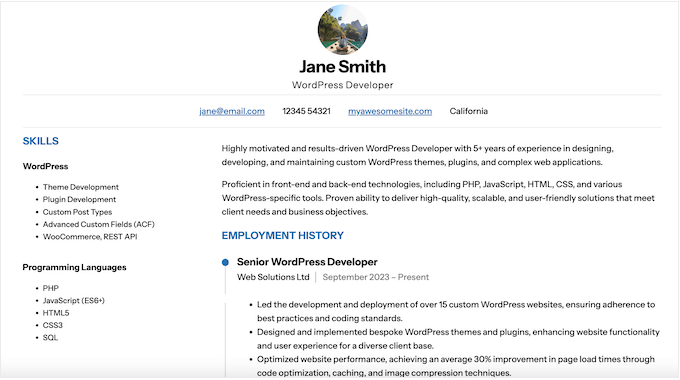
Resume Builder has sections where you can add all your contact information, a list of your skills, and create a timeline of your work history. It then displays all this information in a nice layout that you can add to any page or post, using a shortcode that the plugin creates automatically.
The first thing you need to do is install and activate the Resume Builder plugin.
Once that’s done, go to Resumes » Resumes. On this screen, select ‘Create a Resume.’
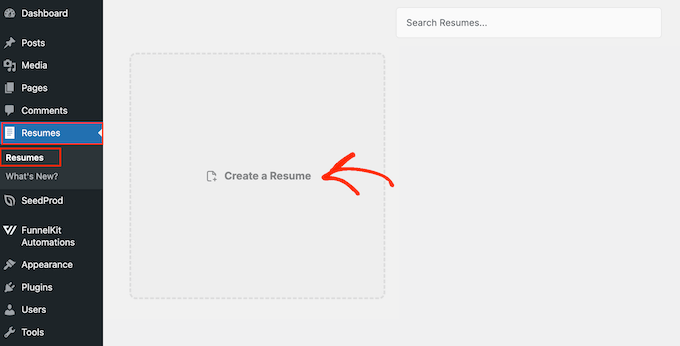
This will open a popup where you can start building your online resume.
Let’s start by adding a professional headshot that the plugin will display at the top of the page. To do this, click on ‘Upload Photo.’
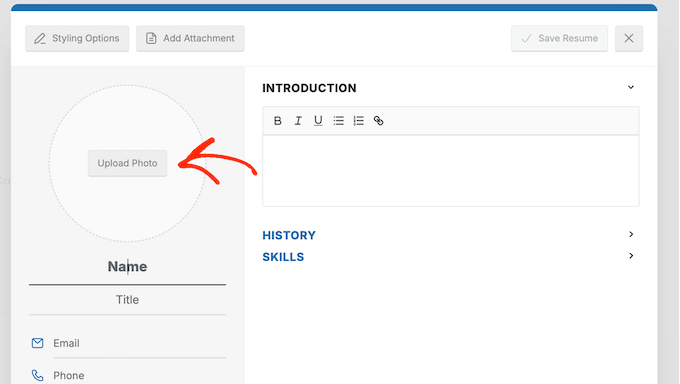
You can then either select an existing photo from your WordPress media gallery or upload a new one.
After adding your photo, it’s time to enter your contact details. Next to each text field, simply type in the information you want to add to your profile.
For example, click the ‘Email’ field and add your email address.
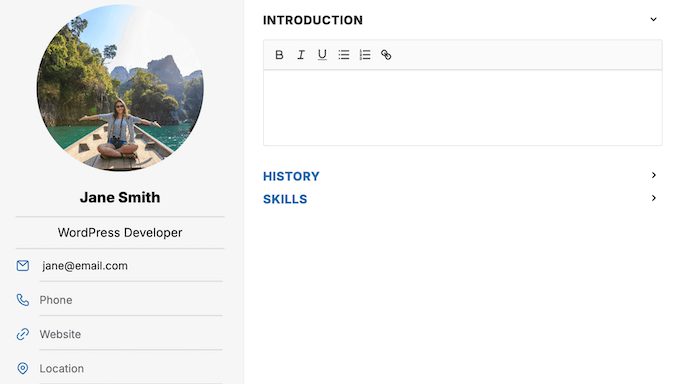
Resume Builder will display all these contact details in a banner right below your photo, so they’re easy to find.
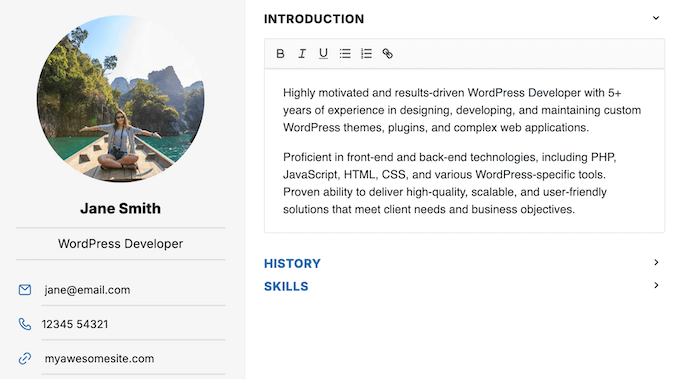
Next, you can add an introduction. This will appear directly beneath your contact information and serves as the visitor’s first impression of you.
It’s perfect for providing a quick overview of yourself before diving into the details of your skills and employment history.
To do this, click inside the text editor and type in all the information you want to include.
You’ll also find some basic text formatting options, so you can add bold and italic text, create lists, add links, and more.
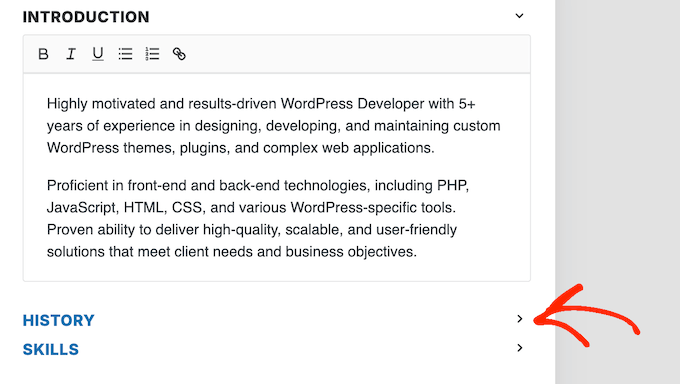
Next, you can move on to your employment history.
If it’s not already expanded, click to open the ‘History’ section.
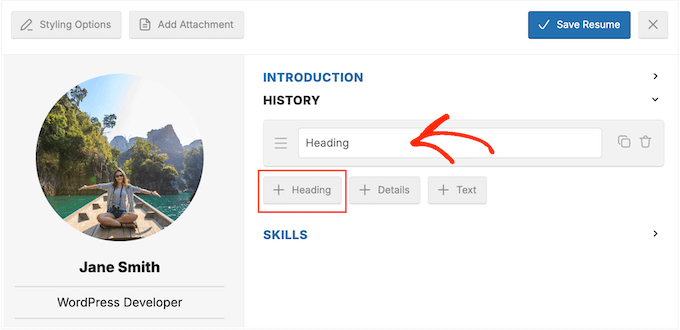
To make this section clear for visitors, let’s add a title.
Simply click on the ‘Heading’ button and type in a title like ‘Work Experience’ or ‘Employment History.’
With that done, click on the ‘Details’ button.
This adds a new section where you can type in information about the company or school, add your degree or job title, and enter a date range.
You can also type in a short description explaining this role and your responsibilities.
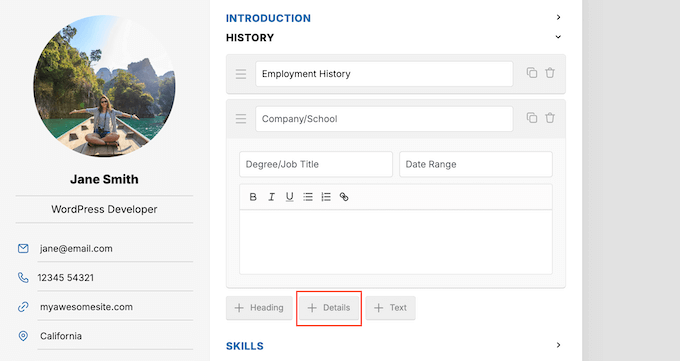
When you’re happy with the information you’ve entered, click the ‘Details’ button again and type in the information about your next job or educational achievement.
You can repeat these steps to add your complete employment and education history.
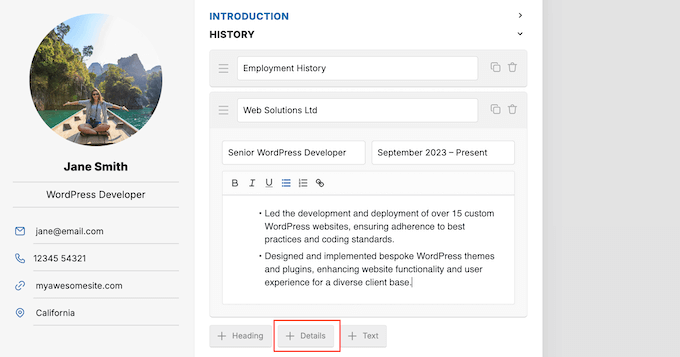
Just be aware that Resume Builder displays these items in the order they appear in your WordPress dashboard. So, make sure to rearrange them using drag and drop, if needed.
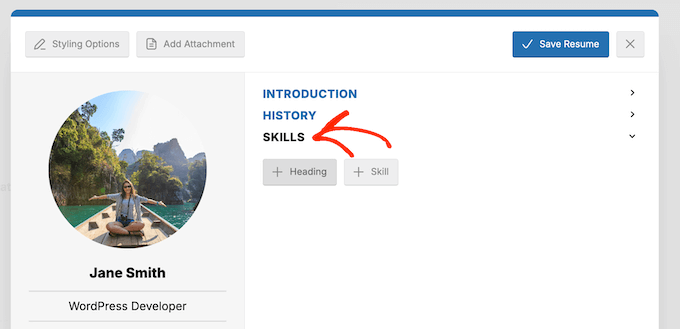
Once that’s done, it’s time to add your skills. You’ll build this section much like your employment history, so click to expand the ‘Skills’ section.
Now, click ‘Heading’ and type in the text you want to display above this section.
I’m using ‘Skills,’ but you can use anything you want.
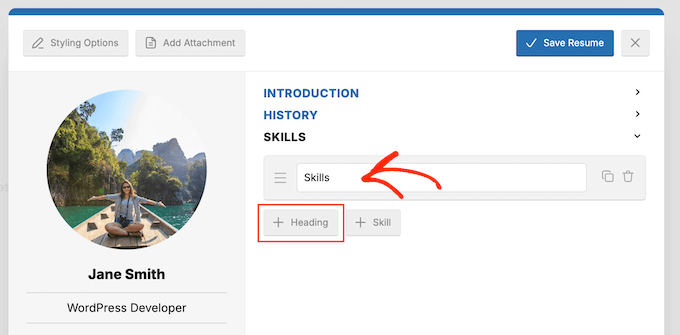
After that, click on ‘+ Skill.’
Now, you can type in a title for your first skill and provide more information in the text box below it.
Once again, you have access to all the essential text formatting options. This means you can create lists, highlight important text using bold or underlined effects, or even link to a related resource.
For example, you might link to a previous project that shows you using that skill.
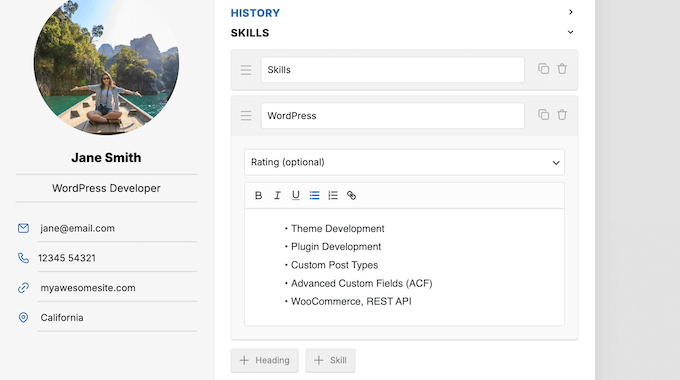
When you’re happy with the information you’ve entered, click the ‘+ Skill’ button again and type in the details for your next skill. Just keep repeating these steps until you’ve added all your skills.
Sometimes, you may want to add attachments to your resume.
I’ve seen freelancers attach a PDF catalog of their previous work, while other job seekers might attach a downloadable copy of their entire resume.
This is a good idea if you think potential employers might want to save a copy of your resume for later review or to keep on file.
In that case, click on the ‘Add Attachment’ button and then select the resource you want to add to your resume.
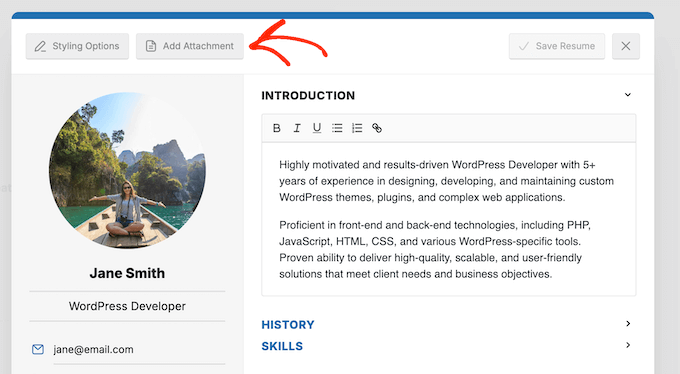
Finally, you’ll want to review the plugin’s styling options and make any necessary changes to ensure the resume perfectly matches your personal branding or WordPress theme.
To do this, click on ‘Styling Options.’
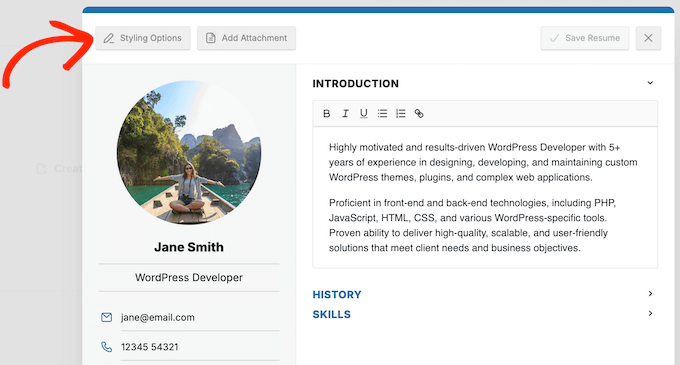
This opens a new window where you change the colors, photo size, alignment, and more.
After making any necessary changes, click on the ‘Save Resume’ button.
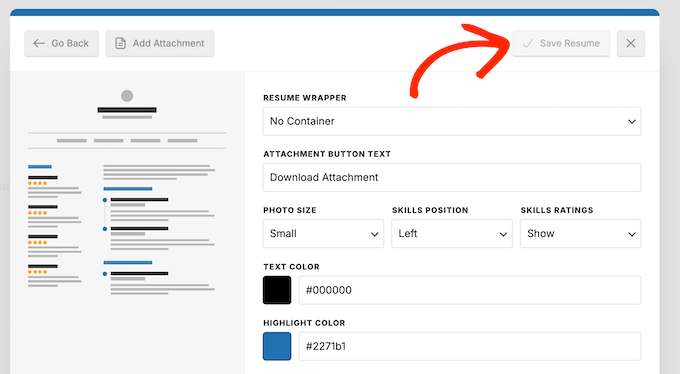
This takes you back to the Resumes » Resumes screen.
Hover your mouse over the resume you just created and click on the ‘Copy Shortcode’ icon when it appears.
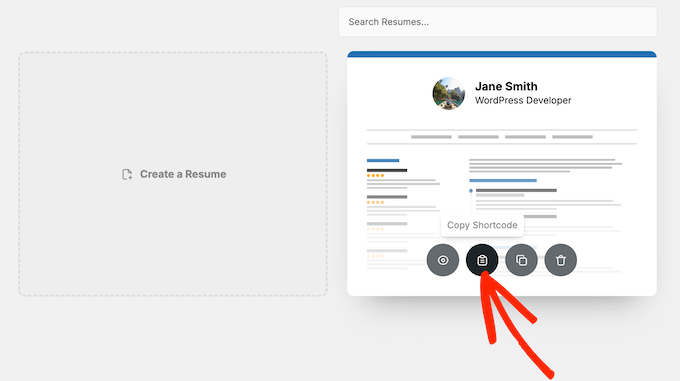
You can now add this resume to any page or post, using the shortcode.
For a complete guide on placing the shortcode, please see our guide on how to add a shortcode in WordPress.
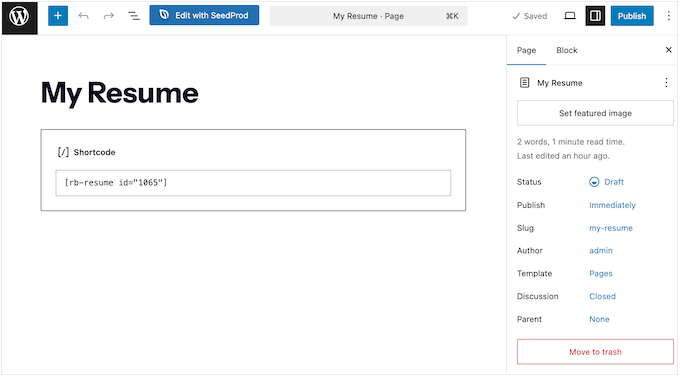
With all that done, just update or publish the page as normal. Then, you can visit your live website to see the online resume in action.
Method 2: Using SeedProd (For Full Design Control)
If you want complete control of your resume’s design, then I highly recommend using a page builder plugin. This lets you create a custom layout that will impress potential clients or employers, and gives you far more flexibility than a basic resume plugin.
For this, I’ll use SeedProd, which is the best landing page builder for WordPress.
SeedProd makes it easy to create a stunning online resume with a unique design, all using simple drag and drop.
It’s incredibly flexible, so you can add as much information and any element you want.
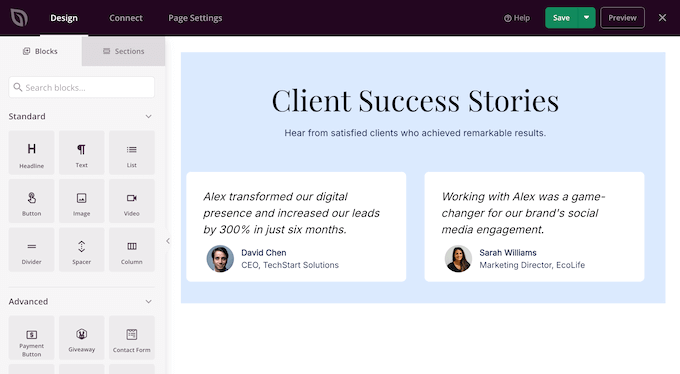
For example, SeedProd has a built-in Testimonials block where you can display all the feedback you’ve received from previous employers or clients.
💡 I’m not just recommending SeedProd without a solid reason. We’ve personally used it to build many of our partner websites, like Duplicator, WPForms, and WP Charitable.
This direct, hands-on experience has shown me just how powerful and useful SeedProd is for all kinds of projects. If you’d like to learn more about our experiences with SeedProd before you decide to use it for your online resume, then take a look at our in-depth SeedProd review.
Step 1: Install and Setup SeedProd
The first thing you need to do is install and activate the SeedProd plugin. For more details, see our step-by-step guide on how to install a WordPress plugin.
🌟 While there’s a free version of SeedProd available on WordPress.org, I’ll be using the pro version in this guide. This premium page builder has a ton of advanced blocks that can make your resume truly stand out. This includes Testimonials, Image Carousel, Social Sharing, and Contact Form blocks.
After activating the plugin, SeedProd will ask for your license key.
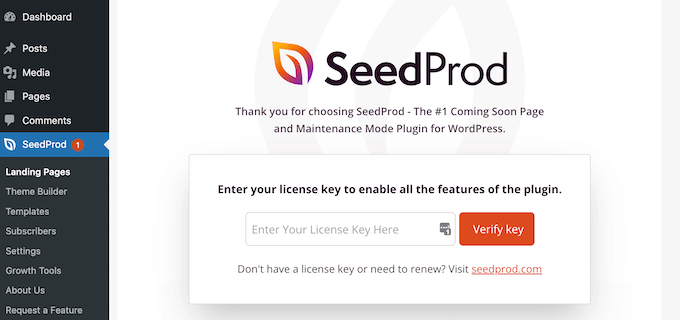
You can find this information in your account on the SeedProd website.
Once you enter it, just hit ‘Verify Key.’
Step 2: Create a Landing Page
After entering your license key, you’re ready to create your online resume.
To do that, go to SeedProd » Landing Pages in the WordPress dashboard. Here, click on the ‘Add New Landing Page’ button.
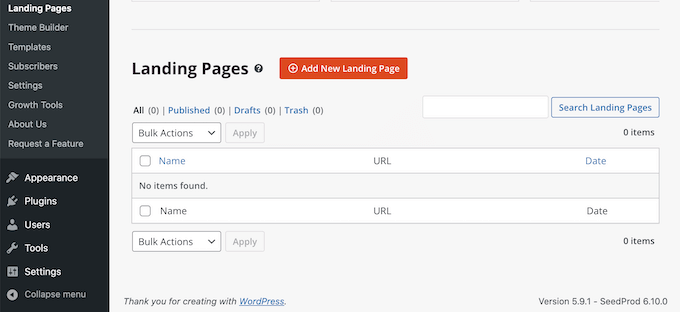
SeedProd has tons of professionally designed templates for various projects. These range from lead squeeze pages to coming soon pages.
There’s also a Personal Links template, which can be useful if you want to create a ‘link in bio’ page and promote yourself across social media sites.
To take a closer look at any design, simply hover your mouse over that template. Then, click on the magnifying glass icon.
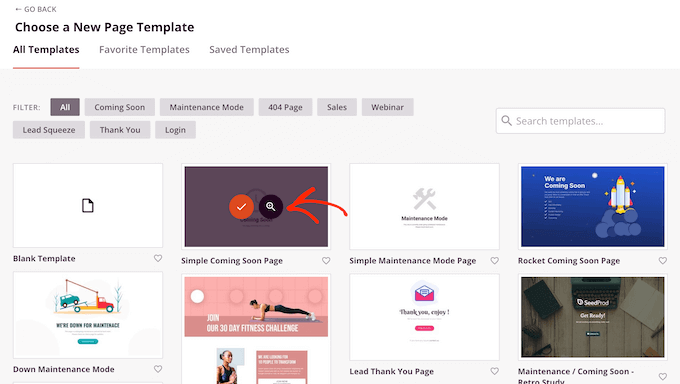
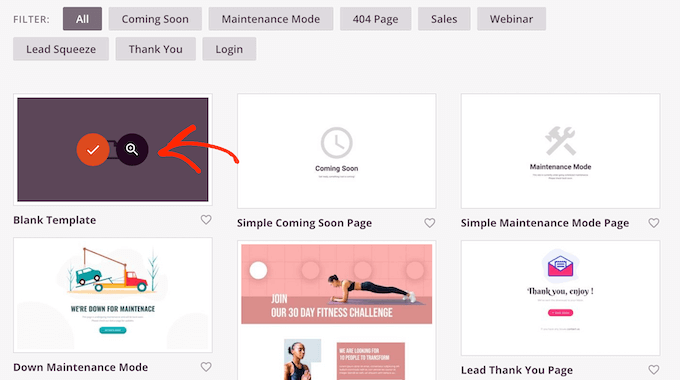
When you find a design you want to use, click on ‘Choose This Template.’
In this guide, we’ll be using the ‘Blank Template.’ It provides a fresh starting point, so you have the freedom to design your online resume exactly as you want it.
After choosing your template, you can give the page a title and enter its URL.
This is the web address where your online resume will appear.
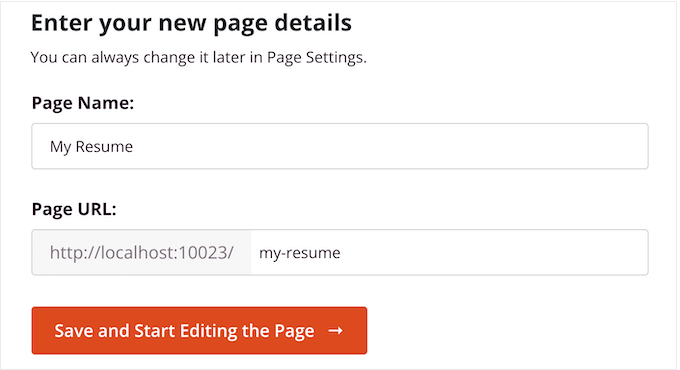
A descriptive URL can help search engines understand your page’s contents. This will make it easier for them to show your page to the right users – including potential clients or employers.
With that said, it’s a good idea to include relevant keywords in your URL, such as ‘resume,’ ‘CV,’ or even something that reflects your specific experience, like ‘wordpress-developer.’
Next, click on ‘Save and Start Editing the Page’. This will load SeedProd’s drag-and-drop editor.
Step 3: Build Your Online Resume
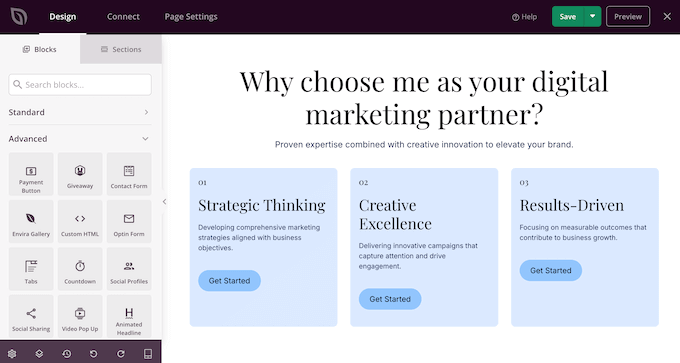
At this point, you’ll see that the editor shows a live preview of your page on the right, and a menu on the left.
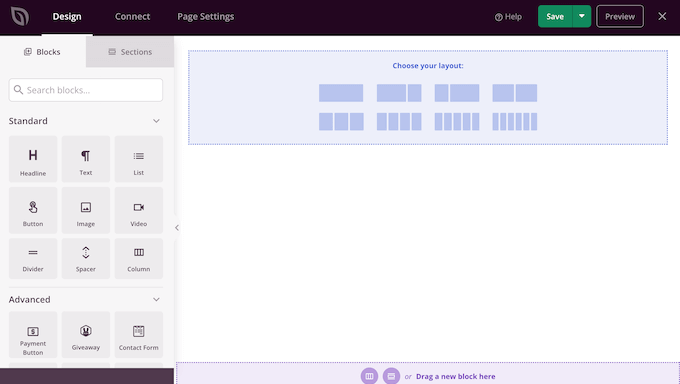
The first thing we’re going to look at are ‘blocks,’ as they’re the core components of all SeedProd layouts. You can create a compelling, multimedia resume simply by dragging blocks onto your page.
You can easily add features like buttons for calls to action, images to showcase your work, star ratings for testimonials, or even pricing tables if you offer services.
You can also use SeedProd blocks like spacers, columns, and dividers to organize and structure your online resume.
It’s easy to customize any SeedProd block. Simply click on the block, and the left-hand menu will display all the settings for that block.
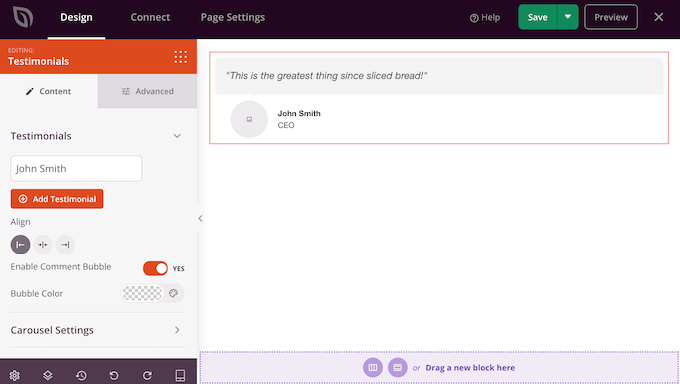
You can also move blocks around your layout by dragging and dropping them. This makes it easy to create an attractive and engaging online resume with a completely custom look.
For certain blocks, like text, headlines, and images, you might want to use SeedProd’s built-in AI feature to generate content.
This can be very helpful if you need a little extra assistance when it comes to promoting yourself and your skills effectively.
Whether you’re having trouble finding the right words to describe a past job or want catchy headlines that capture the visitor’s attention, this AI tool can help you perfect your messaging.
For more information, check out our guide on how to use AI to boost your marketing and how to use AI to generate images in WordPress
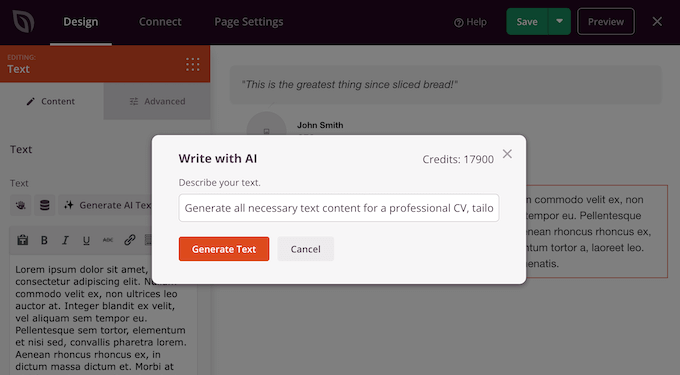
Now, let’s look at an example of how you’d work with a block in SeedProd.
To begin, you’ll typically want to add a Headline. This could be your name or something descriptive like ‘Online Resume.’ This helps potential employers and customers know they’re in the right place.
To do this, you first need to choose a layout for this section. Since I want my headline to appear on its own line, I’m selecting the single-column layout.
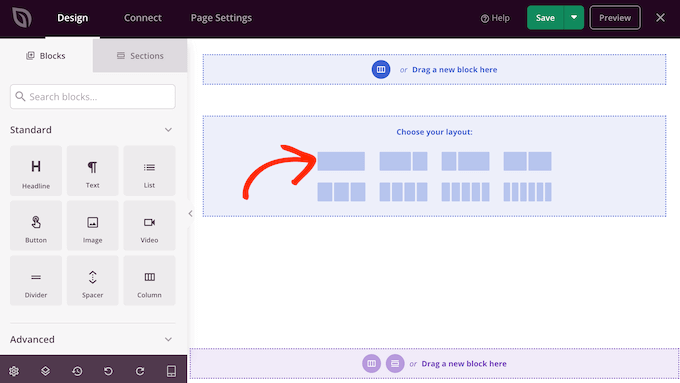
Then, find the ‘Headline’ block in the left-hand menu.
With that done, drag and drop the block onto the SeedProd canvas.
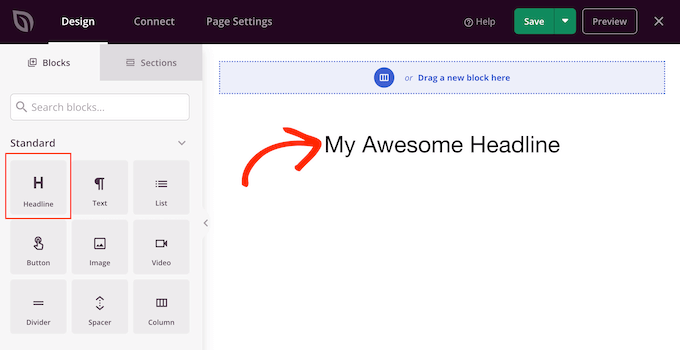
Now, simply click to select this block in the live preview.
SeedProd will automatically show all the settings you can use to customize that block, such as changing its alignment and font size.
You can also type your text directly into the small editor, and it will appear instantly in the live preview.
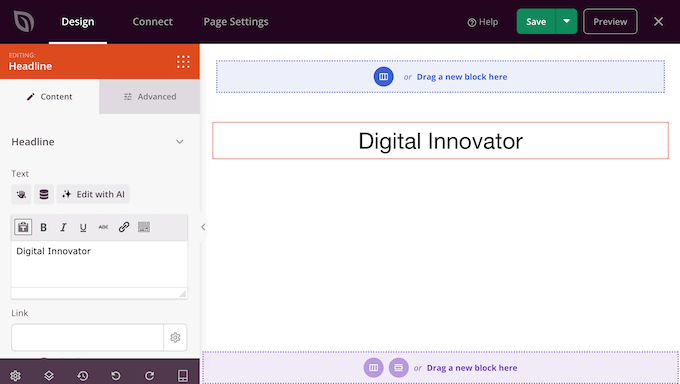
You can also find additional options by selecting the ‘Advanced’ tab.
The options you see will vary depending on the block, but for a ‘Headline’ block you’ll have choices like adding a text shadow, adjusting the spacing, and even applying animation effects.
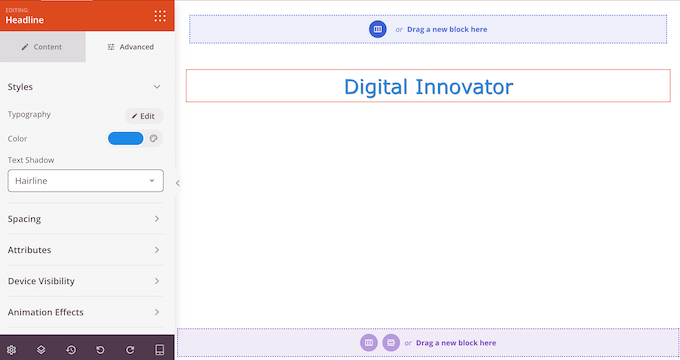
This is the basic process you’ll follow to create your online resume with SeedProd.
Simply choose a layout for each section, add your blocks, and then customize each block using the settings in the left-hand menu.
Step 4: Add Ready-Made Sections (Optional)
In addition to layouts, SeedProd also comes with ‘sections.’
These are pre-designed rows and block templates that can help you build your online resume quickly. For a resume, you might want to look at sections like Testimonial, Client, and Contact.
You can see all these sections by clicking on the ‘Sections’ tab.
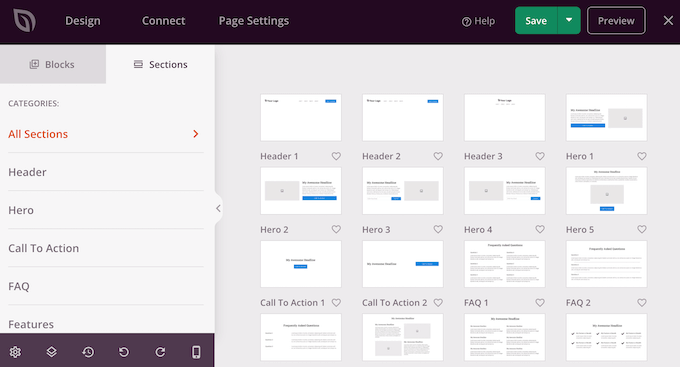
From here, you can preview any section by hovering over it. When the magnifying glass icon appears, click it.
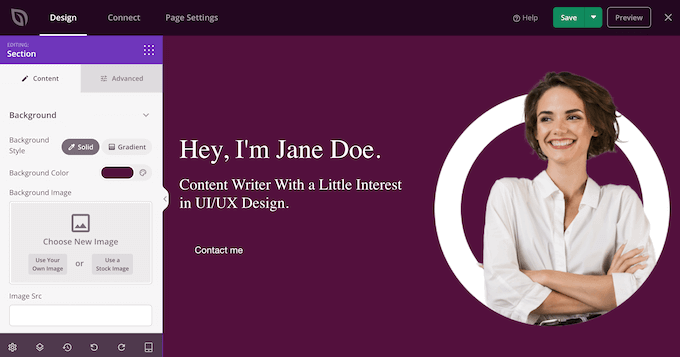
To add this section to your page, click on ‘Choose This Section.’ SeedProd will then create the section at the very bottom of your online resume.
Step 5: Preview and Publish Your CV
As you’re adding blocks and sections, you may want to check how your online resume looks. You can see your overall design at any time by clicking the ‘Preview’ button.
This will open your resume page in a new browser tab.
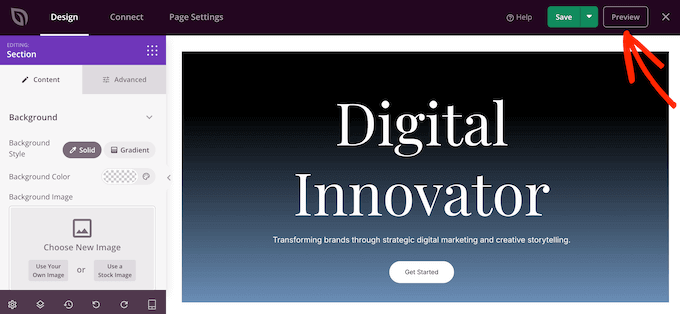
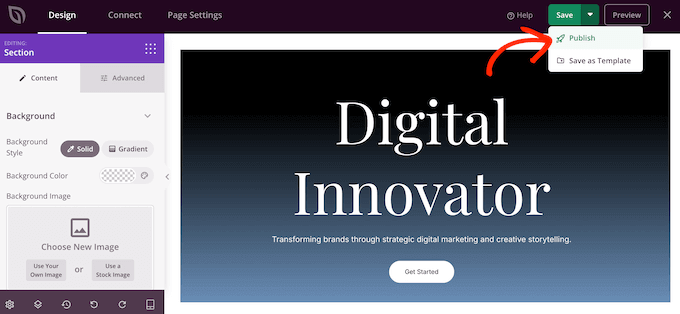
When you’re happy with your design, you can click the ‘Save’ button and then choose ‘Publish.’
Your online resume will now be live on your WordPress blog or website.
Final Thoughts and Next Steps
Creating a professional online resume in WordPress is a smart step that can significantly improve your job search.
After publishing your resume, it’s important to regularly update and customize it. That way, you always present the most current and accurate reflection of your skills, achievements, and professional journey to potential employers and clients.
To get the most out of your online resume, it helps to look at more resources with tips and deeper insights. That said, here’s my pick of must-read WPBeginner articles that’ll show you how to make your WordPress website even better:
- Ultimate WordPress SEO Guide – Help recruiters find your resume by optimizing your site for search engines.
- The Ultimate Guide to Boost WordPress Speed & Performance – Get actionable tips on how to improve your site’s loading speed. This is essential for both your search engine rankings and the user experience.
- How to Add a Contact Form in WordPress – Add a contact form to your WordPress site so potential employers can reach out to you directly.
- How to Add a Portfolio to Your WordPress Site – Make your resume even better by showing off your best projects and work in an attractive online portfolio.
I hope this article helped you create a professional online resume in WordPress. Next, you may want to see our expert picks of the must have WordPress plugins, or our guide on how to create a landing page in WordPress.
If you liked this article, then please subscribe to our YouTube Channel for WordPress video tutorials. You can also find us on Twitter and Facebook.


Angel
I don’t have the same sections that you show here and on the video. I have Information, Experience and Skills, and well as Shortcodes. So I can’t customize anything at all.
WPBeginner Support
This article was last updated in 2015, we will be sure to look into updating this article when we are able.
Admin
Bart Jansen
Hi!
How can I change the link under which the resumes are stored?
Right now it goes under domainname/resume/chosen title
I want to specify that link myself. I want it to go under domainname/about-me/chosen title
Ronald
Hi there,
Great plugin!
I am looking for this to let my customers make a good resume for theme selves, so is it possible that customers can use this plugin by filling out the form on my own website as a service?
Ron
Quân Lương
This is create a resume in wp-admin. How to create a resume by a customer / register in layout ?
house
This post inspire me^^ I’will try programming for resume shortcode plugin!
Good Post!
Manuel
Wow, I really like that plugin! Can’t wait to use it on my own webpage. Thanks for sharing this
filip
i tried it, but everytime i have an white page when i view it with “view page”.
i dont know what i do wrong, i can fill everything in and the shortcodes work but the default template doesnt work.
WPBeginner Support
You need to be using SEO Friendly URL structure for WordPress. If you are already using permalinks then you need to visit Settings » Permalinks and simply click on save changes button to update your permalinks without changing them.
Admin
Don
Is there a similar plug-in for .com.? I would like to change my about page (at least the top of it) to something similar to a resume…
Manuel
Hey Don, I’m afraid that there is no such plugin. Anyway I don’t know all plugins of wordpress.com. So it’s possible that there is one which is not resume specific but still can do the job of such a plugin.
Manuel
I’ve checked https://vip.wordpress.com/plugins/ and didn’t found one that is similar to the one described above. I’m sorry :/
Editorial Staff
Don’t think such plugins are available for WordPress.com
Admin
Benny Powers
Hey Guys!
I’ve installed the plugin and am running it with the Divi theme from Elegant Themes, but the resume page renders in the site’s footer!
WPBeginner Support
You can try copying the single-resume.php file into the root of your theme or child theme folder. Then you can make the changes to that file to match your theme.
Admin