


Most website owners don’t think about backups until the moment they really need one.
Whether it’s a plugin update gone wrong, a hacked site, or an unexpected server crash, having a recent backup can mean the difference between a quick fix and a total rebuild.
That’s why more WordPress site owners are turning to cloud storage solutions like Dropbox. It keeps your site files safe, off-server, and always accessible.
With a plugin like Duplicator, you can automate the entire process—no manual downloads or file transfers required.
At WPBeginner, we’ve helped many of our partner brands set up this exact solution because it’s fast, reliable, and beginner-friendly.
In this step-by-step tutorial, we’ll show you how to back up your WordPress site to Dropbox using Duplicator.
💡Quick Answer: How to Back Up WordPress to Dropbox
In a hurry? Here are the steps to quickly back up your site to Dropbox
- Install and activate the Duplicator plugin.
- Go to Duplicator Pro » Storage and authorize your Dropbox account.
- Navigate to Duplicator Pro » Backups and click ‘Add New’.
- Select Dropbox as your storage location and click ‘Create Backup’.
Why Back Up a WordPress Site to Dropbox?
Creating regular backups is essential for any website, but storing them on the same server is risky. By backing up to Dropbox, you ensure your data is safe in a separate, secure location.
Here are the main benefits of using Dropbox for your WordPress backups:
- Off-Site Security: If your website server crashes or gets hacked, your backup files stay safe in the cloud.
- Easy Access: You can access, save, and share your backup files from any computer or mobile device.
- Protection from Hardware Failure: Storing backups on your computer is risky if your hard drive fails. Dropbox eliminates this risk.
- Fast Restoration: Having a cloud backup allows you to restore your website quickly in case of a fatal error or security vulnerability.
In this article, we will show you how to back up WordPress to Dropbox. Here’s a quick overview of all the steps we will cover in this guide:
Let’s get started.
Connecting Your WordPress Site to Dropbox
The easiest way to create WordPress backups and save them in Dropbox is by using the Duplicator plugin. It is a beginner-friendly WordPress backup plugin that helps you back up, migrate, and clone your website.
Several of our partner brands trust Duplicator for handling their backups. They have consistently reported that it is a reliable and efficient solution for safeguarding data.
We have also researched and tested this tool in depth. To learn more, see our full Duplicator review.
One of the reasons we love the Duplicator plugin is that it easily integrates with different cloud services. This includes Dropbox, Google Drive, Amazon S3, OneDrive, FTP, and SFTP.
First, you’ll need to install and activate the Duplicator Pro plugin. If you need help, then please see our guide on how to install a WordPress plugin.
Note: We are using the Duplicator Pro plugin for this tutorial because it includes cloud storage integrations. There is also a free version of Duplicator, but it does not allow you to store backups in Dropbox automatically.
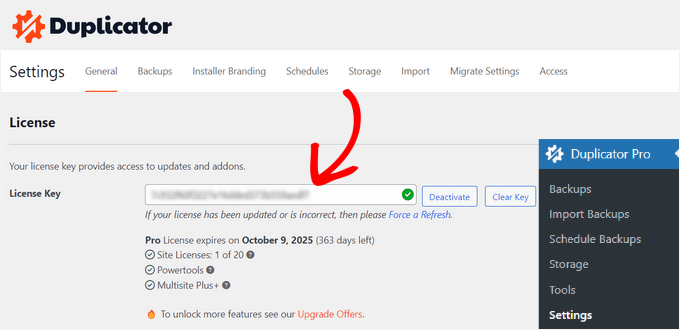
Upon activation, head to Duplicator Pro » Settings from the WordPress admin panel and click the ‘Licensing’ tab.
Next, enter your license key and click the ‘Activate’ button. You can easily find the license key in your Duplicator account area.
Once you do that, you need to connect your Dropbox account with Duplicator.
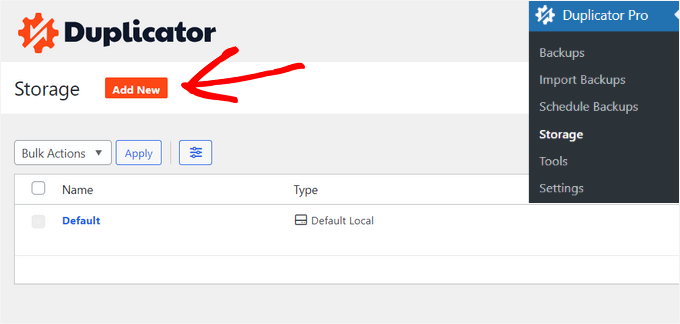
Simply go to Duplicator Pro » Storage from your WordPress dashboard. Here, you will see your local storage option where backups are stored by default.
Click the ‘Add New’ button to add Dropbox.
After that, enter a name for your new storage option so it is easily recognizable. For example, we will name it ‘Dropbox’.
The next step is to click the ‘Type’ dropdown menu and select the ‘Dropbox’ option.
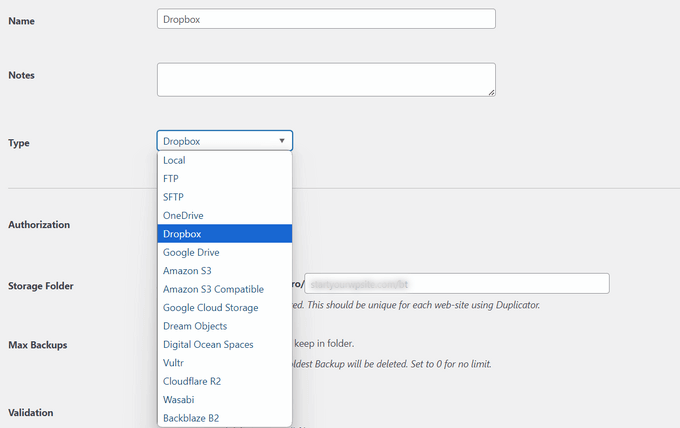
From here, you will see new settings for your storage option.
Click the ‘Connect to Dropbox’ button.
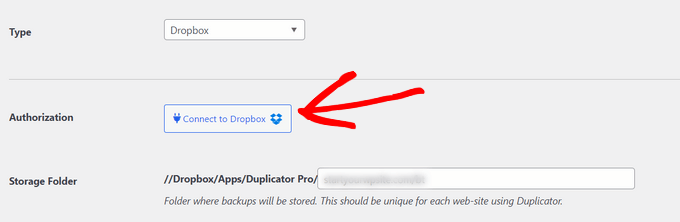
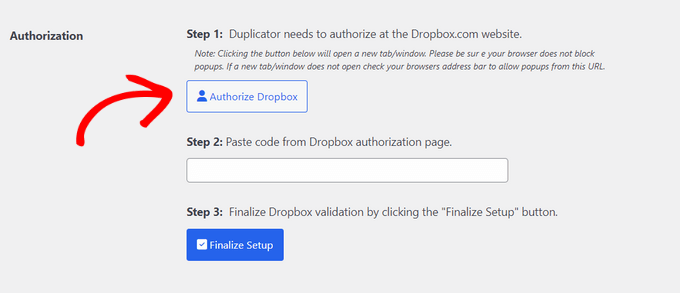
After clicking the button, more settings will appear in the Authorization section.
From here, you need to click the ‘Authorize Dropbox’ button.
Then, a new window or tab will open. Simply log in to your Dropbox account.
You can sign in with your Google or Apple account, or enter the email and password you used when signing up for Dropbox.
Once you are logged in, you will need to allow access to your Dropbox account.
Click the ‘Allow’ button.
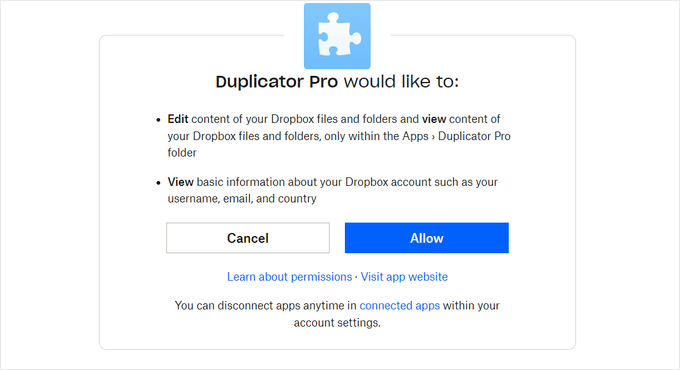
You will then see an authorization code.
All you have to do is simply copy this code.
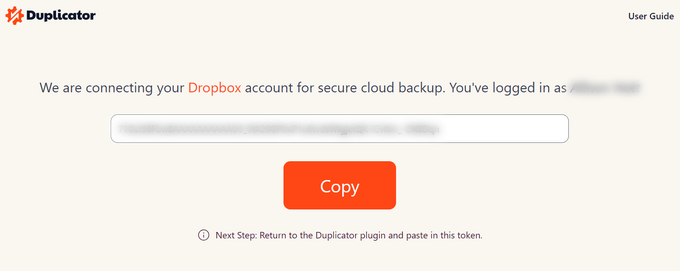
You can now return to the browser tab or window where you are configuring the Duplicator Pro storage settings.
Paste the code into the ‘Step 2: Paste code from Dropbox authorization page’ field.
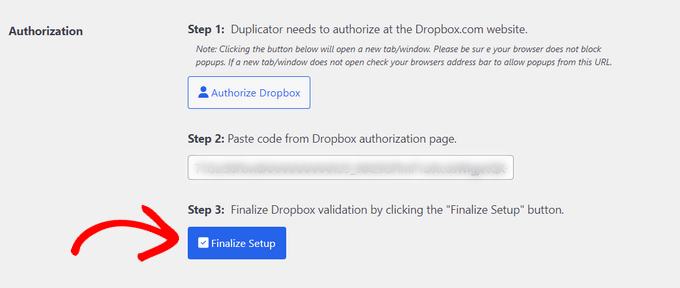
Once that is done, click the ‘Finalize Setup’ button.
You have successfully added Dropbox as a cloud storage option for saving your WordPress backups.
Creating a Dropbox Backup of Your WordPress Website
The next step is to create a backup of your WordPress blog or website and save it to Dropbox.
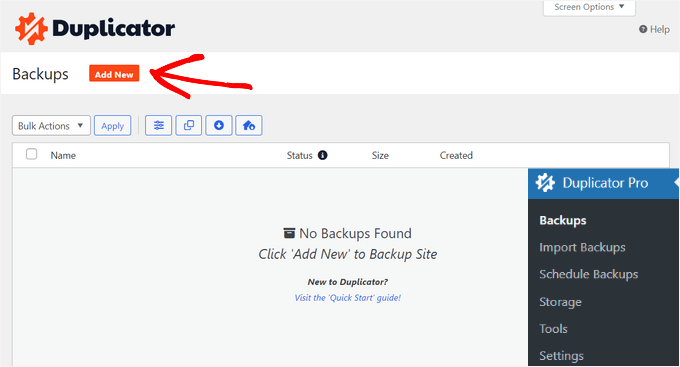
To start, go to Duplicator Pro » Backups from the WordPress admin panel and click the ‘Add New’ button.
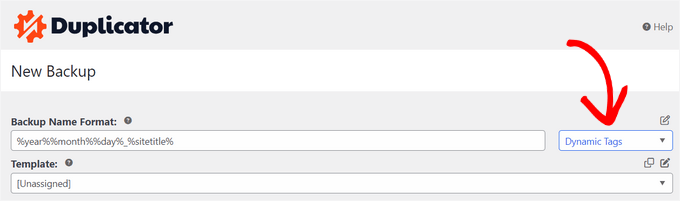
Then, name your backup package. You can also use the dynamic tags to automatically name your backup using a format like the date, time, and your site title.
In this panel, Duplicator will also let you select a template. We recommend keeping it as ‘Unassigned’ to preserve the settings from the last scan/build.
After that, expand the ‘Storage’ section.
Here, select ‘Dropbox’ as the storage option to store your WordPress backup.
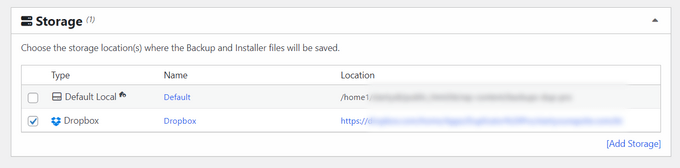
You can also change the ‘Backup’ settings before backing up your site. By default, the plugin will package your site’s content, plugins, themes, databases, and all other files.
However, you can customize your backup by selecting which part of your site to back up. For instance, you might archive only the WordPress database.
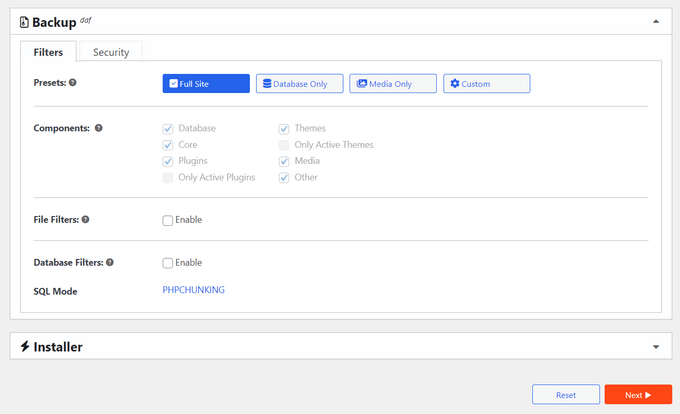
When you are done, simply click the ‘Next’ button at the bottom.
On the next screen, Duplicator will scan your website and check if everything is fine before creating a backup. You will see a notice or a warning for any issues that need to be resolved before backing up your site.
Once everything checks out, click the ‘Create Backup’ button.
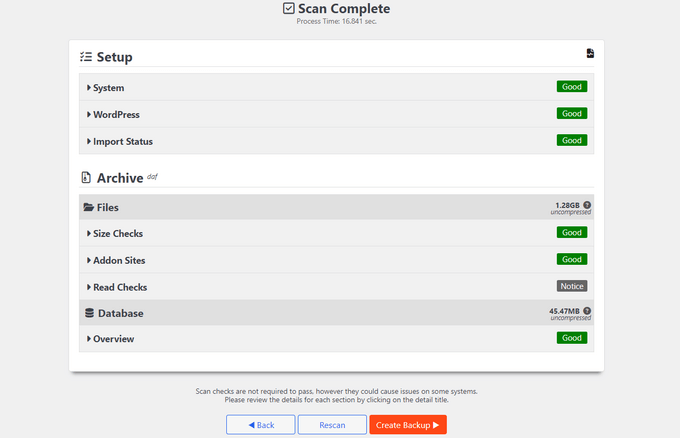
The plugin will take a few seconds or minutes to create a backup package. The time will depend on the size of the files and folders.
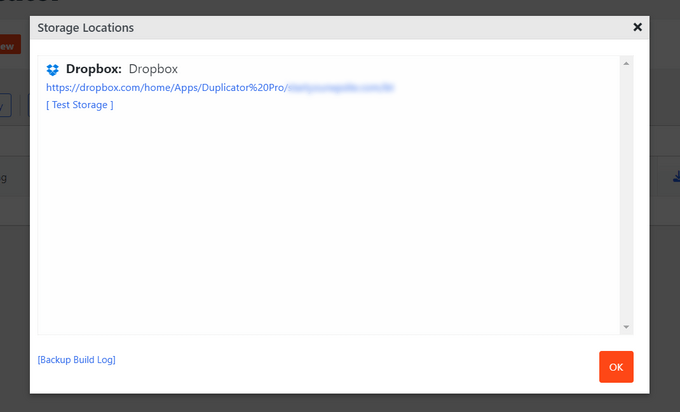
Once the package is ready, it will be saved in Dropbox. You can view the Dropbox location by clicking the ‘Storage’ icon.
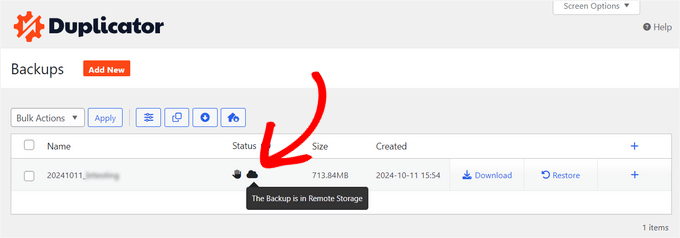
A new window will now open with the location.
You can simply click on the link to view your WordPress backup in the Dropbox dashboard.
Scheduling WordPress Backups to Dropbox (Pro Plugin Only)
With Duplicator Pro, you can schedule regular website backups and store them in Dropbox.
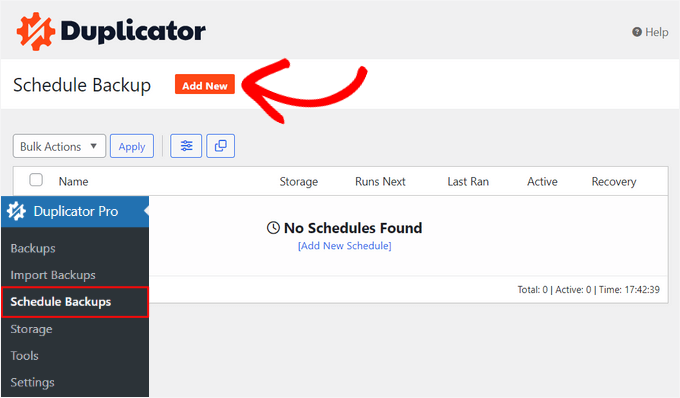
First, go to Duplicator Pro » Schedule Backups from the WordPress dashboard and click the ‘Add New’ button.
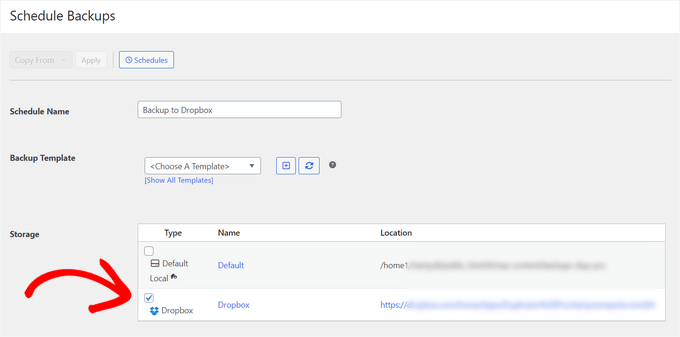
On the next screen, enter a name for your backup schedule and select a template. We recommend using the default template so that all your website files, folders, and databases are backed up.
After that, select ‘Dropbox’ as the storage location for your backups.
Then, scroll down and choose when the plugin should automatically create a backup.
You can select whether you would like to build a package hourly, daily, weekly, or monthly. For instance, if you select the weekly option, then you can choose which day to schedule the backup.
You can also choose the start time for your schedule. Lastly, make sure that the ‘Enable This Schedule’ option is checked so that your schedule is active.
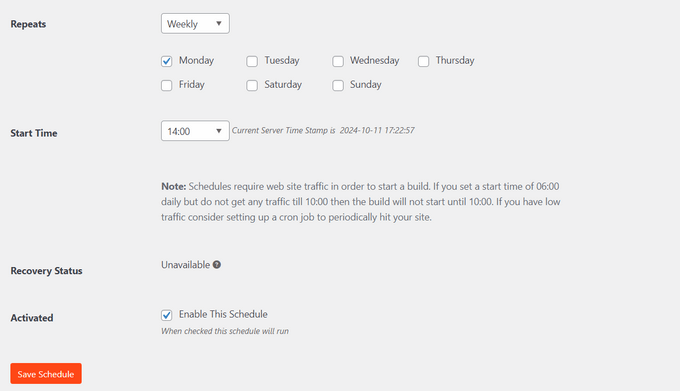
Once you are done, simply click the ‘Save Schedule’ button.
Restoring a WordPress Backup From Dropbox
Now that you have scheduled regular backups, you will always have a copy of your site in Dropbox. This way, you can easily restore the backup if there is a fatal error, data loss, or security breach.
Note: This method requires access to your WordPress dashboard. If a fatal error prevents you from logging in to your admin area, you will need to restore your site using FTP or the Duplicator recovery file.
To restore your site, first open your Dropbox account and head to the Duplicator Pro folder.
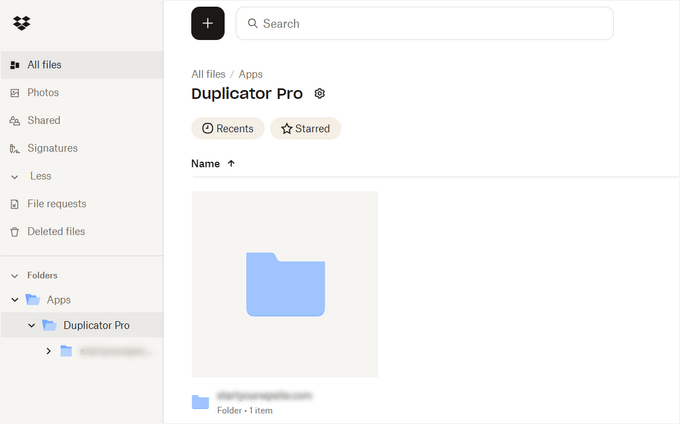
Next, select the website backup you would like to download.
Simply click the 3 dots icon and select the ‘Download’ option.
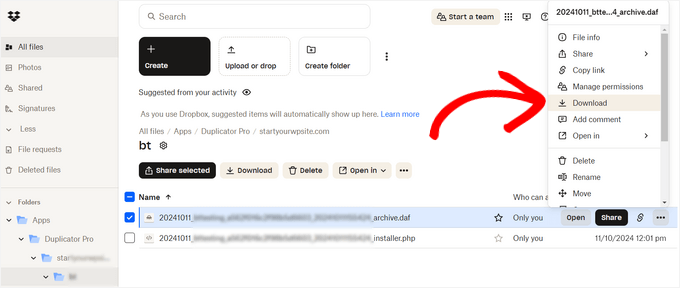
From here, save the zip file on your computer.
After that, go to your WordPress dashboard and head to Duplicator Pro » Import Backups. Click the ‘Select File’ button.
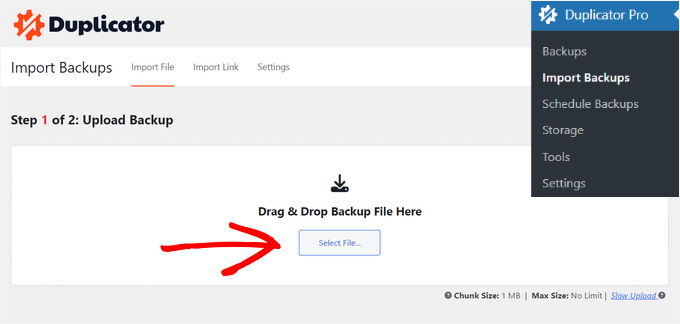
Next, select the zip file from your computer to restore the website backup.
Important: Restoring a backup will completely overwrite your current WordPress database and files. Any content created or changes made after the backup date will be lost
Once the file is uploaded, scroll down to see the package details. Simply click the ‘Continue’ button.
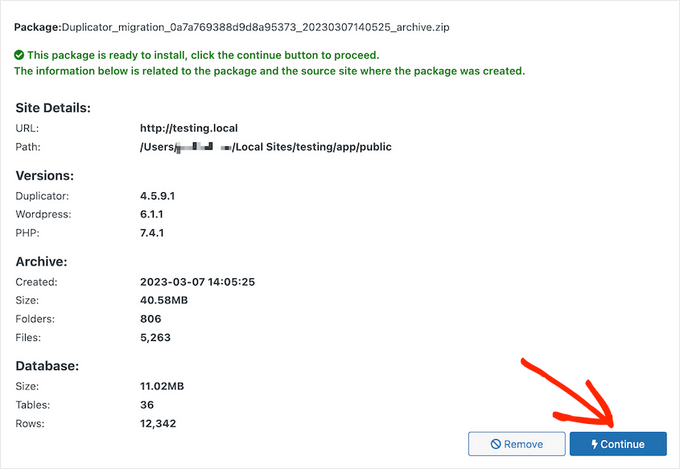
On the next screen, you will see an overview of your package. For instance, it will show the number of posts, pages, media files, plugins, and more that are in the backup.
Go ahead and click the ‘Launch Installer’ button.
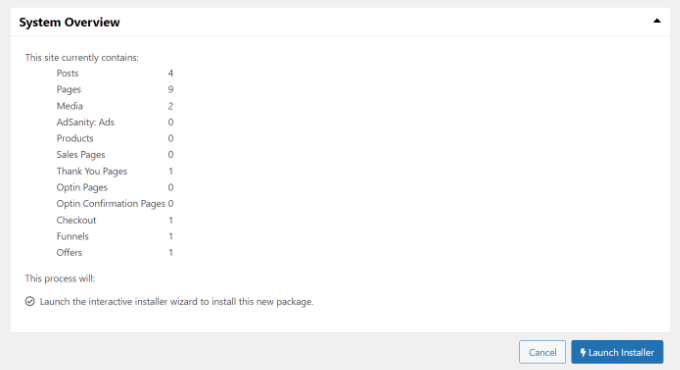
Once you click the button, the Duplicator installer wizard will launch.
First, you need to choose an ‘Install Type’ for your package. Select the ‘Restore single site’ option.
Next, scroll down to view the ‘Validation’ checkpoints. This ensures the system is ready to install the backup. Critical warnings (red) must be resolved before proceeding, but you can usually ignore minor notices (green).
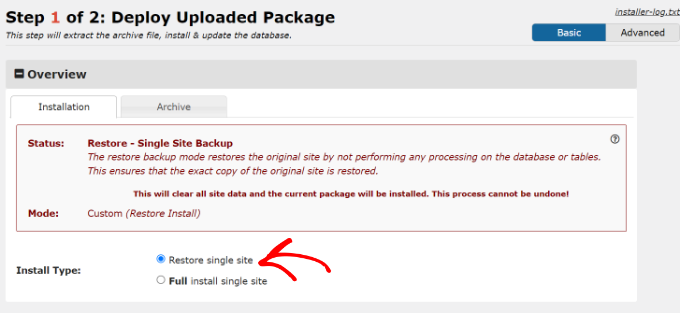
Once that’s done, click the checkbox for ‘I have read and accepted all terms & notices.’
Then, click the ‘Next’ button.
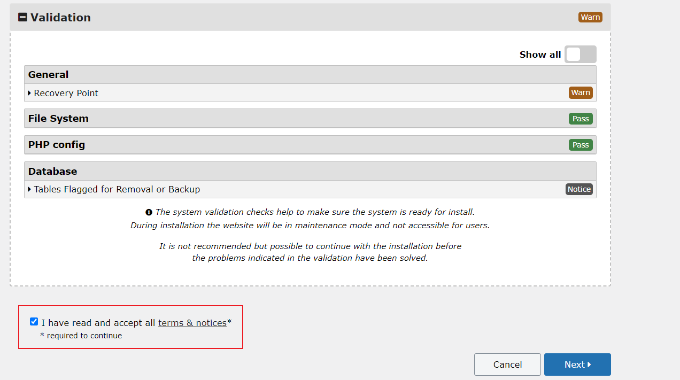
A popup will now open with install confirmation details.
Click the ‘OK’ button to move forward.
The plugin will now extract archive files from the package.
Once the extraction is finished, you’ll see the installation results. To complete the backup, you must click the ‘Admin Login’ button and log back in to your site to finalize the installation.
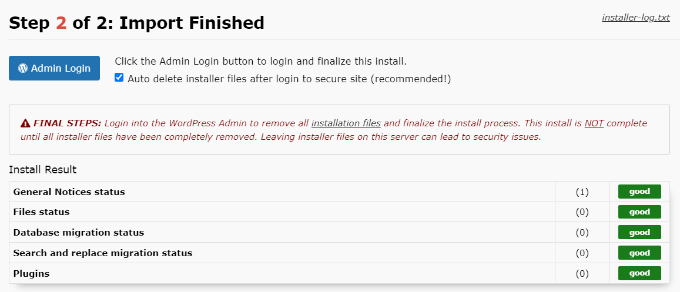
You have now successfully restored your website backup from Dropbox.
Frequently Asked Questions About WordPress Backups
Here are some questions that our readers have frequently asked before creating backups for their sites:
How do I back up my entire WordPress site?
The easiest way to back up your entire site is by using a plugin like Duplicator. It automatically bundles your database, images, themes, and plugins into a single package that you can store safely.
For more information, see our tutorial on creating a complete WordPress backup.
Can I download my WordPress site before I take it down?
Yes, you should always download a full backup before taking a site down. You can use a backup plugin to create a complete archive of your site and download the zip file directly to your computer.
How do I export a whole WordPress website?
To export a whole website, you must use a backup plugin rather than the default WordPress export tool. The default tool only exports text content, whereas a plugin like Duplicator exports your design, images, and settings as well.
If you’re interested, take a look at our guide on how to export a WordPress site.
Is it safe to back up to the cloud?
Yes, backing up to the cloud is considered safer than storing backups on your hosting server. Cloud storage isolates your backup files, protecting them from server crashes, hacking attempts, or hosting errors.
What is the disadvantage of Dropbox?
The main disadvantage of Dropbox is the storage limit on free accounts. If you have a large website or want to keep many backup versions, you may need to purchase a paid Dropbox plan.
What is the best WordPress backup plugin?
We recommend Duplicator as the best WordPress backup plugin. It is beginner-friendly, reliable, and offers seamless integration with cloud storage services like Dropbox and Google Drive.
How do I back up a WordPress website locally?
You can back up a website locally by downloading the backup package to your computer. In Duplicator, simply create a backup and click the ‘Download’ button to save the file to your hard drive.
Further Reading About WordPress Backups
Here are some helpful guides to explore different ways to back up your WordPress site and expand your backup options:
- How to Backup a WordPress Site
- How to Create a Complete WordPress Backup for Free With BackWPup
- Beginner’s Guide to Backing Up Your WordPress Site to Google Drive
- How to Connect Google Drive to Your WordPress Media Library
- How to Create WordPress Backup Using JetPack
- Ultimate Guide to Backing up & Restoring Your WordPress Site with UpdraftPlus
- How to Backup WordPress Multisite (Plugin + Manual Methods)
We hope this article helped you learn how to back up a WordPress site to Dropbox. You may also want to see our guide to WordPress security and our expert picks for the best Dropbox plugins for WordPress.
If you liked this article, then please subscribe to our YouTube Channel for WordPress video tutorials. You can also find us on Twitter and Facebook.




Jiří Vaněk
Sometimes with Duplicator, one needs to be careful regarding the terms of the web hosting provider. Duplicator creates a temporary folder on FTP to store the backup, then moves it to remote storage. If Duplicator fails during backup creation, the folder on FTP might become blocked. I’ve encountered this issue several times here in the Czech Republic. Providers here supposedly defend against people storing backups on FTP, so they prefer to block the entire folder, rendering everything non-functional.
WPBeginner Support
Thank you for sharing this in case someone else runs into this issue.
Admin
Dennis Muthomi
Cheers for sharing that insight!
That’s definitely something to keep in mind when setting up backups.
Always good to know about potential hiccups with different hosting providers. I’ll make sure to double-check my host’s policies before diving in.
Thanks for the HEADS UP!
Jiří Vaněk
You’re welcome. This issue can also occur if you run out of space on your FTP. For example, when the website is large. Duplicator first saves the backup to FTP, then sends it to the cloud, and only then deletes it from FTP. It saves it locally so that it can send it afterwards. Therefore, you need to have enough space on the FTP for the backup, even if you don’t plan to store it there permanently, so Duplicator can prepare it. Those who don’t have this information might encounter problems creating a backup, even if they’re not storing it on the FTP. I’m sharing this to help understand how this plugin works.
Ralph
There are two types of people :
1. People who do backup
2. People who will start doing backup after learning hard way
Jokes aside – I have backup made 4 times a day by my hosting but just in case I use plugin to save backup in cloud. I just don’t use dropbox but google drive instead but it is the same. I just use google drive more.
Whoever reads this guide: DO BACKUPS!
Dennis Muthomi
Haha, I’m definitely in that second category too!
Nothing teaches you the value of backups quite like losing site data. It’s a tough lesson, but boy does it stick with you. Now I’m religious about backing up my site.