


Many WordPress site owners think regular backups are enough to keep their website safe. But we’ve seen that assumption fall apart when their site crashes and they risk losing their entire business.
Suddenly, a small issue turns into lost sales, missed leads, and a lot of stress. And this often happens at the worst possible time, like during a big promotion, a traffic spike, or right after an update.
Without a clear disaster recovery plan, you’re left scrambling to figure out what to fix first and how to get your site back online.
A WordPress disaster recovery plan takes the guesswork out of those moments. Instead of panicking, you have clear steps to follow and a faster path back to a working site.
In this guide, we’ll walk you through the exact steps to prepare your site, reduce downtime, and stay ready – no matter what happens. 🛡️
Why Do You Need a WordPress Disaster Recovery Plan?
Even though WordPress is a powerful and popular platform, unexpected events can still take down your website. A WordPress disaster recovery plan acts like a roadmap for restoring your website.
Here’s why it’s important to have one:
- Minimizes Downtime and Data Loss: Disasters can strike in many forms, from hacking attacks to accidental deletion of files. A recovery plan helps you get your WordPress site back up and running quickly, minimizing the amount of time your site is unavailable.
- Protects Your Reputation: A WordPress website outage can damage your reputation and break user trust. A disaster recovery plan allows you to address the issue quickly and restore the user’s confidence.
- Ensures Business Continuity: If your website is important for your business, then a disaster recovery plan lowers the disruption to your operations. By getting your site back online quickly, you can limit revenue loss.
That said, we’ll walk you through how to create a disaster recovery plan. You can click the links below to move to any step:
- Step 1. Analyze Weak Areas of Your WordPress Site
- Step 2. Regularly Back Up and Test Your WordPress Site
- Step 3. Monitor WordPress Web Server Uptime
- Step 4. Strengthen Your Website Security
- Step 5. Hire a WordPress Maintenance & Support Service
- Step 6. Test Your Disaster Recovery Plan
- FAQs Around Making a WordPress Disaster Recovery Plan
- Additional Reads: WordPress Maintenance Guides
Let’s get started.
Step 1. Analyze Weak Areas of Your WordPress Site
Before you can protect your website, you need to know what you’re protecting it from. Start by thinking about the potential disasters that could impact your website.
For instance, server crashes, power outages, plugin conflicts, corrupted databases, and WordPress errors can temporarily make your site unavailable to users or restrict the user experience.
You can start by enabling the debug mode to see a log of WordPress errors on your site. You can do this by adding a code snippet to your wp-config.php file or by using a free plugin like WP Debugging.

Another risk you need to consider is hackers trying to steal your data, inject malicious code, or hold your website hostage for ransom. Accidentally deleting important files, installing incompatible updates, or falling for phishing scams can also cause disasters.
You can try to find vulnerabilities and weak areas on your site that hackers can target. This involves out-of-date plugins, WordPress core files, themes, weak passwords, and more.
It is also a best practice to document everything on your site. This includes website login details, plugin and theme settings, custom code snippets, hosting account information, and emergency contact information for your hosting provider, security experts, or web developers.
You can also use a cloud storage service or a password manager to keep your documentation safe and accessible. This way, if something goes wrong, you can recover important information in an instant.
Step 2. Regularly Back Up and Test Your WordPress Site
Once you know where your site is vulnerable, the next step is to make sure you always have a recent, complete backup that you can restore quickly if something goes wrong.
A proper backup should include everything on your site – content, images and media, themes (including child themes), plugins and their settings, user and customer data like comments and form entries, plus any custom code or configuration files.
The easiest way to manage all of this is with a WordPress backup plugin like Duplicator Pro. This plugin lets you create full-site backups and includes a built-in Disaster Recovery feature that enables you to roll your site back to a working version in just a few clicks.
It also supports scheduled backups, cloud storage, and site migration or cloning, which means most of the work runs automatically in the background.
Some of our partner brands use Duplicator to create and manage their site backups. You can learn more about the plugin and see what it offers in our full Duplicator review. Plus, there’s a free version of Duplicator that you can use to get started.
🧑💻 Pro Tip: While you can back up your site manually using FTP, your hosting file manager, or phpMyAdmin, this approach is more time-consuming and easier to mess up. For most site owners, an automated plugin is the safer option.
Since the Disaster Recovery feature is available in the Basic and higher plans, let’s create a Duplicator Pro account. On the Duplicator Pro website, go ahead and click the ‘Get Duplicator Now’ button to start. Then, you can choose a plan and complete the checkout process.
You will be able to find your license key in your Duplicator Pro account dashboard.
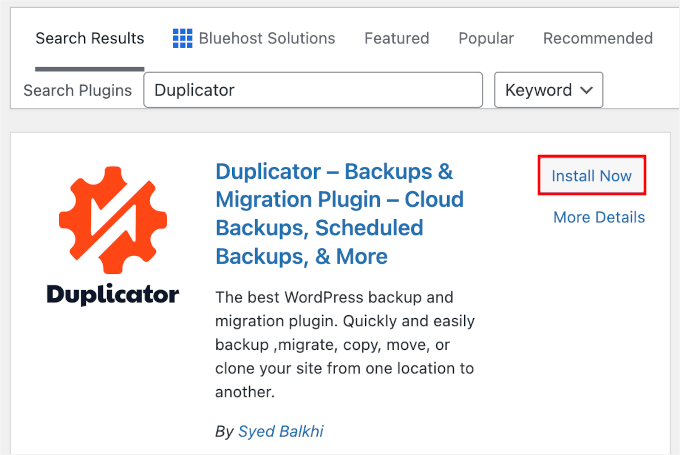
Next, you can install the free Duplicator plugin in your WordPress site. From your admin area, go to Plugins » Add New Plugin.

Then, you can use the search bar to quickly find the plugin.
Click the ‘Install Now’ button in the search result and hit ‘Activate’ when it appears.
See our guide on how to install a WordPress plugin for a detailed step-by-step.
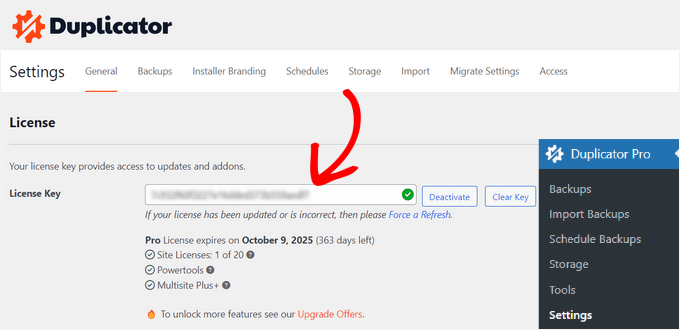
Then, let’s head over to Duplicator » Settings to activate your license key. You can find in it in your account on the Duplicator website.
Once you have the Duplicator Pro up and running, the next step is making sure its Disaster Recovery feature is set up correctly. This allows you to mark a specific backup as a recovery point and restore your site to that version if something breaks.
To do this, you can start by creating a full backup that includes all WordPress core files and database tables, without excluding anything critical. For the Disaster Recovery feature to work, this backup must also be stored locally on your server.
From your WordPress admin area, go to Duplicator Pro » Backups and click ‘Add New.’
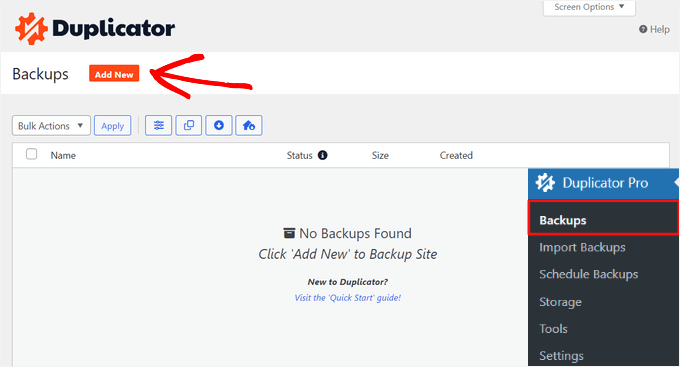
For step-by-step details, please see our guide on how to back up your WordPress website.
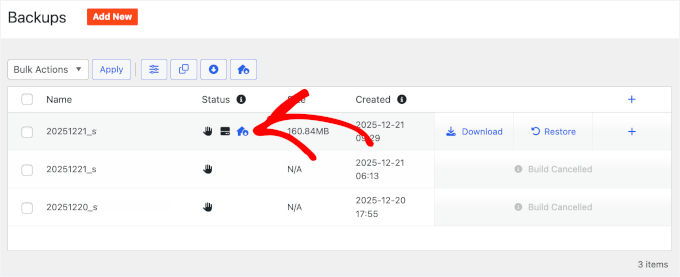
After the backup finishes, you’ll see it in your backups list inside Duplicator Pro.
If it’s eligible for Disaster Recovery, it will have a blue icon next to it. You can click that blue icon to assign that backup as your Disaster Recovery point.
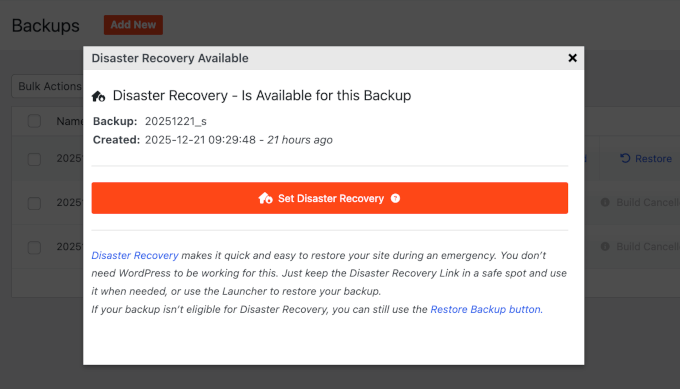
This will open the Disaster Recovery Available popup modal.
Go ahead and click the ‘Set Disaster Recovery’ button.
Once it’s set, the icon turns green, which means this backup is now your active recovery point.
From here, you can download the Launcher file (an HTML file) to your computer or copy the special Disaster Recovery link. We recommend saving the file and link in a safe place on your computer.
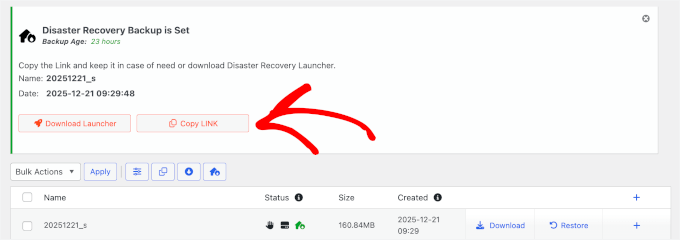
🚨 Important: If your website crashes or you get locked out of your admin dashboard, you won’t be able to access this backup list. That is why you must download the recovery launcher now while your site is still working.
Then, when disaster strikes, simply open that downloaded file in your browser or paste the link into a new tab.
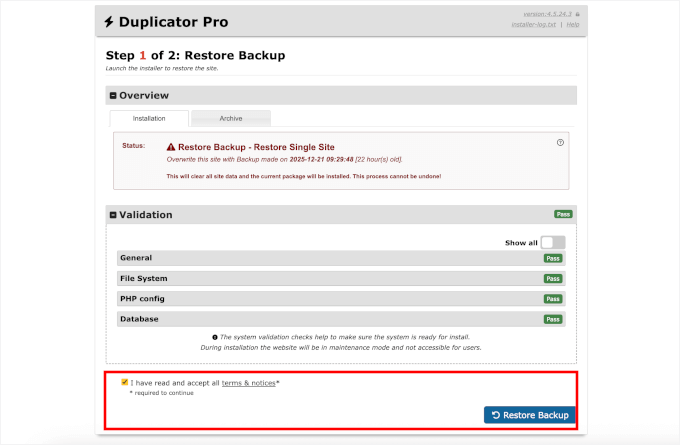
This will start the Recovery Wizard, which walks you through the restore process even if your WordPress admin area is inaccessible.
First, you’ll want to review the notices, agree to the terms, and click the ‘Restore Backup’ button.
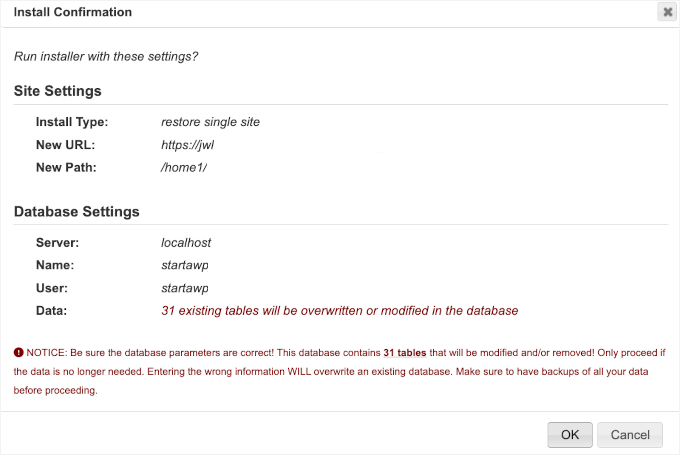
An Install Confirmation popup will then show your site and database details.
Once you confirm, Duplicator begins extracting the backup and restoring your site.
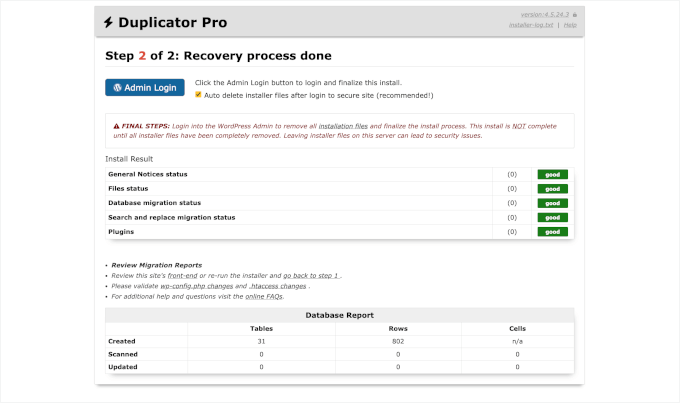
This can take a few minutes, depending on how large your WordPress site is.
When it’s finished, you’ll see a report of the restored files and database.
After the restore completes, you should visit your site and quickly check that everything looks and works as expected.
Because Disaster Recovery restores a complete backup, your site should match exactly how it was when that backup was created, as long as you didn’t exclude any files or database tables.
You can start with your homepage and your most important pages and posts, then test logins, contact forms, and checkout if you run an online store.
For details, you can check out our guide on how to restore WordPress from backup. This way, you can prevent data loss and get your site up and running in no time.
Step 3. Monitor WordPress Web Server Uptime
Another important tool for your disaster recovery plan is a server uptime monitor. Uptime is when your website is available to users on the Internet without any interruptions.
Uptime monitoring tools will monitor your site’s server and inform you whenever it’s down. If something goes wrong with your site, they will notify you immediately by email or SMS, allowing you to fix it as soon as possible.
For example, you can use UptimeRobot to monitor uptime. The best part is that it is free, but you can also sign up for its premium plans to receive alerts via SMS, voicemail, email, and other channels.
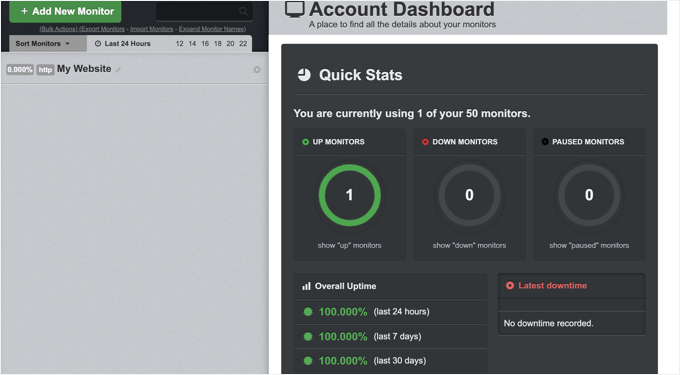
For more uptime monitoring tools, you can follow our guide on how to monitor your WordPress website server uptime.
If you receive an alert that your site is down, you can contact your hosting provider immediately. See our guide on how to contact WordPress support for more information.
Once the issue is resolved and your server is back online, you may need to clear your browser cache and DNS cache to see the live version of your site.
Step 4. Strengthen Your Website Security
A secure website is a website that’s less likely to experience disasters in the first place. In a WordPress disaster recovery plan, you can strengthen your site’s security by:
- Choosing Strong Passwords: Use unique and complex passwords for all your website accounts. If your disaster was caused by a hack or security breach, then it’s critical that you change all the passwords to new and strong ones immediately.
- Enable Two-Factor Authentication: You should enable two-factor authentication to add an extra layer of security for all your logins.
- Keep Everything Updated: Regularly update your WordPress core, plugins, and themes to patch security vulnerabilities. In case something goes wrong, ensure that you update your plugins, themes, and core files after recovering from a backup.
- Use WordPress Security Plugins: Install WordPress security plugins like Sucuri to scan for malware, block suspicious activity, and monitor your website’s security.
- Add a Web Application Firewall (WAF): In addition to a security plugin, you should also use a WAF on your site. It will prevent malicious traffic from reaching your site and causing a disaster.
For more security tips, please see our ultimate guide to WordPress security.
Step 5. Hire a WordPress Maintenance & Support Service
Another important part of your disaster recovery plan should be hiring WordPress experts who can fix problems quickly and restore your website.
There are many WordPress maintenance services you can choose from. They provide regular backups, monitor your site’s uptime, provide 24/7 support, optimize your site for speed, and help recover your website from any sort of disaster.
They will also ensure that your WordPress core, plugins, and themes are always up-to-date and that the latest updates won’t negatively affect your website’s performance.
Step 6. Test Your Disaster Recovery Plan
You won’t know how effective your WordPress disaster recovery plan is unless you actually test it.
For instance, you can simulate a disaster and test your plan by restoring your website from a backup to a local or staging environment. This will ensure that your backups are up to date and that the scheduled backups are working correctly.
In case there is a WordPress error while restoring the backup or you feel an important element is missing in the backup files, then you can fix it during the simulation.
You should also ensure that your website is functioning correctly, all your data is intact, and everything is working as it should.
FAQs Around Making a WordPress Disaster Recovery Plan
To help you get started and answer some of the most common questions, here are key FAQs around making a WordPress disaster recovery plan:
What is a WordPress disaster recovery plan?
A WordPress disaster recovery plan involves strategies and tools to quickly restore your website in case of unexpected downtime or data loss. It includes regular backups, security measures, and documented procedures to minimize disruption.
How often should I back up my WordPress site?
It’s recommended to back up your site at least once a week or more frequently if you’re making regular updates, such as adding new content or making design changes. Automated backup tools like Duplicator Pro can simplify this process.
What are the most common causes of website downtime?
Common causes include hacking attempts, server issues, plugin conflicts, and human errors such as accidental deletion of critical files. Regular monitoring and maintenance can help mitigate these risks.
Can I create a disaster recovery plan on my own?
Yes, many WordPress users successfully create their own recovery plans using online resources and plugins. However, if you’re unsure, consulting with a WordPress maintenance service can provide added expertise and peace of mind.
How can I test my disaster recovery plan?
You can test your plan by simulating a disaster, such as restoring a backup to a staging environment. This practice helps ensure your backups are functioning correctly and identifies any potential weaknesses in your plan.
Additional Reads: WordPress Maintenance Guides
We hope this article helped you learn how to make a WordPress disaster recovery plan.
Next, you may also want to see our guides on:
- Crucial Maintenance Tasks to Perform Regularly
- How Long Does WordPress Maintenance Take?
- How Much Does WordPress Maintenance Cost?
- WordPress Maintenance vs Managed Hosting
- Ultimate WordPress Maintenance Guide for Beginners
If you liked this article, then please subscribe to our YouTube Channel for WordPress video tutorials. You can also find us on Twitter and Facebook.




Dennis Muthomi
The emphasis on regular backups really resonates with me – just last month, a client’s site went down due to a plugin conflict, but we had it restored within 15 minutes thanks to our daily backup system.
One additional tip I’ve found valuable is keeping a separate backup of critical custom code snippets in a version control system.
This has saved countless hours during restorations, especially when managing multiple sites with custom functionality.
Olaf
Very well put. The core of any disaster recovery plan is regular website backups. If I may offer a tip: store backups externally, separate from the website’s storage. This easily solves the issue of a complete server failure. There’s nothing worse than creating regular backups only to store them in the same location as the website, then facing a costly and unsolvable problem if the entire machine goes down along with the site and its backups.
Samuel
I learned new information here today, in that I learned about UptimeRobot which I have not heard of before now. While I have always emphasize the need to be ready for any glitch in the running of your business websites, This article throw new perspective which I have not really thought of before now and that is simulating disaster to test the effectiveness of our planed. This is really important as it will allow us to know exactly what to do if the real situation happens. Besides, the UptimeRobot will help us to know immediately, of any underperformance in our server. Thank you for your insight on this. Great article.
WPBeginner Support
Glad we could share a new tool for you
Admin
Moinuddin Waheed
This one article is very close to my heart as I have been in such a disaster situation and have was unable to recover the website.
I completely agree and always recommend to have a solid backup plan. it should be regular and timely.
we should always test the backup solution to some local wordpress installation.
it the becomes easy to recover in case something bad or worst happen.
Mrteesurez
I understand you and thank for your recommendation. A solid backup plan is crucial. I once had a client’s site crash during a critical sales period, and thankfully, I had regular backups in place. The restoration process was smooth because I had tested the backups on a local WordPress installation beforehand. This experience taught me the importance of not just having backups but also ensuring they work when you need them most. It’s a lifesaver!
Absalom Singagwari
Its also critical that you choose a very reliable and prompt hosting service provider. Sometimes, you need to resort to the hosting service provider to assist with your recovery plan, for instance to provide server level error logs. If your service provider is sluggish, your recovery may take a little longer than it should have under normal circumstances.
So in your plan keep that in mind as well!
Kzain
is Cloudflare a good idea it uses basic WAF I use Cloudflare DNS and CDN, and it offers some security as well. And I never understood how backup works does it count towards my hosting data if I create daily backups does the previous one get deleted to save the space?
WPBeginner Support
It would depend on the specific tool you are using and the settings you set for where the data is stored and how backups are handled.
Admin
Jiří Vaněk
When it comes to FTP data and your tariff, it’s important to plan ahead for how you’ll handle backups. For instance, if you use Duplicator for backups and store them on FTP, those backups will consume space and count towards your tariff. Logically, backups stored on FTP will occupy space just like your website data and will consume resources. Additionally, this isn’t a good practice because both your main website and backups are stored in one place on one server. If something physically happens to the server, you risk losing both data and backups. Therefore, it’s much better practice to store backups in a different location, both physically and geolocationally. Physically, to eliminate the risk of having everything on one server, and geolocationally, to eliminate the risk of something happening to the data center or the provider failing. Personally, I have my website on one server and backups stored in two completely independent locations. Moreover, when you automate backups, you don’t have to worry about them. Yes, in Duplicator, you can set up backups to Google Drive, for example, with a maximum number of backups and older backups will be deleted accordingly. For instance, you can have 5 backups, and when the 6th is created, the first one will be deleted to maintain a constant set of 5 backups. Elegant and fully automated.
Mrteesurez
This reply has answered my question about how Duplicator replaces previous backups data .
Thanks for the advice you have given and your recommendation. I agree with the idea of keep the backups in another remote locations other than servers.
Jiří Vaněk
I have WordPress on my own server, and that’s why it was critically important for me to create a disaster recovery plan. Even from the perspective of a recently completed cybersecurity course, it is clear to me how crucial it is to maintain continuity and data availability in case of a disaster. Therefore, I never rely on just one backup in one place. I have a backup of the website in three separate locations, going back a month and automated. Thanks to this, I have copies of the website and MySQL up to 30 days back. What helped me with automation was Duplicator, which automates backups to Google Drive, and also the classic Cron on the server, which triggers backups to paid cloud storage. It’s great how detailed your plan is, that in addition to backups, you also focus on security, etc. A must-have article for beginners.
Mrteesurez
I gained more insights when read this article. The roadmap you gave is great and the tips there are helpful. It is a must for a professional website, a money making business website to take the matter of security very serious.
Thanks your helpful guide. I want to ask if there is a server crash and all data are gone, is there any solution to restore the data from the hosting level and who is responsible for the crash ?
WPBeginner Comments
Some hosting options offer backups as part of the hosting package.
The site owner is typically the one who will need to take action to restore the site, but this will depend on the hosting agreement and type of plan.
For example, if the hosting plan is more of a managed hosting plan, the hosting service may take care of some of the steps for you.
Jiří Vaněk
It depends on who is responsible for the crash. If it’s a hardware failure of the server, the server provider should be responsible, and they usually have their own disaster recovery solutions where they back up server data and can create a copy of the original within minutes. If the website crashes due to a user error, then you need your own solution because you are responsible for such a crash. For example, if you break the site with an update or it gets hacked. If you want to handle recovery with your own solution, I recommend Duplicator, especially if you don’t have much experience. With Duplicator, you can set up automatic backups to Google Drive, and you’ll have peace of mind because the plugin will perform the backups for you. And the restoration process is simple.
Mrteesurez
Thanks for your answer.
Do you have either how Duplicator keeps the backup as in, does it replace the previous backup data to store the new ones or create another storage path.
Kzain
i think To manage backup storage and delete older backups, you’ll need to do it manually. This involves deleting the unwanted backup files from the storage location (local or remote).