


Sometimes, you outgrow your website. Maybe you started a personal blog years ago and don’t post anymore, or you built a test site that you no longer need.
In other cases, a business may close down, and there’s no reason to keep the site online.
I’ve found that deleting a WordPress site correctly isn’t as straightforward as it might seem. In fact, there are some major differences between removing self-hosted WordPress.org sites and WordPress.com blogs.
I’ve also seen far too many users make irreversible mistakes when deleting their site, simply because they didn’t know about backup plugins or alternative options.
In this step-by-step guide, I’ll walk you through the entire process of deleting your WordPress.com or WordPress.org website. I’ll also cover the precautions you should take and alternatives you may want to consider before permanently removing your site from the internet.
In this in-depth guide, I’ll be covering a lot.
So, feel free to use the quick links below to jump straight to a specific section:
- Are You Sure You Want to Permanently Delete Your WordPress Site?
- WordPress.com or WordPress.org: Which One Are You Using?
- How to Permanently Delete a WordPress Site From the Internet
- How to Delete Your WordPress.org Website
- How to Delete Your WordPress.com Blog
- Bonus Tip: Remove Blog and Website Snapshots from Wayback Machine
- Frequently Asked Questions About Deleting WordPress Websites
Are You Sure You Want to Permanently Delete Your WordPress Site?
No matter whether you’re using WordPress.com or WordPress.org, deleting a website is a drastic decision. Often, it’s a more serious step than you need to take.
That’s why I always suggest asking yourself whether you’re sure about your choice, or if you should consider an alternative.
Here are some alternatives that can help you manage your blog without deleting it completely:
- Make your site private: You can change your site’s settings so only you can see its content. This hides your site from the public and search engines, stopping others from seeing your content without deleting anything. For a deep dive into this subject, see our guide on how to make your WordPress blog completely private.
- Change your site’s address to a different name: If you want a fresh start or a different brand, then you can change to a different domain name. This keeps all your existing content and settings while giving your blog a new online identity.
- Reset your blog: WordPress lets you remove all your posts, pages, media, and most settings. This essentially makes your site brand new while keeping your current address. To try this method for yourself, see our guide on how to restart a WordPress site.
That said, there are some cases when it makes sense to delete your website entirely.
Many people start a site with big plans. Whether it’s a personal blog, a hobby project, or even a business idea. But over time, things can change.
Maybe the site no longer brings in the traffic you hoped for, or you’ve shifted your focus and don’t need it anymore.
If you’ve decided it’s truly in your best interest to permanently delete your WordPress site, keep reading to find out how.
WordPress.com or WordPress.org: Which One Are You Using?
Whatever the reason, if you’ve decided it’s time to take your site offline, the first step is figuring out which version of WordPress you are using.
Here are the 2 options:
- WordPress.org is a popular open-source software that powers over 43% of all websites. It’s often called ‘self-hosted WordPress’ because you need to get your own hosting and domain name to use it.
- WordPress.com is a hosting service that uses the WordPress.org software. This means they handle all the technical stuff for you, and your blog is hosted on the WordPress.com servers.
💡 For a more detailed comparison, see our guide on the difference between WordPress.com vs WordPress.org.
If you’re unsure of which version of WordPress you’re using, the easiest way to tell is by looking at your website’s address.
- If the address ends with .wordpress.com (like myblog.wordpress.com), then you’re using WordPress.com.
- If your site has a custom domain name like wpbeginner.com, you’re most likely using WordPress.org. However, this isn’t always the case, as paid WordPress.com plans also support custom domains.
Another quick way to check is within your WordPress admin area. You can try hovering over the WordPress logo in the top-left corner of the screen.
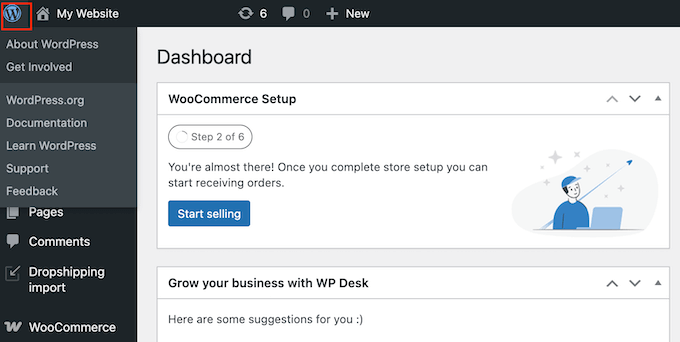
If you see menu items such as ‘About WordPress,’ ‘Get Involved’ and ‘WordPress.org,’ then you’re likely using WordPress.org.
Still unsure? Look for an ‘Upgrade’ tab in your WordPress dashboard. Then click on ‘Plans.’

You should now see information about the various WordPress.com plans.
This means you definitely have a WordPress.com blog.
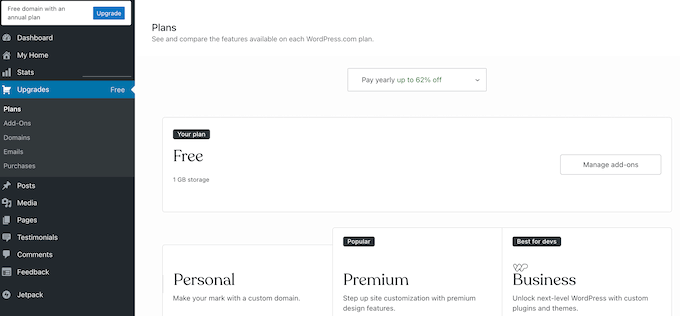
If you don’t see an ‘Upgrade’ menu item, then chances are you’re using WordPress.org.
How to Permanently Delete a WordPress Site From the Internet
Now that you know which version of WordPress you have, use the jump links below to follow the right tutorial.
- Method 1: How to Permanently Delete Your WordPress.org Site
- Method 2: How to Permanently Delete Your WordPress.com Site
Let’s start!
How to Delete Your WordPress.org Website
Are you using self-hosted WordPress? Then here’s how you can delete your WordPress.org blog or website.
Step 1: Back Up Your WordPress.org Website
The first thing you need to do is to create a complete backup of your WordPress site.
Even if you’re certain you want to delete everything, having a backup is a smart move. It will come in handy if you change your mind or want to access a piece of content you’ve already deleted.
The fastest and easiest way to back up your site is with Duplicator. This beginner-friendly plugin lets you create a full site backup in just a few clicks.
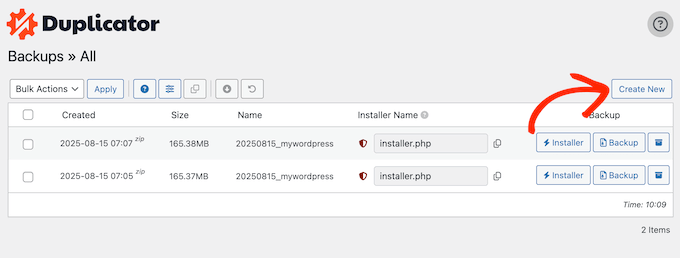
We use Duplicator to back up several of our partner websites, and it works flawlessly every time.
💡 Want to learn more about our first-hand experiences with this WordPress plugin? Then check out our in-depth Duplicator review.
There is also a free version of Duplicator that you can use to create a complete backup. However, I recommend upgrading to a paid plan because it lets you restore your backups in minutes.
For a complete step-by-step walkthrough, please see our ultimate guide on how to back up your WordPress site.
Step 2: Delete Your WordPress Files
Now, it’s time to delete all the WordPress files stored on your server. This will completely erase the core WordPress software, your themes, plugins, images, and other media.
⚠️ This next step is permanent and cannot be undone. Once you delete these files, they are gone for good (unless you have a backup).
Please read these instructions carefully before you continue.
You first need to log in to your hosting account’s control panel. This is where you manage everything from your website files to your databases.
Your hosting provider might call this cPanel, Plesk, or something else.
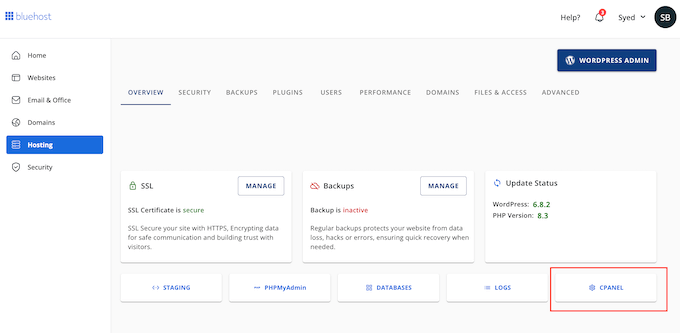
You’ll typically find the login link on your hosting provider’s website.
If you’re struggling to find this dashboard, then check the welcome you received when you signed up for your hosting. It should contain all your login details.
After logging into your control panel, you’ll need to find the panel’s File Manager or a similar tool.
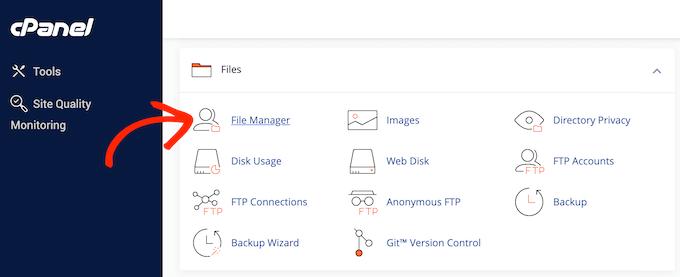
Now, find your WordPress installation folder.
Most hosting providers place this inside a folder named public_html, www, or httpdocs.
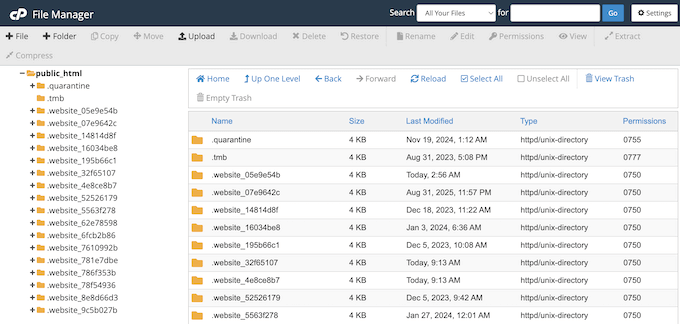
💡 If you’re not sure where your site is located, then it’s a good idea to contact your hosting provider’s support team and ask for help. Or you can check out our beginner’s guide to WordPress file and directory structure.
Once you’ve found the correct folder, double-click to open it. This is your main WordPress directory, and it contains all your website’s core files and folders.
To remove your site from the internet, you need to delete everything inside this folder. The easiest way to do this is to click a ‘Select All’ button, if available.
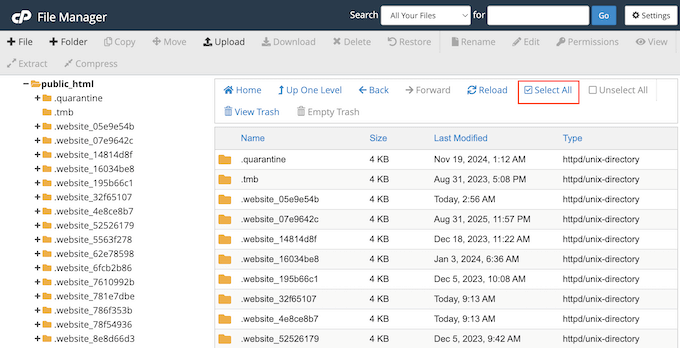
This will highlight every file and folder. Then, click the ‘Delete’ button.
Step 3: Delete Your WordPress Database
With your website’s files gone, the next step is removing its database. This is a separate step from deleting your files and is just as important.
In your hosting control panel, look for a ‘Databases’ section. It might be called MySQL Databases or something similar.
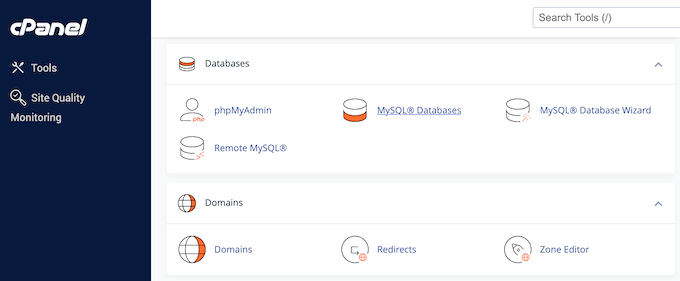
When you find it, click to open the database management page.
Here, find the database that belongs to your WordPress site. Typically, you can find the right database just by looking at its name, but if it’s unclear, then you can also look at the username associated with the database.
Once you’ve found the correct database, select the option to delete it.
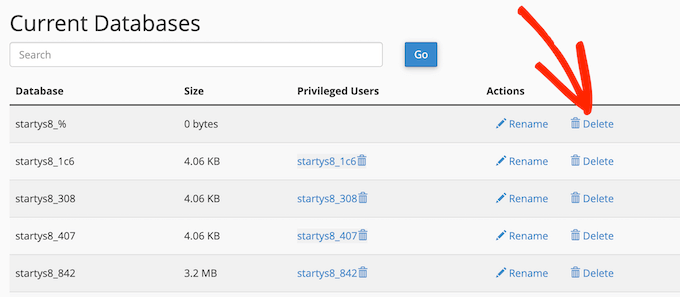
You’ll likely see a warning asking you to confirm the deletion, so make sure you’re deleting the right database before you click ‘OK.’
For more details, check out our beginner’s guide to WordPress databases.
Step 4: Cancel Your Web Hosting
Simply deleting your site’s files and database doesn’t automatically cancel your hosting plan. This is a common mistake that many people make, and it can result in some unexpected charges.
If you’re not planning to use your hosting plan for a new project, then make sure to log into your provider’s billing area and cancel your subscription. This ensures you avoid any future charges.
Every hosting company has a different process for this, so you may need to search their documentation for instructions on how to cancel your account. You may even be able to request a refund.
If you’re not sure how to do this, see our guide on how to properly ask for WordPress support.
Optional: Restore Your WordPress.org Website
At some point, you may change your mind and want to restore your WordPress website.
You may even restore it temporarily just to access some content you need, such as a specific blog post you want to repurpose on a new website.
If you followed my advice and created a full backup using Duplicator, then you can easily restore your entire WordPress.org site with just a few clicks.
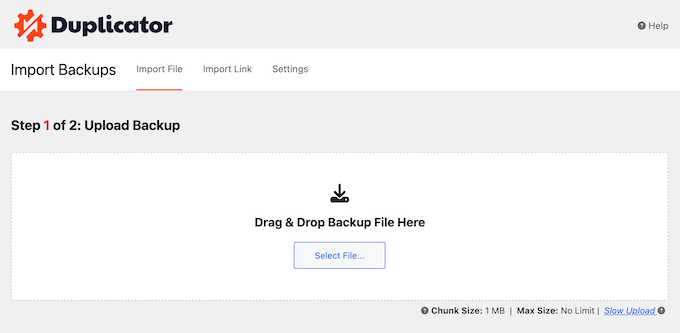
Didn’t create a backup?
Some hosting providers also keep copies of deleted files for a short time, so it’s worth contacting them to see if they can help you recover some of your deleted content.
However, this isn’t guaranteed, which is why it’s so important to create a complete backup using a plugin like Duplicator before deleting your website.
How to Delete Your WordPress.com Blog
Are you using WordPress.com? Here are the steps you need to follow to permanently remove your blog from the internet.
Step 1: Back Up Your Blog
Even if you’re sure you want to delete your blog forever, I still suggest creating a backup. This way, you can always restore it if you change your mind.
You might also realize later that you can reuse old content, like posts and designs, from your previous blog in a new project. Or a business partner or co-author might request access to something they helped create.
Having a backup lets you access this past content quickly, so you don’t have to rebuild everything from scratch. Without a backup, this content disappears forever.
While there isn’t a one-click download for all your WordPress.com data, you can easily back up your site by exporting its content.
To do this, head over to Tools » Export in your WordPress dashboard.
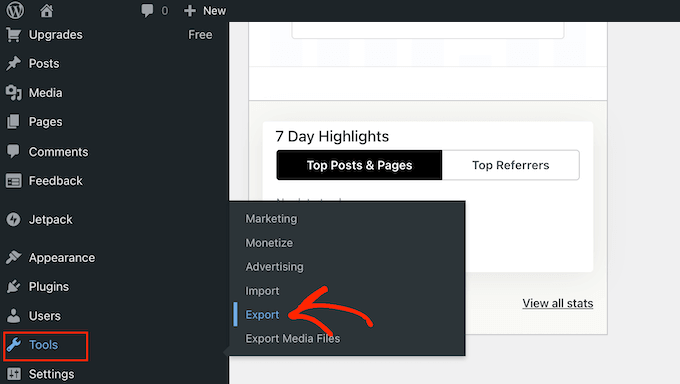
You’ll see all the different content you can export, such as posts, pages, media, coupons, and testimonials.
To export all your posts, pages, comments, custom fields, terms, navigation menus, and custom posts, simply select ‘All content.’
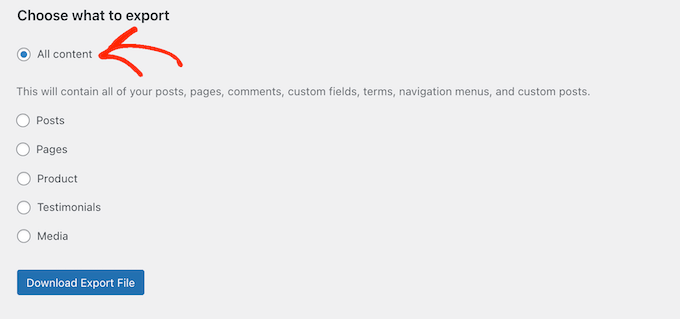
WordPress will generate a single XML file for you to save. If you have a paid plan, you may also see a separate option to download your media library.
If you only want to back up specific content types, then you’ll need to select them individually and create a separate export file for each.
When you’re happy with your selection, click the ‘Download Export File’ button.
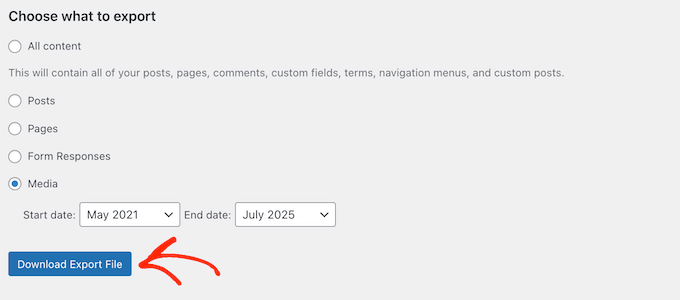
WordPress.com will then generate an XML file containing the content you selected.
This XML file contains all of your posts, pages, comments, and other text content. Be sure to save it in a secure location, like your preferred cloud storage service.
Step 2: Cancel Your Purchases
Does your blog have any active purchases, such as a hosting plan or domain?
WordPress.com won’t automatically cancel these when you delete your blog. This means you could end up paying for resources you no longer use. Plus, it can be harder to cancel these services after deleting your blog.
Because of this, it’s smart to remove any purchases before deleting your blog.
💡 Even if you don’t think you have any active subscriptions, it’s a good idea to follow these steps just to be sure. It only takes a moment to check, and it can save you from unexpected charges later.
To start, simply head over to the Purchases page and log in to your WordPress.com account if prompted.
You’ll now see any purchases linked to your account.
Next to each item, click its three-dotted icon and select ‘Manage purchase.’
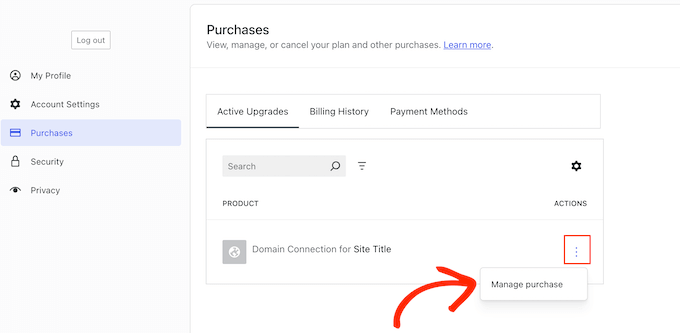
Then, follow the onscreen instructions to cancel the purchase.
These steps may vary depending on the items you’re removing. For example, if you bought a domain, then you’ll typically see an option to ‘Cancel Subscription.’

Just repeat these steps to cancel every purchase linked to your WordPress.com blog.
Step 3: Delete your WordPress.com Blog
After creating a complete backup and canceling any purchases, it’s time to delete your WordPress blog.
🌟 It’s important to know that deleting your blog on WordPress.com isn’t instantly permanent. You’ll have a 30-day window to change your mind, which is a great safety net.
In the WordPress.com dashboard, click the ‘WordPress’ logo in the top-left corner. Then, select ‘Sites.’
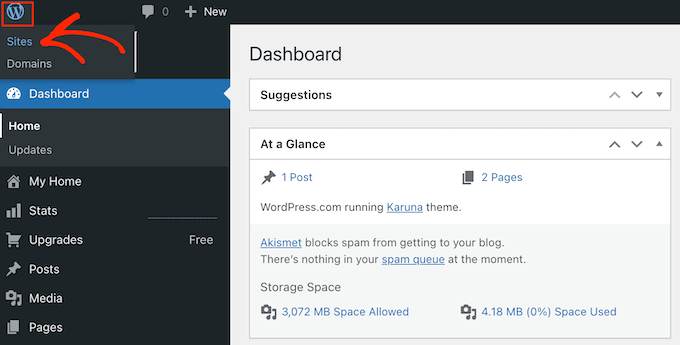
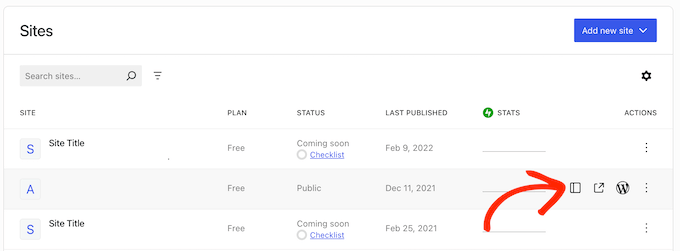
Here, hover over the site you want to delete.
When the ‘Overview’ icon appears, click it.
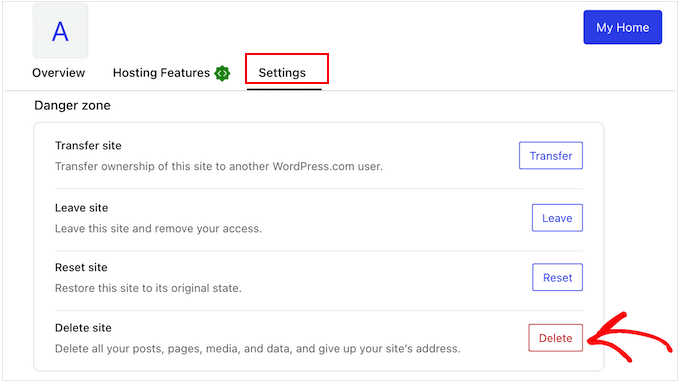
Next, select the ‘Settings’ tab.
Then, find the ‘Delete site’ section and click the ‘Delete’ button.
You’ll now have the option to export your content. If you haven’t created a backup as I suggested in the previous step, this is your last chance to save a copy of your content.
If you’re ready to go ahead with the deletion, then type your full site address into the field provided.
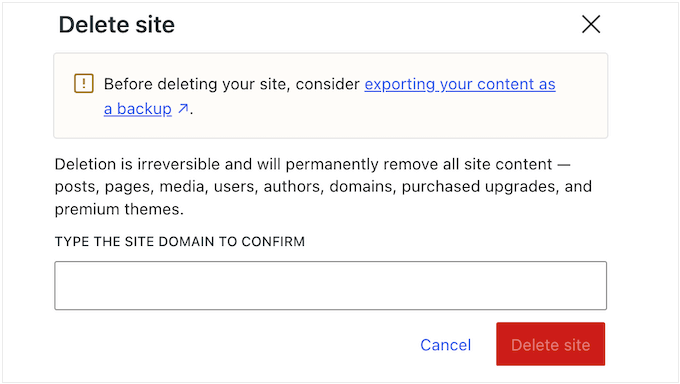
Now, click the ‘Delete Site’ button to permanently delete your WordPress blog.
Once that’s done, anyone who visits your site will see a message stating that it’s been deleted by the author.
Optional: Restore Your WordPress.com Blog
Have you changed your mind and want to restore your site? You actually have 30 days to recover a deleted blog.
If you’re within this timeframe, you can head over to the Sites list page using the instructions I shared earlier. Here, click the ‘Filter’ button.

Now, select ‘Status.’
In the dropdown that appears, select ‘Deleted.’
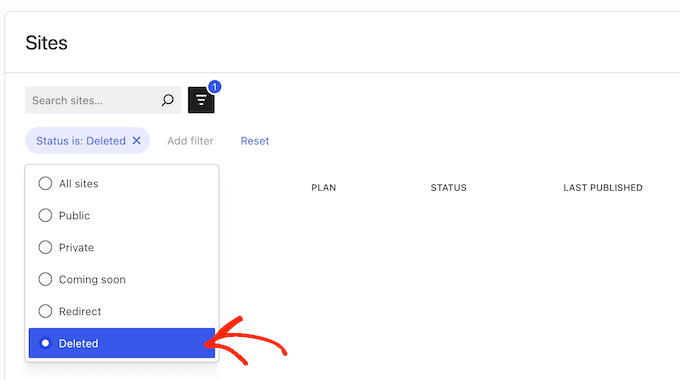
Now, find the WordPress.com blog you want to restore and click its three-dotted icon.
Finally, select ‘Restore.’
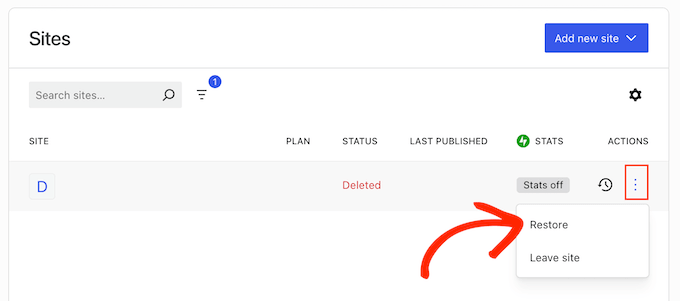
WordPress.com will now restore your site.
Have you waited longer than 30 days? WordPress.com will have already permanently deleted your site.
Don’t worry, though – if you followed my advice and exported your data, then you can import this XML file into a fresh WordPress.com website.
In your new dashboard, go to Tools » Import.
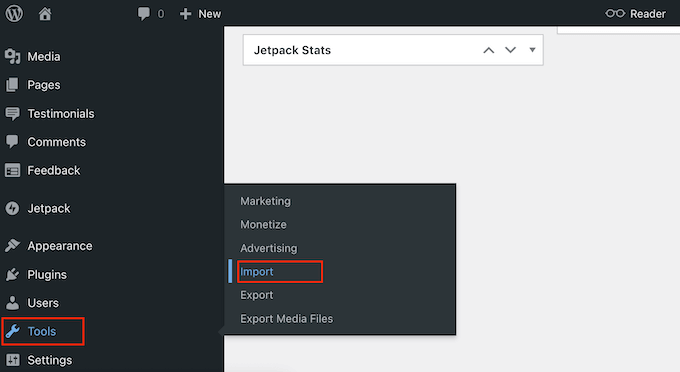
Then, select ‘WordPress.’
Next, click on ‘Import content only.’
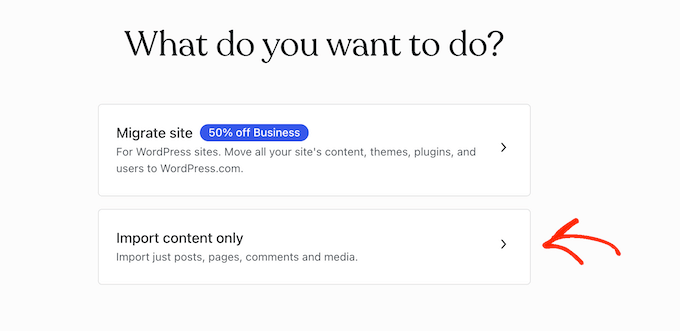
Now, upload the XML file you created in the previous step.
Once the file finishes uploading, click ‘Import.’
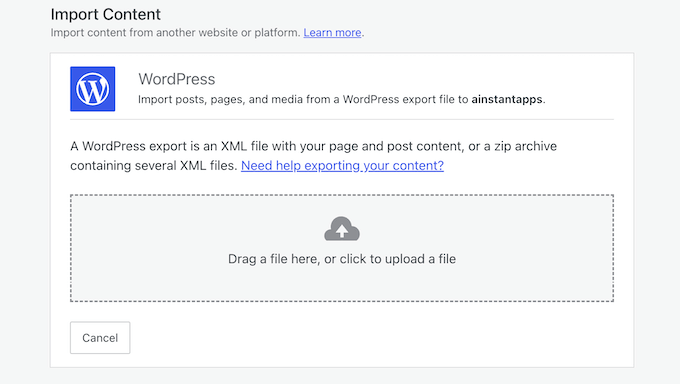
WordPress.com’s built-in importer will now import all your posts, pages, comments, categories, and more from your XML file.
Bonus Tip: Remove Blog and Website Snapshots from Wayback Machine
After you’ve deleted your WordPress.com or WordPress.org site, it’s easy to assume your content is completely gone from the internet. However, that’s not always the case.
Archive.org’s Wayback Machine is a massive digital library that takes snapshots of websites and stores them for historical preservation.
Anyone can use it to view historical snapshots of your website, even after you’ve deleted it.
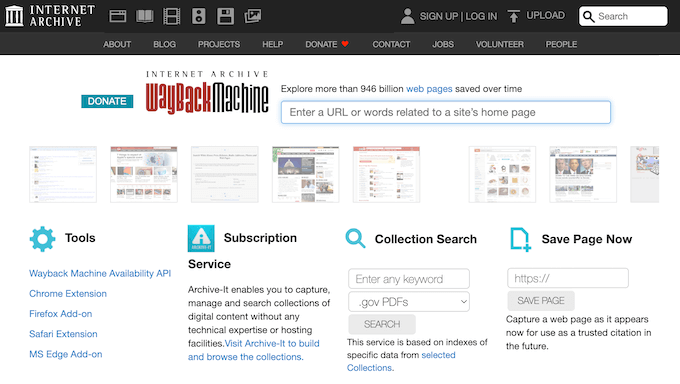
Failing to remove your site from the Wayback Machine can lead to several problems:
- Privacy and Personal Information: Your old website may contain personal details, old photos, or content you no longer want linked to your name. This could be a past blog, a portfolio, or a personal project you’ve moved on from.
- Reputational Risks: Your old site may have outdated content or materials that no longer represent you as a person. This could be found by a potential employer, business partner, or client, creating a negative impression.
- Outdated Information: A past version of your site might contain old business information, inaccurate prices, or services you no longer offer. This may confuse or mislead people who find your old content on sites like the Wayback Machine.
- Copyright Issues: If your site used copyrighted material like images or text, then people might still be able to find this content on the Wayback Machine. This could lead to legal issues.
To permanently remove your content from the Wayback Machine, you’ll need to contact them directly. To make things easier, make sure to include your domain name in the email.
Once Archive.org adds your domain to their exclusion list, their policy is to block access to all past archives and prevent future crawling of that domain, even if it changes ownership later.
Frequently Asked Questions About Deleting WordPress Websites
I’ve helped people with WordPress for years, and some questions about deleting a blog come up time and time again. That said, here are some common questions people have when they’re considering deleting their WordPress website.
Can I recover my site after deleting it?
For WordPress.com users, this depends on how long it’s been since you deleted your blog. WordPress.com holds onto deleted sites for a short time before it completely removes them.
If you’re within this timeframe, then you can restore the blog yourself by visiting the Sites list. Alternatively, if you created a backup before deleting your blog, then you can restore it using that backup.
For WordPress.org users, the answer varies depending on your web hosting provider.
Some hosts keep deleted content for a short time. With that in mind, it’s always worth checking your host’s documentation or reaching out to their support team to see if they have a copy of your site.
If your host doesn’t have a backup, then you’ll need to restore your site from a backup you created. That’s why it’s always smart to use a backup plugin like Duplicator, so you can restore your site whenever you need to.
How permanent is site deletion?
For WordPress.com sites, deletion becomes permanent after their grace period, which is 30 days. However, if you exported your content as an XML file, then you can import it into any WordPress.com account, using the built-in Import tool.
When it comes to a self-hosted WordPress.org site, some hosting providers keep recent backups for a short period. However, this varies between hosts, so I don’t recommend relying on your host.
Your best and safest option is to always create a complete backup of your site before deleting it. That way, you can easily restore your site if you ever change your mind.
How long does it take for my website to disappear from search engines?
Search engines like Google can take weeks or even months to remove a deleted site from their results. This happens because search engines store copies of web pages and don’t check every single site daily.
You can speed up this process by submitting a removal request via Google Search Console.
Will deleting my website affect my domain name?
Deleting your site doesn’t automatically cancel your domain registration. This means you’ll either need to move it to a new registrar or let it expire. Users with custom domains should be especially careful about this. Your domain will stay active even after deleting your site.
Can other people still see my content somewhere online?
Unfortunately, yes. Web archives like the Wayback Machine may have saved copies of your blog posts. Some content scraping sites might also have copied your articles.
While you can’t control these copies, they usually don’t get much traffic and will become less relevant over time.
Should I redirect my website instead of deleting it?
If you’re moving to a new platform or domain, then setting up a full site redirect is often better than deleting your site. This protects your search engine rankings and helps your audience find your new website.
However, if you’ve stopped blogging completely, then deletion may be the simpler option.
I hope this article helped you delete your WordPress blog (or find a better alternative option). You may also want to see our top pick of popular types of websites you can make, or our guide on how to publish a website using WordPress.org.
If you liked this article, then please subscribe to our YouTube Channel for WordPress video tutorials. You can also find us on Twitter and Facebook.




Jiří Vaněk
I started blogging in 2008, and after two years, I deleted the blog. Last year, I was greatly surprised to find that my now 16-year-old blog still exists on the Wayback Machine. The graphics are missing, but all the texts are there. It was incredibly nostalgic to look back at my 24-year-old self and see what I wrote such a long time ago. It’s good to know how to remove data from this tool, as I found out that even after 16 years, it is still there.
Mrteesurez
It is amazing how the Wayback Machine archives and preserves our digital contents. I recently searched for one of my old websites, and it was such a nostalgic experience, bringing back memories I hadn’t thought about in years. It’s a powerful reminder that what we put online can remain there for a long time, even when we think it’s gone. The ability to revisit old content can be insightful for tracking how our digital strategies evolved or for retrieving old resources. Your experience highlights an important lesson: managing and removing our digital assets is crucial for maintaining control over our online presence, even after many years. This is especially beneficial for protecting personal information and ensuring outdated content doesn’t negatively impact us. Thanks for sharing your experience; it’s a valuable reminder for everyone!
Mrteesurez
This is beneficial for me. I have deleted some websites long ago and still found it on Google till now, I will try implement this guide to resolve it, but my question is where will the file I created will be because the site is hosted on subdomain ?
WPBeginner Support
It would depend on your hosting provider but most hosts create a folder for the subdomain where you can find all of the files for the subdomain.
Admin
Mrteesurez
Thanks for your answer.
I have checked my hosting, each subdomain has a folder in the same level with the main domain.
So now, I will create the file where WordPress core fill are located, isn’t it ?
WPBeginner Support
You would add your file in the subfolder for the site on the subdomain if you wanted it to affect the subdomain.
Mrteesurez
Thanks for your response, I will follow your guidance to make sure I resolve this for all my subdomain. Your support is always helpful.
Dennis Muthomi
I have a question regarding Step 4 on removing content from search engines: Could you clarify if simply deleting the site from Google Search Console would be enough to ensure it doesn’t appear in search results?
or is using the .htaccess method to return a 410 error still necessary even after removing it from Search Console?
WPBeginner Comments
To hide a site from Google, we recommend using one of the methods in this guide: https://www.wpbeginner.com/wp-tutorials/how-to-hide-a-wordpress-page-from-google/
Dennis Muthomi
thanks for the additional resource(and reply)! I’ll check out that guide on hiding WordPress pages from Google.
Toni Weidman
I have two wordpress.org sites hosted by Bluehost. Can I delete the one site without causing problems on the second site?
WPBeginner Support
Yes, you should be able to delete one site without causing problems on your other site.
Admin
Poorwa Vishwakarma
I have more than one site on my wordpress.com blog. I want to delete just one site, but I’m afraid that if I go and press delete in one site it will delete my other sites also. Please help…
WPBeginner Support
As we state in the article, for deleting a WordPress.com blog please go through our other guide. I have linked the guide below:
https://www.wpbeginner.com/beginners-guide/how-to-delete-your-wordpress-blog/
Admin
Rahim
Nice guide ! but when i want to delete permanently my site, i will also shut down this hosting (it cost money), so where to put robot.txt and htaccess ?
WPBeginner Support
If you are removing your domain and hosting then you wouldn’t need to worry about the robots.txt step if you wanted.
Admin
Joseph
RewriteCond %{HTTP_HOST} ^www\.example\.com$ [NC]
When you say replace example.com with your own domain are you still leaving the \.com$ ?
WPBeginner Support
You would replace the .com only if your domain did not end in .com. If your domain ends in something like .net you would replace the .com.
Admin
Paul Foraker
Looks like you forgot to mention dropping the database. Yes?
WPBeginner Support
Hey Paul,
No, we didn’t. Once you have uninstalled WordPress it wouldn’t be possible for others to access the database by visiting your website. However, if you want to drop the database, make sure you first create a backup before deleting it.
Admin
Rupam Chakma Babu
Hello, after delete wp on my old site and If I redirect it another new domain than what’s to be happened, because old domain had some reputation or popularity. Thanks
Rupam Chakma Babu
Nice and informative about deleting wp permanently. Thanks
Hardeep Singh
Isn’t google itself check if site is no longer available then remove all the indexed links?
WPBeginner Support
Yes but if you just deleted the files your site will return 404 error which means your page is not found. Search engines will keep crawling back to see if it has come back online. On the other hand with 410 error you explicitly tell search engines that these pages are gone forever.
Admin
Hardeep Singh
That make sense.
Thanks
Krishnamoorthi
Nice guide thank u.