


When we first explored building a photography website using WordPress, we quickly realized that dumping all our images onto a single page just didn’t work.
That’s when we started looking into better gallery solutions.
Since then, we’ve helped many users turn cluttered image collections into clean, professional photo albums. The right setup doesn’t just look good, it makes your site easier to navigate and keeps visitors engaged.
In this guide, we’ll walk you through the exact steps to create beautiful photo galleries with albums in WordPress. No coding, no complicated tools — just simple, effective methods anyone can use. ✅

Why Create a Photo Gallery With Albums?
Image galleries allow you to display multiple photos on a single page, but albums let you show multiple galleries on a single page, categorized by event, topic, location, and so on.
This is especially useful for restaurant websites, photography portfolios, travel blogs, or any businesses looking to organize and showcase different photo categories.
Albums make it super easy for your visitors to find exactly what they’re looking for. Instead of scrolling endlessly, they can just click on the relevant album and then find all the photos from that event or theme.
This kind of user-friendly navigation keeps people on your site longer and makes for a better overall experience.
Also, creating an album makes it easy to share a specific set of photos with others. Instead of sharing an entire gallery, you can direct people to the specific album that contains the relevant images.
With that in mind, we’ll cover step-by-step instructions on how to easily add a photo gallery with albums in WordPress. Here’s a quick overview of all the steps we’ll show you in this article:
- Step 1. Set Up a WordPress Gallery Plugin
- Step 2. Create Your First Photo Album
- Step 3. Customize Your Photo Albums
- Step 4. Embed Your Photo Albums Into Your WordPress Site
- Bonus Tip 🌟: Add a Responsive Slider in WordPress
- FAQ: Create a Photo Gallery with Albums in WordPress
- Video Tutorial: Create a Photo Gallery with Albums in WordPress
- Additional Resources for Using Images in WordPress
Let’s jump right in!
Step 1. Set Up a WordPress Gallery Plugin
If you want to create clean and organized albums in WordPress, you’ll need a plugin to make the process easier. We recommend Envira Gallery since it is the best image gallery plugin for WordPress on the market.
We’ve tested Envira Gallery extensively and found it to be one of the most beginner-friendly, feature-packed gallery plugins out there. If you want a deeper look at everything it offers, check out our full Envira Gallery review.
To start, let’s create an Envira Gallery account. On their website, you can click ‘Get Envira Gallery Now,’ select a plan, and complete the signup process.
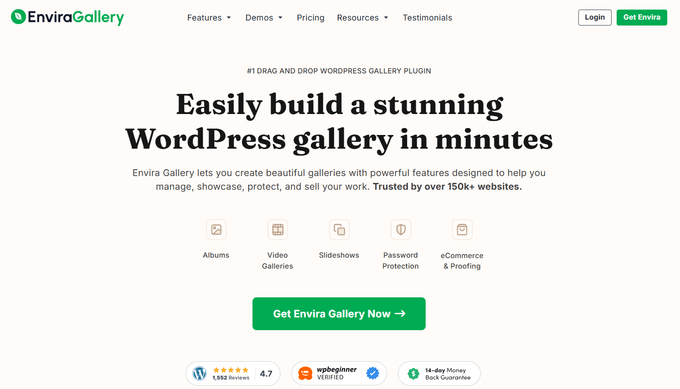
💡 Note: You’ll need the Pro license or above to access the Albums Addon in Envira Gallery. That said, there’s a free Envira Gallery version if you want to create basic image galleries first.
Upon signup, you’ll get your own Envira Gallery dashboard, where you can find the plugin’s ZIP file and license key.
From here, you can install and activate the Envira Gallery plugin in your WordPress site.
In your admin area, go to Plugins » Add New Plugin.

Then, you can go ahead and use the search feature to quickly find the plugin.
In the search result, click on the ‘Install Now’ button and then ‘Activate’ when it appears.
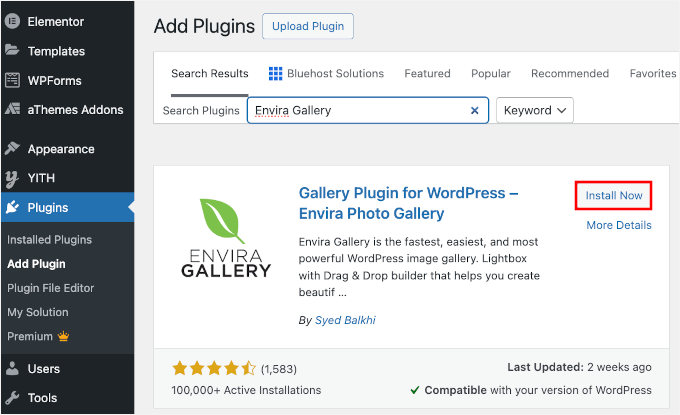
For more details about installation, you can see our guide on how to install a WordPress plugin.
Once activated, you can enter your license key on the Envira Gallery » Settings page.
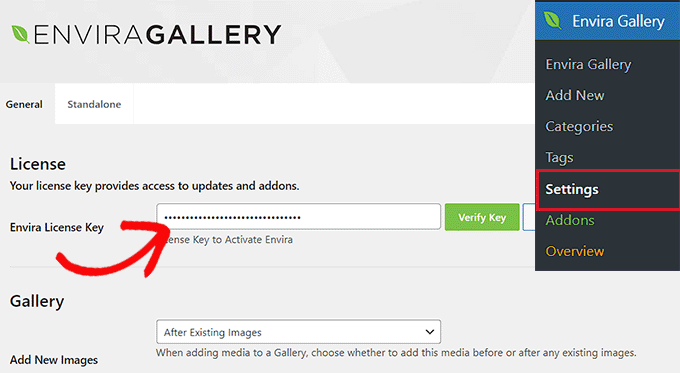
After verifying your license key, let’s head over to Envira Gallery » Addons.
From the ‘Addons’ tab, click the ‘Install’ button for the ‘Albums Addon.’
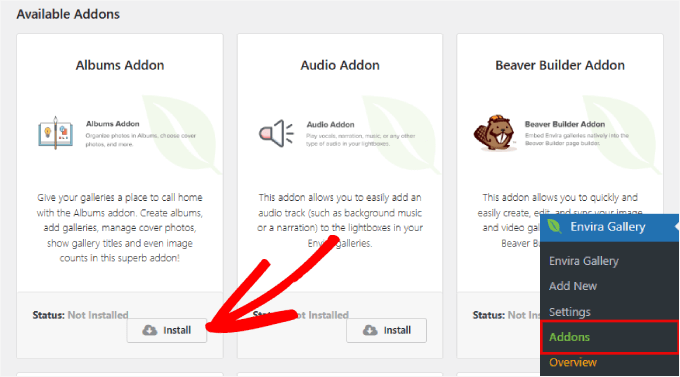
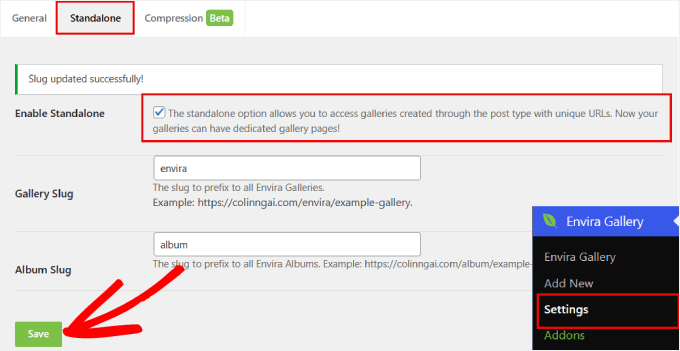
You’ll also need to enable the ‘Standalone’ option along with the ‘Albums Addon.’ This ensures that each of your galleries has its own unique URL, allowing the Album to link to them.
To do this, go to the Envira Gallery » Settings page. From there, switch to the ‘Standalone’ tab and check the ‘Enable Standalone’ box.
Then, make sure to click ‘Save’ at the bottom.
Step 2. Create Your First Photo Album
Before you can create albums, you’ll also need to create some image galleries. Here is a step-by-step guide on how to create responsive image galleries in WordPress with Envira.
After you’ve created your image galleries, you can navigate to Envira Gallery » Albums and click the ‘Add New’ button.
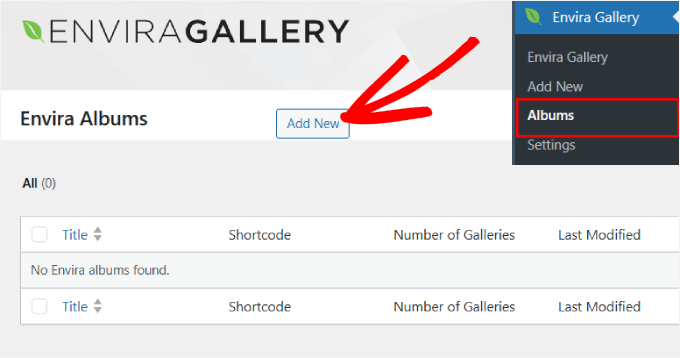
Creating an album in Envira is similar to creating a gallery.
You can think of an Album as a bookshelf, and your Galleries as the photo books sitting on it. You will simply drag and drop your existing galleries into the album area.
From here, you can start by giving your album a title. Then, you’ll need to drag your galleries into the dotted box.
Once added, you will see a pencil icon for each gallery.
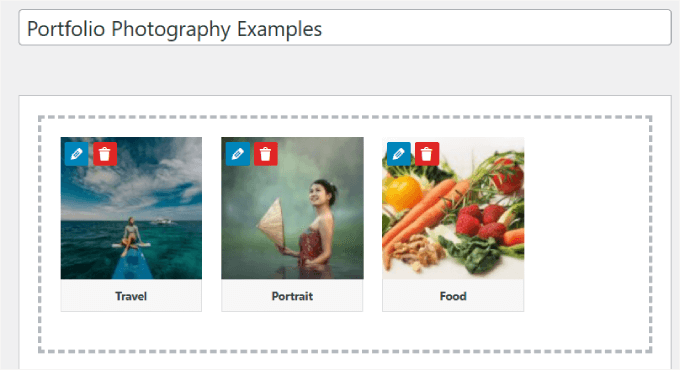
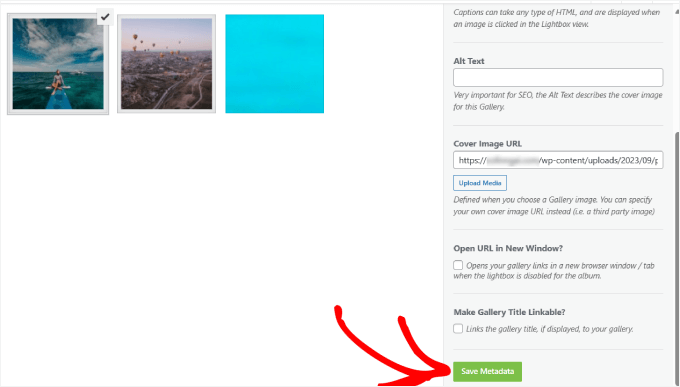
You can click that icon to change the gallery title, caption, alt text, and cover image.
When you’re happy with your changes, go ahead and click the ‘Save Metadata’ button.
Step 3. Customize Your Photo Albums
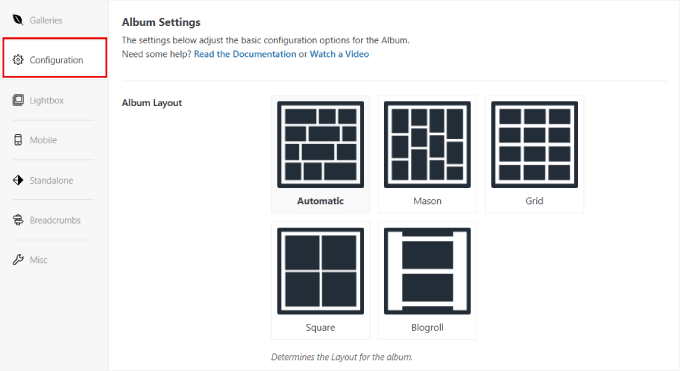
In this step, you’ll choose how your albums appear by clicking the ‘Configuration’ tab in the Envira album settings.
For example, you’ll see different grid-style display options, and you can choose the layout you like best.
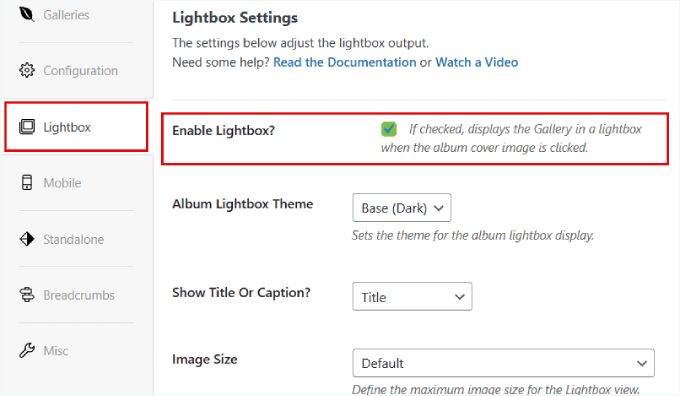
If you want your albums to open directly inside a lightbox, then you can click on the ‘Lightbox’ tab.
Next up, go ahead and check the box that says ‘Enable Lightbox.’
Once the lightbox is enabled, you can change the image size, add transition effects, and adjust other settings.
The albums are also mobile-responsive, which means they automatically adjust to different screen sizes.
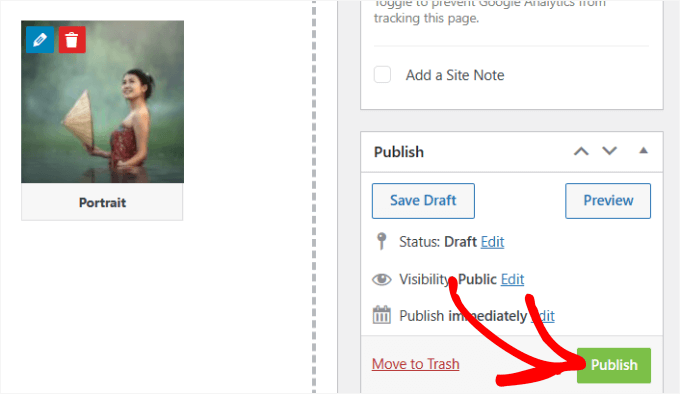
Once you’ve configured your album, click the ‘Publish’ button to save your settings.
Step 4. Embed Your Photo Albums Into Your WordPress Site
Now that you’ve created your albums, it’s time to share them with your audience.
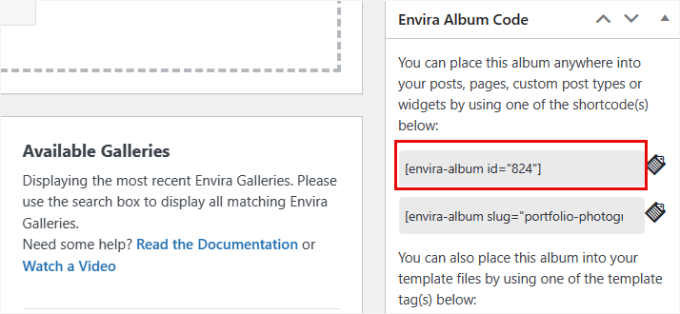
To do this, look for the Envira Album Code box. It is usually located in the right-hand sidebar or at the bottom of the page, depending on your screen setup.
Go ahead and copy the shortcode (it starts with [envira-album…) so that you can embed the album anywhere on your WordPress website.
Your album is now ready, and you can add it to a post or page.
Simply create a new post or edit an existing one. Then click the ‘+’ icon and select the ‘Shortcode’ block.
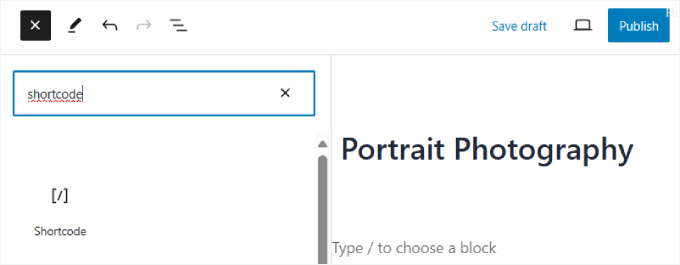
From here, paste the code into the ‘Shortcode’ block to embed your album into your page or post. For more details, you can see our guide on how to use shortcodes in WordPress.
Finally, go ahead and click the ‘Publish’ or ‘Update’ button at the top.
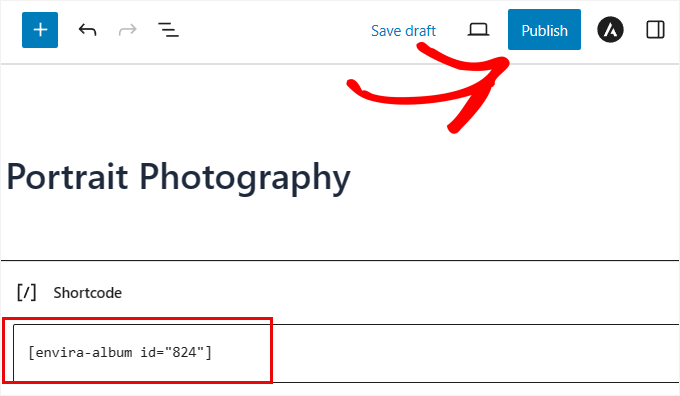
You can visit your website to see your album in action.
Depending on how you’ve configured your gallery and album settings, the album should look something like this:

If you click on each photo, then a lightbox will appear, and you can click on the arrows to navigate through each gallery.
That’s all – you now know how to add a photo gallery with albums in WordPress!

Bonus Tip 🌟: Add a Responsive Slider in WordPress
While photo albums are great for organizing galleries, you may sometimes want to display images in a slider format.
A slideshow allows you to show images or videos on different slides. Users can then use arrows to navigate between slides, or you can set it up to autoplay so they move between slides automatically.
This is a great way to highlight your latest YouTube videos, customer reviews, popular WooCommerce products, and more.
To do this, you simply need to install the Soliloquy plugin. Soliloquy is the best WordPress slider plugin that allows you to easily create slides using images from your media library.
Don’t miss our extensive Soliloquy review for more insights into its features!
Once activated, you can go ahead and add a new slider. Then, Soliloquy will allow you to upload your images and videos and give each media item a title, caption, and alt text.
When your slider is uploaded, it should look something like this:

For an in-depth tutorial, check out our step-by-step guide on how to add a responsive slider in WordPress.
FAQ: Create a Photo Gallery with Albums in WordPress
Before we wrap up, here are some quick answers to common questions about WordPress galleries.
What is the difference between a portfolio and a gallery?
A gallery is mainly for displaying images in a simple grid or slideshow. A portfolio is more like a collection of projects or case studies. It often includes images, descriptions, categories, and links, making it great for showcasing work in a more structured way.
Does WordPress have a built-in photo gallery?
Yes. WordPress comes with a basic gallery block that lets you upload images and display them in a grid. It’s simple and works fine for small image collections, but it doesn’t include albums or advanced layout options.
How do I create a photo album gallery in WordPress without a plugin?
By default, WordPress doesn’t support albums (groups of galleries). You can create separate pages with their own galleries, but that’s more of a workaround than a true album system. To get real albums, you’ll need a plugin like Envira Gallery.
How do I add a carousel gallery in WordPress?
The built-in gallery block doesn’t include a carousel, so you’ll need a plugin that supports sliders, like SeedProd or Soliloquy. These tools usually let you switch to a carousel layout with a single click.
Video Tutorial: Create a Photo Gallery with Albums in WordPress
Before you go, be sure to check out our video tutorial on how to create photo gallery albums in WordPress:
Additional Resources for Using Images in WordPress
We hope this article helped you learn how to create a photo gallery with albums in WordPress.
You may also want to check out our other helpful guides on:
- How to Do Basic Image Editing in WordPress (Crop, Rotate, Scale, Flip)
- WebP vs PNG vs JPEG: The Best Image Format for WordPress
- How to Set a Default Featured Image in WordPress (Easy Way)
- The Differences Between Image Alt Text and Image Title in WordPress
- How to Switch from NextGEN to Envira Gallery in WordPress
- Best WordPress Image Compression Plugins (Expert Picks)
If you liked this article, then please subscribe to our YouTube Channel for WordPress video tutorials. You can also find us on Twitter and Facebook.


Jiří Vaněk
For many years, I first used the NextGen gallery and then the internal gallery of Elementor PRO. After reading several of your articles, I decided to try Envira because it made sense to me, and based on what you wrote about this plugin, it seemed like the perfect replacement for Elementor. And I made the right choice—it’s a really great plugin and a very good recommendation from you for an elegant gallery solution in WordPress.
Darcy
Loved your video. It’s exactly what I was looking for. The problem I ran into was that the addons look like you have to pay for them now. They looked free in the video. Is there a good plugin that you know of for multiple albums on a page? Any help would be appreciated. Thanks
WPBeginner Support
Apologies, we were using the paid version of this plugin for this tutorial, unless I hear otherwise we don’t have a recommended alternative at the moment.
Admin
Anneke
Hi there,
The video is very comprehensive, thank you. I want to download the stand alone albums add on but the only way I can do it is by paying for it. Is there a free way to display our pictures as albums? We are travellers on a budget!
Many thanks,
Tane and Anneke
mats
Hallo,
thanks for that tut!
Is it possible that a user can upload his own photos and see only his own photos on his gallery site? Do i need specific albums for each user?
thanks