


Have you noticed that great conversations are happening in your WordPress comments section, but most visitors never see them? Since they’re often tucked away on individual posts, new readers may not realize how active and welcoming your community is.
A simple way to fix this is by showing recent comments in a more visible place, like your sidebar. This instantly gives your site a sense of activity and can encourage new visitors to join the discussion.
We’ve found 2 simple ways to highlight comments on WordPress sites. Whether you use WordPress’s built-in widget or the free Decent Comments plugin, the setup is quick and works smoothly with most themes.
In this guide, we’ll walk you through both methods step by step, so you can easily display recent comments in your WordPress sidebar and make your community feel more alive. 🌟
Why Show Recent Comments in WordPress Sidebar?
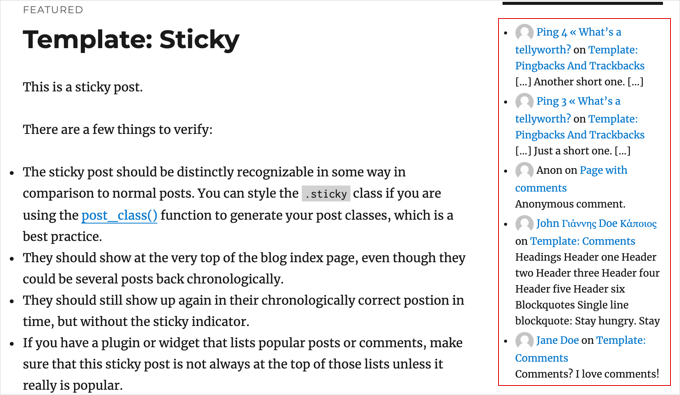
Showing recent comments in your sidebar makes your WordPress blog feel more active right away. It highlights the conversations already happening on your posts, so even visitors who only browse your homepage can see that your site has an engaged community.
A lively comments section allows you to build connections with readers.
Visitors can give feedback, ask questions, share their perspectives, and respond to others. All these can turn your blog into more of a community than a one-way publication.
Unfortunately, visitors who simply browse your home page won’t see any of that interaction. One way you can let them know about the current discussions on your site is by displaying the latest comments in your blog’s sidebar.
In the following sections, we’ll share how to show recent comments in the WordPress sidebar.
We’ll cover 2 methods, and the first method is simpler for most users:
Method 1: Use the Default Latest Comments Block in WordPress
By default, WordPress comes with a block that displays the latest comments and can be added to your website’s sidebar.
That said, because it’s a block rather than a widget, it’s simple to add recent comments to your posts and pages as well. We’ll show you how.
Show Recent Comments in a Sidebar (Classic Themes)
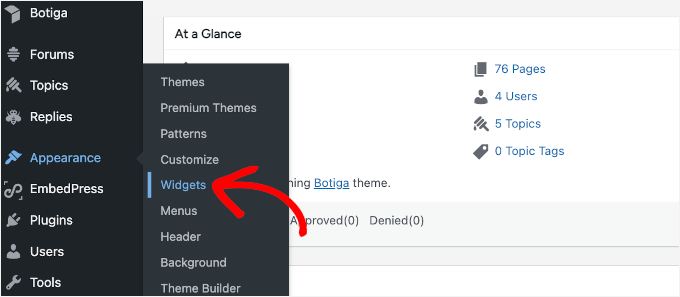
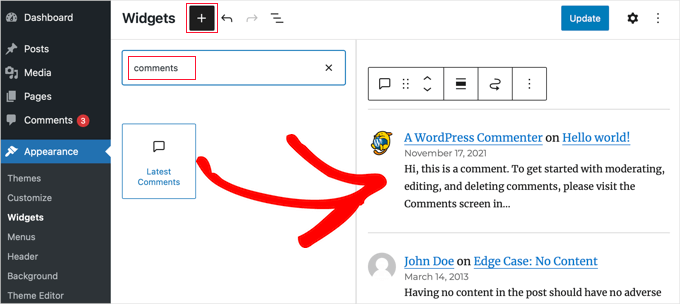
To show recent comments in your WordPress sidebar, simply go to Appearance » Widgets and then click the plus ‘+’ icon at the top of the screen.
This will open the widget inserter panel. In the search bar at the top of this panel, you can type ‘comments’ to find the block.
After that, you can just drag the ‘Latest Comments’ block to your sidebar.
That’s all there is to it!
You can click the ‘Update’ button at the top of the screen to save your changes.
Now, if you visit your website, you should see the new recent comments section in action.
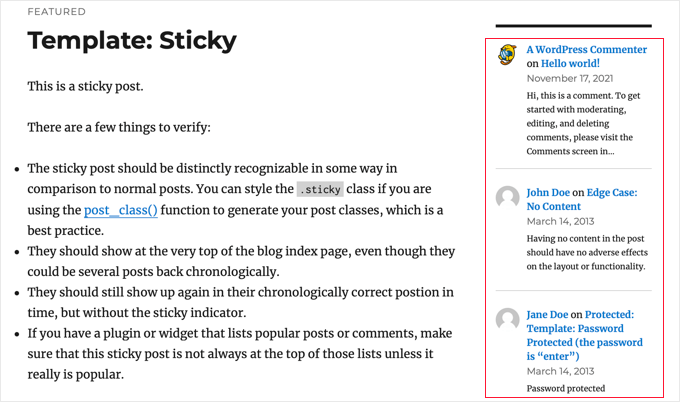
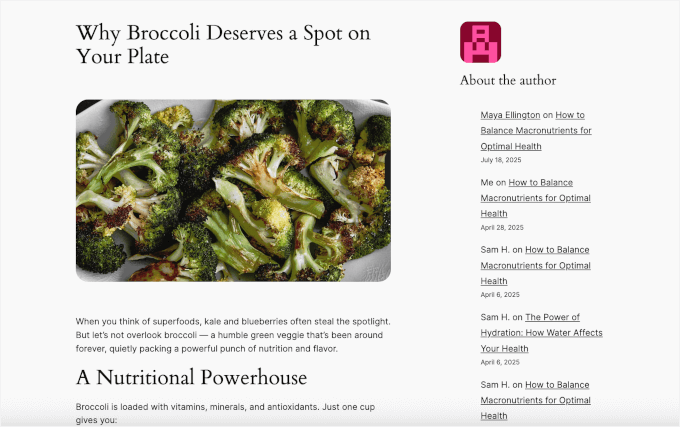
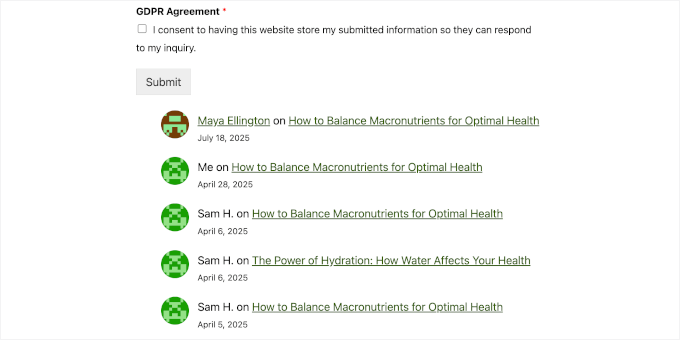
Notice that the block displays the commenter’s Gravatar and name, a link to the post, the date of the comment, and an excerpt of their comment.
Show Recent Comments in a Sidebar (FSE)
If you don’t see a ‘Widgets’ option, your site is likely using a newer block theme. In that case, you should go to Appearance » Editor.
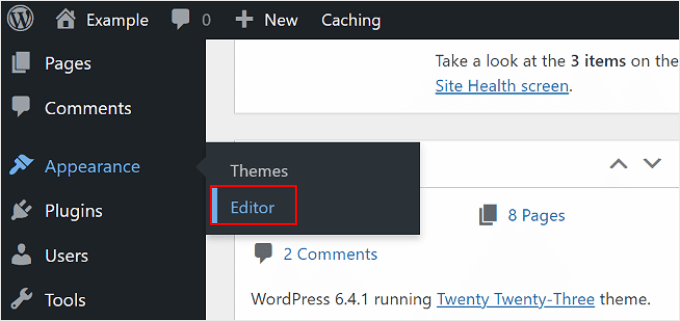
Once inside the full site editor, you’ll see a couple of tabs to customize your theme.
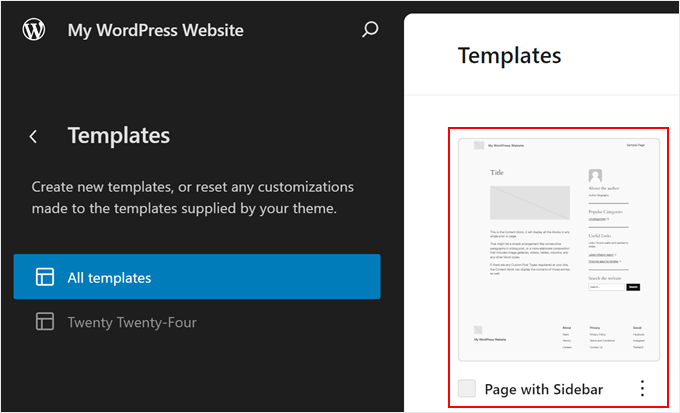
From here, let’s select ‘Templates.

Next, you’ll want to find the template that includes a sidebar.
In the Twenty Twenty-Four theme, these are called ‘Page with Sidebar’ and ‘Single with Sidebar.’
In other themes, the template name might not clearly say it has a sidebar, though. So it’s a good idea to double-check your theme’s documentation.
🚨 Important: Do note that some minimalist block themes don’t include a sidebar template out of the box.
Once you’ve found the right one, select the sidebar template to start editing.
In the editor, you’ll click on the Sidebar section to customize it.
Then, simply hit the ‘+’ button and search for the ‘Latest Comments’ block.
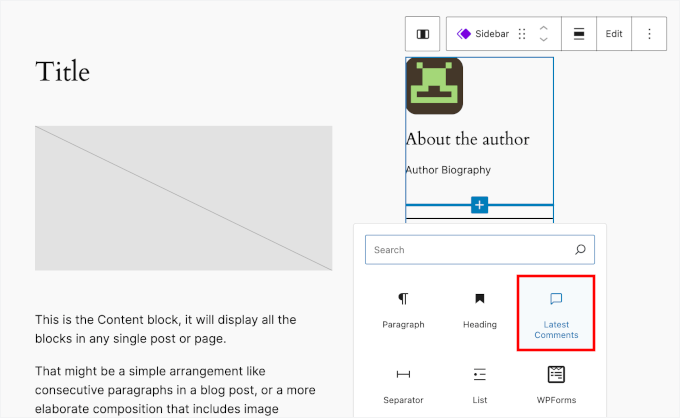
Once added, you’ll see your recent comments added to the sidebar.
In the right panel, there are a few settings you can play around with to customize how the block looks.
You can choose to:
- Show or hide the author’s gravatar
- Show or hide an excerpt of the comment
- Show or hide the comment date
- Set the number of comments to display
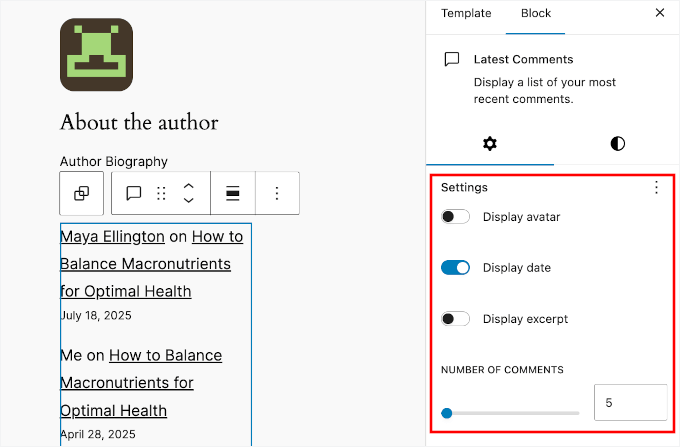
When you’re happy with how the Latest Comments block looks, you can just click ‘Save’ or ‘Update’ to make it live.
Now, if you visit a page with a sidebar on your WordPress site, you’ll see your recent comments:
Show Recent Comments on an Individual Post or Page (Not Site-Wide)
If you want to add recent comments to your posts and pages, instead, you can do that, too.
You can just open a post or a page to edit it in the block editor.
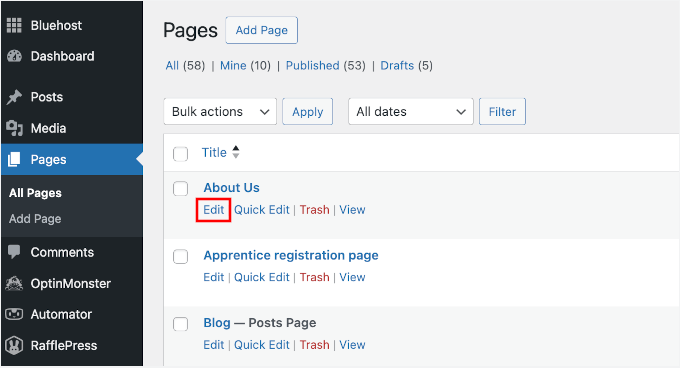
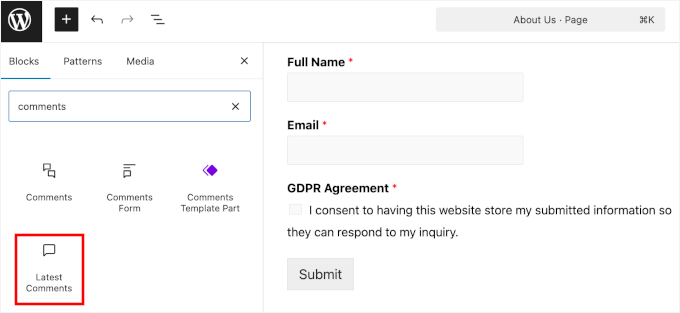
Once inside the editor, you can click the ‘+’ button and search for ‘comments’.
Go ahead and select the ‘Latest Comments’ block to add it.
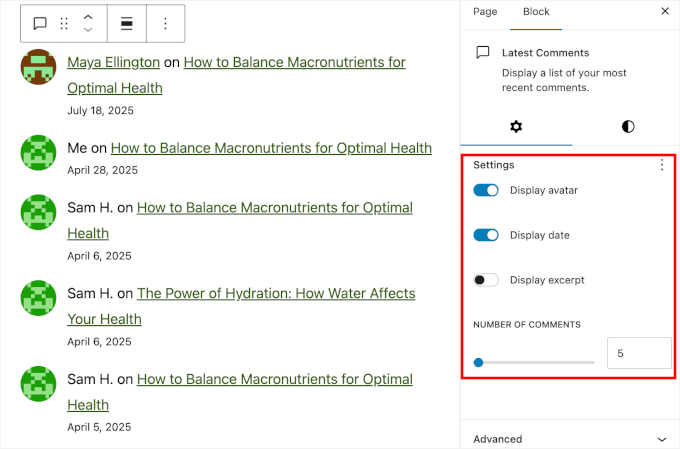
You should now see all your recent comments added to the content editor.
On the right-hand panel, you’ll also find a ‘Settings’ section where you can control:
- Whether to show the author’s gravatar
- Whether to show an excerpt of the comment
- Whether to show the comment date
- The number of comments to display
Feel free to adjust these settings until the block looks good with your site’s design.
When you’re happy with everything, just hit the ‘Save’ or ‘Update’ button to make it live.
Now, if you visit your post or page, you’ll see your recent comments.
Method 2: Use a Comments Plugin to Show Comments in Sidebar
The built-in block is fantastic for quickly displaying comments, but what if you need more control over them? If you want to fine-tune the design and decide exactly which comments appear, then a dedicated plugin is your best bet.
The first thing you need to do is install and activate the Decent Comments plugin. To learn more, see our step-by-step guide on how to install a WordPress plugin.
🚨 Important: The Decent Comments plugin works best with classic themes. If you’re using a block theme, do note that there isn’t a Decent Comments block available yet.
Upon activation, you can add the Decent Comments widget to your sidebar.
Simply head to Appearance » Widgets and add ‘Decent Comments’ to your sidebar area.
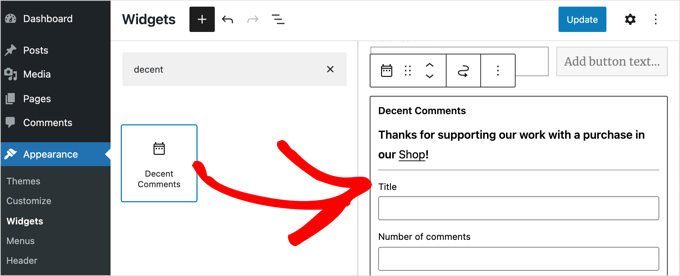
Initially, the ‘Decent Comments’ block looks a little similar to the ‘Latest Comments’ block in Method 1. But it comes with a lot of different options, so you can customize it to your liking.
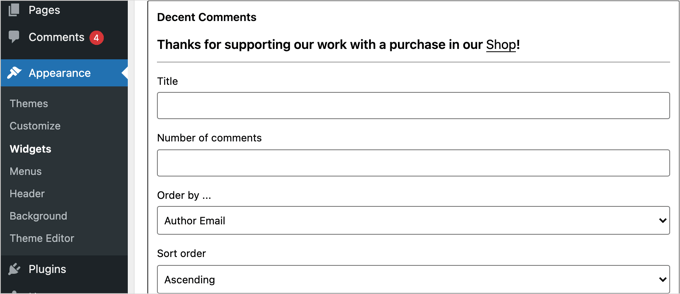
For example, you can type a title for the block, decide on the number of comments to display, and choose the order in which they will be displayed.
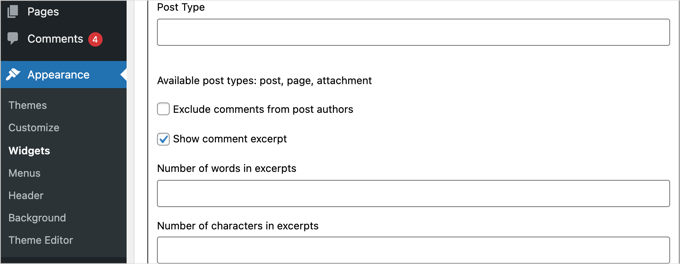
You can also select which post types to include, decide whether to display an excerpt, and choose the length of the excerpt.
You can even get more specific by choosing to show comments only from certain post types or hide comments from specific users. Feel free to explore all the settings to get the perfect result for your site.
Once you’ve finished customizing the block, go ahead and click on the ‘Update’ button to store your settings.
Now, you can visit your website to see the ‘Decent Comments’ block in action.
Bonus Tip: Allow Your Users to Subscribe to Comments in WordPress
Allowing comments on your WordPress blog is a great way to boost user engagement.
However, there’s a common issue: users often leave a comment and never come back. This means they miss out on ongoing discussions, which can stop you from building a strong community around your blog.
A good solution is to let users subscribe to comments. This way, they get email alerts whenever someone else comments on the same post.
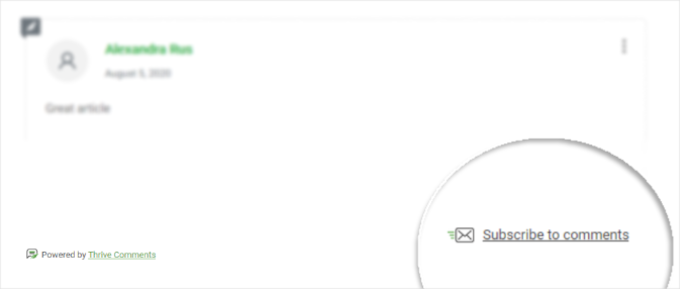
These notifications remind them of their comment and encourage them to return to your site. Plus, it allows them to follow exciting or heated discussions, keeping them more involved in what’s happening.
The good news is that you can easily add this feature using a WordPress plugin like Thrive Comments.
To learn more, you can read our guide on how to allow your users to subscribe to comments in WordPress.
In addition to allowing users to subscribe to comments, this plugin has many other features that can help you improve comment interaction. They include upvote/downvote, comment badges, among others.
You can learn more about the plugin in our detailed Thrive Theme Suite review.
Frequently Asked Questions About Displaying Recent Comments
How do I moderate the comments displayed in the sidebar?
The comments in your sidebar come straight from your main comments feed. So any comment moderation you do in WordPress will automatically be reflected in the sidebar widget or block.
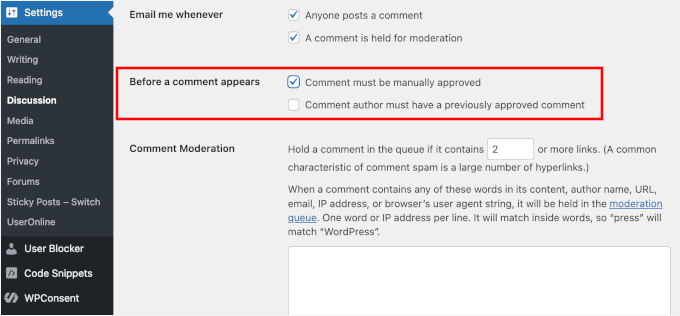
By default, though, WordPress holds comments from new visitors until you approve them. If you’d like, you can adjust these settings anytime under Settings » Discussion in your dashboard.
Why are some comments not appearing in the sidebar?
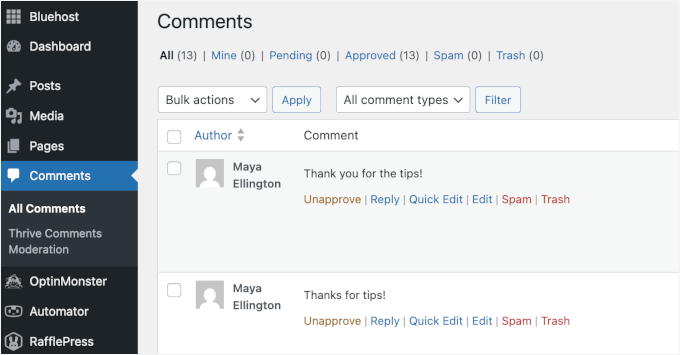
If a comment isn’t showing up, it’s usually because it’s still waiting for approval.
Once you approve a comment from the ‘Comments’ page in your admin area, it will show up on your site and can then appear in the recent comments list.
Can I customize the appearance of the recent comments?
Yes, you can easily change how your recent comments look. The Decent Comments plugin (from Method 2 in this guide) comes with several built-in styling options.
If you want more control, you can also add custom CSS to match your theme’s design.
Additional Resources for Managing WordPress Comments
We hope this tutorial helped you learn how to show recent comments in the WordPress sidebar.
Next, you may also want to check out these other guides on improving your WordPress comments section:
- How to Display the Total Number of Comments in WordPress
- How to Allow Users to Like or Dislike Comments in WordPress
- How to Style Your WordPress Comment Form
- How to Completely Disable Comments in WordPress
- How to Stop Comment Spam in WordPress
- How to Fix Category and Comment Count After WordPress Import
If you liked this article, then please subscribe to our YouTube Channel for WordPress video tutorials. You can also find us on Twitter and Facebook.




Ermin
Any idea how i could do this with disqus comments?
MacEverything
Does this work with Disqus?
Daniel Andrade
Nope, this wouldn’t work with Disqus