


Selling your photos online is a great way to turn your passion into income. With the right strategy, you can reach a global audience and earn from your photos without a physical store.
From stock photo websites to your own online shop, there are many ways to get started. However, we recommend Easy Digital Downloads (EDD).
It’s the perfect platform for selling digital products like eBooks, PDFs, and photos. In fact, we’ve been using it ourselves to successfully sell plugins and have had a wonderful experience.
In this article, we will show you how to start selling your photos online using WordPress.
💡Quick Answer: How to Sell Photos Online
If you want to start selling your photography today, here is the short version of the process:
- Get a Domain & Hosting: You need a home for your website. We recommend SiteGround’s EDD Hosting because it comes pre-configured for selling files.
- Install WordPress: This gives you full ownership of your store and 100% of your profits (unlike stock photo sites).
- Install Easy Digital Downloads: This is the plugin that turns a standard blog into a digital store.
- Connect Payments: Connect Stripe or PayPal in the EDD settings to accept credit cards.
- Upload Photos: Create “Download” products for your images, set a price, and publish them.
Why Sell Your Photos Online?
Stock photography websites are very popular with businesses, organizations, and even individuals who need professional images for their projects. If you want to start an online side business, then selling photos online is a great way to make money.
By selling your photos as downloadable files, you can make money without having to pay for shipping or professional printing.
You can also sell the same file countless times. You will just need to create your website, upload your files, and make extra income without a lot of day-to-day effort.
If you are a professional photographer, then selling your work online can also introduce your brand to a wider audience. As a result, people who like your work may book you for professional photoshoots and events.
With that in mind, let’s see how you can sell photos online.
Which Platform Should You Use to Sell Photos Online?
First, you will need to choose an eCommerce platform that you will use to upload your photos and then sell them.
While you can change your eCommerce platform later, it will often take a lot of time and effort and will almost certainly disrupt your business. That said, it’s important to choose the right eCommerce solution for you.
Since you want to sell photos online, it’s a good idea to use a platform that’s designed specifically to sell digital downloads.
That’s why we recommend using WordPress and Easy Digital Downloads. It’s easy to set up, user-friendly, and scalable, and our partner brands are using it to sell their plugins.
To learn more about our experience with it, see our detailed Easy Digital Downloads review.
WordPress powers over 43% of all websites including millions of sites that sell digital downloads. WordPress gives you full control over your digital store, so you can design a beautiful website that shows off your photography.
Meanwhile, Easy Digital Downloads is the best WordPress eCommerce plugin to sell digital products. In fact, we use the plugin ourselves to sell many of our premium WordPress plugins.
With WordPress and Easy Digital Downloads, you can sell as many photos as you want to a worldwide audience without paying high transaction fees. This gives WordPress and Easy Digital Downloads a big advantage over other platforms like Sellfy, Gumroad, WooCommerce, and Sendowl.
Let’s see how you can quickly and easily start selling photos online using WordPress and Easy Digital Downloads. Here are the steps we’ll cover in this tutorial:
- Step 1: Setting Up Your WordPress Website
- Step 2: Setting Up Your eCommerce Plugin
- Step 3: Adding a Payment Gateway to WordPress
- Step 4: Turning Individual Photos Into Downloadable Products
- Step 5: Creating Downloadable Photo Packs (Optional)
- Step 6: Customizing Your Digital Download Emails
- Step 7: Testing Your Digital Download
- Step 8: Selecting and Customizing Your WordPress Theme
- Step 9: Promoting Your Digital Downloads
- Bonus: How to Sell More Photos Online
- Frequently Asked Questions About Selling Photos Online
Step 1: Setting Up Your WordPress Website
Before you start building your WordPress website, it’s important to know that there are two types of WordPress software: WordPress.org and WordPress.com.
For your online store, you will need WordPress.org. Also known as self-hosted WordPress, it has more features and flexibility. You can also install any WordPress plugin, including Easy Digital Downloads, which is designed for selling products online.
For more on this topic, please see our post on whether WordPress is good for eCommerce.
To start selling digital photos with WordPress, you will need a domain name. This is the address that people will type into their browser when they want to visit your store, like shutterstock.com or stockphotos.com.
If you don’t already have a name in mind, then you can see our guide on how to choose the best domain name.
You’ll also need web hosting, which is where your website’s files are stored online, and an SSL certificate so that you can securely accept credit card payments.
A domain name typically costs around $14.99 per year. Web hosting costs usually start from about $7.99 per month.
As you can see, the costs can really start to add up. This is especially true if you are just getting started.
Thankfully, SiteGround is offering a huge discount on their managed hosting for Easy Digital Downloads. Their plan comes with a free SSL certificate, Easy Digital Downloads pre-installed, and optimization feature.
This means you can start selling your photos for a very low monthly cost.
Let’s go ahead and show you how to easily buy a domain name, web hosting, and an SSL certificate.
To get started, you need to go to the SiteGround website and click on ‘Get Plan.’
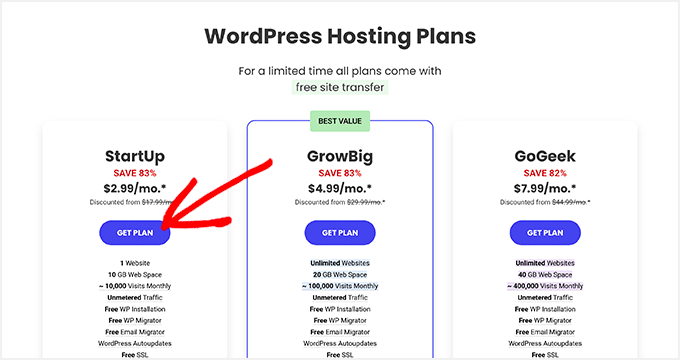
After that, SiteGround will ask you to enter a domain name for your online store and will also show some optional extras you can buy. You can add these extras at any point, so we recommend skipping this step.
Then, simply enter your payment information to finish the purchase. After a few moments, you will get an email with details on how to log in to your SiteGround account.
Once you log in, select the ‘Websites’ tab. Here, you will see two buttons: Site Tools and WordPress Admin.
Site Tools is SiteGround’s hosting dashboard, where you can manage everything related to your site, such as setting up your emails.
To log in to your new website, go ahead and click on the ‘WordPress Admin’ button.
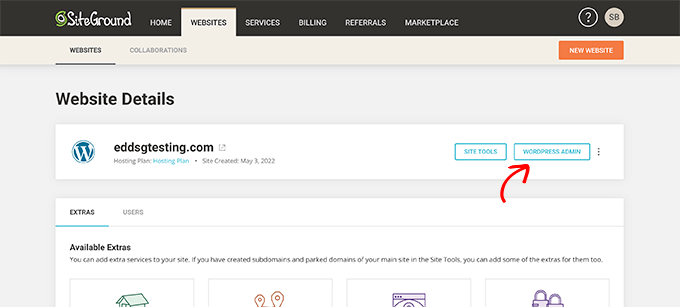
This will take you to a screen where you can log in to your WordPress dashboard.
Here, simply type in the username and password you created, and then click on ‘Log In.’
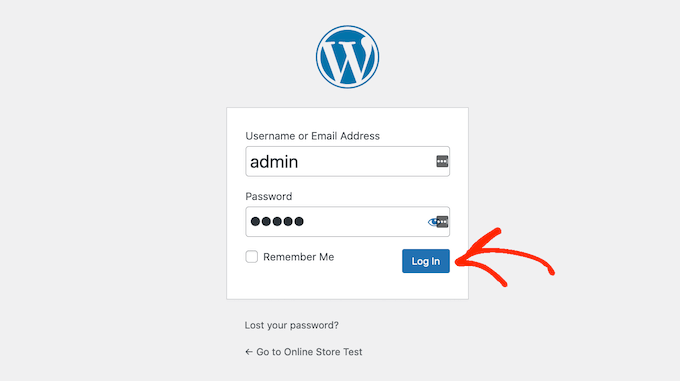
Now, you are ready to start building a store to sell your digital photos online.
Note: Are you using a different WordPress website hosting service like Bluehost, Hostinger, or HostGator? Just check out our guide on how to install WordPress for detailed step-by-step instructions.
Step 2: Setting Up Your eCommerce Plugin
If you are using SiteGround, then Easy Digital Downloads already comes pre-installed.
If you are using a different hosting provider, then you will need to install and activate the Easy Digital Downloads plugin. For step-by-step instructions, please see our guide on how to install a WordPress plugin.
Upon activation, you need to go to Downloads » Settings in your WordPress dashboard and enter your license key into the ‘License Key’ field.
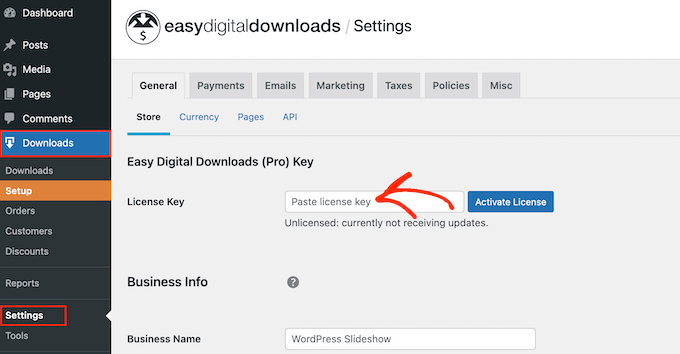
You can find this information in your account on the Easy Digital Downloads website. With that done, just click on the ‘Activate License’ button.
First, you need to set your store’s location.
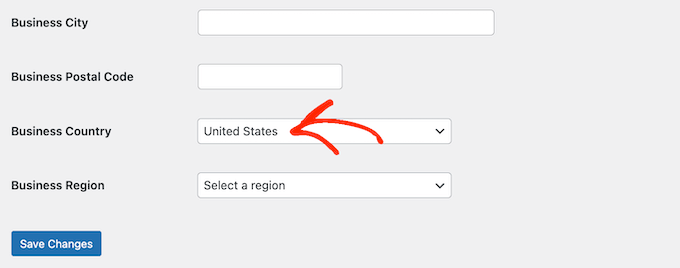
You may be selling your photos online, but Easy Digital Downloads will still use your location to auto-fill some fields when a visitor makes a purchase. It may also use your location to calculate sales tax.
To add your location, simply open the ‘Business Country’ dropdown menu. You can then choose where your business is based.
Next, find the ‘Business Region’ field.
Here, you can open the dropdown and choose the area where your store operates from.
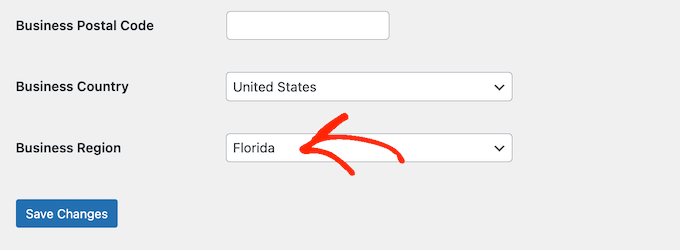
When you are happy with the information you have entered, simply click on the ‘Save Changes’ button to store your settings.
Step 3: Adding a Payment Gateway to WordPress
When selling photos online, you will need a way to accept credit payments in WordPress. By default, Easy Digital Downloads supports popular payment gateways like Stripe, PayPal, and Amazon Payments.
💡 Pro Tip: Want to use a different payment gateway instead? You can add extra payment options using the Easy Digital Download extensions.
To add payment gateways to your website, go to Downloads » Settings and click on the ‘Payments’ tab.
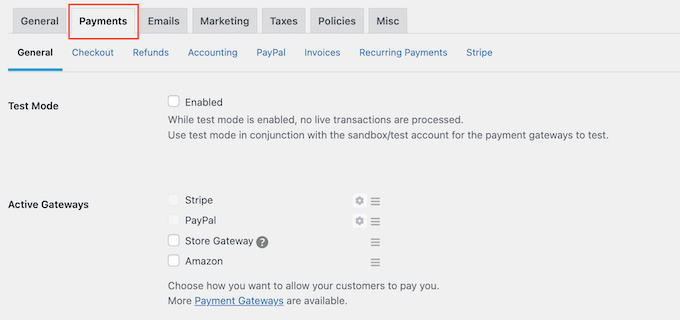
If you want to accept payments with Stripe or PayPal, then click on either the ‘Stripe’ or ‘PayPal’ tab.
You can then follow the onscreen instructions to set up Stripe or PayPal for your website.
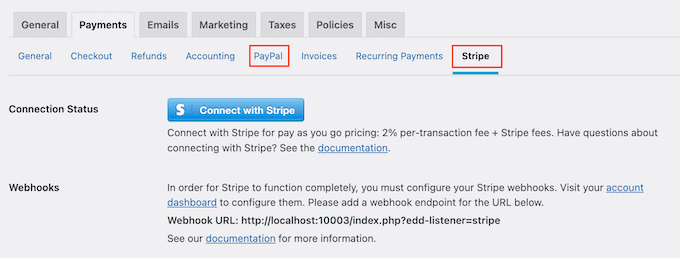
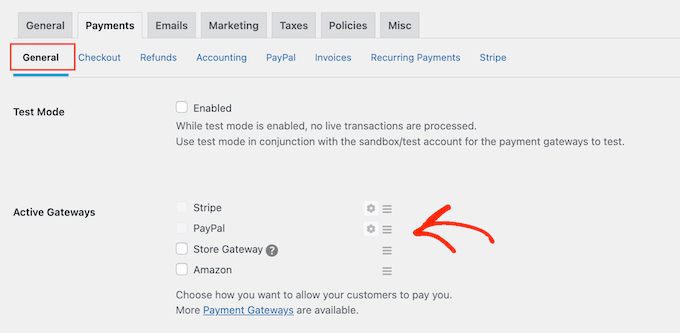
When done, go ahead and click on the ‘General’ link.
In the Active Gateways section, check the box for each of the gateways that you want to add to your digital product marketplace.
If you check more than one payment method, then you will need to open the ‘Default Gateway’ dropdown and choose the payment method that will be selected by default.
You can use any gateway you want, but Stripe can accept credit cards as well as Google Pay and Apple Pay. With that being said, you may want to use Stripe as your site’s default payment gateway.
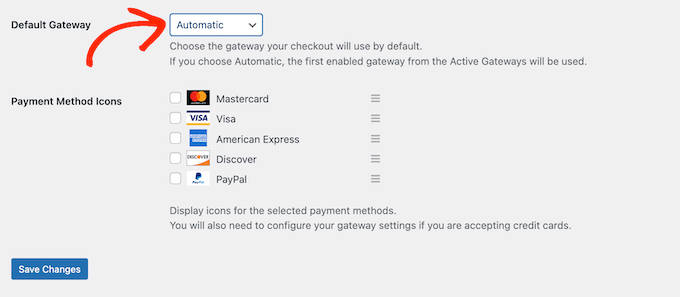
After selecting one or more payment gateways, just click on the ‘Save Changes’ button.
By default, Easy Digital Downloads shows all your prices in US dollars. Once you have set up your payment gateway, you may want to change the currency that’s used on your website.
To show your prices in any currency other than US dollars, select the ‘General’ tab, followed by the ‘Currency’ link.
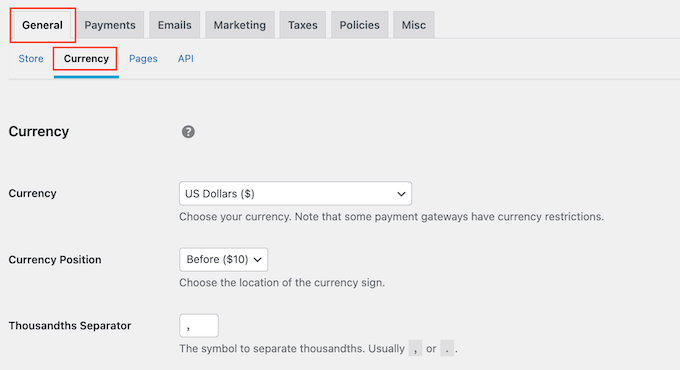
Next, open the ‘Currency’ dropdown and choose the currency you want to use.
Just be aware that some payment gateways may not accept every currency. If you are not sure, then you can always check your chosen payment gateway’s website. Most have a list of currencies that they support.
When you are happy with how the plugin is set up, click on the ‘Save Changes’ button to store your settings.
Step 4: Turning Individual Photos Into Downloadable Products
Once you have set up at least one payment gateway, you are ready to create your first digital product. This can be any photo or digital file that you want to sell online.
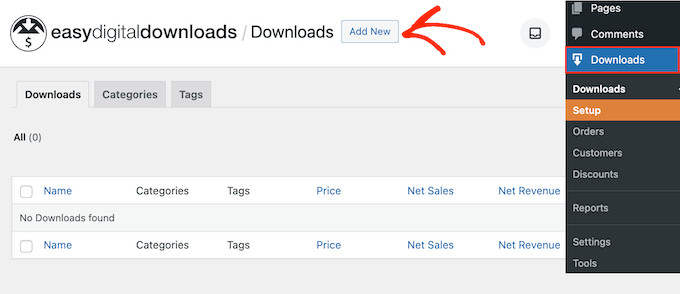
To create a digital product, simply go to Downloads and select the ‘Add New’ button.
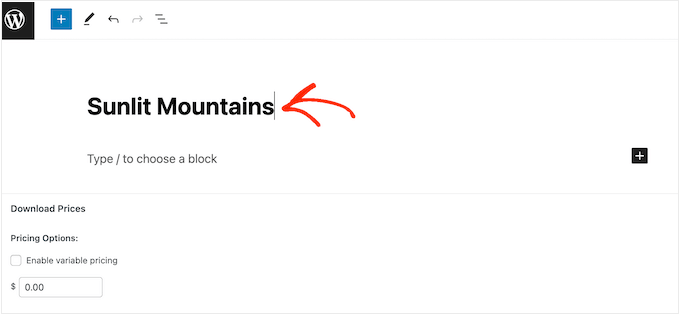
You can now type a name for the product into the ‘Enter download name here’ field.
This will appear on the product’s page, so you will want to use something that catches the visitor’s attention and accurately describes your photo.
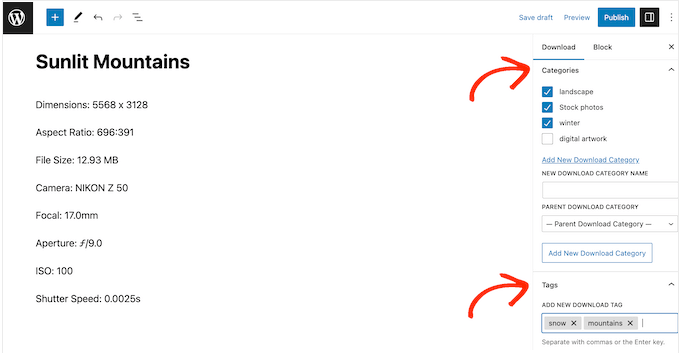
Next, type out the description that will appear on the product page. You will want to give visitors all the information they need to decide whether they want to buy this photo.
For example, you might include the image’s dimensions and resolution. You could also talk about the product’s licensing and how the customer can use the photo.

You can also create new categories and tags in the Download Categories and Download Tags boxes.
This helps shoppers find what they are looking for.
Next, scroll to the ‘Download Details’ section to set a price.
Type in how much visitors will need to pay to download this photo.
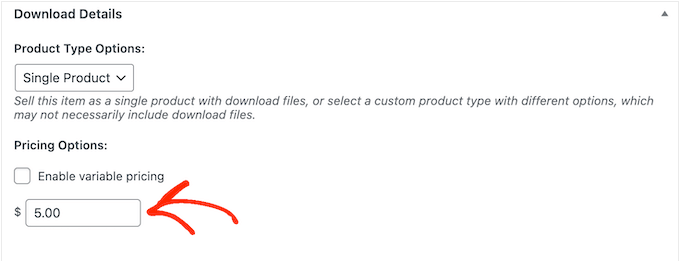
Easy Digital Downloads also supports variable pricing. For example, you might sell different licenses for the same photo, such as “Personal Use” versus “Commercial Use.”
If you want to offer different options, select the ‘Enable variable pricing’ checkbox. This adds a new section where you can type in a name for each option and set the price.
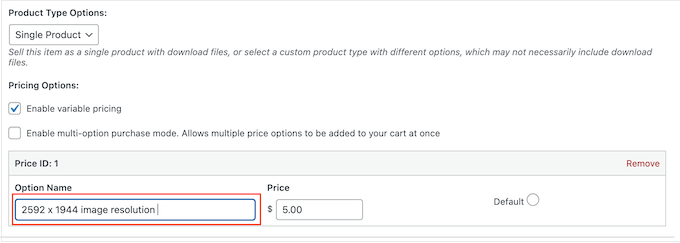
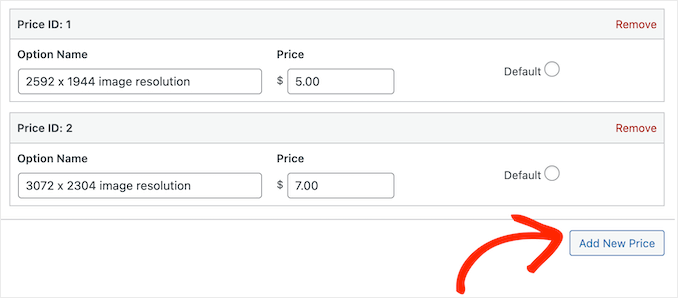
To create more pricing variations, simply click on the ‘Add New Price’ button.
You can then type in a title and price for each variable.
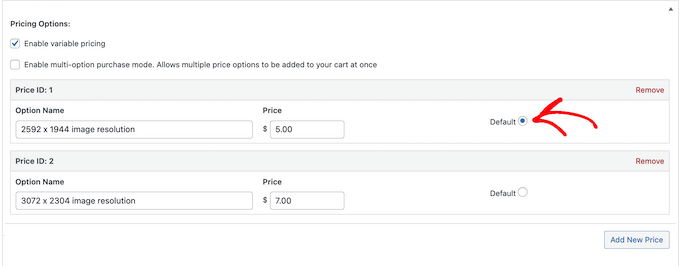
After adding all the options, you will need to set the default option. This will be selected automatically when the shopper arrives at the product page.
Simply find the option you want to use, and click its ‘Default’ button.
You are now ready to upload the actual image file that the customer will receive. WordPress supports gif, jpeg, png, and webp formats. It also supports heic, but this depends on your hosting provider’s server configuration.
💡 Pro Tip: If you want to sell photos in a file type that WordPress doesn’t support, then see our guide on how to allow additional file types in WordPress.
To get started, click on the ‘Upload a File’ icon.
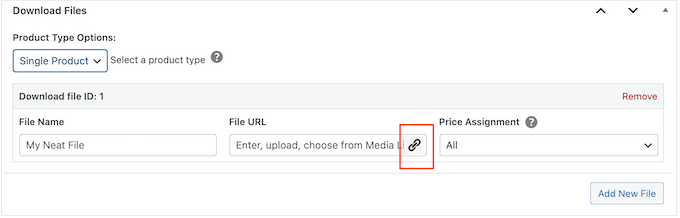
You can now choose any image from the WordPress media library or upload a new file from your computer.
Easy Digital Downloads will generate a file name automatically. However, you can change the file name by typing into the ‘File Name’ field.
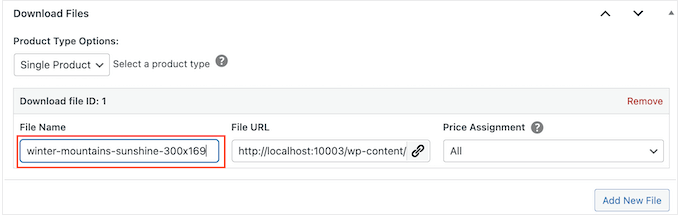
If you have enabled variable pricing, then you need to open the ‘Price Assignment’ dropdown.
Then, choose a price from the list.
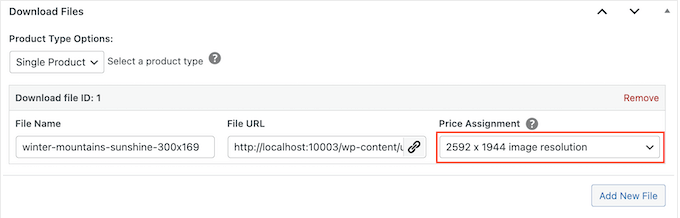
After that, just click on the ‘Add New File’ button.
This adds a section where you can upload a file, add a title, and choose a price assignment.
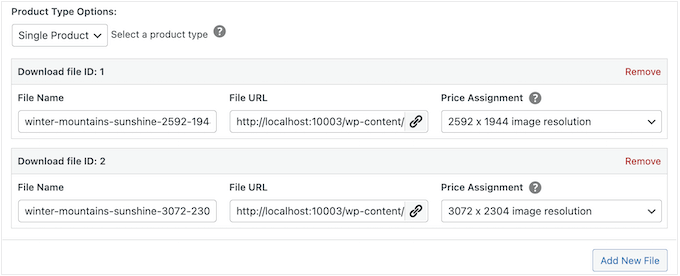
Simply repeat these steps for each pricing variation you want to offer.
Once you have uploaded the secure file, the next step is adding a product image. This is the “cover art” or preview image that everyone on your website can see.
We do not recommend using the original, full-resolution photo as your product image. Instead, use a lower-resolution version or add a watermark to prevent theft.
To add a product image, simply scroll to the Download Image section and then click on ‘Set Download Image’.
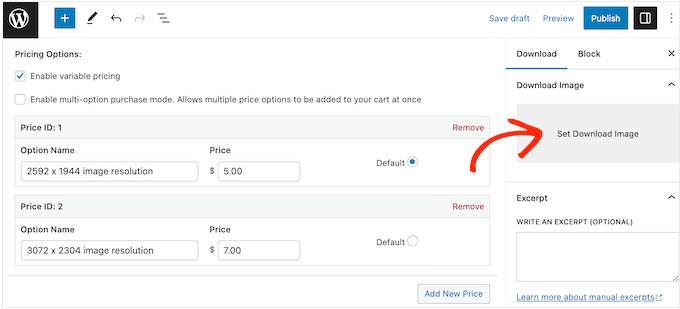
This launches the WordPress media library, where you can choose an image or upload a new file from your computer.
When you are happy with your digital download, simply click on the ‘Publish’ button to make it live.
Step 5: Creating Downloadable Photo Packs (Optional)
Once you have uploaded individual photos, you may want to create bundled photo packs. For example, you could add all your foodie-themed photos to a single pack.

This saves customers time since they don’t have to buy each photo individually. You may also want to offer these bundles at a discount to get more sales.
To add multiple photos to the same bundle, create a new digital product following the same process described above.
💡Expert Tip: We recommend compressing your photo collection into a single .zip file. This makes it much easier for customers to download the whole pack at once.
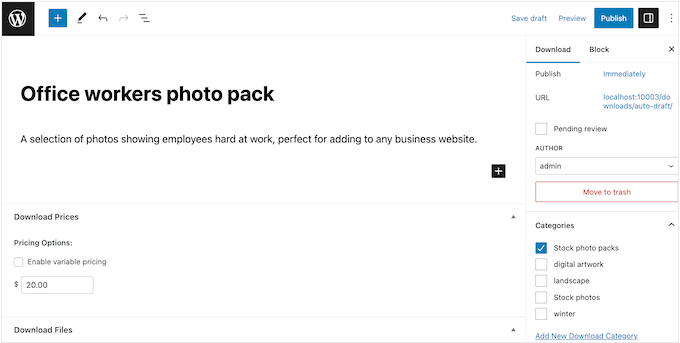
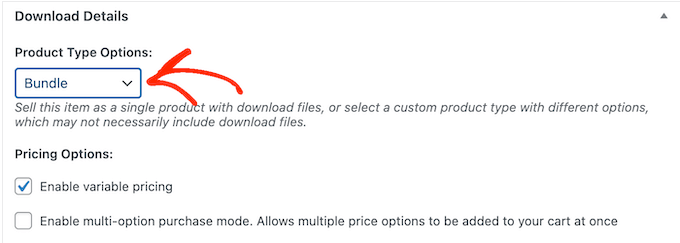
Next, under ‘Download Details’, open the ‘Product Type Options’ dropdown and choose ‘Bundle’.
This adds a new ‘Bundled Downloads’ section.
Here, search for the photos or files you want to include.
When the name appears, click to select it.
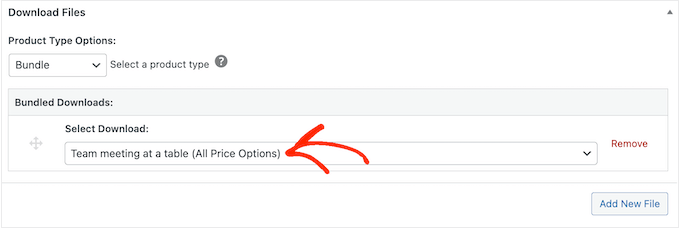
Simply repeat these steps to add all the photos you want to offer in this bundle. When you are done, click ‘Publish’ to make it live.
Step 6: Customizing Your Digital Download Emails
Every time someone buys a photo from your website, Easy Digital Downloads will send them an email with a link to download their product.
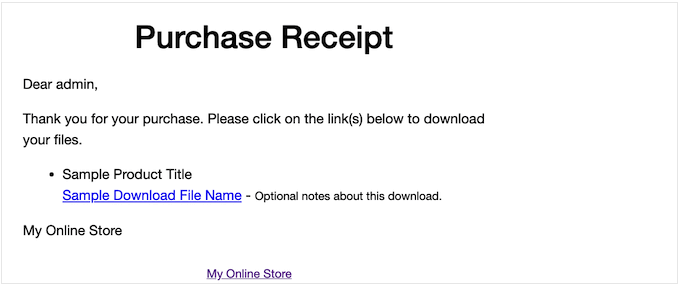
While this default email has everything the customer needs to download their file, we still recommend customizing it with your own logo, branding, and messaging.
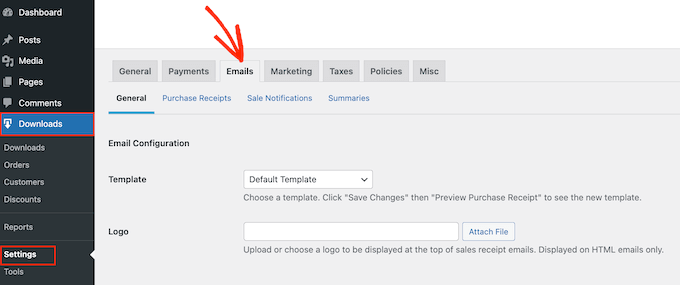
To customize the default email, simply go to Downloads » Settings. Then click on the ‘Emails’ tab.
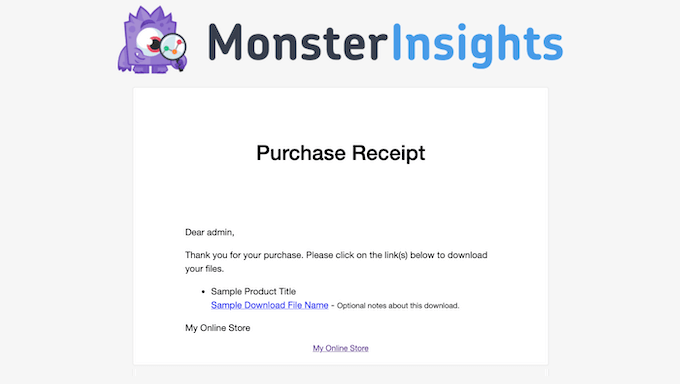
You may want to start by adding your own logo.
This branding appears at the top of your purchase receipt emails, so customers can clearly see who the email is from.
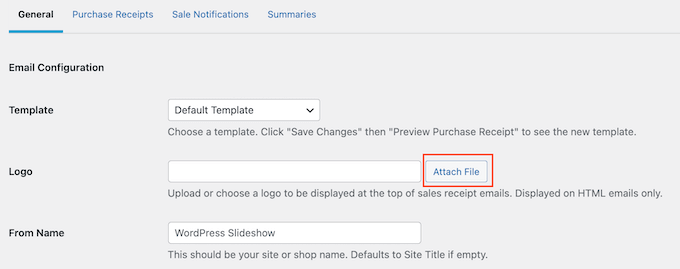
To add a logo, click on the ‘Attach File’ button.
You can now either choose an image from the WordPress media library or upload a file from your computer.
You can also add a ‘From Name’.
This name will appear in the customer’s inbox, so you will want to use something that the customer will recognize, like the name of your website, business, or photography studio.
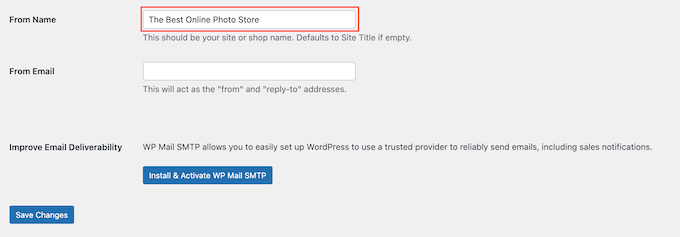
You will also need to add a ‘From Email’, which will act as the ‘from’ and ‘reply-to’ address.
Some customers may reply to the purchase receipt email. For example, if they are having problems downloading the file, then they might reach out by clicking ‘Reply’. With that in mind, you will want to use a professional email address that you check frequently.
After making these changes, just click on the ‘Purchase Receipts’ tab.
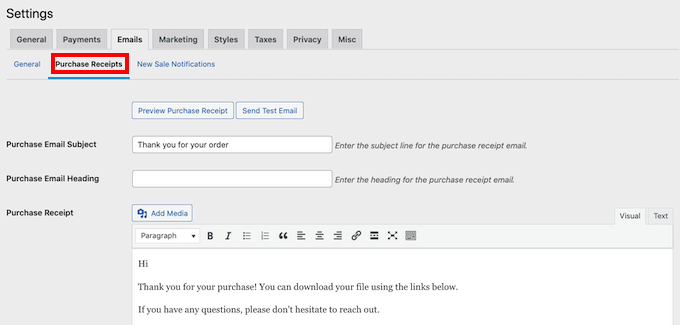
On this screen, you can type in an email subject, add a heading, and also change the email’s body text.
You could simply type in the text that you want to send to every customer. However, you can create more helpful and personalized emails by using the Conditional Emails feature.
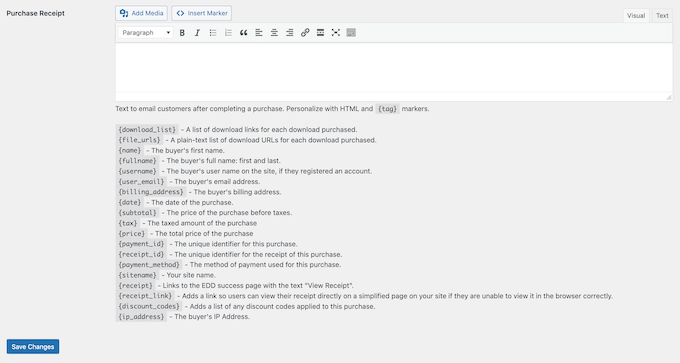
Conditional Emails use ‘template tags’ to personalize your content. Every time it sends an email, Easy Digital Downloads will replace these tags with real values, such as the customer’s name and how much they paid for the digital download.
To see all the available tags, simply scroll to the bottom of the ‘Purchase Receipts’ screen.
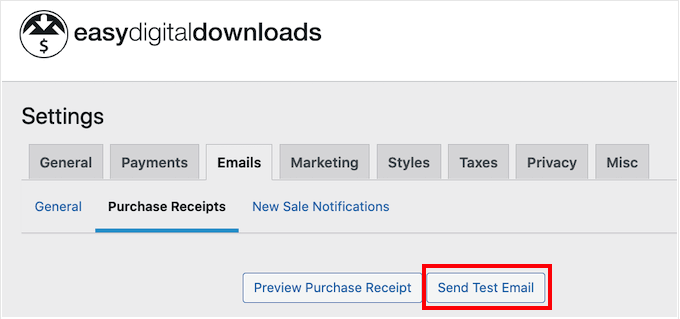
When you have finished making changes, you may want to send a test email to see how the message will look to your customers.
To do this, simply click on the ‘Send Test Email’ button, and Easy Digital Downloads will send an email to your WordPress admin email address.
Have you clicked on the ‘Send Test Email’ button but didn’t get a test email? Your WordPress website may not be sending emails properly, which can be a big problem. If customers don’t get purchase confirmation emails, they won’t be able to download your photos.
With that in mind, you can follow our guide on how to fix the WordPress not sending email issue to make sure your emails reach your customers. You can also check out WP Mail SMTP, which is the best WordPress SMTP plugin.
When you are happy with the purchase receipt email, go ahead and click on the ‘Save Changes’ button.
Step 7: Testing Your Digital Download
Once you have created your first Easy Digital Downloads product and customized the purchase emails, it’s a good idea to check that visitors can buy your photos without any issues.
To test your download, you will need to put your site into test mode. This allows you to test the purchasing process without typing in your credit or debit card information.
To put your store into test mode, go to Downloads » Settings and then click on the ‘Payments’ tab.
Under ‘Active Gateways’, you must check the box next to ‘Store Gateway’.
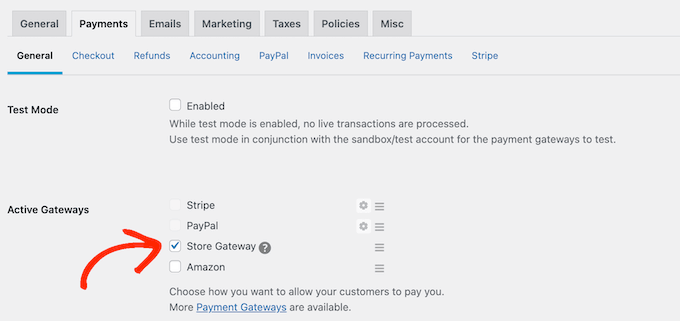
After that, scroll to the bottom of the screen and click on ‘Save Changes’.
Now that you are in test mode, go to Downloads » All Downloads and hover over the product that you want to test. When it appears, click on the ‘View’ link.
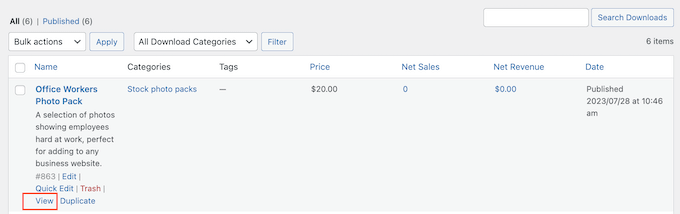
This opens the product page where shoppers can buy the photo or photo pack.
To make a test purchase, simply click on the ‘Purchase’ button.

Easy Digital Downloads will now add this item to your cart.
After that, it’s time to click on the ‘Checkout’ button.

You can now type in your email address and name and then click on ‘Purchase’.
Since you are in test mode, you don’t need to enter any payment information.

After a few moments, you will get a purchase confirmation email containing a link to download the individual photo or all the files in a stock photo pack.
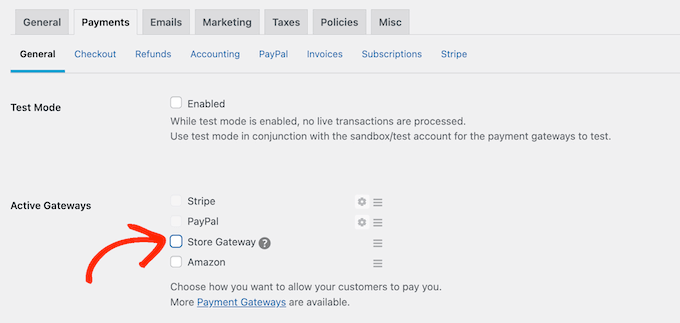
Once you have completed the test, you are ready to take your store out of test mode and start accepting payments from visitors.
To do this, head over to Downloads » Settings » Payments. You can then uncheck the ‘Store Gateway’ box.
Step 8: Selecting and Customizing Your WordPress Theme
Themes control how your WordPress website looks, including the colors, layout, fonts, and widget-ready areas. The right WordPress theme will make a good first impression on visitors and make them want to explore more of your site.
With that in mind, you will want to choose a design that looks great and has exactly the features you need.
To help you make the right choice, we have put together a list of the most popular WordPress themes. Our top pick is the Astra Theme since it’s fully compatible with Easy Digital Downloads, free, and completely customizable.
After choosing your theme, you can see our guide on how to install a WordPress theme.
Another option is to create your own custom page designs with SeedProd. It’s the best drag-and-drop WordPress theme builder on the market and comes with more than 300+ ready-made, professionally designed templates.
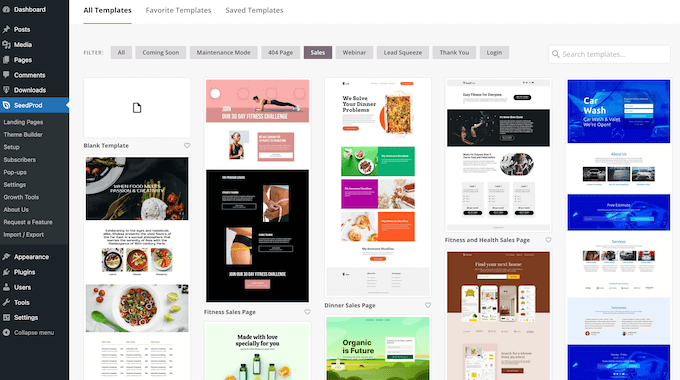
You can use SeedProd to design landing pages and sales pages where you promote your photographs and photo packs.
This can get you more conversions and boost your profits.
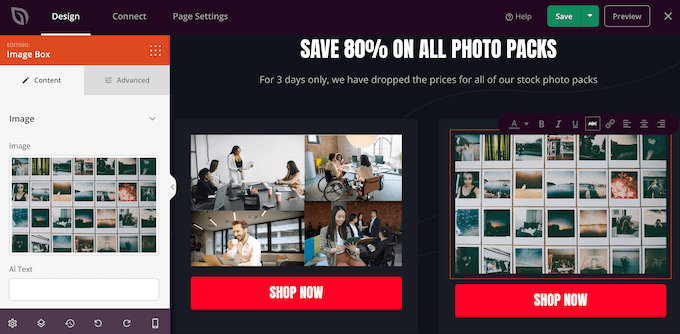
If you want complete control over your store, then you can even use SeedProd to design your own theme without writing a single line of code. Simply find the blocks you want to use, and then drag them onto your page designs in the SeedProd editor.
For more details, you can check out our guide on how to create a custom WordPress theme (no coding needed).
Step 9: Promoting Your Digital Downloads
Now that your products are live, the next step is to drive traffic to your store so you can start making sales.
A good first step is adding your store to your website’s menu.
Another option is writing great blog posts about industry topics. You can then include links to a few relevant products that readers may want to buy.

You can also build an email list and send subscribers updates about new photos or special offers.
To promote a specific product, you can easily add a purchase button to any post or page.
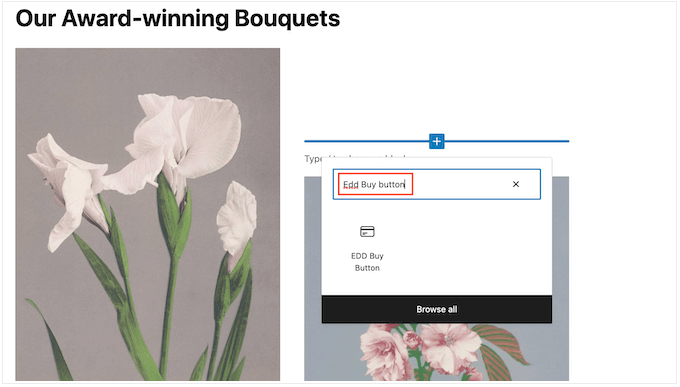
If you are using the WordPress block editor, simply search for the ‘EDD Buy Button’ block and add it to your content.
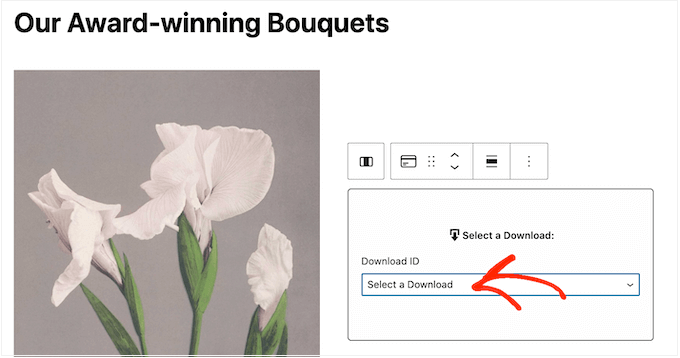
In the block settings, you can select the specific download you want to link to.
This allows visitors to add the photo to their cart directly from your blog posts or landing pages.
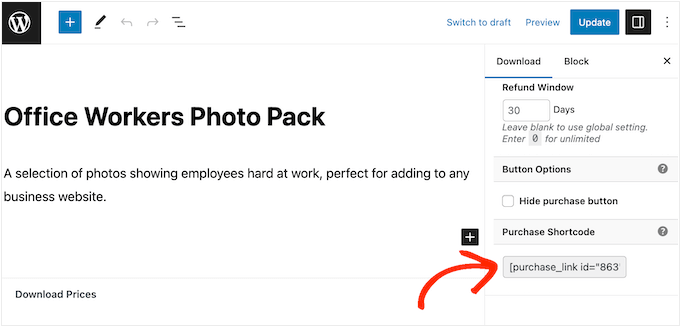
If you prefer using shortcodes, you can still find the purchase shortcode in the ‘Download Settings’ meta box on the product editing screen.
For more details on how to place the shortcode, you can see our guide on how to add a shortcode in WordPress.
Bonus: How to Sell More Photos Online
To make more sales, you will need to get as many visitors as possible and then convince those people to buy your photos.
This is where WordPress plugins can make things easier.
Here are some of our top picks for plugins that can help you sell more photos online:
- All in One SEO is the best SEO plugin for WordPress. It can help you optimize your site to get more visitors from search engines like Google.
- MonsterInsights is the best analytics solution for WordPress. It helps you see where your visitors are coming from and the actions they take on your online store. This allows you to fine-tune your site and marketing activities to get more sales based on real data.
- OptinMonster is the best conversion optimization software on the market. You can use it to create optin forms to grow your email list and convert visitors into paying customers. It can also help reduce your shopping cart abandonment rates.
- PushEngage is the best push notification software for WordPress. It allows you to send personalized web push notifications to visitors and customers. For example, you might notify them about a flash sale or a new photo pack that you just added to your website.
You may also want to see our opinion piece on lessons learned from selling digital downloads for 10+ years.
Frequently Asked Questions About Selling Photos Online
In this guide, we showed you how to sell photos online using WordPress. If you still have questions, then here are our FAQs about running an online photography business.
Where can I sell my photos online?
There are many platforms, stores, and digital marketplaces where you can sell your photos.
Popular choices include Adobe Stock, Shutterstock, and Alamy. These platforms have large audiences but often take a percentage of your sales.
To build a successful business, we recommend creating your own website. This gives you complete control over your brand and allows you to keep all the profits.
Do I need a model release to sell photos?
Yes, if your photos feature recognizable people and you plan to sell them for commercial use, you generally need a signed model release form.
This document proves that the person in the photo has given you permission to use their likeness for sales. Without it, you could face legal liability. For editorial use (like news reporting), rules may differ, but it is best to consult a legal professional.
How much does it cost to sell photos online?
We recommend starting small. Selling photos online can be a low-cost business if you use WordPress and Easy Digital Downloads.
By using SiteGround EDD Hosting and free themes, you can minimize startup costs. This avoids the high fees often charged by third-party marketplaces.
For more information, see our article on how much it costs to build a WordPress website.
How can I make money from my photos?
The easiest way to make money from your photos is by selling them online. You can either sell your photographs for a one-time fee or sell licenses that control how customers can use those photos.
Another option is to create a membership website and sell subscriptions. For example, you might allow members to download and use as many photos as they want or create membership tiers where your most popular photos are reserved for the highest-paying members. Another option is selling group memberships for corporate teams.
Can I also sell physical products using Easy Digital Downloads?
At some point, you may want to sell physical products. For example, you might create merchandise featuring your most popular photos or sell your photographs as framed prints.
Despite the name, you can also use Easy Digital Downloads to sell physical products. There’s even a Simple Shipping addon that adds shipping features to the Easy Digital Downloads plugin. In this way, you can ship your branded merchandise, framed prints, or other physical products to customers using the tools you’re already familiar with.
If you’re looking for an alternative way to sell physical prints of your photos, you can use NextGEN Gallery.
It’s the only WordPress plugin with automatic print lab fulfilment.
You can ship prints directly to customers via WHCC, a top professional print lab. Plus, NextGEN doesn’t charge any commissions on your sales.
We hope this article helped you learn how to sell photos online. You may also want to see our guide on how to add customer invoices for Easy Digital Downloads, or see our expert pick of most popular digital products you can sell online.
If you liked this article, then please subscribe to our YouTube Channel for WordPress video tutorials. You can also find us on Twitter and Facebook.


Kerry Todd
Great intro article, thank you!
Is there a way to do bulk uploads of photo’s rather than one by one? I’m looking at creating galleries for various photoshoots and uploading up 100-200 photos to each.
WPBeginner Support
For bulk uploading photos you would want to follow our guide below:
https://www.wpbeginner.com/plugins/how-to-bulk-upload-wordpress-media-files-using-ftp/
Admin
Samuel
Wow! This is an eye opener for me, despite the fact that I have been buying images from various websites for use in my different projects it never occurred to me that this is something i can do to earn side income with much less effort. I already have everything i need, just to buy a fitting theme and easy download plugin, domain and hosting the the birth of new business. Thank you so much for this. You make it look very simple, and it is detailed. This will be an easy pie for me since I am a trained graphic designer and know how to use camera.
Jiří Vaněk
Easy Digital Downloads started to interest me primarily because of selling PDF files on my website, but as I see, it’s a really powerful tool for selling anything digital. Whether it’s music, photos, or PDFs. A friend of mine has a website as a wedding photographer and occasionally wants to sell his work on his site when he’s not shooting weddings. I think with this guide, we’ll finally be able to bring his idea to fruition and finally bring his great work to market.
THANKGOD JONATHAN
Selling photos online has always been a dream of mine. This guide gave me the confidence to finally start!
Lori
Thanks for a well written and detailed post.
QQQ – Does Easy Digital Downloads allow customers to add multiple items to their cart? Or, does a customer have to purchase each image individually?
WPBeginner Support
Your users would be able to add multiple products into their cart
Admin
A Owadud Bhuiyan
Long days ago, I tried to sell photos on the stock website. But it was really tough.
I never thought about selling photos on my own website.
Thanks for sharing. This idea will be in my list.
WPBeginner Support
You’re welcome, we hope our guide helps you starting out
Admin
Ralph
Opening this guide I was sure this will be another list of stock images websites and nothing else. Such articles are not helpful but you guys as always come to the rescue! This is great piece of information how to set my own website that can sell my pictures.
WPBeginner Support
Glad to hear our article was helpful
Admin
Ahmed Omar
thank you for this detailed post about the important part of selling photos,
I am hosting my site on Siteground, would Easy Digital Downloads work fine enough for payment options, with no need to add other plugins for payment.
WPBeginner Support
It would depend on the payment gateways you were wanting to use but Easy Digital Downloads should cover most payment gateways.
Admin