


When I created my first multilingual WordPress website, there weren’t many good translation options. Most plugins were clunky, hard to configure, and didn’t support a full translation workflow.
Later, when we translated WPBeginner into Spanish and Portuguese, I realized just how much things had changed. The translation tools are more beginner-friendly now, and it’s easier than ever to reach a global audience without rebuilding your site from scratch.
If you want to connect with readers in their native language, then translating your WordPress site is a smart move. It shows respect, builds trust, and helps grow your traffic from places you may not have considered before.
In this tutorial, I’ll walk you through the best ways to make your site multilingual. We’ll look at different translation plugins, how to set them up, and how you can choose the right path, even if you’re just getting started.
What Is a Multilingual WordPress Website?
A multilingual WordPress website lets people view the same content in different languages. It’s one of the best ways to make your site more welcoming to a global audience.
When we translated WPBeginner, I saw firsthand how powerful this can be. Visitors are now automatically redirected to the right language based on their browser and locale settings.
There are two main ways to translate your website: you can write or review the translations yourself (or hire a professional), or you can use a plugin with automatic translation.
No matter which option you choose, you’ll still need a multilingual plugin to display the translated content across your site. These tools make it easy to manage language versions, add language switchers, and optimize your site for multilingual SEO.
Writing your own translations gives you full control over tone and accuracy, which is helpful if your content needs to follow a specific voice or brand style. But it also takes more time and usually costs more, especially if you’re working with a lot of content.
That’s why I recommend using automatic translation tools built into multilingual plugins. They’re much faster to set up, easier to manage, and often accurate enough for tutorials, blogs, and other informational pages.
Plus, many modern multilingual plugins use AI to better understand tone and context, so the translations feel much more natural than older tools like Google Translate.
In this guide, I’ll show you how to create a multilingual site in WordPress using translation plugins. You’ll learn how to set everything up and make sure your translations look great and work well for international visitors.
Getting Started with Your Multilingual WordPress Site
To build a multilingual WordPress site, here’s what you’ll need to get started:
- A domain name — This is your site’s address on the web, like wpbeginner.com.
- WordPress hosting — This is where your website files live.
- A multilingual WordPress plugin — I’ll share several great options below.
If you haven’t picked a hosting provider yet, I recommend starting with Bluehost. They are officially recommended by WordPress.org and work smoothly with all major multilingual plugins.
They’re also offering WPBeginner readers a free domain name, a free SSL certificate, and a huge hosting discount — so you can launch your site for as little as $2.99 per month.
Here’s why I often recommend Bluehost to beginners:
- They are officially recommended by WordPress.org.
- They offer reliable hosting at an affordable price, with friendly support.
- They work great with multilingual plugins like WPML, TranslatePress, and more.
You can learn more in our detailed Bluehost review.
If you’re looking for another option, I also recommend Hostinger. It offers similar perks, including a free domain and SSL, along with solid performance.
Once you’ve registered your domain and set up hosting, you can follow this step-by-step guide on how to make a WordPress site.
Choosing a WordPress Multilingual Plugin
There are several WordPress plugins you can use to translate your site into multiple languages. The right plugin should make things easy, not just for you, but also for your visitors.
In this guide, I’ll walk you through creating a site with four of the most reliable multilingual plugins for WordPress. If you already know which plugin you want to use, feel free to skip ahead to that section.
- Method 1: Create a Multilingual WordPress Website Using Weglot (Best for Beginners)
- Method 2: Create a Multilingual WordPress Website Using TranslatePress (Best for DIY Users)
- Method 3. Create a Multilingual WordPress Website Using WPML (Best for Large/Complex Websites)
- Method 4: Create a Multilingual WordPress Website Using Polylang (Best Free Option)
- FAQs About Creating a Multilingual WordPress Site
- More Tips for Managing a Multilingual WordPress Site 🎁
All four options support the key features you’ll need for a multilingual setup:
- Translate posts, pages, products, and custom post types
- Support for translating categories, tags, plugins, and theme text
- SEO-friendly URLs for every language you add
Let’s start with Weglot, a cloud-based translation plugin that makes it quick to turn your WordPress site multilingual with minimal setup.
Method 1: Create a Multilingual WordPress Website Using Weglot (Best for Beginners)
Weglot is a great choice if you want to translate your entire WordPress site quickly with minimal setup. It’s ideal for beginners, agencies on tight timelines, and anyone who wants instant results without manually duplicating content.
It uses automatic machine translation first, then gives you the tools to manually refine each string. You won’t need to create separate posts for each language, and setup takes just a few minutes.
Expert Tip: Weglot also offers AI-powered translations tailored to your brand voice and target audience. For details, see our guide on how to translate a WordPress website using AI.
Pros:
- Instant machine translation for your entire site, including theme and plugin text
- AI translation that focuses on your brand voice and target audience
- Supports over 110 languages with automatic language detection
- User-friendly dashboard for managing and editing translations
- No need to duplicate pages or create separate post versions
Cons:
- The free plan is limited to 2,000 words and 1 translated language
- Monthly pricing may be too high for small websites with a lot of content
For a deeper look at its features, check out our full Weglot review.
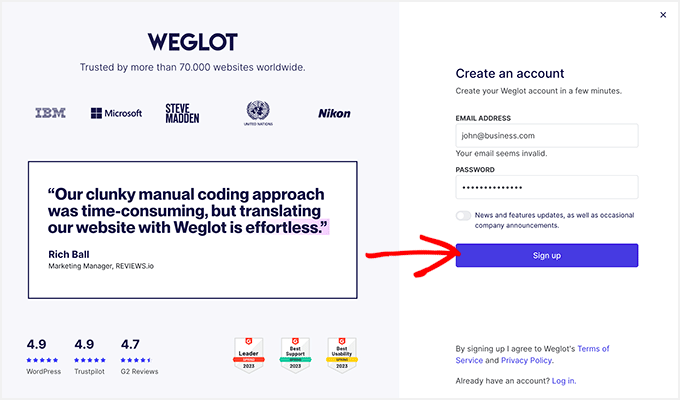
Step 1: Sign up and choose your platform
Go to the Weglot website and create an account. After logging in, create a new project and select ‘WordPress’ as your platform.
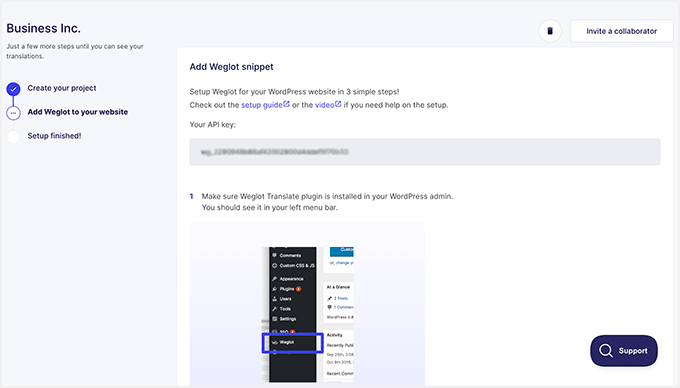
Step 2: Install the Weglot plugin and activate it
Follow the on-screen instructions to install the plugin in WordPress. Once installed, copy the API key from your Weglot dashboard.
Step 3: Enter API key and choose languages
Go to Settings » Weglot in your WordPress dashboard. Paste the API key into the ‘Main configuration’ field.
Then select your original language and any destination languages from the dropdown.
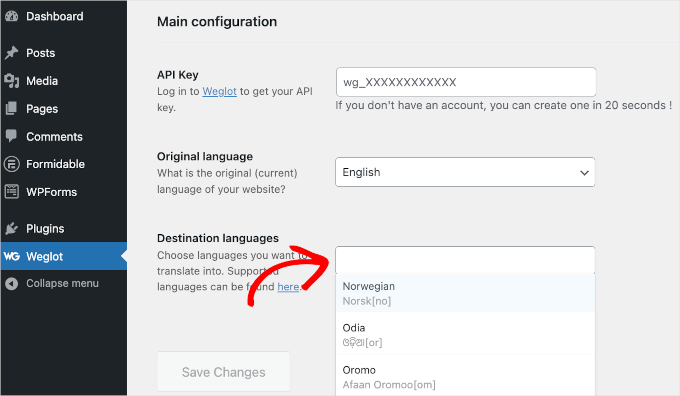
Click the ‘Save Changes’ button to continue.
Weglot will automatically apply the correct settings and activate the plugin on your site.
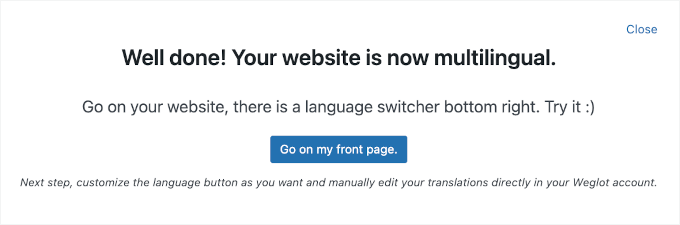
Step 4: Use the floating language switcher
Visit your site and click the floating language switcher in the corner. Weglot will automatically translate all your content — including menus, widgets, and even form labels — based on the visitor’s selection.
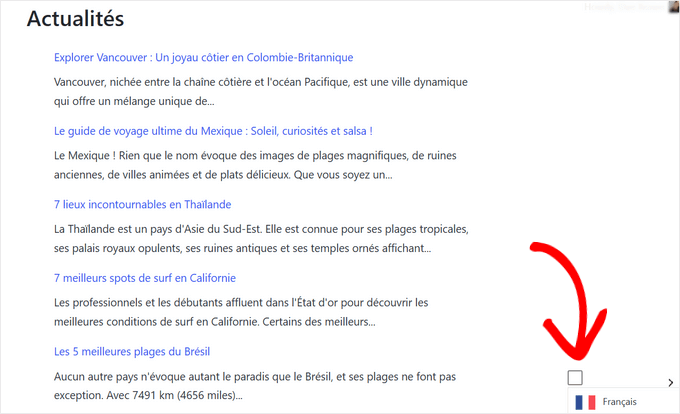
And that’s it. Your multilingual WordPress site is now live with Weglot and ready to welcome visitors from all over the world.
Method 2: Create a Multilingual WordPress Website Using TranslatePress (Best for DIY Users)
I’ve used TranslatePress on several personal projects, and I really like how it blends visual editing with language translation. It lets me see exactly where the translated text appears, which takes the guesswork out of the process.
It also gives you the flexibility to combine machine translations (like Google Translate) with manual edits. That’s especially helpful if you want to start fast and then fine-tune the results later.
Pros:
- Live front-end visual translation interface
- Supports manual and automatic translation (Google Translate)
- No separate versions of pages needed—edit inline on the actual site
- Free version available with core functionality
Cons:
- Extra languages require a paid add-on
- The interface can be slower for large or complex sites
Want a closer look at how it works? Check out our full TranslatePress review.
Expert Tip: We also have a dedicated guide on translating a WordPress website using TranslatePress.
Step 1: Installing and activating TranslatePress
To get started, download the TranslatePress plugins from your account. You’ll need to download both plugin files.
Note: For this tutorial, we are using the pro version of the plugin, which requires you to download, install, and activate two plugin variants (e.g., TranslatePress Plugin and TranslatePress Business Plugin). There is also a free version available with limited features.
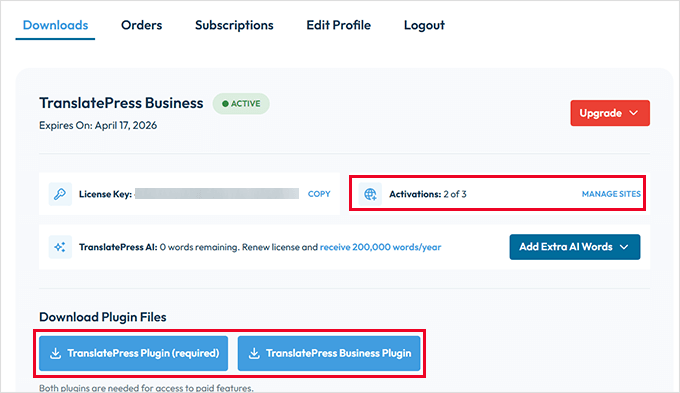
Click the ‘Manage Sites’ link, then enter your site URL under the ‘Authorize a new site URL for this license’ section.
Now go to Plugins » Add Plugin in your site’s admin area, and click the ‘Upload Plugin’ button.
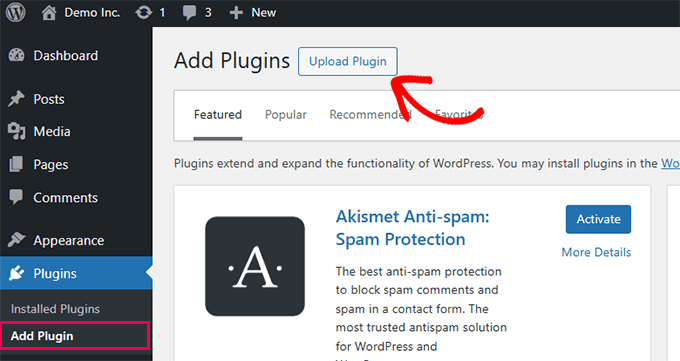
Upload the plugins you downloaded earlier and activate them one by one. If you need help, here’s our step-by-step guide on how to install a WordPress plugin.
Step 2: Setting up TranslatePress
After activation, go to Settings » TranslatePress to begin configuring the plugin.
Under the ‘General’ tab, you can choose your default language and the additional languages you want to add.
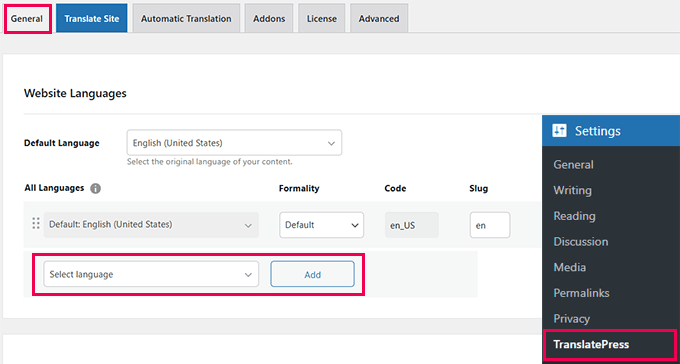
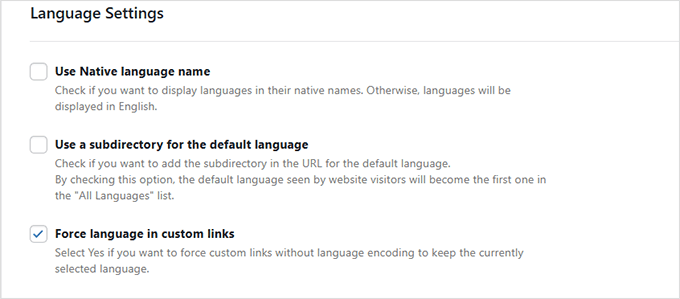
Scroll down to the language settings area. You can choose whether to display language names, use flags, and whether to enable SEO-friendly language URLs.
I usually leave the default options here since they work well for most setups.
Step 3: Customizing the language switcher
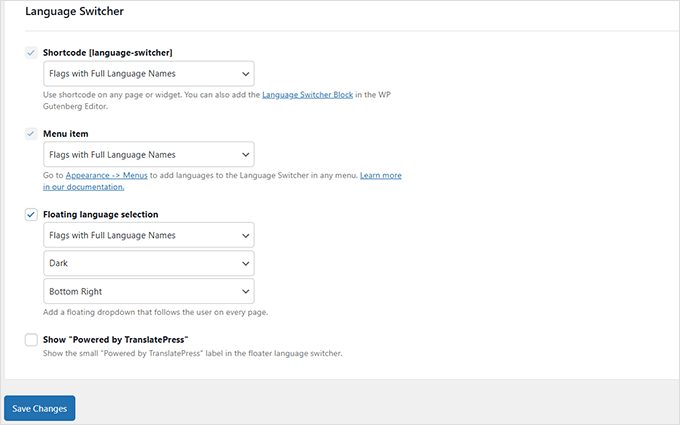
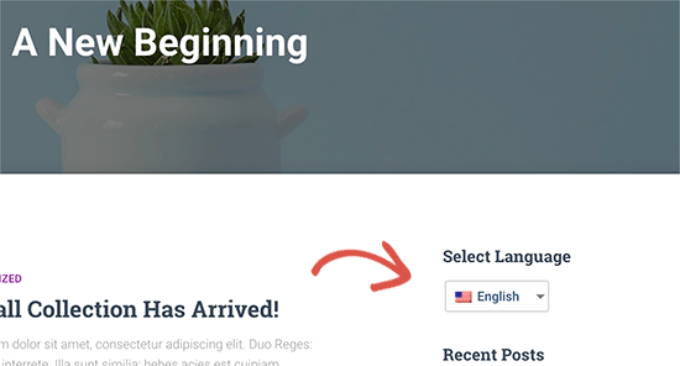
TranslatePress gives you three ways to show a language switcher: using a shortcode, adding it to your navigation menu, or placing a floating switcher on every page.
If you choose ‘Shortcode’ or ‘Menu item’, then you will need additional steps (I’ll show them later in the article). On the other hand, if you choose a floating language switcher, then no additional steps are required.
Just pick the one that fits your site’s design best and click ‘Save Changes’.
Step 4: Enabling automatic translation
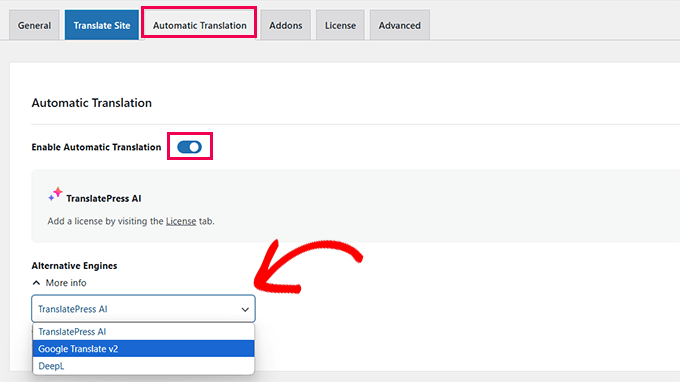
Want to use AI tools like Google Translate?
Go to the ‘Automatic Translation’ tab and toggle on the feature. Then just select the translation platform you prefer.
Step 5: Translating your website content
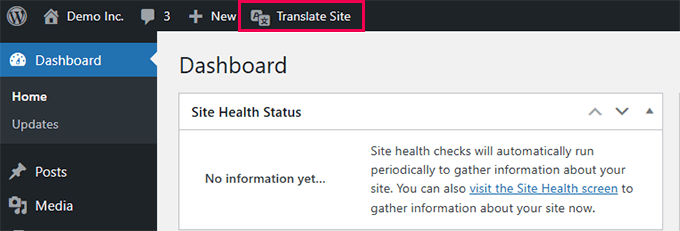
Click the ‘Translate Site’ button in your settings or use the quick link in the admin bar. This will open up a live visual editor.
You can now click any text on your website and enter the translated version in the sidebar.
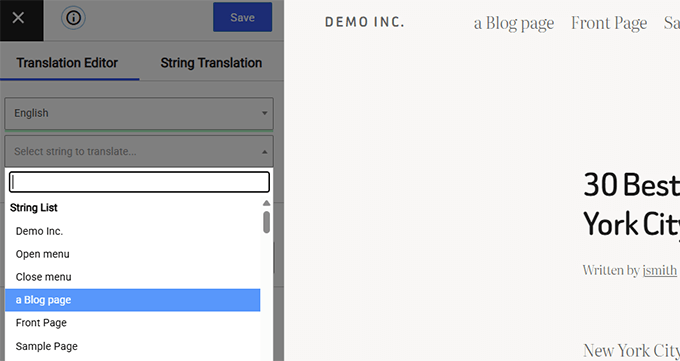
Here, you can switch between languages, preview changes instantly, and even fine-tune strings like menu items or buttons.
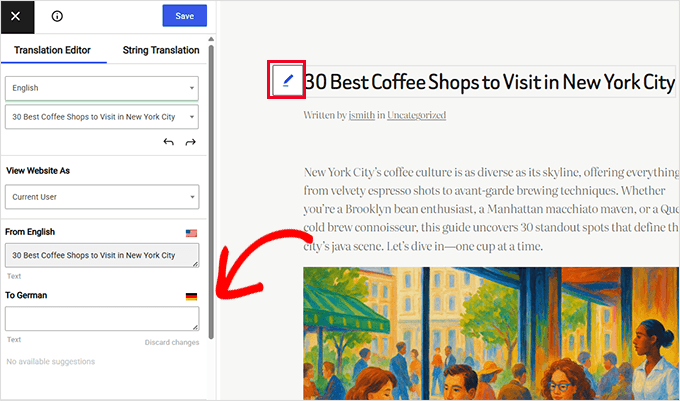
One of my favorite things about TranslatePress is that when you translate something once, like a post title, it updates across your entire site.
It saves me tons of time when reusing the same content blocks.
That’s it! Your site is now ready to serve visitors in multiple languages using TranslatePress.
Step 6: Adding a Language Switcher to Your Website in TranslatePress
TranslatePress gives you several options for showing a language switcher on your site. I showed you those options earlier.
If you have chosen the floating language switcher option, then you can skip this step; the plugin will automatically start showing the language switcher on your site.
For Shortcode and Menu item options, you will need to manually add them.
Option 1. Using a shortcode
To display a language switcher with a shortcode, just add [language-switcher] to any post, page, or sidebar widget.
For more details, see our guide on using shortcodes in WordPress.
Option 2. Adding it to your navigation menu
This option is best for classic themes. If you’re using a block theme, then this menu setting won’t appear under Appearance.
Go to the Appearance » Menus, click the ‘Language Switcher’ tab on the left, and choose the languages you want to add. Then click the ‘Add to Menu’ button.
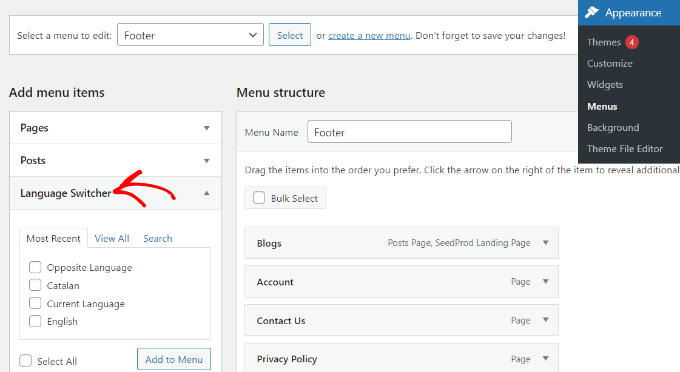
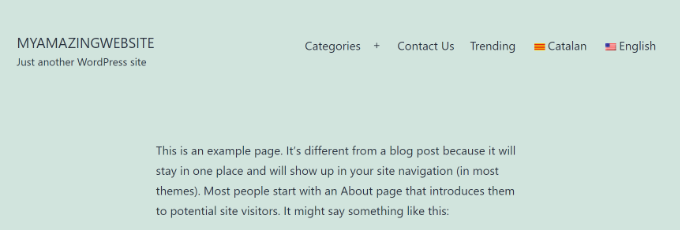
TranslatePress will add your selected languages to the menu.
Don’t forget to click the ‘Save Menu’ button.
Method 3. Create a Multilingual WordPress Website Using WPML (Best for Large/Complex Websites)
WPML has been around for a long time, and I’ve used it to translate some fairly large sites with complex content structures.
It gives you more control than many other plugins. You can customize everything — from URL format to how different content types are translated.
But if you’re just getting started, it might take a little longer to get used to. It has more settings than most beginner-friendly tools.
Still, once it’s set up, I’ve found it to be rock solid and reliable, especially when you want full manual control or work with translators.
Pros:
- It works well with large sites and gives you full control over translations.
- You can translate everything, including posts, pages, menus, taxonomies, media, and even theme/plugin strings.
- Supports both manual and automatic translations with a review workflow.
- You can add team members or professional translators to help with multilingual content.
Cons:
- It’s not the easiest plugin to set up, especially for beginners.
- The UI can feel a bit overwhelming until you get the hang of it.
For a deeper look, check out our full WPML review.
Expert Tip: We also have a complete guide on how to translate your WordPress website with WPML.
Step 1: Setting up WPML
To get started, visit the WPML website and create an account. After that, go to the ‘Downloads’ page located under your account.
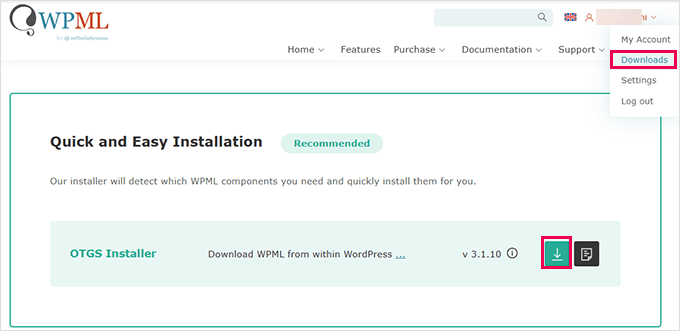
WPML organizes its plugin and add-ons through a main installer plugin.
Go ahead and install it on your WordPress site just like any other plugin. Once activated, WPML will prompt you to register your site.
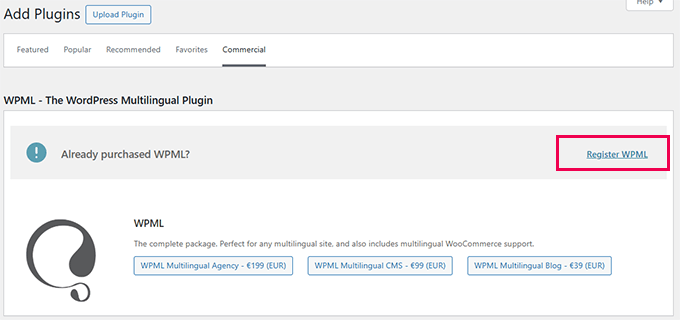
Click the ‘Register WPML’ link and follow the prompts to generate and add your site key.
Next, you’ll be asked to choose the components you want to install.
The core plugin is called WPML Multilingual CMS. I also highly recommend installing the String Translation addon.
This little powerhouse lets you translate all the text that isn’t in a post or page, like your site’s tagline, widget titles, and button text from your theme and other plugins. It’s the key to making sure 100% of your site is translated!
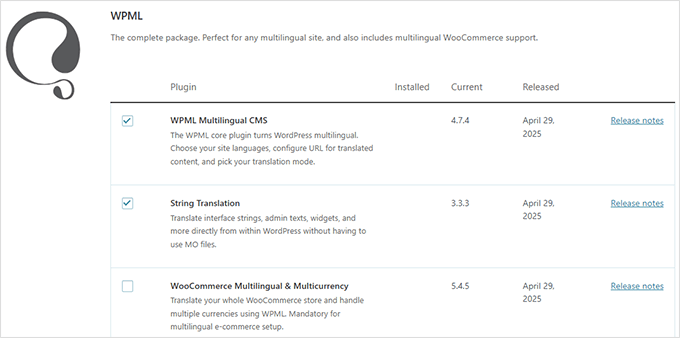
You can include optional components as needed. For example, if you run a WooCommerce store, be sure to check the ‘WooCommerce Multilingual & Multicurrency’ option.
Click the ‘Install and Activate’ button to continue. Once that’s done, you’ll see an option to ‘Configure WPML’. Click that to launch the setup wizard.
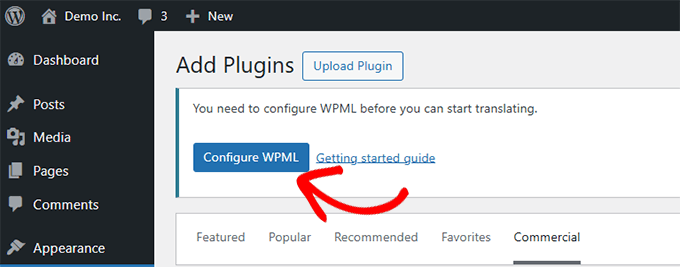
The wizard walks you through setting up your default language and the languages you want to add.
Just start typing to search for each language and select the ones you want. You can add as many as you like.

On the next screen, you’ll choose how your multilingual URLs are structured.
You can use subdirectories (like /fr/ or /de/), a separate domain for each language, or URL parameters.
I usually go with subdirectories — they’re easier to set up and are SEO-friendly too.
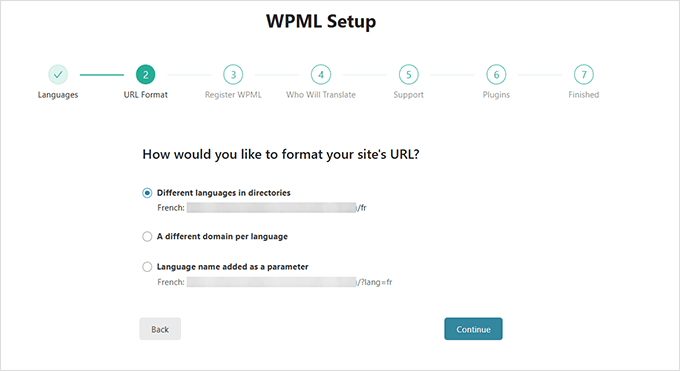
Click ‘Continue’ to move on.
Next, you’ll choose who will be handling translations. If you’re not sure yet, just pick ‘Only Myself’. You can always add translators later.
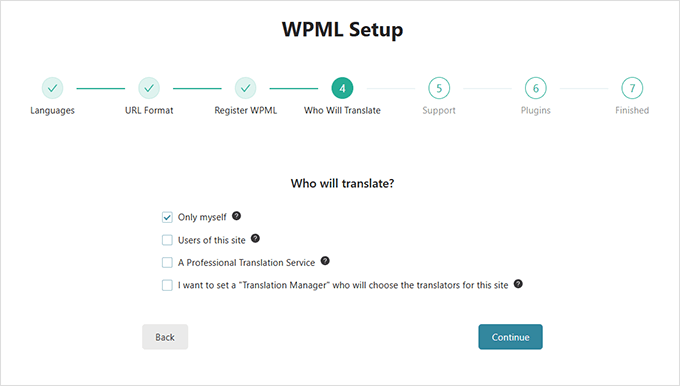
Click ‘Continue’ to finish the setup.
Once the setup wizard is complete, click on the ‘Go to Translation Dashboard’ button. That’s where the real work begins.

Step 2: Translating Your Site with WPML
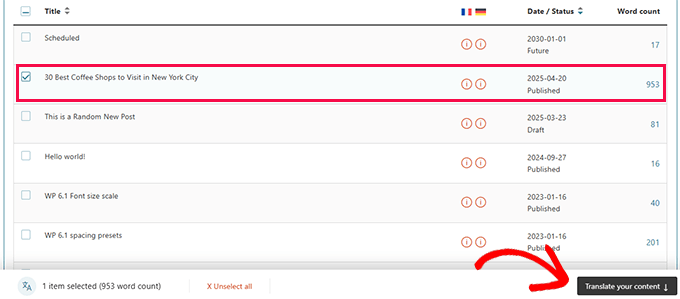
The Translation Dashboard lets you manage translations for all your content.
Just select the post or page you want to work on, then click ‘Translate your content’.
Next, you’ll choose who should do the translation.
It can be you, another user with translator permissions, or a professional translation service.
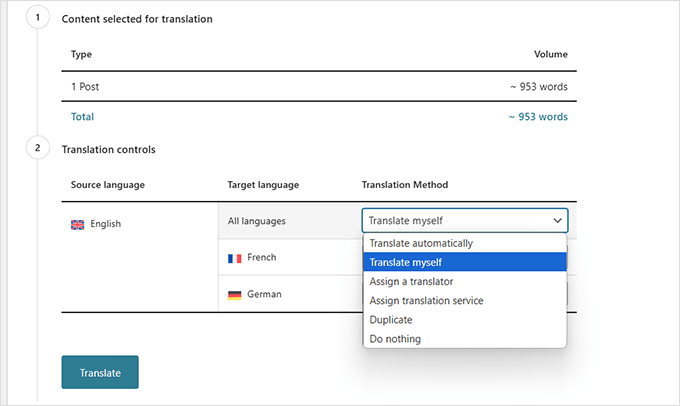
Click ‘Translate’ to continue.
Now you’ll see the WPML translation editor. Your original content will appear on the left, and you’ll enter translations on the right.
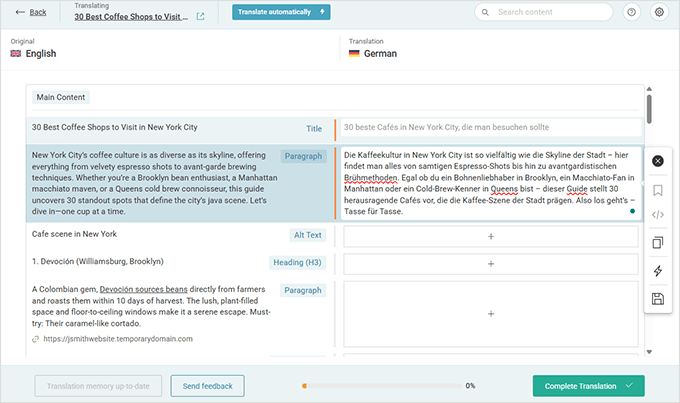
Just click on any text to start translating it. When you’re done, click the ‘Complete translation’ button to save and publish.
Step 3: Translating Non-Content Aspects of Your Site with WPML
WPML goes beyond just posts and pages.
It also helps you translate your site’s backend, including strings from plugins, themes, menus, and taxonomies like categories and tags.

For detailed instructions on how to do this, you can see our guide on how to create a multilingual site using WPML.
Step 4: Adding a Language Switcher to Your Site Using WPML
Once your content is translated, the next step is to let users switch between languages easily.
WPML includes a built-in language switcher that you can add with just a few clicks.
Option 1: Use the Site Editor
Go to Appearance » Editor, then open your navigation menu. Click the [+] button and add the ‘Navigation Language Switcher’ block.
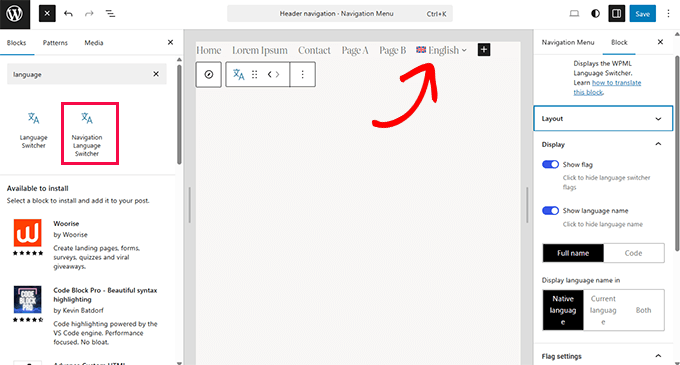
You can also place the switcher anywhere else — like the footer or sidebar — by dragging the block into place.
Option 2: Use WPML Settings
Go to WPML » Languages and scroll to the ‘Language switcher options’ tab.

Here, you’ll find easy settings to add switchers to your menu, widget area, or footer.
Just click on each of the buttons to add those language switchers.
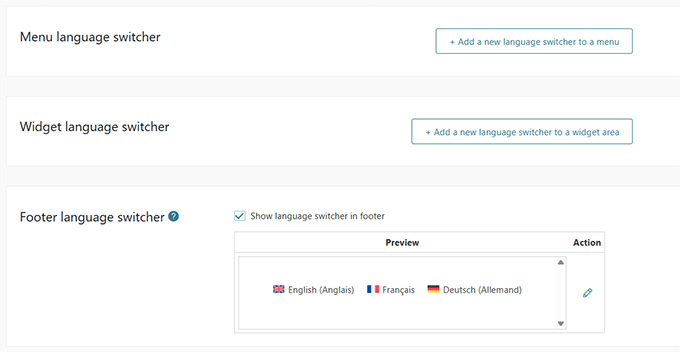
And that’s how you can use WPML to fully translate your WordPress site — from posts and pages to menus, widgets, and even theme text.
Now, let’s take a look at another popular option that gives you a bit more manual control: Polylang.
Method 4: Create a Multilingual WordPress Website Using Polylang (Best Free Option)
Polylang is ideal for users who want a free multilingual plugin with solid WordPress integration. It’s especially useful for bloggers and small business owners who don’t want to pay for a premium solution right away.
It has over 700,000 active installs and lets you translate your entire site without needing the Pro version. That said, if you’re running WooCommerce or need support, you might consider upgrading to Polylang Pro or purchasing their WooCommerce addon. The addon allows you to translate product categories, shop pages, and checkout fields.
For this walkthrough, I’m using the free version of the plugin.
Pros:
- Free to use with no limits on language count or word count
- Lets you translate posts, pages, media, categories, tags, and widgets
- Offers flexible URL structures and supports SEO-friendly slugs
Cons:
- The interface is more technical than plugins like Weglot or TranslatePress
- Some features, like WooCommerce support, require a paid addon
First, install and activate the Polylang plugin. If you’re not sure how, just follow our guide on installing a WordPress plugin.
After activation, go to Languages » Languages to start configuring your multilingual setup.
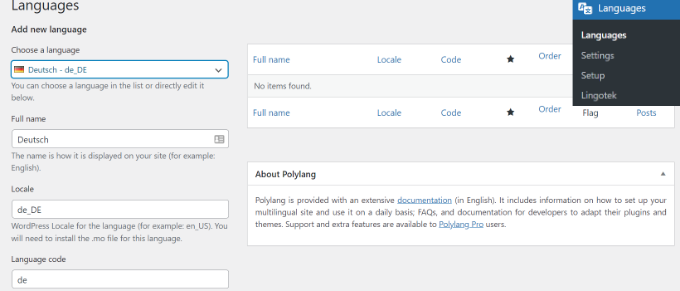
Step 1: Add Your Languages
In the ‘Languages’ tab, you need to add your site’s default language along with any other languages you’d like to support.
Step 2: Translate Site Title and Metadata
Next, you can switch to the ‘Strings Translations’ tab to translate your site title, tagline, and date/time format.
This ensures consistency in your theme’s header and metadata.
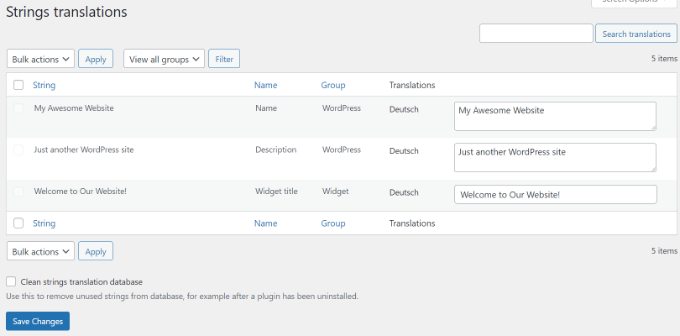
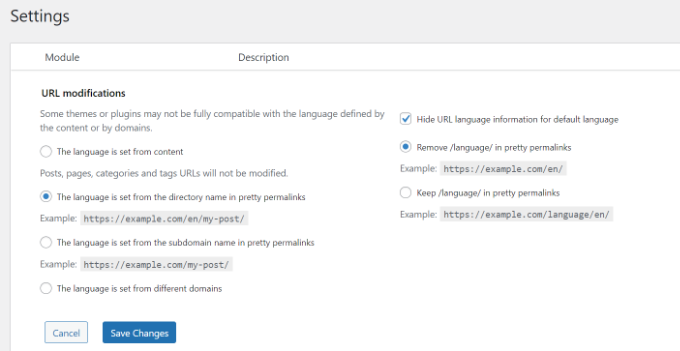
Step 3: Set URL Format for Translations
Next, go to Languages » Settings. Here, you can configure how your multilingual URLs look.
Click the ‘Settings’ option under ‘URL modifications’ to open these options.
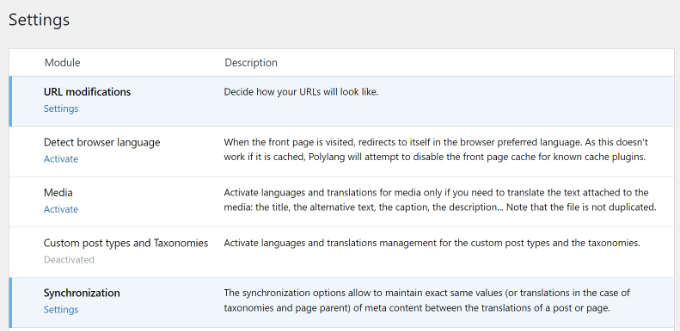
You can choose to include the language code in your URLs, such as https://example.com/en/my-post, for better SEO and clarity.
Simply click the ‘Save Changes’ button when you’re done.
Step 4: Translate Posts and Pages
To start translating content, go to any post or page, and you’ll see a language meta box on the editor screen.
Your default language is selected by default.
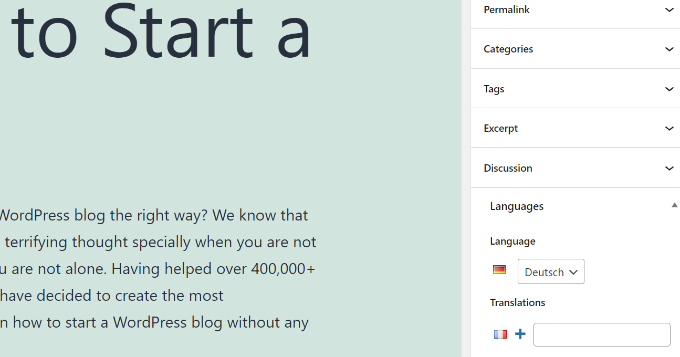
Click the ‘+’ button next to another language to create a new version of that post. Just repeat this process for each language you want to support, then publish the content when ready.
Step 5: Translate Categories and Tags
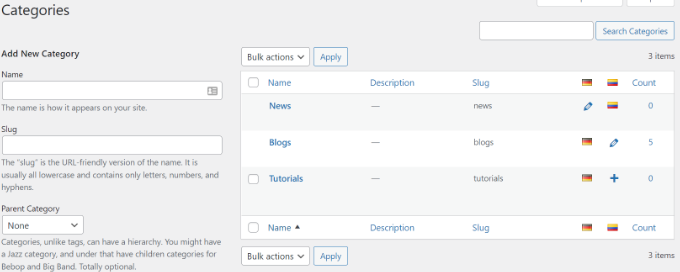
If you’re using categories, tags, or any custom taxonomies, you can translate those too.
Just go to Posts » Categories, add a term in your default language, and then use the ‘+’ icons to translate each one.
Step 6: Add a Language Switcher
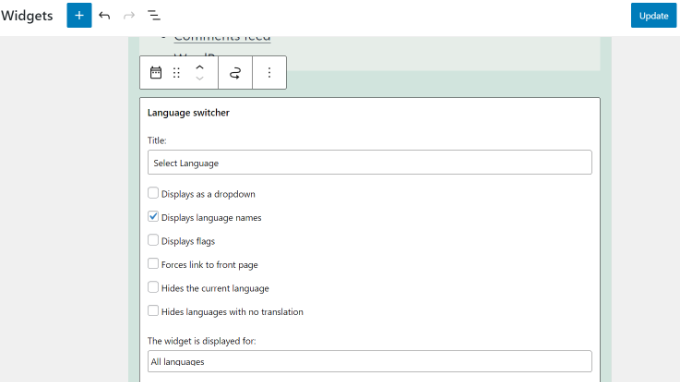
To let users switch between languages, head to Appearance » Widgets.
Click the ‘+’ icon and add the ‘Language Switcher’ widget block to your sidebar or footer.
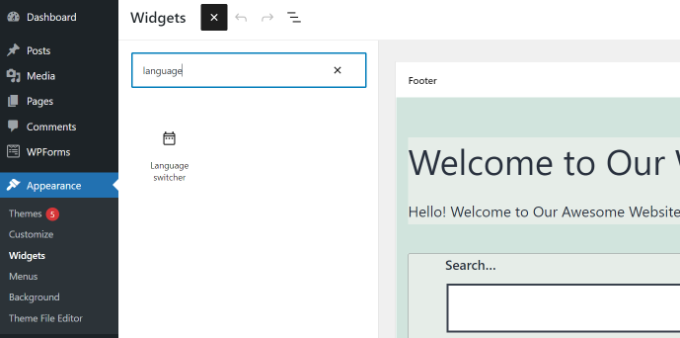
Customize its settings to show language names, use a dropdown, hide the current language, and more.
Then, you can click the ‘Update’ button to save your changes.
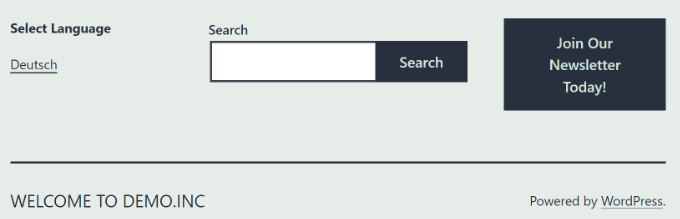
Now visit your site to see the language switcher in action.
Here’s what it looked like on my demo website:
FAQs About Creating a Multilingual WordPress Site
Having helped thousands of beginners start their websites, I know a thing or two about making a multilingual website. The following are some of the top questions I have been asked about multilingual WordPress websites.
1. Which WordPress multilingual plugin is the best?
All four plugins mentioned in this guide are the best. However, they are slightly different in some ways.
If you are a beginner looking for an easier solution, then I recommend using Weglot. It automatically translates your entire WordPress website, and it has powerful AI translations to ensure consistency.
TranslatePress is also a good option because its live editor is easy to use.
Advanced users and eCommerce websites may find WPML more comprehensive for their needs. Lastly, if you are looking for a free solution, then Polylang is the best option for you.
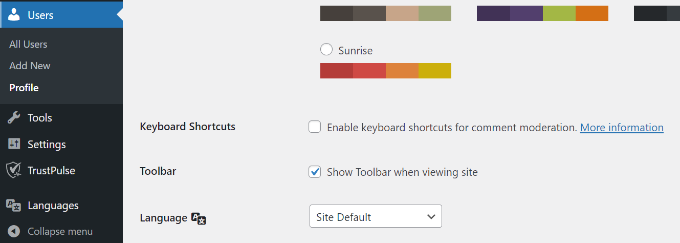
2. How to translate my WordPress admin area for users?
WordPress allows each user on your website to select the admin interface language. They simply need to edit their user profile, and there they will find the option to select a language.
3. How do I translate my WordPress theme?
All four plugins will allow you to automatically fetch theme translations. You can also find and translate a WordPress theme by yourself and then upload translation files to your website.
4. How do I translate a WordPress plugin?
Many of the top WordPress plugins are translation-ready. However, they may not be translated into all languages. Weglot, TranslatePress, and WPML allow you to easily translate strings within the plugin interface.
You can also translate WordPress plugins on your own and upload the translations to your website manually.
5. What other translation plugins can I use for a multilingual WordPress site?
While this guide focuses on Weglot, TranslatePress, WPML, and Polylang, there are several other translation plugins available. Notable mentions include GTranslate, MultiLanguage, and MultilingualPress.
On WPBeginner, we use MultilingualPress because it’s built for massive websites and works by creating a separate, linked WordPress site for each language (using a feature called multisite). While this approach is incredibly powerful for performance at our scale, it’s also much more technical to set up and manage.
For most small businesses and beginners, sticking with a single-site solution like Weglot, TranslatePress, WPML, or Polylang is a much easier and more practical path to success.
More Tips for Managing a Multilingual WordPress Site 🎁
Once your multilingual site is up and running, there’s still a lot you can do to improve the experience for users and optimize your content. Here are some helpful tutorials and tools that can take your setup even further:
- How to Create Multilingual Forms in WordPress (2 Methods)
- How to Add Multilingual Search in WordPress (2 Ways)
- How to Easily Create a Multilingual Sitemap in WordPress
- How to Install WordPress in Other Languages
- Ultimate Guide to Geolocation Targeting in WordPress – Step by Step
- How to Get More Global Visitors (WordPress International SEO Tips)
- How to Use English WordPress Admin on a Multilingual Site
I hope this article helped you learn how to make a multilingual WordPress site like a pro. You may also want to see our guides on how to find a translation-ready WordPress theme or how to translate your WooCommerce store.
If you liked this article, then please subscribe to our YouTube Channel for WordPress video tutorials. You can also find us on Twitter and Facebook.



Olaf
WPML and Polylang are both great plugins, but it really depends on your budget. If you need to keep your website expenses to a minimum, Polylang does an excellent job. It supports translations into many languages, but you have to arrange the translations yourself, either through a native speaker or machine translation. On the other hand, WPML can provide translation services, but of course, the price is much higher. So if you’re looking for a multilingual website for a low cost or even for free, try Polylang with machine translation (perhaps using AI). If you have the budget to invest, I would definitely recommend WPML.
Mrteesurez
While one can easily use Google translate as it’s easily integrated but can not be effective enough compare to translating it manually using any of the plugins you mentioned, this will makes you use any slang or jargon or keywords that is more attractive to a certain language or region.
Note that, doing it manually takes time and efforts but worth the efforts.
Dayo Olobayo
Yes Mrteesurez, you’re absolutely right about the time investment for manual translation. However, the long-term benefits outweigh the initial effort. With a well-localized website, you can expand your reach, build trust with international audiences, and ultimately achieve your business goals.
Jiří Vaněk
PolyLang is a really nice plugin. I use it on the website to divide it into English and Czech versions. What’s great about this plugin is the fact that it has many extensions. The best extension is for Elementor, which allows you to display certain blocks only for a specific language. Thanks to this, the website customization is absolutely perfect and down to the last detail.
Elsie Nel
Can I just create a duplicate of each page, change the text to another language and then add a button to switch between the two pages? Or would it cause some sort of problem that I’m missing?
WPBeginner Support
These plugins are what add the functionality to swap with a button to easily connect the translated page.
Admin
Martin
I’m about to purchase a subscribtion for a webhost but it only inlcude one site. Does the whole multilingual WP site with several languages count as one (1) site or does each language version counts as one (1) site?
WPBeginner Support
If you use a plugin to add the multilingual capacity to your site then it would count as one site. If you install multiple sites and manually create the translated versions that would be multiple sites.
Admin
Masud
How can we have different language in different subdomain.
is it possible by using plugin or need to different wordpress installation and complete different theme everything?
WPBeginner Support
It would depend on the plugin you’re using for what options are available for subdomains, we would recommend checking with the support for the plugin you want to use for your site.
Admin
usman
i want to create my website in Urdu. Dose WordPress have the option to create website in other language.
WPBeginner Support
WordPress can be installed in other languages, we have a guide on this below:
https://www.wpbeginner.com/wp-tutorials/how-to-install-wordpress-in-other-languages
Admin
Ammara
Right after activating PolyLang, Menu vanished.
WPBeginner Support
You would want to reach out to PolyLang’s support and they should be able to assist.
Admin
jai prakash
first time I read your complete article.
WPBeginner Support
Glad you read our entire article
Admin
Muhammad Wasim
I already have articles on my site indexed to google search console. If I add multilanguage support (for example it will add “en” in url for english) how can I index both language pages to google and how url change will effect the site.
WPBeginner Support
You can hide the language in the permalink for your default language to keep those articles where they are. You would want to check with your SEO plugin to check your indexing for your site in additional languages.
Admin
Bosco
I have a Switcher for two Languages, when I hit the default Language flag it goes top the Language Home page and everything works very well. When I select the second flag, it goes to a blank page instead of the second Language Home Page. I can however, see all the Pages on the Top bar. If I hit the Hoem page it opens and every thing else works well.
How can I make the second Flag go directly to the second Home Page? I have read of many similar issues but not seen any solutions, can anyone share a soluition with me. Thanks
WPBeginner Support
You would want to reach out to the support for the plugin you are using currently and they should be able to assist
Admin
Gracy
Hi, I have a Premium account on Wordpress.com, but it seems I can not download plug-ins. I want my blog in two languages (manually translated). What would you recommend me to do? Thank you :).
WPBeginner Support
You would either need their business plan or you would want to transfer to WordPress.org, you may want to take a look at our article here: https://www.wpbeginner.com/beginners-guide/self-hosted-wordpress-org-vs-free-wordpress-com-infograph/
Admin
Asmat Ullah
which one approach is best if i manually translate each page content through google translator or install google translator plugin for better SEO
WPBeginner Support
They should be roughly the same in terms of SEO, it would be best to have someone who knows the language translate your content for better SEO results.
Admin
Richard Montes
When I try to dowload the Polylang pluging, the dowload button is unclicklabe and there is a note that prompts me to upgrade to the business plan. Is that how everybody here has gained access to Polylang? Is that the only way?
WPBeginner Support
Part of your confusion is our guides are for WordPress.org sites, as you are on WordPress.com you may want to take a look at our comparison here: https://www.wpbeginner.com/beginners-guide/self-hosted-wordpress-org-vs-free-wordpress-com-infograph/
Admin
Xaric
I have a rather complex question… I need my website translated (obviously). We are thinking about doing it with a Google automatic translator because we don’t care that much about the quality of the translation.
HOWEVER, we need some parts of the website (the categories, page titles, etc) to be manually translated by us.
So here’s my question:
Is there a way when someone changes the language of our website some of its content to be translated automatically by Google translate and the rest of it to be translated with the translation we will have set, simultaneously?
Thanks a lot in advance for your help!
WPBeginner Support
You would want to check with the plugin you plan to use to see if that is an option with that specific plugin.
Admin
Ahmed
how can i translate a static front page or the index???
WPBeginner Support
With Polylang you would translate it the same as you would with other pages on your site.
Admin
Nicole
Thank you for such a great article. This is exactly what I was looking for to translate my site from English to Spanish.
Do you know if I go with the Manual route if it will work with the Visual Composer builder (WPBakery)?
Thank you!
WPBeginner Support
You would need to reach out to the support for Polylang to see if there are any known conflicts at the moment
Admin
Zeena Kabad
Hi. when I use Polylang, I must make a new page to translate an existing one, this will duplicate all pages for each language, but for the product page I cannot duplicate it because the SKU must be unique also the tags I cannot use the same word for the two languages…
Can anyone help me??
Thanks
WPBeginner Support
It would depend on what you’re using for your products. If you reach out to polylang they should be able to let you know other options with their plugin
Admin
Francisco
I installed Polylang but it made a mess with my categories… it created separate categories for each language, which is really really not what I wanted… is there a way to make it use a certain category, independently of language?
WPBeginner Support
You would want to reach out to Polylang for the customization options you have for your categories.
Admin
Max
Great, but what about translating theme intself? How can we create site where texts in theme elements (not post, comments, etc. but header, footer and others) can be presented in a few languages? What should I do, make two index.php? How to attach lang switcher to site so if it once is set, all the content goes in selected language?
The main and the most important part left unclear (
WPBeginner Support
Depending on the translation plugin you are using, there normally is a built-in method for translating the theme’s strings. If you reach out to the plugin’s support they should be able to let you know how they handle that.
Admin
Rahim
Hi
I have an other approach and I don’t know if it can work or not : my idea is if it is possible to assign each langage to a specific name domain in the same langage. For example : hello.com for the English version and bonjour.com for the French version.
It is possible ? And how can I do that ?
Thanks for your help.
WPBeginner Support
You would want to reach out to the support for the multilingual plugin you are planning to use and most should have a method to set that up with their plugin.
Admin
Juliana
I added the widget, but when I write my post in the second language that I selected I am unable to use the Yoast SEO, how can I go about adding that for my second language?
WPBeginner Support
You would likely want to reach out to Yoast’s support to ensure there isn’t a plugin conflict.
Admin
root
Hello, my website wordpress, have 4 language:
English (en)
Albanian(sq)
Macedonian(mk)
when i open, website.com/en, my posts not showing
when i open, website.com/sq, my posts appear
WPBeginner Support
If the settings are set for English posts to be under there you may want to try resaving your permalinks, otherwise, you may need to reach out to the plugin’s support to ensure your settings are correct.
Admin
juan
If I install this plugin, how can I configure my SEO plugins to also be able to work on my SEO for the other language?
also…
If i install the plugin, will all my url be changed adding the language prefix /en/?
This will affect my current SEO.
WPBeginner Support
You would want to check with your specific SEO plugin for concerns with compatibility. The plugin has the option to not change the permalink structure for your default language.
Admin
juan
Is The plugin able to identify the user’s location and then offer the user the site in the language based on his location?
WPBeginner Support
You would want to reach out to the plugin’s support for if they have a geolocation option for that.
Admin
Vielma
Hello, I have set up a Multilingual WordPress Site (Human Translation) and it works fine, however the homepage I created for my second level seem to store ALL posts and pages ever created or edited. I have made sure that all pages are a static page and dont understand why this is happening. When I go to Pages -> my chosen home page in the second language and preview it looks perfect. But when typing in the url it gathers all content on my website. How do I do to remove this?
WPBeginner Support
You would want to reach out to your multilingual plugin to let them know about this and they should be able to assist.
Admin
maryam
hi.when i add a translate to page in my site it build another page. but i need a page with 2 translate. not seperate page. what should i do?
WPBeginner Support
If you want the content to automatically translate without the need to create content for the other language you would want to use the Google Language Translator option from this article.
Admin
RD Prajapati
I have a blog whose primary url is travelwithrd.com which is by default in English. But when I installed polylang for Hindi language, url of hindi version was travelwithrd.com/hindi. Now the rss feed address of hindi site also changed I think. How can I set two languages option in homepage without this subfolder type url.
WPBeginner Support
We do not have a recommended method without changing the url for the different language, you may want to reach out to polylang with what you are wanting to see their recommendations.
Admin
Mikiyas
Hello,
I am currently on your email list and I love the tips/advice that you guys give. I want to be able to translate one of my Wordpress sites to Amharic I tried using Polylang as suggested but I was having difficulty finding the .mo Amharic files that I would need to upload to the Wordpress settings.
1. Where would I find such files?
2. Once I get them where exactly do I upload them.
3. Once uploaded how do I configure Polylang to display Amharic.
Any input would help, hope to hear back soon!
WPBeginner Support
Hi Mikiyas,
Language files are located inside languages folder in a plugin or theme’s folder. You can find them using the FTP client. You will select the language from Polylang’s settings page.
Admin
Imola
I did everything mentioned here but then my blog appeared as I have no posts yet. When I de-activated the plugin my posts came back to normal. Any help? Thanks in advance
WPBeginner Support
You may want to ensure you set the correct default language, if that is not the issue then you would want to reach out to the plugin’s support to ensure this is not an error with the plugin itself.
Admin
Joelsen
It can litterary take ages to look for help on the net. That is until one stumbles accros a place like your site. In less than a couple of minutes I was runing my Wordpress site in multiple languages. A BIG THANK YOU!
WPBeginner Support
Hi Joelsen,
We are glad you found the article helpful. Don’t forget to follow us on Facebook for more WordPress tips and tutorials.
Admin
Raksha
Hi am facing the problem that when i switch from my defualt language to other that particular page language gets changed but as sson as i switch to other page it comes back to default language page? How to do that setting