


I still remember the first time I saw a competitor’s search result decorated with shiny star ratings and an event date. My own plain blue link suddenly felt invisible, and I worried that getting those eye-catching results was far too technical for me.
That’s when I learned about rich snippets. They are the secret to making your content stand out in search results by showing extra details like reviews, prices, or even recipe times.
Here at WPBeginner, we use tools like All in One SEO to add this information, called schema markup, to our own articles. It’s surprisingly straightforward and is one of the best ways to earn more clicks from users.
In this guide, we’ll walk you through the exact steps to add rich snippets to your WordPress site. We will cover both an easy plugin method and a manual approach for those who like to code.

Why Use Rich Snippets on Your WordPress Site?
Rich snippets use what’s called schema markup to provide extra information about your content to the search engines.
The search engine bots use this data to show additional information about your posts and pages in the search results.

This helps to make your posts and pages stand out more in the search results, which can improve your organic click through rate and help you increase your blog traffic.
Google search statistics prove this, reporting that rich results get 58 clicks for every 100 searches, outperforming regular search results.
It also helps you build authority in your niche, as your site becomes more visible in the search.
Rich snippets are not just for review sites or recipes. You can use rich snippets for events, products, people, how tos, videos, music, apps, articles, blog posts, and much more.
Note: It’s important to know that adding schema markup to your website doesn’t guarantee that Google will display it. Google may choose not to for some searches. However, adding the schema markup helps Google understand your content and makes it much more likely to display rich snippets.
That being said, let’s show you how to add rich snippets to WordPress. Simply use the quick links below to jump straight to the method you want to use.
Method 1. Adding Rich Snippets Using a WordPress Plugin
The easiest way to add rich snippets to WordPress is by using the AIOSEO plugin. It’s the best WordPress SEO plugin in the market, used by over 3+ million websites.

It helps you easily optimize your site for search engines without the need to hire an SEO expert. Plus, you can set up rich snippets on your site in a couple of clicks.
Note: While the free version of AIOSEO handles essential schema markup automatically, you’ll need the pro version to unlock the full Schema Catalog. This allows you to add advanced rich snippet types like Product, Recipe, and Course, plus other powerful features like a redirection manager.
The first thing you need to do is install and activate the AIOSEO plugin. For more details, see our beginner’s guide on how to install a WordPress plugin.
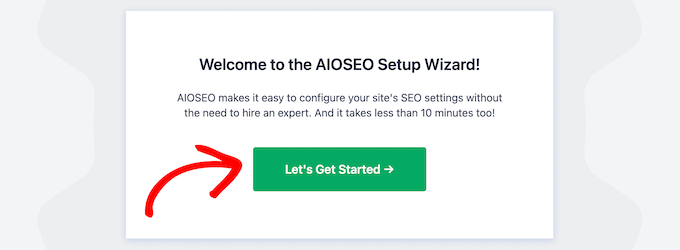
Upon activation, you’ll immediately be taken to the AIOSEO setup wizard. You need to click the ‘Let’s Get Started’ button.
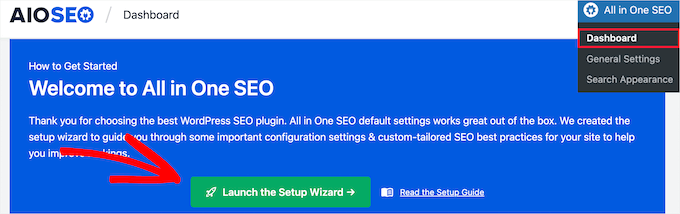
If the setup wizard doesn’t immediately show up, then simply go to All in One SEO » Dashboard.
From here, you can click the ‘Launch the Setup Wizard’ button. This will walk you through the steps of setting up the plugin for your website.
As you go through the setup wizard, you’ll need to activate the ‘Advanced Rich Snippets + Schema Markups’ addon.
Simply check the box so that it turns blue, then click the ‘Save and Continue’ button.

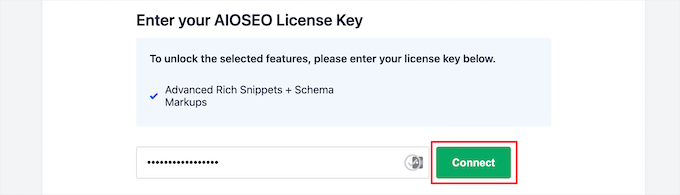
On the final screen, you need to enter your license key and then click the ‘Connect’ button.
You can find this information on your account page on the AIOSEO website.
For more details, see our ultimate guide on how to set up AIOSEO for WordPress correctly.
After that, you can go to AIOSEO » Search Appearance in your WordPress admin panel, and then click on the ‘Content Types’ tab.

Then, you can set the schema markup type for your posts and pages.
Simply click the ‘Schema Markup’ menu option, then you can choose the schema type from the drop-down.
You will be able to see different content types that you can create with the plugin. The list includes:
- Course
- Product
- Recipe
- Software/App
- FAQ
- Web page
- Profile
- Article
Clicking on any content type will show you the fields that will be available.
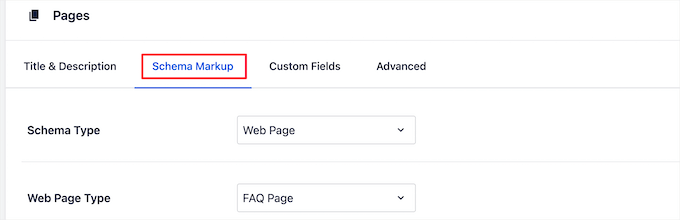
These settings will be the default settings when you add a new blog post. However, you can change these on an individual post basis too.
Below the post schema markup, you can also control the default schema for your pages.
Simply select the ‘Schema Type’ from the drop-down. Then, you’ll have additional options for the schema type you select.
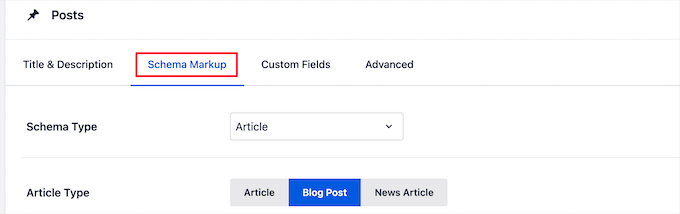
Once you’re finished making changes, click the ‘Save Changes’ button before you leave the page.
Adding Rich Snippet Information to Your Posts and Pages
Now, you can add schema information to your individual posts and pages, so they’ll display unique rich snippets in the search results.
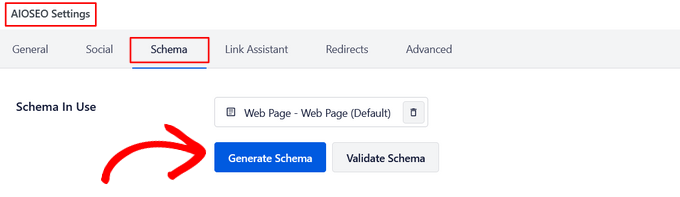
To do this, simply open up a blog post and scroll down below the post editor. Here you’ll see a meta box called ‘AIOSEO Settings’.
You need to click the ‘Schema’ tab and then click on the ‘Generate Schema’ button.
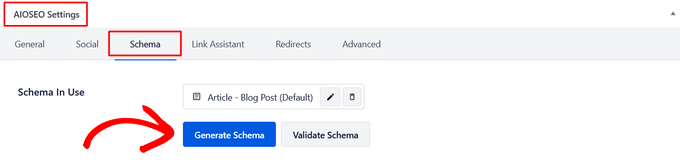
This will open up the Schema Catalog. Simply click the ‘Add Schema’ button next to the type of schema you want to add.
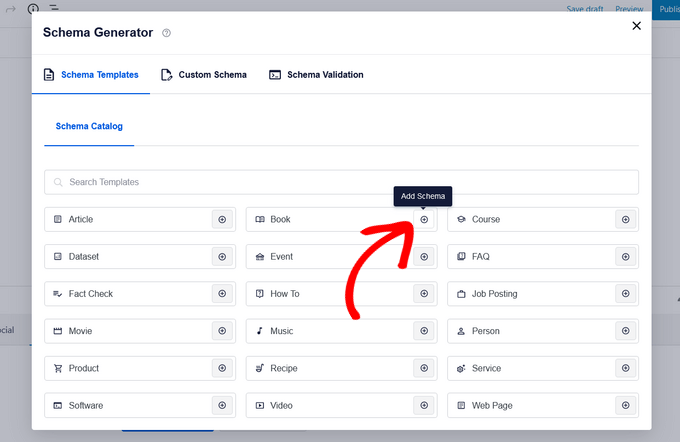
Now, there will be different fields available to fill out, based on the option you select. For example, the ‘Software’ schema type includes fields for the name, operating system, price, description, review, and more.
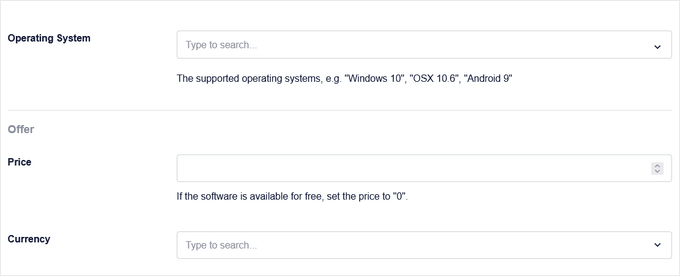
Once you’re finished, click the ‘Add Schema’ button. Don’t forget to click ‘Update’ or ‘Publish’ on the post to save your changes as well.
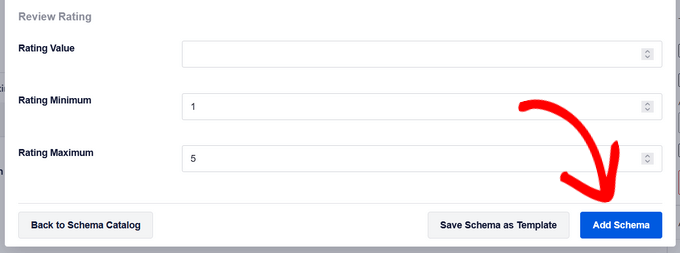
Adding schema markup to individual WordPress pages is similar. You need to open up the page you want to edit and then scroll down to the ‘AIOSEO Settings’ meta box below the page editor.
Then, click the ‘Schema’ menu option, click the ‘Generate Schema’ button, and select your page schema type from the Schema Catalog.
Different options will appear depending on the type of schema you select.
Just like above, when you’re finished, you need to click the ‘Add Schema’ button and hit ‘Update’ or ‘Publish’ on the page to make your changes live.
Adding rich snippet information won’t make a difference on the front end of your WordPress blog. However, you’ll be giving the search engine bots extra data to display with your posts and pages in the search results.
Method 2. Adding Rich Snippets by Adding Code to WordPress
Another way to add rich snippets to WordPress is by adding code to WordPress. If you haven’t done this before, then see our guide on how to copy and paste code in WordPress.
Structured data can be written in a few formats, like Microdata, RDFa, and JSON-LD. While they all work, JSON-LD is Google’s recommended format.
It’s often the easiest and safest for beginners because you can add it as a single block of code (usually in your site’s header) without having to edit your post’s visible HTML directly.
For example, imagine you have a simple About Me page. To add structured data using JSON-LD, you would add a special script to your page. It doesn’t change how your page looks, but it gives search engines all the key information in a format they understand.
Here’s what a JSON-LD script for a person might look like. You would typically add this using a plugin that lets you insert code into your site’s header.
<script type="application/ld+json">
{
  "@context": "https://schema.org",
  "@type": "Person",
  "name": "John Smith",
  "jobTitle": "Support Technician",
  "image": "https://www.example.com/johnsmith.jpg",
  "url": "https://www.example.com",
  "address": {
    "@type": "PostalAddress",
    "streetAddress": "101 Washington Avenue",
    "addressLocality": "Eagleton",
    "addressRegion": "IN",
    "postalCode": "46818"
  },
  "email": "johnsmith@example.com",
  "telephone": "+1-425-123-4567"
}
</script>
For each content type, there are some special properties that need to be defined.
Schema.org is the organization that helps maintain the standard for different content types. You will find extensive documentation with examples for each schema content type on their website.
Here is another example for a recipe post. As you can see, the JSON-LD script contains all the key details like the recipe name, author, cook time, and ingredients in a structured way.
<script type="application/ld+json">
{
  "@context": "https://schema.org/",
  "@type": "Recipe",
  "name": "Mom's World Famous Banana Bread",
  "author": {
    "@type": "Person",
    "name": "John Smith"
  },
  "image": "https://example.com/bananabread.jpg",
  "description": "This classic banana bread recipe comes from my mom -- the walnuts add a nice texture and flavor.",
  "prepTime": "PT15M",
  "cookTime": "PT1H",
  "recipeYield": "1 loaf",
  "recipeIngredient": [
    "3 or 4 ripe bananas, smashed",
    "1 egg",
    "3/4 cup of sugar"
  ],
  "recipeInstructions": {
    "@type": "HowToSection",
    "name": "Instructions",
    "itemListElement": [
      {
        "@type": "HowToStep",
        "text": "Preheat the oven to 350 degrees. Mix in the ingredients in a bowl. Add the flour last."
      },
      {
        "@type": "HowToStep",
        "text": "Pour the mixture into a loaf pan and bake for one hour."
      }
    ]
  }
}
</script>
If you are manually adding rich snippets into your WordPress posts, then you will need to manually add HTML to WordPress. For more details, see our beginner’s guide on how to edit HTML in WordPress code editor.
You may also need to refer to Google’s Developer resource on structured data to understand which properties are required for each content type.
Testing Your Schema Markup for Rich Snippets
Whether you used a plugin or added code manually, it’s a great idea to test your setup to make sure Google can read it correctly. Google provides two free tools for this, each with a different purpose.
1. Check Eligibility with the Rich Results Test
This is the most important tool for most users. It checks if your page is eligible for the special visual enhancements (rich results) that Google can display in search results.
To use it, head over to the Rich Results Test tool. Enter the URL of your post or page and click ‘Test URL’.
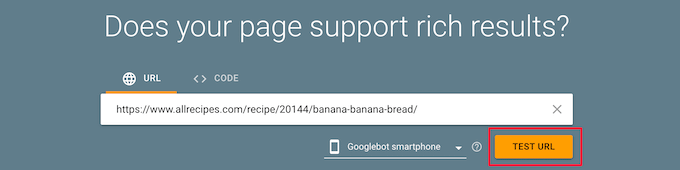
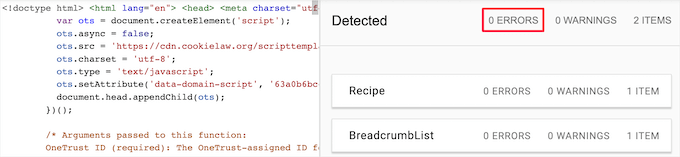
The tool will analyze your page and tell you which rich result types it found and whether they are valid. This is the best way to confirm that your recipe, review, or FAQ schema is working correctly!
2. Validate Your Code with the Schema Markup Validator
This is a more technical tool that checks if your schema code is written correctly according to the official Schema.org standards. It validates all types of schema, not just the ones that create rich results.
You can find it by going to the Schema Markup Validator. Just like before, enter your URL and click ‘Run Test’.
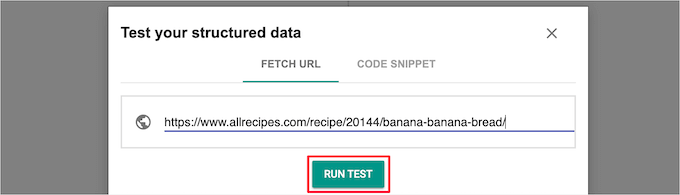
The validator will show you all the schema it found on the page and point out any errors or warnings in the code itself.
Your goal here is to see ‘0 Errors’ to ensure your code is perfectly clean.
Frequently Asked Questions About Rich Snippets
We know that learning about schema markup and rich snippets can bring up a few questions. Below are answers to some of the most common ones we hear from our readers.
1. What are rich snippets in WordPress?
Rich snippets are visually enhanced search results that show extra information pulled from your website’s structured data (schema markup). This can include star ratings, prices, cooking times, or event dates, making your listing more attractive and informative to users.
2. How long does it take for rich snippets to appear in search results?
There is no exact timeframe. After you add schema markup, search engines like Google need to recrawl your site to discover the changes. This can take anywhere from a few days to several weeks, depending on your site’s crawl frequency.
3. Does adding schema markup guarantee I will get rich snippets?
No, it does not. While adding correct schema markup makes your site eligible for rich snippets, Google makes the final decision on whether to display them. They may choose not to show them based on search query, device, location, or overall content quality.
4. What is the best way to add rich snippets: a plugin or manual code?
For the vast majority of WordPress users, using a plugin like All in One SEO is the best method. It’s much easier, safer, and eliminates the risk of making coding errors that could break your site.
The manual code method is only recommended for advanced users who are comfortable editing theme files and writing HTML.
Additional Resources
Now that you know how to add rich snippets, you may find these other guides helpful for improving your site’s SEO and user experience:
- Best Schema Markup Plugins for WordPress – Our expert picks of the top plugins to help you add different types of schema to your site.
- How to Add a Frequently Asked Questions (FAQ) Section in WordPress – Learn how to create an FAQ section and add the corresponding schema to win rich snippets.
If you liked this article, then please subscribe to our YouTube Channel for WordPress video tutorials. You can also find us on Twitter and Facebook.


Jiří Vaněk
I discovered markup schema or rich snippets thanks to wpbeginner and thanks to AIO SEO. I can confirm that my SEO and rankings have improved significantly since then. You will really improve your positions if you use them.
Moinuddin Waheed
Thanks for the post I have seen rich snippets many times and have thought of how to add but was not aware of the steps of adding it.
Adding Snippets is a good way to add more information for search bots and increase seo.
As we can add code to the WordPress for rich snippets, I think it would be simpler and better if we would be able to add through wpcode and then use inside posts and pages through some logic.
is there a way we can add rich Snippets using wpcode and how?
WPBeginner Support
We do not have a beginner friendly way we would recommend using WPCode at the moment.
Admin
Jiří Vaněk
It makes no sense at all because every article is different. I personally create snippets exactly according to the article thanks to the AIO SEO plugin. I will add everything I need. How To, Video, FAQ and I mix it up. It takes a little time, but the result is perfect and you can see it in the results.
Blair
Thanks for posting I was interested how to add Rich Snippets into posts or page now I can understand how to do it right.
WPBeginner Support
Glad to hear our article was helpful!
Admin
Anu
Thanks for sharing this article, this is really helpful for me.
WPBeginner Support
You’re welcome, glad our guide was helpful
Admin
Mike Jagger
this is a great share, thanks.
WPBeginner Support
You’re welcome, glad you like our tutorial
Admin
mike
been looking for something like this. thought would have hire a developer initially
thanks.
WPBeginner Support
You’re welcome, glad our content could be helpful
Admin
Stine Mari
So many great tips, I have a few things to improve on now.
Purnendu Mukherjee
Hi, is this plugin can be used with Yoast SEO Plugin or it is also a substitute of Yoast?
charles finni
Hey I am trying to do google’s sitelink in my website can you please help with that
Prajakta Patil
Hi,
I added rich snippet plugin into my website
It is a recipe website. I have installed the plugin and activated. I filled all the boxes. When i tested it in google, i got warning to fill ratings. I looked upon the rating option and didn’t find anything for recipe
What should i do in this case?
Thanks in advance.
WPBeginner Support
Hi Prajakta,
You can try WordPress post ratings plugin or you can try reaching out to plugin author and see if they have a solution.
Admin
Harman
Hello,
Is this plugin compatible with SEO Yoast Premium and Newspaper Theme?
Thanks
Antje
I programmed it without plugin. After acualisation and switching between visuell and text(Code) view my code was gone.
Do you have any suggestions?
Rahul
How i get Google rating in Google Search?
Matus
Why aren’t you using this on your website? Is it not recommended anymore?
Ringo
I see that Google add highligher in Google search console, are they the same thing?
Sergey
Tell me please, is it necessary first to clean the old structured data, which are available on my website, and then install the plugin All In One Schema.org Rich Snippets?
Or can I install the plugin All In One Schema.org Rich Snippets on top of structured data, which are now on my website?
Sergey
Hello! I have the plugin All In One Seo Pack on my site. Please tell me, could this be the conflict All In One Seo Pack with All In One Schema.org Rich Snippets? Could it be that both plugins are used on the website?
Thank you.
WPBeginner Support
Both plugins should work well together.
Admin
Sergey
Thank you!
John C
Is there anyway to get rid of the box it creates on the page?
kiran
There is way to remove the box but it will harm your google ranking.
You should rather use your child theme style.css to make it look good on your page.
or use chile theme functions.php to place it in correct place.
Pravin Nath.K
can i add rich snippets using yoast seo plugin?
Ambily
As others above are complaining, I don’t want anyone to see this box
Raj
How to add rich snippets without this plugin??? I used this plugin but it leaves that box below the content which is visible for the traffic and I don’t want anyone to see this box… I’m really looking forward for your answer
Adriano
I don’t want that box neither, did you find a solution?
Brian
One problem. The recommended plug in has not been updated for a year. Just an FYI.
Brian
WPBeginner Support
It is now updated and compatible with the latest WordPress version.
Admin
shamsher khan
Informative Article i m going to install this plugin on my domain
Marcelo
And… will it work well “teaming” with any other SEO plugins like Yoast’s? I can recall Yoast plugins add plenty of mata tags but still don’t add Rich Snippets.