


A custom page lets you use a different layout from the rest of your website. Many WordPress sites use custom page layouts for their sales pages, landing pages, webinar pages, and more.
Over the years, we’ve created lots of custom pages on WPBeginner for different purposes. We’ve used them to show different deals on plugins and hosting services, offer Pro services to help users with WordPress, display different products, and more.
In our experience, there are multiple ways of creating custom pages. We’ve used page builders like SeedProd for some of our projects. Besides that, you can also use the block editor or full site editors to add custom pages to your site.
In this article, we will show you how to easily create a custom page in WordPress.
Why Create a Custom Page in WordPress?
Every time you create a new page, your WordPress theme controls how that page looks using a template file.
This page.php template affects all single pages that you create in WordPress. However, you may not want to use the same design every single time.
Landing pages often have different content compared to regular pages, such as a large hero image or a call to action (CTA). This means they often look completely different from the rest of your website.
However, trying to create unique designs using the standard page template can take a lot of time. You’re also limited by the page.php template, and may not be able to create the exact design you want. This can make it difficult to get good results. For example, if you’re building a sales page, then you may not get many conversions due to poor page design.
With that being said, let’s see how you can create a custom page in WordPress, with the exact design, layout, and content you want. Simply use the quick links below to jump straight to the method you want to use.
- Method 1. How to Create a Custom Page in WordPress Using the Block Editor (No Plugin Required)
- Method 2. How to Create a Custom Page Using the Full-Site Editor (Block-Based Themes Only)
- Method 3. Create a Custom Page in WordPress using SeedProd (Recommended)
- Method 4. Using Thrive Architect to Create a Custom Page in WordPress
Method 1. How to Create a Custom Page in WordPress Using the Block Editor (No Plugin Required)
The block editor makes it easy to design your own templates using the tools you’re already familiar with.
This is a good choice if you plan to reuse the same design across multiple pages, as you can simply apply the same template. If you want to create a completely unique design, then another option is to create the page as normal and then edit its layout using the full-site editor, which we’ll cover in Method 2.
Just be aware that these methods only work with block-based themes such as ThemeIsle Hestia Pro or Twenty Twenty-Three. If you don’t have a block-based theme, then we recommend using a page builder instead.
To start, simply open any page or post. Then, select the ‘Page’ tab in the right-hand menu and click on the text next to ‘Template.’
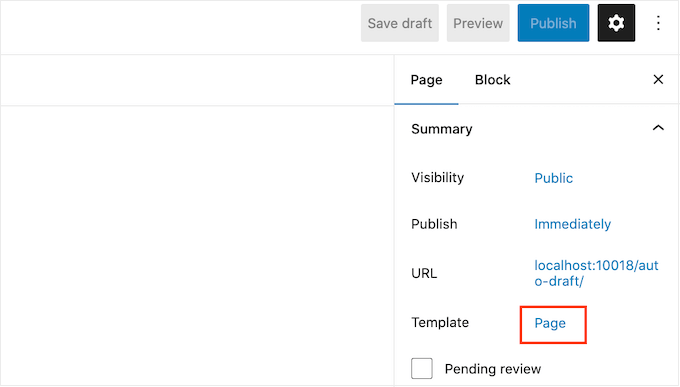
The options you see may vary depending on your WordPress theme, but the text will typically show ‘Page,’ ‘Default template,’ or similar.
In the popup that appears, click on the ‘Add Template’ icon.

In the popup that appears, type in a name for your template and then click on ‘Create.’
The name is just for your reference so you can use anything you want.
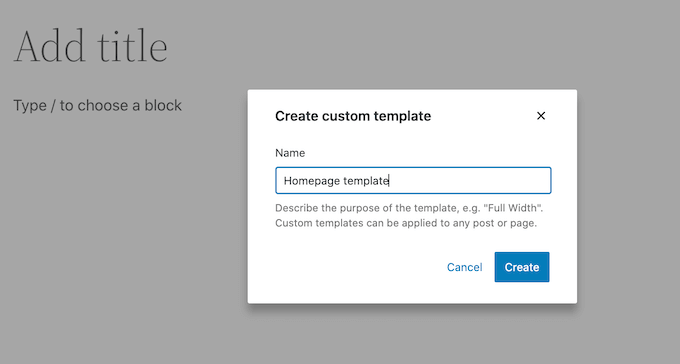
This launches the template editor, which works similarly to the WordPress content editor.
To add blocks to the custom page design, simply click on the blue ‘+’ button. You can then drag and drop to add blocks.
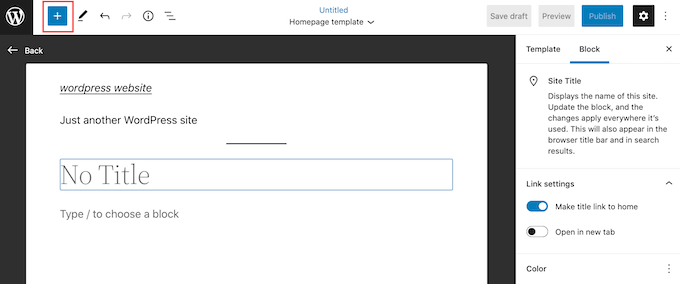
You can add content to a block or change its formatting using the familiar WordPress post editing tools. For example, you can type text into a ‘Heading’ block, apply bold formatting, or change text from H2 to H3.
You can also create a custom page using patterns. Patterns are collections of blocks that are often used together, such as a list of events, an image with a caption, or a pricing table.
The patterns you see will vary depending on your WordPress theme, but you can see which patterns are available by clicking on the ‘Patterns’ tab.
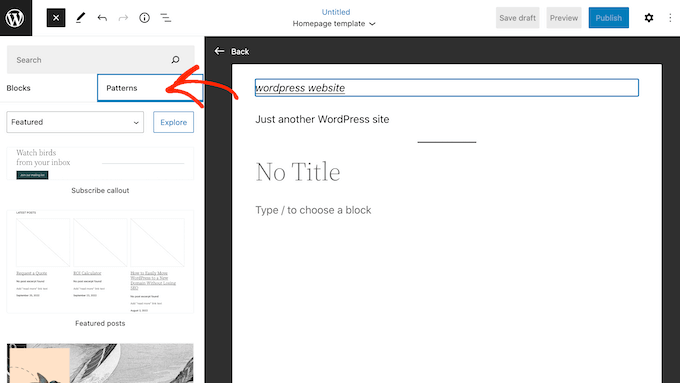
You can either drag and drop a block pattern onto your layout or click on the pattern to add it to the bottom of your template. When you’re happy with how the template looks, click on the ‘Publish’ button and then click on ‘Save.’
You can now apply this template to any page. Simply open the page in the editor, and then click on the text next to ‘Template.’
In the popup that appears, select the template the template you just created.
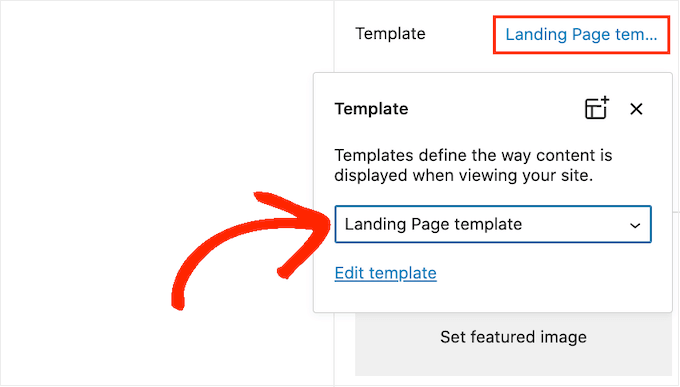
With that done, you can add content to the page, just like any other WordPress page.
Method 2. How to Create a Custom Page Using the Full-Site Editor (Block-Based Themes Only)
If you’re using a block-based theme, then you can also create a custom page using the full-site editor. This allows you to change the layout of an individual page, without creating a custom template.
With that in mind, this is a good choice if you want to create a completely unique design that you won’t reuse on any other page.
To get started, simply create the page as normal by going to Pages » Add New. You can then type in a title, add categories and tags, upload a featured image, and make any other changes you want.
When you’re happy with the basic page, save your changes and then head over to Appearance » Editor.
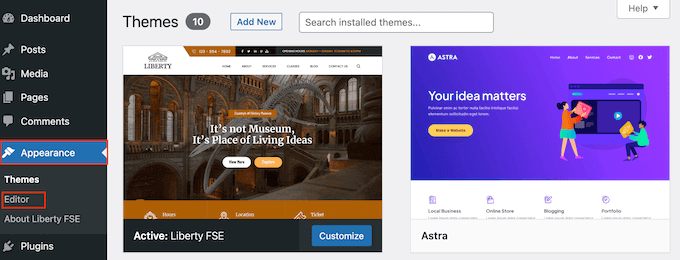
By default, the full site editor shows your theme’s home template.
In the left-hand menu, click on ‘Pages.’
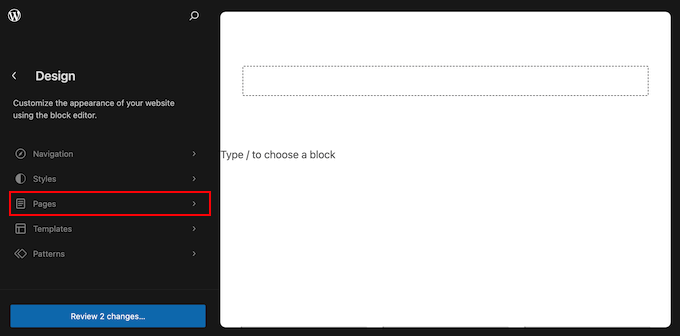
You’ll now see all the pages you’ve created on your WordPress website.
Simply find the page you want to re-design and give it a click.
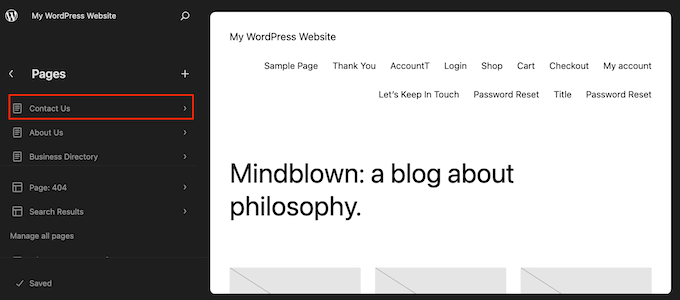
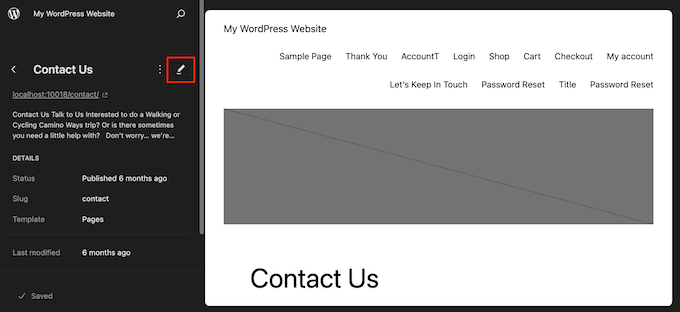
WordPress will now show a preview of the design.
To go ahead and edit this template, click on the small pencil icon.
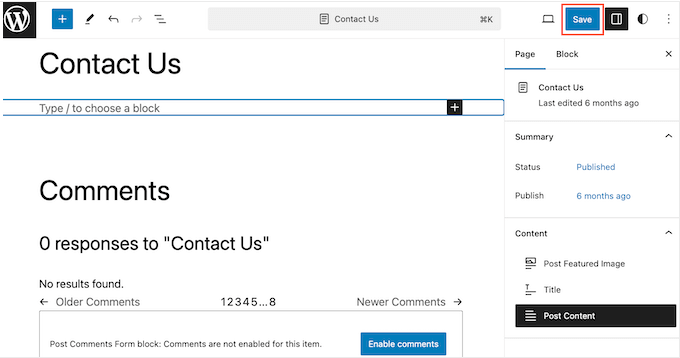
You can now edit the page’s layout using the full-site editor tools. For example, you can click on the blue ‘+’ button to add new blocks, or click to select any block you want to customize.
When you’re happy with the changes you’ve made, click on the ‘Save’ button.
Now, if you visit this page on your website you’ll see the new page design in action.
Method 3. Create a Custom Page in WordPress using SeedProd (Recommended)
In the past, you created a custom page by writing code, which wasn’t very beginner-friendly. If you made a mistake with your HTML, CSS, or PHP code, then it could cause common WordPress errors or even break your site completely.
With that in mind, we recommend using a page builder instead.
SeedProd is the best drag-and-drop page builder for WordPress. It comes with more than 350 templates, allowing you to create custom pages without writing any code.
If you’re using a custom page to get more conversions, then SeedProd works with many popular third-party tools you may already be using to get conversions. This includes top email marketing services, WooCommerce, Google Analytics, and more.
First, you need to install and activate SeedProd. For more details, see our step-by-step guide on how to install a WordPress plugin.
Note: There’s also a free version of SeedProd that allows you to create custom pages no matter what your budget. However, for this guide, we’ll be using SeedProd Pro since it has lots more templates and integrates with all the best email marketing services.
After activating the plugin, SeedProd will ask for your license key.
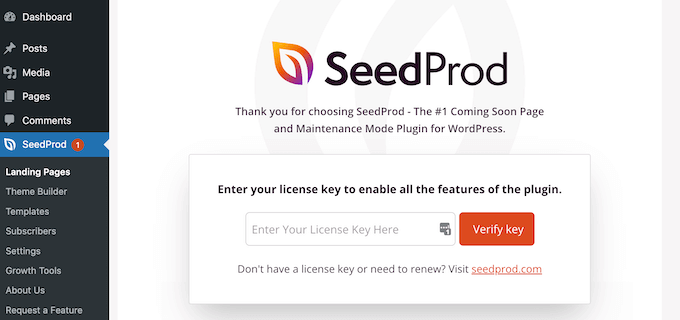
You can find this information under your account on the SeedProd website. After entering the key, click on the ‘Verify Key’ button.
Choose a Custom Page Template
Once you’ve done that, go to SeedProd » Landing Pages and click on the ‘Add New Landing Page’ button.
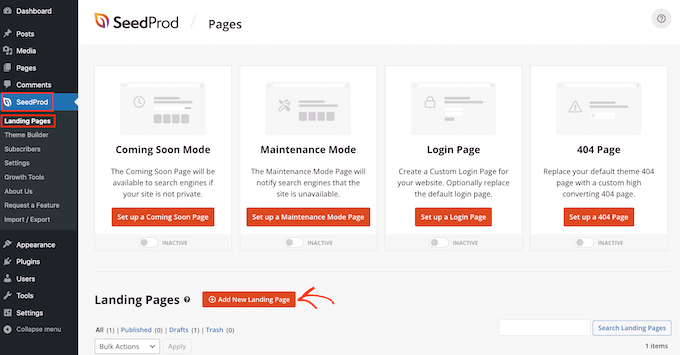
You can now choose a template for your custom page.
SeedProd’s templates are organized into different campaign types such as ‘lead,’ ‘squeeze,’ and ‘coming soon.’ You can click on the tabs at the top of the screen to filter templates based on campaign type.
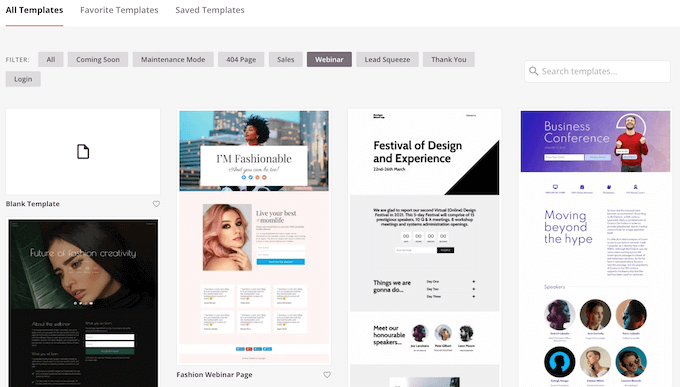
If you want to start from scratch, then SeedProd also has a blank template that you can use.
To take a closer look at any design, simply hover your mouse over that template and then click on the magnifying glass icon.
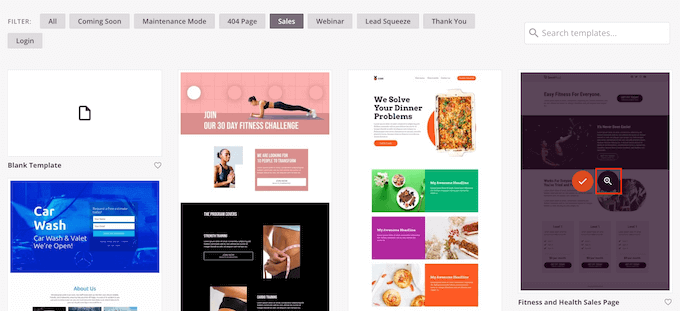
When you find a design you like, click on ‘Choose This Template.’ We’re using the ‘Course Sales Page’ template in all our images, but you can use any template you want.
Next, go ahead and type in a name for the custom page. SeedProd will automatically create a URL based on the page’s title, but you can change this URL to anything you want.
A descriptive URL will also help search engines understand what the page is about so they can show it to the right users, which will improve your WordPress SEO.
To give your custom page the best chance of appearing in relevant search results, you may want to add any keywords that are missing from the URL. For more details, please see our guide on how to do keyword research.
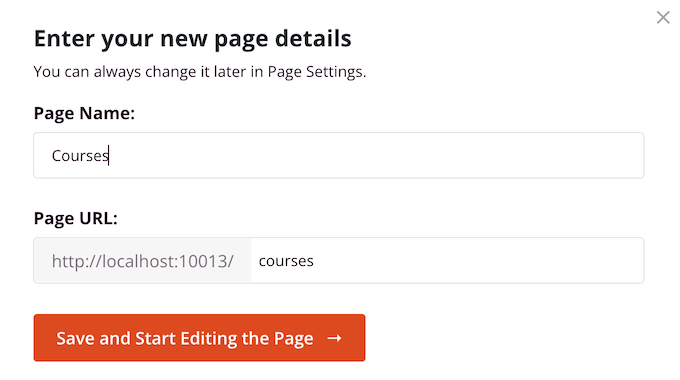
When you’re happy with the information you’ve entered, click on the ‘Save and Start Editing the Page’ button.
Design Your Custom Page
SeedProd will now open your chosen template in its user-friendly drag and drop editor. You’ll see a live preview of your page to the right, and some block settings to the left.

To customize a block, simply click to select it in the page editor. The left-hand toolbar will then show all the settings for that block.
In the following image, we’re changing the text inside a ‘Headline’ block.
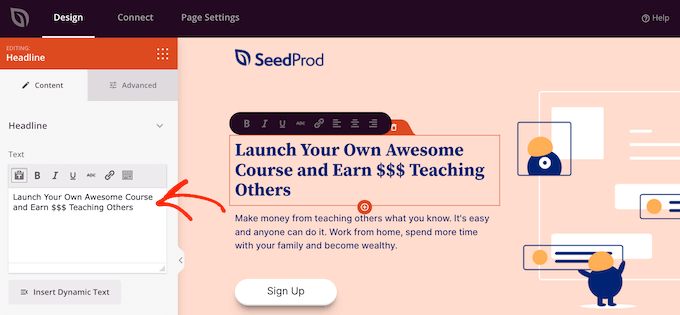
You can format the text, change its alignment, add links, and more using the settings in the left-hand menu.
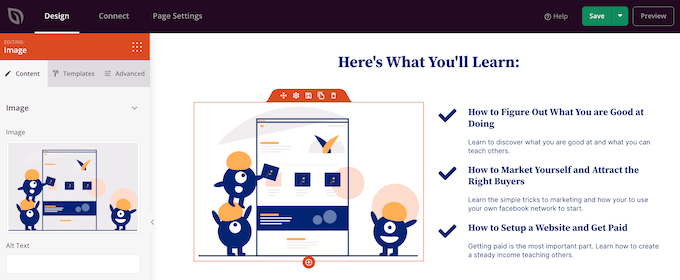
It’s also easy to edit images using the SeedProd page builder. Simply click on any ‘Image’ block and use the settings to add alt text, upload a new image, or make any other changes.
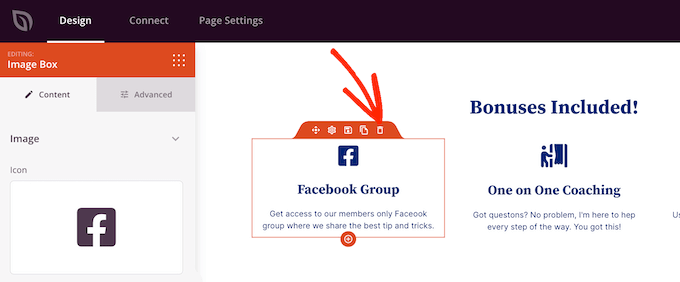
If you want to remove a block from the custom page, then simply click to select that block.
Then, click on the trash can icon in the mini toolbar.
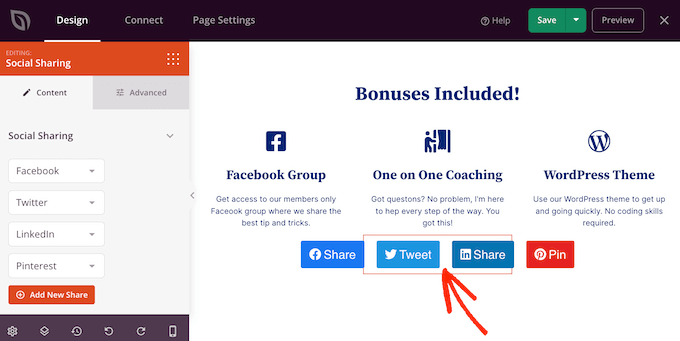
To add new blocks to your design, just find a block in the left-hand menu and then drag it onto the editor.
You can then click to select the block and make any changes in the left-hand menu.
SeedProd also comes with ‘Sections,’ which are rows and block templates that can help you create a custom page, fast. For example, if you were designing a Google Ad landing page, then you might use SeedProd’s ready-made Hero, Call To Action, or Features sections.
To see all the available sections, simply click on the ‘Sections’ tab.
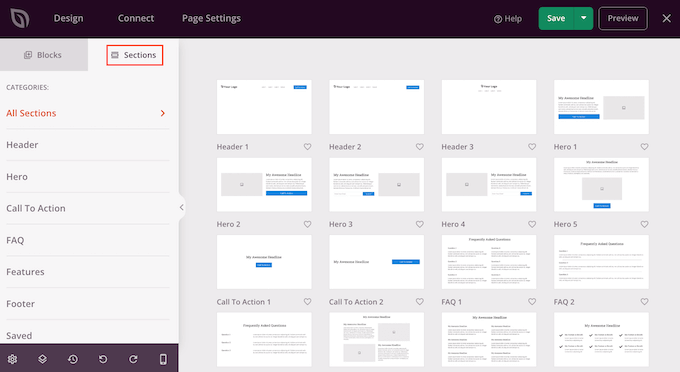
To take a closer look at a section, hover your mouse over it and then click on the magnifying glass icon.
When you find a section that you want to add to your design, simply move the mouse over it and then click on the little ‘+’ icon.
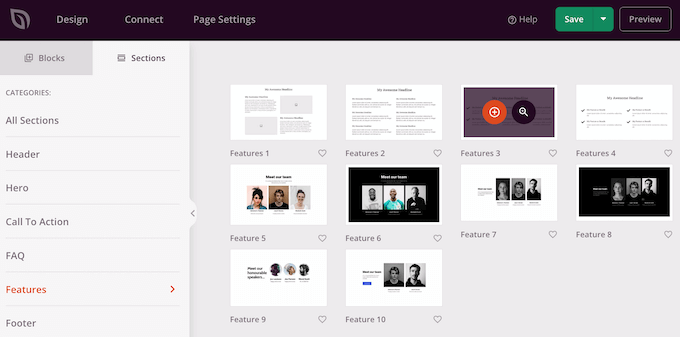
This adds the section to the bottom of your page. You can move both sections and blocks around your design using drag and drop.
If you make a mistake or change your mind, then don’t worry. You can reverse your last change by clicking on the ‘Undo’ button at the bottom of the left-hand toolbar.
Here, you’ll also find a redo button, revision history, layout navigation, and global settings.
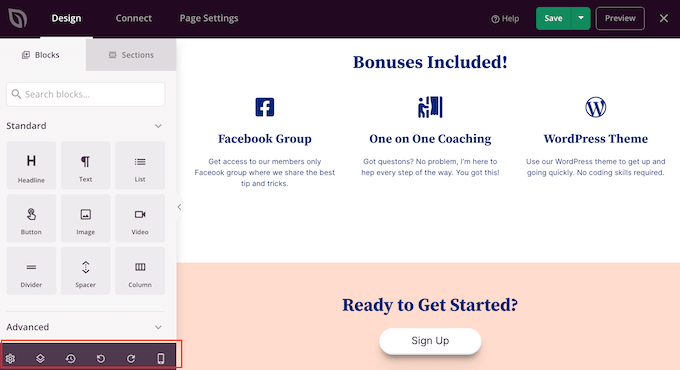
These extra buttons make it easy to create a custom page in WordPress.
At the bottom of the toolbar, you’ll also find a mobile preview button that allows you to view the mobile version of the custom page.
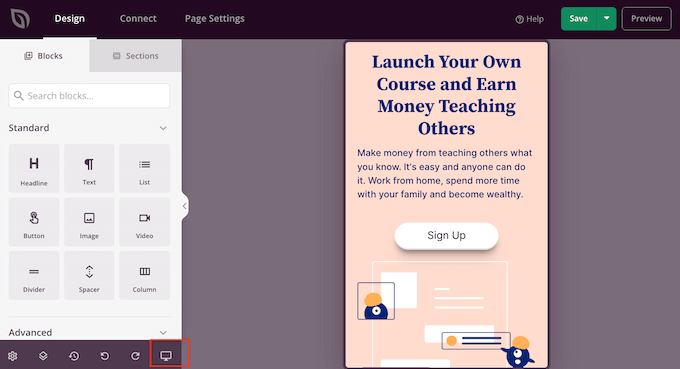
This can help you design a custom page that looks just as good on mobile devices as it does on your computer.
When you’re happy with the custom page, it’s time to publish it by clicking the dropdown arrow next to ‘Save’ and then selecting the ‘Publish’ option.
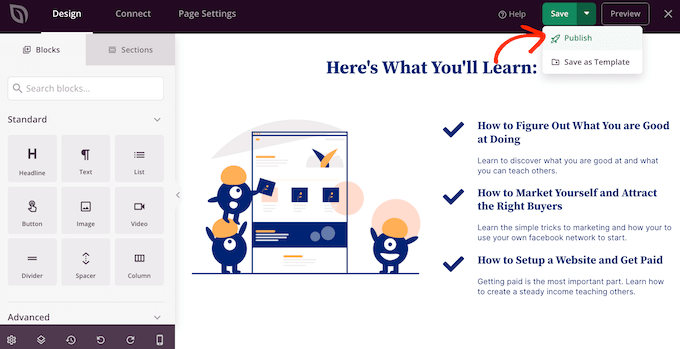
Your custom page will now go live on your WordPress blog.
If you want to edit the custom page at any point, then just go to SeedProd » Landing Pages in your WordPress dashboard. You can then find the page that you want to change and click on its ‘Edit’ link.
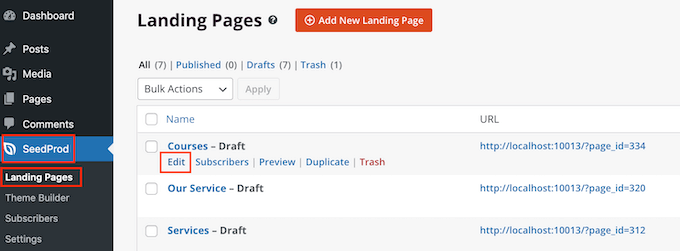
This will open the design in SeedProd’s editor, ready for you to make your changes.
Method 4. Using Thrive Architect to Create a Custom Page in WordPress
You can also create a custom page using Thrive Architect. Thrive Architect is another popular drag-and-drop page builder for WordPress.
It comes with over 300 professionally-designed templates that are designed to help you get more conversions.

First, you need to install and activate the Thrive Architect plugin. For more details, see our step-by-step guide on how to install a WordPress plugin.
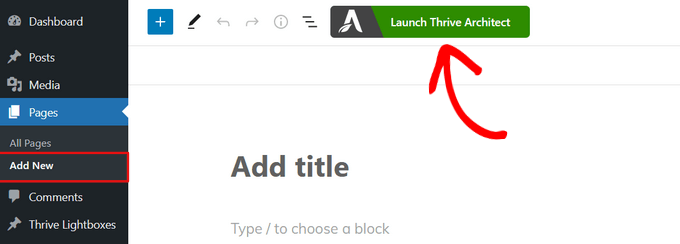
Upon activation, go to Pages » Add New in your WordPress admin dashboard to create a custom page. Then, click on the ‘Launch Thrive Architect’ button.
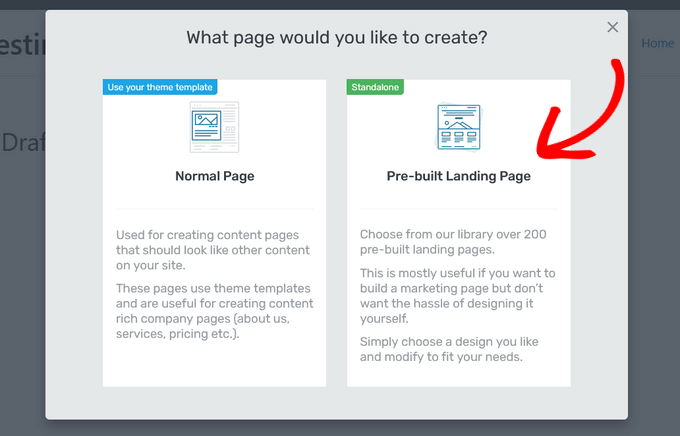
Next, you can choose whether to create a normal page or a pre-built landing page.
We recommend clicking on ‘Pre-built Landing Page’ as it gives you access to all the Thrive landing page templates. These templates are fully customizable, so you can fine-tune them to suit your WordPress website.
When you find a set you like, simply click to select it.
In the following image, we’re selecting ‘Smart Landing Page Sets.’
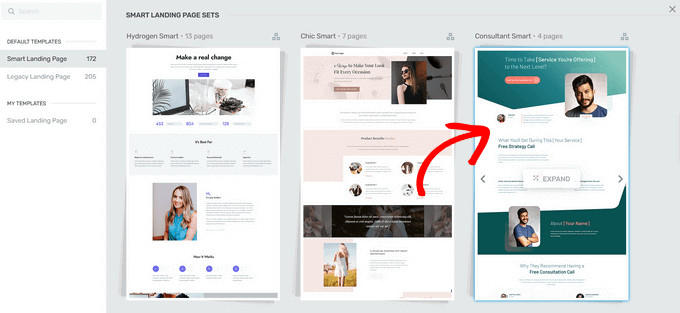
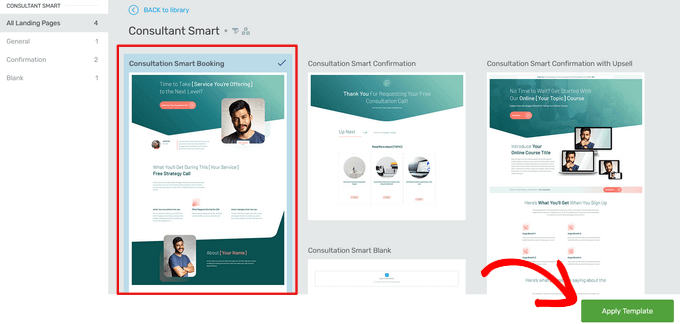
On the next screen, you need to choose a specific template from the set.
Select a template by clicking on it and then hitting the ‘Apply Template’ button.
This will open the template in the Thrive Architect Editor. From here, you can easily customize the page template to match your blog, website, or online store.
As an example, you can change the ‘Heading’ by clicking on it and then typing in your own custom messaging.
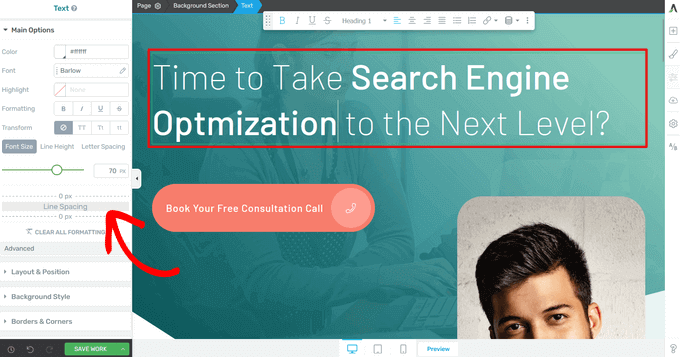
You’ll now see all the customization options in the left-hand menu. Here, you can change the typography, font size, color, formatting, and more.
From the left-hand panel, you can also adjust other settings for your custom page, such as the layout, background style, borders, animations, and scroll behavior, just to name a few.
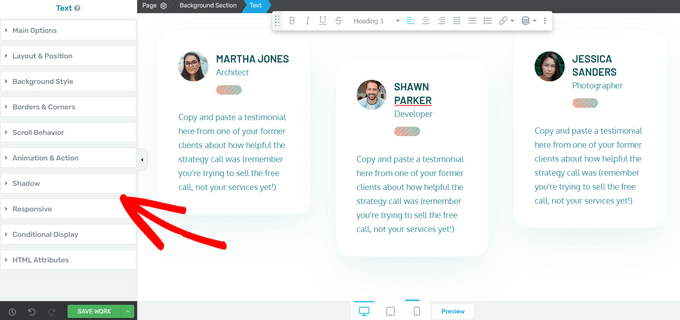
Similar to SeedProd’s blocks, Thrive Architect comes with many pre-built elements you can add to your custom page.
To add a new element to the page, click on the ‘Add Element (+)’ button on the right-hand side of the screen.
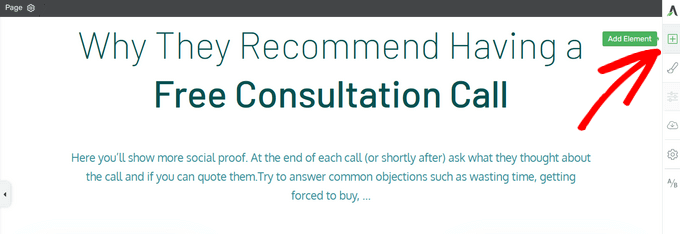
You can now choose from elements like images, buttons, lead generation forms, pricing tables, countdown timers, and more.
To add an element, simply drag it from the right-hand menu and drop it onto your page.
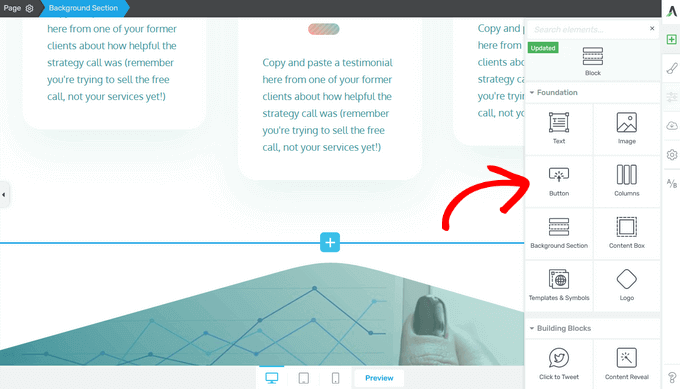
Again, you can edit any of the new elements you add to your page by clicking on them.
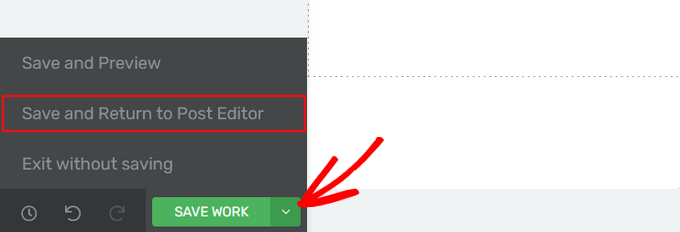
When you’re happy with how the page looks, click on the arrow (^) button next to the ‘Save Work’ button. Then, click the ‘Save and Return to Post Editor’ option.
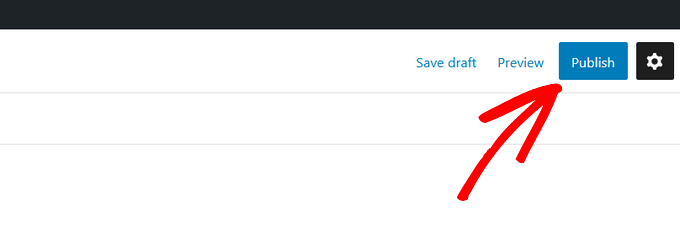
You can then save the page as a draft, or publish it so it shows up on your WordPress website.
Once your custom page is published, you can visit your site to see it in action.
We hope this article helped you learn how to create a custom page in WordPress. You may also want to see our guide on how to create a landing page with WordPress and how to split post or page title in WordPress.
If you liked this article, then please subscribe to our YouTube Channel for WordPress video tutorials. You can also find us on Twitter and Facebook.




Dennis Muthomi
I prefer the SeedProd method because it comes with over 350 templates to choose from, making it easy for me to find a design that matches my website.
The method using block editor does not have templates to start with.
Rajee Pandi
awesome. I think it is not free. Thank you so much.
WPBeginner Support
There is a paid option but 1 and 2 are free options
Admin
Moinuddin Waheed
Using seedprod for making a custom page is promising as it takes less efforts and makes awesome looking design in no time.
Thanks for this guide, I have been already using seedprod to many of my websites and utilising this feature.
Brend
Thanks for the great article. I often use your site for assistance with WordPress.
I followed your tutorial to manually create a new template file. When selecting the template there is no CSS attached to the page. Did I miss something?
WPBeginner Support
It would depend on the specific theme you’re using, if you check with your theme’s support they should be able to let you know why their CSS is not being applied to your page properly.
Admin
Muhammed
Perfect article.
I have a q
can i make a custom page and then make it the main website page or Home page?
I don’t like to have too much content in my firs page and i want to make every thing in the main home page by my own ( i mean with HTML, CSS, JS ).
is there any way to do that?
WPBeginner Support
For customizing everything in that manner you would want to look at the method for manually creating a page template
Admin
Patricia Reed
Is there a way to use an existing page (including all its content and images) and use this plugin to remove the menu and title link?
WPBeginner Support
We show two plugins in this guide, you can certainly recreate a page using them for what it sounds like you want.
Admin
Teresa Cuervo
Excellent Article!
Just one question. After you finish the landing page do you still need the plugin in the plugin folder or is it safe to delete after you create the page.
WPBeginner Support
Yes, if you used the plugin method you would want to keep the plugin.
Admin
Edmond
Hello,
Thank you for the easy tutorial. It worked so well.
I have one question though. How do you make the custom page you create have its own separate sitemap on the website´s sitemap.xml? Like for example in wpbeginner.com´s sitemap the /hosting-sitemap.xml etc. is it a custom page?
WPBeginner Support
It is a category for our custom post type which is why it has that page.
Admin
Jorge
I´ve already done this before and it worked, I know that many things can remove the file from where it was but my problem is that it doesn´t allow me to do it again. When I upload the custom page to the server it doesn´t appear on the template options when editing the page. Does someone knows how to solve this?
WPBeginner Support
The most common reason you would want to check is that you haven’t used the same template name and that you’ve uploaded the file to the correct location.
Admin
AJAY KUMAR
How do we change header path, as I have 2 different headers, so in my custom template I want to use other header, please let me know, how to call or bring header
WPBeginner Support
That would depend on your specific theme and would require some coding knowledge that would not be beginner-friendly.
Admin
Lance
Beginner? seriously! No beginner could use this blog to get started.
WPBeginner Support
This is more of a beginner developer article that we had users request. If you wanted a more beginner-friendly way to customize a page we would recommend taking a look at our post below on page builders:
https://www.wpbeginner.com/beginners-guide/best-drag-and-drop-page-builders-for-wordpress/
Admin
Bas
What happens to your custom templates when you update your theme? Since you’re creating that new template within the theme folder. Will the new template be gone?
WPBeginner Support
If you are concerned about the changes being lost, we would recommend creating a child theme to prevent the loss of any changes using our guide below:
https://www.wpbeginner.com/wp-themes/how-to-create-a-wordpress-child-theme-video/
Admin
Vivek kushwaha
Really Helpful for me
WPBeginner Support
Glad we could be helpful
Admin
Zack
Hi,
I can’t seem to find page.php in wordpress twentytwenty. Any idea where the template file?
Thanks
WPBeginner Support
That theme uses the singular template, you can create your own page.php but for a better understanding of why it works without that template you would want to take a look at our article here:
https://www.wpbeginner.com/wp-themes/wordpress-template-hierarchy-explained/
Admin
AmecuxDEV
I really appreciate your help that’s really exactly what I was looking for, thanks so much!
WPBeginner Support
You’re welcome, glad our guide was helpful
Admin
ammar
Hi,
Great article ! I already create the page template and now I want to make this page only page that does’nt have sidebar when i use this page template. How? Can you help me?
Thank you.
WPBeginner Support
It would depend on your current theme, if you reach out to your theme’s support they should be able to assist
Admin
Pete Zajonc
Hi-
So close. I have zipped my php file created in notpad++. The contents are the 1 line of code at the top of this article. I click add new theme and upload the zip file. When I click install it starts ok but ends in error. Can you suggest a fix? How do I add the style.css stylesheet? (Sorry, I’m a newbie!)
WPBeginner Support
You would want to go through the article again, this guide is for creating a new page for your current theme not an entirely new theme
Admin
Faby
Hi, thanks for the article. Is there a way to associate a CSS file to a custom page? Thank you.
WPBeginner Support
You would need to target the page ID in your custom CSS
Admin
Brendan
exactly what I was looking for, thanks!
WPBeginner Support
Glad our guide could help you
Admin
Okoji
Thanks for this. It was helpful.
I want to know if there is a way to remove the wordpress header without messing up the page.
WPBeginner Support
It would depend on your specific theme for any issues that would cause. You would likely want to test on a local installation or on a staging environment to see if it would break anything.
Admin
manoj
why we use page templates insted of page edit screens
WPBeginner Support
Page templates control the area around the content, the editor under Pages>Add New is for the content on the page.
Admin
Jass
Perfect Article
WPBeginner Support
Thank you
Admin
terry
Thanks for this tutorial! Is it possible to edit the custom page with Elementor? I get an error “The preview cannot be loaded.”
WPBeginner Support
You may need to recreate the custom page template with Elementor or reach out to Elementor’s support and they should be able to assist
Admin
Val
Hi – my problem is the template dropdown menu does not display. The theme displays only: Page attributes / parent / order — whereas I need it to display: Page attributes / parent / Template / order. Do you know how I can get the templates dropdown to display?
WPBeginner Support
Your theme may not have page templates by default as otherwise, they would be under the Page Attributes section.
Admin
Adrian
Thanks for this wonderful tutorial
WPBeginner Support
You’re welcome
Admin
shadab awan
thank you admin for always writing great articles on WordPress and SEO.i have a question to ask i hope you help me.
Can we use PHP, Osclass Or Other themes in a WordPress Created classified website?
Thanks
WPBeginner Support
You can use almost any theme to create a site even a classifieds website
Admin
Ramsey
Please, i need your assistance, i have my website build myself but i am having issues which i know you can help me cause i built my site watching all your videos and article. i want to create the home page then use the home on my MENU on my website so that when people finish reading an article and they want to return home they can easily click on home and return to the home page. please, i need your help on this.
WPBeginner Support
To set up your navigation menu, you would want to take a look at our guide here: https://www.wpbeginner.com/beginners-guide/how-to-add-navigation-menu-in-wordpress-beginners-guide/
Admin
Steven
I don’t see the Template drop-down in the page attributes?
WPBeginner Support
If you’re using the block editor then you would want to ensure you’re editing the document. If it is not displaying correctly then you would want to double check the file name and that the file was correctly added to your files.
Admin
Sara
thank you very much. you saved my day.
god bless you.
WPBeginner Support
Glad our article could help
Admin
Marie
Hi, maybe a stupid question but do I have to create a child theme for this? Or is it protected from theme updates because it is a separately built page?
WPBeginner Support
It would be best to use a child theme for this as it would be a file not found in the most recent version of the theme when you’re updating
Admin
Mannan Afzal
Really Helpful for me
WPBeginner Support
Glad it was helpful
Admin
rina
Hi,
Is it possible to add my php template to Elementor?
Thanks
Pedro
Hi! And thanks for your incredibly helpful and resourceful page! I’ve read lots of articles and learned a lot around your site
Using your guide I created my custom page for my “blog” section (page with the most recent posts that doesn’t have the slider or other features that the Home page has).
My website is bilingual, so I’d like to translate this custom page to my second language… and I can’t find the way to do it.
Your help would be much appreciated.
Thanks in advance!
Khalil
very simple and clear post
nidhi bhatt
hi i want to add html page not php page as a custom template can it be possible ?
Andrew
You can add an HTML page to the website but I wont be a part of the theme. It has to be a .PHP to be part of the theme.
Catherine
I had the same problem. Try another theme, and make sure you upload the file in the right directory. You can see the directory on top when you add a sample page.
OuadiI
please how can i do that when default template option isn’t appearing in dashbord?
thanks
kartik rawal
at the top you see screen options just click on it and check the box says page attributes and now you can see template option
Venky
Thank you for the detailed explanation.
Rakesh Roy
Nice and helpful instructions, but i want to load template from my plugin, when i add the .php file inside my plugin wordpress not showing the drop down .
Isabelle Hunter
Thank you!!! This is so clear and simple and straight forward. I was able to set up a new page temple in under 5 min. I really appreciate what you guys do – and whoever did this video has a great voice and speaks very well for instructions.
Edgar Mlowe
Thanks a lot for this, this post helped while i was creating a custom them which needed me to create a number of custom pages. thumbs up for this!
Jens Eckervogt
Great tutorial!
I love to see how do you have to create custom pages Like table ( flex-wrap with div or about page.
I already made AboutMe-Page with css-embedded picture and more custom pages. That is really excellent! Wordpress makes us rich, right?
Wordpress is like darling / sweetheart Because we want make our blog-websites with money from internet.
And how do I fix contactform of WPForm? Why does WPForm not send e-mail to my google mail. I want try if it works.
Thanks for nice explanations with your nice videos. I am really happy because you save my life and make me reality.
Best kind regards,
Jens Eckervogt
WPBeginner Support
Hey Jens,
Please see our article on how to fix WordPress not sending emails issue.
Admin
Dave
Are plugins compatible with custom page templates?
For example, if I were to add custom content directly to my page template via a text editor, then upload and select it for the appropriate page (say contact page), how would a plugin (say a contact form), be placed into the custom page?
Thanks
WPBeginner Support
Hi Dave,
Yes they are. Often if you have to add something to a page template, you can do so by using the shortcode or template tags provided by the plugin.
Admin
Erica
Very helpful! Thankyou!
Vandana
Hi I’m converting HTML template to WORDPRESS,in the i have nave menu like Home,About Us,Courses,Gallery etc,i’m not getting anything when i click on these pages,please help me out
Guatham
You are not getting anything because you should add default navigation links to your website.
Shihab k
i have a custom template page but i can’t connect with menu in normal html menu
Paddy O
Hey.. I needed this to create a page with no header and footer etc different to my template and with a little tweaking it worked perfeclty. Great. Thanks, P
Manpreet Kaur
Hello, Thanks Wpbeginner for all the tutorials. With your tutorials I build a website for the very first time by myself and its going great. I learned so much from you guys.
Jason
Hey i want to make a Wordpress page that goes like this : domain.com/something/PageHere
I cant do that by edditing the permalink, any advice?
Juned
Thank You Very MUCH!!!!!!!!!!!!